ESU License Activation Detection

Summary

This script performs the checks for the ESU license activation detection and stores the info in the device-level custom field ESU Status.

Sample Run
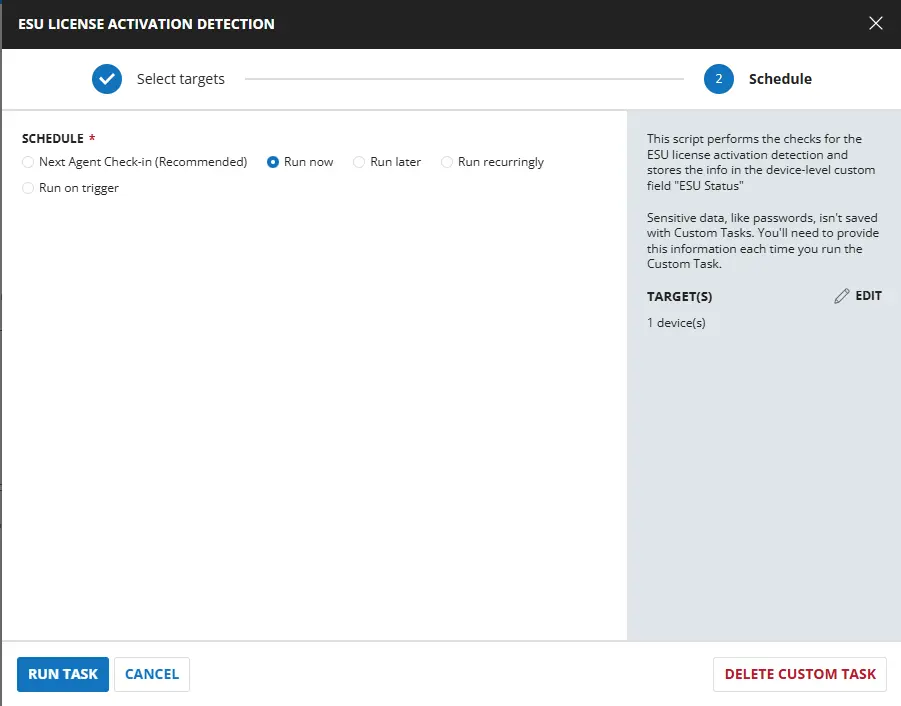
Sample Run

Dependencies

Task Creation

Script Details

Step 1

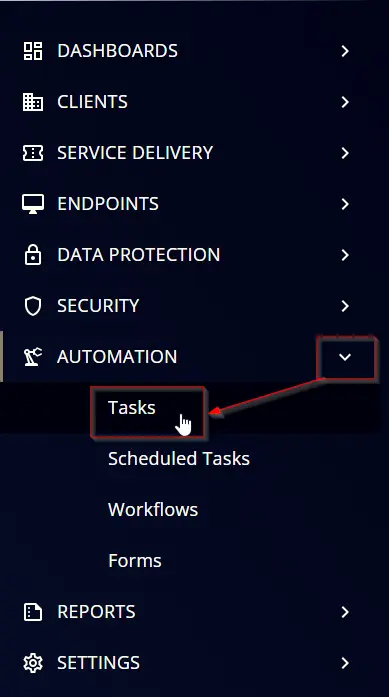
Navigate to AutomationTasks
step1

Step 2

Create a new Script Editor style task by choosing the Script Editor option from the Add dropdown menu
step2

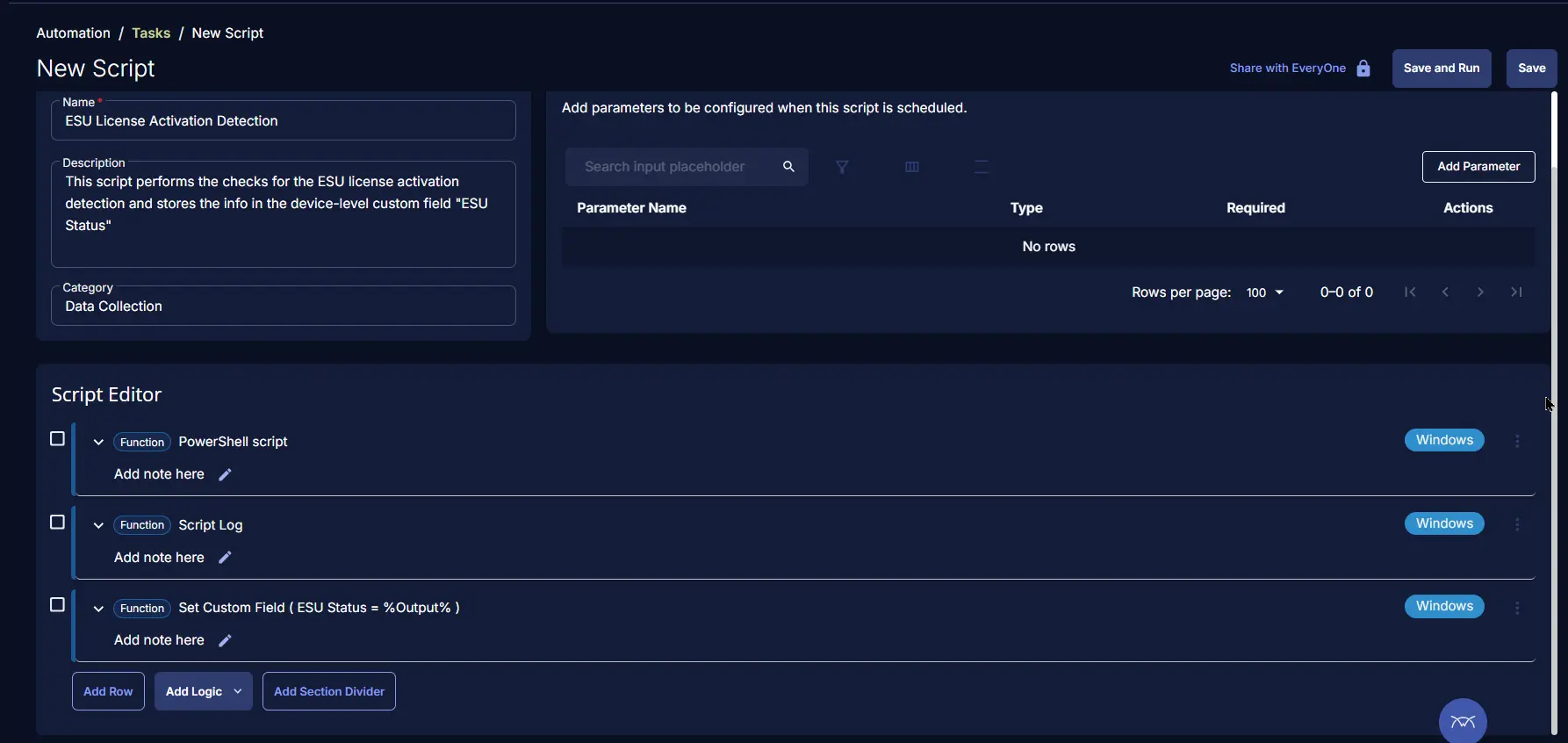
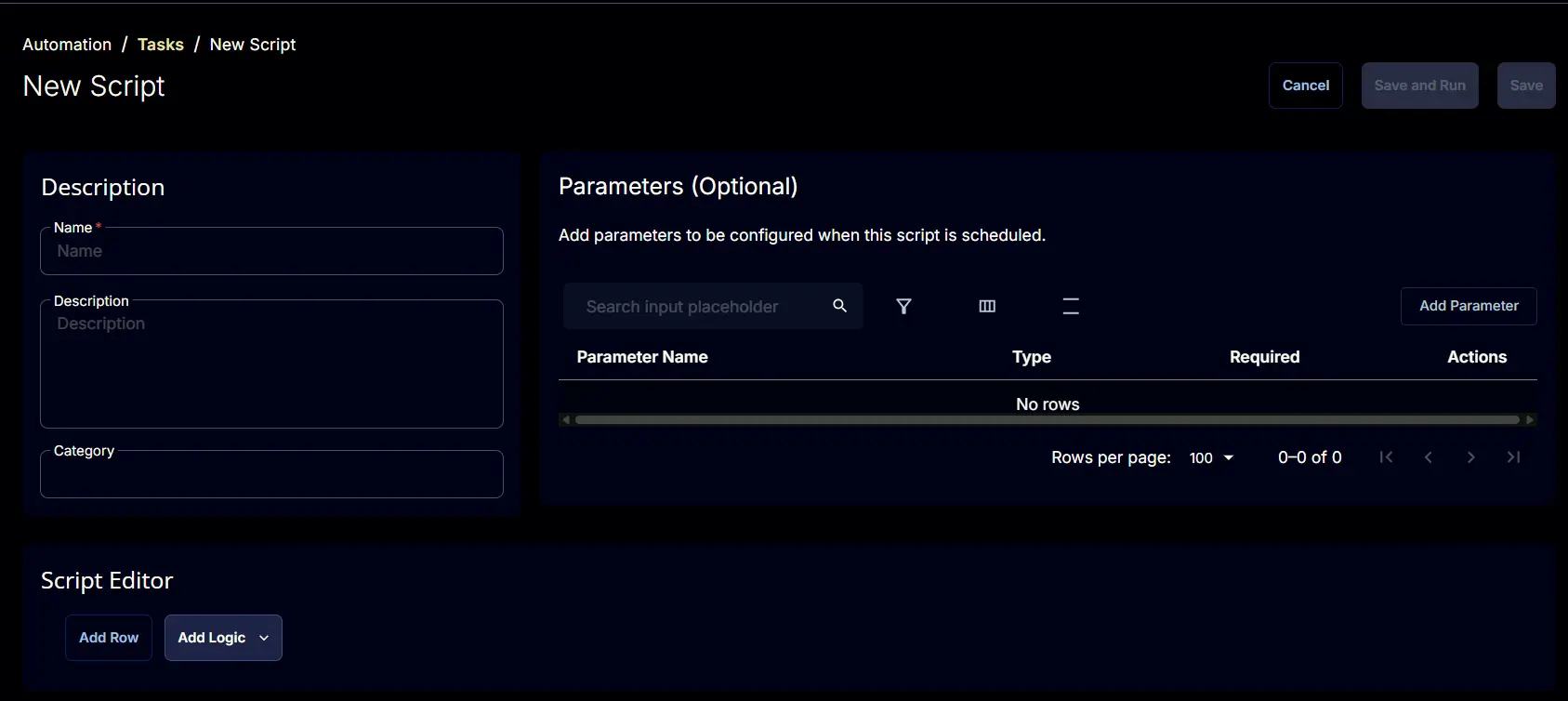
The New Script page will appear on clicking the Script Editor button:
step3

Step 3

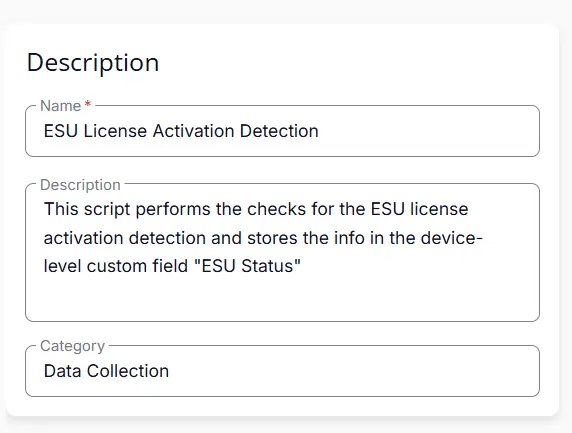
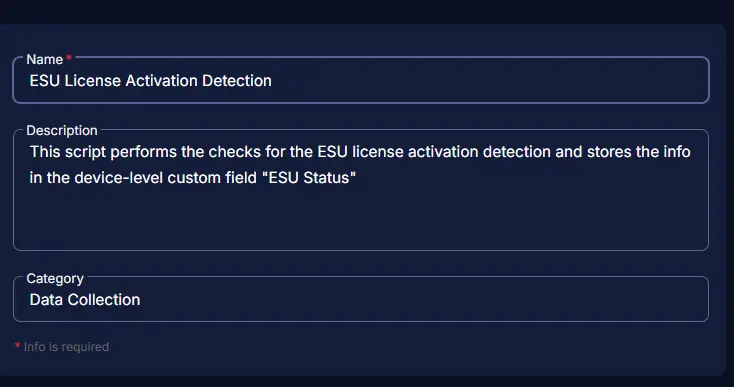
Fill in the following details in the Description section:

  • Name: ESU License Activation Detection
  • Description: This script performs the checks for the ESU license activation detection and stores the info in the device-level custom field "ESU Status"
  • Category: Data Collection

Description

Script Editor

Click the Add Row button in the Script Editor section to start creating the script
AddRow

A blank function will appear:
BlankFunction

Row 1 Function: PowerShell Script

Search and select the PowerShell Script function.

PowerShell Function Selected

The following function will pop up on the screen:
PowerShell Function Example

Paste in the following PowerShell script and set the Expected time of script execution in seconds to 300 seconds. Click the Save button.
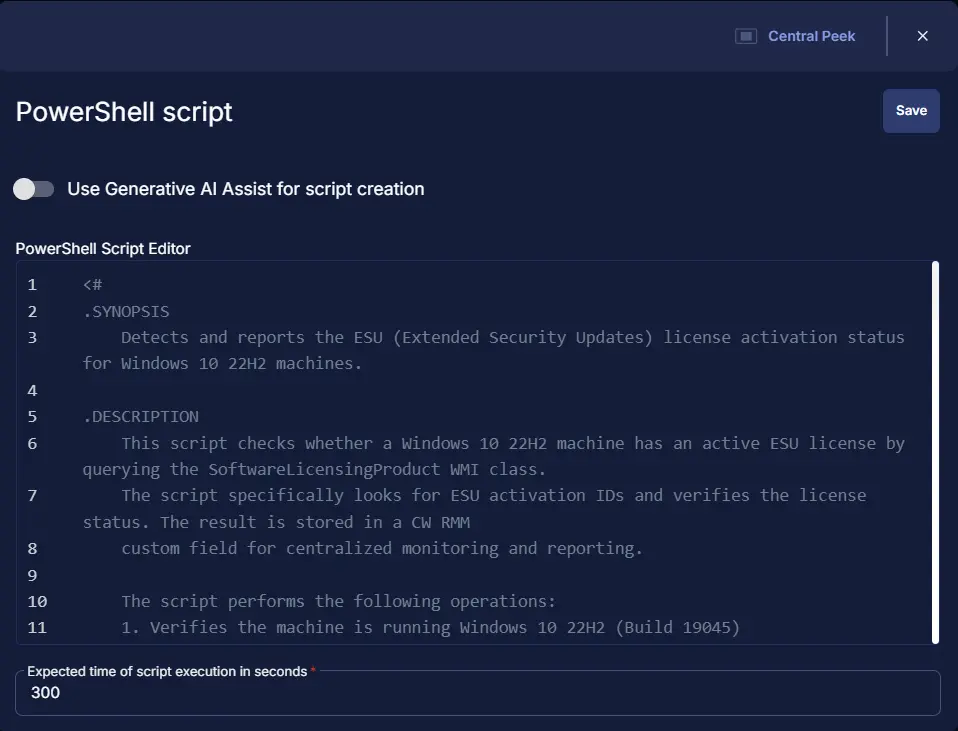
<#
.SYNOPSIS
Detects and reports the ESU (Extended Security Updates) license activation status for Windows 10 22H2 machines.

.DESCRIPTION
This script checks whether a Windows 10 22H2 machine has an active ESU license by querying the SoftwareLicensingProduct WMI class.
The script specifically looks for ESU activation IDs and verifies the license status. The result is stored in a CW RMM
custom field for centralized monitoring and reporting.

The script performs the following operations:
1. Verifies the machine is running Windows 10 22H2 (Build 19045)
2. Queries the SoftwareLicensingProduct WMI class for ESU license information
3. Checks for specific ESU activation IDs with active license status
4. returns the result for the 'ESU Status' custom field in CW RMM

.PARAMETER None
This script does not accept any parameters. It operates on the local machine where it's executed.

.EXAMPLE
.\Get-ESULicenseActivationDetection.ps1
Executes the ESU license detection and returns the result for a custom field

.OUTPUTS
String. The script returns one of the following values:
- "ESU Activated" - ESU license is active and properly configured
- "ESU Not Activated" - No active ESU license found
- "Not Windows 10 22H2" - Machine is not running the supported Windows version
- "PowerShell Failure" - Error occurred while querying WMI data

.LINK
https://learn.microsoft.com/en-us/windows/whats-new/enable-extended-security-updates
https://www.systemcenterdudes.com/deploy-windows-10-extended-security-update-key-with-intune-or-sccm/

.COMPONENT
Windows Management Instrumentation (WMI)
CW RMM
License Management

.FUNCTIONALITY
ESU License Detection
Windows Version Validation
Custom Field Management
#>

#region globals
$ProgressPreference = 'SilentlyContinue'
$WarningPreference = 'SilentlyContinue'
$InformationPreference = 'Continue'
#endRegion

#region Variables
$supportedBuild = 19045
$activationIds = @(
'f520e45e-7413-4a34-a497-d2765967d094',
'1043add5-23b1-4afb-9a0f-64343c8f3f8d',
'83d49986-add3-41d7-ba33-87c7bfb5c0fb'
)
#endRegion

#region OS Check
$build = (Get-CimInstance -ClassName 'Win32_OperatingSystem' -ErrorAction SilentlyContinue).buildNumber
if ($build -ne $supportedBuild) {
$value = 'Not Windows 10 22H2'
return $value
}
#endRegion

#region Check ESU License Status
try {
$esuLicense = Get-CimInstance -ClassName 'SoftwareLicensingProduct' -Filter 'partialproductkey is not null' -ErrorAction Stop |
Where-Object {
$_.LicenseStatus -eq 1 -and $activationIds -contains $_.Id
}
} catch {
$value = 'PowerShell Failure'
return $value
}
$value = if ( $esuLicense ) {
'ESU Activated'
} else {
'ESU Not Activated'
}
return $value
#endRegion

Script Example

Row 2 Function: Script Log

Add a new row by clicking the Add Row button.
Add Row

A blank function will appear.
Blank Function

Search and select the Script Log function.
Script Log Search

In the script log message, simply type %output% and click the Save button.
Script Log Save

Row 3 Function: Set Custom Field

Add a new row by clicking the Add Row button.
Add Row

A blank function will appear.
Blank Function

Search and select the Set Custom Field function.
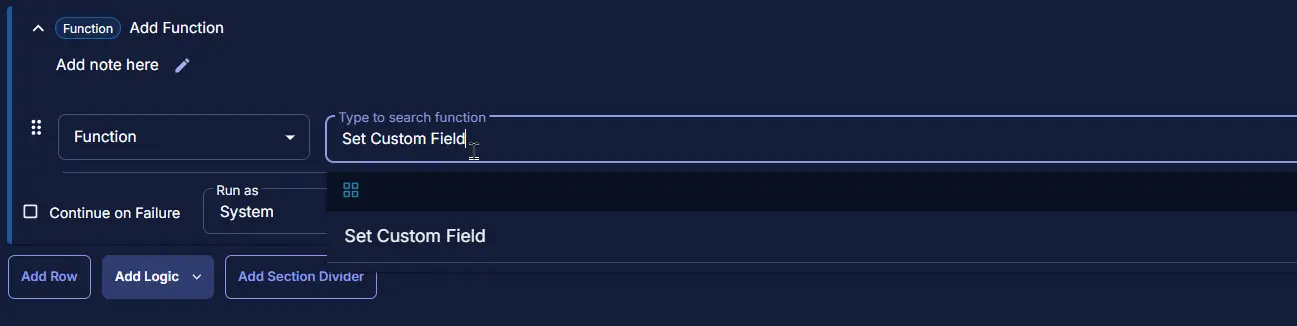
Set Custom Field Search

The following function will pop up on the screen:
Set Custom Field Example

  • Search and select the Computer-Level Custom Field ESU Status from the Custom Field dropdown menu.
  • Set %Output% in the Value field.
  • Click the Save button.

Set Custom Field Save 1

Set Custom Field Save 2

Save Task

Click the Save button at the top-right corner of the screen to save the script.
SaveButton

Completed Task

Completed Task

Output

  • Script Logs

Schedule Task

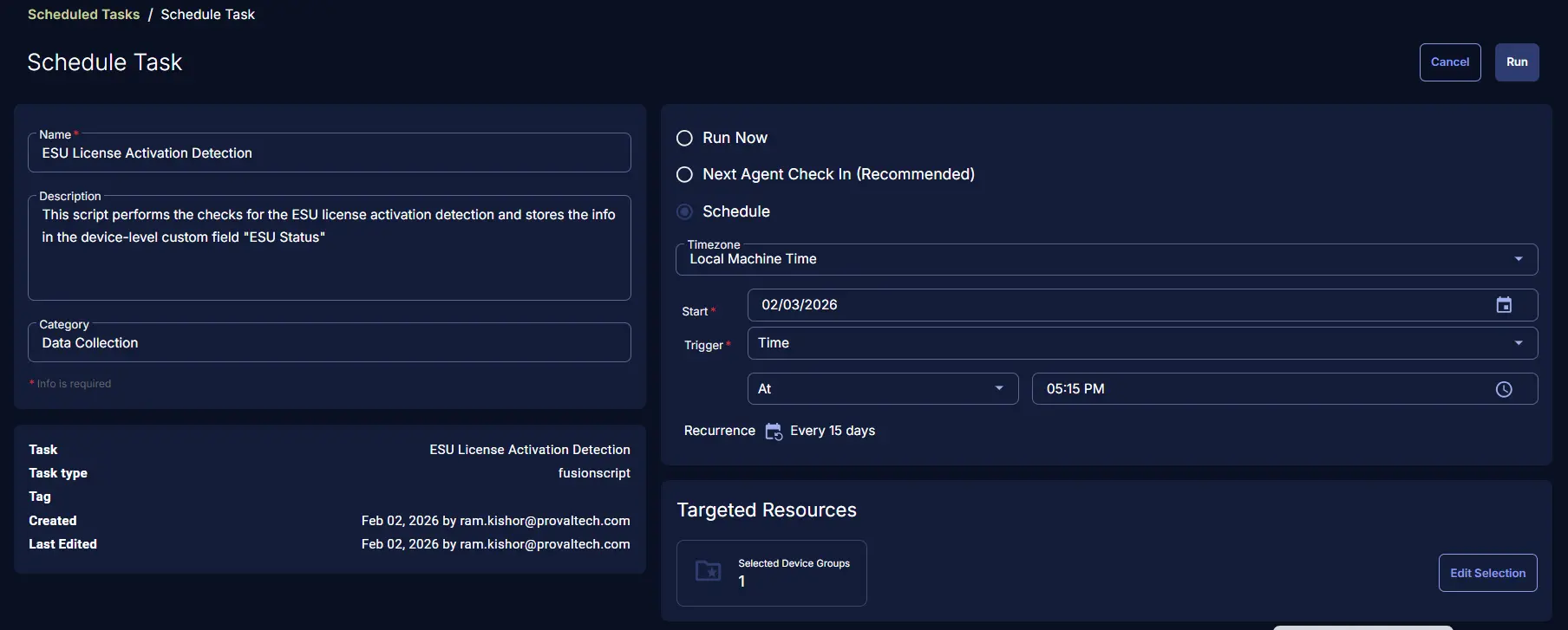
Task Details

  • Name: ESU License Activation Detection
  • Description: This script performs the checks for the ESU license activation detection and stores the info in the device-level custom field "ESU Status".
  • Category: Custom

Description

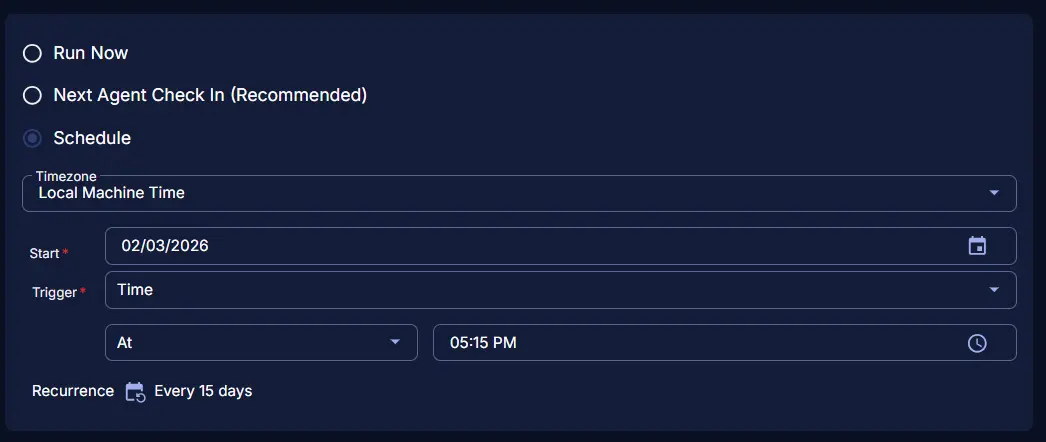
Schedule

  • Schedule Type: Schedule
  • Timezone: Local Machine Time
  • Start: <Current Date>
  • Trigger: Time At <Current Time>
  • Recurrence: Every 15 Days

Schedule

Targeted Resource

Device Group: Windows 10 22H2
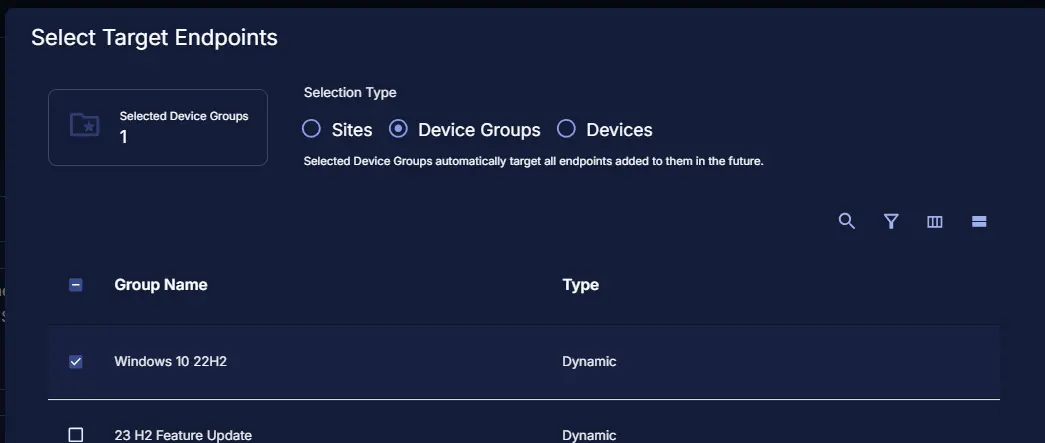
Target

Completed Scheduled Task

Schedule Task