OEM Update With Prompts
Summary
This is the ConnectWise Automate implementation of the agnostic script Invoke-OEMUpdateWithPrompt.
The script prompts logged-in users before BIOS and firmware updates, allows postponement for a configured number of cycles, and then enforces the update. It is designed for a single deployment from Automate, then continues through scheduled task re-runs on the endpoint.
How Configuration Works
The script reads settings in this order:
- User parameters passed at runtime (highest priority).
- Client-level EDF values.
- System property values.
- Script defaults in the agnostic payload (if no value exists in Automate).
Only these runtime user parameters are used for update behavior overrides:
- Force
- UsePsWindowsUpdate
- IfNotLoggedIn
- HandleBitLocker
All other behavior should be controlled through client-level EDFs or system properties.
Dependencies
- Invoke-OEMUpdateWithPrompt
- OmniPrompt
- SilentLauncher
- Initialize-DellCommandUpdate
- Initialize-HPImageAssistant
- Install-LenovoUpdates
- Install-WindowsUpdates
Sample Run
First Run (Environment Setup)
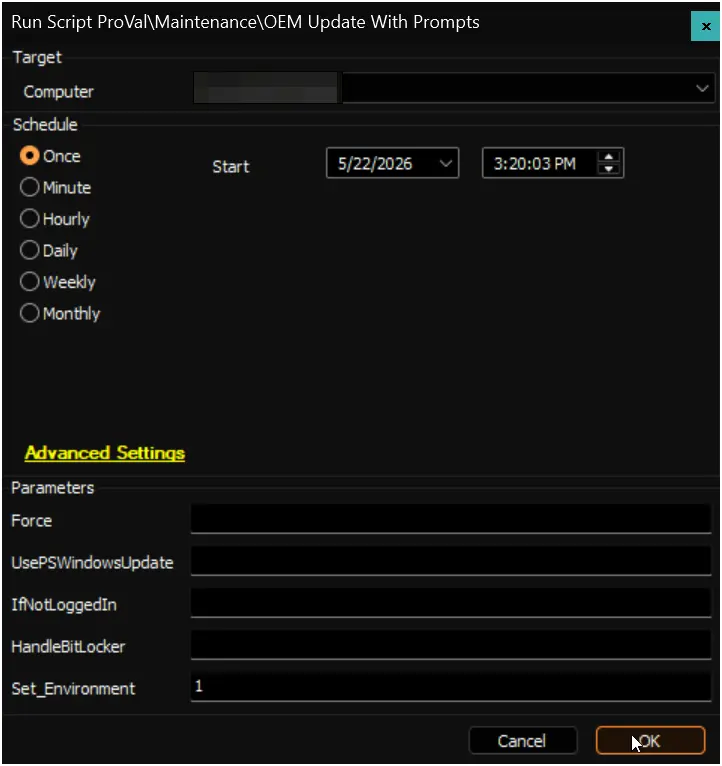
Run the script first with Set_Environment set to 1. This creates or refreshes:
- Required system properties.
- Required client-level EDF definitions.
Expected output:
- Properties and EDF definitions are inserted if missing.
Scenario 1: Default Runtime Using Property Values
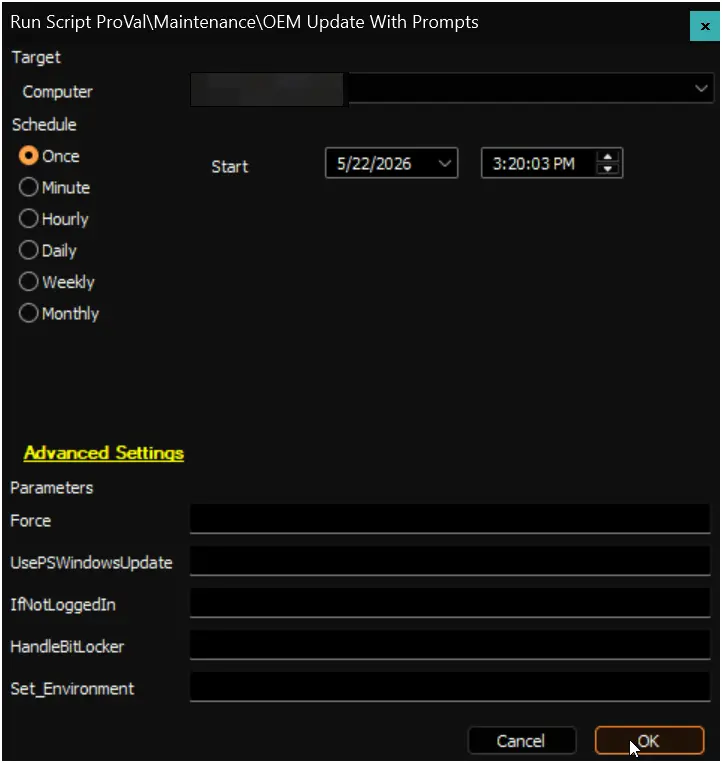
Run the script without any override user parameters.
Expected output:
- Script uses system property values for prompt count, interval, timeout, and suppress window.
- Prompt cycle starts and self-reschedules through scheduled tasks.
Scenario 2: Client-Level EDF Overrides
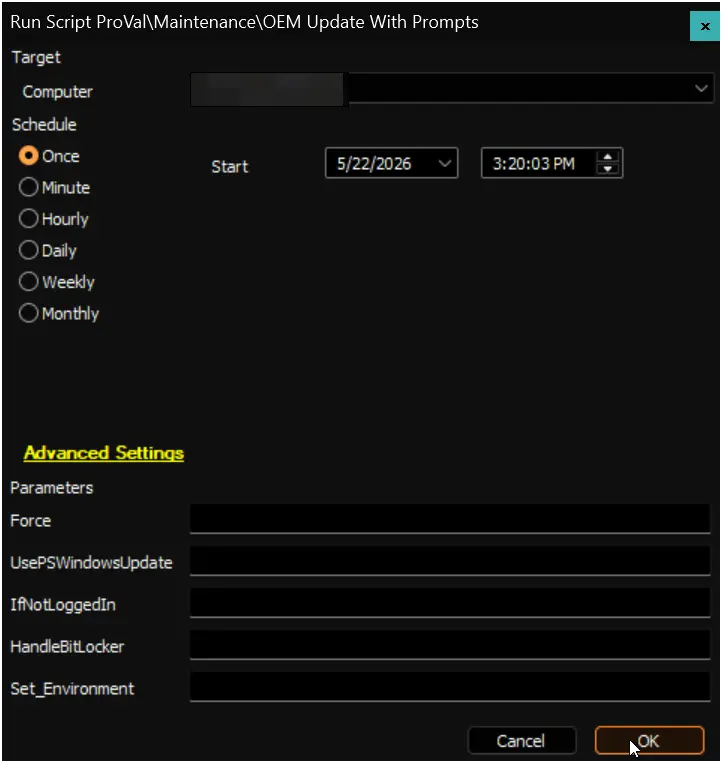
Set client EDF values for OUWP_MaxPostPone and OUWP_IntervalMinutes, then run with no user overrides.
Expected output:
- Script uses client EDF values instead of global property values for those settings.
- Remaining settings continue to come from system properties unless also overridden.
Scenario 3: Runtime Override for UsePsWindowsUpdate
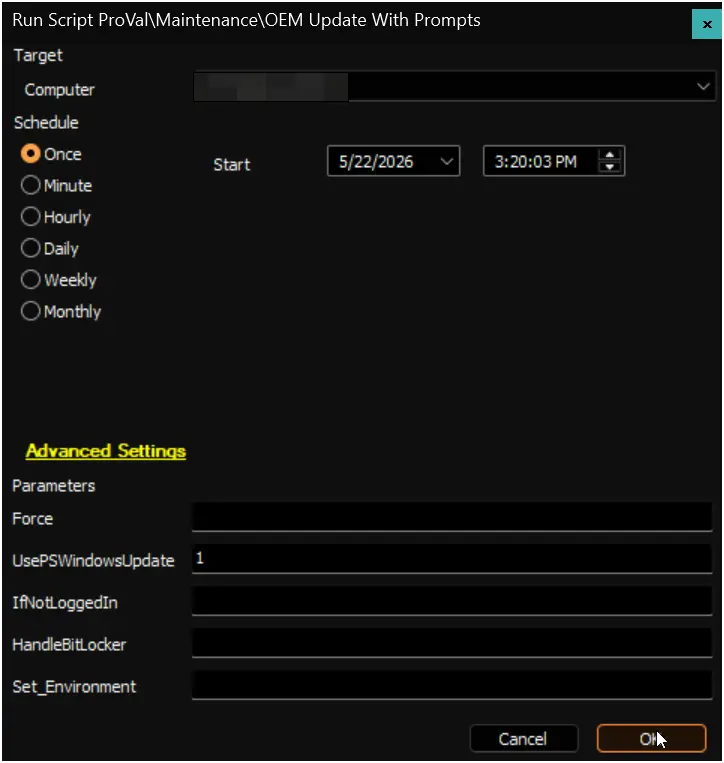
Run with user parameter UsePsWindowsUpdate = 1.
Expected output:
- UsePsWindowsUpdate is enabled for this run even if EDF/property is 0.
- Update execution path uses Install-WindowsUpdates flow.
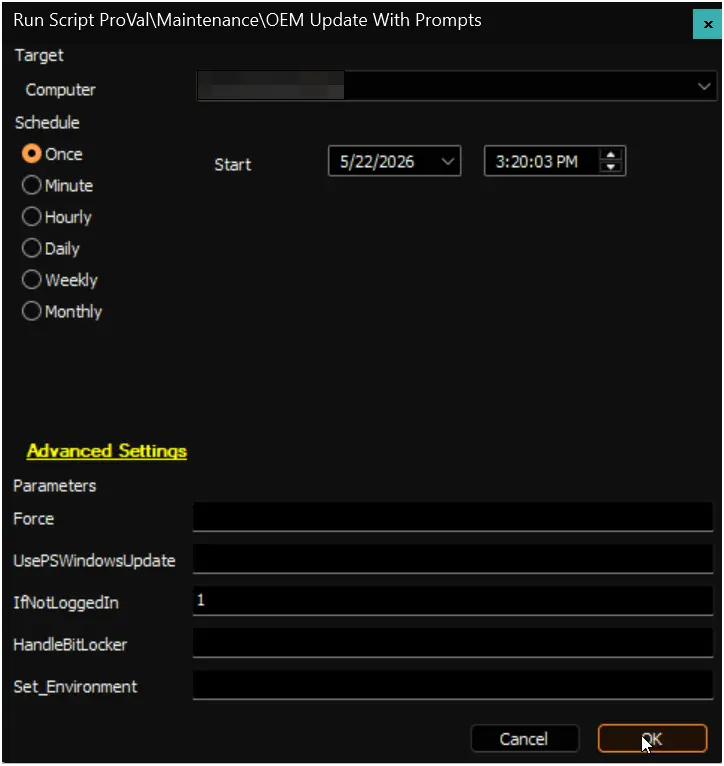
Scenario 4: Runtime Override for IfNotLoggedIn
Run with user parameter IfNotLoggedIn = 1.
Expected output:
- If no user session is active, update starts without prompting.
- If a user is logged in, normal prompt workflow continues.
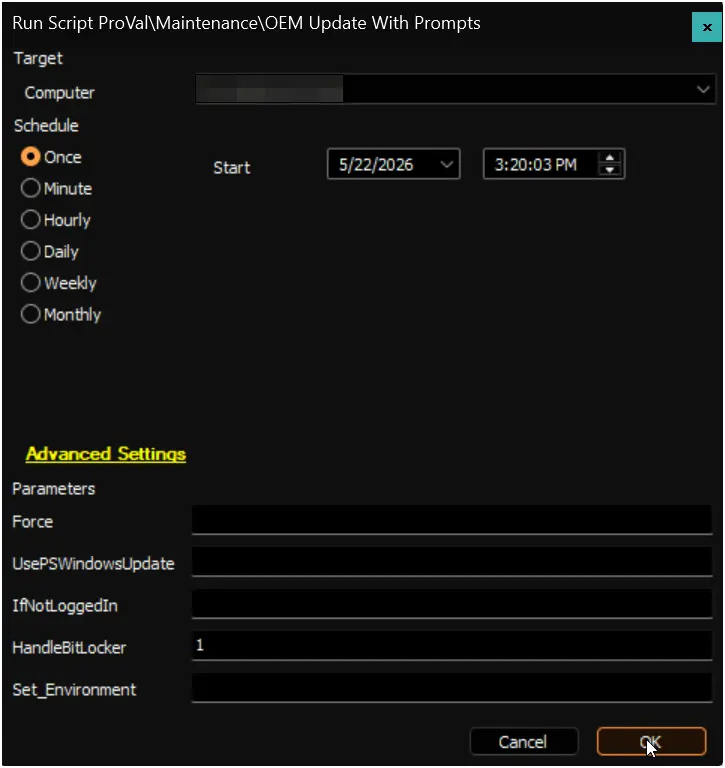
Scenario 5: Runtime Override for HandleBitLocker
Run with user parameter HandleBitLocker = 1.
Expected output:
- BitLocker is suspended before update execution for one reboot cycle.
- If no reboot is needed, BitLocker is resumed at completion.
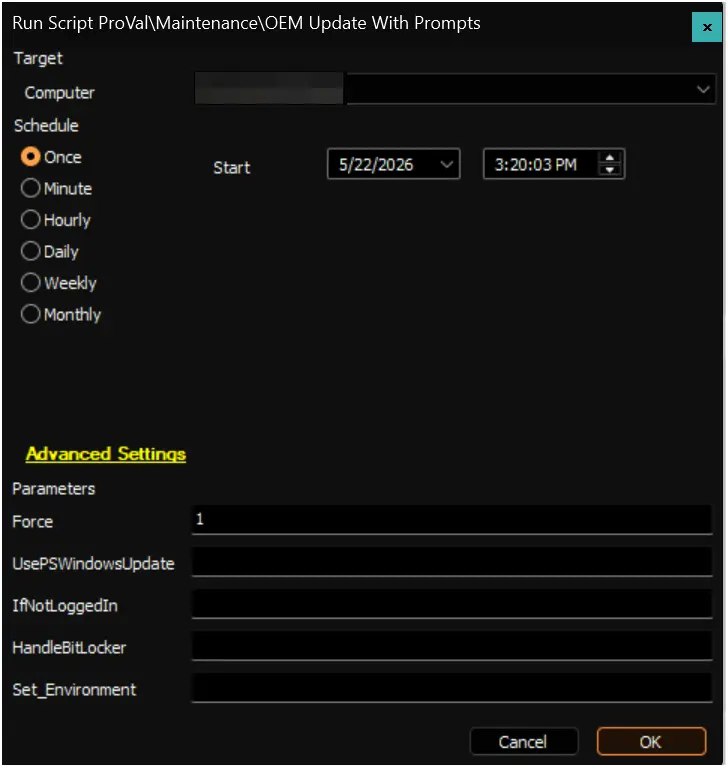
Scenario 6: Force Restart of Prompt Cycle
Run with user parameter Force = 1.
Expected output:
- Existing OEM prompt scheduled tasks are removed.
- Stored prompt state is reset.
- Prompt workflow starts again from the beginning.
User Parameters
| Name | Example | Required | Description |
|---|---|---|---|
| Set_Environment | 1 | True (first run only) | Set to 1 on first run to create required system properties and client-level EDF definitions. |
| Force | 1 | False | Highest-priority runtime switch. Accepts 0 or 1. Set to 1 to reset prompt state and recreate scheduled task workflow. Set to 0 (or leave blank) for normal behavior. |
| UsePsWindowsUpdate | 1 | False | Highest-priority runtime switch. Accepts 0 or 1. Set to 1 to use PSWindowsUpdate instead of OEM-specific update tools. Set to 0 to use OEM-specific tools. |
| IfNotLoggedIn | 0 | False | Highest-priority runtime switch. Accepts 0 or 1. Set to 1 to run updates without prompting when no user session is active. Set to 0 to wait for a logged-in user so prompts can be shown. |
| HandleBitLocker | 1 | False | Highest-priority runtime switch. Accepts 0 or 1. Set to 1 to suspend BitLocker before update execution. Set to 0 to leave BitLocker handling unchanged. |
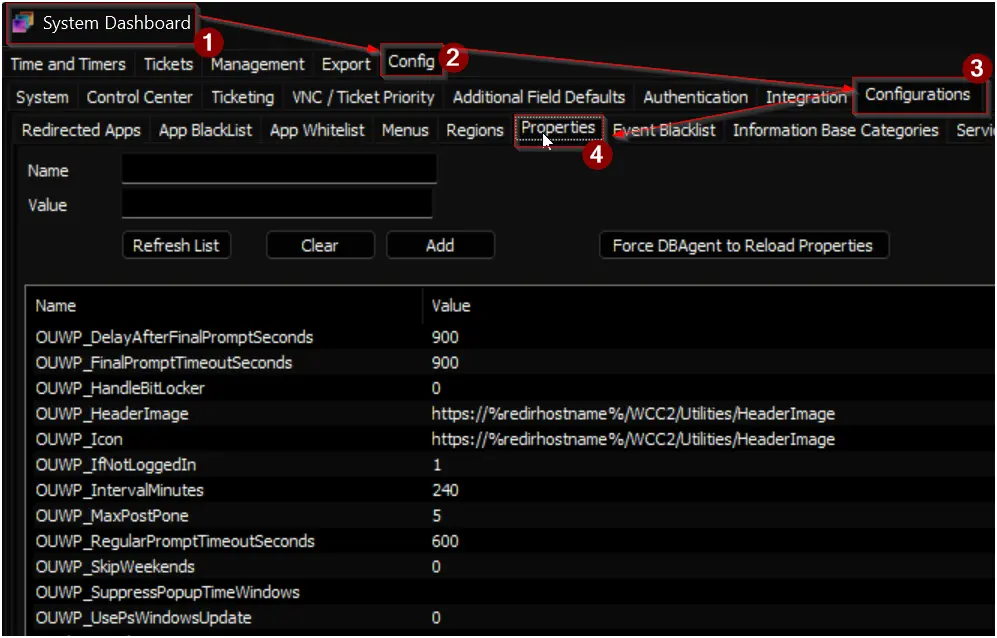
System Properties
| Name | Default | Example | Required | Description |
|---|---|---|---|---|
| OUWP_MaxPostPone | 5 | 3 | True | Default maximum postponements before final prompt. |
| OUWP_IntervalMinutes | 240 | 120 | True | Default minutes between prompt attempts. |
| OUWP_RegularPromptTimeoutSeconds | 600 | 600 | True | Default timeout for regular prompts. |
| OUWP_FinalPromptTimeoutSeconds | 900 | 900 | True | Default timeout for the final scheduling prompt. |
| OUWP_DelayAfterFinalPromptSeconds | 900 | 600 | True | Default delay before forced execution after final timeout. |
| OUWP_SuppressPopupTimeWindows | blank | 1800-0900 | False | Optional suppress window in HHmm-HHmm format, for example 1800-0900. |
| OUWP_SkipWeekends | 0 | 1 | False | Optional switch that accepts 0 or 1. Set to 1 to skip prompts/updates on weekends. Set to 0 to allow weekend processing. |
| OUWP_IfNotLoggedIn | 1 | 0 | False | Default unattended behavior switch that accepts 0 or 1. Set to 1 to continue when no user is logged in. Set to 0 to wait for an active user session. Can be overridden at client EDF or runtime. |
| OUWP_UsePsWindowsUpdate | 0 | 1 | False | Default update path switch that accepts 0 or 1. Set to 1 to use PSWindowsUpdate. Set to 0 to use OEM update tools. Can be overridden at client EDF or runtime. |
| OUWP_HandleBitLocker | 0 | 1 | False | Default BitLocker switch that accepts 0 or 1. Set to 1 to suspend BitLocker before updates. Set to 0 to leave BitLocker handling unchanged. Can be overridden at client EDF or runtime. |
| OUWP_Icon | https://%redirhostname%/WCC2/Utilities/HeaderImage | https://example.com/icon.png | False | Optional icon source for prompt window. |
| OUWP_HeaderImage | https://%redirhostname%/WCC2/Utilities/HeaderImage | https://example.com/header.png | False | Optional header image source for prompt window. |
Client-Level EDF
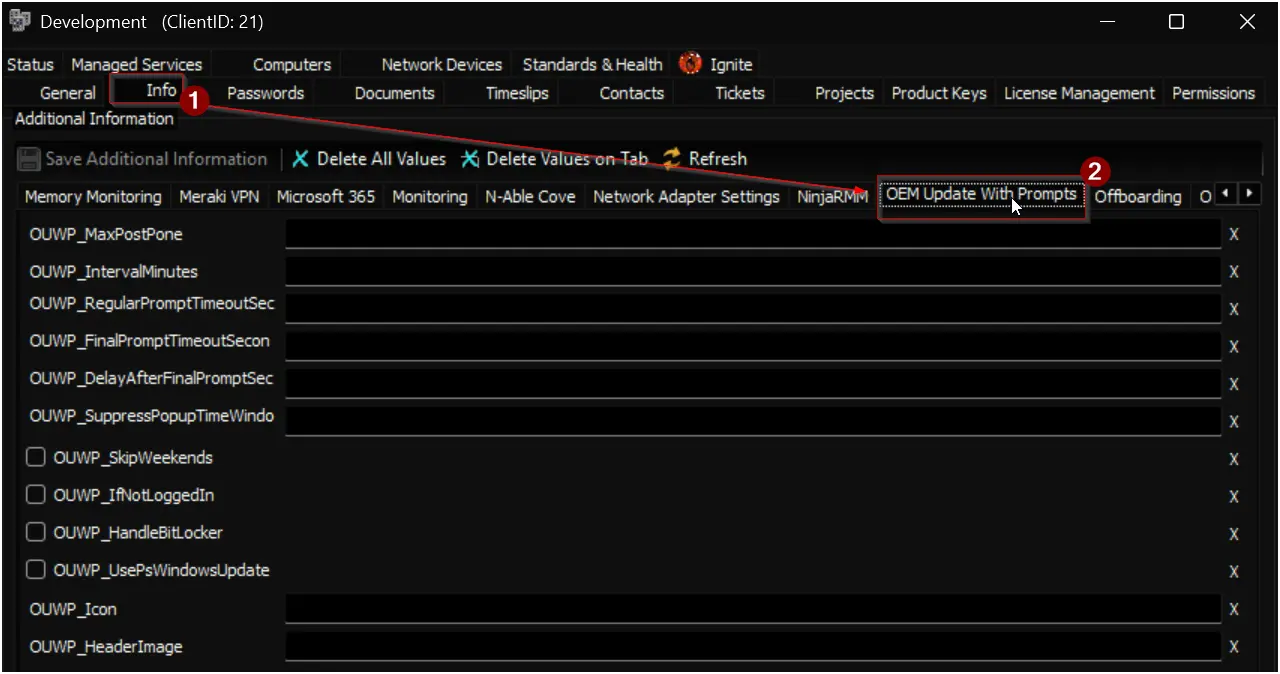
All EDF names below are created in the section OEM Update With Prompts and override system properties when populated with valid values.
| Name | Type | Section | Example | Description |
|---|---|---|---|---|
| OUWP_MaxPostPone | Text | OEM Update With Prompts | 3 | Overrides OUWP_MaxPostPone for this client. |
| OUWP_IntervalMinutes | Text | OEM Update With Prompts | 120 | Overrides OUWP_IntervalMinutes for this client. |
| OUWP_RegularPromptTimeoutSeconds | Text | OEM Update With Prompts | 600 | Overrides OUWP_RegularPromptTimeoutSeconds for this client. |
| OUWP_FinalPromptTimeoutSeconds | Text | OEM Update With Prompts | 900 | Overrides OUWP_FinalPromptTimeoutSeconds for this client. |
| OUWP_DelayAfterFinalPromptSeconds | Text | OEM Update With Prompts | 600 | Overrides OUWP_DelayAfterFinalPromptSeconds for this client. |
| OUWP_SuppressPopupTimeWindows | Text | OEM Update With Prompts | 1800-0900 | Overrides OUWP_SuppressPopupTimeWindows for this client when format is valid. |
| OUWP_SkipWeekends | Text | OEM Update With Prompts | 1 | Accepts 0 or 1 for this client. Set to 1 to skip weekend processing for this client only. Set to 0 to allow weekend processing. |
| OUWP_IfNotLoggedIn | Text | OEM Update With Prompts | 0 | Accepts 0 or 1 for this client. Set to 1 to run when no user is logged in. Set to 0 to wait for a logged-in user. Overrides system property unless runtime parameter is provided. |
| OUWP_UsePsWindowsUpdate | Text | OEM Update With Prompts | 1 | Accepts 0 or 1 for this client. Set to 1 to use PSWindowsUpdate. Set to 0 to use OEM update tools. Overrides system property unless runtime parameter is provided. |
| OUWP_HandleBitLocker | Text | OEM Update With Prompts | 0 | Accepts 0 or 1 for this client. Set to 1 to suspend BitLocker before updates. Set to 0 to leave BitLocker handling unchanged. Overrides system property unless runtime parameter is provided. |
| OUWP_Icon | Text | OEM Update With Prompts | https://example.com/icon.png | Overrides OUWP_Icon for this client. |
| OUWP_HeaderImage | Text | OEM Update With Prompts | https://example.com/header.png | Overrides OUWP_HeaderImage for this client. |
Output
- Script Logs
Scheduled Tasks
- Scheduled_Task_Invoke-OEMUpdatePrompt
- Scheduled_Task_Invoke-OEMUpdatePrompt_Reschedule
Potential Log Files
- C:\ProgramData\_Automation\Script\Invoke-OEMUpdatePrompt\Invoke-OEMUpdateWithPrompt-log.txt
- C:\ProgramData\_Automation\Script\Invoke-OEMUpdatePrompt\Invoke-OEMUpdateWithPrompt-error.txt
- C:\ProgramData\_Automation\Script\Install-OEMUpdates\Install-OEMUpdates-log.txt
- C:\ProgramData\_Automation\Script\Initialize-DellCommandUpdate\Initialize-DellCommandUpdate-log.txt
- C:\ProgramData\_Automation\Script\Initialize-DellCommandUpdate\Initialize-DellCommandUpdate-error.txt
- C:\ProgramData\_Automation\Script\Initialize-HPSupportAssistant\Initialize-HPSupportAssistant-log.txt
- C:\ProgramData\_Automation\Script\Initialize-HPSupportAssistant\Initialize-HPSupportAssistant-error.txt
- C:\ProgramData\_Automation\Script\Install-LenovoUpdates\Install-LenovoUpdates-log.txt
- C:\ProgramData\_Automation\Script\Install-LenovoUpdates\Install-LenovoUpdates-error.txt
- C:\ProgramData\_Automation\Script\Install-WindowsUpdates\Install-WindowsUpdates-log.txt
- C:\ProgramData\_Automation\Script\Install-WindowsUpdates\Install-WindowsUpdates-error.txt
Sample Prompts - English
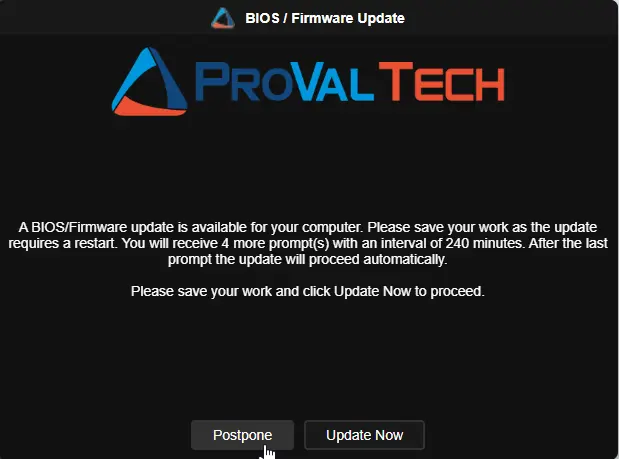
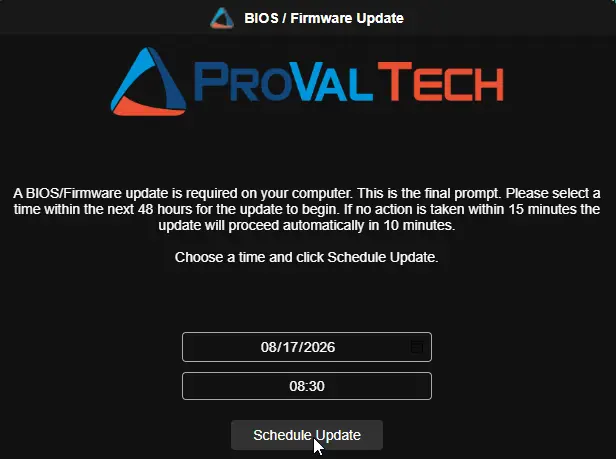
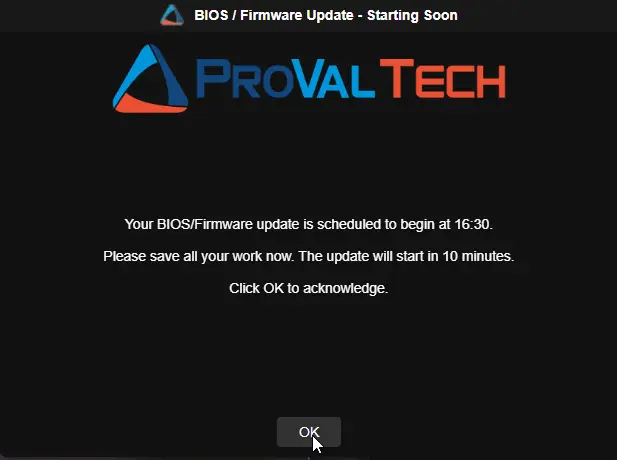
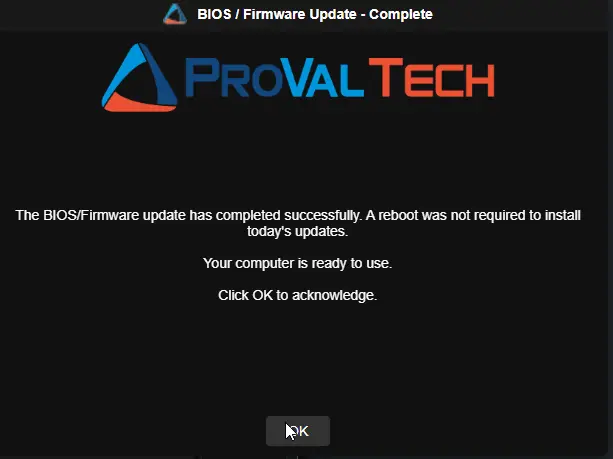
Completion Acknowledgement Prompt (No Reboot Pending)
FAQ
Q: Which Windows versions are supported by this script?
A: This script is supported only on Windows 10 and Windows 11 endpoints. It is not intended for older Windows versions or non-Windows systems.
Q: Will I get final update success or failure confirmation in ConnectWise Automate script output?
A: Not fully. Automate starts the workflow, but most of the process runs later through scheduled tasks on the endpoint. Because of that, the original script run in Automate will not always show the final status.
Q: If Automate does not show the final result, where do I check what happened?
A: Check the log files on the endpoint. Those logs contain the best details for completion status and failure reasons.
Common log paths:
- C:\ProgramData\_Automation\Script\Invoke-OEMUpdatePrompt\Invoke-OEMUpdateWithPrompt-log.txt
- C:\ProgramData\_Automation\Script\Invoke-OEMUpdatePrompt\Invoke-OEMUpdateWithPrompt-error.txt
- C:\ProgramData\_Automation\Script\Install-OEMUpdates\Install-OEMUpdates-log.txt
Q: How do I decide which machines should run this script?
A: First use vendor-specific update audit solutions to identify devices that need OEM driver, BIOS, or firmware remediation, then deploy this script to those targets.
Recommended vendor-specific solutions:
Q: Which value wins if the same switch exists in runtime parameter, client EDF, and system property?
A: Priority is runtime parameter, then client EDF, then system property.
Example with IfNotLoggedIn:
- System property
OUWP_IfNotLoggedIn = 1 - Client EDF
OUWP_IfNotLoggedIn = 1 - Runtime
IfNotLoggedIn = 0
Result: runtime value 0 wins for that run.
If runtime is not provided, client EDF wins. If neither runtime nor EDF is provided, system property is used.
Q: Can I allow unattended installs for all clients, but block unattended installs for one specific client?
A: Yes.
Set global system property OUWP_IfNotLoggedIn = 1 to allow unattended installs by default.
Then set that specific client EDF OUWP_IfNotLoggedIn = 0 to require a logged-in user for that client.
Do not pass runtime IfNotLoggedIn = 1 for that execution, because runtime overrides both EDF and property.
Q: If IfNotLoggedIn is enabled and no user is logged in when the next prompt cycle runs, what happens?
A: The script does not wait for another prompt. It starts the update workflow unattended.
Q: What if IfNotLoggedIn is disabled and no one is logged in at that time?
A: The script does not start unattended updates. It waits for a logged-in session so prompts can be shown according to the configured cycle.
Changelog
2026-08-17
- Documentation
2026-05-22
- Initial version of the document.