HP Image Assistant Handler
Purpose
The goal of this solution is to manage, audit, and carry out updates (such as drivers, software, and firmware) on physical HP Workstations using the HP Image Assistant (HPIA) application.
Associated Content
Script
| Content | Type | Function |
|---|---|---|
| HP Image Assistant - Install+ Command Handler [DV,Param,Autofix] | Script | Installs HPIA via Winget (if missing), performs scanning audits, and executes update commands. |
| OverFlowedVariable - SQL Insert - Execute | Script | Helper script used to handle and insert overflowed data into the custom database table. |
Monitor
| Content | Type | Function |
|---|---|---|
| HP Image Assistant Scan | Internal Monitor | Executes the main script once per day against supported HP workstations to scan for available updates. |
Alert Template
| Content | Type | Function |
|---|---|---|
| △ Custom - Execute Script - HP Image Assistant Scan | Alert Template | Executes the HP Image Assistant - Install+ Command Handler [DV,Param,Autofix] script against the machines detected by the internal monitor. |
Data and Reporting
| Content | Type | Function |
|---|---|---|
| pvl_hpimageassistant_audit | Custom Table | Stores the available update data retrieved during the scanning process. |
| HP Image Assistant Audit | Dataview | Displays the available HP update information gathered by the script. |
Implementation
-
Import the associates scripts, internal monitor, dataview, and alert template from the ProSync plugin.
-
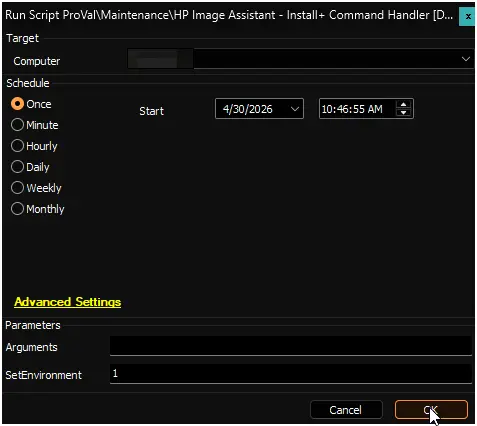
Execute the HP Image Assistant - Install+ Command Handler [DV,Param,Autofix] script on any online Windows computer. Make sure to set the
SetEnvironmentparameter to1. This will automatically create the required EDFs and the pvl_hpimageassistant_audit custom table.
-
Reload the system cache (Ctrl + R) and verify the existence of the following Extra Data Fields (EDFs):
- HP Image Assistant Update Audit (Client Level)
- Exclude HP Image Assistant Scan (Location / Computer Level)
-
Enable the HP Image Assistant Update Audit checkbox at the Client level for any clients whose HP hardware you wish to monitor and update. Use the exclusion EDFs at the Location or Computer level to exempt specific machines as needed.
-
Configure the solution as follows:
- Navigate to
Automation-->Monitorswithin the CWA Control Center and set up the following:- HP Image Assistant Scan
- Configure with the alert template:
△ Custom - Execute Script - HP Image Assistant Scan - Right-click and Run Now to start the monitor.
- Configure with the alert template:
- HP Image Assistant Scan
- Navigate to
FAQ
Q: What types of machines should this solution be applied to?
A: This solution is intended exclusively for physical HP workstations running Windows 10 or Windows 11. The script will automatically validate the manufacturer and product ID against HP's official platform compatibility list before running.
Q: What happens if the HP Image Assistant application is not installed on the endpoint?
A: The script checks for the existence of the HP Image Assistant application. If it is missing, the script will automatically install it using Winget.
Q: Does this solution automatically install updates or just scan for them?
A: By default, if the script is triggered without any arguments (such as via the daily internal monitor), it performs an audit scan and logs the available updates into the custom table. To automatically install updates, you must manually execute the script and pass specific command-line strings to the Arguments parameter (e.g., /Operation:Analyze /Category:Drivers /Selection:Recommended /Action:Install /Silent /AutoCleanup).
Q: Are BIOS updates supported and recommended through this solution?
A: While HP Image Assistant can technically handle BIOS updates, ProVal does not recommend performing BIOS updates remotely. ProVal is not responsible for any failed devices due to remote BIOS updates. BIOS updates are performed strictly at the MSP's risk.
Changelog
2026-04-30
- Initial version of the document.