Intune Enrollment for Entra Joined Devices
Overview
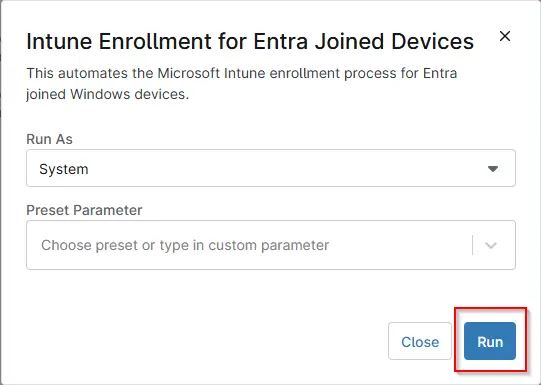
This automation enrolls a Windows device that's already joined to Microsoft Entra ID in Microsoft Intune. It turns on the MDM auto-enrollment policy with the signed-in user's Entra ID credentials, writes the Intune enrollment URLs to the device's Entra tenant key, and starts the enrollment with deviceenroller.exe. Use it after Join Computer to Entra, or on any Entra joined device that didn't enroll in Intune by itself. The device can take up to 15 minutes to appear in the Intune admin center.
Requirements
- Windows 10 or Windows 11 device joined to Microsoft Entra ID
- Run As:
System - PowerShell 5.1
- A user signed in with an Entra ID account
- Intune automatic enrollment (MDM user scope) set up in Microsoft Entra ID, and an Intune license for the signed-in user
Sample Run
Scenarios
- Device not Entra joined: the automation returns
Failure: Device is not Azure AD joined.and changes nothing. AutoEnrollMDMalready turned on: the automation returnsSuccess: Device is already enrolled in Intune.and changes nothing.- Enrollment started: the automation sets the
AutoEnrollMDMandUseAADCredentialTypepolicy values, runsgpupdate /force, writes the Intune enrollment, terms of use and compliance URLs to the tenant key, and runsdeviceenroller.exe /c /AutoEnrollMDM. It returnsSuccess: Enrollment process completed. Please allow up to 15 minutes for the device to appear in Intune. - A registry change or the enrollment fails: the automation returns a line that starts with
Failure:and gives the reason.
Dependencies
Automation Setup/Import
Output
- Activity Details, with one line that starts with
Success:orFailure: - The device enrolled in Microsoft Intune
Changelog
2026-11-17
- Moved the script to the ProVal-Tech/ninjarmm repository and updated the document to the new template.
- The script now creates the MDM policy key only when it's missing, so existing values in the key are kept.
2025-04-22
- Initial version of the document