Create ticket with associated device
Summary
The Create ticket with associated device bot creates a service ticket and attaches a device to it in a single operation. It exists because a native CW RMM workflow can create a ticket but cannot associate a device with it.
The bot runs inside the platform, so it uses the pre-authenticated RPA HTTP client and needs no client ID or client secret. The base URL arrives automatically through the cwOpenAPIURL input.
It is the bot called on the toCreate branch of the CWRMM Ticket Management for Monitors workflow, in place of the native Create Ticket action.
How it works:
- All eight form values are read and written to the result log before any of them are validated, so a single run shows exactly what the form delivered.
- The company and site are resolved against the platform inventory and normalised to the identifiers the ticket API expects.
- The service board, priority and source names are resolved to their GUIDs. The board lookup is filtered by company and site so only entitled boards are considered, falling back to the full partner list if the platform rejects that filter.
- If a team was supplied, it is resolved against the teams of the selected service board.
- The ticket is created with the device in its
assetsarray, flagged as the primary asset. ticketId,ticketNumberanddeviceIdare returned as result data for bot chaining.
Why the device is attached at creation
The device travels in the same API call that creates the ticket. A device attached to a ticket by a separate follow-up call does not carry through to the configuration on the ticket once it syncs to CW Manage, while a device supplied in the original create call does. That is the reason the monitors workflow calls this bot instead of creating the ticket natively and attaching the device afterwards.
A second benefit falls out of the same design: the native Create Ticket action does not return the ID of the ticket it created, whereas this bot returns both ticketId and ticketNumber as result data, so a following workflow step can act on the ticket it just raised.
Why names are resolved at runtime
The GUIDs for service boards, priorities, sources and teams are not exposed anywhere in the CW RMM interface, so a form cannot reasonably ask for them. The bot resolves the display names instead. Matching is case-insensitive and inactive records are skipped. When a name does not match, the error lists every valid name for that lookup, so one failed run identifies the correct value.
Identifier flexibility
Platform company and site identifiers are synthetic GUIDs that encode a legacy Command ID. The bot accepts the platform GUID, the bare numeric Command ID, an external product ID, or the display name for either field, and normalises whatever it receives to the identifier the ticket API expects.
API endpoints used
| Method | Endpoint | Purpose |
|---|---|---|
| GET | /api/platform/v1/company/companies | Resolve the CompanyId value |
| GET | /api/platform/v1/company/companies/{companyId}/sites | Resolve the SiteId value within that company |
| GET | /api/platform/v1/service/ticketing/service-boards | Resolve the service board name |
| GET | /api/platform/v1/service/ticketing/priorities | Resolve the priority name |
| GET | /api/platform/v1/service/ticketing/sources | Resolve the ticket source name |
| GET | /api/platform/v1/service/ticketing/service-boards/{id}/teams | Resolve the team name on the selected board, when a team is supplied |
| POST | /api/platform/v2/service/ticketing/tickets | Create the ticket with the device attached |
Details
| Bot Name | Description | Execution Environment |
|---|---|---|
| Create ticket with associated device | Creates a service ticket from form input and attaches the selected device as the primary asset in the same API call. Service board, priority, team and source names are resolved to platform IDs. Returns ticketId and ticketNumber for chaining. | Cloud |
Integration Configuration
| Platform | Platform Scopes | 3rd Party Apps | Integrations |
|---|---|---|---|
| True |
| False |
Form Setup
| Form Required | Form Template |
|---|---|
| Yes | Forms: Create ticket with associated device |
Functions
Forms Setup Path
- Tasks Path:
Automation➞Bots
Dependencies
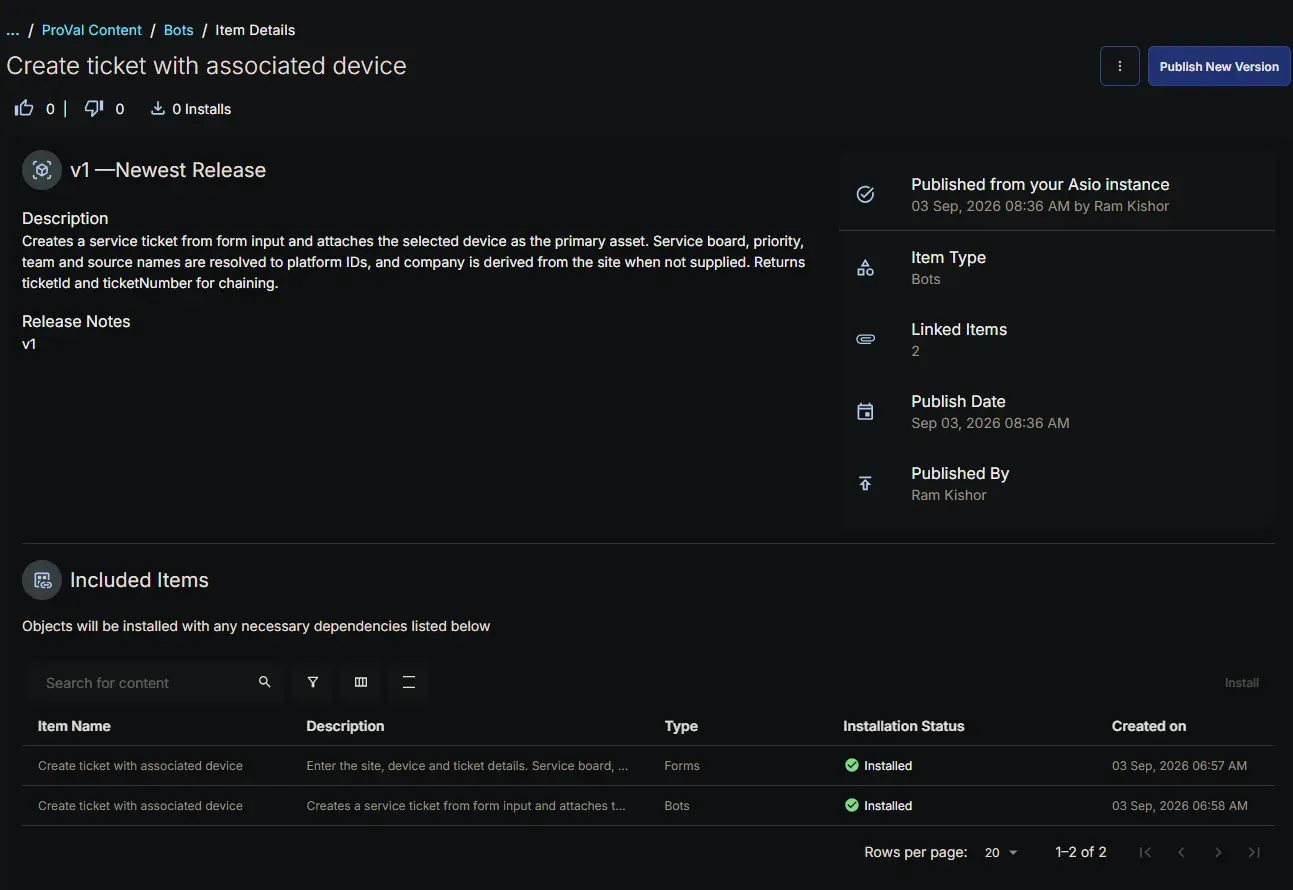
The bot cannot run without its form, which supplies every value it operates on. Importing the bot brings the form in with it, already attached.
Consumed by:
Related content:
- Bots: Associate a device with an existing ticket — attaches a device to a ticket that already exists, rather than creating one.
Implementation
Install the bot from the ProVal - Content Community, selecting the Bots repository. After installation the following configuration steps are mandatory.
Primary Note: Reading the bot output
Progress and failure detail are written to the result log, which is what appears when bot logs are directed to a ticket. Every resolution step is logged with the value it received and the GUID it resolved to, so a failure shows exactly how far the run progressed. If a run fails with no detail beyond the exception, the form data itself did not arrive — the first logged line reports every value the form delivered.
Changelog
2026-09-07
- Initial version of the document