Dell Command Update - Install + Command Handler
Summary
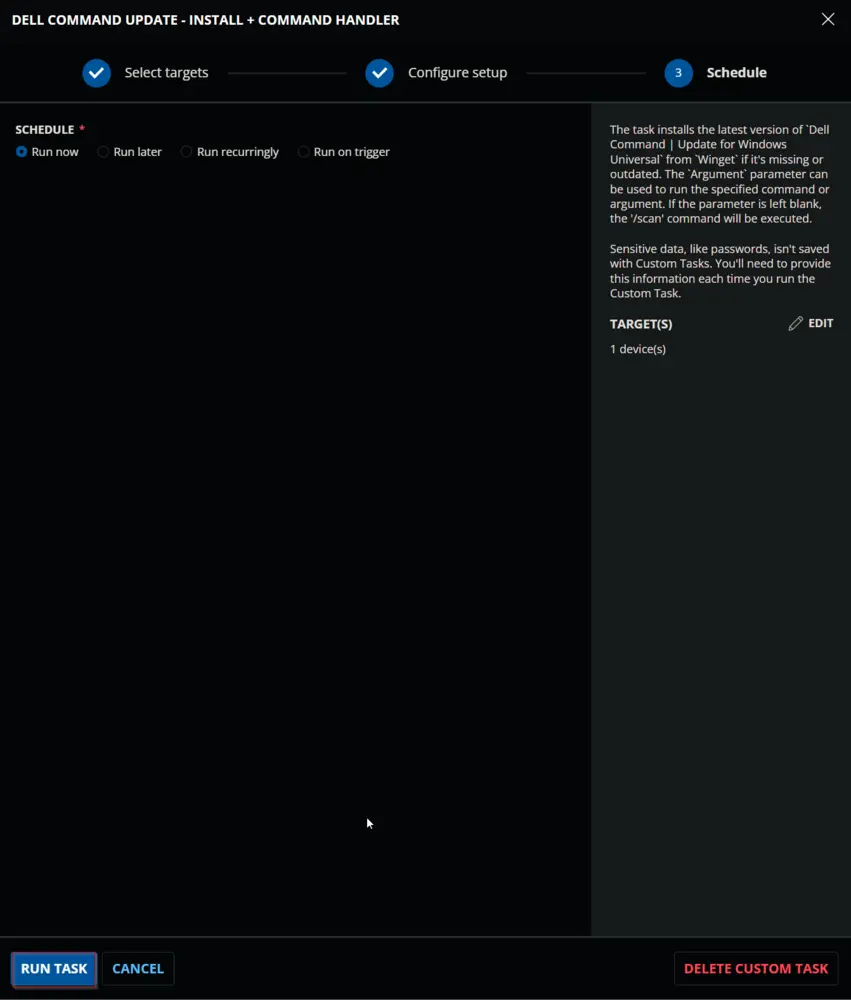
The task installs the latest version of Dell Command | Update for Windows Universal from Winget if it's missing or outdated. The Argument parameter can be used to run the specified command or argument. If the parameter is left blank, the /scan command will be executed.
Supported commands/arguments reference:
Supported commands/arguments reference
Exit codes reference:
Exit codes reference
Sample Run
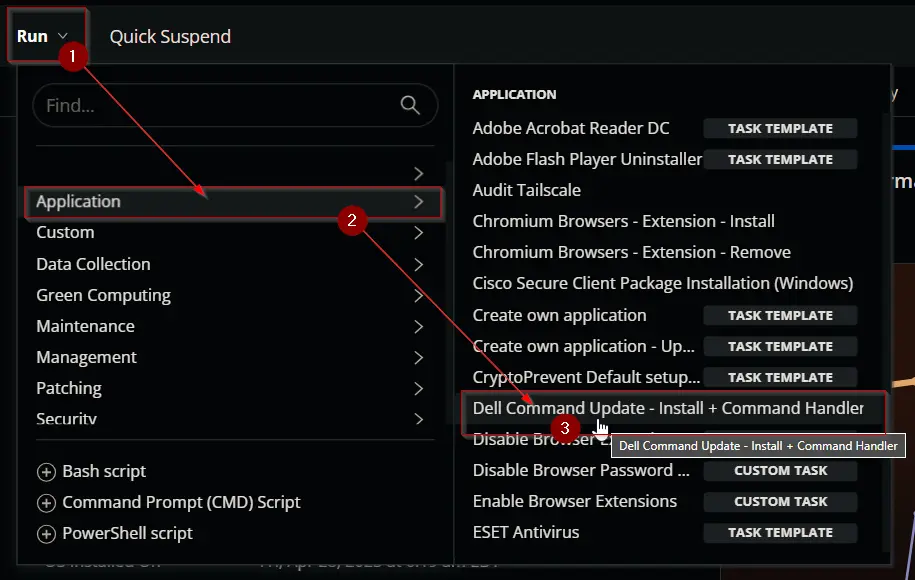
Example 1:
Running the script with basic /scan command to return the available updates.
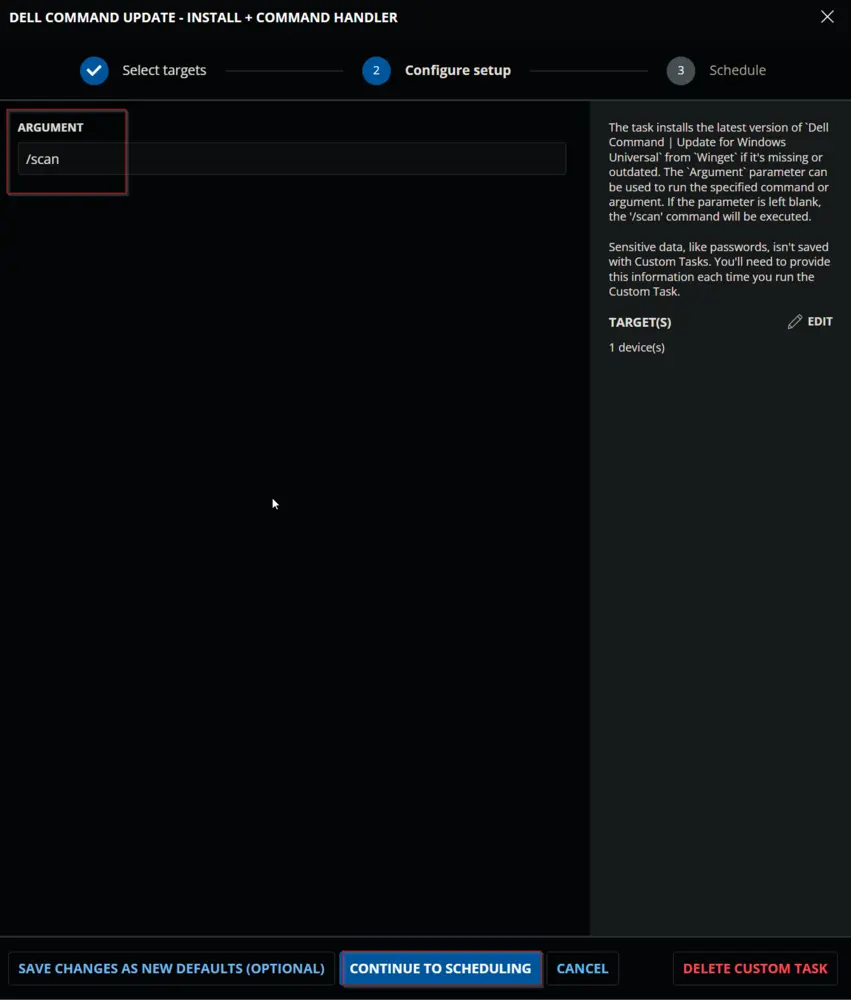
Example 2:
Running the script to install available bios, firmaware, and driver updates.
This command will not install any active driver as we are not using the -forceupdate switch.
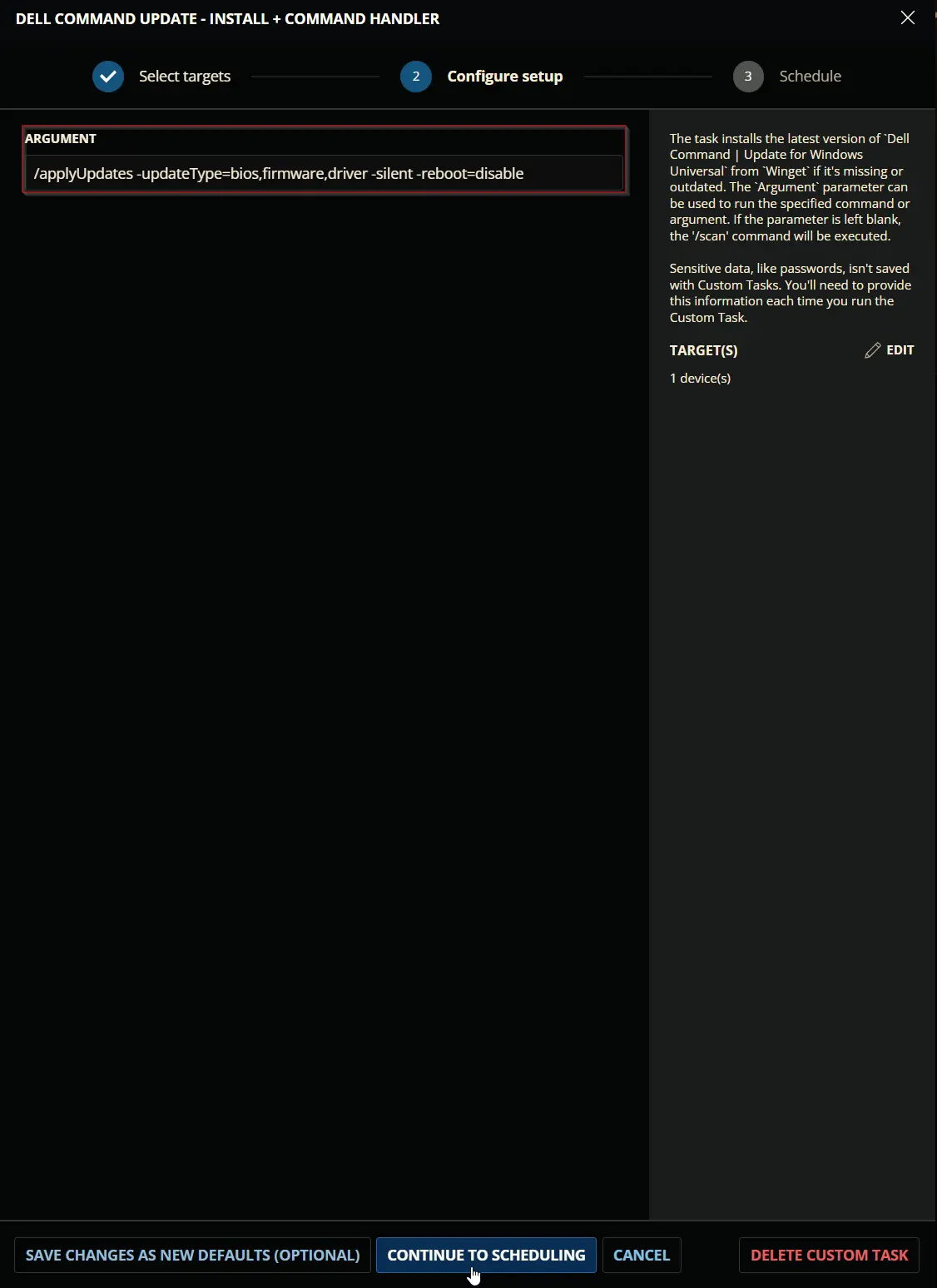
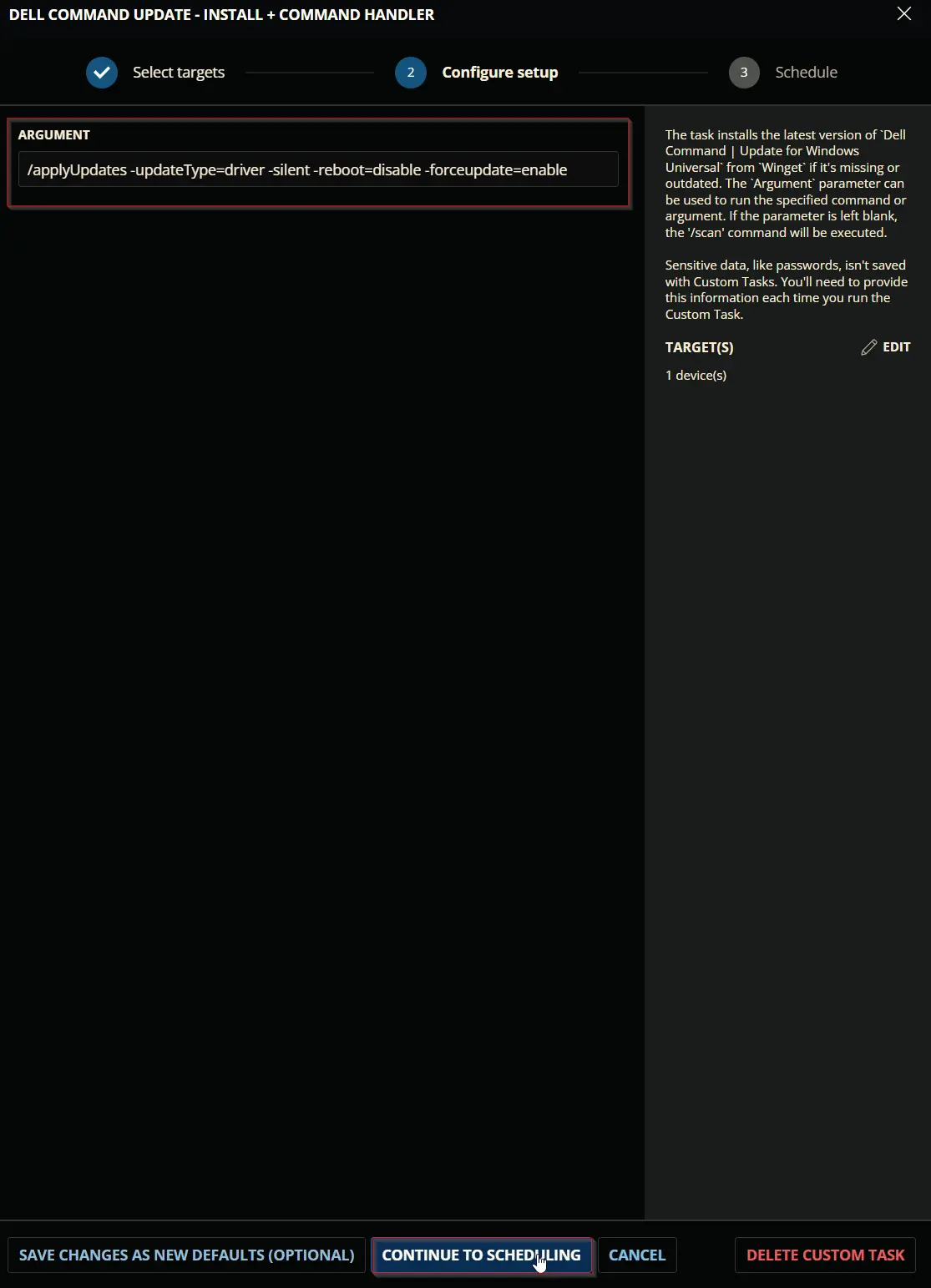
Example 3:
Running the script to forcefully install all available driver updates.
Caution: It is recommended to restart the computer at the earliest convenience after using the -forceupdate=enable switch, as this switch updates active drivers as well. An active driver that requires a restart for the update may malfunction if the update is installed without rebooting the computer.
Dependencies
User Parameters
| Name | Examples | Accepted Values | Default | Type | Required | Description |
|---|---|---|---|---|---|---|
| Argument |
| Supported commands/arguments reference | /scan | Text | False | Command to execute with Dell Command | Update. If left blank, the default value /Scan will be used. |

Task Creation
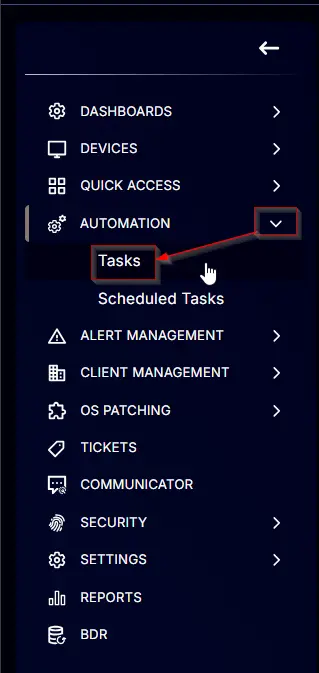
Create a new Script Editor style script in the system to implement this task.

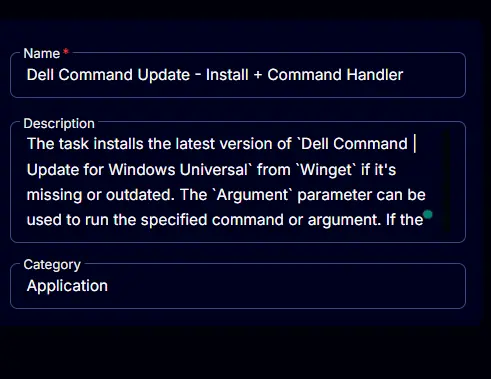
Name: Dell Command Update - Install + Command Handler
Description: The task installs the latest version of "Dell Command | Update for Windows Universal" from "Winget" if it's missing or outdated. The "Argument" parameter can be used to run the specified command or argument. If the parameter is left blank, the "/scan" command will be executed.
Category: Application
Parameters
Add a new parameter by clicking the Add Parameter button present at the top-right corner of the screen.

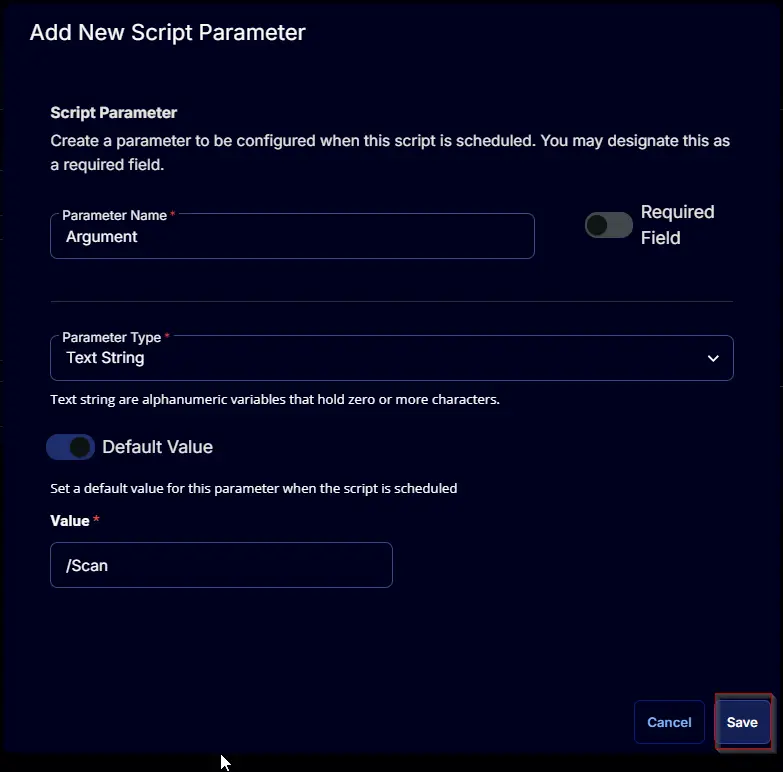
This screen will appear.
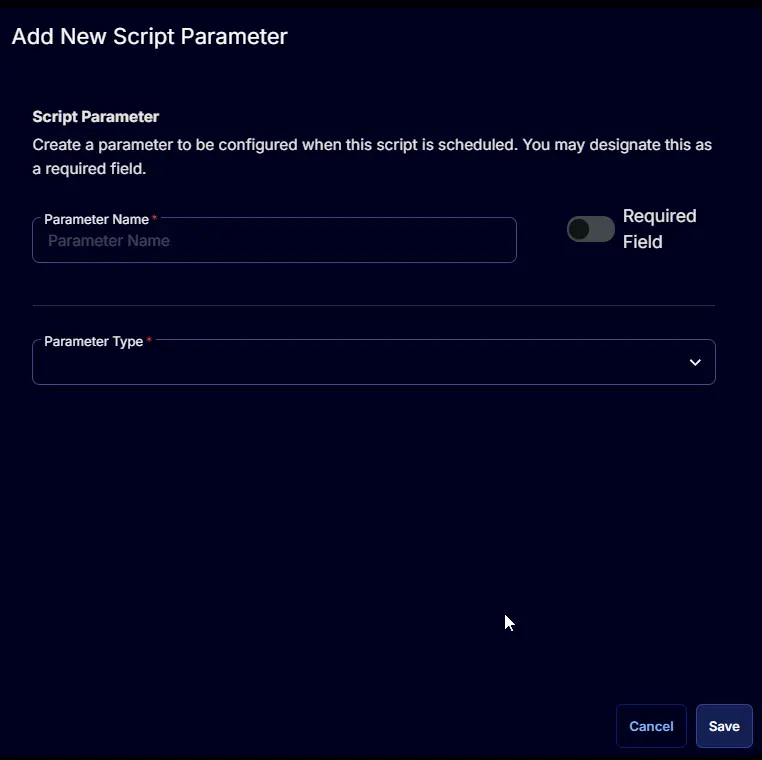
- Set
Argumentin theParameter Namefield. - Select
Text Stringfrom theParameter Typedropdown menu. - Enable the
Default Valuebutton. - Set
/scanin theDefault Valuefield. - Click the
Savebutton.
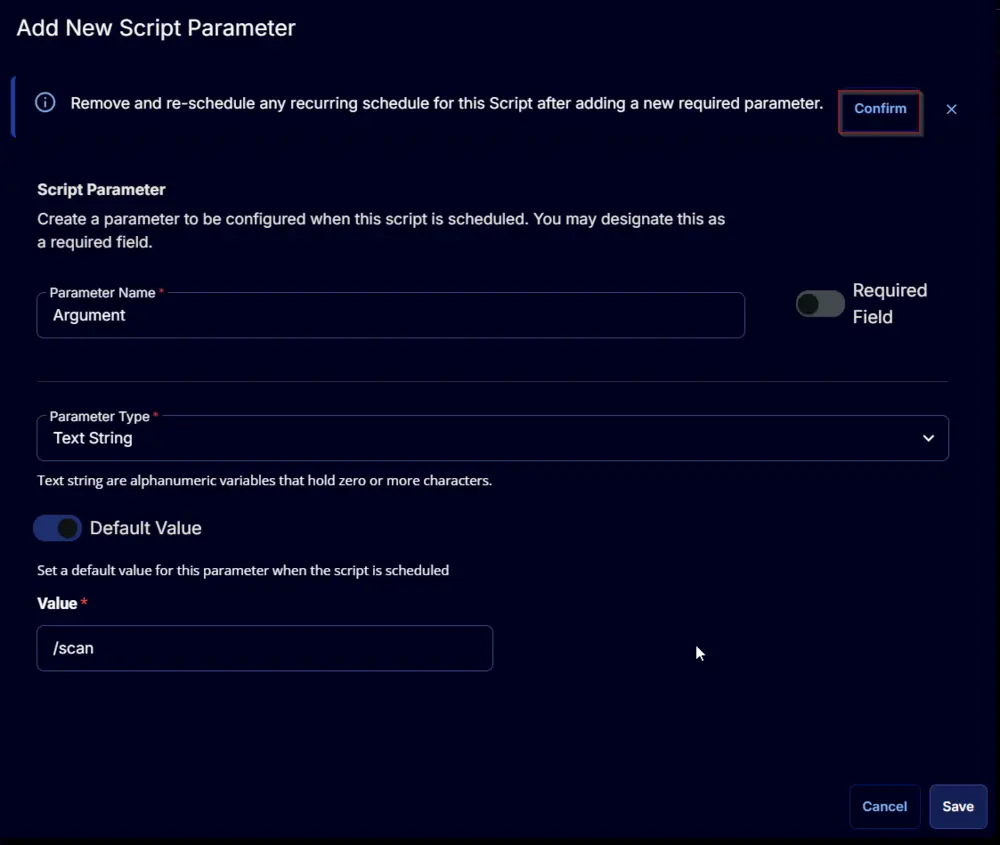
Click the Confirm button to save the parameter.
Task
Navigate to the Script Editor Section and start by adding a row. You can do this by clicking the Add Row button at the bottom of the script page.

A blank function will appear.

Row 1 Function: PowerShell Script
Search and select the PowerShell Script function.


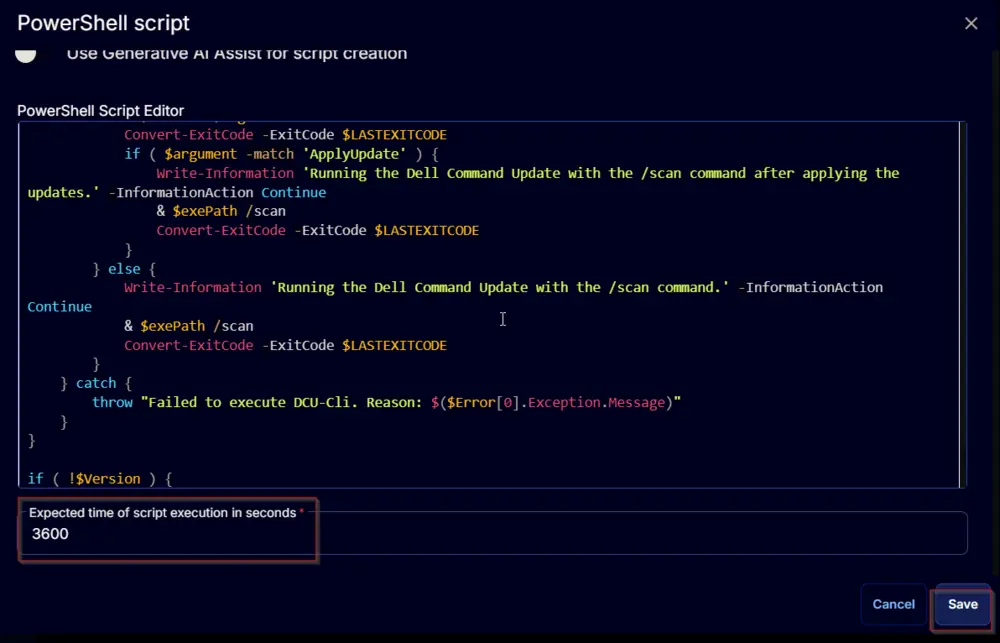
The following function will pop up on the screen:

Paste in the following PowerShell script and set the expected time of script execution to 3600 seconds. Click the Save button.
Row 2 Function: Script Log
Add a new row by clicking the Add Row button.

A blank function will appear.
Search and select the Script Log function.


The following function will pop up on the screen:

In the script log message, simply type %output% and click the Save button.

Click the Save button at the top-right corner of the screen to save the script.

Completed Task

Output
- Script log
Changelog
2025-04-10
- Initial version of the document
2025-03-12
- Updated the solution document to show more examples and fixed the powershell issue that caused during the migration from IT Glue to our content portal.