Windows Secure Boot Audit
Summary
This Script fetches the status of key certificate and configurations that will be needed before the current secure boot certificates expire.
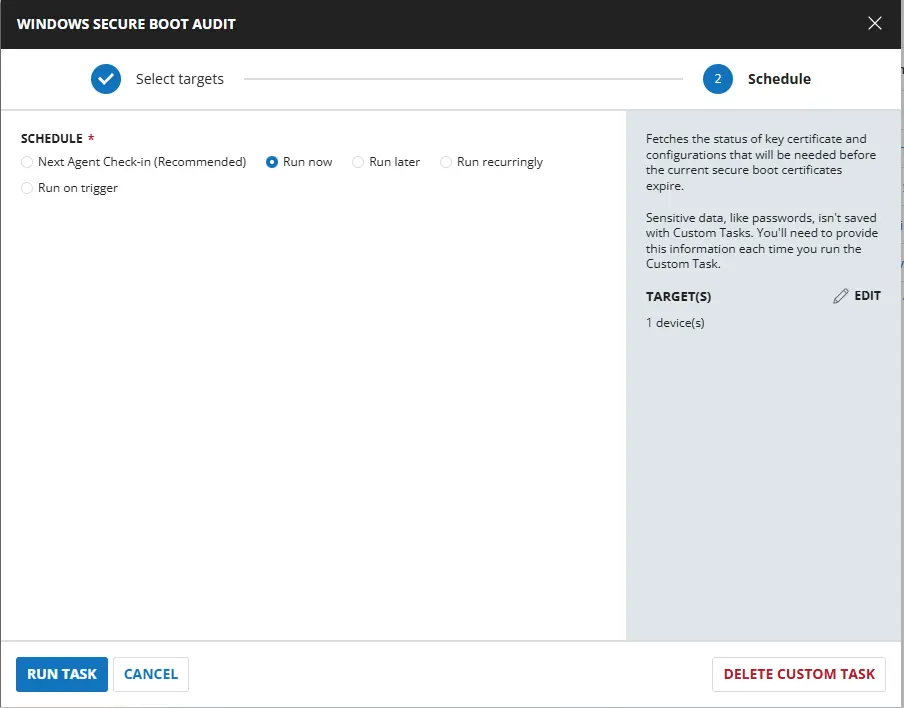
Sample Run
Dependencies
Task Creation
Script Details
Step 1
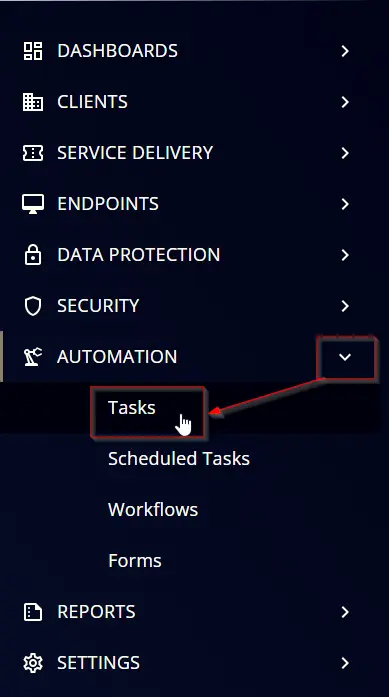
Navigate to Automation ➞ Tasks
Step 2
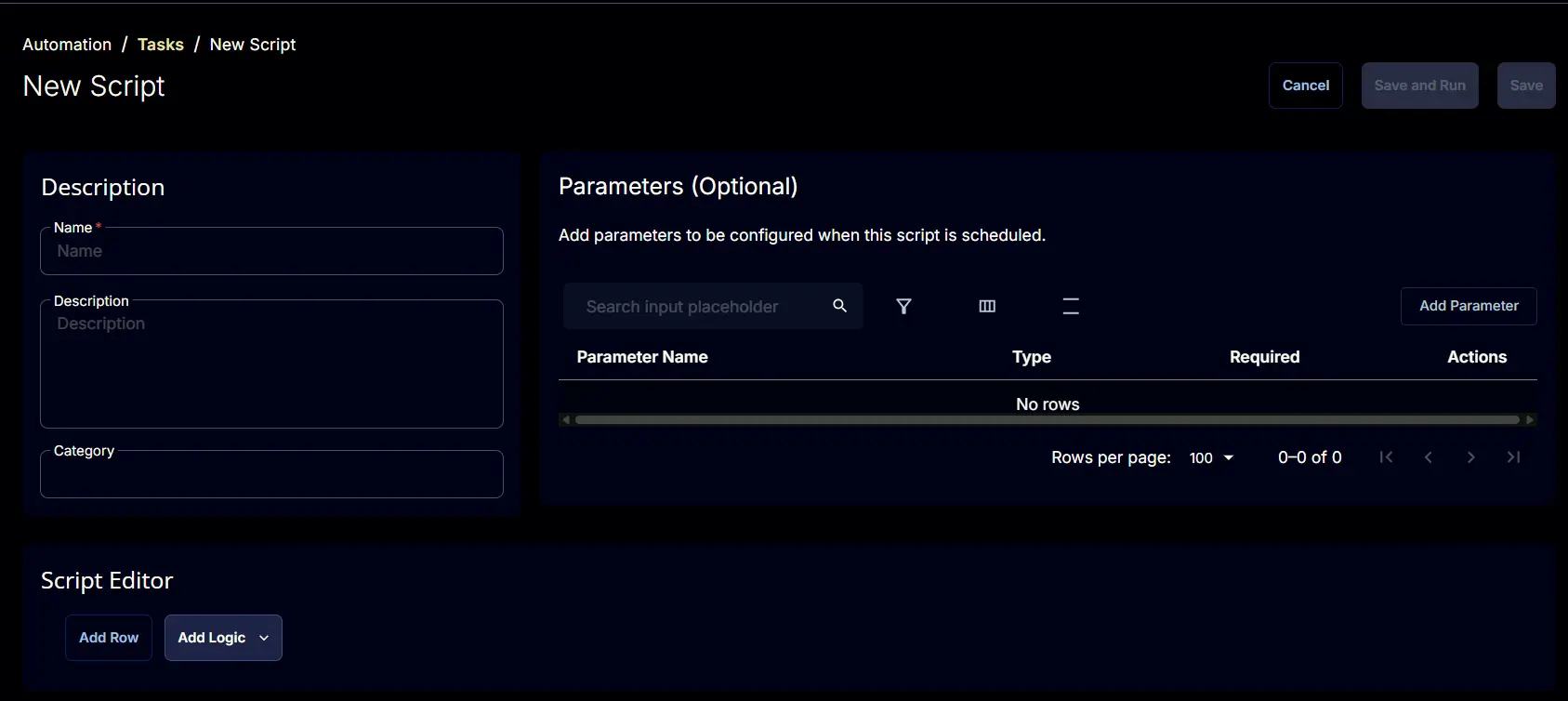
Create a new Script Editor style task by choosing the Script Editor option from the Add dropdown menu

The New Script page will appear on clicking the Script Editor button:
Step 3
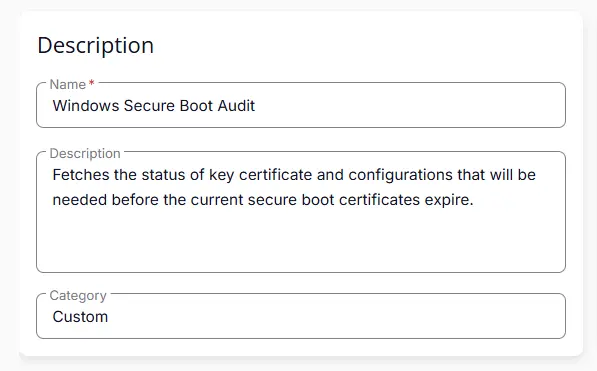
Fill in the following details in the Description section:
- Name:
Windows Secure Boot Audit - Description:
Fetches the status of key certificate and configurations that will be needed before the current secure boot certificates expire. - Category:
Custom
Script Editor
Click the Add Row button in the Script Editor section to start creating the script

A blank function will appear:

Row 1 Function: PowerShell Script
Search and select the PowerShell Script function.

The following function will pop up on the screen:

Paste in the following PowerShell script and set the Expected time of script execution in seconds to 300 seconds. Click the Save button.
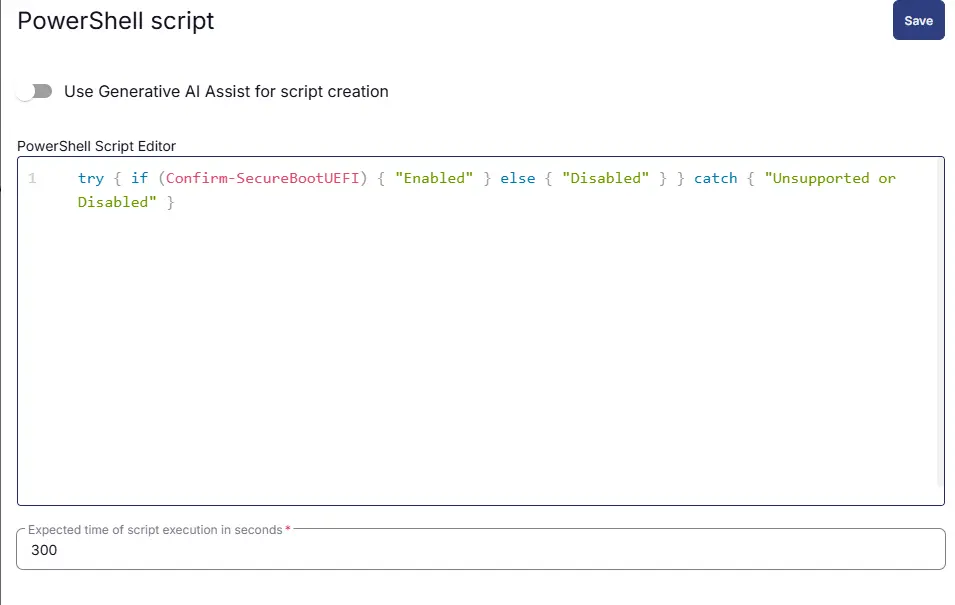
Row 2 Function: Script Log
Add a new row by clicking the Add Row button.
A blank function will appear.
Search and select the Script Log function.

In the script log message, simply type %output% and click the Save button.

Row 3 Function: Set Custom Field
Add a new row by clicking the Add Row button.
A blank function will appear.
Search and select the Set Custom Field function.
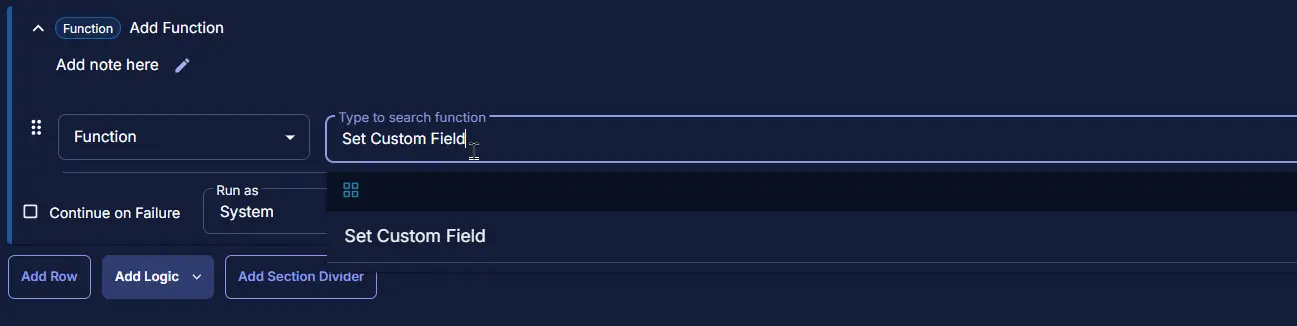
The following function will pop up on the screen:

- Search and select the Computer-Level Custom Field
Windows Secure Bootfrom the Custom Field dropdown menu. - Set
%Output%in theValuefield. - Click the
Savebutton.


Row 4 Function: PowerShell Script
Search and select the PowerShell Script function.
The following function will pop up on the screen:
Paste in the following PowerShell script and set the Expected time of script execution in seconds to 300 seconds. Click the Save button.
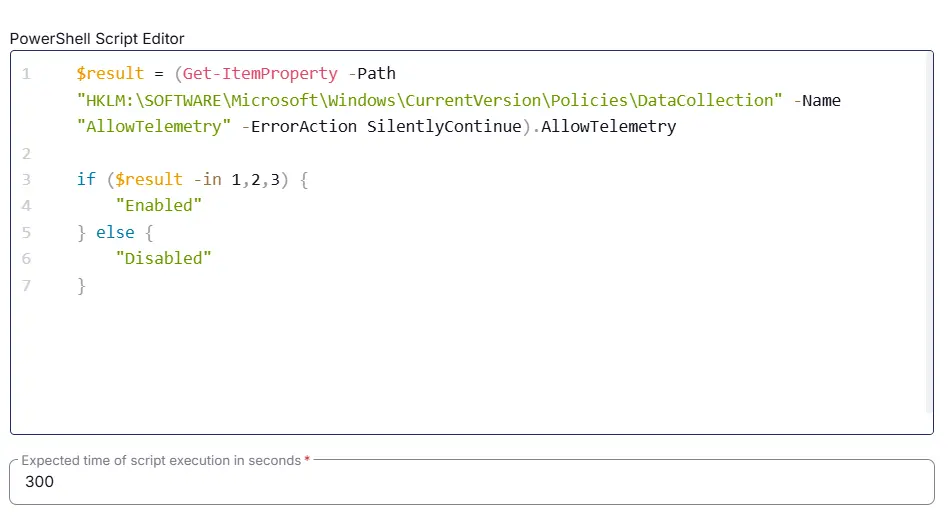
Row 5 Function: Script Log
Add a new row by clicking the Add Row button.
A blank function will appear.
Search and select the Script Log function.
In the script log message, simply type %output% and click the Save button.
Row 6 Function: Set Custom Field
Add a new row by clicking the Add Row button.
A blank function will appear.
Search and select the Set Custom Field function.
The following function will pop up on the screen:
- Search and select the Computer-Level Custom Field
Windows Telemetryfrom the Custom Field dropdown menu. - Set
%Output%in theValuefield. - Click the
Savebutton.


Row 7 Function: PowerShell Script
Search and select the PowerShell Script function.
The following function will pop up on the screen:
Paste in the following PowerShell script and set the Expected time of script execution in seconds to 300 seconds. Click the Save button.
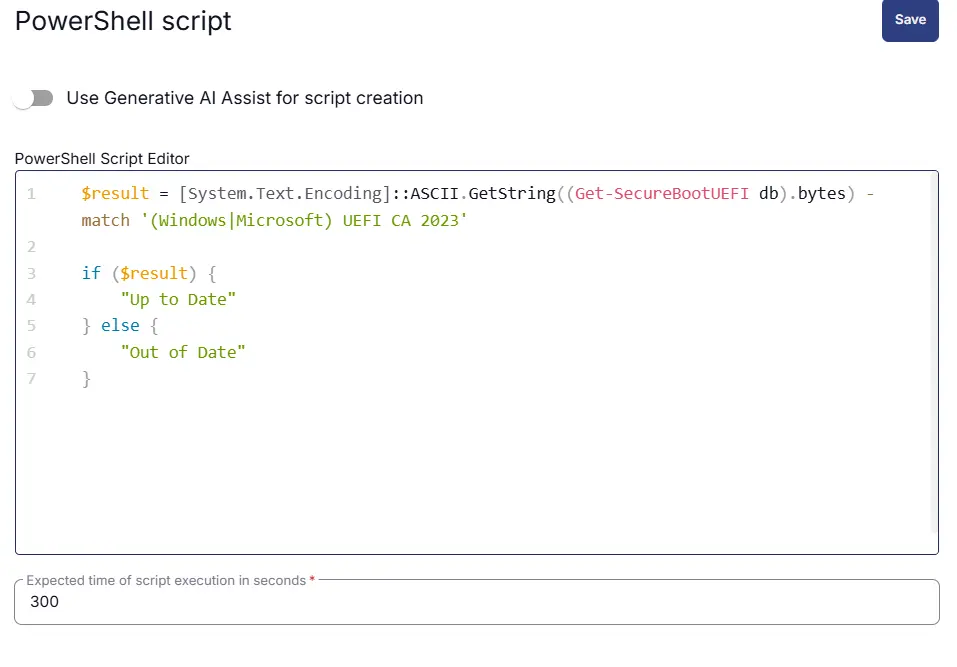
Row 8 Function: Script Log
Add a new row by clicking the Add Row button.
A blank function will appear.
Search and select the Script Log function.
In the script log message, simply type %output% and click the Save button.
Row 9 Function: Set Custom Field
Add a new row by clicking the Add Row button.
A blank function will appear.
Search and select the Set Custom Field function.
The following function will pop up on the screen:
- Search and select the Computer-Level Custom Field
Windows DB Certificatefrom the Custom Field dropdown menu. - Set
%Output%in theValuefield. - Click the
Savebutton.


Row 10 Function: PowerShell Script
Search and select the PowerShell Script function.
The following function will pop up on the screen:
Paste in the following PowerShell script and set the Expected time of script execution in seconds to 300 seconds. Click the Save button.
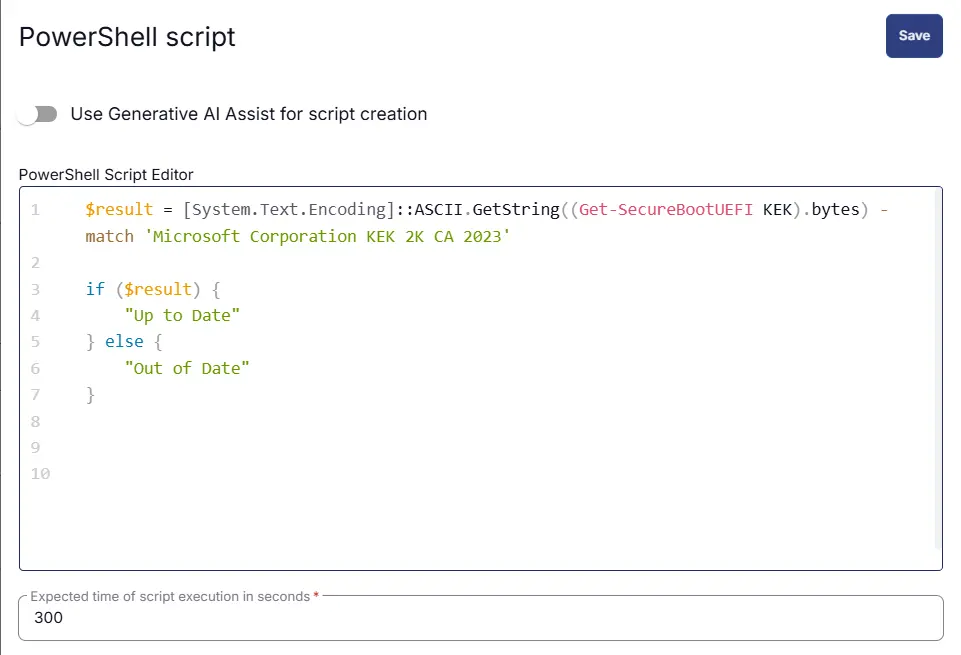
Row 11 Function: Script Log
Add a new row by clicking the Add Row button.
A blank function will appear.
Search and select the Script Log function.
In the script log message, simply type %output% and click the Save button.
Row 12 Function: Set Custom Field
Add a new row by clicking the Add Row button.
A blank function will appear.
Search and select the Set Custom Field function.
The following function will pop up on the screen:
- Search and select the Computer-Level Custom Field
Windows KEK Certificatefrom the Custom Field dropdown menu. - Set
%Output%in theValuefield. - Click the
Savebutton.


Save Task
Click the Save button at the top-right corner of the screen to save the script.

Completed Task
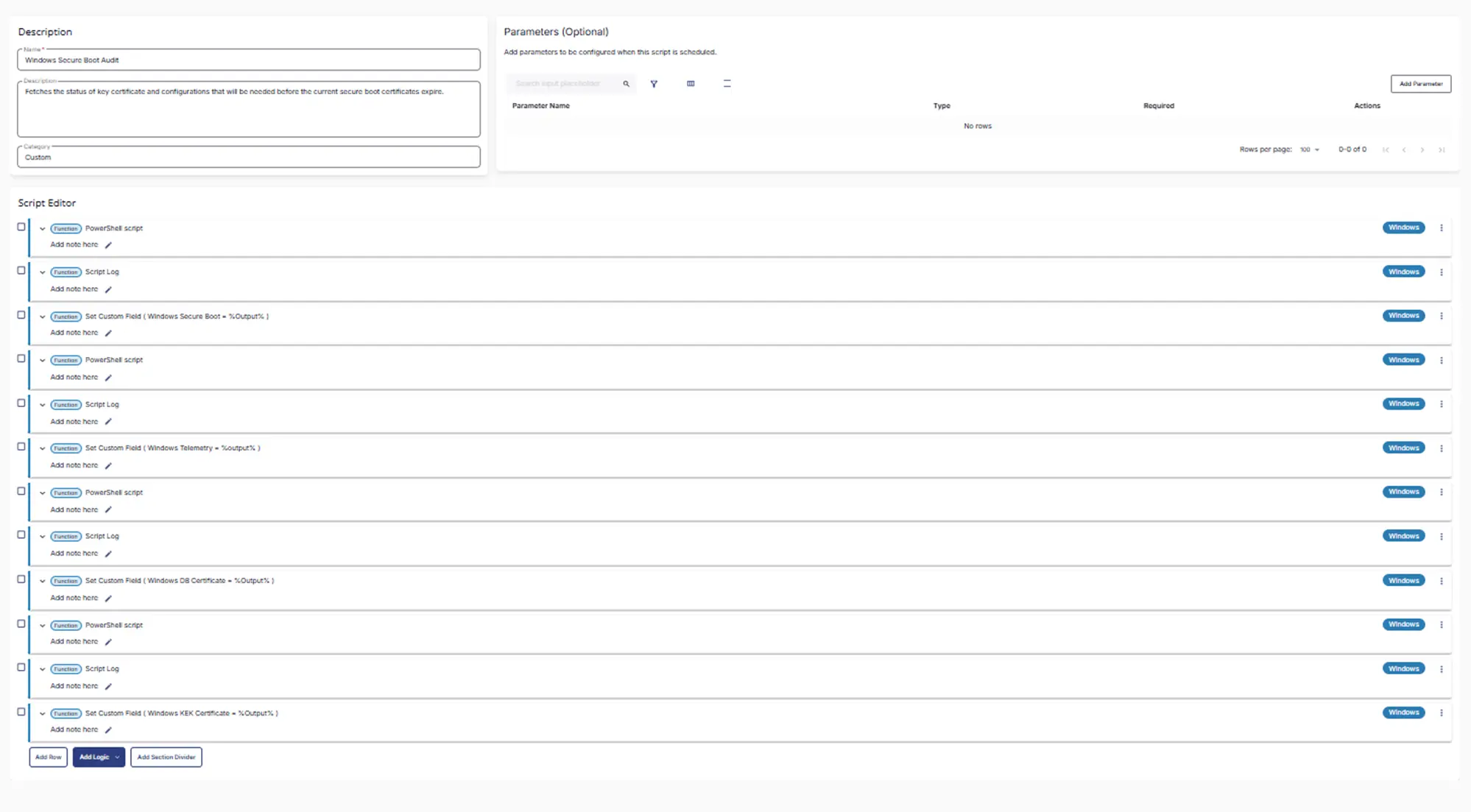
Output
- Custom fields
- Script Output
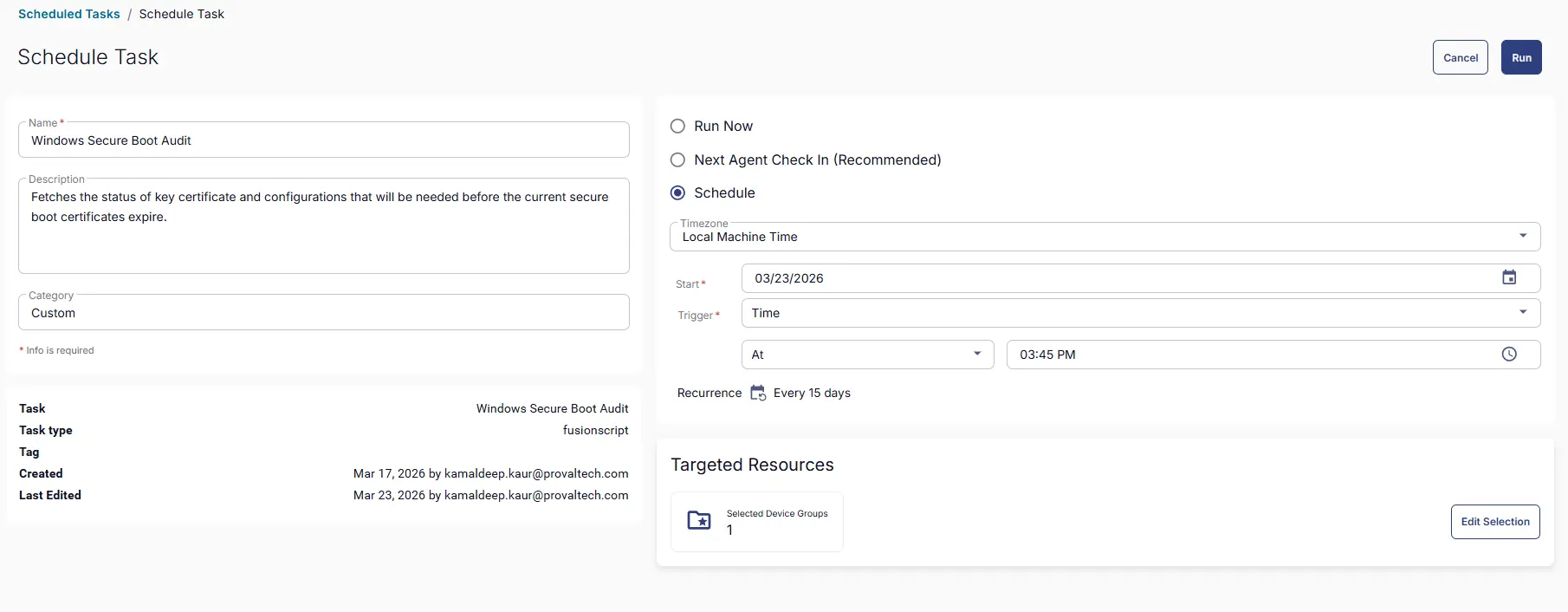
Schedule Task
Task Details
- Name:
Windows Secure Boot Audit - Description:
Fetches the status of key certificate and configurations that will be needed before the current secure boot certificates expire. - Category:
Custom
Schedule
- Schedule Type:
Schedule - Timezone:
Local Machine Time - Start:
<Current Date> - Trigger:
TimeAt<Current Time> - Recurrence:
Every 15 Days

Targeted Resource
Device Group: Windows Machines
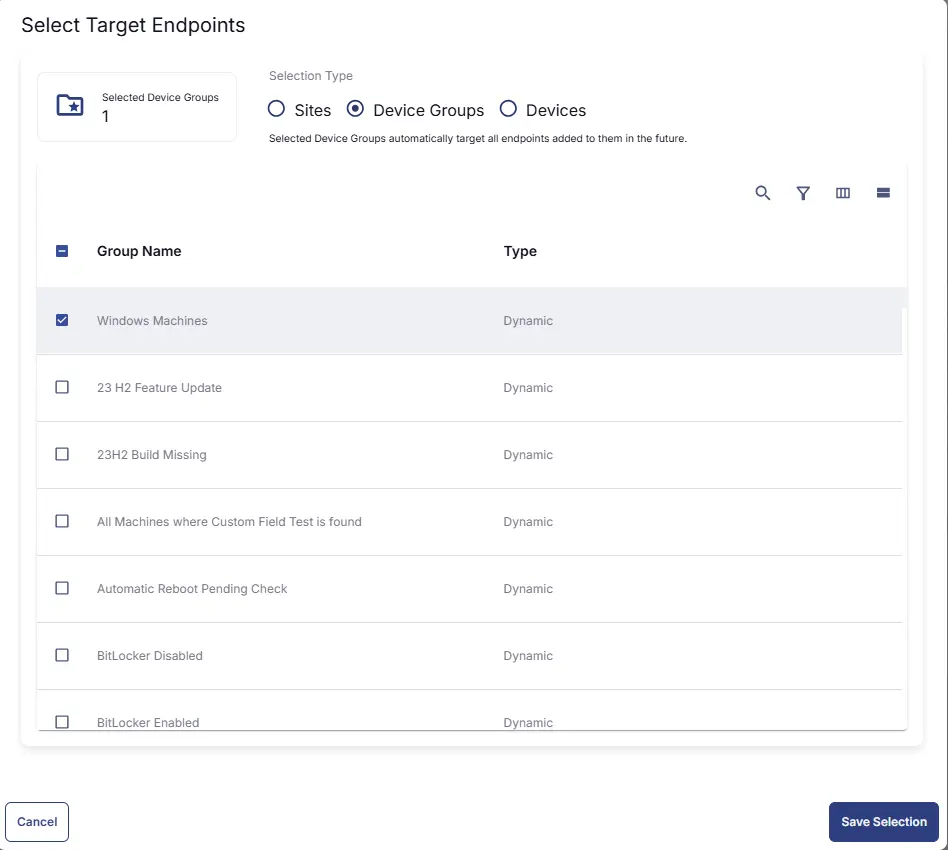
Completed Scheduled Task
Changelog
2026-03-23
- Initial version of the document