Sync SharePoint Library With OneDrive
Summary
Makes OneDrive automatically sync a SharePoint document library for every user on a computer. Users with access to the library see it in File Explorer without selecting Sync themselves.
The library is added to Microsoft's OneDrive policy for every user profile, including users who are not signed in. To learn how the policy works, see Configure team site libraries to sync automatically.
It works by running the Set-OneDriveLibraryAutoSync script. Run it once for each library.
Users cannot stop syncing a library added this way. Microsoft recommends it only for libraries with up to 5,000 files and folders, and for no more than 1,000 devices per library.
Users need access to the library in SharePoint and must be signed in to OneDrive with their work or school account. Users without access are not affected.
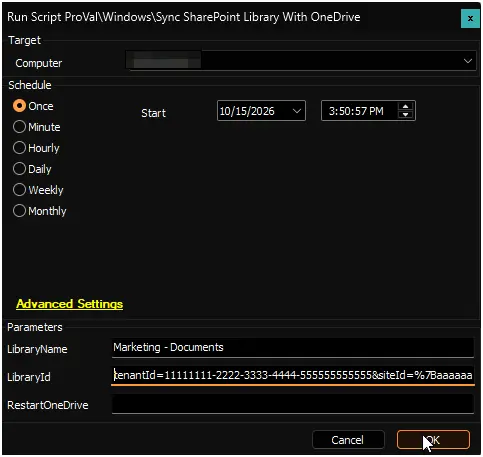
Sample Run
Dependencies
Get the Library ID
- Sign in to SharePoint as a Global Administrator or SharePoint Administrator.
- Open the document library to sync.
- Select Sync. If the browser asks to open OneDrive, select Cancel.
- In the Starting sync dialog, select Copy library ID.
- Paste the value into the
LibraryIdparameter exactly as it is.
If Copy library ID is not shown, build the library ID manually as described in the Set-OneDriveLibraryAutoSync document.
Global Variables
| Name | Value | Accepted Values | Description |
|---|---|---|---|
| Debug | False | False, True | When True, enables informational logging; when False (default), informational logs are suppressed to avoid adding entries to the h_scripts table. Set to True to assist with troubleshooting. |
| ScriptEngineEnableLogger | False | False, True | When True, enables final (success/failure) logging; when False (default), these logs are suppressed to avoid adding entries to the h_scripts table. Set to True to assist with troubleshooting. |
User Parameters
| Name | Example | Required | Description |
|---|---|---|---|
| LibraryName | Marketing - Documents | True | Name that identifies the library on the computer. Use a different name for each library. Running again with the same name replaces the library ID. |
| LibraryId | tenantId=1111...&version=1 | True | Library ID of the SharePoint document library, as copied from SharePoint. See Get the Library ID. |
| RestartOneDrive | 1 | False | Set to 1 to restart OneDrive for signed-in users, so the library appears within a few minutes. Users only see the OneDrive icon disappear and come back. |
Results
| Situation | Result |
|---|---|
| Library ID complete | Success. The library is added for every user profile on the computer. |
| Library ID incomplete | Failure. No changes. Copy the full library ID again and run again. |
| No user has signed in to the computer yet | Failure. No changes. Run again after a user has signed in. |
When the Library Appears
| User | Library Appears |
|---|---|
Signed in, RestartOneDrive set to 1 | Within a few minutes |
| Signed in | The next time OneDrive starts, or within 8 hours |
| Not signed in | At the user's next sign-in |
| Signs in to the computer for the first time after the script ran | After the script runs again |
| No access to the library | Never |
On shared computers, schedule the script (for example daily) so new users also get the library. Leave RestartOneDrive empty for scheduled runs, so OneDrive is not restarted every day.
Output
- Script log
- Script logs on the device:
C:\ProgramData\_Automation\Script\Set-OneDriveLibraryAutoSync\Set-OneDriveLibraryAutoSync-log.txtC:\ProgramData\_Automation\Script\Set-OneDriveLibraryAutoSync\Set-OneDriveLibraryAutoSync-error.txt
Changelog
2026-10-15
- Initial version of the document.