SetNinjaOneCustomField

NinjaOne - Set Custom Field Values
Bulk-update NinjaOne custom fields with a simple Windows GUI.
About
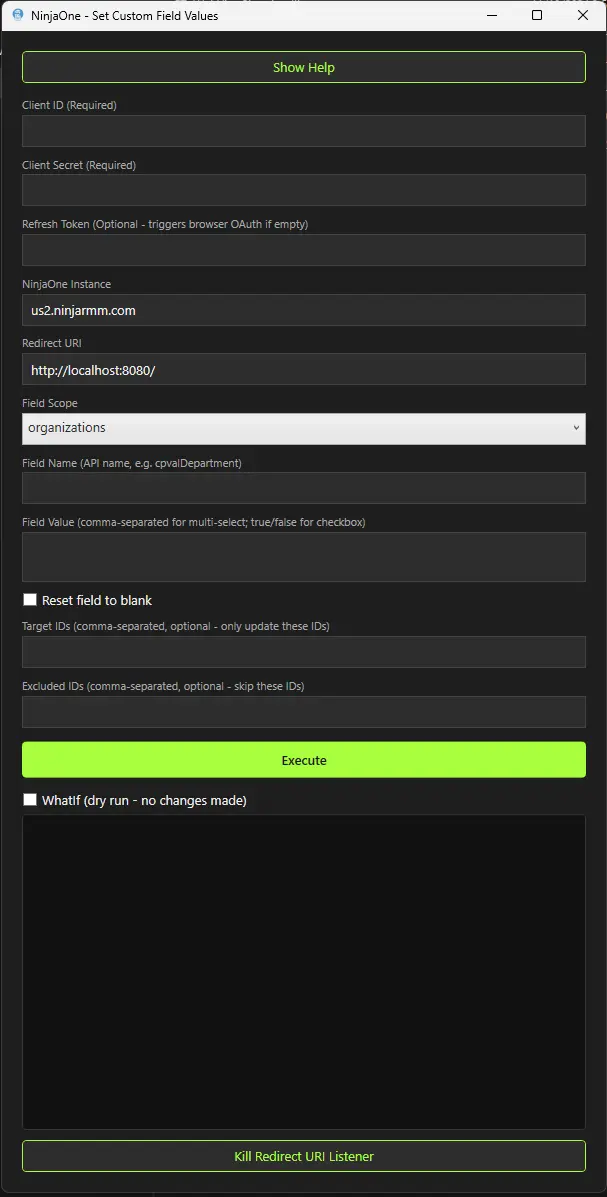
NinjaOne - Set Custom Field Values is an end-user friendly Windows tool that helps you update custom fields in bulk through the NinjaOne Public API.
It is designed to reduce manual effort and avoid data formatting mistakes. You choose a scope (Organizations, Devices, Locations, or End-Users), provide a field name/value, and the tool handles the API workflow.
The app includes smart value conversion so you can enter readable values while the tool sends the correct API format:
- Dropdown values are resolved from display names to option GUIDs.
- Multi-select values are resolved from comma-separated display names to GUID arrays.
- Checkbox values are converted from
true/falsetext to boolean values. - Numeric/decimal values are converted to number types.
- Reset mode can clear fields to blank.
Built With
- PowerShell 5.1+
- Windows Presentation Foundation (WPF)
- PS2EXE for executable packaging
Getting Started
Download the pre-compiled SetNinjaOneCustomField.exe and run it. No installation is required.
Prerequisites
- Windows device with PowerShell 5.1 or later
- NinjaOne API application with:
- Client ID
- Client Secret
- Redirect URI matching this tool
NinjaOne API App Configuration
Before using the tool, create an API application in NinjaOne:
- Sign in to NinjaOne as an administrator.
- Go to Administration > Apps > API.
- Select Add Client App.
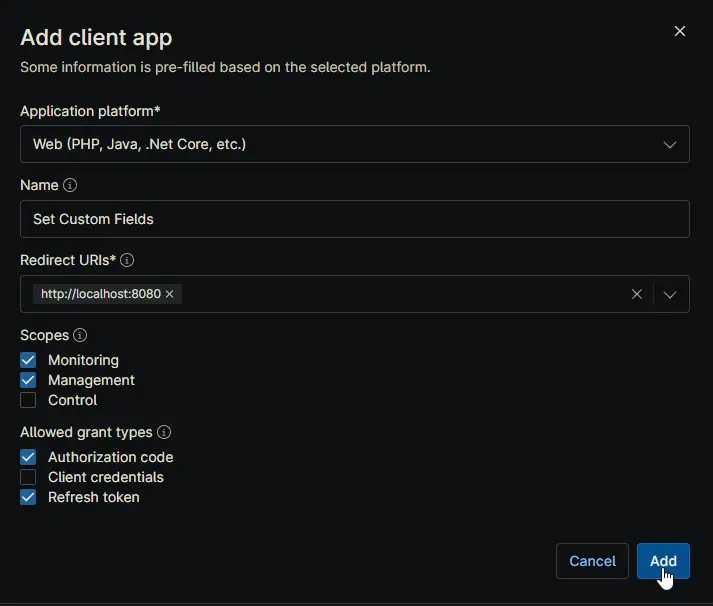
- Configure the app:
- Application Platform:
Web (PHP, Java, .NetCore, etc.) - Name:
Set Custom Fields(or any preferred name) - Redirect URI:
http://localhost:8080 - Scopes:
Monitoring,Management - Grant Type:
Authorization Code,Refresh Token
- Application Platform:
- Save the app and copy the Client ID and Client Secret.
Important: The Redirect URI in NinjaOne must exactly match the Redirect URI entered in this tool.
Sample API Config
Usage
- Open the application.
- If you need instructions, click Show Help to view the built-in help guide.
- Enter your API and field details.
- Click Execute.
- Review progress and results in the built-in console.
If Refresh Token is blank, the tool starts an interactive browser sign-in flow and automatically captures the callback.
You can also use Kill Redirect URI Listener to release the local redirect listener if a previous OAuth attempt was interrupted.
Use Refresh Token to Skip Re-Authorization
Use this flow to avoid browser authorization on every run:
- Leave Refresh Token blank and run the tool once.
- Complete browser sign-in and consent.
- Copy the Refresh Token shown in the output console.
- Paste that token into Refresh Token for future runs.
Result: the tool uses the saved refresh token to get a new access token automatically, so you only need the full browser authorization the first time.
Application Fields and Options
| Field Name | Required | Description |
|---|---|---|
| Client ID | Yes | OAuth Client ID from your NinjaOne API app. |
| Client Secret | Yes | OAuth Client Secret from your NinjaOne API app. |
| Refresh Token | No | Existing refresh token. If omitted, the tool starts browser-based OAuth and retrieves one interactively. |
| NinjaOne Instance | Yes | NinjaOne host name, for example us2.ninjarmm.com, eu.ninjarmm.com, app.ninjarmm.com, or your branded tenant URL. |
| Redirect URI | Yes | Local callback URL for OAuth, default is http://localhost:8080/. Must match your NinjaOne app setting. |
| Field Scope | Yes | Where the field exists: organizations, devices, locations, or end-users. |
| Field Name | Yes | API field name, for example cpvalDepartment. |
| Field Value | Conditional |
|
| Reset field to blank | No | Clears the field value instead of setting a new value. |
| Target IDs | No | Comma-separated object IDs to update only specific items. |
| Excluded IDs | No | Comma-separated object IDs to skip. Ignored when Target IDs are provided. |
| WhatIf (dry run) | No | Simulates updates and reports what would change, without writing data. |
| Kill Redirect URI Listener | No | Manually frees the redirect listener port when needed, for example after an interrupted OAuth attempt. |
Field Type Behavior
The tool automatically checks the custom field definition and handles values correctly:
DROPDOWN: display name -> option GUIDMULTI_SELECT: comma-separated display names -> GUID arrayCHECKBOX:true/falsetext -> booleanTEXT_MULTILINE: kept as-isNUMERIC/DECIMAL: converted to numeric values- Other field types: sent as string values
Examples
Example 1: Set a checkbox for all organizations
- Field Scope:
organizations - Field Name:
cpvalRequireMFA - Field Value:
true - Result: Updates the checkbox to true across all organizations.
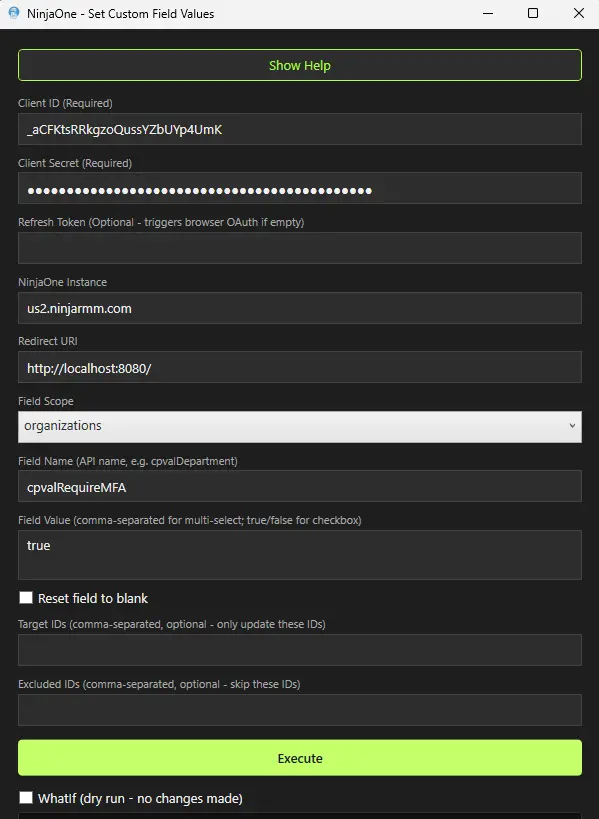
Example 2: Update a multi-select field on specific devices
- Field Scope:
devices - Field Name:
cpvalInstalledModules - Field Value:
Core-VPN,Umbrella,Diagnostic Tool - Target IDs:
142,143,150 - Result: Resolves display names to GUIDs and updates only those device IDs.
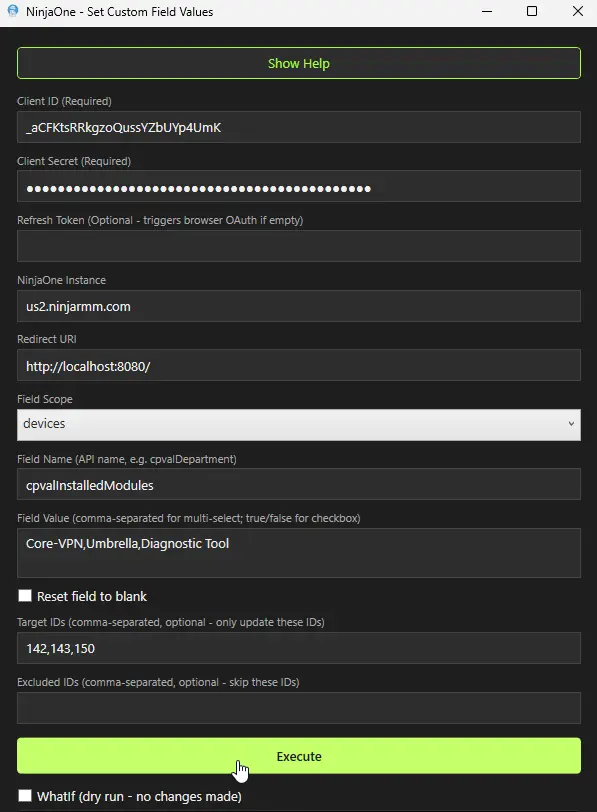
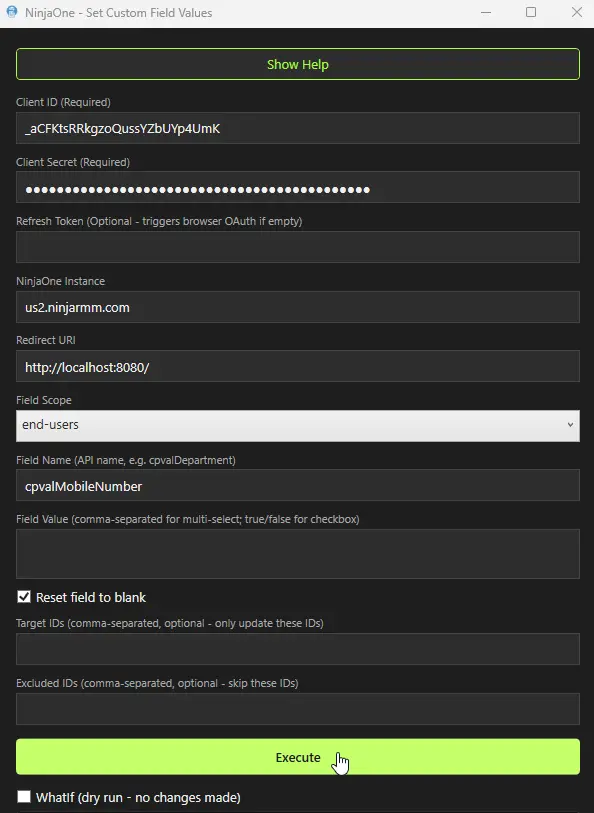
Example 3: Clear a field for all end-users
- Field Scope:
end-users - Field Name:
cpvalMobileNumber - Reset field to blank: Checked
- Result: Clears the selected field value for all end-users.
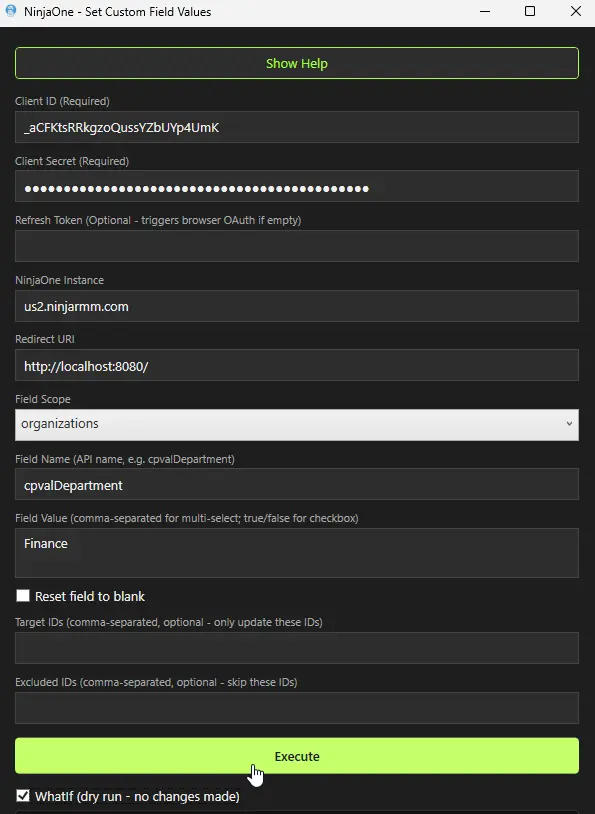
Example 4: Dry run before production update
- Field Scope:
organizations - Field Name:
cpvalDepartment - Field Value:
Finance - WhatIf (dry run): Checked
- Result: Shows expected changes in the console without applying them.
Troubleshooting
- Client ID or Client Secret error
- Verify values were copied correctly from NinjaOne API app settings.
- OAuth callback/redirect problems
- Confirm Redirect URI matches exactly in both NinjaOne and the tool.
- Ensure local port
8080is not blocked by another process. - Click Kill Redirect URI Listener to release a stuck local listener, then run again.
- Refresh token provided but authentication still fails
- Re-run once with Refresh Token blank, complete OAuth, and copy the new token from console output.
- Confirm Client ID, Client Secret, instance, and Redirect URI match the same API app used to generate the token.
- Field not found
- Confirm you entered the API field name, not the display label.
- Dropdown or multi-select value fails
- Use exact option display names configured in NinjaOne.
- No changes applied
- Check Target IDs and Excluded IDs filters.
- Confirm WhatIf mode is not enabled.
Security Notes
- Keep Client Secret and Refresh Token private.
- Use least-privilege API scopes where possible.
- Run tests in WhatIf mode before broad production changes.
Notes
- This tool is intended for interactive desktop use.
- The GUI keeps the interface responsive while API actions run in the background.
- Use dry run mode whenever possible before large-scale updates.
Changelog
2026-06-02
- Added Kill Redirect URI Listener button to release the local OAuth redirect listener port when needed.
- Added automatic redirect listener cleanup at completion to reduce port-binding issues on later runs.
- Fixed refresh-token authentication flow where valid refresh tokens could fail to produce an access token.
- Displayed refresh token output in console so first-time authorization can be reused on future runs.
2026-05-27
- Initial version of the document