CU Compliance and Audit - Workstations
Summary
The CU Compliance and Audit - Workstations report provides a focused overview of the patch health for all managed workstation operating systems (laptops and desktops) in the environment. Unlike standard patch reports that may simply count missing patches, this report focuses on the "freshness" of the operating system by calculating the age of the last installed Cumulative Update (CU).
This approach helps identify workstations that might report as "Fully Patched" in RMM but are actually stuck on an older monthly update due to failing Windows Update agents, missed reboot windows, or other errors.
Compliance Calculation
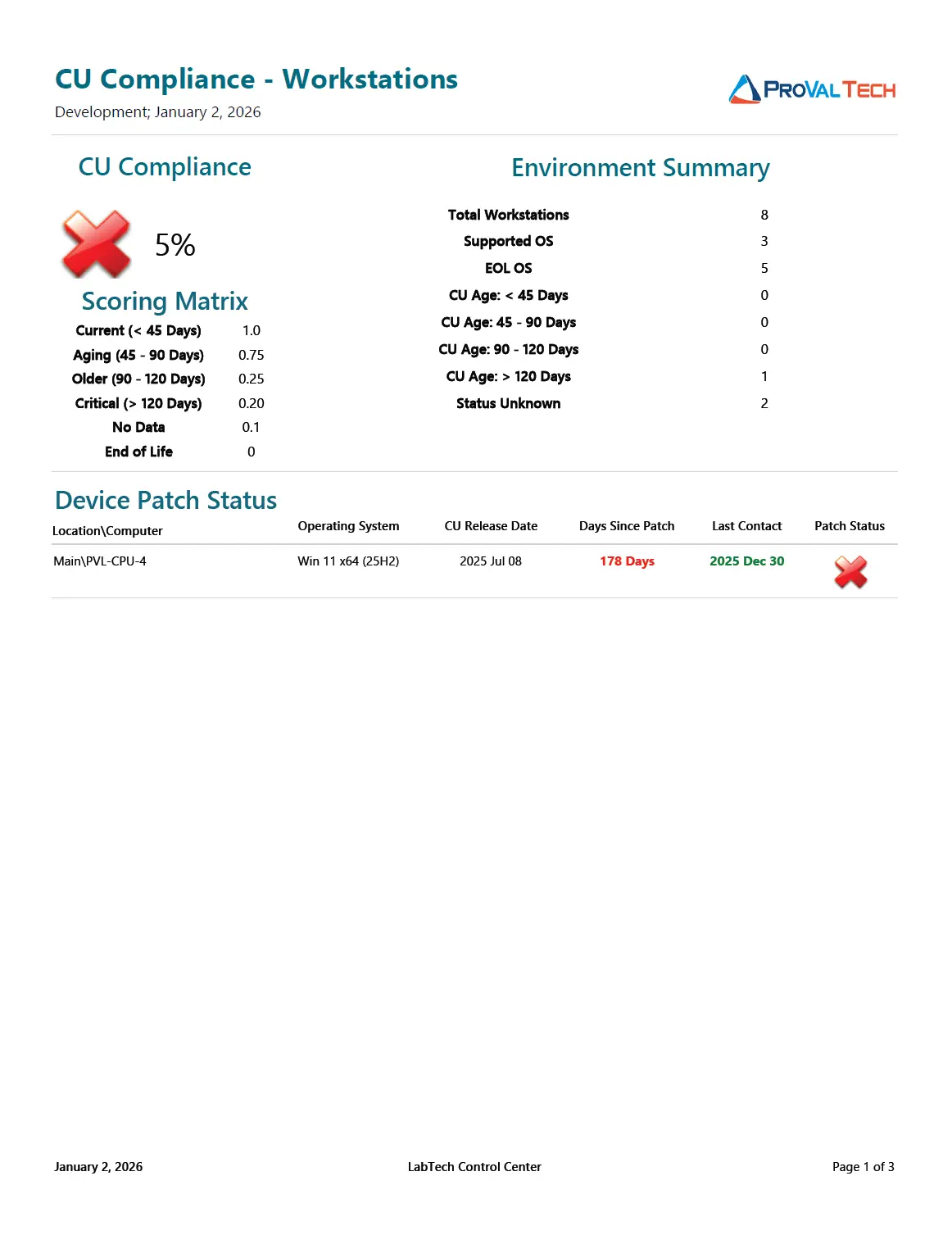
The overall CU Compliance percentage is calculated based on a weighted scoring system. Each workstation is assigned a point value between 0 and 1.0 depending on how recently its last Cumulative Update was installed.
Formula: Compliance % = (Sum of all Device Scores / Total Number of Production Workstations) * 100
Scoring Matrix:
The report uses the following weights to determine a workstation's score:
- 1.0 (100%): CU installed within the last 45 days.
- 0.75 (75%): CU installed between 45 - 90 days ago.
- 0.25 (25%): CU installed between 90 - 120 days ago.
- 0.20 (20%): CU installed more than 120 days ago.
- 0.10 (10%): No Data / Unknown. The workstation is supported, but Automate has not retrieved CU information.
- 0.00 (0%): End of Life (EOL). The OS version is no longer supported by Microsoft (e.g., Windows 10, Windows 11 22H2/23H2).
Example Calculation:
Based on a sample environment with 8 Total Workstations:
- 0 workstations are current (< 45 days) ->
0 * 1.0 = 0 - 0 workstations are aging (45-90 days) ->
0 * 0.75 = 0 - 0 workstations are older (90-120 days) ->
0 * 0.25 = 0 - 1 workstation is critical (> 120 days) ->
1 * 0.20 = 0.20 - 2 workstations are status unknown ->
2 * 0.10 = 0.20 - 5 workstations are EOL ->
5 * 0.00 = 0
Total Score: 0 + 0 + 0 + 0.20 + 0.20 + 0 = 0.40
Calculation: (0.40 / 8) * 100
Final Compliance: 5%
Report Sections
1. Environment Summary
This section provides a quick statistical breakdown of the workstation environment. It displays the total count of workstations and groups them by their patch age category (Current, Aging, Critical) and Support status (Supported vs. EOL).
2. Device Patch Status
This detailed list shows supported workstations where the Last Cumulative Update date is known.
- Columns: Includes Computer Name, OS, CU Release Date, and Days Since Patch.
- Purpose: Use this to identify specific workstations that are technically "active" but have not successfully applied a monthly update in a long time.
3. No Audit Information
This section lists Supported OS workstations (excluding EOL) where the CU information is currently missing or blank.
- Context: These workstations result in a score of 0.1.
- Troubleshooting: If this list is populated, it usually means the audit script has not run recently, or the device has been offline during the scan window.
4. Non-Compliant Devices (EOL)
This section lists all workstations running an Operating System version that has reached End of Life.
- Context: These workstations automatically receive a score of 0.
- Risk: EOL workstations no longer receive public security updates and pose a significant security risk to the network. Common examples include Windows 11 21H2, 22H2, or 23H2.
Recommendations & Solutions
Based on the data presented in the report sections, the following actions are recommended:
- High count in "No Audit Information": If a large number of workstations appear in this section, verify that the Latest Installed Cumulative Update solution is scheduled and running correctly in Automate. This ensures patch dates are retrieved from the endpoint.
- High count of EOL Workstations: If the "Non-Compliant Devices" section contains many Windows 10 or older Windows 11 versions, you should implement the Windows 11 Latest Feature Update installation solution. This automates the upgrade process to bring these workstations to a supported version (e.g., 24H2) quickly.
- Critical Patch Age (> 120 Days): For workstations appearing in the "Device Patch Status" list with a high "Days Since Patch" count, manual remediation may be required. This could involve clearing the Software Distribution folder, resetting Windows Update components, or manually installing the latest SSU/CU.
Dependencies
- Custom Table - plugin_proval_windows_os_support
- View - plugin_proval_computerpatchcompliance
- View - plugin_proval_clientpatchstats
- View - plugin_proval_clientpatchstatsserver
- View - plugin_proval_clientpatchstatsworkstation
- Script - MySQL - Views for Cumulative Update reports*
- Solution - Latest Installed Cumulative Update
- Solution - CU Compliance Reporting
Sample Report
Click this image to view full report
Changelog
2026-01-02
- Initial version of the document