Get-MFAUsers
Summary
Connects to Microsoft Graph using a registered Microsoft Entra ID application and audits user accounts across a Microsoft 365 tenant to determine which authentication methods are registered.
The script provides a tenant-wide MFA overview by identifying and reporting the authentication methods registered for each Microsoft 365 account. It checks methods such as SMS/Voice, Microsoft Authenticator, Passkey, Windows Hello, Software OTP, and other supported authentication methods. The results show which methods are configured for each account and flag accounts that rely solely on SMS/Voice without another accepted authentication method, helping administrators identify users who may require stronger authentication.
The script generates a human-readable Get-MFAUsers-result.txt report and can optionally generate a Get-MFAUsers-result.csv file for spreadsheet analysis.
How it Works
-
Microsoft Graph Authentication
The script connects to Microsoft Graph using the configured Microsoft Entra ID application credentials. The application authenticates against the Microsoft 365 tenant and obtains the permissions required to retrieve user and authentication method information. -
User Account Enumeration
The script retrieves user accounts from the Microsoft 365 tenant and collects relevant account information, including User Principal Name, Display Name, account status, user type, and licensing information. -
Authentication Method Retrieval
The script retrieves the authentication methods registered for each user. It evaluates multiple authentication methods, including SMS/Voice, Microsoft Authenticator, Passkey, Windows Hello, Software OTP, and other supported methods. -
Authentication Method Classification
The retrieved authentication methods are grouped into standardized categories so each account can be easily reviewed. The results indicate whether each user has methods such as SMS/Voice, Authenticator, Passkey, Windows Hello, or Software OTP configured. -
MFA Status Evaluation
The script evaluates the authentication methods associated with each account to determine the user's overall MFA configuration and identify whether additional authentication methods are available. -
Flagged Account Detection
The script checks whether an account relies only on SMS/Voice authentication without another accepted authentication method. Accounts meeting this condition are marked as Flagged so they can be prioritized for MFA remediation. -
Result Generation
The script returns the collected information as objects and generates a human-readable Get-MFAUsers-result.txt report containing the authentication status of each account. -
CSV Export
If the -ExportCsv option is specified, the script additionally generates Get-MFAUsers-result.csv, providing detailed per-account results that can be used for spreadsheet analysis, reporting, or ticket documentation.
Note : For more information on how script works visit Agnostic Script : Get-MFAUsers
Sample Run
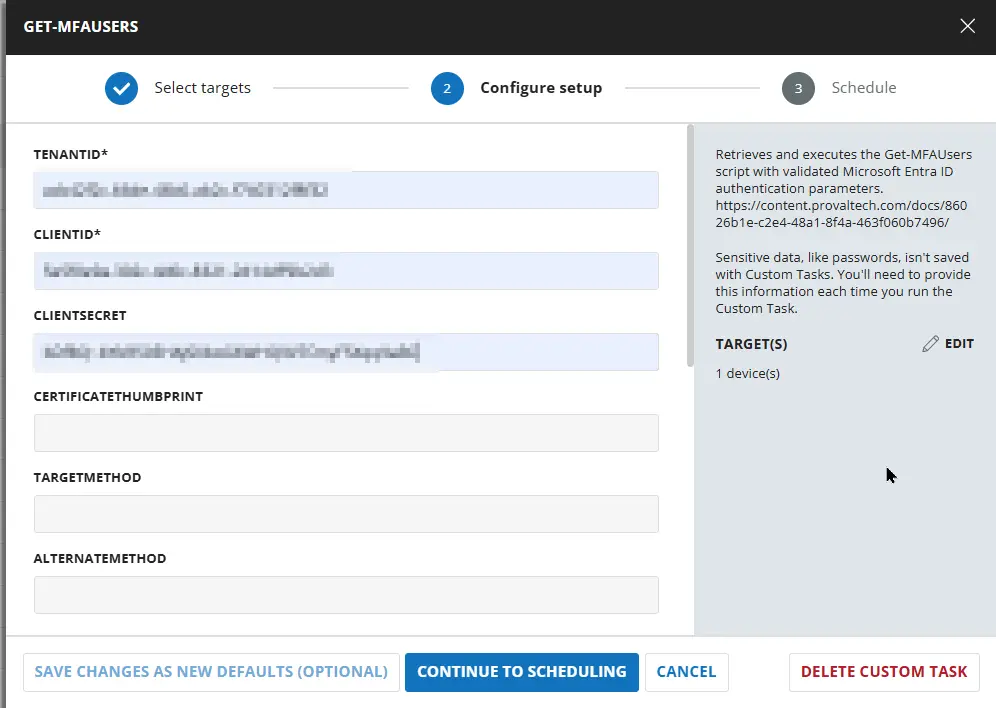
Sample Run 1 : Reports every account in the tenant, flagging any whose only authentication method is SMS or a voice call.
TenantID : contoso.onmicrosoft.com
ClientID : 11111111-1111-1111-1111-111111111111
ClientSecret : aBc...
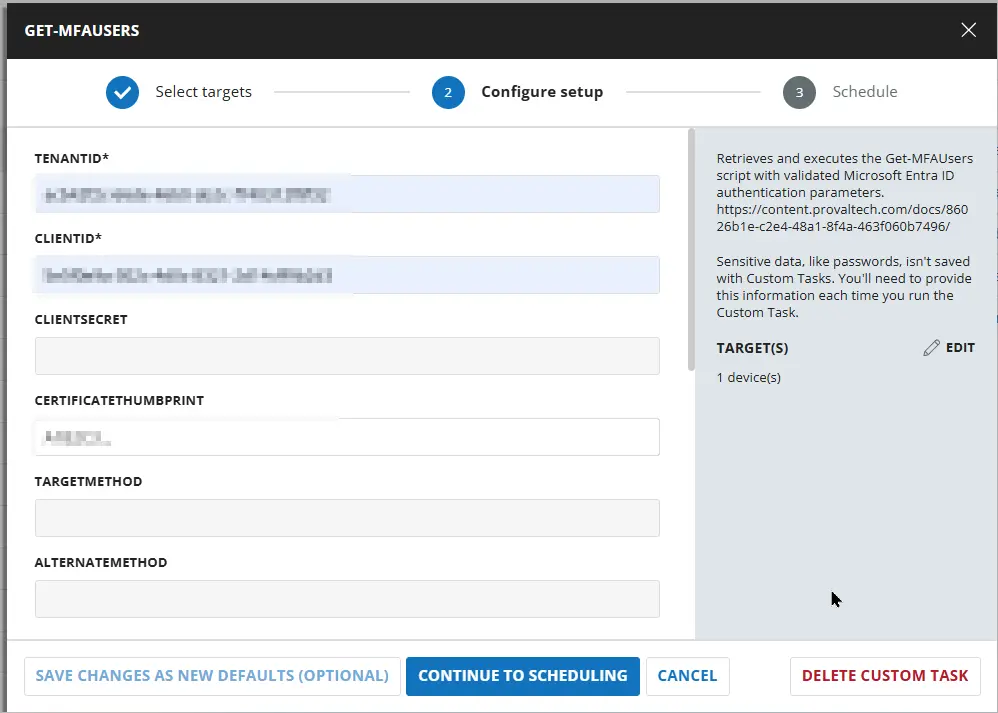
Sample Run 2 : Authenticates with a certificate held in the local certificate store instead of a client secret.
TenantID : contoso.onmicrosoft.com
ClientID : 11111111-1111-1111-1111-111111111111
CertificateThumbprint : A1B2C3...
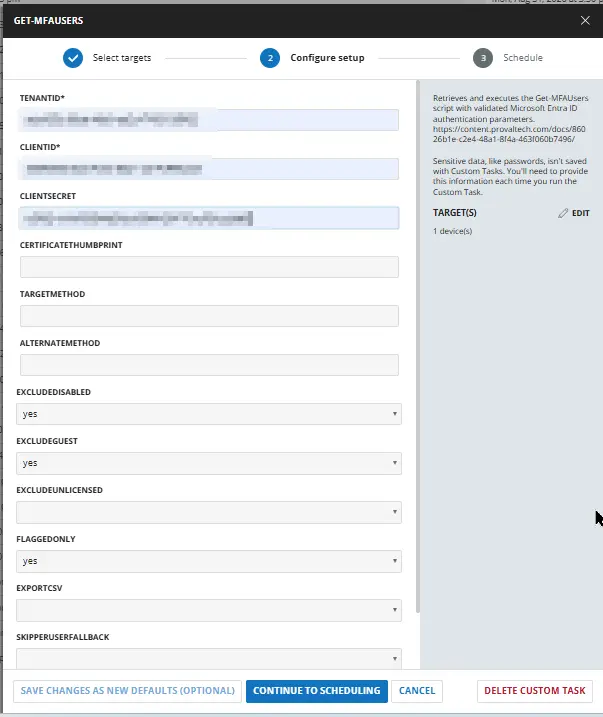
Sample Run 3 : Narrows the report to enabled member accounts that have nothing but a phone number, which is the usual shape for a remediation list.
TenantID : contoso.onmicrosoft.com
ClientID : 11111111-1111-1111-1111-111111111111
ClientSecret : aBc...
FlaggedOnly : Yes
ExcludeDisabled : Yes
ExcludeGuest : Yes
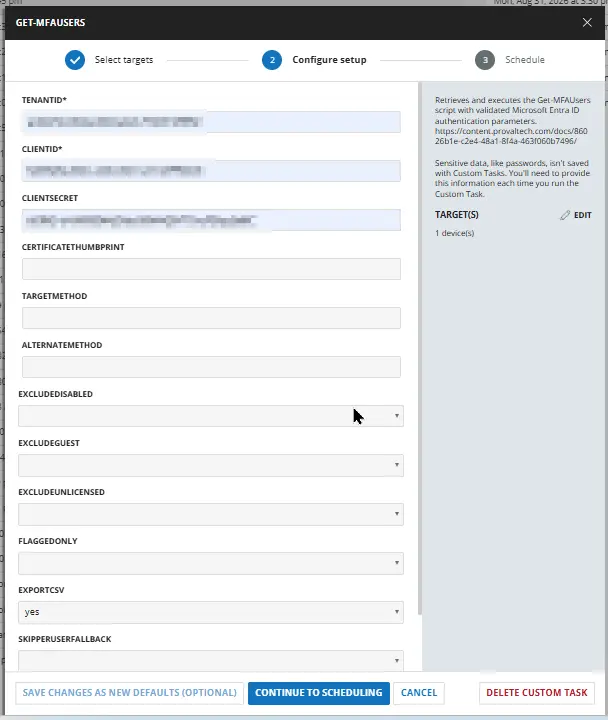
Sample Run 4 : Writes a detailed CSV report named Get-MFAUsers-result.csv under C:\ProgramData\_automation\script\Get-MFAUsers on the machine where the script is run, for opening in Excel.
TenantID : contoso.onmicrosoft.com
ClientID : 11111111-1111-1111-1111-111111111111
ClientSecret : aBc...
ExportCsv : Yes
Sample Run 5 : Treats only phishing resistant methods as an acceptable alternative, so an account whose other method is the Authenticator app or a TOTP token is flagged as well.
TenantID : contoso.onmicrosoft.com
ClientID : 11111111-1111-1111-1111-111111111111
ClientSecret : aBc...
AlternateMethod : Passkey,WindowsHello
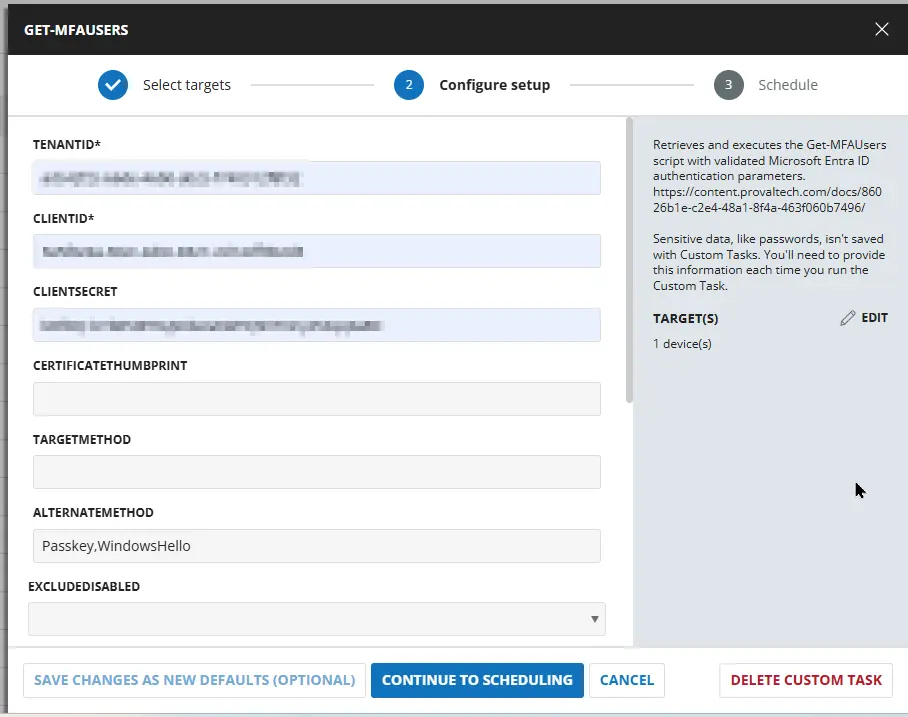
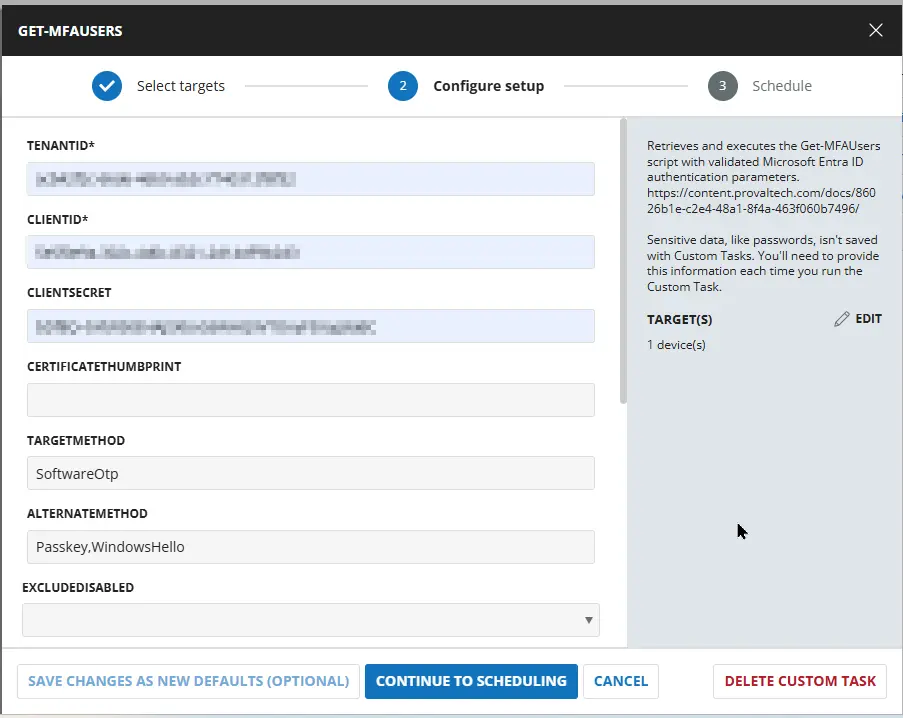
Sample Run 6 : Searches for a different method entirely: accounts whose only method is a TOTP token.
TenantID : contoso.onmicrosoft.com
ClientID : 11111111-1111-1111-1111-111111111111
ClientSecret : aBc...
TargetMethod : SoftwareOtp
AlternateMethod : AuthenticatorApp,Passkey,WindowsHello
Dependencies
User Parameters
| Name | Example | Accepted Values | Required | Default | Type | Description |
|---|---|---|---|---|---|---|
| TenantId | contoso.onmicrosoft.com | True | String | The tenant to report on. Accepts the tenant GUID or any verified domain. | ||
| ClientId | 11111111-1111-1111-1111-111111111111 | True | String | The tenant to report on. Accepts the tenant GUID or any verified domain. | ||
| ClientSecret | aBc.... | Partially True | String | A client secret belonging to the app registration. It is Mutually exclusive with CertificateThumbprint which means either ClientSecret or CertificateThumbprint for authentication. | ||
| CertificateThumbprint | A1B2C3... | Partially True | String | The thumbprint of a certificate uploaded to the app registration and present with its private key in Cert:\CurrentUser\My or Cert:\LocalMachine\My. Required in the Certificate parameter set. Mutually exclusive with ClientSecret. It is Mutually exclusive with CertificateThumbprint which means either ClientSecret or CertificateThumbprint for authentication. | ||
| TargetMethod | SmsVoice | SmsVoice, Email, SoftwareOtp, HardwareOtp, AuthenticatorApp, Passkey, WindowsHello, Certificate | False | String | The method classes being searched for. An account must hold at least one of them to be flagged. | |
| AlternateMethod | AuthenticatorApp, Passkey, WindowsHello, SoftwareOtp, HardwareOtp, Certificate | False | String | The method classes whose presence means the account is not dependent on the target method, and so is not flagged. | ||
| ExcludeDisabled | False | Flag | Select it to Omit accounts where accountEnabled is false. | |||
| ExcludeGuest | False | Flag | Select it to Omit accounts whose userType is Guest. | |||
| ExcludeUnlicensed | False | Flag | Select it to Omit accounts with no assigned licenses. Useful for dropping service and resource accounts. | |||
| FlaggedOnly | False | Flag | Select it to Return and report only the accounts where Flagged is true. | |||
| ExportCsv | False | Flag | Writes a detailed CSV report named Get-MFAUsers-result.csv under C:\ProgramData\_automation\script\Get-MFAUsers on the machine where the script is run, beside the log file, when this parameter is selected. By default, the CSV file is not created because the returned results already contain all per-account details. | |||
| SkipPerUserFallback | False | Flag | Select it to not call the per-user authentication methods API for accounts missing from the registration report. Those accounts are still returned, with DataSource set to Unavailable and every method column $null rather than $false. | |||
| MaxFallbackUser | 800 | False | 500 | Number Value | The largest number of accounts to resolve individually through the per-user API. Accounts beyond the cap are returned with DataSource set to Unavailable, and the report says how many were left unresolved. Range is 0-100000. |
Task Creation
Script Details
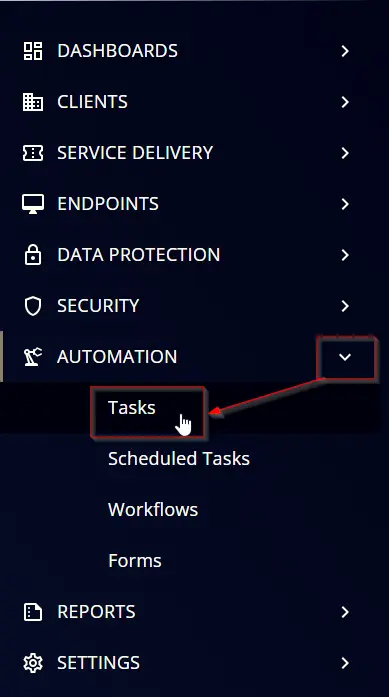
Step 1
Navigate to Automation ➞ Tasks
Step 2
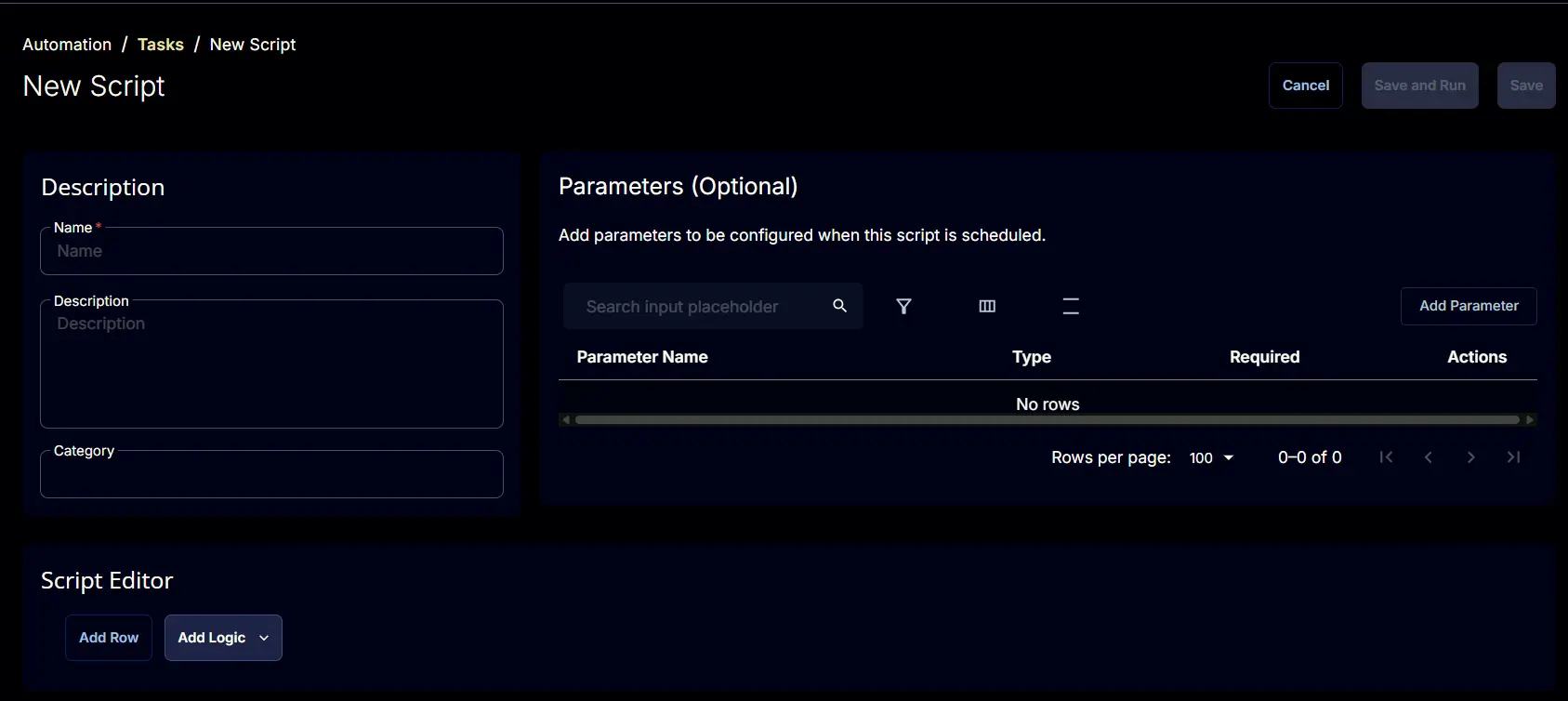
Create a new Script Editor style task by choosing the Script Editor option from the Add dropdown menu

The New Script page will appear on clicking the Script Editor button:
Step 3
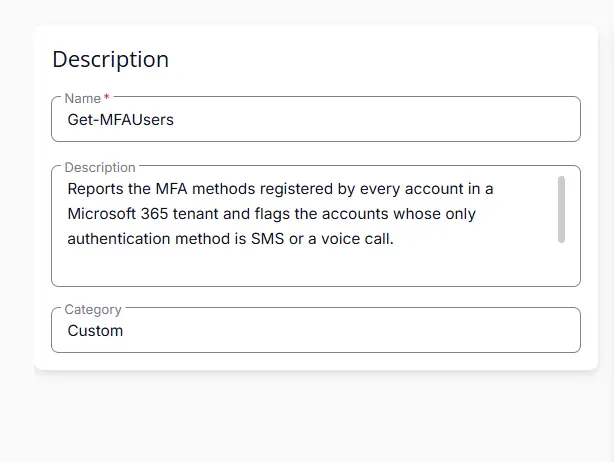
Fill in the following details in the Description section:
- Name:
Get-MFAUsers - Description:
Reports the MFA methods registered by every account in a Microsoft 365 tenant and flags the accounts whose only authentication method is SMS or a voice call.
https://content.provaltech.com/docs/bbb02e19-ad03-499f-bc73-962cd0641680/ - Category:
Custom
Parameters
TenantId
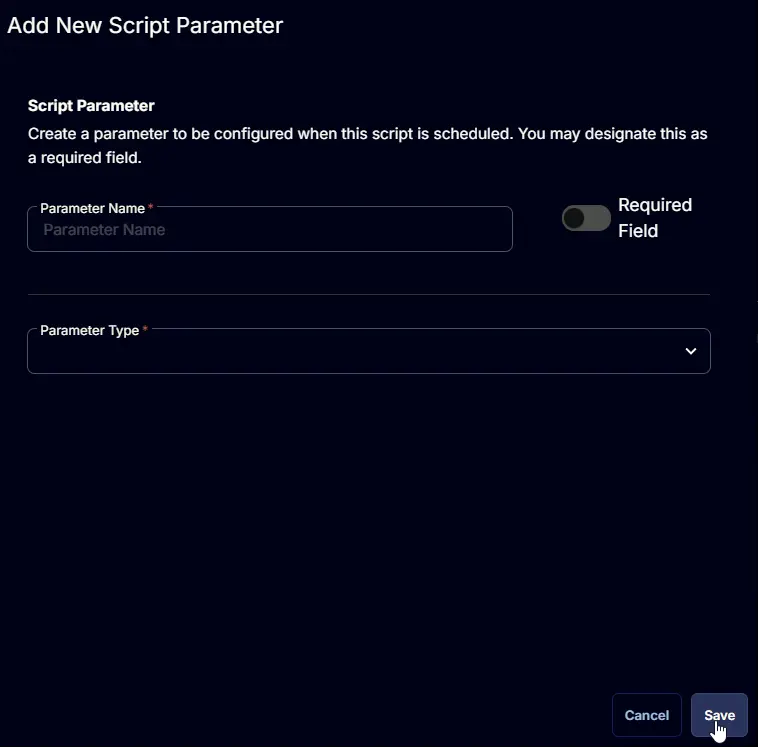
Locate the Add Parameter button on the right-hand side of the screen and click on it to create a new parameter.

The Add New Script Parameter page will appear on clicking the Add Parameter button.
- Set
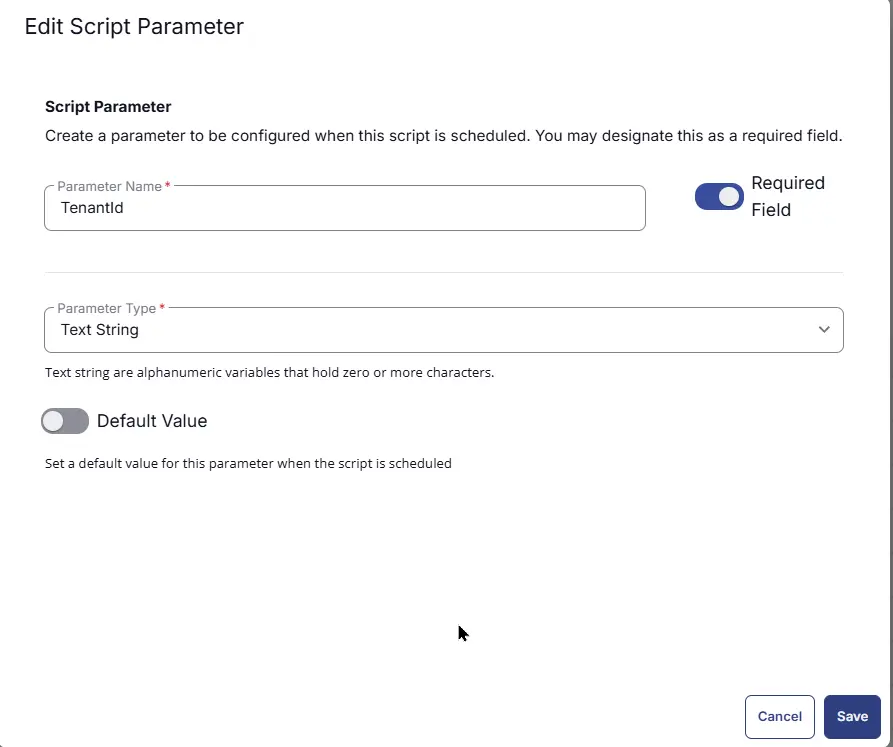
TenantIdin theParameter Namefield. - Enable the
Required Fieldbutton. - Select
Text Stringfrom theParameter Typedropdown menu. - Click the
Savebutton.
ClientId
Locate the Add Parameter button on the right-hand side of the screen and click on it to create a new parameter.
The Add New Script Parameter page will appear on clicking the Add Parameter button.
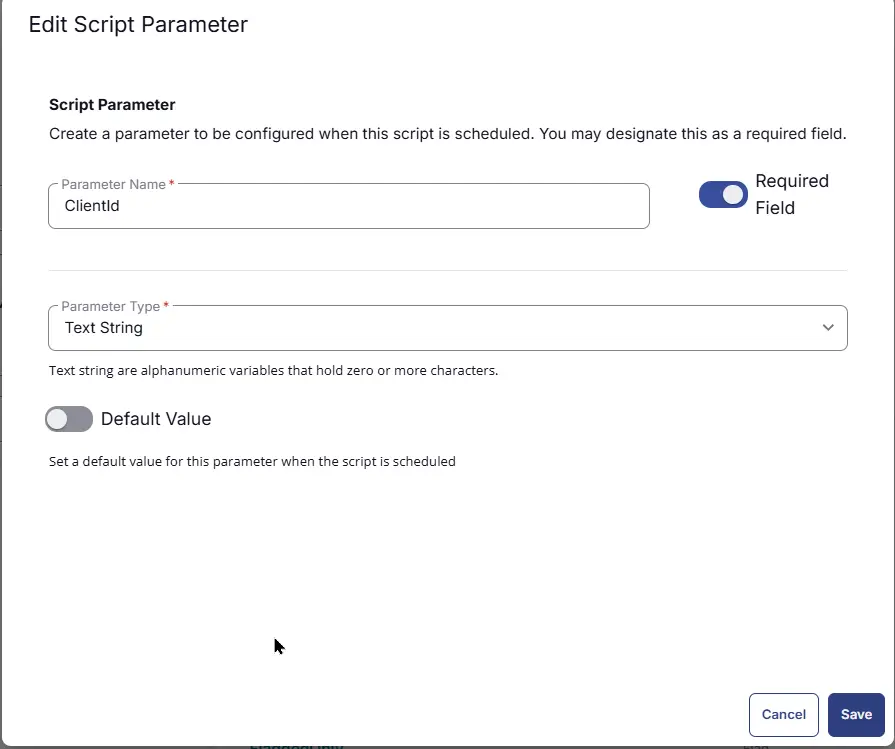
- Set
ClientIdin theParameter Namefield. - Enable the
Required Fieldbutton. - Select
Text Stringfrom theParameter Typedropdown menu. - Click the
Savebutton.
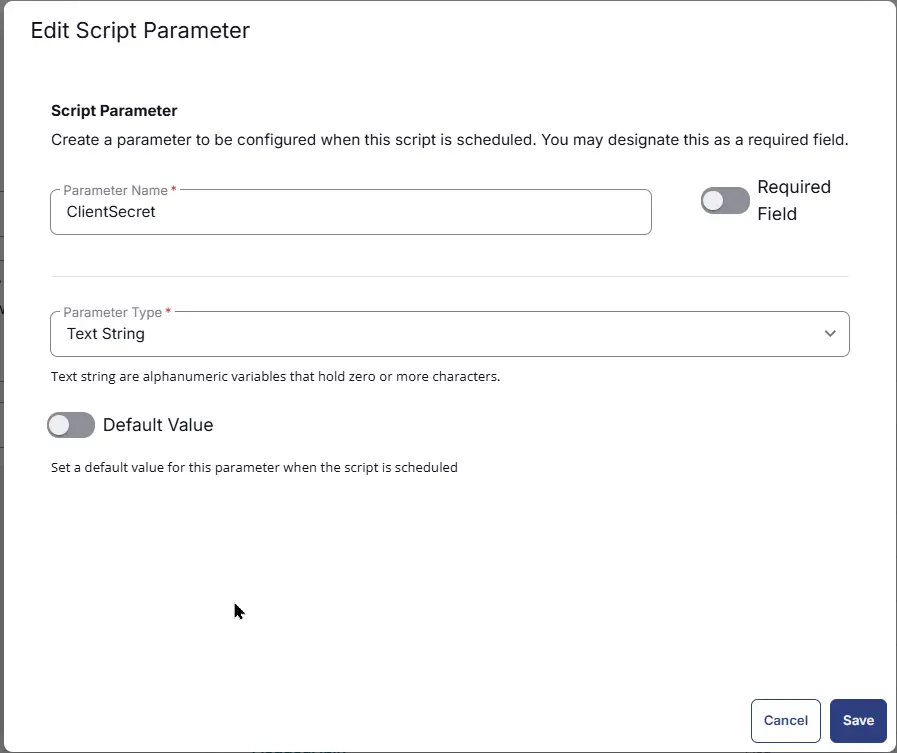
ClientSecret
Locate the Add Parameter button on the right-hand side of the screen and click on it to create a new parameter.
The Add New Script Parameter page will appear on clicking the Add Parameter button.
- Set
ClientSecretin theParameter Namefield. - Disable the
Required Fieldbutton. - Select
Text Stringfrom theParameter Typedropdown menu. - Click the
Savebutton.
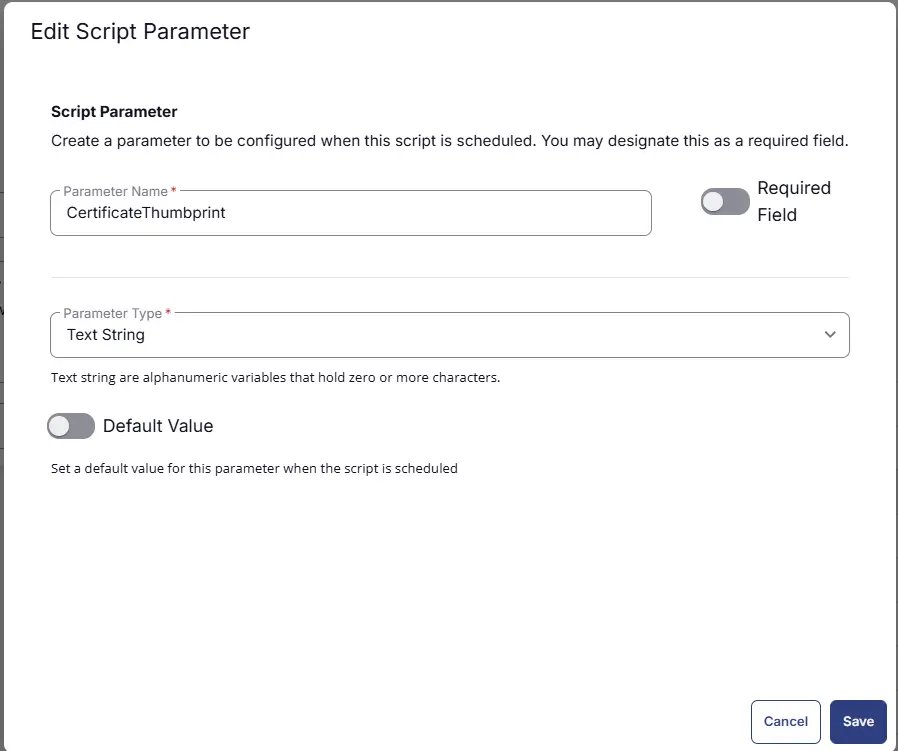
CertificateThumbprint
Locate the Add Parameter button on the right-hand side of the screen and click on it to create a new parameter.
The Add New Script Parameter page will appear on clicking the Add Parameter button.
- Set
CertificateThumbprintin theParameter Namefield. - Disable the
Required Fieldbutton. - Select
Text Stringfrom theParameter Typedropdown menu. - Click the
Savebutton.
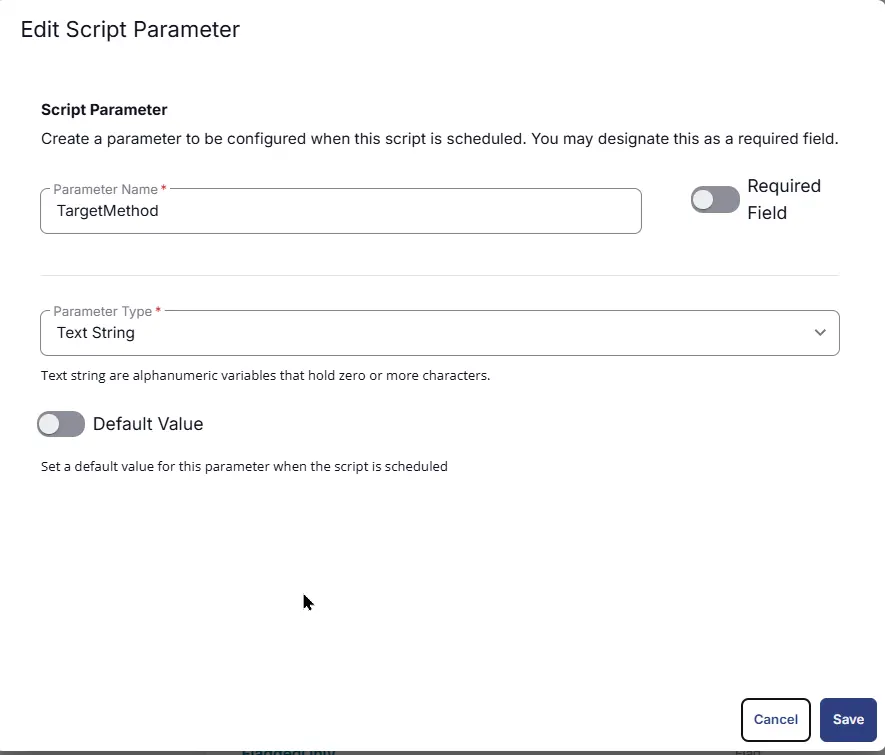
TargetMethod
Locate the Add Parameter button on the right-hand side of the screen and click on it to create a new parameter.
The Add New Script Parameter page will appear on clicking the Add Parameter button.
- Set
TargetMethodin theParameter Namefield. - Disable the
Required Fieldbutton. - Select
Text Stringfrom theParameter Typedropdown menu. - Click the
Savebutton.
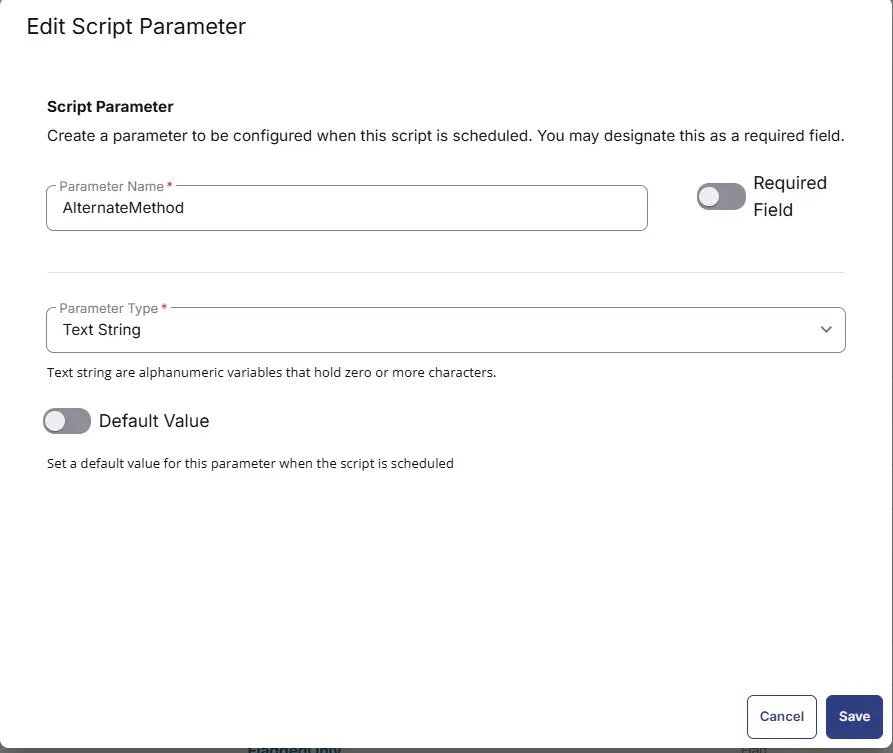
AlternateMethod
Locate the Add Parameter button on the right-hand side of the screen and click on it to create a new parameter.
The Add New Script Parameter page will appear on clicking the Add Parameter button.
- Set
AlternateMethodin theParameter Namefield. - Disable the
Required Fieldbutton. - Select
Text Stringfrom theParameter Typedropdown menu. - Click the
Savebutton.
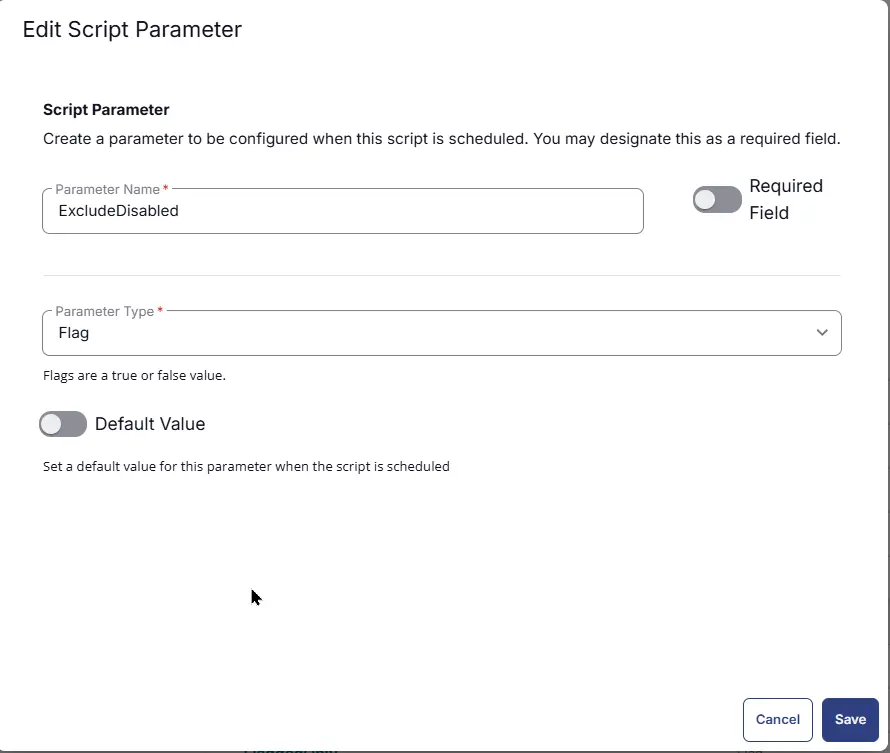
ExcludeDisabled
Locate the Add Parameter button on the right-hand side of the screen and click on it to create a new parameter.
The Add New Script Parameter page will appear on clicking the Add Parameter button.
- Set
ExcludeDisabledin theParameter Namefield. - Disable the
Required Fieldbutton. - Select
Flagfrom theParameter Typedropdown menu. - Click the
Savebutton.
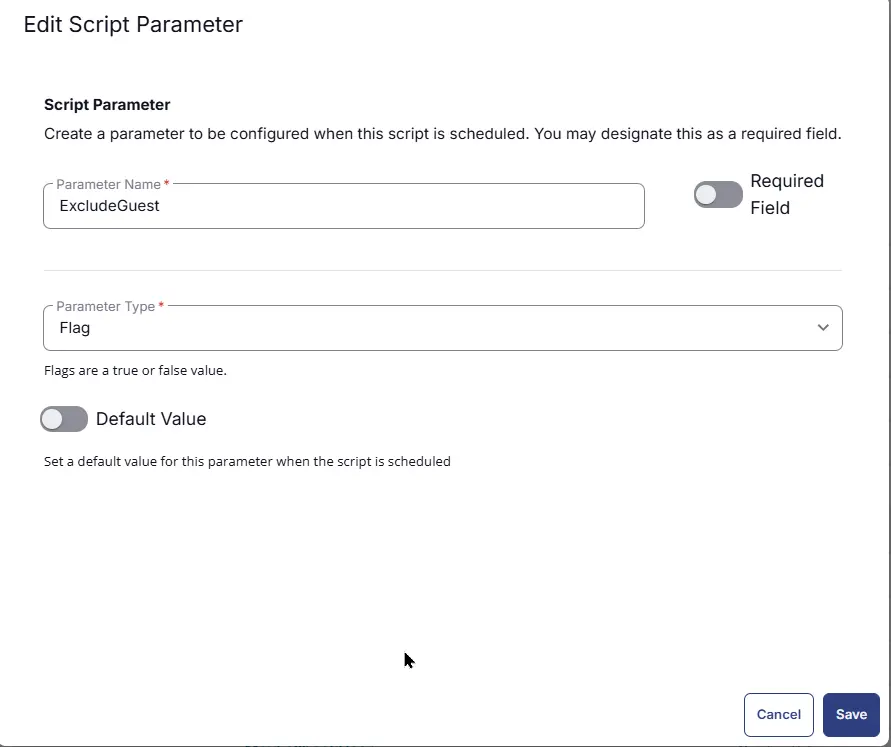
ExcludeGuest
Locate the Add Parameter button on the right-hand side of the screen and click on it to create a new parameter.
The Add New Script Parameter page will appear on clicking the Add Parameter button.
- Set
ExcludeGuestin theParameter Namefield. - Disable the
Required Fieldbutton. - Select
Flagfrom theParameter Typedropdown menu. - Click the
Savebutton.
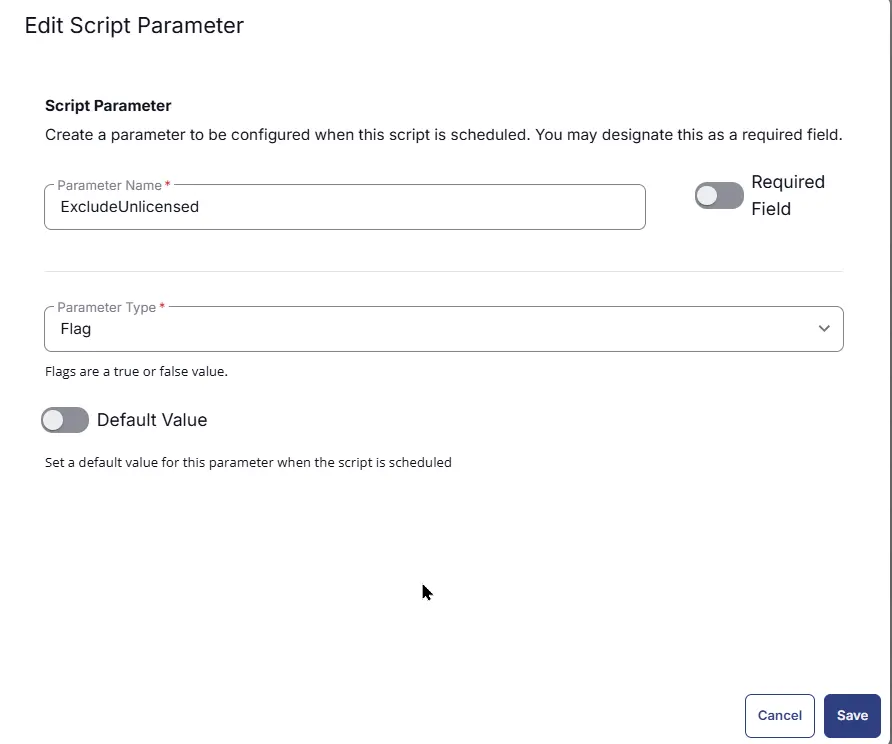
ExcludeUnlicensed
Locate the Add Parameter button on the right-hand side of the screen and click on it to create a new parameter.
The Add New Script Parameter page will appear on clicking the Add Parameter button.
- Set
ExcludeUnlicensedin theParameter Namefield. - Disable the
Required Fieldbutton. - Select
Flagfrom theParameter Typedropdown menu. - Click the
Savebutton.
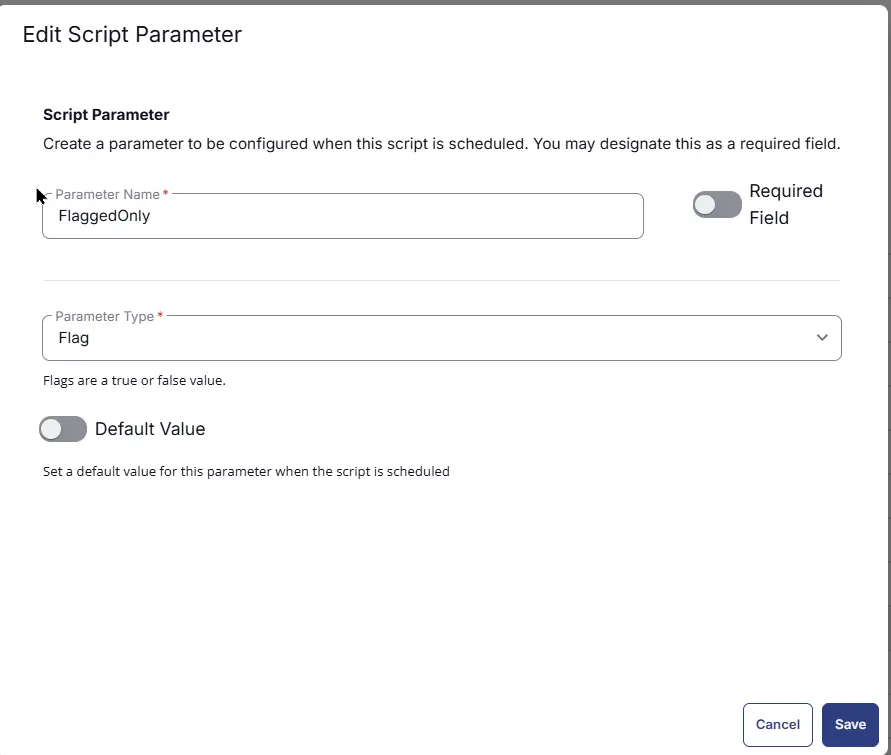
FlaggedOnly
Locate the Add Parameter button on the right-hand side of the screen and click on it to create a new parameter.
The Add New Script Parameter page will appear on clicking the Add Parameter button.
- Set
FlaggedOnlyin theParameter Namefield. - Disable the
Required Fieldbutton. - Select
Flagfrom theParameter Typedropdown menu. - Click the
Savebutton.
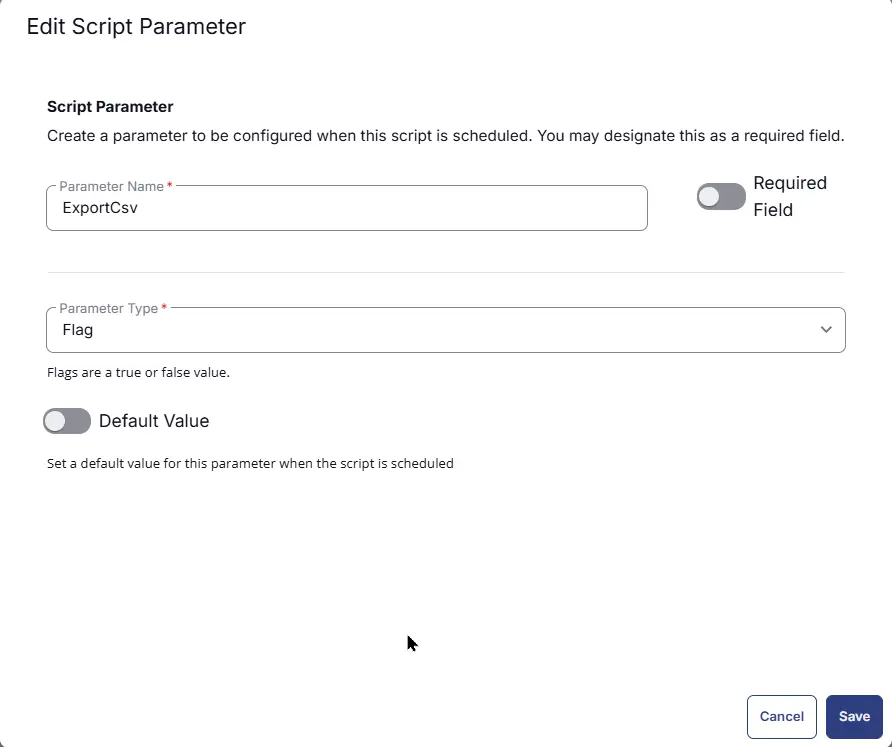
ExportCsv
Locate the Add Parameter button on the right-hand side of the screen and click on it to create a new parameter.
The Add New Script Parameter page will appear on clicking the Add Parameter button.
- Set
ExportCsvin theParameter Namefield. - Disable the
Required Fieldbutton. - Select
Flagfrom theParameter Typedropdown menu. - Click the
Savebutton.
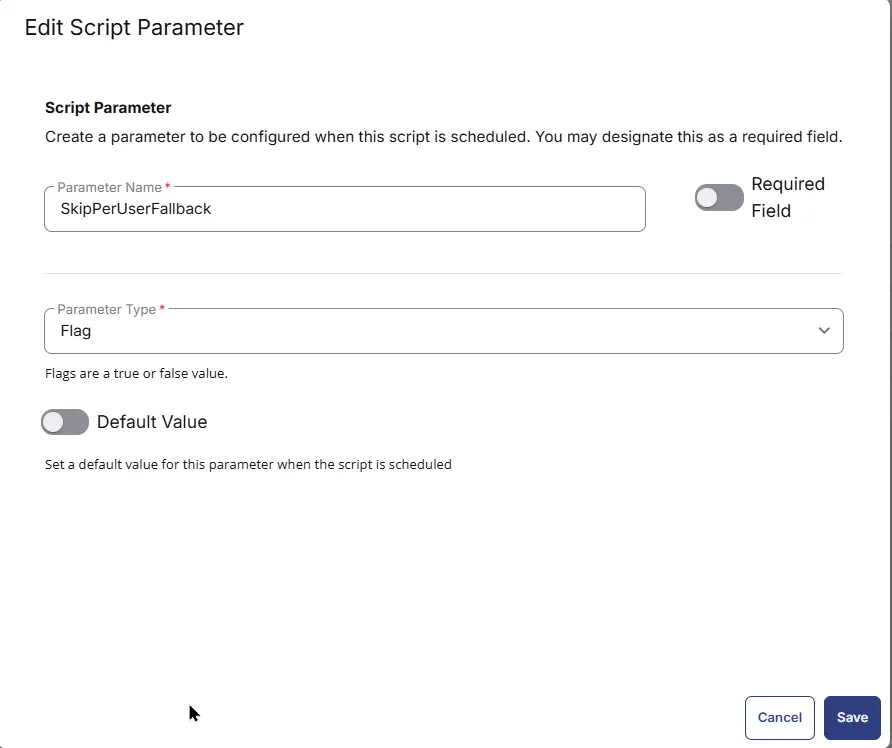
SkipPerUserFallback
Locate the Add Parameter button on the right-hand side of the screen and click on it to create a new parameter.
The Add New Script Parameter page will appear on clicking the Add Parameter button.
- Set
SkipPerUserFallbackin theParameter Namefield. - Disable the
Required Fieldbutton. - Select
Flagfrom theParameter Typedropdown menu. - Click the
Savebutton.
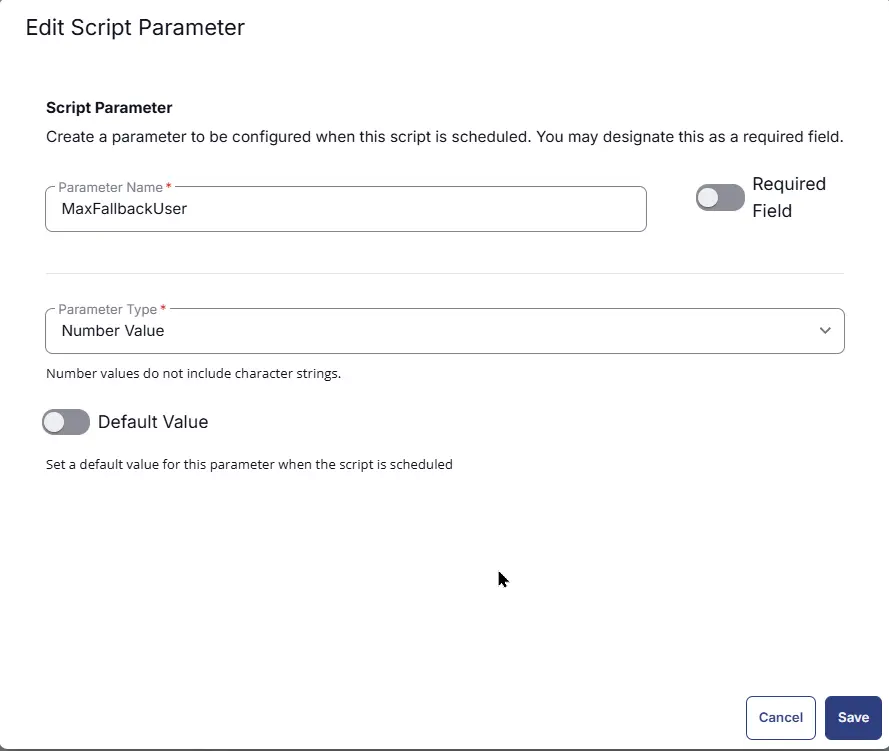
MaxFallbackUser
Locate the Add Parameter button on the right-hand side of the screen and click on it to create a new parameter.
The Add New Script Parameter page will appear on clicking the Add Parameter button.
- Set
MaxFallbackUserin theParameter Namefield. - Disable the
Required Fieldbutton. - Select
Flagfrom theParameter Typedropdown menu. - Click the
Savebutton.
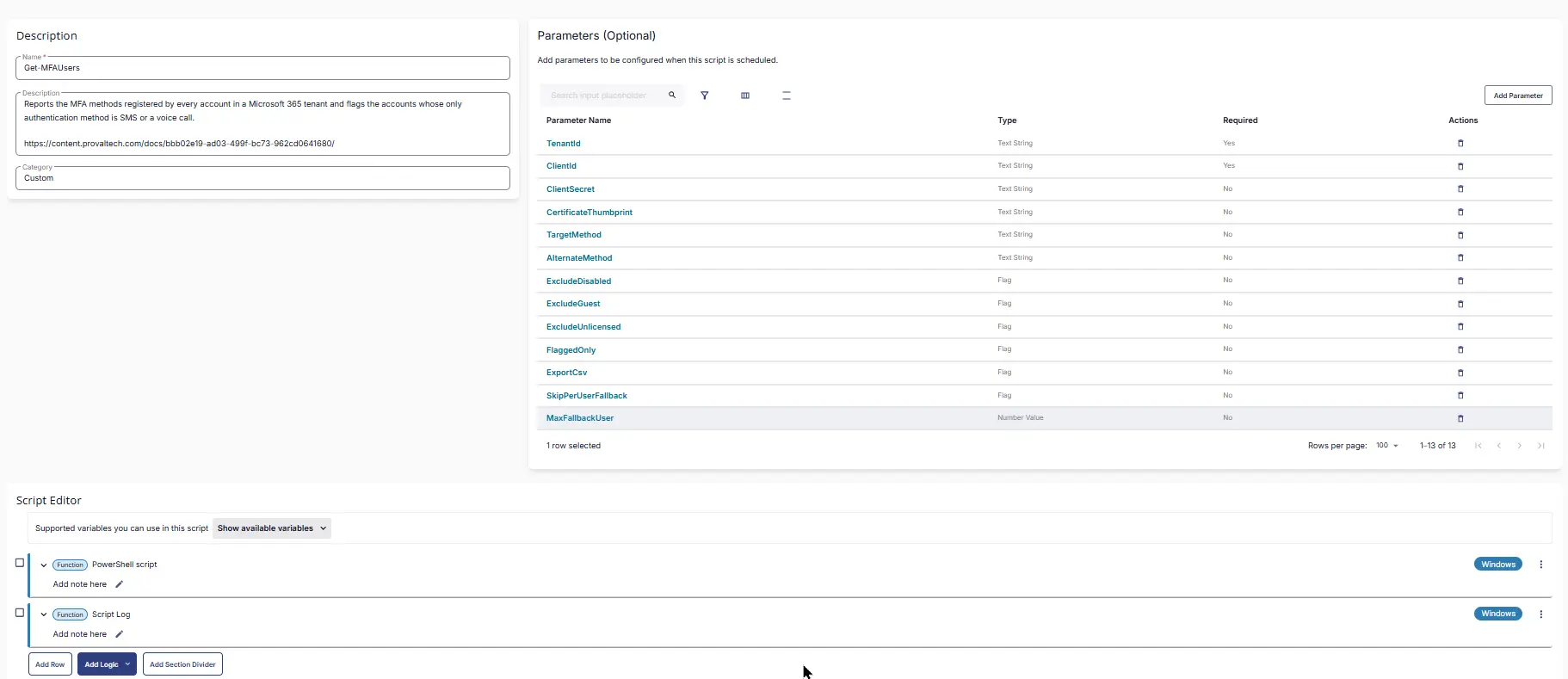
Script Editor
Click the Add Row button in the Script Editor section to start creating the script

A blank function will appear:

Row 1 Function: PowerShell Script
- Use Generative AI Assist for script creation:
False - Expected time of script execution in seconds:
1200 - Continue on Failure:
False - Run As:
System - Operating System:
Windows - PowerShell Script Editor:
Navigate to the cw-rmm repository, open the script linked below, copy the raw code, and paste it into the RMM script editor:
Row 2 Function: Script Log
- Continue on Failure:
False - Operating System:
Windows - Script Log Message:
%Output%
Save Task
Click the Save button at the top-right corner of the screen to save the script.

Completed Task
Output
- Script Logs
Changelog
2026-08-26
- Initial version of the document