Deploy Datto RMM Agent
Purpose
This solution outlines the full process for automatically deploying the Datto RMM Agent to both Mac and Windows devices using ConnectWise RMM, utilizing a custom field, dynamic device groups, automated monitors, and an installation script.
Associated Content
Custom Fields
| Name | Example | Type | Level | Required | Purpose |
|---|---|---|---|---|---|
| Datto RMM Site ID | 6ef3f5aa-81b7-400c-a667-02075f98ba15 | Text | COMPANY | Yes | The Site ID of the target site in the Datto RMM portal that the agent will check into after installation. |
Groups
| Name | Purpose |
|---|---|
| Datto RMM Agent Installation [MAC] | Dynamic group targeting Mac devices (Darwin) where the Datto RMM Agent is not installed and the Site ID is populated. |
| Datto RMM Agent Installation [Windows] | Dynamic group targeting Windows devices where the Datto RMM Agent is not installed and the Site ID is populated. |
Monitors
| Name | Type | Schedule | Purpose |
|---|---|---|---|
| Install Datto RMM Agent [MAC] | File System | On File State | Checks for the absence of the macOS app path and triggers the install script on missing agents. |
| Install Datto RMM Agent [Windows] | File System (Script Condition) | Every 1 Hour | Monitors service status via PowerShell script and triggers the install task on devices missing the Datto RMM agent. |
Task
| Name | Purpose |
|---|---|
| Install Datto RMM Agent | Executes the installation process for the Datto RMM Agent on both Windows and Mac machines utilizing parameters and site IDs. |
Implementation
Step 1: Create the Required Custom Field
Create the required custom field under SETTINGS → Custom Fields in CW RMM. See the documentation page for configuration details.
Step 2: Create the Dynamic Groups
Create the targeting groups under ENDPOINTS → Groups as dynamic groups. These groups should target endpoints where the Custom Field is correctly filled.
Step 3: Create the Installation Task
Create the install script task under AUTOMATION → Tasks as a Script Editor type. Configure the required Platform user parameter, apply the custom field variable, and paste in the distinct PowerShell and Bash scripts from the referenced documentation.
Step 4: Set up the Deployment Monitors
Configure the deployment monitors under ENDPOINTS → Alerts → Monitors to target the respective dynamic device groups. Set the Mac monitor to check for file existence, and the Windows monitor to run its conditional script every 1 hour. Both monitors should trigger the installation task if the agent is missing.
Step 5: Fetch and Apply Target Values
Retrieve your specific Datto RMM Site ID from your Datto RMM portal (Sites > <Desired Site> > Settings) and apply it to the respective CW RMM companies. Ensure the Platform parameter in the Install Datto RMM Agent task is set to your instance name (e.g., Merlot, Pinotage, Concord, etc.).
FAQ
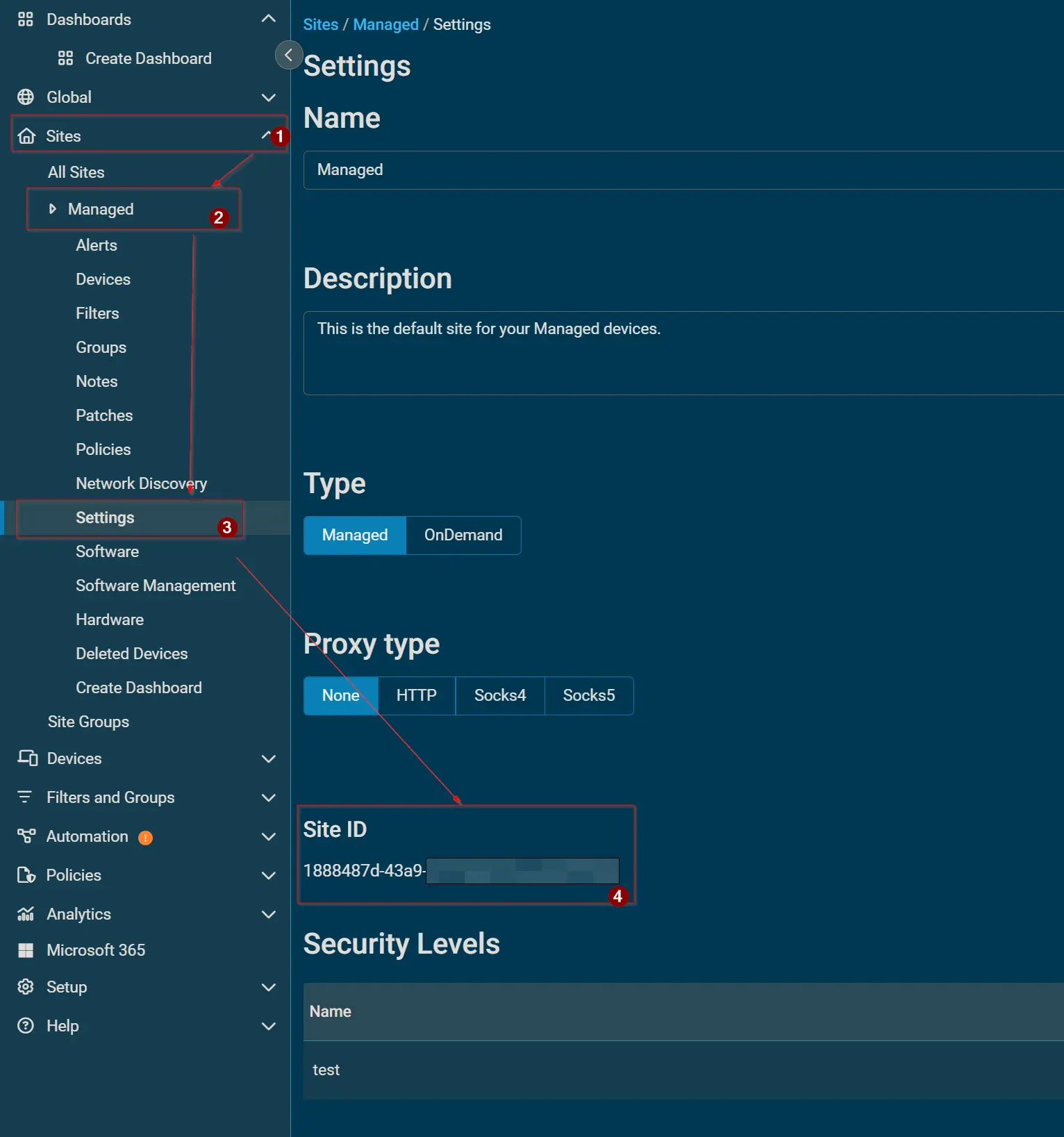
1. How do I retrieve the Datto RMM Site ID for deployment?
To find the Site ID of the target site in the Datto RMM portal:
- Log into the Datto RMM portal.
- Navigate to the
Sitespage.- Click on the
<Desired Site>.- Go to
Settings.- Scroll down to locate the
Site IDoption.
2. How do I determine my Datto RMM Platform name?
Your Platform name is located at the very beginning of your Datto RMM portal URL. The accepted values are based on your region:
- EMEA:
MerlotorPinotage- NA:
Concord,Vidal, orZinfandel- APAC:
Syrah

3. What operating systems are supported by this automatic deployment solution?
This solution natively supports:
- Windows (Both Servers and Workstations)
- macOS (Darwin)
4. What happens if the installation task runs on a machine that already has the agent?
Both the Windows and macOS installation scripts have built-in validation checks at the beginning of their execution. If they detect the agent is already present, the scripts will log that it is already installed and exit successfully without attempting to overwrite or reinstall.
5. How often does the system check for missing Windows agents?
The Install Datto RMM Agent [Windows] monitor is scheduled to run a conditional PowerShell script every 1 hour to check the installation status.
6. How does the macOS monitor determine if the agent needs to be installed?
The macOS monitor relies on a File System check rather than a scheduled script. It specifically looks to see if the application directory exists:
- File Path:
/Applications/AEM Agent.app- Condition: Exists
If the file is missing, it triggers the installation automation.
7. How does the Windows monitor determine if the agent needs to be installed?
The Windows monitor runs a lightweight PowerShell script that checks for the Datto agent's background service.
- Service Name:
CagServiceIf the service is missing, the script outputs "Not Installed", which triggers the automation task.
8. Can I exclude a specific endpoint from the automatic deployment?
Yes. The dynamic groups rely on the Datto RMM Site ID custom field. To exclude an endpoint:
- Clear the custom field for that specific device (leave it blank).
- Alternatively, type
NAinto the custom field.Devices with a blank or
NASite ID are automatically excluded from the deployment groups.
9. Can I manually trigger the Datto RMM Agent installation?
Absolutely. The Install Datto RMM Agent task can be executed manually against any device at any time, independently of the monitor or dynamic group status.
10. What user permissions are used to run the installation scripts?
To ensure the scripts have the necessary administrative privileges to install software and configure services, both the PowerShell (Windows) and Bash (macOS) scripts are configured to
Run As: System.
11. What is the expected execution time for the installation task before it times out?
The expected time of script execution before it times out is configured to 900 seconds (15 minutes) for both platforms.
12. Why are my Mac endpoints not appearing in the deployment group?
For a Mac to populate in the Datto RMM Agent Installation [MAC] group, it must strictly meet three criteria:
OS Typeis Equal toDarwin.Datto RMM Site IDis Not Blank.Datto RMM Site IDis Not Equal toNA.
13. Why are my Windows endpoints not appearing in the deployment group?
For a Windows machine to populate in the Datto RMM Agent Installation [Windows] group, it must strictly meet three criteria:
OS Typeis Equal toWindows.Datto RMM Site IDis Not Blank.Datto RMM Site IDis Not Equal toNA.
14. Will the deployment monitors generate service tickets if an agent is missing?
No. The monitors are designed for silent remediation. Under the Monitor Output settings, the output action is explicitly set to
Do not Generate Ticket. It will only trigger the installation automation.
15. Are there any specific network or TLS requirements for the Windows deployment?
Yes. The Windows installation script downloads the installer directly from Datto's servers. The script enforces TLS 1.2 or TLS 1.3. If the system's PowerShell or .NET framework version is too outdated to support these protocols, the download will fail.
16. Does the macOS installation require a user to click through any prompts?
No. The Bash script handles the entire process silently. It downloads the archive, unzips it using the
-q(quiet) flag, and executes the macOS.pkginstaller via the terminal without requiring user interaction.
17. Where are the temporary installation files stored during the Windows deployment?
The Windows script downloads the Datto RMM executable to a hidden automation directory. The script forces a cleanup of this file after installation.
- Working Directory:
C:\ProgramData\_Automation\App\windows-upgrader
18. Where are the temporary installation files stored during the macOS deployment?
The macOS script downloads the archive and extracts the installer to the Mac's temporary directory. It performs a cleanup of this directory upon completion.
- Working Directory:
/tmp/_Automation/App/DRMMSetup
19. What happens if the installer fails to download on Windows?
If the script fails to download the installer from the Datto RMM URL, and it does not detect a previously cached local copy of the installer on the machine, the script will intentionally throw an error and halt execution.
20. How can I verify that the script successfully installed the agent?
You can check the "Script Log" output in ConnectWise RMM. Both scripts perform a final validation check at the very end of their execution.
- If successful: It will log "Agent installation completed successfully."
- If it fails: It will throw an error and log the specific exit code (on Windows) or a failure message (on macOS).
Changelog
2026-02-28
- Initial version of the document