ESXi - Snapshot Delete
Summary
This task can be used to delete a snapshot of a machine hosted on an ESXi host server. It utilizes the PowerCLI Module to perform the required action.
Sample Run
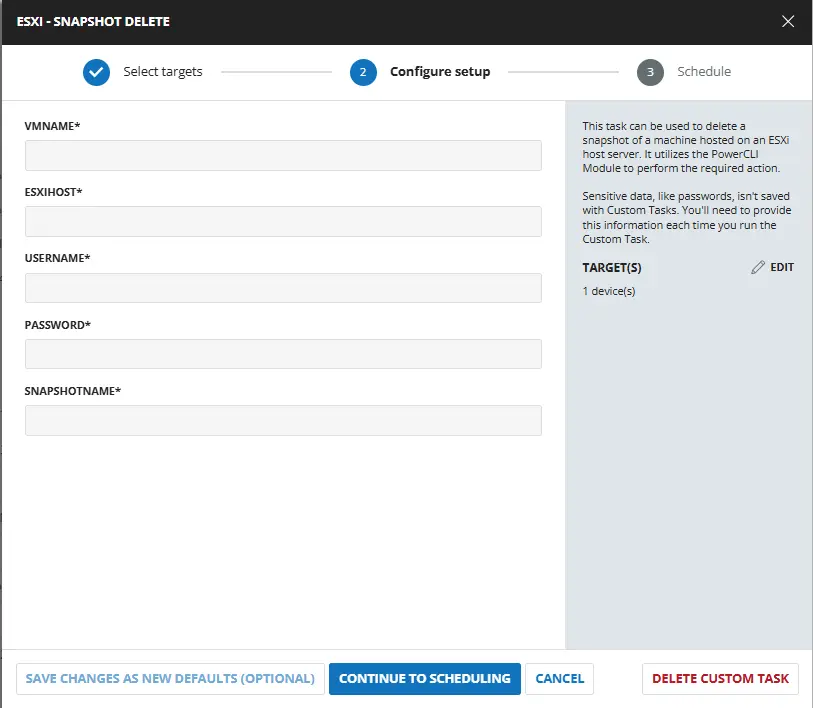
User Parameters
| Name | Example | Required | Type | Description |
|---|---|---|---|---|
| VMName | DEV_Test-win10 | True | Text String | Name of the virtual machine from which to remove the snapshot |
| ESXiHost | 111.111.111.111 | True | Text String | IP Address of ESXi Host. |
| Username | ESXIAdmin | True | Text String | Username to use to connect with the ESXi Host. |
| Password | "QWfqw2%R@@$@FQW:RVV!'qwdwq" | True | Text String | Password to use to connect with the ESXi Host. |
| SnapshotName | CW-RMM-Temp-Snapshot_20230501_081958 | False | Text String | Name of the Snapshot to delete |
Task Creation
Script Details
Step 1
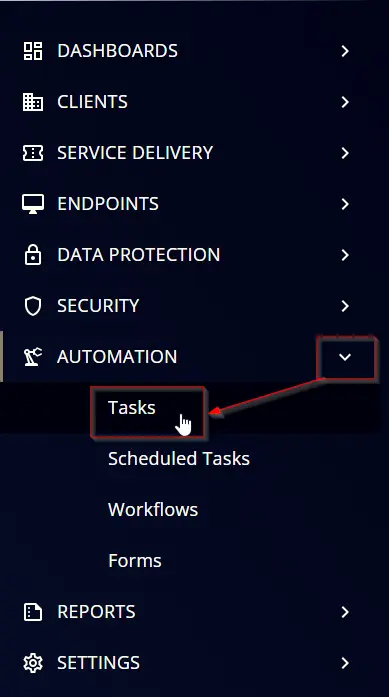
Navigate to Automation ➞ Tasks
Step 2
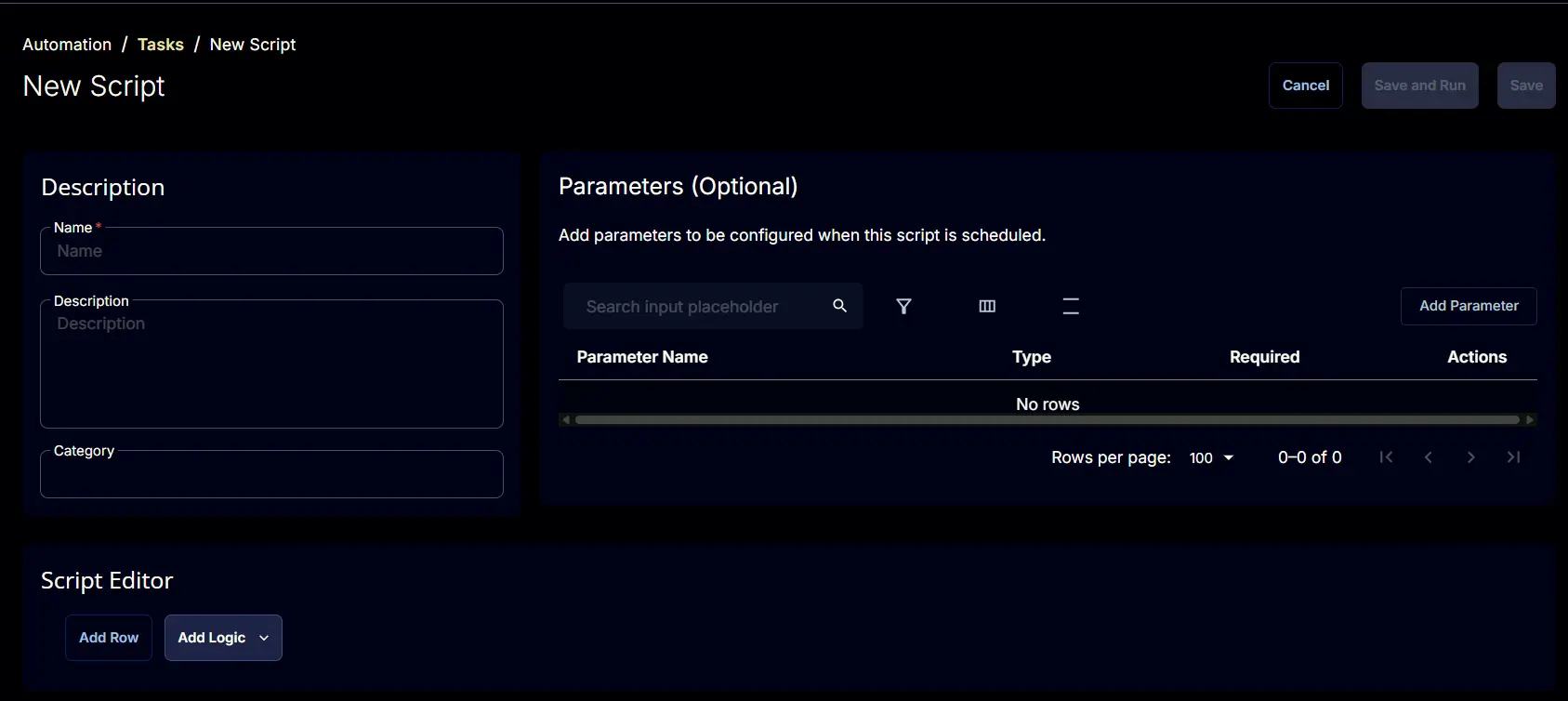
Create a new Script Editor style task by choosing the Script Editor option from the Add dropdown menu

The New Script page will appear on clicking the Script Editor button:
Step 3
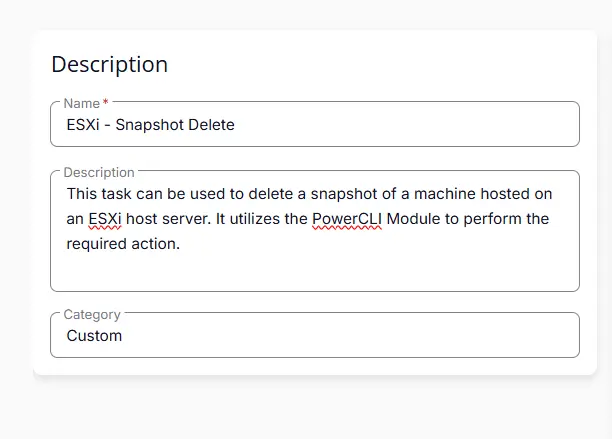
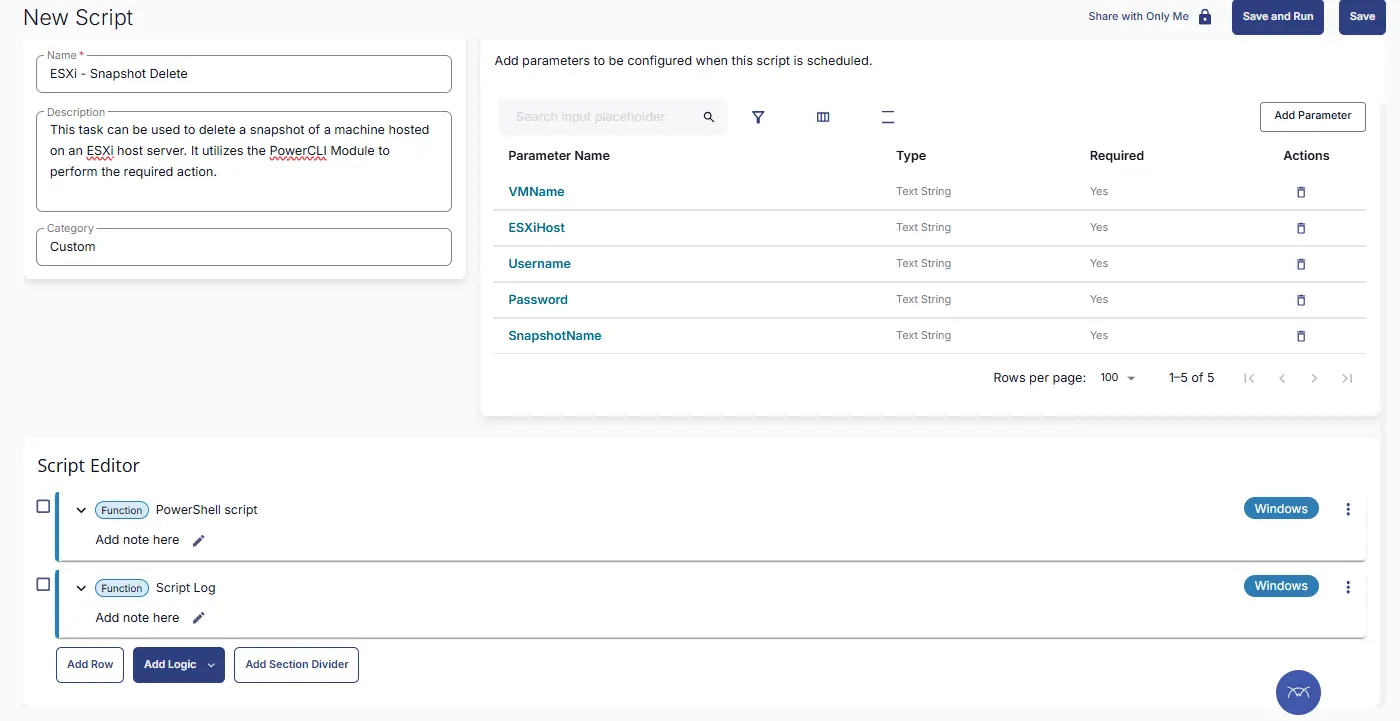
Fill in the following details in the Description section:
- Name:
ESXi - Snapshot Delete - Description:
This task can be used to delete a snapshot of a machine hosted on an ESXi host server. It utilizes the PowerCLI Module to perform the required action. - Category:
Custom
Parameters
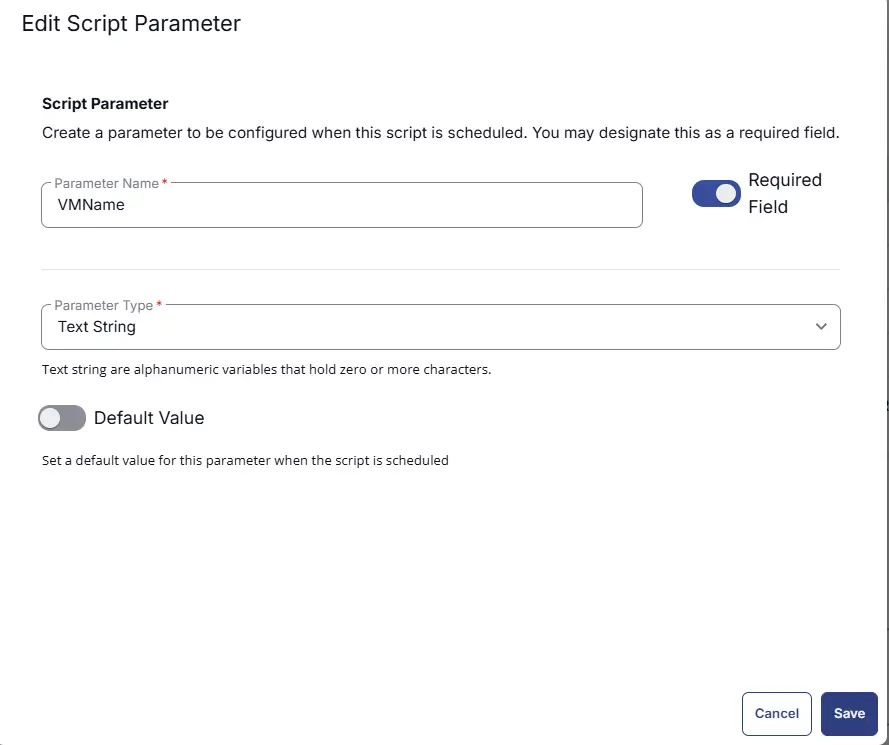
VMName
The Add New Script Parameter page will appear on clicking the Add Parameter button.
- Set
VMNamein theParameter Namefield. - Enable the
Required Fieldbutton. - Select
Text Stringfrom theParameter Typedropdown menu. - Click the
Savebutton.
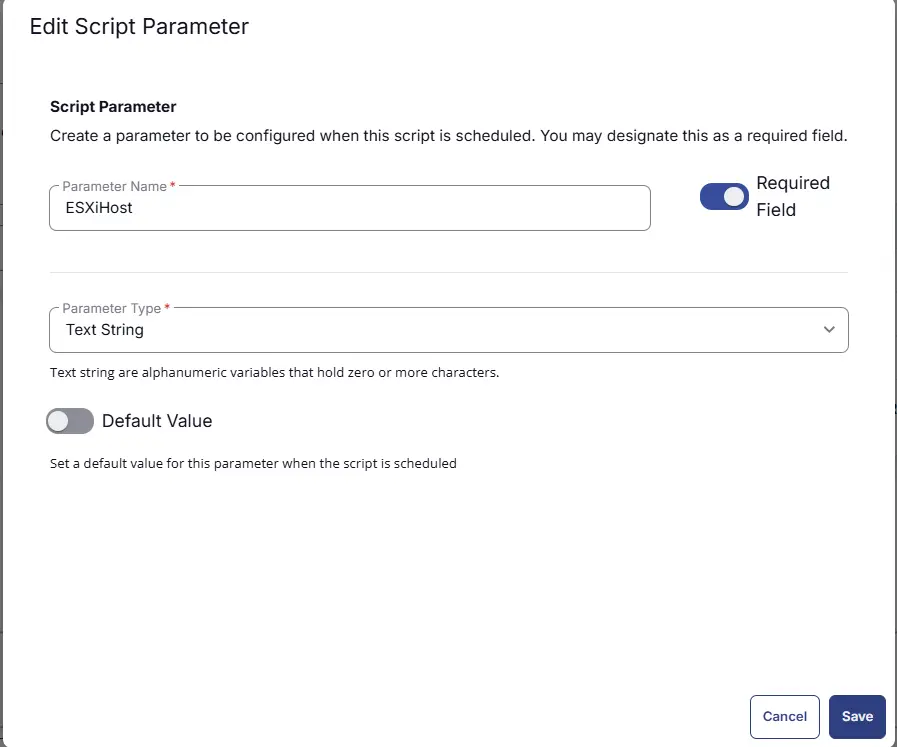
ESXiHost
The Add New Script Parameter page will appear on clicking the Add Parameter button.
- Set
ESXiHostin theParameter Namefield. - Enable the
Required Fieldbutton. - Select
Text Stringfrom theParameter Typedropdown menu. - Click the
Savebutton.
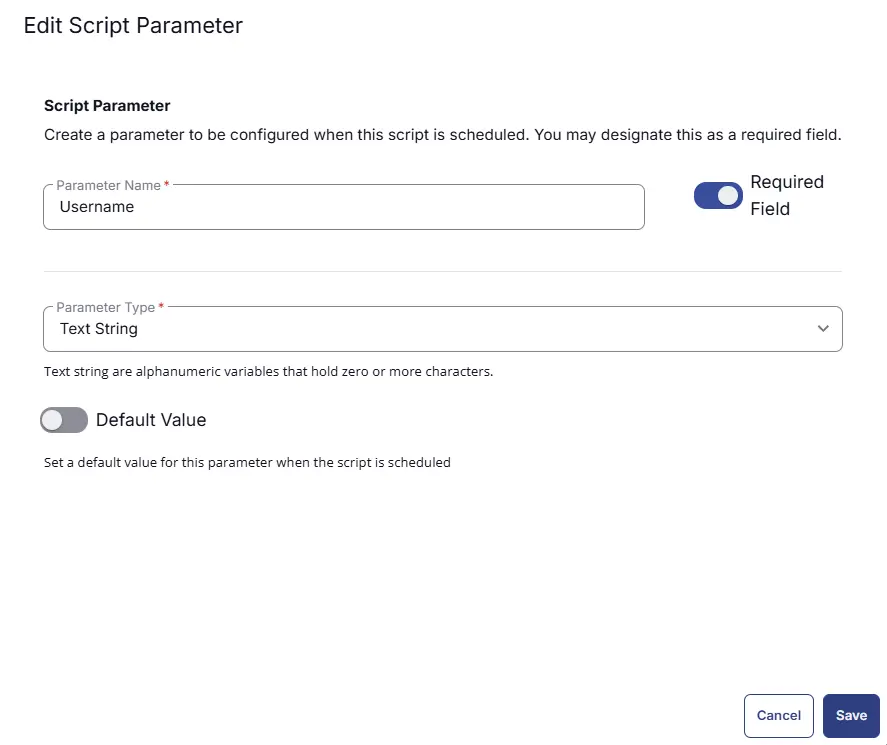
Username
The Add New Script Parameter page will appear on clicking the Add Parameter button.
- Set
Usernamein theParameter Namefield. - Enable the
Required Fieldbutton. - Select
Text Stringfrom theParameter Typedropdown menu. - Click the
Savebutton.
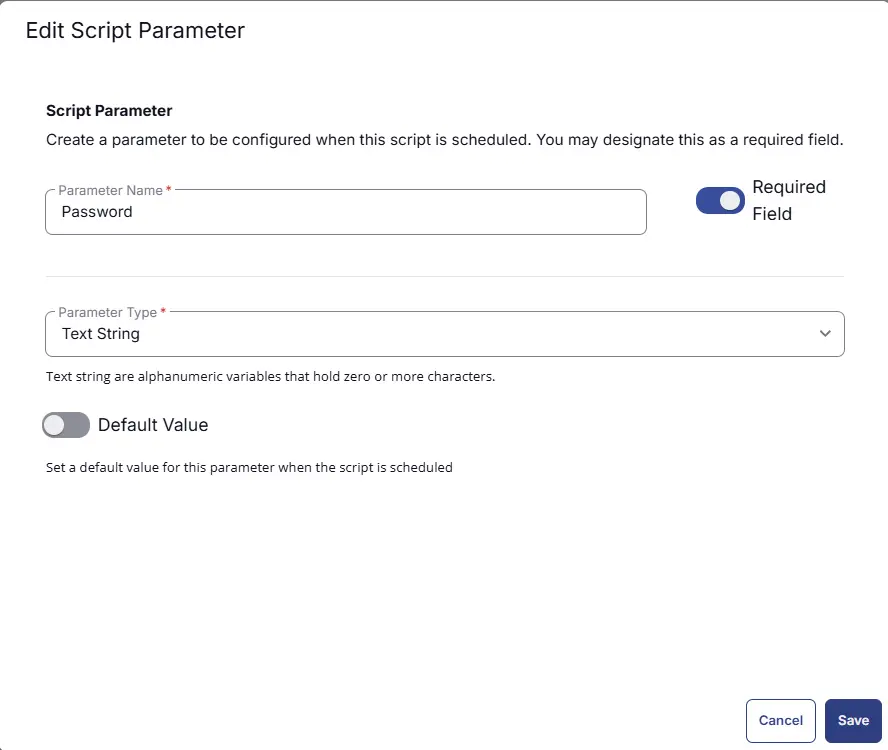
Password
The Add New Script Parameter page will appear on clicking the Add Parameter button.
- Set
Passwordin theParameter Namefield. - Enable the
Required Fieldbutton. - Select
Text Stringfrom theParameter Typedropdown menu. - Click the
Savebutton.
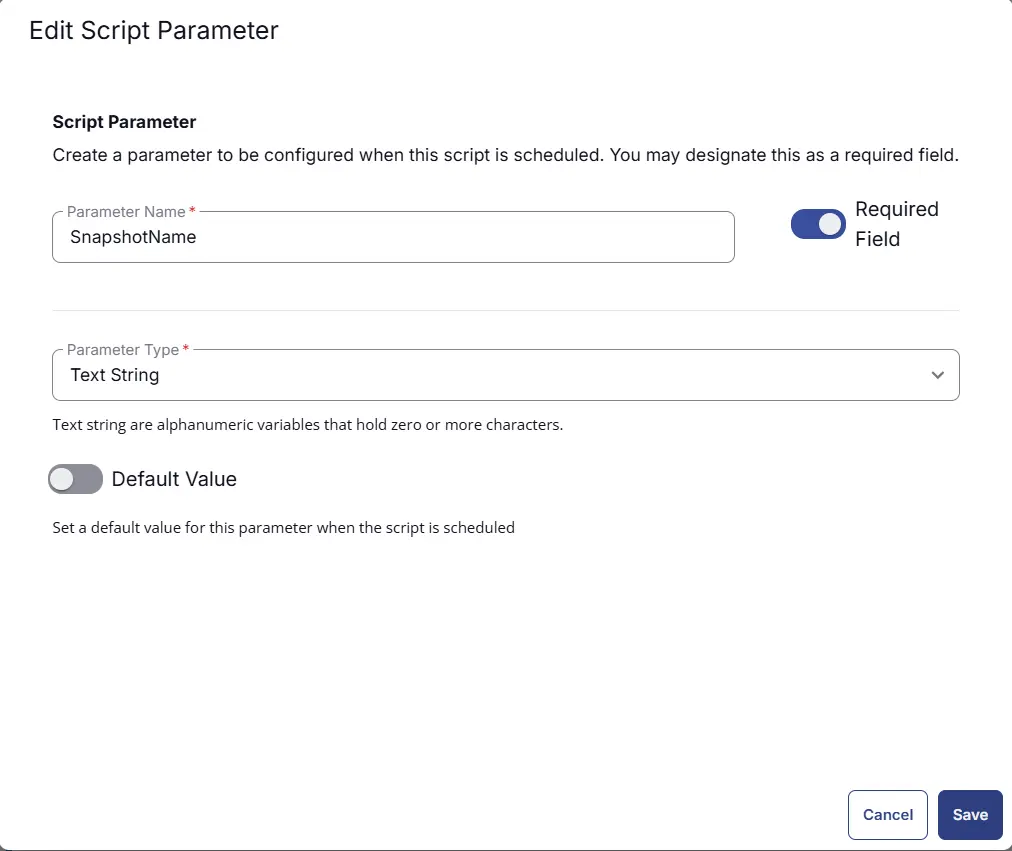
SnapshotName
The Add New Script Parameter page will appear on clicking the Add Parameter button.
- Set
SnapshotNamein theParameter Namefield. - Enable the
Required Fieldbutton. - Select
Text Stringfrom theParameter Typedropdown menu. - Click the
Savebutton.
Script Editor
Click the Add Row button in the Script Editor section to start creating the script

A blank function will appear:

Row 1 Function: PowerShell Script
Search and select the PowerShell Script function.

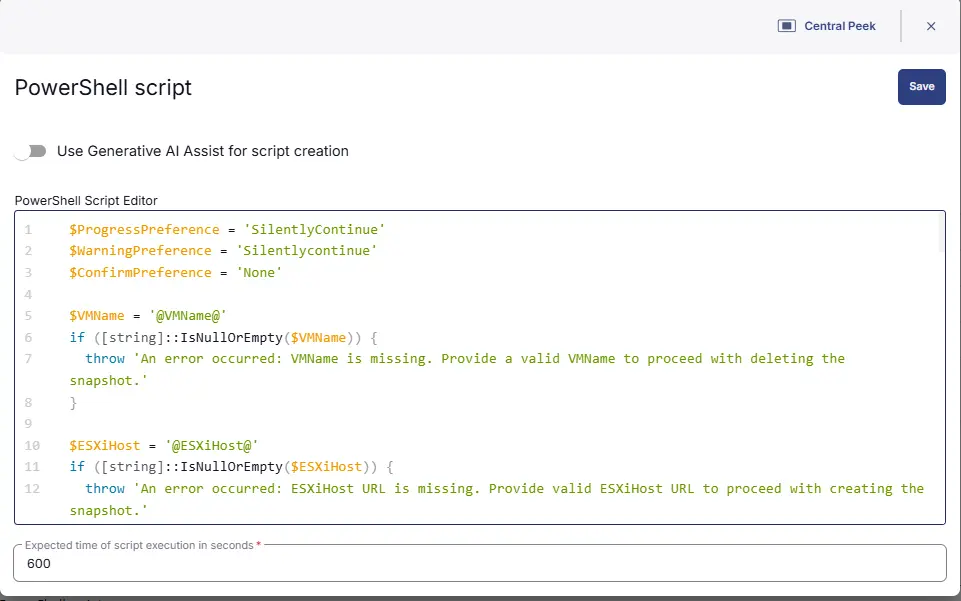
The following function will pop up on the screen:

Paste in the following PowerShell script and set the Expected time of script execution in seconds to 600 seconds. Click the Save button.
Row 2 Function: Script Log
Add a new row by clicking the Add Row button.
A blank function will appear.
Search and select the Script Log function.

In the script log message, simply type %output% and click the Save button.

Save Task
Click the Save button at the top-right corner of the screen to save the script.

Completed Task
Output
- Script Logs
Changelog
2026-03-20
- Initial version of the document