Dell Command | Configure
Overview
This script reads and changes BIOS settings on Dell workstations using Dell Command | Configure (DCC), without visiting the device.
When to use:
- Check the current value of a BIOS setting, such as Wake on LAN.
- Export a device's full BIOS configuration for review or reuse.
- Change a BIOS setting remotely, including on devices with a BIOS setup password.
- Apply the same BIOS configuration to other devices of the same model.
How it works:
- DCC is installed, or upgraded to the latest version, before every run.
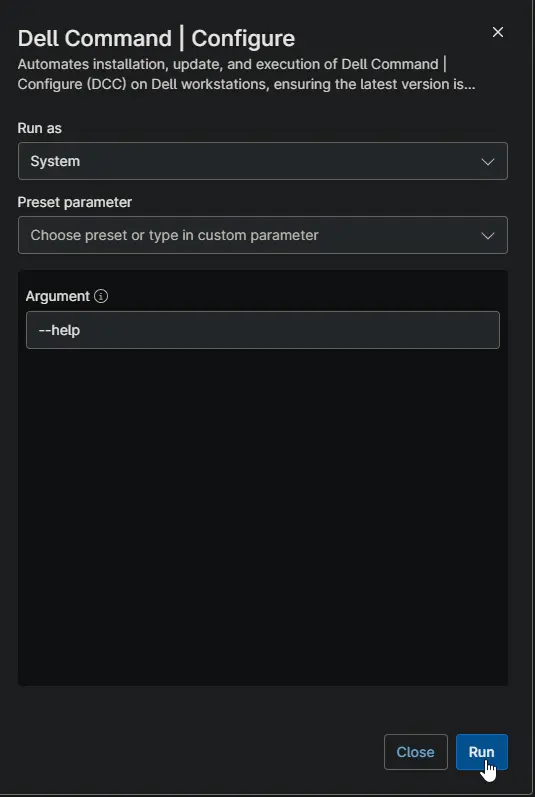
- The value of Argument is passed to the DCC command-line tool (cctk.exe). With no value, the tool lists the supported options.
- The result code is translated into a plain-language message in the activity output.
- Many BIOS changes take effect only after the next restart. The script does not restart the device.
Requirements:
- Dell workstation running Windows 10 or Windows 11.
- Runs elevated (System context).
- Internet access to download DCC.
Incorrect BIOS settings can stop a device from starting. Test a change on one device before running it on many.
Sample Run
Example 1: Running the script to list the supported options
Leave Argument at its default, --help. The activity lists every option available on this model. Options marked with * are read-only.
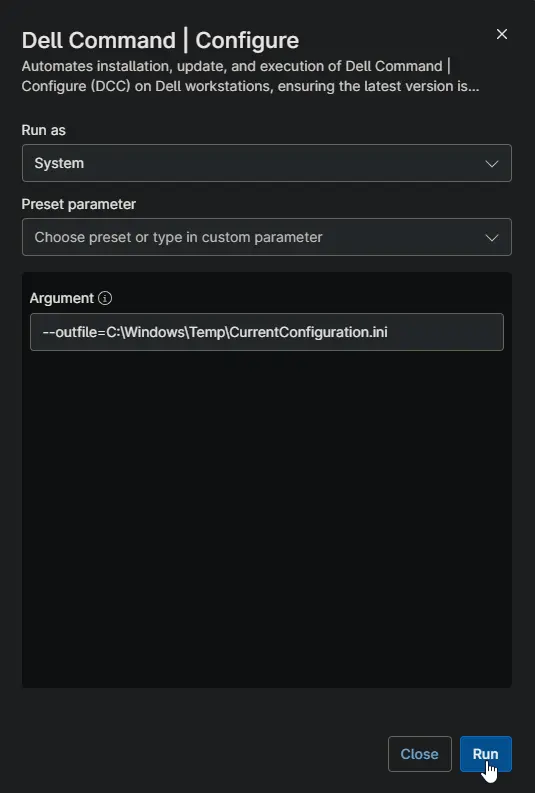
Example 2: Running the script to export the current BIOS configuration
Set Argument to --outfile=C:\Windows\Temp\CurrentConfiguration.ini. Every BIOS setting and its current value is saved to this file on the device. Use it to review settings, or to apply them to other devices (Example 6).
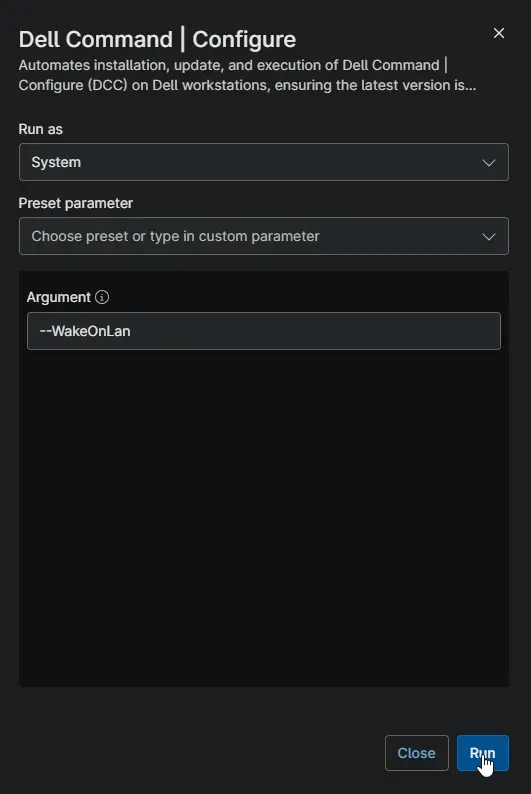
Example 3: Running the script to check the current value of a setting
Set Argument to --WakeOnLan. The current Wake on LAN value is shown in the activity output. Nothing is changed.
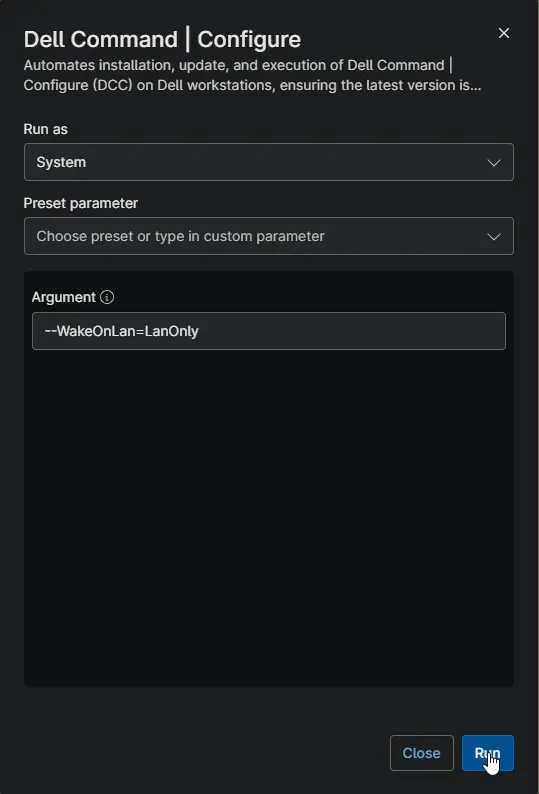
Example 4: Running the script to change a BIOS setting
Set Argument to --WakeOnLan=LanOnly. Wake on LAN is enabled for the wired network adapter. Use Example 1 or the DCC BIOS options reference to find the setting names and values for your model.
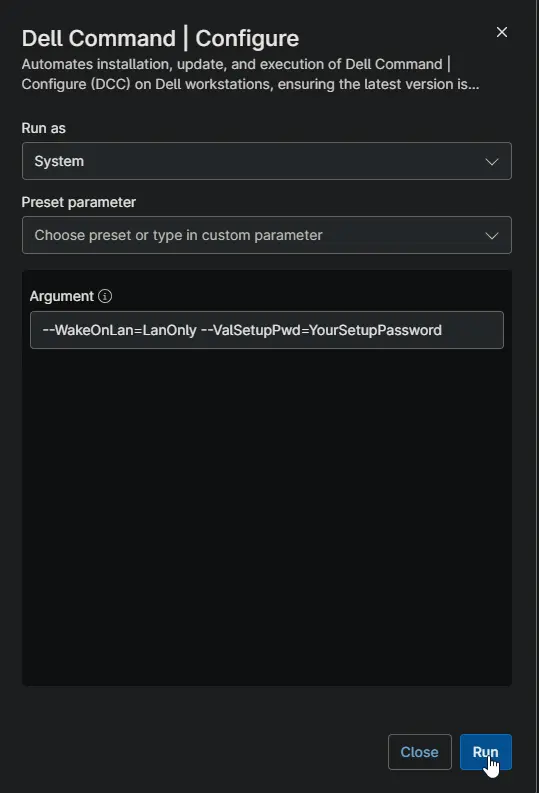
Example 5: Running the script to change a setting on a device with a BIOS setup password
Set Argument to --WakeOnLan=LanOnly --ValSetupPwd=YourSetupPassword, replacing YourSetupPassword with the device's BIOS setup password. Without the password, the change fails with a password-required message. The argument, including the password, appears in the activity details.
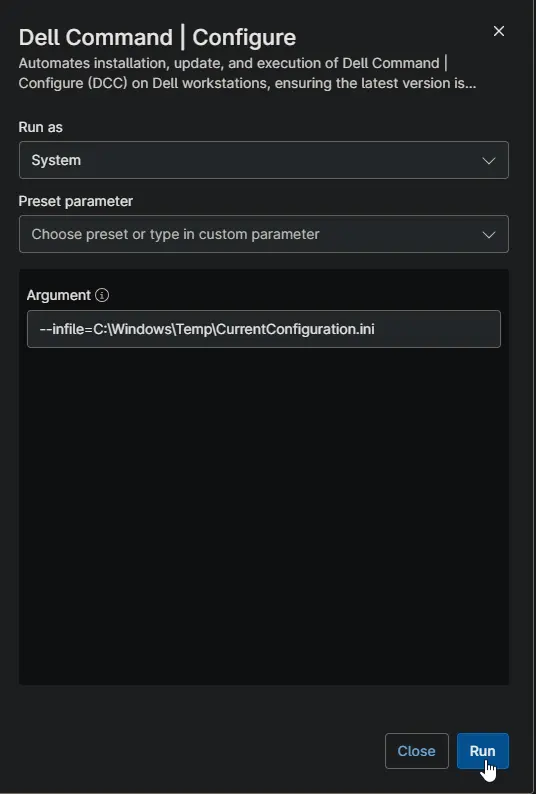
Example 6: Running the script to apply a saved BIOS configuration
Set Argument to --infile=C:\Windows\Temp\CurrentConfiguration.ini. Every setting in the file is applied to the device. The file must already be on the device. Export it from a device of the same model (Example 2), and remove any settings you do not want to change.
Dependencies
- Script: Initialize-DellCommandConfigure (the underlying agnostic script)
Parameters
| Name | Example | Accepted Values | Required | Default | Type | Description |
|---|---|---|---|---|---|---|
| Argument | --WakeOnLan=LanOnly | Any option from the DCC general options and BIOS options references. | False | --help | String/Text | The DCC option to run. Separate multiple options with a space. Leave blank to list the supported options. |
Automation Setup/Import
Output
- Activity Details: The run log, including the DCC version check, the option that ran, the DCC output, and a plain-language result. Errors are reported in the activity output.
- Exported File: When --outfile is used, the BIOS configuration is saved to the path given.
- Log Files: A copy of the run log is kept on the device in C:\ProgramData_Automation\Script\Initialize-DellCommandConfigure.
Changelog
2026-10-16
- Updated the document to the current template. The script is no longer shown in the document; import it from the Automation Configuration link.
- The automation now downloads and runs the latest Initialize-DellCommandConfigure script.
- Replaced the Sample Run section with usage scenarios.
2025-06-16
- Initial version of the document