User Profile - Get Information
Summary
Gathers information about user profiles and stores the data in the custom field.
Sample Run
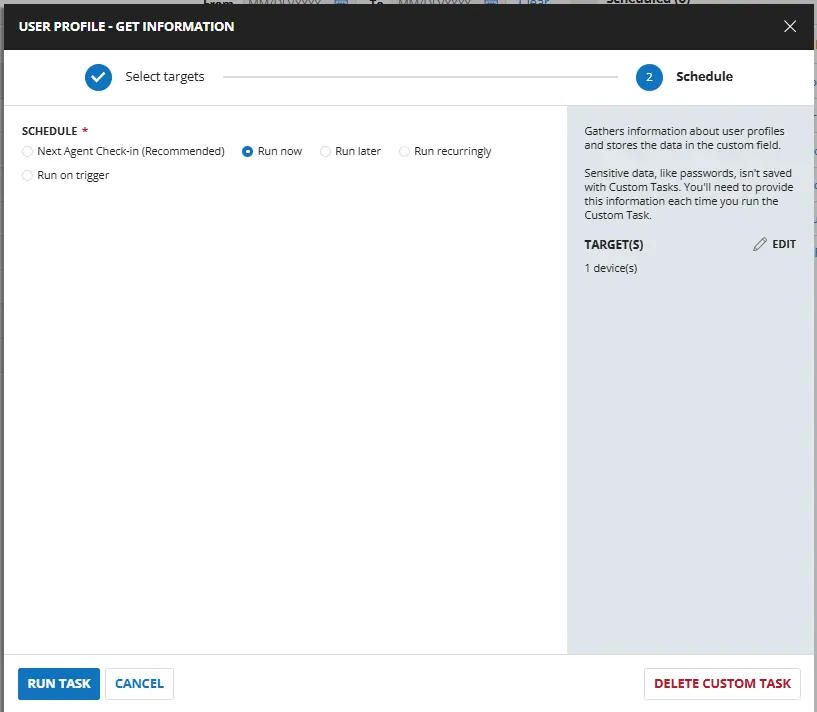
Dependencies
- Get-UserProfiles
- PowerShell v5
- Solution - Windows User Profiles
Output Description
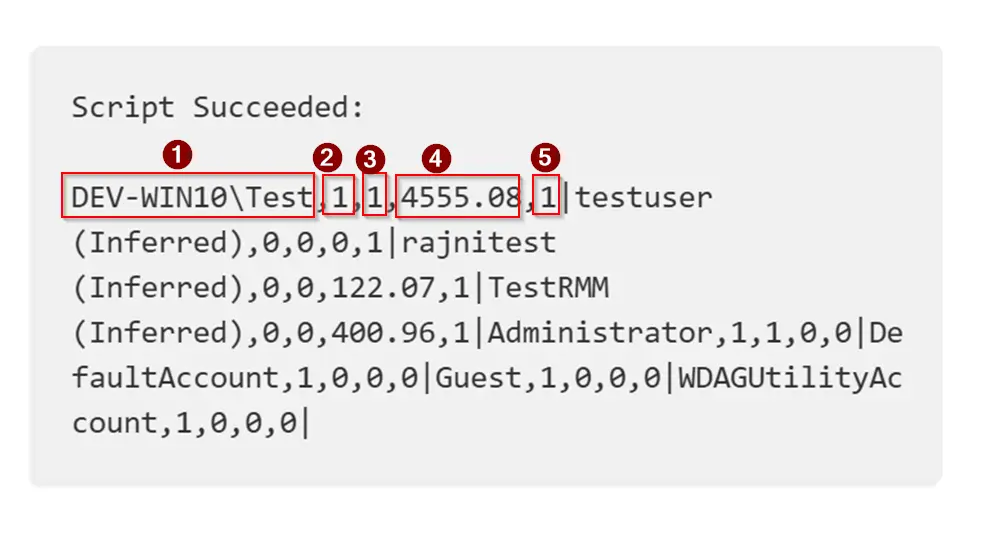
Script Output looks like below and here is the output description :
Output has 5 parts for each user profile and each user profile is separated by a |
Username: The username of the target profile. If (Inferred) is appended, then the user could not be found and the username was inferred from the profile path.LocalUser: Indicates if the user is a local user.1if its a localuser,0if its not a local user.Admin: Indicates if the user is a local admin.1if its a local admin,0if its not.ProfileSizeMB: The size of the user folder for the target profile.Enabled:1if local account is enabled,0if disabled.2when the account is not local.
Task Creation
Script Details
Step 1
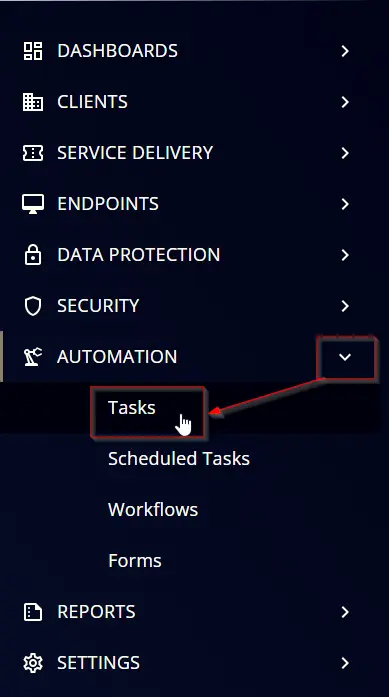
Navigate to Automation ➞ Tasks
Step 2
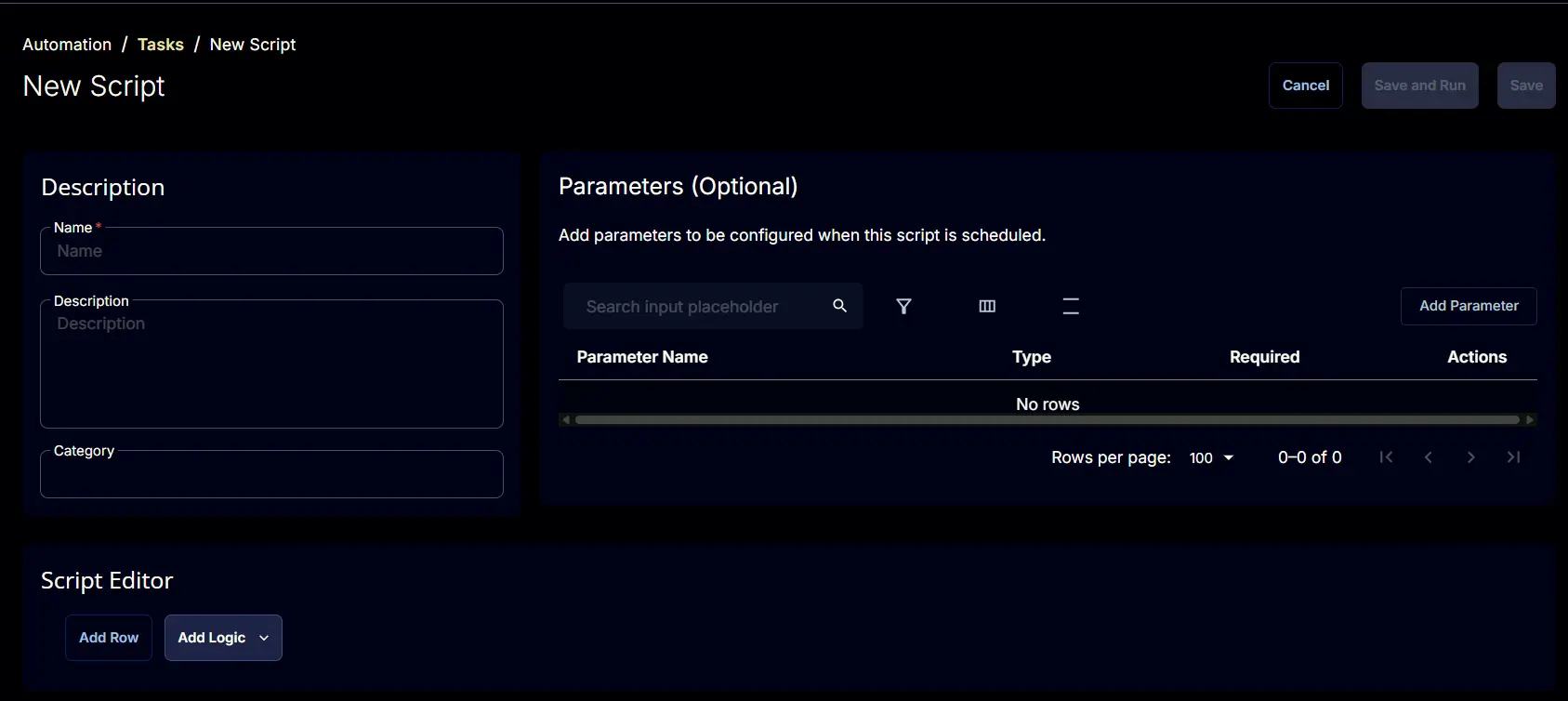
Create a new Script Editor style task by choosing the Script Editor option from the Add dropdown menu

The New Script page will appear on clicking the Script Editor button:
Step 3
Fill in the following details in the Description section:
- Name:
User Profile - Get Information - Description:
Gathers information about user profiles and stores the data in the custom field. - Category:
Custom

Script Editor
Click the Add Row button in the Script Editor section to start creating the script

A blank function will appear:

Row 1 Function: PowerShell Script
Search and select the PowerShell Script function.

The following function will pop up on the screen:

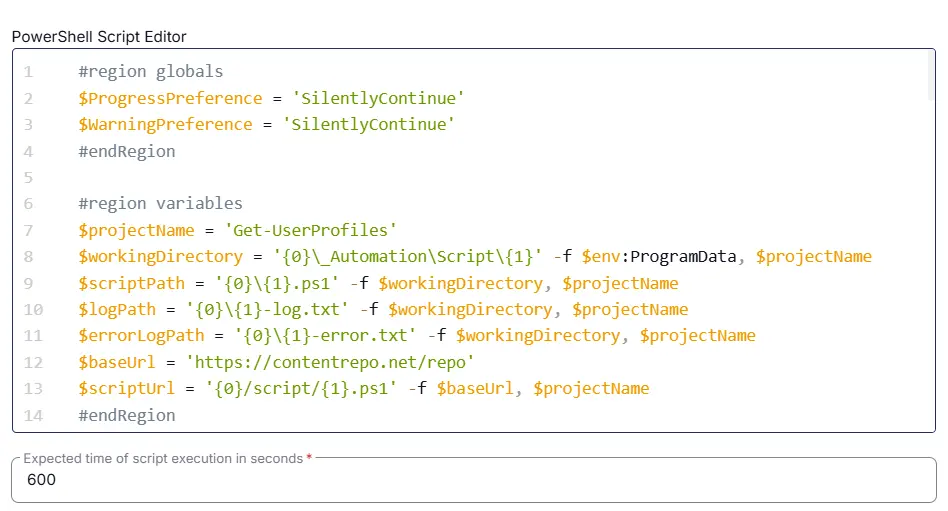
Paste in the following PowerShell script and set the Expected time of script execution in seconds to 600 seconds. Click the Save button.
Row 2 Function: Script Log
Add a new row by clicking the Add Row button.
A blank function will appear.
Search and select the Script Log function.

In the script log message, simply type %output% and click the Save button.

Step 3 Logic: If/Then
Click on Add Logic > select If/Then
Row 3a Condition: Output Does Not Contains
- Condition:
Output - Operator:
Does Not Contain - Input Values:
Error

Row 3b Function: Set Custom Field
- Select
User Profilesfrom dropdown - Add
%output%in the Value

Save Task
Click the Save button at the top-right corner of the screen to save the script.

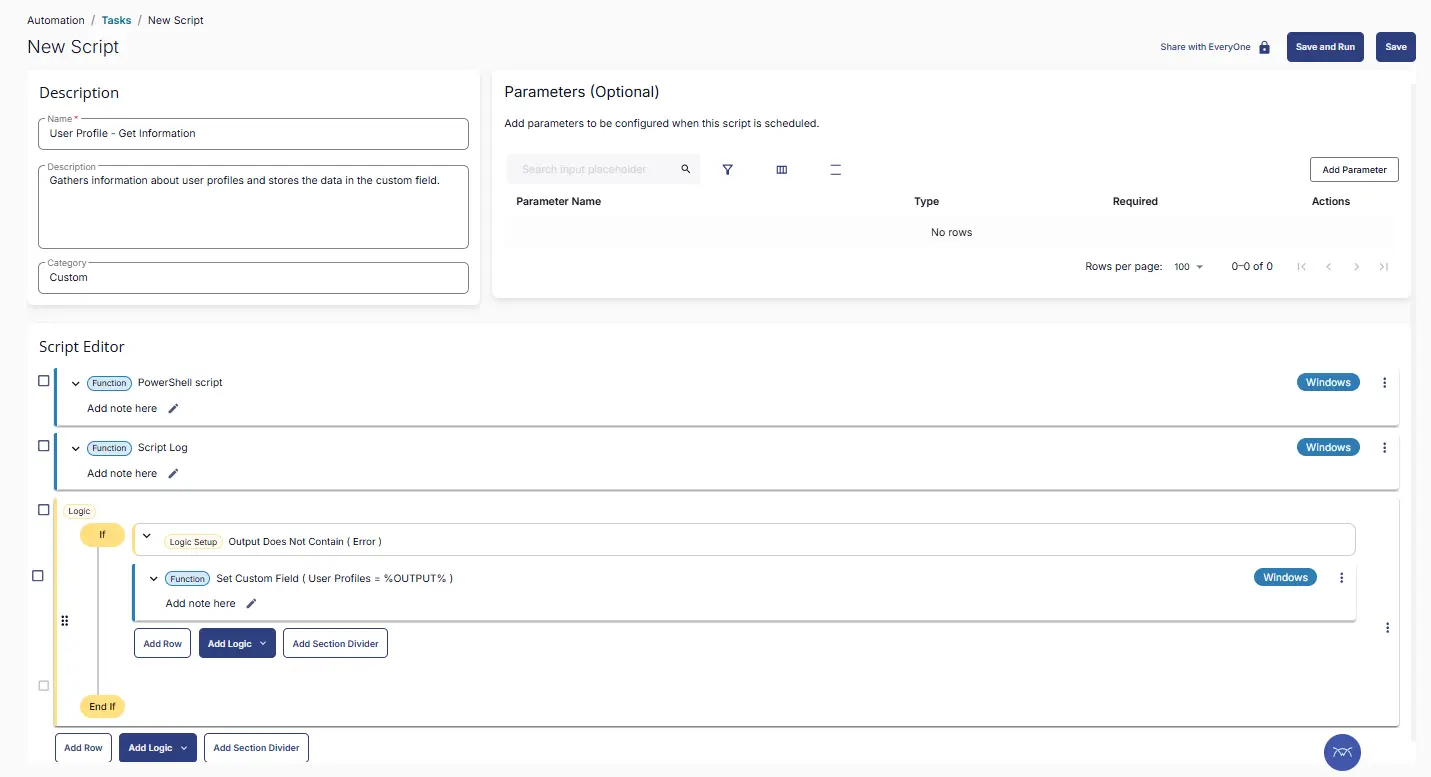
Completed Task
Schedule Task
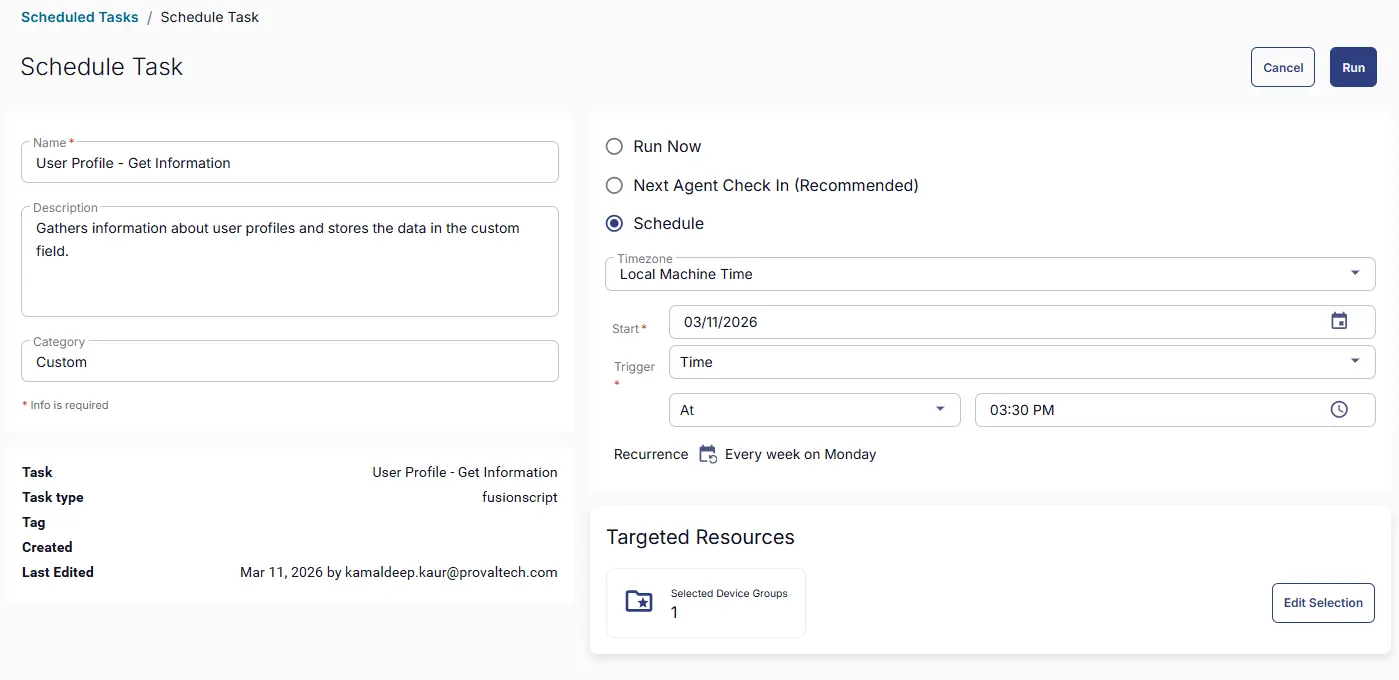
Task Details
- Name:
User Profile - Get Information - Description:
Gathers information about user profiles and stores the data in the custom field. - Category:
Custom
Schedule
- Schedule Type:
Schedule - Timezone:
Local Machine Time - Start:
<Current Date> - Trigger:
TimeAt<Current Time> - Recurrence:
Every week on Monday
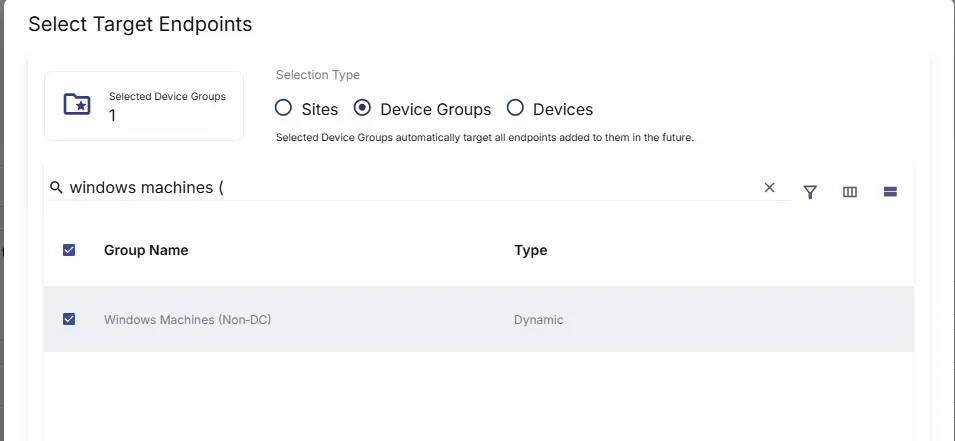
Targeted Resource
Device Groups: Windows Machines (Non‑DC)
Completed Scheduled Task
Output
- Script Logs
- Custom Field
Changelog
2026-03-11
- Initial version of the document