Lenovo OneCli Orchestrator
Summary
Lenovo OneCLI is a comprehensive management utility that enables centralized discovery, inventory, and lifecycle management of firmware and driver updates for supported Lenovo servers and systems. It provides capabilities for scanning systems, downloading updates, and deploying firmware and driver patches across ThinkEdge, ThinkSystem, ThinkServer, and Wentian platforms.
This is an automate implementation of Invoke-LenovoOneCLI. It is designed to manage firmware and driver updates on supported Lenovo systems(specially servers) using Lenovo OneCLI.
The script handles the deployment of Lenovo OneCLI on the target machine and enables the execution of OneCLI commands to perform system updates and maintenance tasks.
Supported Lenovo OneCLI commands can be found at https://pubs.lenovo.com/lxce-onecli/onecli_bk.pdf
Dependencies
Sample Run
Example 1:
Execute the script without any parameter to return the available updates.

Example 2:
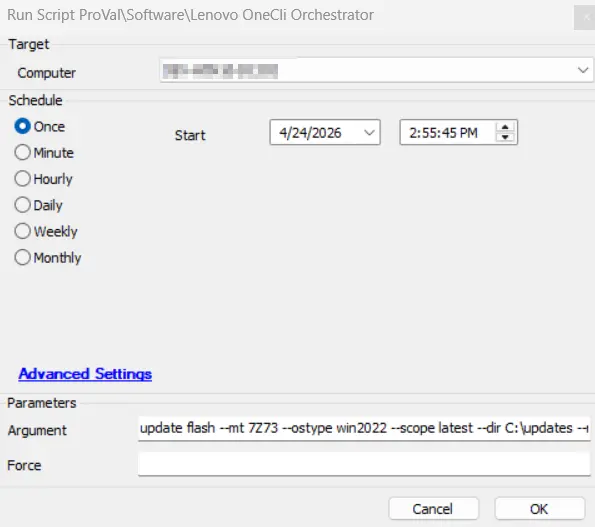
Execute the script with below parameter to download and immediately apply all updates without any reboot or prompts:
- Argument:
update flash --mt 7Z73 --ostype win2022 --scope latest --dir C:\updates --noreboot --quiet
Note: --mt(machines type) and ostype varies as per machine.
Example 3:
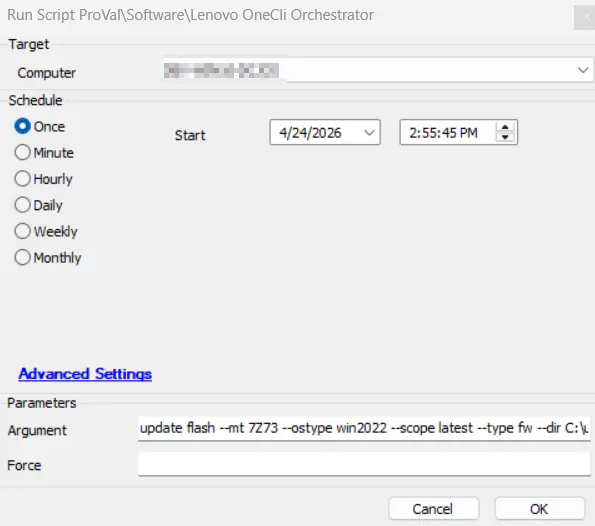
Execute the script with below parameter to download and immediately apply firmware updates without any reboot or prompts:
- Argument:
update flash --mt 7Z73 --ostype win2022 --scope latest --type fw --dir C:\updates --noreboot --quiet
Note: --mt(machines type) and ostype varies as per machine.
Example 4:
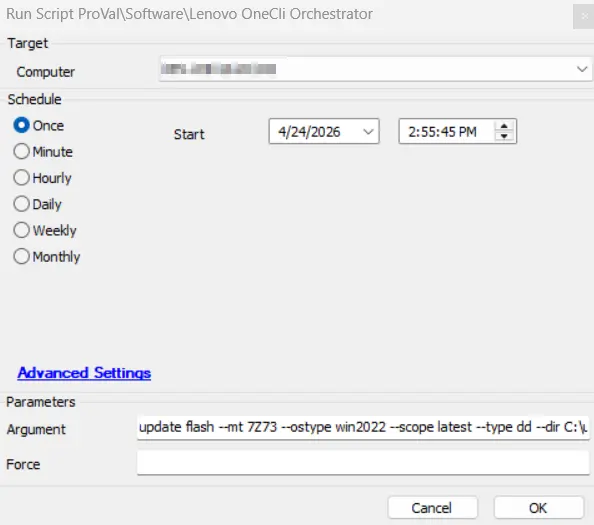
Execute the script with below parameter to download and immediately apply driver updates without any reboot or prompts:
- Argument:
update flash --mt 7Z73 --ostype win2022 --scope latest --type dd --dir C:\updates --noreboot --quiet
Note: --mt(machines type) and ostype varies as per machine.
Example 5:
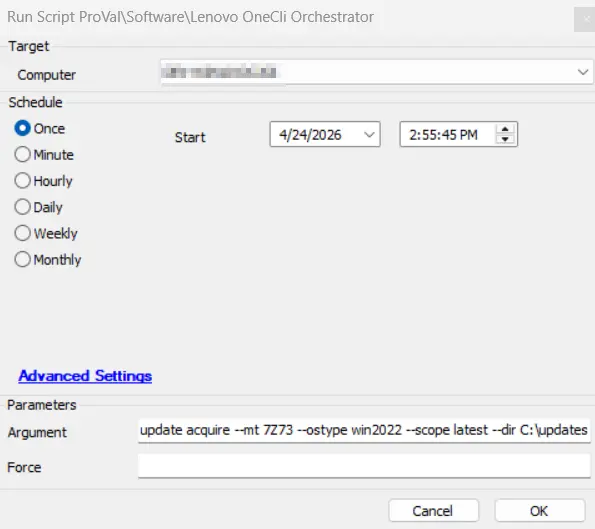
Execute the script with below parameter to download all latest updates:
- Arguments:
update acquire --mt 7Z73 --ostype win2022 --scope latest --dir C:\updates
Note: --mt(machines type) and ostype varies as per machine.
Example 6:
Execute the script with below parameter to Apply all downloaded updates:
- Arguments:
update flash --dir C:\updates
Note: --mt(machines type) and ostype varies as per machine.
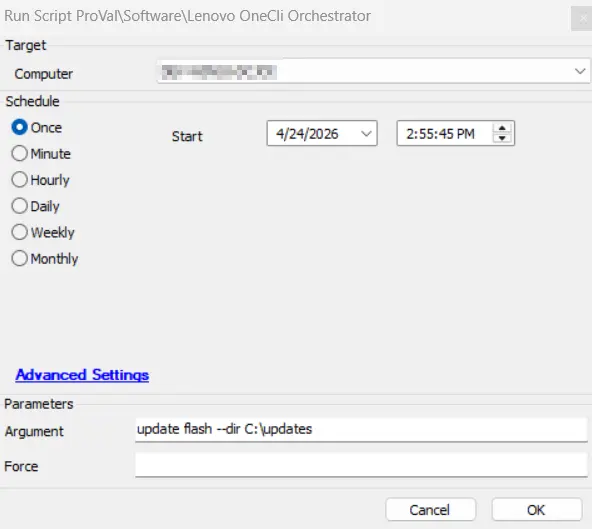
Example 7:
Execute the script with Force = 1 to deploy Lenovo OneCli even if it already exists on the machine.

User Parameters
| Name | Required | Example | Description |
|---|---|---|---|
Force | False |
| Set it to True to deploy Lenovo OneCli even if it already exists on the machine. |
Argument | False |
--mt is machine type which will vary according to the machine type.--ostype ostype will also vary as per machine's OS. Provide it in this format only.--fw is for firmware updates--dd is for driver updates
update scan --output $workingDirectory
| Custom argument string passed to Onecli.exe. If omitted, the script uses the default scan command. |
Global Parameters
| Name | Required | Example | Description |
|---|---|---|---|
| URL | True | https://download.lenovo.com/servers/mig/2025/11/10/63602/lnvgy_utl_lxce_onecli01s-5.4.0_windows_indiv.zip | URL for the OneCLI ZIP to download. Available from the Lenovo support website (https://support.lenovo.com/solutions/lnvo-tcli) Note: This URL must be changed whenever a new Onecli version is released to keep OneCli up to date. |
| Debug | False | False, True | When True, enables informational logging; when False (default), informational logs are suppressed to avoid adding entries to the h_scripts table. Set to True to assist with troubleshooting. |
| ScriptEngineEnableLogger | False | False, True | When True, enables final (success/failure) logging; when False (default), these logs are suppressed to avoid adding entries to the h_scripts table. Set to True to assist with troubleshooting. |
Notes:
- If no
Argumentis specified, the script performs a default scan and lists available updates, storing results in the working directory. - If
Argumentis provided, the script executesOnecli.exewith the specified arguments. - Supported Lenovo OneCLI commands to be used with Onecli can be found at https://pubs.lenovo.com/lxce-onecli/onecli_bk.pdf
- The OneCLI download URL is version-specific and changes when new releases are published. To obtain the latest URL, visit https://support.lenovo.com/solutions/lnvo-tcli, locate the OneCLI Windows Utility package in the downloads section, and copy the download link from the Payload Files section.
Output
- Script Logs
Changelog
2026-04-17
- Initial version of the document