Intune Enrollment for Entra Joined Devices
Summary
The script automates the Microsoft Intune enrollment process for Entra joined Windows devices.
Note: The end machine may require a restart to complete the enrollment process.
Requirements
- Windows 10/11 device
- PowerShell 5.1 or later
- Azure AD joined status
Dependencies
Sample Run
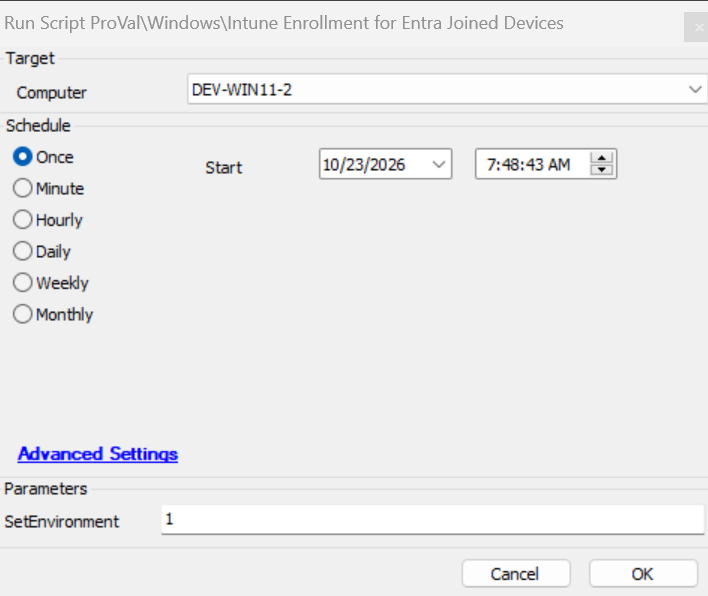
- Set the
SetEnvironmentuser parameter to 1 during importing the script, and execute on any random online machine. - This will help to import the checkbox-type Client-EDF
Deploy Intune Enrollment, location and computer-level EDFExclude Intune Enrollmentand the roles IntuneEnrolled and Microsoft - Entra Joined.
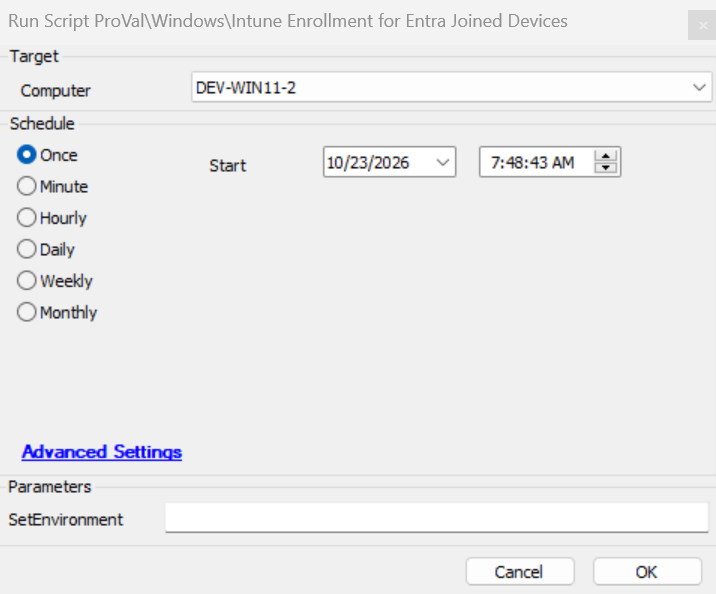
- To perform the Intune enrollment, execute the script leaving
SetEnvironmentblank.
User Parameters
| Name | Required | Example | Description |
|---|---|---|---|
| SetEnvironment | False | 1 | This is required to execute the script during importing of the solution by setting the value to 1 for SetEnvironment, so that it call import all required EDFs and roles. |
EDFs
| Name | Type | Level | Section | Editable | Required | Description |
|---|---|---|---|---|---|---|
Deploy Intune Enrollment | Checkbox | Client | Entra AD | Yes | True | This client level checkbox EDF is required for the automation of the Intune Enrollment deployment. |
Exclude Intune Enrollment | Checkbox | Location | Exclusions | Yes | False | If checked, then the agents of the location will be excluded from the Intune enrollment auto-deployment. |
Exclude Intune Enrollment | Checkbox | Computer | Exclusions | Yes | False | If checked, then the agent will be excluded from the Intune enrollment auto-deployment. |
Variables
| Name | Description |
|---|---|
| projectName | Initialize-IntuneEnrollment |
| workingDirectory | C:\ProgramData_Automation\Script\Initialize-IntuneEnrollment |
| ps1Path | C:\ProgramData_Automation\Script\Initialize-IntuneEnrollment\Initialize-IntuneEnrollment.ps1 |
Output
- Script Log
Changelog
2026-10-27
- Added signature to the Intune-Enrollment.ps1.
- Replaced the "already enrolled" check. It now reads the device's Intune enrollment record (
HKLM:\SOFTWARE\Microsoft\Enrollments,ProviderID=MS DM Server,EnrollmentState= 1) instead of theAutoEnrollMDMpolicy value. The old check reported "already enrolled" after any previous run, including failed ones, and missed devices enrolled through Autopilot or Settings. - The script now reports the actual enrollment result. After starting
deviceenroller.exe, it waits up to 180 seconds for the enrollment record or for event 75 (success) / 76 (failure) in theDeviceManagement-Enterprise-Diagnostics-Provider/Adminlog, and includes the event 76 details on failure. Previously it always returned Success. - Added a signed-in user check. Enrollment uses the signed-in user's Entra credentials (
UseAADCredentialType= 1), so the enrollment step is skipped when nobody is signed in. The enrollment policy and MDM URLs are still configured in that case. - Added the
Skipped:andPending:output statuses alongsideSuccess:andFailure:. - The script relaunches itself in 64-bit PowerShell when started from a 32-bit host.
- The MDM policy key is created only if it does not exist, instead of running
New-Item -Forceon every run. - MDM URLs are now written to every tenant key under
CloudDomainJoin\TenantInfo, and only where the value is missing. Previously the script assumed a single tenant key and overwrote existing values. It now fails with a clear message when no tenant key exists. New-ItemPropertyoutput no longer appears in the script output.gpupdatenow refreshes computer policy only and cannot hang on a restart prompt.- Error messages now report the exception from the failing step (
$_) instead of the last error in the session ($Error[0]).
2025-03-06
- Initial version of the document