Enable Windows Update Access
Summary
The script will overwrite the DisableWindowsUpdateAccess registry key if it's set at the computer or user level. This ensures that Windows update access is not disabled for the machine, users, or the system account.
Sample Run

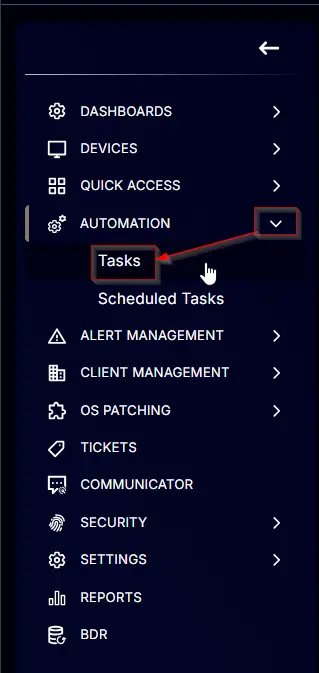
Task Creation
Create a new Script Editor style script in the system to implement this task.

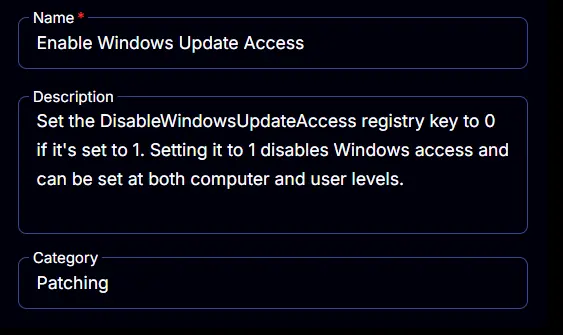
Name: Enable Windows Update Access
Description: Set the DisableWindowsUpdateAccess registry key to 0 if it's set to 1. Setting it to 1 disables Windows access and can be set at both computer and user levels.
Category: Patching
Task
Navigate to the Script Editor section and start by adding a row. You can do this by clicking the Add Row button at the bottom of the script page.

A blank function will appear.

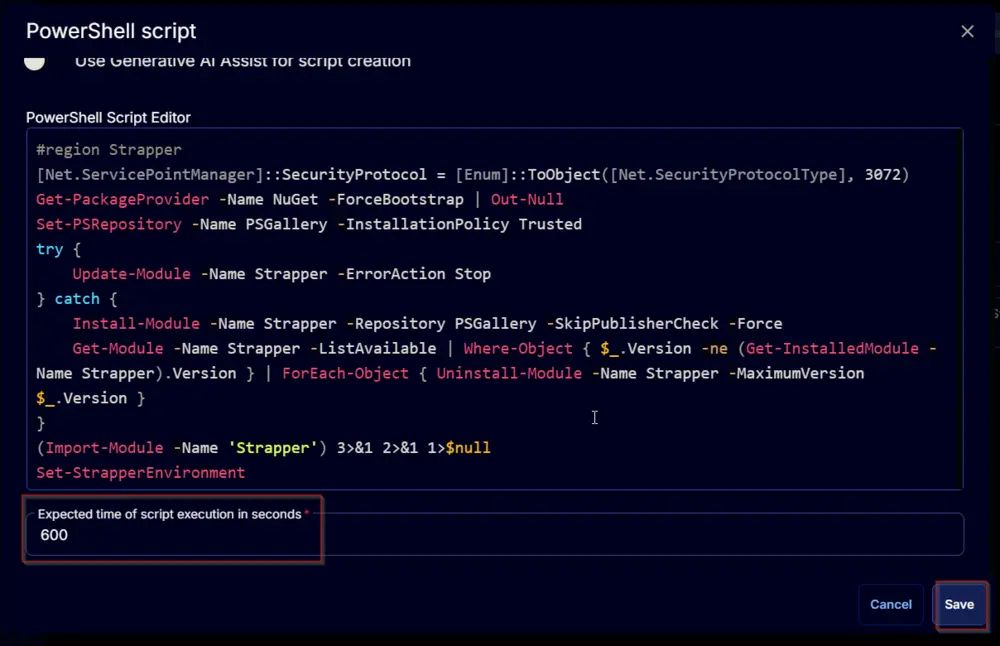
Row 1 Function: PowerShell Script
Search and select the PowerShell Script function.


The following function will pop up on the screen:

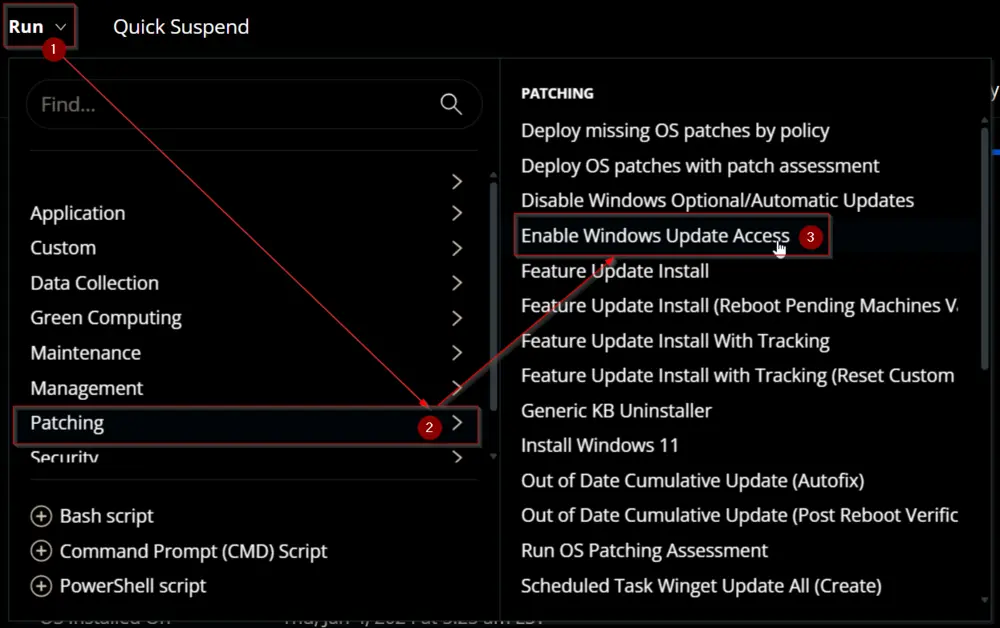
Paste in the following PowerShell script and set the expected time of script execution to 600 seconds. Click the Save button.
Row 2 Function: Script Log
Add a new row by clicking the Add Row button.

A blank function will appear.

Search and select the Script Log function.


The following function will pop up on the screen:

In the script log message, simply type %output% and click the Save button.

Click the Save button at the top-right corner of the screen to save the script.

Completed Task

Output
- Script log
Changelog
2025-04-10
- Initial version of the document