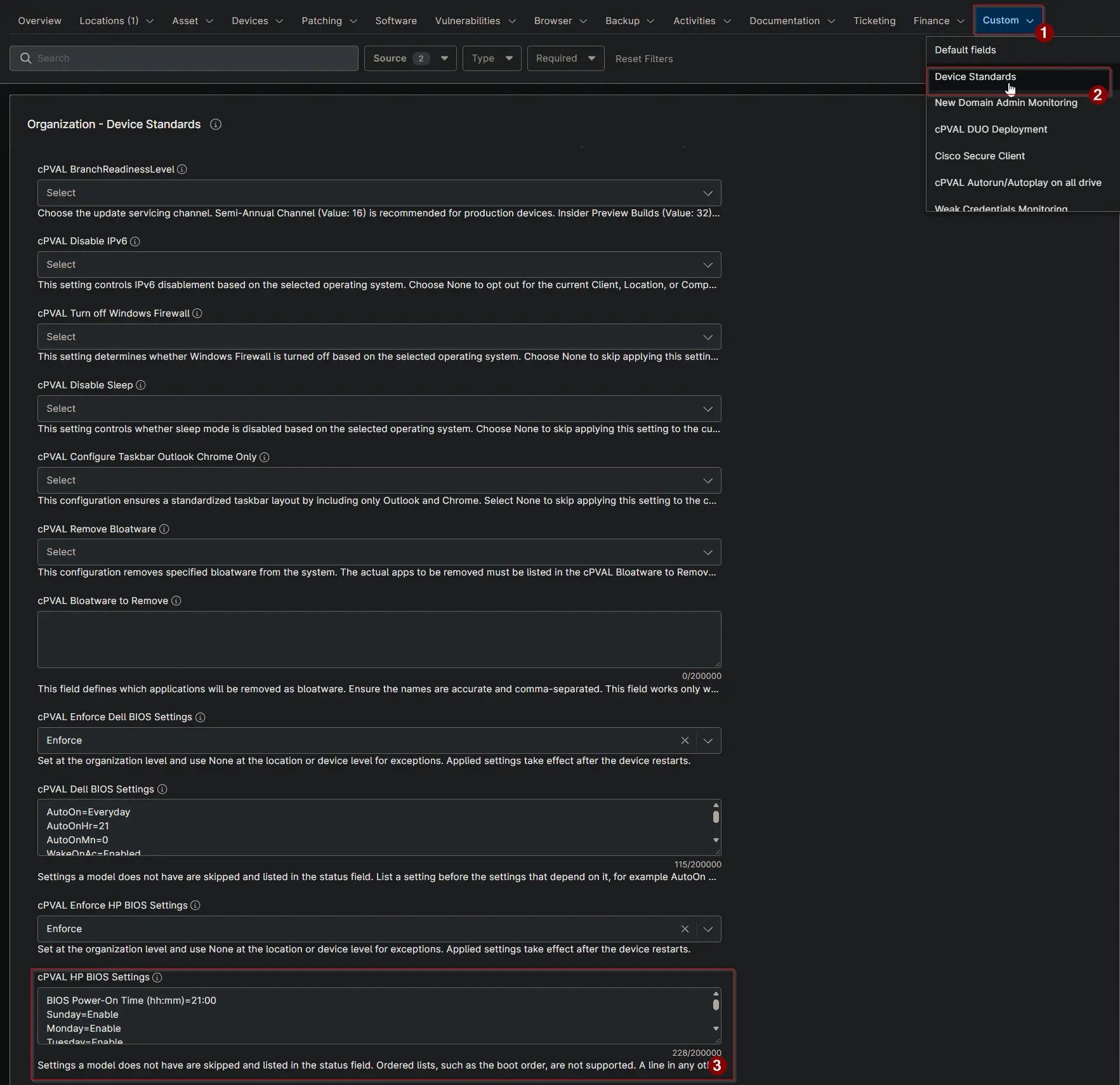
cPVAL HP BIOS Settings
Summary
This custom field stores the HP BIOS settings that devices should have. The Check HP BIOS Settings and Apply HP BIOS Settings automations compare the device with these settings.
Details
| Label | Field Name | Example | Definition Scope | Type | Required | Default Value | Dropdown Options | Editable | Custom Field Tab |
|---|---|---|---|---|---|---|---|---|---|
| cPVAL HP BIOS Settings | cpvalHpBiosSettings | Wake On LAN=Boot to Hard Drive | Organization, Location, Device | Multi-line | False | Yes | Device Standards |
Format
Enter one setting per line in the form Setting Name=Value.
- Use the setting name and value exactly as the HP BIOS Configuration Utility shows them. Letter case does not matter.
- The value must be one of the options the model offers. Otherwise the change fails and the status lists the valid options.
- List each setting only once.
- Ordered lists, such as the boot order, are not supported and are skipped.
If any line does not follow this format, the solution stops and cPVAL HP BIOS Settings Status shows Failed with the line number.
Finding setting names and values: run the HP Bios Configuration Utility automation with no argument on one device of each model. It lists every setting with its options, and the current value is marked with an asterisk (*). Names may differ between HP models and BIOS generations.
Example: power on every day at 9 PM, allow Wake on LAN, and power on when AC power is connected. Confirm the names against the list for your models first.
BIOS Power-On Hour=21
BIOS Power-On Minute=0
Sunday=Enable
Monday=Enable
Tuesday=Enable
Wednesday=Enable
Thursday=Enable
Friday=Enable
Saturday=Enable
Wake On LAN=Boot to Hard Drive
Power On When AC Detected=Enable
After Power Loss=Power On
Settings that a model does not have are skipped and listed in the status field, so one list can cover laptops and desktops.
Dependencies
- Solution: Enforce HP BIOS Settings
- Solution: Device Standards
- Script: Check HP BIOS Settings
- Script: Apply HP BIOS Settings
Custom Field Creation
Sample Screenshot
Changelog
2026-10-16
- Initial version of the document