Audit and Apply IIS Crypto Security Templates [Windows]
Overview
This script audits or hardens the Windows settings that control secure connections (TLS protocols and cipher suites) using IIS Crypto security templates.
When to use:
- Check which TLS and cipher suite settings are enabled on a device (read-only).
- Enforce a security baseline by applying an IIS Crypto template.
- Apply a baseline and verify the new settings in a single run.
- Keep the latest audit results on the device record for reporting.
How it works:
- The script stages the IIS Crypto CLI and the template locally, then runs them.
- A registry backup is saved before any template is applied.
- When Audit is enabled, the results are stored as a table in the cPVAL IIS Crypto Info custom field.
- Applying a template changes machine-wide security settings and may require a restart. Enable AllowReboot to restart automatically, or restart the device yourself afterwards.
Requirements:
- Runs elevated (System context).
- To apply a template, provide a download URL, a network share, or a local file path to a .ictpl template.
- Create the cPVAL IIS Crypto Info custom field (see Dependencies) before enabling Audit. The activity fails when the field is missing.
Sample Run
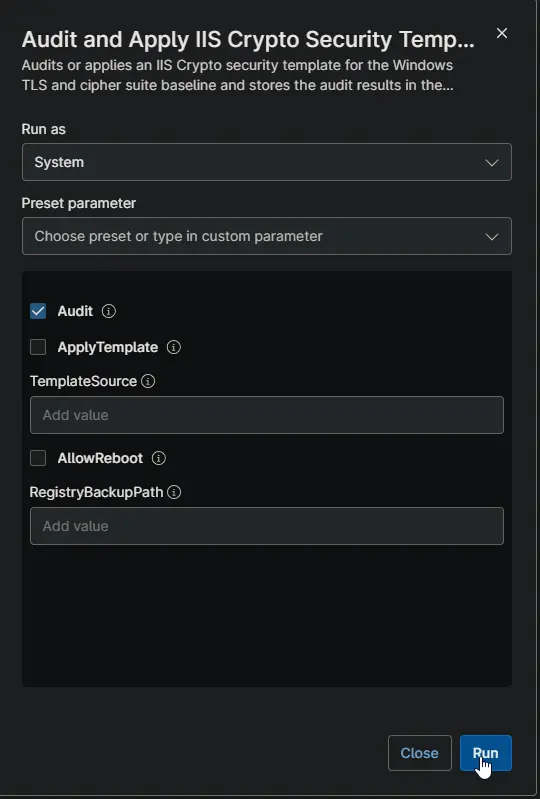
Example 1: Running the script to audit current settings
Enable Audit only. The script returns every TLS and cipher suite setting with its current value. Nothing is changed on the device.
Settings that show a value of null have not been changed; Windows is still using its default for that setting.
The results are also stored as a table in the cPVAL IIS Crypto Info custom field.
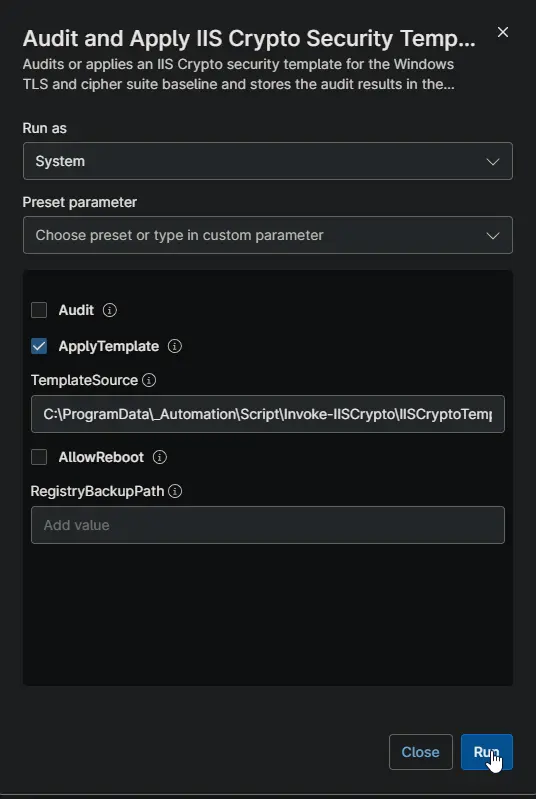
Example 2: Running the script to apply a template from a local file path
Enable ApplyTemplate and set TemplateSource to the local file path. The template is downloaded and applied without restarting the device. A registry backup is saved as backup.reg in the script working directory.
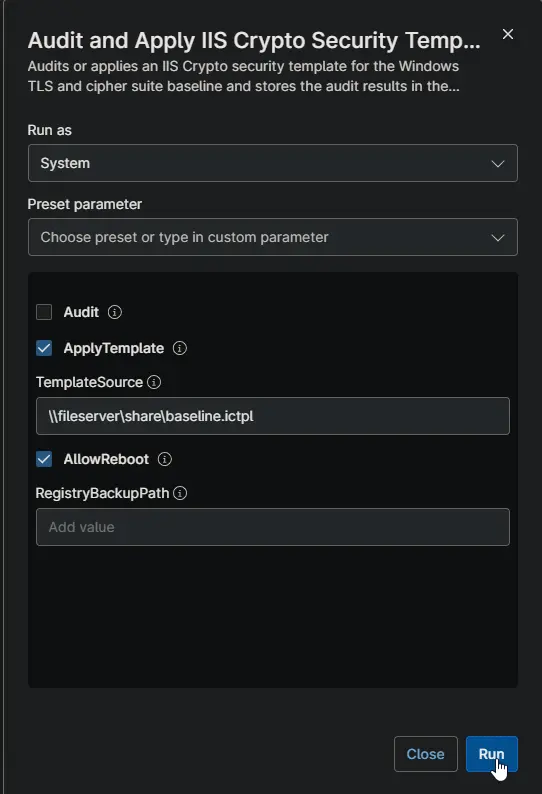
Example 3: Running the script to apply a template from a network share and restart automatically
Enable ApplyTemplate and AllowReboot. Set TemplateSource to the network share path, for example \fileserver\share\baseline.ictpl. The template is copied and applied, and the device restarts automatically.
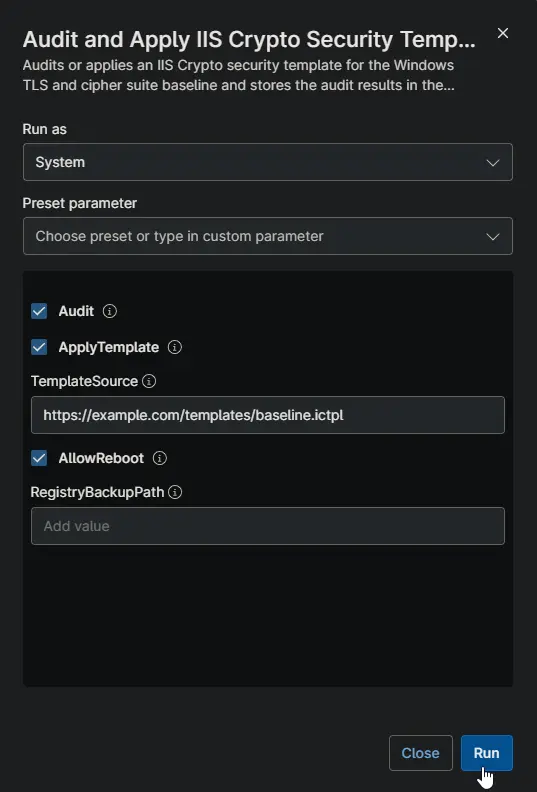
Example 4: Running the script to apply a template and audit the results with a custom backup location
Enable ApplyTemplate and Audit. Set TemplateSource to a download url and RegistryBackupPath to the backup location. The template is applied first, then the new settings are returned and stored in the cPVAL IIS Crypto Info custom field.
Dependencies
- Custom Field: cPVAL IIS Crypto Info (create before enabling Audit)
- Script: Invoke-IISCrypto (the underlying agnostic script)
- IIS Crypto templates, prebuilt or custom, from Nartac Software
Parameters
| Name | Example | Accepted Values | Required | Default | Type | Description |
|---|---|---|---|---|---|---|
| Audit | true | true, false | False | false | Boolean | Shows current TLS and cipher suite settings and stores them in the cPVAL IIS Crypto Info custom field. Changes nothing. |
| ApplyTemplate | true | true, false | False | false | Boolean | Applies the template given by TemplateSource. |
| TemplateSource | https://example.com/templates/baseline.ictpl | HTTP/HTTPS URL, network share, or local file path | Only with ApplyTemplate | Empty | String | Location of the .ictpl template to apply. |
| AllowReboot | true | true, false | False | false | Boolean | Restarts the computer automatically after the template is applied. |
| RegistryBackupPath | C:\Temp\backup.reg | Any file path | False | backup.reg (script working directory) | String | Where to save the registry backup created before applying a template. |
Custom Fields
| Field Name | Type | Mandatory | Scope | Description |
|---|---|---|---|---|
| cPVAL IIS Crypto Info | WYSIWYG | Yes | Device | Stores an HTML table of every audited setting: setting category, setting name, current value, and data collection time. Settings never modified show as Not changed (Windows default). Required when Audit is enabled; the activity fails when the field cannot be updated. Not used when only ApplyTemplate is enabled. |
Automation Setup/Import
Output
- Activity Details: When Audit is enabled, each setting is returned with its name and value. The run log is included, and any errors are reported in the activity output.
- Custom Field: cPVAL IIS Crypto Info is updated with a table of every audited setting (setting category, setting name, current value, data collection time). Settings never modified show as Not changed (Windows default).
- Registry Backup: A copy of the previous settings, saved as backup.reg in the script working directory unless RegistryBackupPath is set.
- Restart: Applied settings may require a restart to take full effect. A restart only happens automatically when AllowReboot is enabled.
Changelog
2026-10-01
- Initial version of the document.