Reboot Prompter

Summary

The script prompts the user to reboot with a simple yes or no prompt. It also forces a reboot after the PromptRebootCount is crossed.

Dependencies

Sample Run

Sample Run 1
Sample Run 2

Implementation

Create Task

To implement this script, please create a new "PowerShell" style script in the system.

Create Task

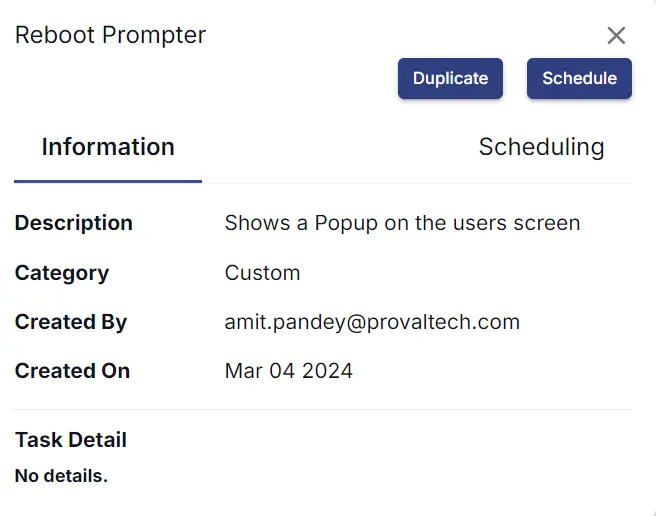
  • Name: Reboot Prompter
  • Description: Shows a Popup on the user's screen
  • OS Supported: Windows
  • Category: Custom

Task Details

Script

Start by making three separate rows. You can do this by clicking the "Add Row" button at the bottom of the script page.

Add Row

Row 1: Function: Script Log

Script Log

In the script log message, simply type Creating the working directory for the prompter script

Log Message

Row 2: Function: PowerShell script

PowerShell Script
PowerShell Script

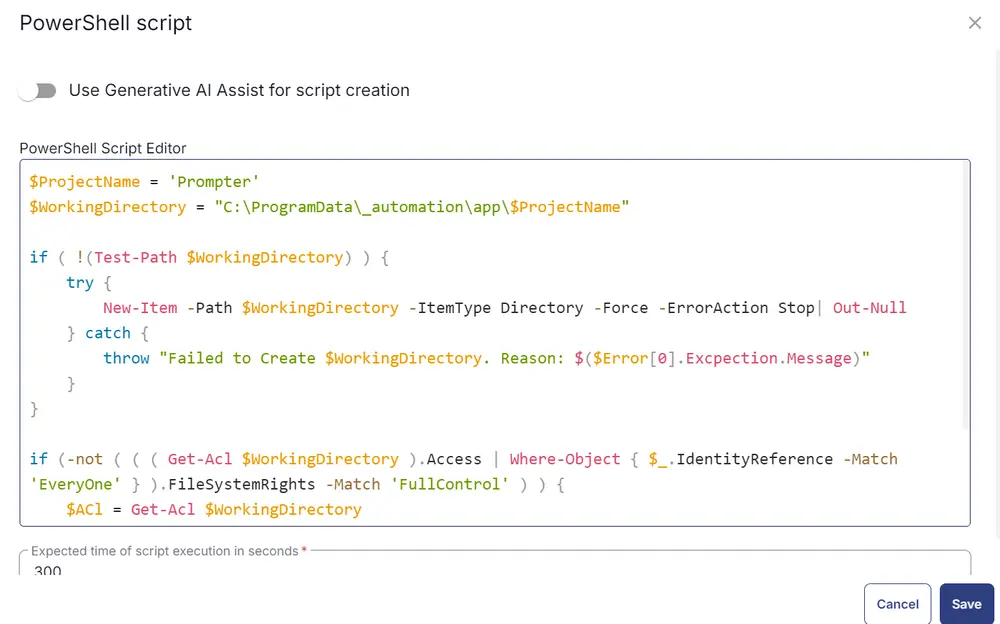
Paste in the following PowerShell script and set the expected time of script execution to 300 seconds.

$ProjectName = 'Prompter'
$WorkingDirectory = "C:\ProgramData\_automation\app\$ProjectName"

if ( !(Test-Path $WorkingDirectory) ) {
try {
New-Item -Path $WorkingDirectory -ItemType Directory -Force -ErrorAction Stop| Out-Null
} catch {
throw "Failed to Create $WorkingDirectory. Reason: $($Error[0].Excpection.Message)"
}
}

if (-not ( ( ( Get-Acl $WorkingDirectory ).Access | Where-Object { $_.IdentityReference -Match 'EveryOne' } ).FileSystemRights -Match 'FullControl' ) ) {
$ACl = Get-Acl $WorkingDirectory
$AccessRule = New-Object System.Security.AccessControl.FileSystemAccessRule('Everyone', 'FullControl', 'ContainerInherit, ObjectInherit', 'none', 'Allow')
$Acl.AddAccessRule($AccessRule)
Set-Acl $WorkingDirectory $Acl
}

Row 3: Function: Script Log

Script Log

In the script log message, simply type Installing the supported .NET version

Log Message

Row 4: Function: PowerShell script

PowerShell Script

Paste in the following PowerShell script and set the expected time of script execution to 900 seconds.

<#
.SYNOPSIS
Installs the latest available .NET Desktop Runtime 8 version if it is not already installed.

.DESCRIPTION
Checks the local endpoint for installed Microsoft Windows Desktop Runtime versions by calling
Get-InstalledDotNetDesktopRuntime. If major version 8 is already installed, the script exits
without changes.

If not installed, the script:
- Creates a working directory under ProgramData.
- Ensures required ACL permissions on that directory.
- Enforces TLS 1.2/1.3 for outbound web requests.
- Detects OS architecture and maps it to the appropriate RID.
- Retrieves the latest .NET 8 Windows Desktop Runtime installer URL from Microsoft's
official release metadata feed.
- Downloads and silently installs the runtime.
- Verifies installation and cleans up the installer binary.

This script is intended for automated execution in RMM/automation workflows.

.EXAMPLE
.\Install-dotNet8DesktopRuntime.ps1

Runs the full detection-and-install workflow. If .NET Desktop Runtime 8 is already installed,
the script returns a no-action message.

.OUTPUTS
System.String

Returns:
- '.NET Desktop Runtime 8 is already installed. No action is required.' when no install is needed.

Writes informational progress messages during install path execution and throws terminating
errors when download, install, or verification fails.

.NOTES
- Requires Windows with PowerShell 5.1+.
- Requires administrative privileges for install and ProgramData operations.
- Uses BITS for download and Start-Process for silent installer execution.
- Release metadata source: https://builds.dotnet.microsoft.com/dotnet/release-metadata/8.0/releases.json
#>

#region globals
$ProgressPreference = 'SilentlyContinue'
$WarningPreference = 'SilentlyContinue'
$InformationPreference = 'Continue'
#endRegion

#region variables
$appName = 'dotNet8DesktopRuntime'
$workingDirectory = '{0}\_Automation\Script\{1}' -f $env:ProgramData, $appName
$appPath = '{0}\{1}.exe' -f $workingDirectory, $appName
$url = 'https://builds.dotnet.microsoft.com/dotnet/release-metadata/8.0/releases.json'
$installerArguments = @(
'/install',
'/quiet',
'/norestart'
)
#endRegion

#region function
function Get-InstalledDotNetDesktopRuntime {
<#
.SYNOPSIS
Gets installed .NET Windows Desktop Runtime versions from the local endpoint.

.DESCRIPTION
Resolves the path to `dotnet.exe` and executes `dotnet --list-runtimes`, then parses
the output and returns only Windows Desktop Runtime entries (Microsoft.WindowsDesktop.App).

The function returns one object per detected runtime version with friendly name,
major version, full version, and installed path.

.PARAMETER None
This function does not accept parameters.

.OUTPUTS
System.Object[]

Each object contains:
- Name : Friendly display name (for example, Microsoft Windows Desktop Runtime - 8.0.25)
- MajorVersion : Major version number as Int32
- Version : Full semantic version string
- InstalledPath : Runtime install path reported by dotnet

.EXAMPLE
$installedRuntimes = Get-InstalledDotNetDesktopRuntime

Returns all installed Windows Desktop Runtime versions.

.EXAMPLE
Get-InstalledDotNetDesktopRuntime | Where-Object { $_.MajorVersion -eq 8 }

Returns only .NET 8 Windows Desktop Runtime entries.

.NOTES
Used by this script to verify whether .NET Desktop Runtime 8 is already present
before installation and to confirm installation success afterward.
#>
[CmdletBinding()]
[OutputType([System.Object[]])]
param()

#region dotnet path
$dotnetCommand = Get-Command 'dotnet' -ErrorAction SilentlyContinue
if ($dotnetCommand) {
$dotNetExePath = $dotnetCommand.Source
} else {
$dotNetExePath = '{0}\dotnet\dotnet.exe' -f $env:ProgramFiles
}
#endRegion

#region variables
$listRuntimesCommand = '{0}{1}{0} --list-runtimes' -f [char]34, $dotNetExePath
$installed = @()
#endRegion

#region retrieve installed .net info
$runtimes = cmd.exe /c $listRuntimesCommand
#endRegion

#region create installed versions object
foreach ($line in $runtimes) {
if ($line -match '^((?<Name>.+?)\s+)?(?<Version>\d+\.\d+\.\d+)\s\[(?<Path>[^\]]+)\]$') {
$name = $matches['Name']
$version = $matches['Version']
$path = $matches['Path']

if ($path -notmatch 'Microsoft.WindowsDesktop.App') {
continue
}
$name = 'Microsoft Windows Desktop Runtime - {0}' -f $version

$obj = [PSCustomObject]@{
Name = $name
MajorVersion = ([Version]$version).Major
Version = $version
InstalledPath = $path
}
$installed += $obj
}
}
#endRegion
return $installed
}
#endRegion

#region check if .net desktop runtime 8 is installed
$installedRuntimes = Get-InstalledDotNetDesktopRuntime
$runtime8Installed = $installedRuntimes | Where-Object { $_.MajorVersion -eq 8 }
if ($runtime8Installed) {
return '.NET Desktop Runtime 8 is already installed. No action is required.'
} else {
Write-Information -MessageData '.NET Desktop Runtime 8 is not installed. Proceeding with installation.'
}

#region working directory
if (-not (Test-Path -Path $workingDirectory)) {
try {
New-Item -Path $workingDirectory -ItemType Directory -Force -ErrorAction Stop | Out-Null
} catch {
throw ('Failed to Create working directory {0}. Reason: {1}' -f $workingDirectory, $Error[0].Exception.Message)
}
}

$acl = Get-Acl -Path $workingDirectory
$hasFullControl = $acl.Access | Where-Object {
$_.IdentityReference -match 'Everyone' -and $_.FileSystemRights -match 'FullControl'
}
if (-not $hasFullControl) {
$accessRule = New-Object -TypeName System.Security.AccessControl.FileSystemAccessRule(
'Everyone', 'FullControl', 'ContainerInherit, ObjectInherit', 'None', 'Allow'
)
$acl.AddAccessRule($accessRule)
Set-Acl -Path $workingDirectory -AclObject $acl -ErrorAction SilentlyContinue
}
#endRegion

#region set tls policy
$supportedTLSversions = [enum]::GetValues('Net.SecurityProtocolType')
if (($supportedTLSversions -contains 'Tls13') -and ($supportedTLSversions -contains 'Tls12')) {
[System.Net.ServicePointManager]::SecurityProtocol = [System.Net.ServicePointManager]::SecurityProtocol::Tls13 -bor [System.Net.SecurityProtocolType]::Tls12
} elseif ($supportedTLSversions -contains 'Tls12') {
[System.Net.ServicePointManager]::SecurityProtocol = [System.Net.SecurityProtocolType]::Tls12
} else {
Write-Information -MessageData 'TLS 1.2 and/or TLS 1.3 are not supported on this system. This download may fail!'
if ($PSVersionTable.PSVersion.Major -lt 3) {
Write-Information -MessageData 'PowerShell 2 / .NET 2.0 doesn''t support TLS 1.2.'
}
}
#endRegion

#region get os architecture
try {
$osArchitecture = (Get-CimInstance -ClassName 'Win32_OperatingSystem' -ErrorAction Stop).OSArchitecture
} catch {
Write-Information -MessageData 'Failed to determine OS architecture. Defaulting to win-x64.'
$osArchitecture = '64-bit'
}
$rid = if ($osArchitecture -eq '64-bit') {
'win-x64'
} elseif ($osArchitecture -eq '32-bit') {
'win-x86'
} else {
'win-arm64'
}
#endRegion

#region fetch latest download url for .net desktop runtime 8
try {
$downloadUrl = (Invoke-RestMethod -Uri $url -UseBasicParsing -ErrorAction Stop).releases |
Sort-Object -Property 'release-date' -Descending |
Select-Object -First 1 |
Select-Object -ExpandProperty 'windowsdesktop' |
Select-Object -ExpandProperty 'files' |
Where-Object { $_.rid -eq $rid -and $_.url -match '\.exe$' } |
Select-Object -ExpandProperty 'url'
} catch {
throw ('Failed to retrieve .NET release information from {0}. Reason: {1}' -f $url, $Error[0].Exception.Message)
}
if (-not $downloadUrl) {
throw ('Failed to find a suitable .NET Desktop Runtime 8 download for RID {0} from {1}' -f $rid, $url)
} else {
Write-Information -MessageData ('Latest .NET Desktop Runtime 8 installer URL: {0}' -f $downloadUrl)
}
#endRegion

#region download installer
try {
Write-Information -MessageData ('Downloading .NET Desktop Runtime 8 installer from {0}' -f $downloadUrl)
Start-BitsTransfer -Source $downloadUrl -Destination $appPath -ErrorAction Stop
} catch {
throw ('Failed to download .NET Desktop Runtime 8 installer from {0}. Reason: {1}' -f $downloadUrl, $Error[0].Exception.Message)
}
Unblock-File -Path $appPath -ErrorAction SilentlyContinue
#endRegion

#region install .net desktop runtime 8
try {
$installCommand = '{0} {1}' -f $appPath, ($installerArguments -join ' ')
Write-Information -MessageData ('Executing installer command: {0}' -f $installCommand)
Start-Process -FilePath $appPath -ArgumentList $installerArguments -Wait -NoNewWindow
} catch {
throw ('Failed to execute .NET Desktop Runtime 8 installer. Reason: {0}' -f $Error[0].Exception.Message)
}
#endRegion

#region verify installation
$installedRuntimes = Get-InstalledDotNetDesktopRuntime
$runtime8Installed = $installedRuntimes | Where-Object { $_.MajorVersion -eq 8 }
if ($runtime8Installed) {
Write-Information -MessageData '.NET Desktop Runtime 8 installation verified successfully.'
} else {
throw 'Error: .NET Desktop Runtime 8 installation failed or could not be verified.'
}
#endRegion

#region cleanup installer
Remove-Item -Path $appPath -Force -ErrorAction SilentlyContinue
#endRegion

Row 5: Function: Script Log

Script Log

In the script log message, simply type %Output%

Log Message

Row 6: Logic: If/Then

Logic If/Then
Logic If/Then

Row 6a: Condition: Output Contains

In the IF part, enter Installation failed in the right box of the Output Contains part.

Condition

Row 6b: Function: Script Exit

Add a new row by clicking on the Add Row button.

Add Row

In the script exit message, simply type The supported .NET version has failed to install.

Exit Message

Row 7: Function: PowerShell Script

PowerShell Script
PowerShell Script

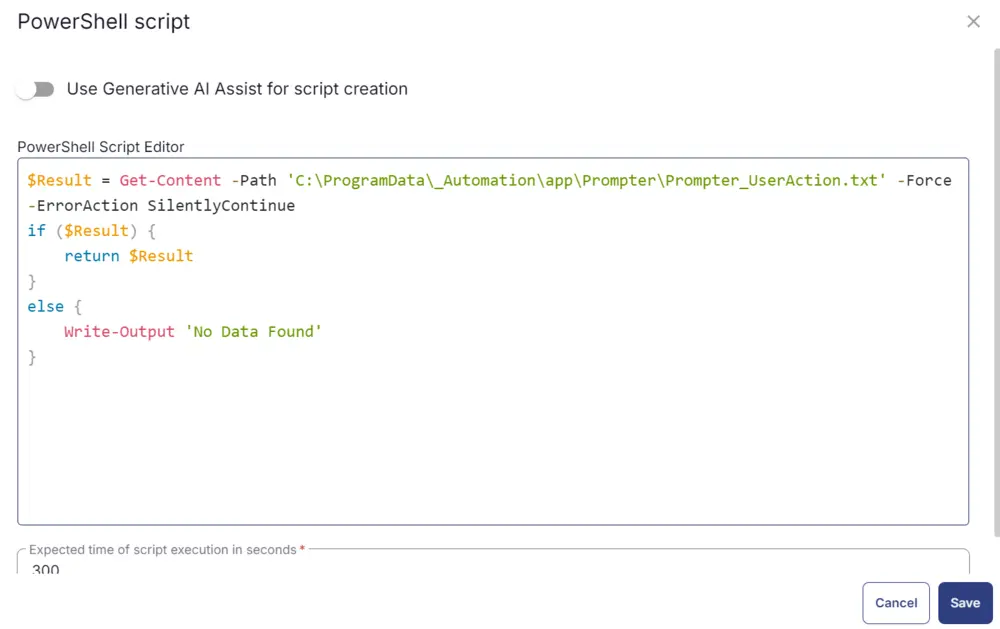
Paste in the following PowerShell script and set the expected time of script execution to 300 seconds.

$Result = Get-Content -Path 'C:\ProgramData\_Automation\app\Prompter\Prompter_UserAction.txt' -Force -ErrorAction SilentlyContinue
if ($Result) {
return $Result
}
else {
Write-Output 'No Data Found'
}

Row 8: Function: Set Custom Field

Select Function Set Custom Field. When you select set custom field, it will open up a new window.

In this window, search for the Prompter_UserAction field.

  • Custom Field: Prompter_UserAction
  • Value: %output%

Set Custom Field

Row 9: Function: PowerShell Script

PowerShell Script
PowerShell Script

Paste in the following PowerShell script and set the expected time of script execution to 300 seconds.

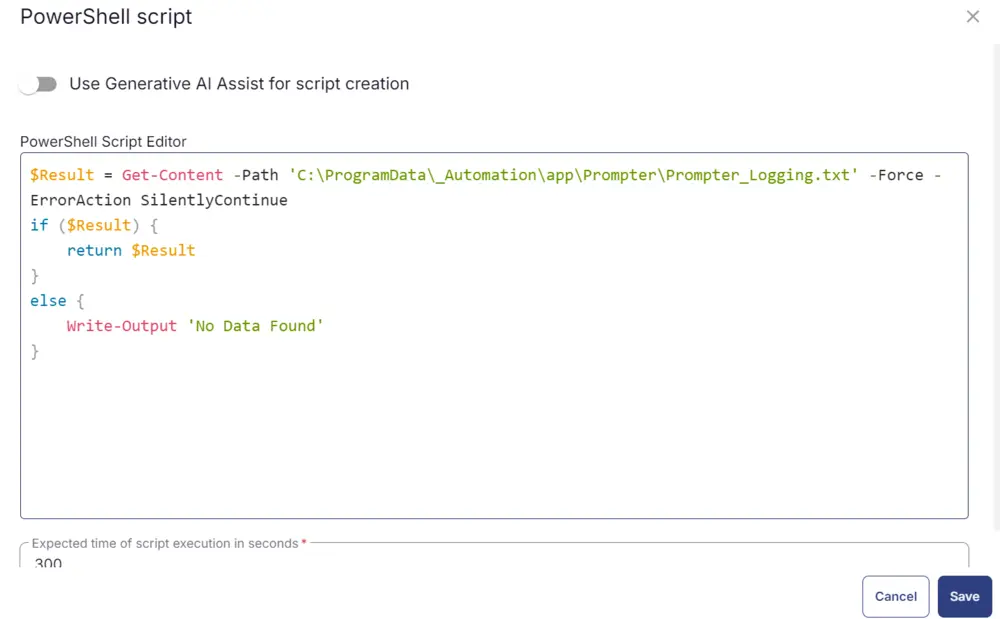
$Result = Get-Content -Path 'C:\ProgramData\_Automation\app\Prompter\Prompter_Logging.txt' -Force -ErrorAction SilentlyContinue
if ($Result) {
return $Result
}
else {
Write-Output 'No Data Found'
}

Select Function Set Custom Field. When you select set custom field, it will open up a new window.

In this window, search for the Prompter_Logging field.

  • Custom Field: Prompter_Logging
  • Value: %output%

Set Custom Field

Row 10: Function: PowerShell Script

PowerShell Script
PowerShell Script

Paste in the following PowerShell script and set the expected time of script execution to 300 seconds.

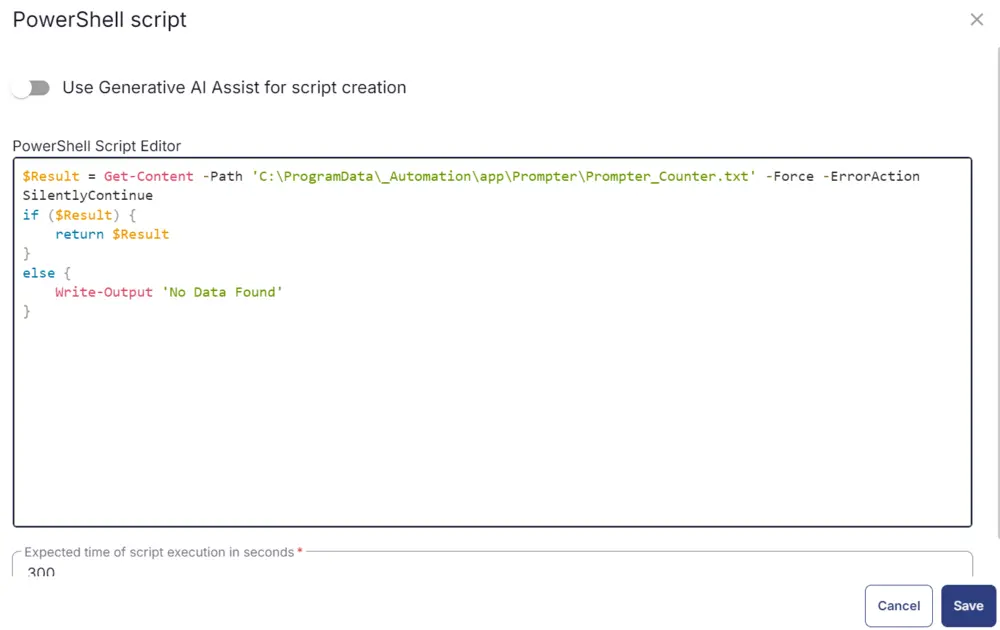
$Result = Get-Content -Path 'C:\ProgramData\_Automation\app\Prompter\Prompter_Counter.txt' -Force -ErrorAction SilentlyContinue
if ($Result) {
return $Result
}
else {
Write-Output 'No Data Found'
}

Select Function Set Custom Field. When you select set custom field, it will open up a new window.

In this window, search for the Prompter_Counter field.

  • Custom Field: Prompter_Counter
  • Value: %output%

Set Custom Field

Row 11: Logic: If/Then

Logic If/Then
Logic If/Then

Row 11a: Condition: Custom Field

In the IF part, enter 0 in the right box of the "Custom Field" part where the custom field is Prompter_Counter.

Condition

Row 11b: Function: Set Custom Field

Select Function Set Custom Field. When you select set custom field, it will open up a new window.

In this window, search for the Prompter_RebootPending field.

  • Custom Field: Prompter_RebootPending
  • Value: False

Set Custom Field

Row 11c: Function: Set Custom Field

Select Function Set Custom Field. When you select set custom field, it will open up a new window.

In this window, search for the Auto_RebootPendingCheck field.

  • Custom Field: Auto_RebootPendingCheck
  • Value: False

Set Custom Field

Row 11d: Function: Set Custom Field

Select Function Set Custom Field. When you select set custom field, it will open up a new window.

In this window, search for the Prompter_Logging field.

  • Custom Field: Prompter_Logging
  • Value:

Set Custom Field

Row 11e: Function: Set Custom Field

Select Function Set Custom Field. When you select set custom field, it will open up a new window.

In this window, search for the Prompter_UserAction field.

  • Custom Field: Prompter_UserAction
  • Value:

Set Custom Field

Row 11f: Function: PowerShell Script

PowerShell Script
PowerShell Script

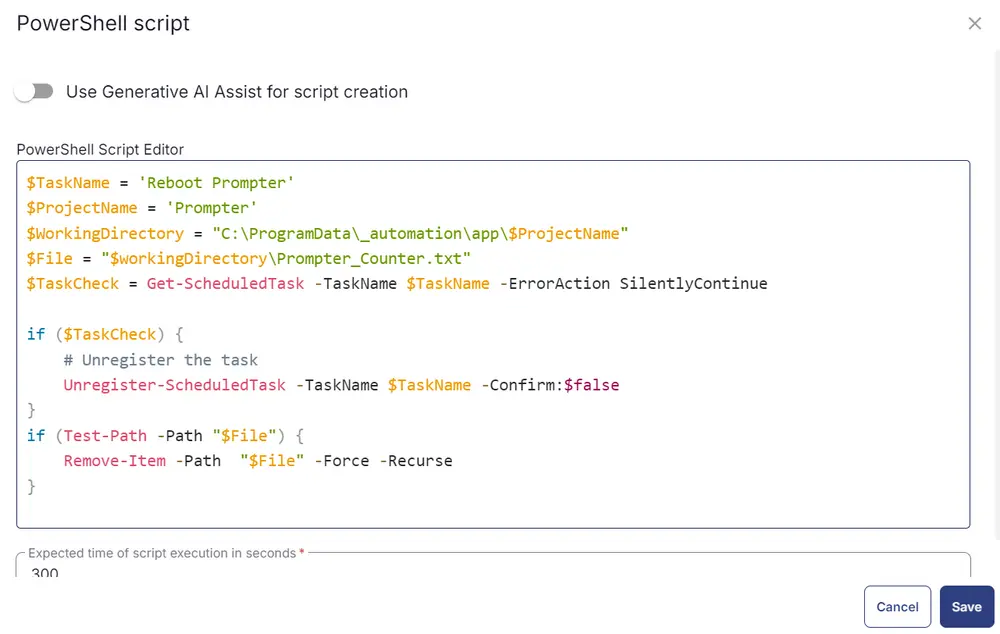
Paste in the following PowerShell script and set the expected time of script execution to 300 seconds.

$TaskName = 'Reboot Prompter'
$ProjectName = 'Prompter'
$WorkingDirectory = "C:\ProgramData\_automation\app\$ProjectName"
$File = "$workingDirectory\Prompter_Counter.txt"
$TaskCheck = Get-ScheduledTask -TaskName $TaskName -ErrorAction SilentlyContinue
if ($TaskCheck) {
# Unregister the task
Unregister-ScheduledTask -TaskName $TaskName -Confirm:$false
}
if (Test-Path -Path "$File") {
Remove-Item -Path "$File" -Force -Recurse
}

Row 11g: Function: Script Log

Script Log

In the script log message, paste Removed the Task, Counter checker and the machine from the Dynamic group because the agent was restarted during the last attempt. Refer to the custom fields Prompter_UserAction and Prompter_Logging on the endpoint for more details.

Log Message

Row 11h: Function: Script Exit

Script Exit
Script Exit

Leave it blank so that the script exits normally.

Row 12: Function: Set Pre Defined Variable

Set Pre Defined Variable

Click on Custom Field > Choose RebootForceTimeDelayMinutes. Then set the variable name as RebootForceTimeDelayMinutes.

Set Variable

Row 13: Function: Set Pre-Defined Variable

Set Pre Defined Variable

Click on Custom Field > Choose RebootPromptCount. Then set the variable name as RebootPromptCount.

Set Variable

Row 14: Function: Set Pre-Defined Variable

Set Pre Defined Variable

Click on Custom Field > Choose Prompter_Title. Then set the variable name as Prompter_Title.

Set Variable

Row 15: Function: Set Pre-Defined Variable

Set Pre Defined Variable

Click on Custom Field > Choose Prompter_Timeout. Then set the variable name as Prompter_Timeout.

Set Variable

Row 16: Function: Set Pre-Defined Variable

Set Pre Defined Variable

Click on Custom Field > Choose Prompter_HeaderImage. Then set the variable name as Prompter_HeaderImage.

Set Variable

Row 17: Function: Set Pre-Defined Variable

Set Pre Defined Variable

Click on Custom Field > Choose Prompter_Icon. Then set the variable name as Prompter_Icon.

Set Variable

Row 18: Function: Script Log

Script Log

In the script log message, simply type: Creating the Prompter.ps1 file in the working directory for the Prompter exe execution using Task Scheduler and checking the status of Prompter file creation in the working directory
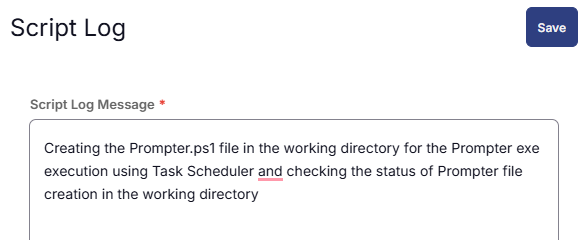
Log Message

Row 19: Function: PowerShell Script

PowerShell Script
PowerShell Script

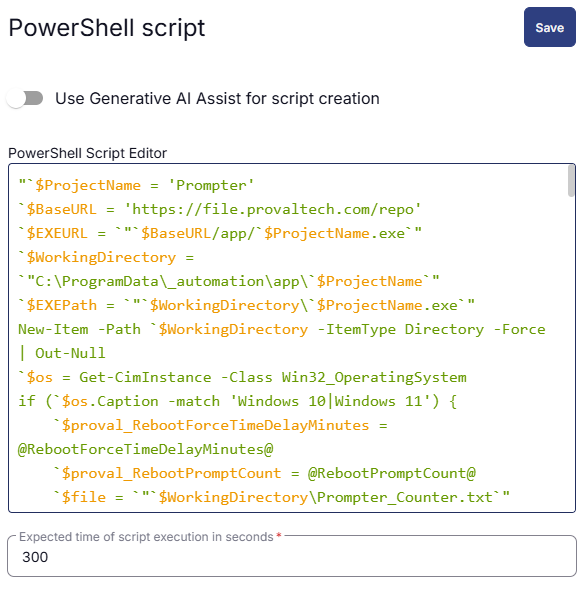
Paste in the following PowerShell script and set the expected time of script execution to 300 seconds.

"`$ProjectName = 'Prompter'
`$BaseURL = 'https://file.provaltech.com/repo'
`$EXEURL = `"`$BaseURL/app/`$ProjectName.exe`"
`$WorkingDirectory = `"C:\ProgramData\_automation\app\`$ProjectName`"
`$EXEPath = `"`$WorkingDirectory\`$ProjectName.exe`"
New-Item -Path `$WorkingDirectory -ItemType Directory -Force | Out-Null
`$os = Get-CimInstance -Class Win32_OperatingSystem
if (`$os.Caption -match 'Windows 10|Windows 11') {
`$proval_RebootForceTimeDelayMinutes = @RebootForceTimeDelayMinutes@
`$proval_RebootPromptCount = @RebootPromptCount@
`$file = `"`$WorkingDirectory\Prompter_Counter.txt`"
`$TimesPrompted = Get-Content -Path `"`$file`" -ErrorAction SilentlyContinue
if ([string]::IsNullOrEmpty(`$TimesPrompted)) { `$TimesPrompted = 0 } else { `$TimesPrompted = [int]`$TimesPrompted }
if (`$TimesPrompted -eq 0) {
`$files = @(
`"C:\ProgramData\_Automation\app\Prompter\Prompter_Counter.txt`",
`"C:\ProgramData\_Automation\app\Prompter\Prompter_Logging.txt`",
`"C:\ProgramData\_Automation\app\Prompter\Prompter_UserAction.txt`"
)

foreach (`$file in `$files) {
if (Test-Path `$file) {
Remove-Item `$file -ErrorAction SilentlyContinue -Force
}
}
}
`$PromptMessage = `"Would you like to restart now? If you choose not to reboot now, you have already been prompted `$TimesPrompted time(s). The number of times you can delay the reboot is `$proval_RebootPromptCount before being forced to reboot.`"
`$loggedUsers = Get-CimInstance -Class Win32_ComputerSystem | Select-Object -ExpandProperty UserName
if (`$null -eq `$loggedUsers) {
Write-Output `"No user logged in`"
Exit
}
Invoke-WebRequest -Uri `$EXEURL -UseBasicParsing -OutFile `$EXEPath
if (!(Test-Path -Path `$EXEPath)) {
Write-Output `"No pre-downloaded app exists and the script `$EXEURL failed to download. Exiting.`"
return 1
}
if (`$LASTEXITCODE -eq 1) {
Write-Output `"`$ExePath is missing`"
Exit
}
`$HeaderImage = `"@Prompter_HeaderImage@`"
`$Icon = `"@Prompter_Icon@`"
`$Timeout = @Prompter_Timeout@
`$Title = `"@Prompter_Title@`"
`$Theme = 'dark'
`$ButtonType = 'Yes No'
`$Param = `"-m `"`"`$PromptMessage`"`" -i `"`"`$Icon`"`" -h `"`"`$HeaderImage`"`" -t `"`"`$Title`"`" -b `$ButtonType -e `$Theme -o `$Timeout`"
`$Result = cmd.exe /c `"`$EXEPath `$Param`"
`$CurrentDate = Get-Date -Format `"yyyy-MM-dd hh:mm:ss`"
`$Output = `"User Action: `" + `$Result + `"`r`n`" + `"Date Time: `" + `$CurrentDate
`$Output | Out-File `"C:\ProgramData\_Automation\app\Prompter\Prompter_UserAction.txt`" -Append

if (`$Result -contains 'Yes') {
Write-Output `" The end user has authorized Restarting computer`" | Out-File 'C:\ProgramData\_Automation\app\Prompter\Prompter_Logging.txt' -Append
`$PromptForReboot = 'Thank you for approving. Your computer will restart in 5 minutes, please save your work.'
`$ButtonType = 'OK'
`$Param = `"-m `"`"`$PromptForReboot`"`" -i `"`"`$Icon`"`" -h `"`"`$HeaderImage`"`" -t `"`"`$Title`"`" -b `$ButtonType -e `$Theme -o `$Timeout`"
`$Result = cmd.exe /c `"`$EXEPath `$Param`"
`$TimesPrompted = 0
`$TimesPrompted | Out-File 'C:\ProgramData\_Automation\app\Prompter\Prompter_Counter.txt'
Start-Sleep -Seconds 300
Restart-Computer -Force
}
if (`$Result -notcontains 'Yes') {
if (`$TimesPrompted -eq `$proval_RebootPromptCount) {
Write-Output `" The threshold met. Sending force reboot prompt`" | Out-File 'C:\ProgramData\_Automation\app\Prompter\Prompter_Logging.txt' -Append
`$Message = `"Your system has reached its reboot prompt deadline and will now reboot in `$proval_RebootForceTimeDelayMinutes Minutes. A reboot is necessary to keep things running smoothly and to fix potential vulnerabilities. Please save all your work to ensure nothing is lost during the reboot. Thank you!`"
`$ButtonType = 'OK'
`$Param = `"-m `"`"`$Message`"`" -i `"`"`$Icon`"`" -h `"`"`$HeaderImage`"`" -t `"`"`$Title`"`" -b `$ButtonType -e `$Theme -o `$Timeout`"
`$Result = cmd.exe /c `"`$EXEPath `$Param`"
`$TimesPrompted = 0
`$TimesPrompted | Out-File 'C:\ProgramData\_Automation\app\Prompter\Prompter_Counter.txt'
Start-Sleep -Seconds (`$proval_RebootForceTimeDelayMinutes * 60)
Restart-Computer -Force
}
else {
`$TimesPrompted++
Write-Output `" Denial count: `$TimesPrompted. Threshold: `$proval_RebootPromptCount`" | Out-File 'C:\ProgramData\_Automation\app\Prompter\Prompter_Logging.txt' -Append
`$TimesPrompted | Out-File 'C:\ProgramData\_Automation\app\Prompter\Prompter_Counter.txt'
}
}
}
else {
Write-Output `" The operating system is not Windows 10 or 11.`" | Out-File 'C:\ProgramData\_Automation\app\Prompter\Prompter_Logging.txt' -Append
}" | Out-File -FilePath "C:\ProgramData\_Automation\app\Prompter\Prompter.ps1" -force
$ProjectName = 'Prompter'
$file = "C:\ProgramData\_automation\app\$ProjectName\Prompter.ps1"
if ((Test-Path -Path $file) -eq 'True') {
Write-Output "$file file created successfully"
}
else {
Write-Output "$file file failed to create"
}

Row 20: Function: Script Log

Script Log

In the script log message, simply type %output%

Log Message

Row 21: Logic: If/Then

Logic If/Then
Logic If/Then

Row 21a: Condition: Output Contains

In the IF part, enter file failed to create in the right box of the "Output Contains" part.

Condition

Row 21b: Function: Script Exit

Add a new row by clicking on the Add row button.

Add Row

In the script exit message, simply type %output%

Exit Message

Row 22: Function: PowerShell Script

PowerShell Script
PowerShell Script

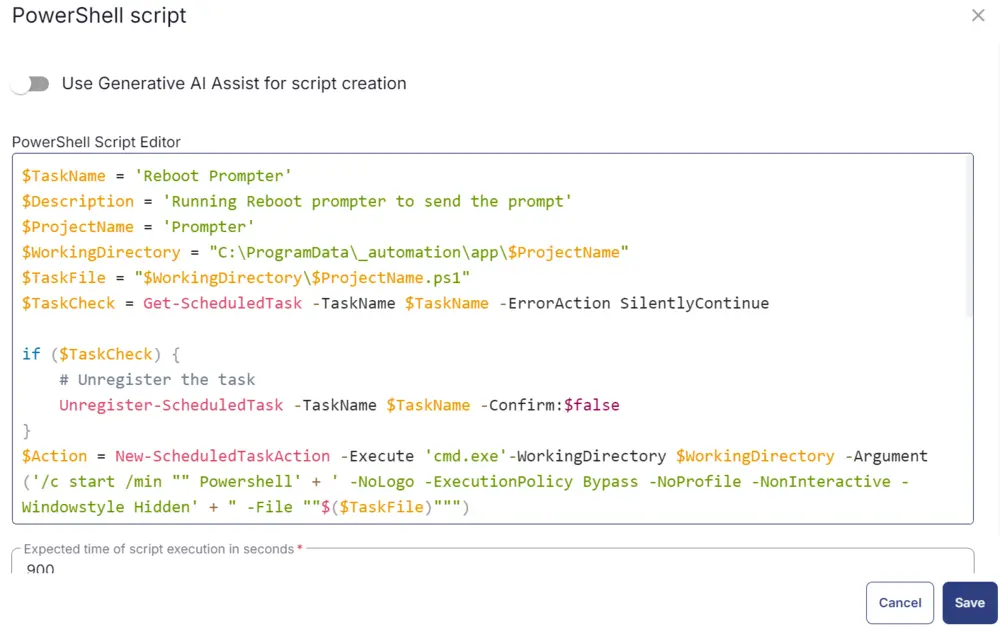
Paste in the following PowerShell script and set the expected time of script execution to 900 seconds.

TaskName = 'Reboot Prompter'
$Description = 'Running Reboot prompter to send the prompt'
$ProjectName = 'Prompter'
$WorkingDirectory = "C:\ProgramData\_automation\app\$ProjectName"
$TaskFile = "$WorkingDirectory\$ProjectName.ps1"
$TaskCheck = Get-ScheduledTask -TaskName $TaskName -ErrorAction SilentlyContinue
if ($TaskCheck) {
# Unregister the task
Unregister-ScheduledTask -TaskName $TaskName -Confirm:$false
}
$Action = New-ScheduledTaskAction -Execute 'cmd.exe'-WorkingDirectory $WorkingDirectory -Argument ('/c start /min "" Powershell' + ' -NoLogo -ExecutionPolicy Bypass -NoProfile -NonInteractive -Windowstyle Hidden' + " -File ""$($TaskFile)""")
$TriggerTime = (Get-Date).AddMinutes(1)
$Trigger = New-ScheduledTaskTrigger -Once -At $TriggerTime
$Settings = New-ScheduledTaskSettingsSet
$Principal = New-ScheduledTaskPrincipal -GroupId ( ( New-Object System.Security.Principal.SecurityIdentifier('S-1-5-32-545') ).Translate( [System.Security.Principal.NTAccount] ).Value )
try {
Register-ScheduledTask -Action $Action -Trigger $Trigger -TaskName $TaskName -Description $Description -Settings $Settings -Principal $Principal
Write-Output "Task created successfully"
}
catch {
Write-Output "Failed to create task"
}

Row 23: Function: Script Log

In the script log message, simply type %output%

Log Message

Row 24: Logic: If/Then/Else

Logic If/Then/Else
Logic If/Then/Else

Row 24a: Condition: Output Contains

In the IF part, enter Task created successfully in the right box of the "Output Contains" part.

Condition

Row 24b: Function: Script Log

  • Add a new row by clicking on the Add row button.
  • In the script log message, simply type %output%.

Row 24c: Function: Script Exit

  • Add a new row in the else section.
  • In the script exit message, simply type %output%.

Row 25: Complete

Once all items are added, please save the task. The final task should look like the below screenshot.

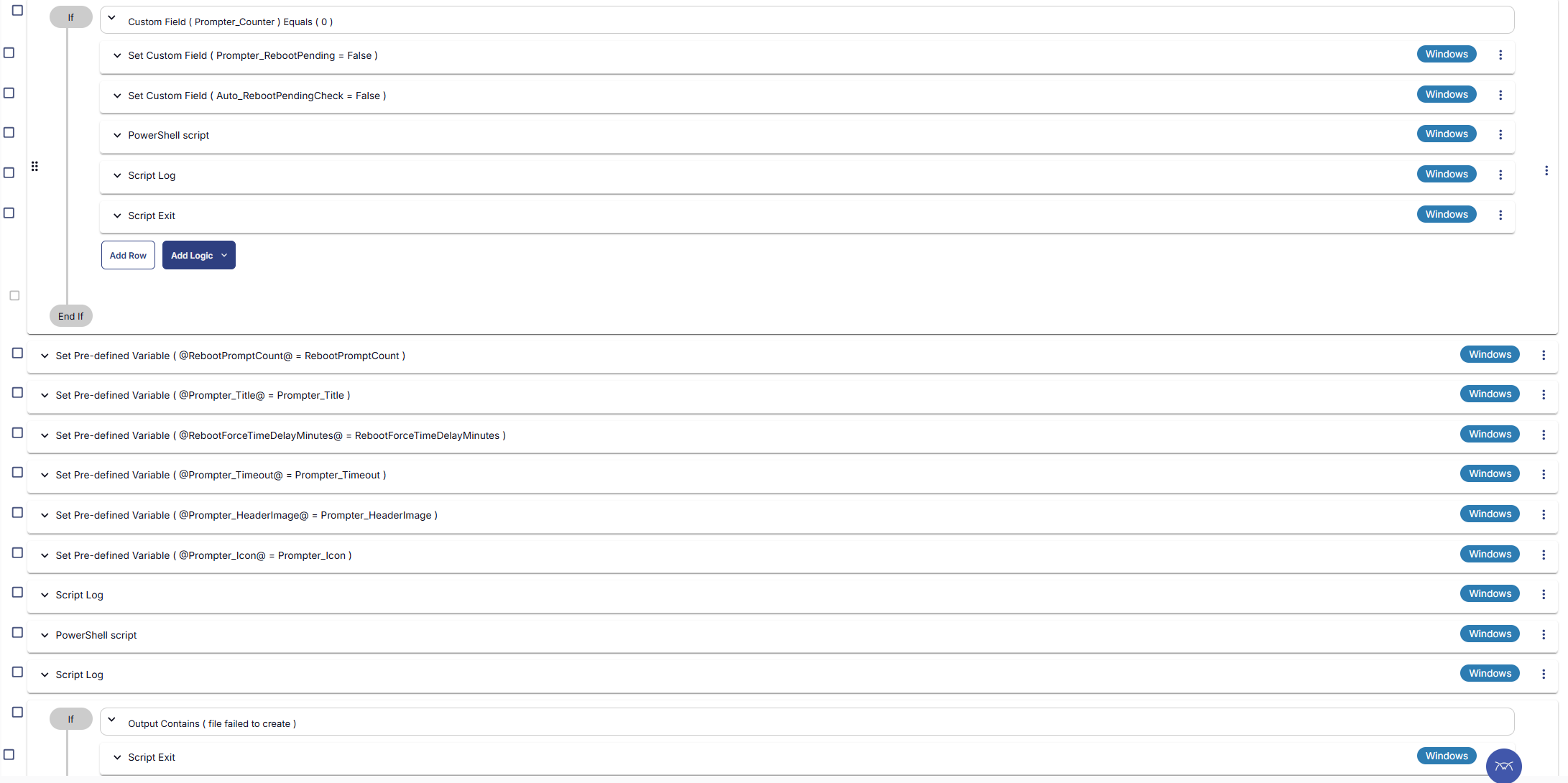
Final Task
Final Task
Final Task

Deployment

It is suggested to schedule the Task to the groups CW RMM - Dynamic Group - Reboot Prompter Deployment - Manual and CW RMM - Dynamic Group - Reboot Prompter Deployment - Auto at certain intervals as per client requirements to send prompts at regular intervals.

  1. Go to Automation > Tasks.
  2. Search for Reboot Prompter Task.
  3. Select the concerned task.
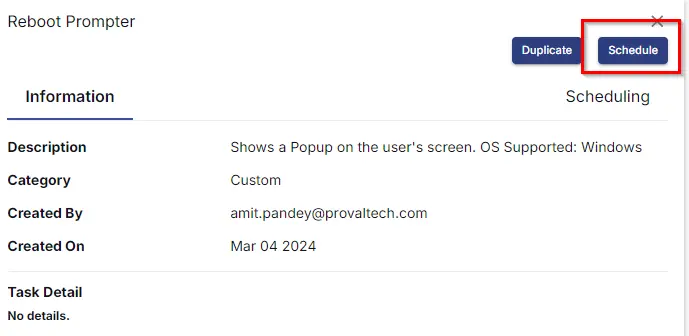
  4. Click on the Schedule button to schedule the task/script.
    Schedule Task
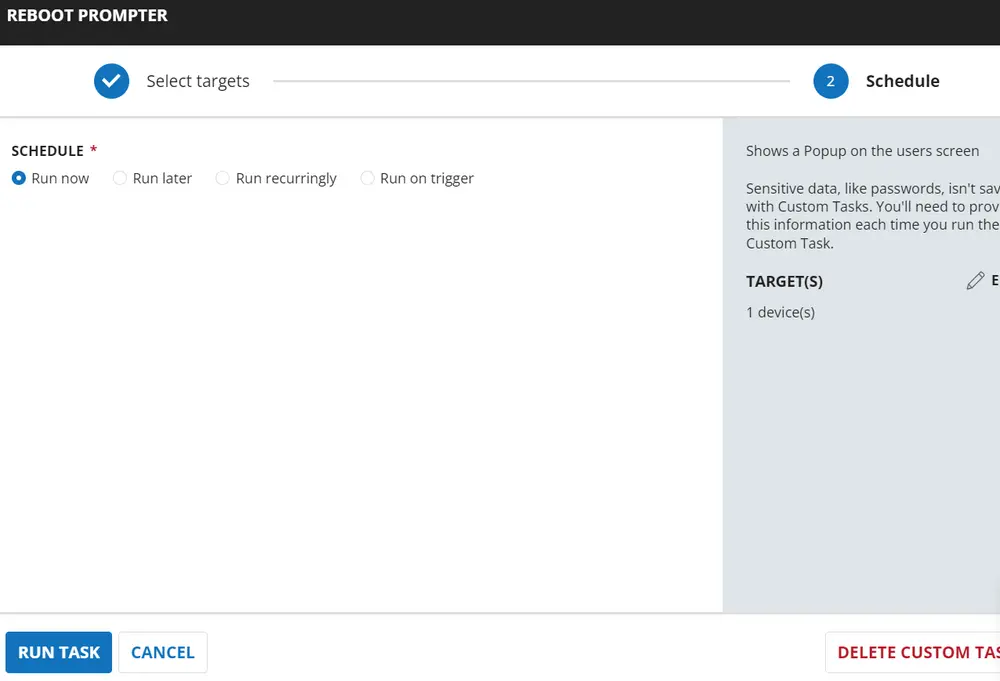
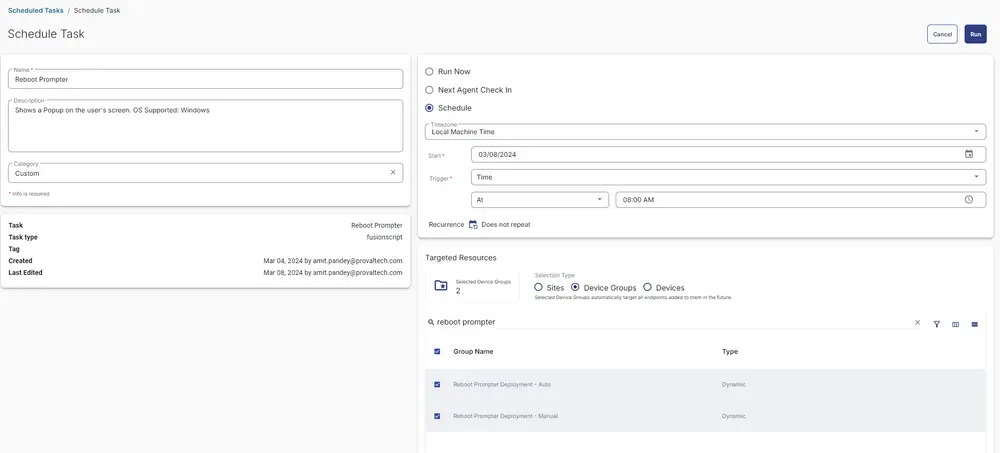
  5. This screen will appear.
    Schedule Screen
  6. Select the relevant time to run the script and click the Do not repeat button.
    Select Time
  7. A pop-up box will appear.
  8. Suppose the client asked to set the reboot prompt for every 2 hours.
  9. Change the number of hours to 2 and click OK.
    Set Time
    Set Time
  10. Search for Reboot Prompter in the Resources and select it. You can search and select any relevant group you would like to schedule the task against. If the site doesn't have a device group that includes all Windows agents, then create one and schedule the task on it.
    Search Group
  11. Now click the Run button to initiate the task.
    Run Task
  12. The task will start appearing in the Scheduled Tasks.

Output

  • Script Log
  • Custom Field

Changelog

2026-03-23

  • Updated .Net8 Desktop Runtime installation logic to install the latest available version.

2025-08-22

  • Fixed the deployment section in the document Fixed a bug where the file write was not working. So, optimized the PowerShell. Updated the script to reset all the prompter custom fields after a successful reboot.

2025-04-10

  • Initial version of the document