Create ticket with associated device
Summary
The Create ticket with associated device form is the input surface for the Bots: Create ticket with associated device custom bot. It collects everything needed to raise a service ticket and attach a device to it in a single operation.
The form exists because a native CW RMM workflow can create a ticket but cannot associate a device with it. The bot closes that gap, and this form supplies the values it needs.
It is the form used on the toCreate branch of the CWRMM Ticket Management for Monitors workflow, which calls the paired bot in place of the native Create Ticket action.
Design intent:
- One call, one ticket. The device travels in the same API call that creates the ticket, rather than being attached afterwards. This is the deciding reason the monitors workflow uses this form and bot: a device attached by a separate follow-up call does not carry through to the configuration on the ticket once it syncs to CW Manage, whereas a device supplied at creation does.
- IDs where the platform demands them.
CompanyId,SiteIdandDeviceIdare passed straight through to the API, because these GUIDs are available to a workflow but the platform will not accept anything else in their place. - Names where a human is typing.
ServiceBoard,PriorityandTeamare entered as the display names shown in the CW RMM console, and the bot resolves each one to its GUID at runtime. Those GUIDs are not exposed anywhere in the interface, so requiring them here would make the form unusable by hand.
If the ticket already exists and only the device needs attaching, use the Forms: Associate a device with an existing ticket form instead. When the ticket is being created, this form is the better choice for the reason given above.
Details
| Form Title | Form Description | Tags |
|---|---|---|
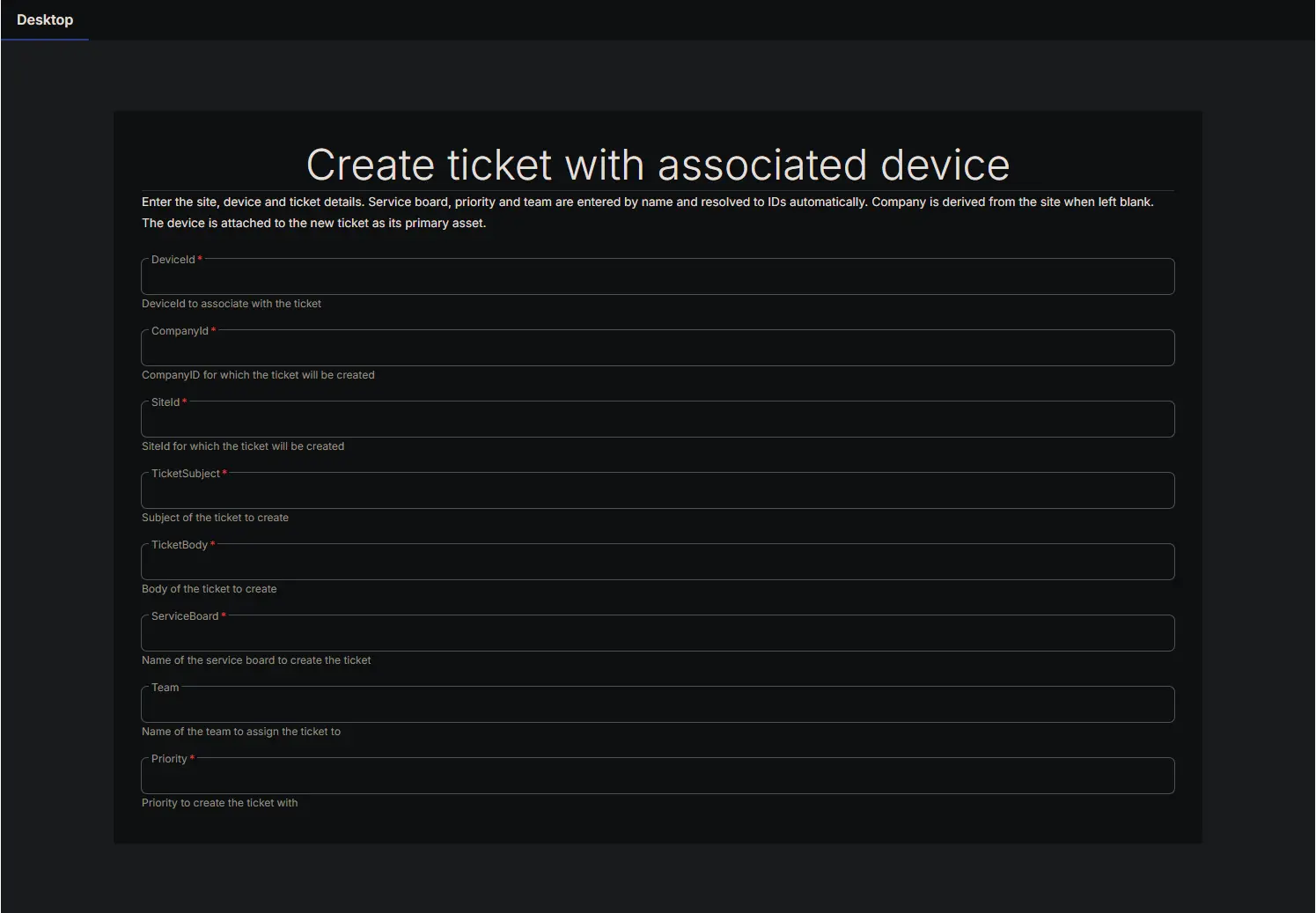
| Create ticket with associated device | Enter the company, site, device and ticket details. Service board, priority and team are entered by name and resolved to IDs automatically. The device is attached to the new ticket as its primary asset. | Ticketing |
Fields
| Field Label | Variable Name | Help Text | Example | Required | Read Only | List Options | Default Value |
|---|---|---|---|---|---|---|---|
| DeviceId | DeviceId_1788375274379 | DeviceId to associate with the ticket | 41d6a66d-b5a9-4544-81af-88cdf5f37e94 | Yes | No | N/A | (blank) |
| CompanyId | CompanyId_1788375309113 | CompanyID for which the ticket will be created | 436f6d6d-616e-6420-4944-3a2000051f97 | Yes | No | N/A | (blank) |
| SiteId | SiteId_1788375359068 | SiteId for which the ticket will be created | 436f6d6d-616e-6420-4944-3a2000051f97 | Yes | No | N/A | (blank) |
| TicketSubject | TicketSubject_1788375503396 | Subject of the ticket to create | A Sample Ticket for PRLPT162 Created by Bot | Yes | No | N/A | (blank) |
| TicketBody | TicketBody_1788375531740 | Body of the ticket to create | This ticket is created to test the functionality of the Bot | Yes | No | N/A | (blank) |
| ServiceBoard | ServiceBoard_1788375398837 | Name of the service board to create the ticket | MSP | Yes | No | N/A | (blank) |
| Team | Team_1788375434406 | Name of the team to assign the ticket to | MSP | No | No | N/A | (blank) |
| Priority | Priority_1788375463074 | Priority to create the ticket with | Medium | Yes | No | N/A | (blank) |
Field notes:
- Every field is a single line text box of type
string. There are no list or dropdown fields, because the valid service boards, priorities and teams differ per partner and are validated by the bot at runtime rather than hardcoded into the form. Teamis the only optional field. A ticket created without it is left with no assigned team.TicketSubjectaccepts up to 255 characters andTicketBodyup to 10000, matching the platform ticket schema. The bot rejects anything longer before calling the API.CompanyIdandSiteIdalso accept the display name or the legacy numeric Command ID in place of the GUID. This is a convenience of the bot's resolution logic, not a property of the form.
Forms Setup Path
- Tasks Path:
Automation➞Forms
Dependencies
The form has no function on its own. It must be attached to the bot above, which performs the ID resolution and the ticket creation.
Consumed by:
Form Preview
Implementation
The form arrives with its bot and needs no configuration once imported.
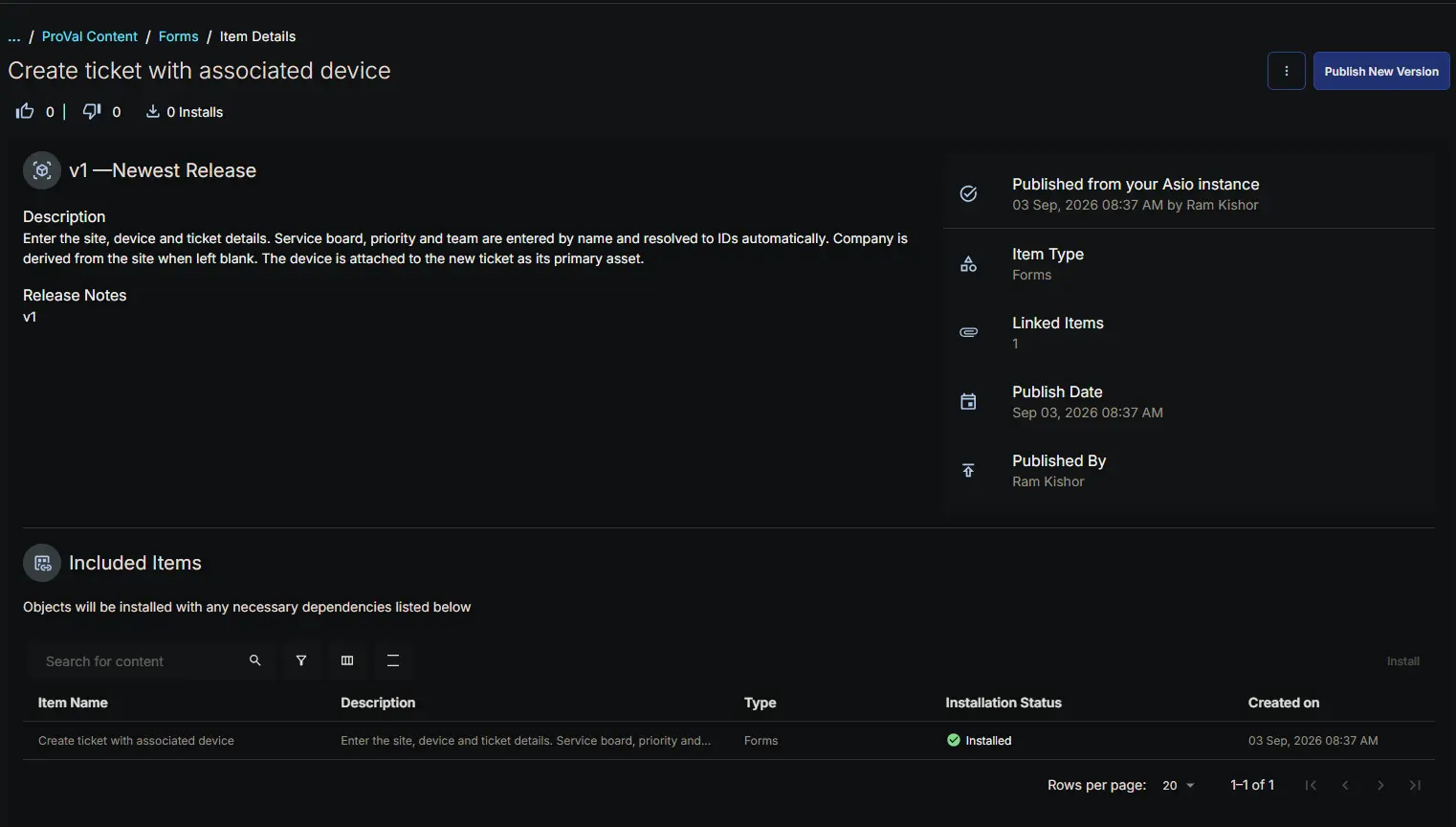
If the Bots: Create ticket with associated device bot is not yet in the environment, install the bot from the ProVal - Content Community, selecting the Bots repository. This is the recommended route, because importing the bot brings this form in with it, already attached.
Install the form on its own from the Forms repository only when the bot is already present and the form is missing.
Changelog
2026-09-07
- Initial version of the document