Windows - Wallpaper - Set
Summary
This is an RMM implementation of the agnostic script Set-Wallpaper to set the active desktop wallpaper for all users from a local path or a URL. It can optionally be switched to enforce the wallpaper for all users on login.
Sample Run
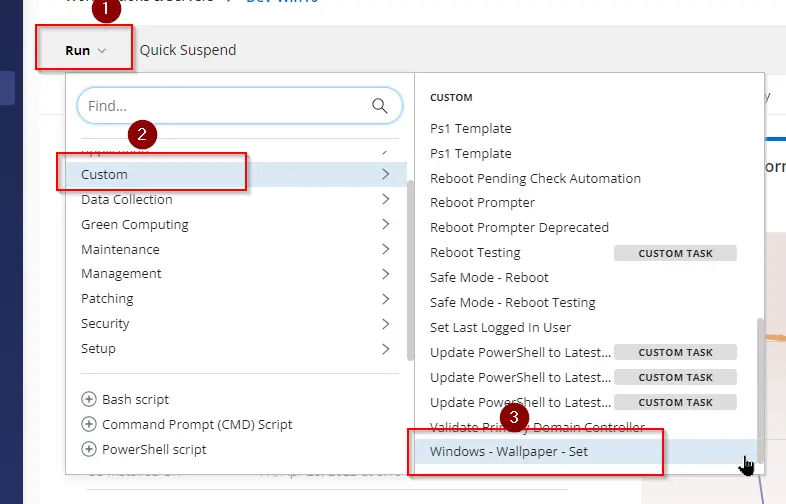
-
Set Mode
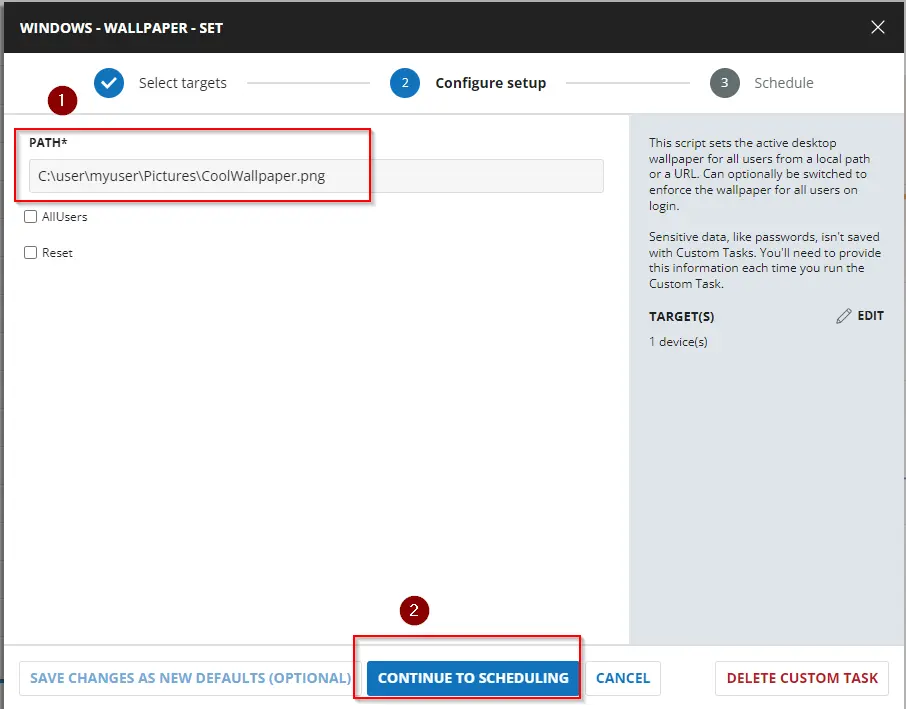
-
Enforcement mode:
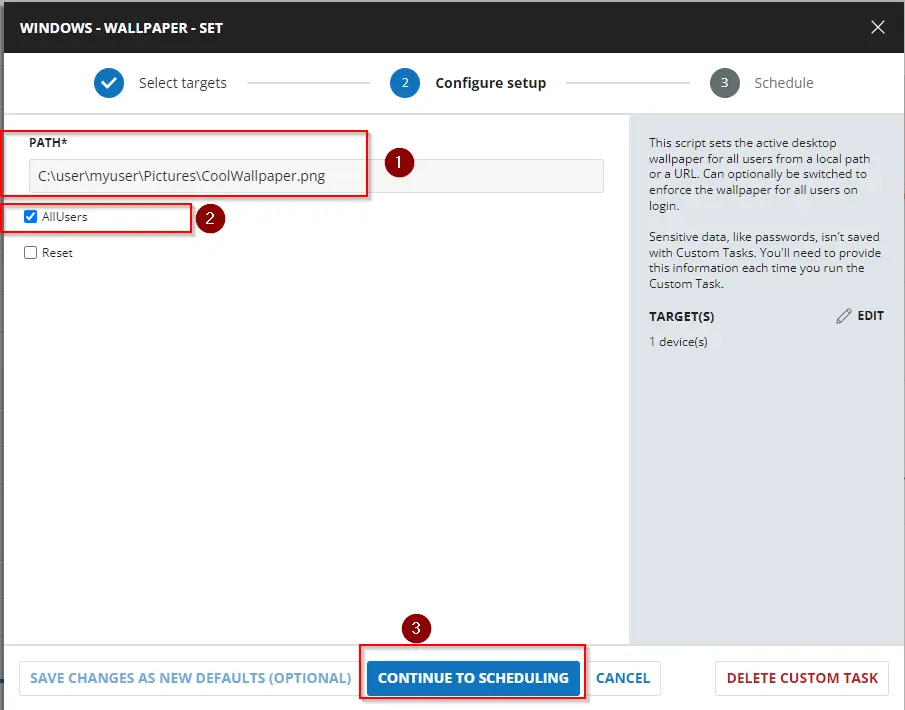
-
Reset Mode:
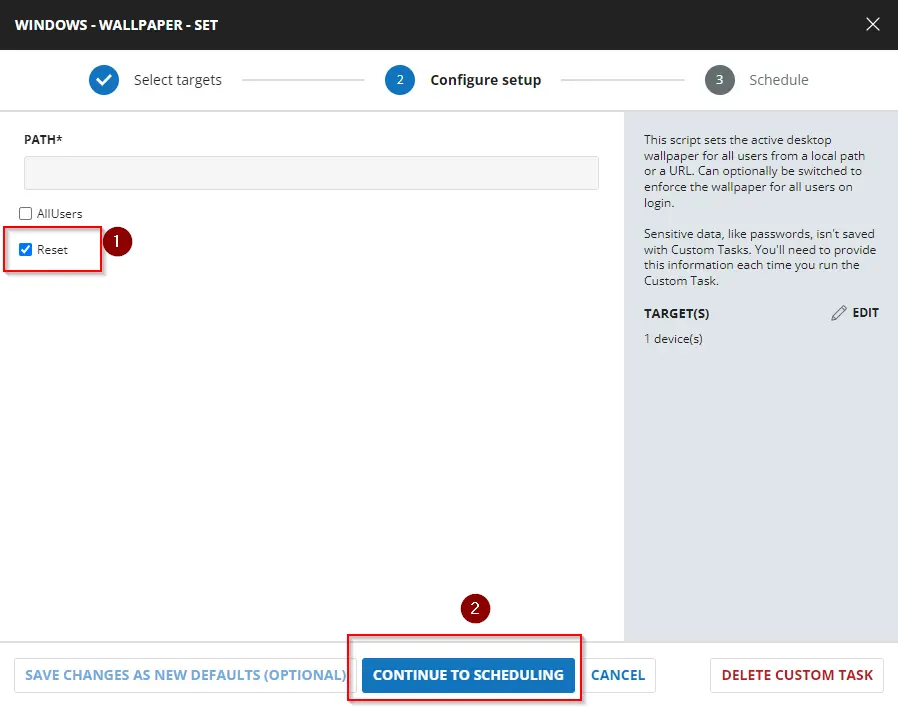
Dependencies
User Parameters
| Name | Example | Required | Description |
|---|---|---|---|
| Path | C:/user/myuser/Pictures/CoolWallpaper.png | True | Either a path to a local image or URL. |
| AllUsers | 1 | False | Select it to enforce the wallpaper for all users on login. |
| Reset | 1 | False | Select it to remove all enforcement and reset all users' wallpapers back to their previous one. If they do not have a previous wallpaper, the default Windows wallpaper will be used. |
Task Creation
Create a new Script Editor style script in the system to implement this Task.
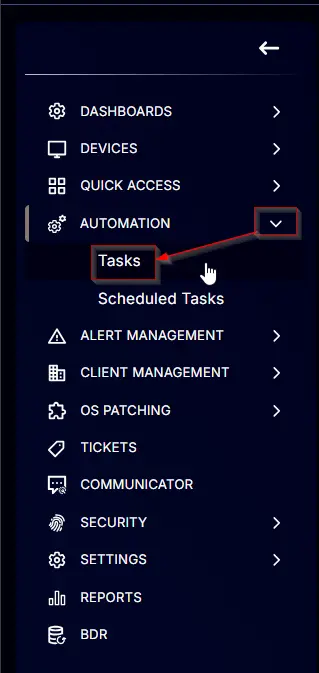
Name: Windows - Wallpaper - Set
Description: This script sets the active desktop wallpaper for all users from a local path or a URL. It can optionally be switched to enforce the wallpaper for all users on login.
Category: Custom

Parameters
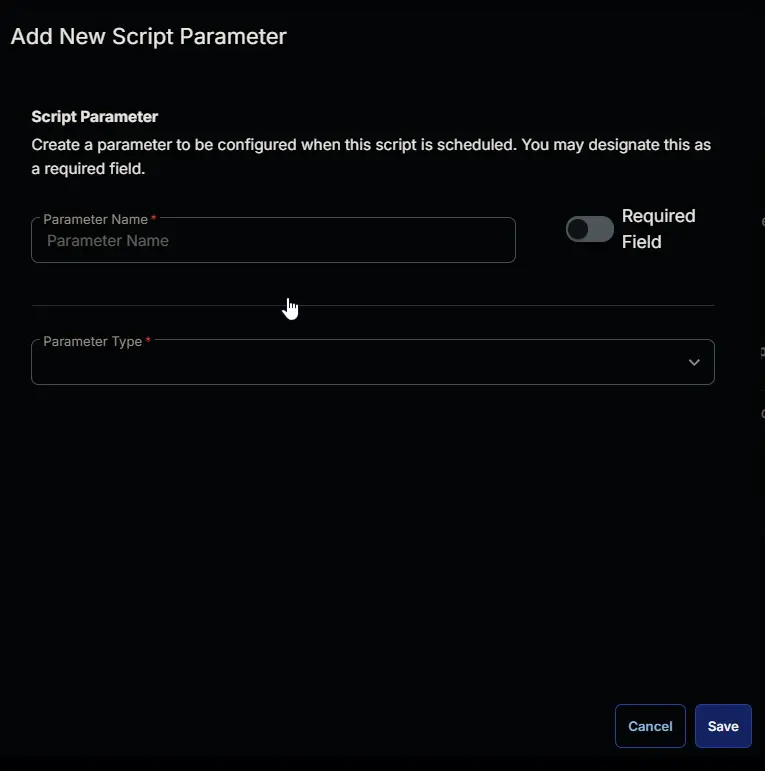
Add a new parameter by clicking the Add Parameter button present at the top-right corner of the screen.

This screen will appear.
-
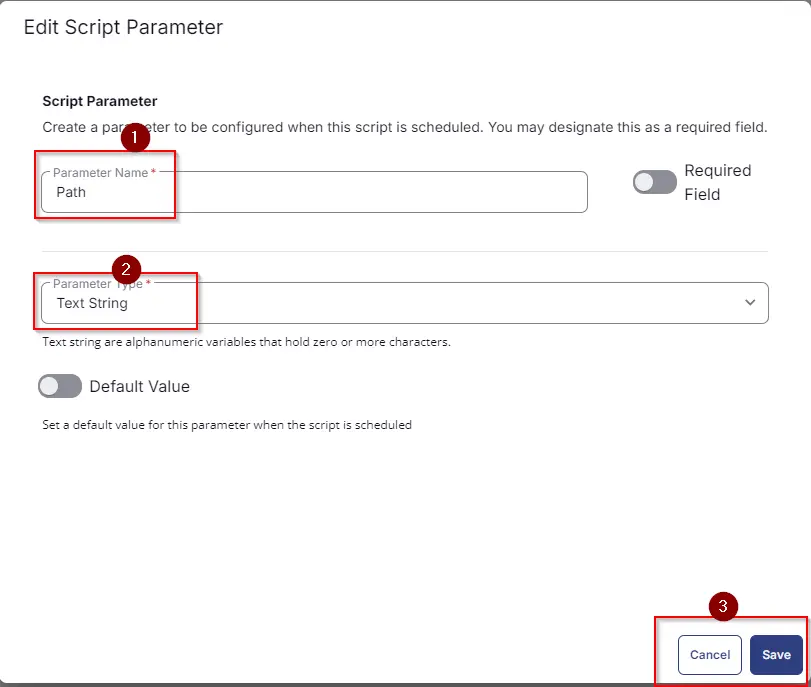
Set
Pathin theParameter Namefield. -
Select
Text Stringfrom theParameter Typedropdown menu. -
Click the
Savebutton.
-
It will ask for confirmation to proceed. Click the
Confirmbutton to create the parameter.

Add another parameter by clicking the Add Parameter button present at the top-right corner of the screen.

-
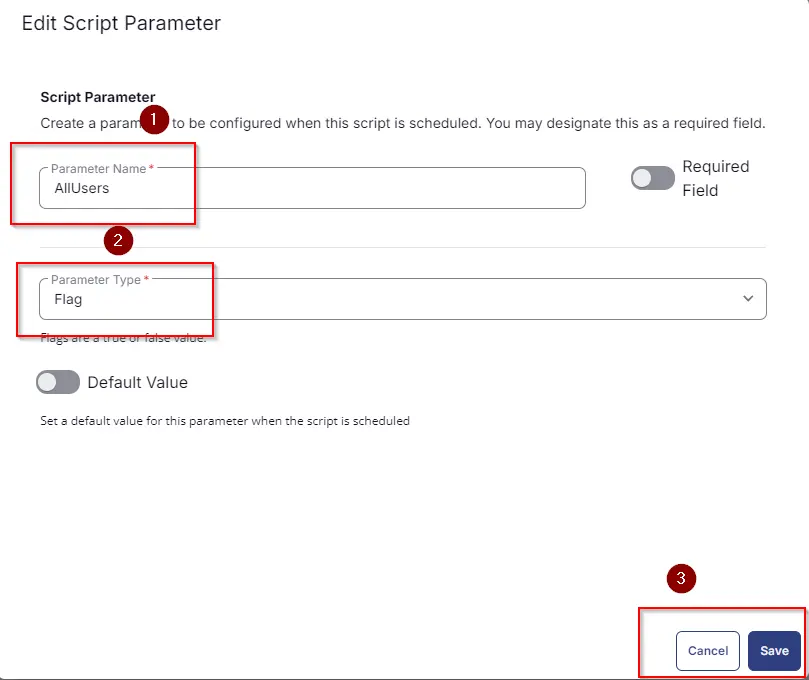
Set
AllUsersin theParameter Namefield. -
Select
Flagfrom theParameter Typedropdown menu. -
Click the
Savebutton.
-
It will ask for confirmation to proceed. Click the
Confirmbutton to create the parameter.
Add another parameter by clicking the Add Parameter button present at the top-right corner of the screen.
- Set
Resetin theParameter Namefield. - Select
Flagfrom theParameter Typedropdown menu. - Click the
Savebutton. - It will ask for confirmation to proceed. Click the
Confirmbutton to create the parameter.
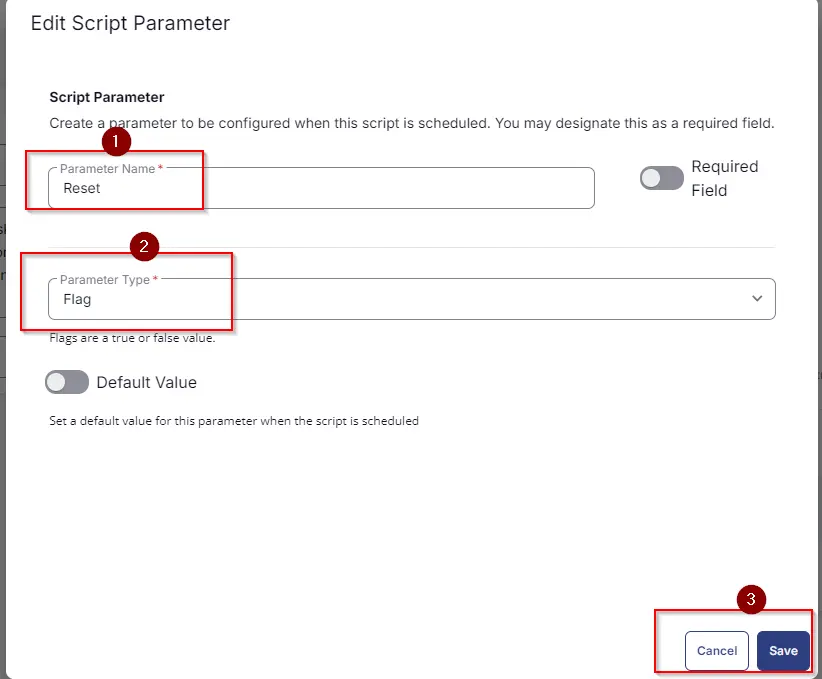
All the parameters will look like this:

Task
Navigate to the Script Editor Section and start by adding a row. You can do this by clicking the Add Row button at the bottom of the script page.

A blank function will appear.

Row 1 Function: PowerShell Script
Search and select the PowerShell Script function.

The following function will pop up on the screen:

Paste the following PowerShell script and set the expected time of script execution to 900 seconds. Click the Save button.
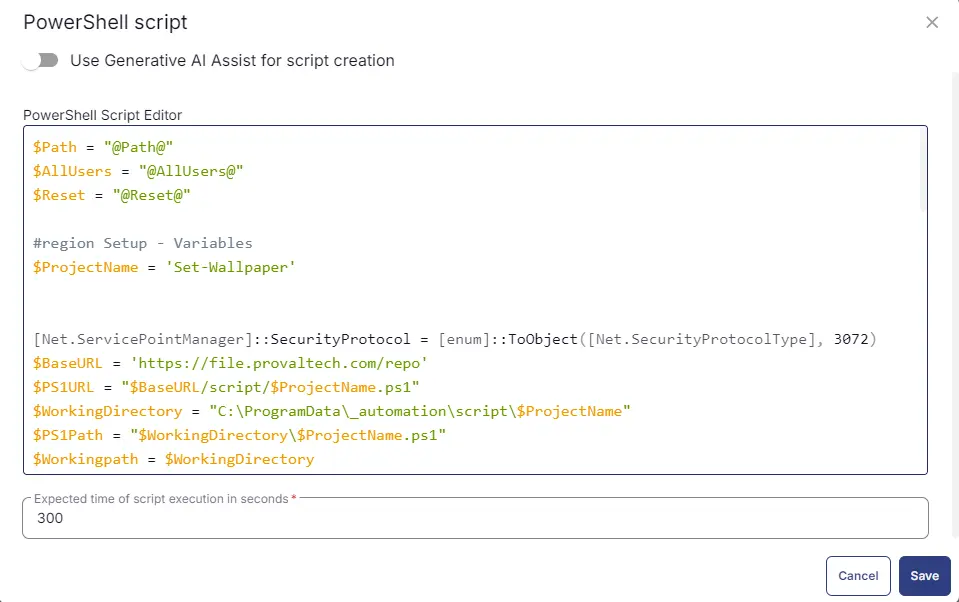
Row 2: Function: Script Log
In the script log message, simply type %output% so that the script will send the results of the PowerShell script above to the output on the Automation tab for the target device.

Completed Task

Output
- Script Log
Changelog
2025-04-10
- Initial version of the document