Remove Wifi Profile
Summary
This script removes the specified Wifi profile from the system. It provides a brief overview of the script's purpose and important notes on how to run it. This is the ConnectWise RMM implementation of the agnostic script Remove-WifiProfile.
Sample Run
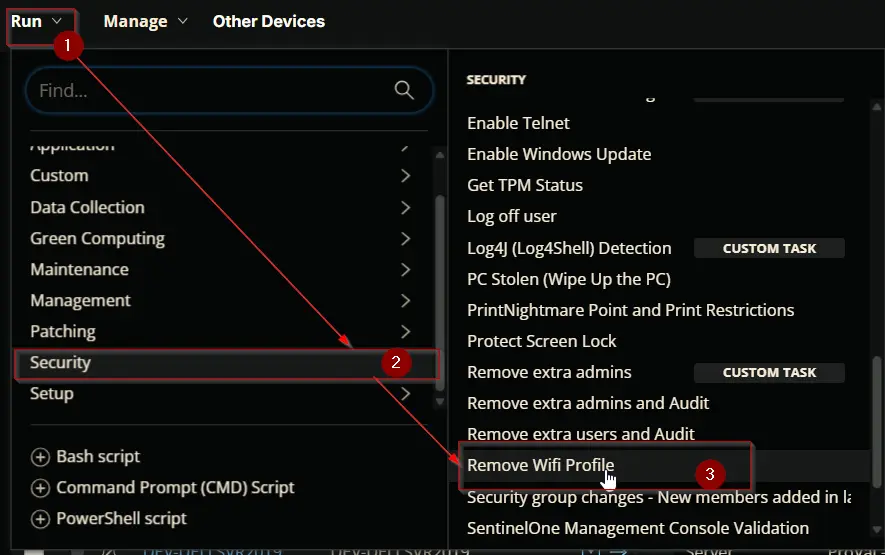
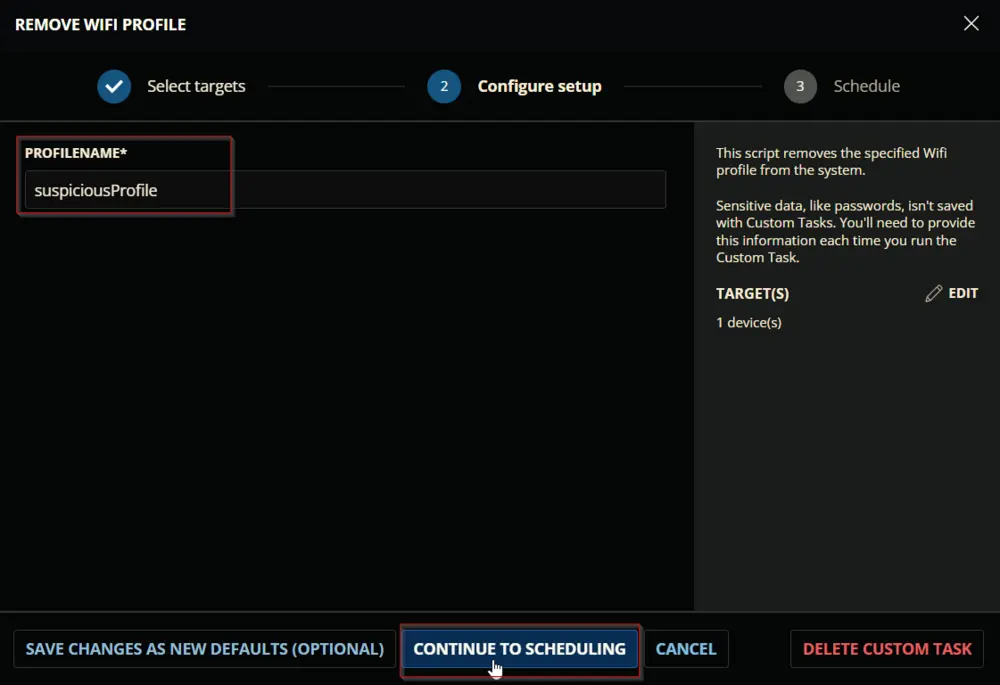
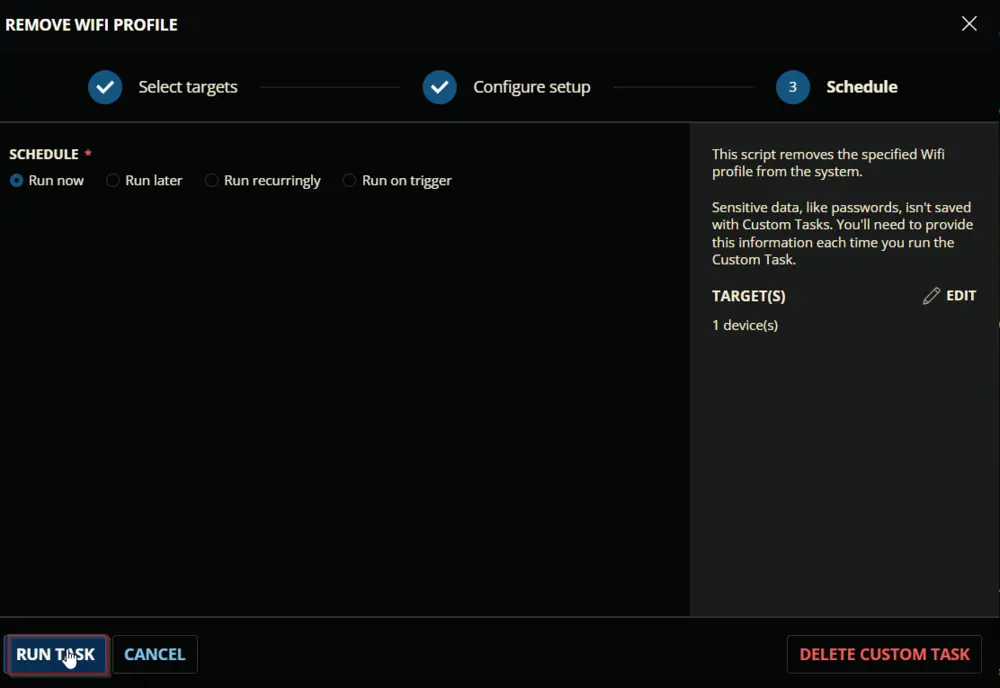
Dependencies
User Parameters
| Name | Example | Required | Type | Description |
|---|---|---|---|---|
| ProfileName | suspiciousProfile | True | Text String | Name of the Wifi Profile to remove. |

Task Creation
Create a new Script Editor style script in the system to implement this task.
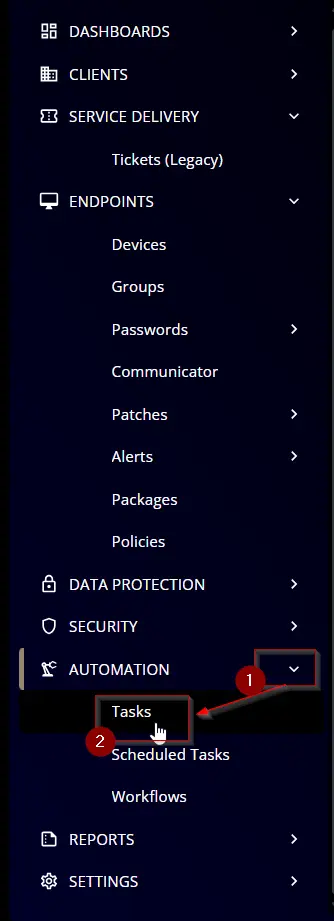

Name: Remove Wifi Profile
Description: This script removes the specified Wifi profile from the system.
Category: Security

Parameters
ProfileName
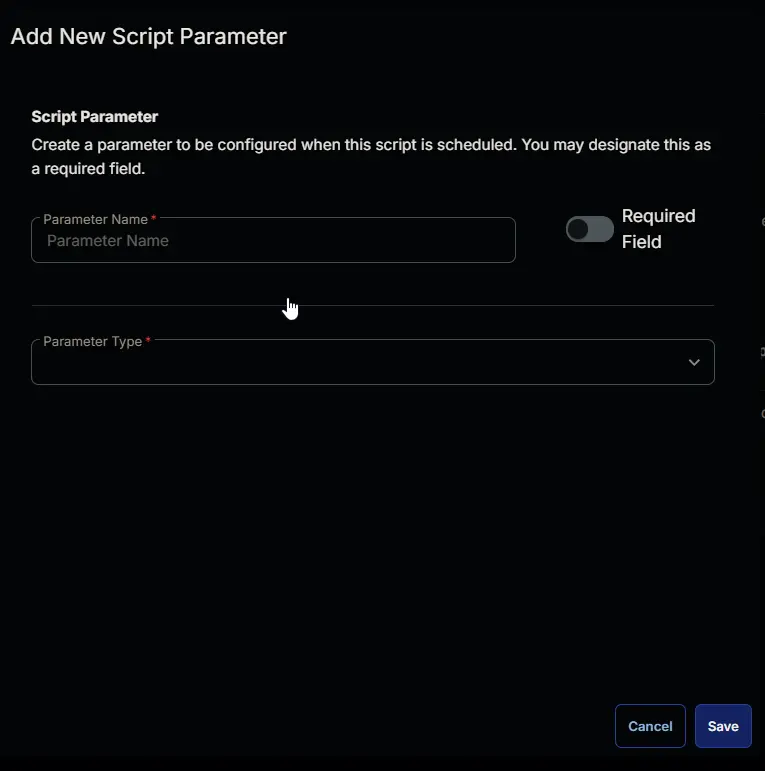
Add a new parameter by clicking the Add Parameter button present at the top-right corner of the screen.

This screen will appear.
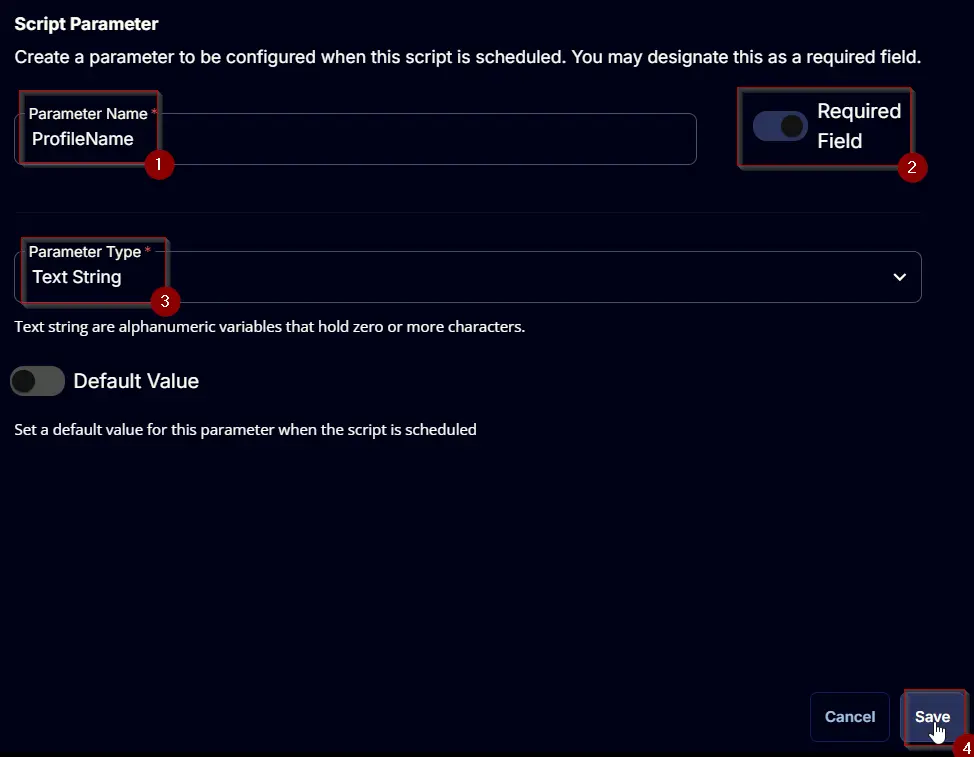
- Set
ProfileNamein theParameter Namefield. - Enable the
Required Fieldbutton. - Select
Text Stringfrom theParameter Typedropdown menu. - Click the
Savebutton.
Task
Navigate to the Script Editor section and start by adding a row. You can do this by clicking the Add Row button at the bottom of the script page.

A blank function will appear.

Row 1 Function: PowerShell Script
Search and select the PowerShell Script function.


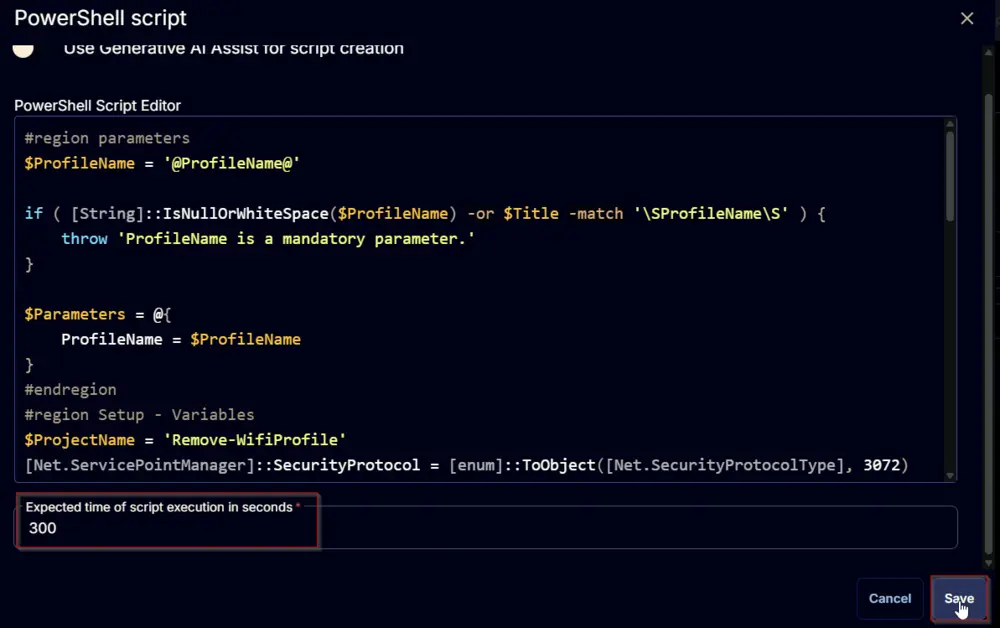
The following function will pop up on the screen:

Paste in the following PowerShell script and set the Expected time of script execution in seconds to 300 seconds. Click the Save button.
Row 2 Function: Script Log
Add a new row by clicking the Add Row button.

A blank function will appear.

Search and select the Script Log function.

The following function will pop up on the screen:

In the script log message, simply type %Output% and click the Save button.

Click the Save button at the top-right corner of the screen to save the script.

Completed Script

Output
- Script log
Changelog
2025-04-10
- Initial version of the document