Uninstall SentinelOne
Summary
This script identifies the installed version of the SentinelOne agent and attempts to uninstall it. If a passphrase is provided, the script will use it; otherwise, tamper protection must be disabled on the computer to proceed with the removal. CW RMM implementation of the agnostic script Remove-SentinelOne.
Sample Run
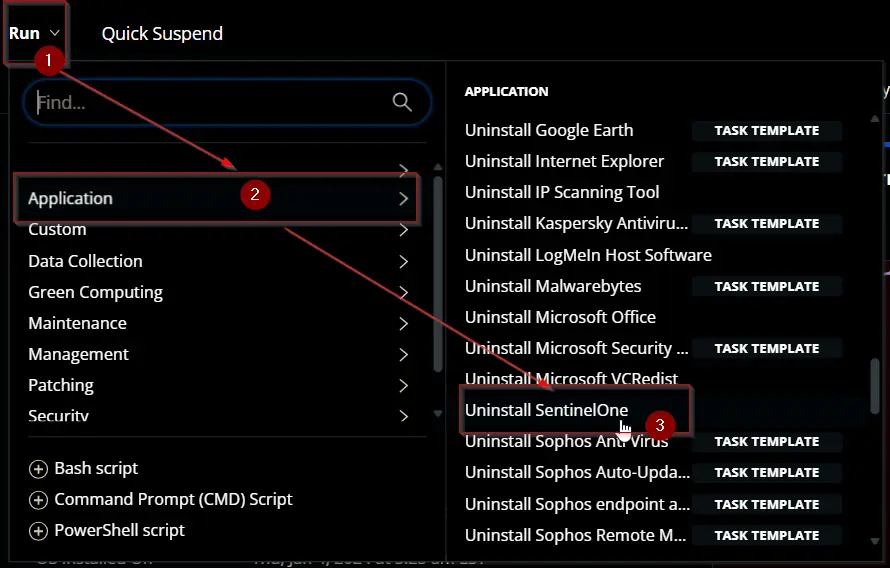
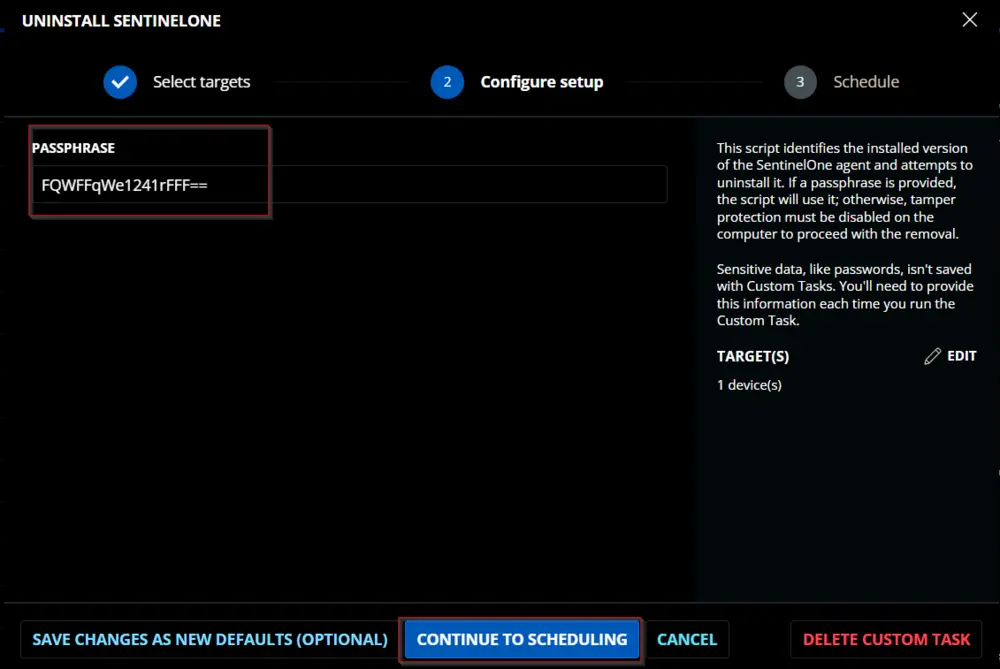
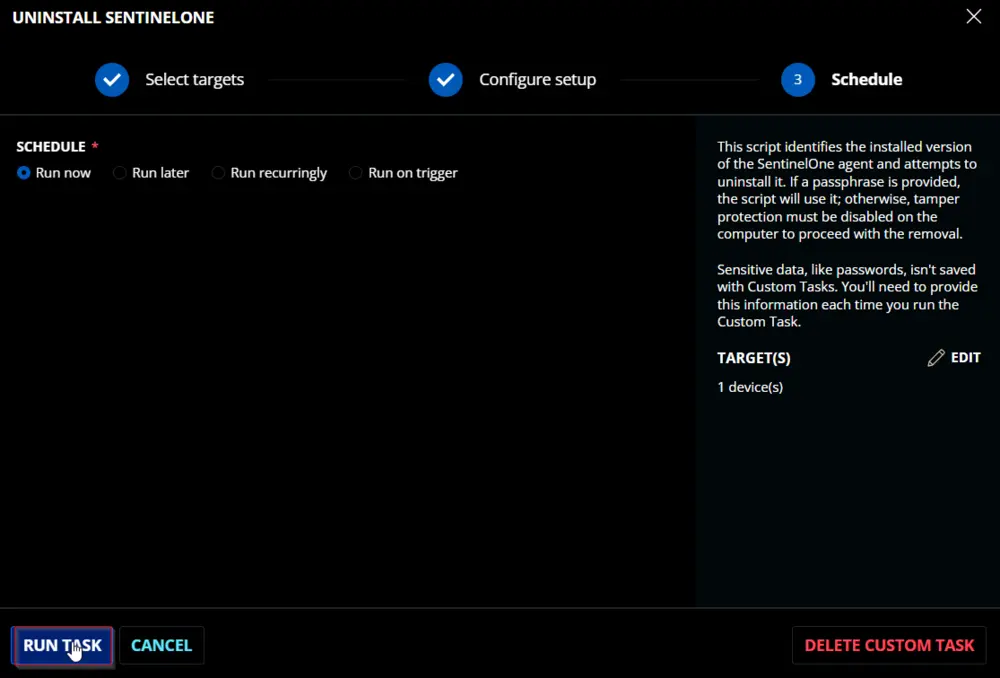
Dependencies
User Parameters
| Name | Example | Required | Type | Description |
|---|---|---|---|---|
| PassPhrase | FQQHCWFQFC== | False | Text String | The passphrase used for uninstalling the SentinelOne agent when Anti-Tamper is enabled. |

Task Creation
Create a new Script Editor style script in the system to implement this Task.
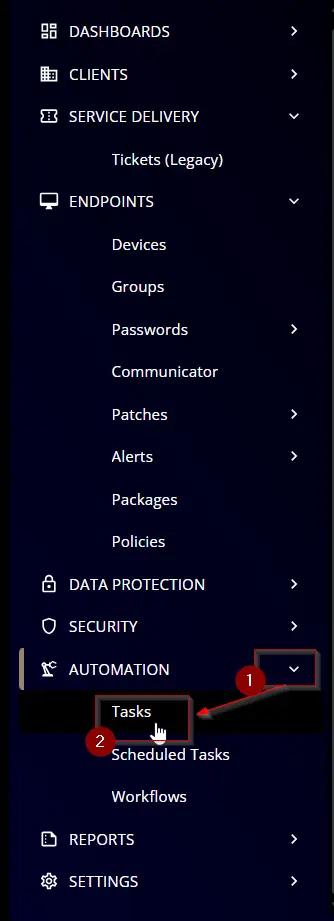

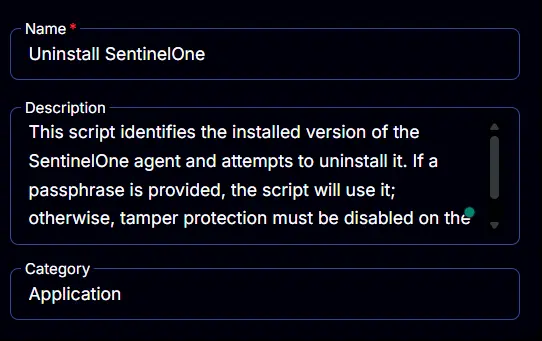
Name: Uninstall SentinelOne
Description: This script identifies the installed version of the SentinelOne agent and attempts to uninstall it. If a passphrase is provided, the script will use it; otherwise, tamper protection must be disabled on the computer to proceed with the removal.
Category: Application
Parameters
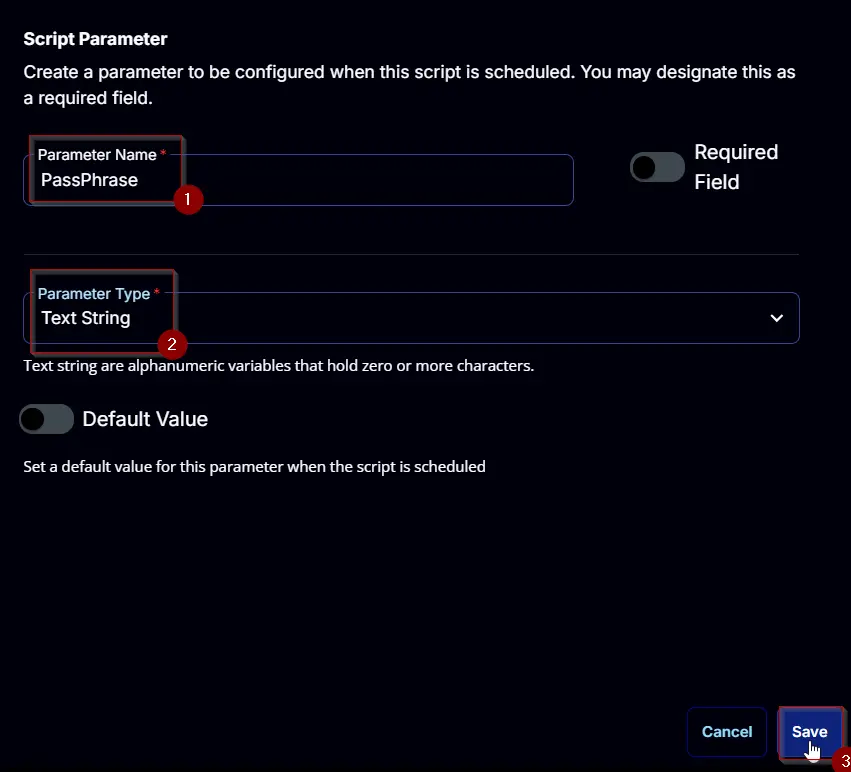
PassPhrase
Add a new parameter by clicking the Add Parameter button present at the top-right corner of the screen.

This screen will appear.
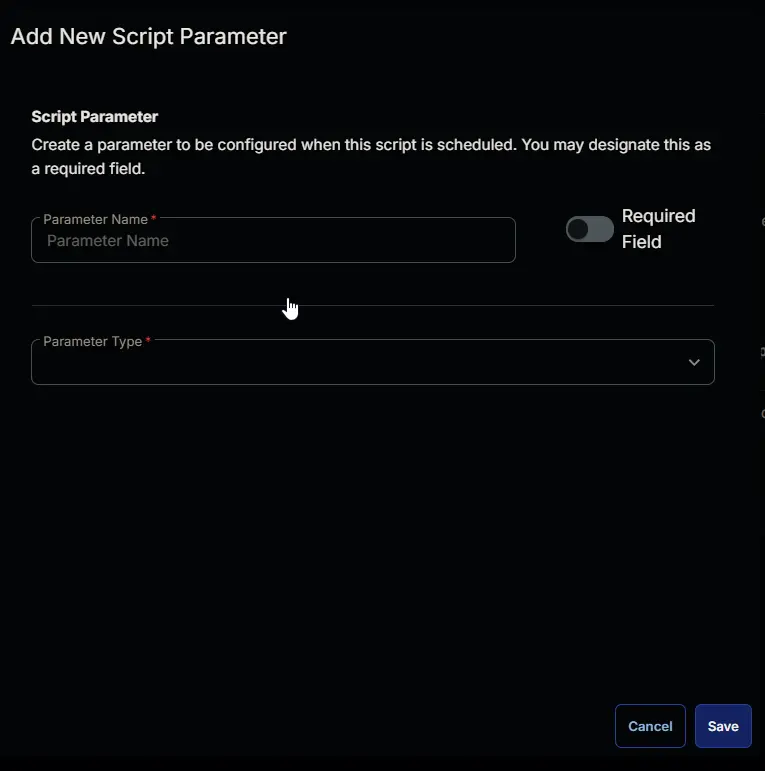
- Set
PassPhrasein theParameter Namefield. - Select
Text Stringfrom theParameter Typedropdown menu. - Click the
Savebutton.
Task
Navigate to the Script Editor Section and start by adding a row. You can do this by clicking the Add Row button at the bottom of the script page.

A blank function will appear.

Row 1 Function: PowerShell Script
Search and select the PowerShell Script function.


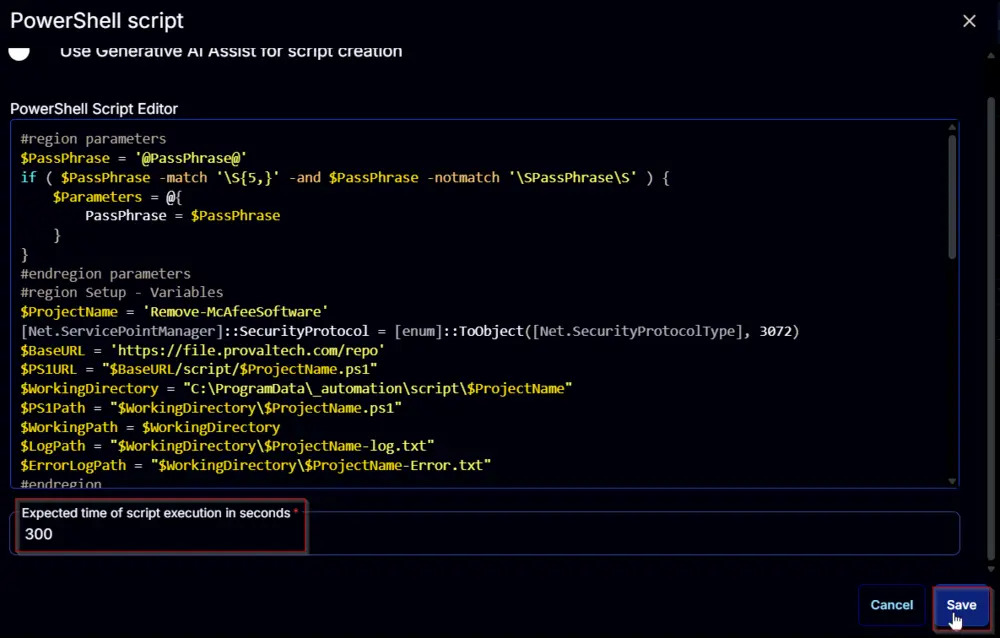
The following function will pop up on the screen:

Paste in the following PowerShell script and set the Expected time of script execution in seconds to 900 seconds. Click the Save button.
Row 2 Function: Script Log
Add a new row by clicking the Add Row button.

A blank function will appear.

Search and select the Script Log function.

The following function will pop up on the screen:

In the script log message, simply type %Output% and click the Save button.

Click the Save button at the top-right corner of the screen to save the script.

Completed Script

Output
- Script log
Changelog
2025-04-10
- Initial version of the document