CPU Temperature Monitor - Create
Summary
This script is designed to establish a remote monitoring system for Windows computers, specifically focusing on tracking CPU temperature. The script utilizes the CPUTempMon tool to monitor CPU temperatures and generate alerts if any sensor consistently records temperatures exceeding the permissible limit.
PawnIO application is required to use CPUTempMon. Script will install the latest version of PawnIO if missing. Download Url: https://github.com//namazso/PawnIO.Setup/releases/latest/download/PawnIO_Setup.exe
OS Support Notice: Due to LibreHardwareMonitor migrating from the Winring0 driver to PawnIO, older operating systems are no longer supported. This script will automatically exclude legacy environments and will only deploy the monitor on Windows 10 (Build 17763) or Windows Server 2019 and newer.
Configuration Note: The script bakes both the
-Offsetand-MinimumMaxAllowedarguments into the remote monitor's command line based on the configured EDFs and System properties. The CPU Temperature Monitor - Manage script parses these arguments to detect drift and trigger recreation if they fall out of sync.
Dependencies
Sample Run
First Run: For the initial run, you must execute the script with the Set_Environment parameter set to 1. This is necessary for importing/creating the EDFs and system properties utilized by the solution.
Upgrade Notice: If you are updating an existing installation of this solution and script to a version released on or after 2026-08-13, you must execute the script once globally with the
Set_Environmentparameter set to 1. This ensures the newly introducedCPUTempMon_MinimumMaxAllowedsystem property and client-level EDF are created in your environment before regular executions resume.
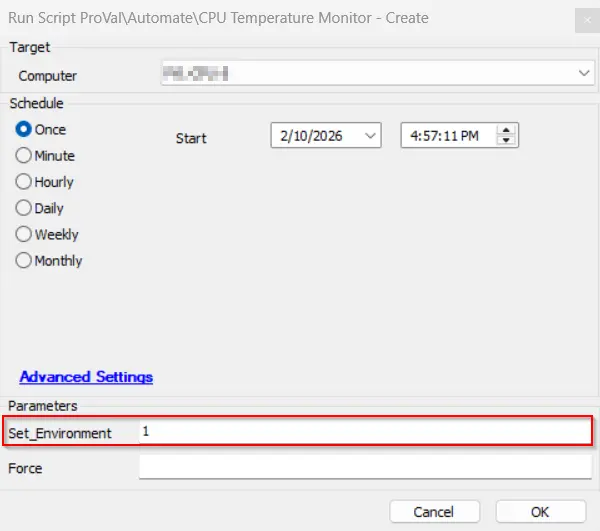
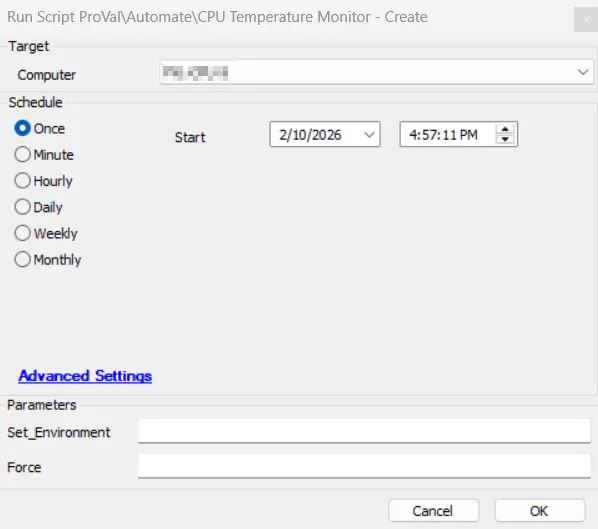
Regular Execution:
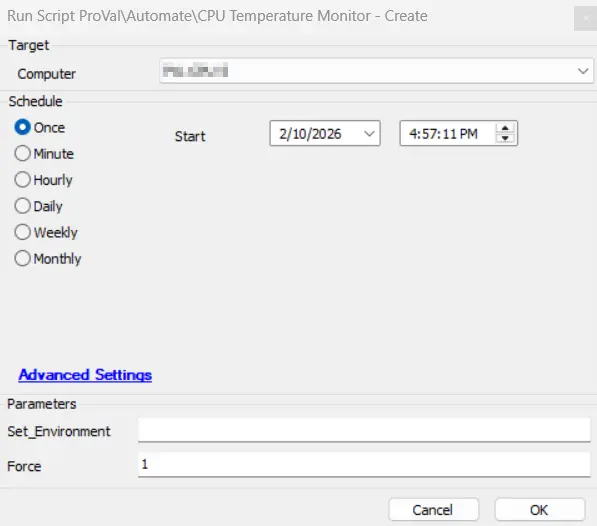
With Force Parameter: The script's general function is to compare the monitor set currently installed on the machine with the configuration in the EDFs and system properties. If discrepancies are detected, the monitor will be re-created. However, the force switch can be used to forcefully re-create the monitor set.
User Parameters
| Name | Example | Required | Description |
|---|---|---|---|
| Set_Environment | 1 | True (For First Run of the script) | For the initial run, you must execute the script with the Set_Environment parameter set to 1. This is necessary for importing/creating the EDFs and system properties utilized by the solution. |
| Force | 1 | False | The script’s general function is to compare the monitor set currently installed on the machine with the configuration in the EDFs and system properties. If discrepancies are detected, the monitor will be re-created. However, the force switch can be used to forcefully re-create the monitor set. |
System Properties
| Name | Example | Required | Description |
|---|---|---|---|
| CPUTempMon_Enable_Servers | 1 | True | To enable or disable server monitoring, use 1 or 0 respectively. By default, the setting is 1 (enabled). |
| CPUTempMon_Enable_Workstations | 1 | True | To enable or disable workstation monitoring, use 1 or 0 respectively. By default, the setting is 1 (enabled). |
| CPUTempMon_Interval_Seconds | 300 | True | Run time interval in seconds of the monitor set. Default value is 300. |
| CPUTempMon_Offset | 10 | True | This number represents the number of Celsius degrees to subtract from the maximum temperature allowed by the vendor for a sensor, in order to calculate the monitoring threshold or permissible limit. If the property is missing or set to 0, the value 0 is used, meaning no offset is subtracted. |
| CPUTempMon_MinimumMaxAllowed | 60 | True | This number represents the minimum vendor-permitted maximum temperature a sensor must report before the offset is applied. Sensors reporting a maximum below this value are compared against their raw vendor maximum without any offset subtraction. Default value is 60. If the property is missing or set to 0, the value 0 is used, which disables the floor and applies the offset to every sensor. |
| CPUTempMon_AlertTemplate_Servers | 172 | True | This refers to the ID of the alert template that will be applied to the remote monitor for servers. By default, the script will attempt to set the ID of the △ Custom - Ticket Creation - Computer alert template. |
| CPUTempMon_AlertTemplate_Workstations | 172 | True | This refers to the ID of the alert template that will be applied to the remote monitor for workstations. By default, the script will attempt to set the ID of the △ Custom - Ticket Creation - Computer alert template. |
| CPUTempMon_TicketCategory_Servers | 124 | False | This refers to the ID of the ticket category that will be applied to the remote monitor for servers. Default value is 0 (<Not Specified>). Navigate to System Dashboard --> Config --> Information Base Categories to find the required ID. |
| CPUTempMon_TicketCategory_Workstations | 125 | False | This refers to the ID of the ticket category that will be applied to the remote monitor for workstations. Default value is 0 (<Not Specified>). Navigate to System Dashboard --> Config --> Information Base Categories to find the required ID. |
| CPUTempMon_AlertStyle | 1 | True | Controls how often alert actions run when the remote monitor fails. This value is numeric: 0=Continuous, 1=Once (default), 2=Second, 3=Third, 4=Fourth, 5=Fifth, 6=Sixth, 7=Seventh, 8=Eighth, 9=Ninth, 10=Tenth. Continuous runs actions on every failed check (ticket action creates one ticket until it is resolved/deleted). Once runs one time until a success is recorded. Second through Tenth run on that consecutive fail count and reset after a success. Non-continuous styles do not take effect until the monitor succeeds at least once; monitors created in a failed state fail immediately. |
Client-Level EDF
| Name | Example | Type | Description |
|---|---|---|---|
| CPUTempMon_Exclude_Servers | Marked or Unmarked | Check-Box | Mark this EDF if you want to exclude the servers of the client from the CPU Temperature monitoring solution. |
| CPUTempMon_Exclude_Workstations | Marked or Unmarked | Check-Box | Mark this EDF if you want to exclude the workstations of the client from the CPU Temperature monitoring solution. |
| CPUTempMon_Offset | 20 | Text | This can be used to override the value stored in the system property CPUTempMon_Offset for a specific client’s machine. A value of 0 (or an empty value) defers to the system property. |
| CPUTempMon_MinimumMaxAllowed | 80 | Text | This can be used to override the value stored in the system property CPUTempMon_MinimumMaxAllowed for a specific client’s machine. A value of 0 (or an empty value) defers to the system property. |
| CPUTempMon_AlertTemplate_Servers | 1 | Text | This can be used to override the value stored in the system property CPUTempMon_AlertTemplate_Servers for a specific client’s machine. Best use case scenario is to disable the alerting for a specific client's servers. |
| CPUTempMon_AlertTemplate_Workstations | 1 | Text | This can be used to override the value stored in the system property CPUTempMon_AlertTemplate_Workstations for a specific client’s machine. Best use case scenario is to disable the alerting for a specific client's workstations. |
| CPUTempMon_TicketCategory_Servers | 124 | Text | This can be used to override the value stored in the system property CPUTempMon_TicketCategory_Servers for a specific client's servers. Use the ticket category ID from System Dashboard --> Config --> Information Base Categories. |
| CPUTempMon_TicketCategory_Workstations | 125 | Text | This can be used to override the value stored in the system property CPUTempMon_TicketCategory_Workstations for a specific client's workstations. Use the ticket category ID from System Dashboard --> Config --> Information Base Categories. |
| CPUTempMon_AlertStyle | 1 | Text | This can be used to override the value stored in the system property CPUTempMon_AlertStyle for a specific client. The value must be numeric: 0=Continuous, 1=Once (default), 2=Second, 3=Third, 4=Fourth, 5=Fifth, 6=Sixth, 7=Seventh, 8=Eighth, 9=Ninth, 10=Tenth. |
Location-Level EDF
| Name | Example | Type | Description |
|---|---|---|---|
| CPUTempMon_Exclude_Servers | Marked or Unmarked | Check-Box | Mark this EDF if you want to exclude the servers of the location from the CPU Temperature monitoring solution. |
| CPUTempMon_Exclude_Workstations | Marked or Unmarked | Check-Box | Mark this EDF if you want to exclude the workstations of the location from the CPU Temperature monitoring solution. |
Computer-Level EDF
| Name | Example | Type | Description |
|---|---|---|---|
| CPUTempMon_Exclude_Computer | Marked or Unmarked | Check-Box | Mark this EDF if you want to exclude the specific computer from the CPU Temperature monitoring solution. |
Output
- Script Logs
- Files on Machine
- Remote Monitor
Changelog
2026-08-13
- Added
CPUTempMon_MinimumMaxAllowedsystem property (default 60) and client-level EDF override. It defines the minimum vendor-permitted maximum temperature a sensor must report before the offset is subtracted; sensors below the floor are compared against their raw vendor maximum. - Updated the underlying PowerShell script to accept and enforce the
-MinimumMaxAllowedparameter, which is now baked into the remote monitor's command line. - Configuration resolution now passes 0 (instead of a hard-coded substitute) when a value is unset or set to 0, keeping the Create and Manage scripts consistent.
2026-06-08
- Added missing
TicketCategoryandAlertStylesystem properties. - Added missing client-level EDFs for
TicketCategoryandAlertStyleoverrides. - Modified script targeting logic to exclude legacy operating systems, enforcing a minimum requirement of Windows 10 (Build 17763) or Windows Server 2019.
2026-05-22
- Updated the script to deploy PawnIO via a standalone PowerShell script instead of Winget.
2026-04-30
- Updated script to install PawnIO
2026-04-10
- Optimized the Strapper module installation to reduce overall script runtime.
2026-04-02
- Modified and hosted the
CPUTempMon.exetool on our file server. - Made changes to the PowerShell scripts used in this script accordingly.
- Code signed the tool.
- Code signed the PowerShell scripts.
2025-04-10
- Initial version of the document