Manage - .Net Runtimes
Summary
This CW RMM implementation helps keep .NET on Windows devices clean, current, and secure. It can list installed .NET components, install the latest supported versions, update patch releases, remove unsupported versions, or perform a full cleanup and refresh.
The script checks Microsoft release data in real time, then uses that information to decide what to install, update, or remove. This reduces manual effort and lowers the risk of keeping outdated .NET versions.
When you run this script, expect software changes on the endpoint. Depending on the selected action, it may download installers, silently install updates, and remove older versions. A stable internet connection and administrator access are required.
NOTE:
- Installing or uninstalling
sdkcan also install or remove relatedaspNetCoreRuntime,desktopRuntime, andruntimecomponents. - Installing or uninstalling
desktopRuntimecan also install or remove the relatedruntime. - For actions other than
list, ifTypeis not provided, the script usesdesktopRuntimeby default. - Install and update use the machine's native architecture installer (for example, x64 installer on x64 machines).
- If x86 components already exist on a machine, the script can detect and remove outdated x86 components during
uninstall,update, andrenew. - Use
Versioncarefully:- For
list,install,uninstall, andupdate, you can target specific major versions (including unsupported versions). - For
renewwithVersion, all specified versions must still be supported. If any are unsupported, the action will stop.
- For
- Set
Forceto1to apply force removal behavior. Any other value (or blank) means force is not applied. - For
uninstall,update, andrenew, older-version cleanup primarily targets components detected bydotnet.exe. WithForce = 1, cleanup can also remove .NET entries found through uninstall registry data and package metadata, including components thatdotnet.exedoes not list. renewis the most aggressive option. It can remove versions you are not targeting. Review your required application dependencies before using it.
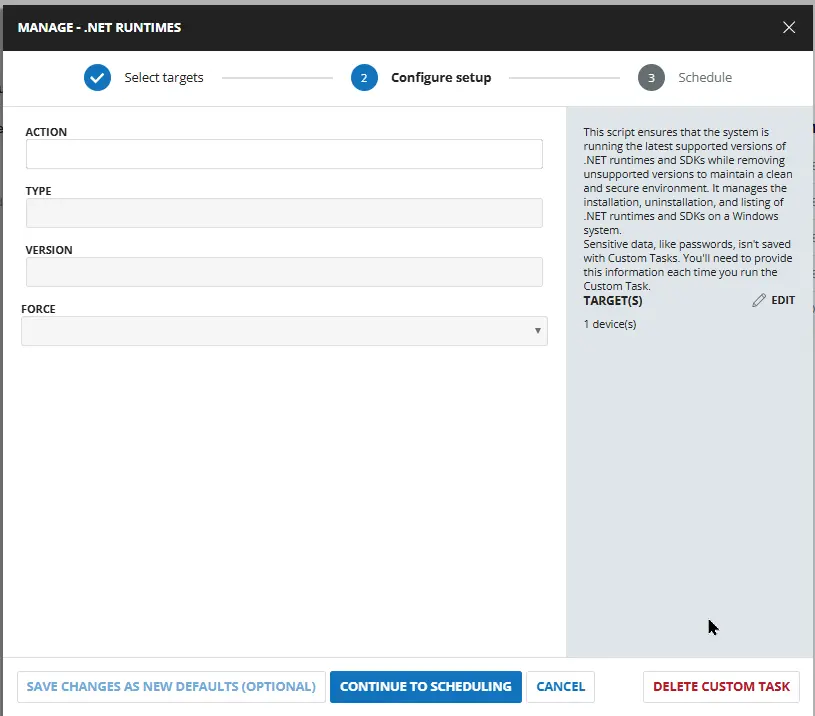
Sample Run
Dependencies
User Parameters
| Name | Example | Required | Default | Type | Description |
|---|---|---|---|---|---|
Action |
| False | - | DropDown | Select the action to perform. Valid values are:
list |
Type |
| False | - | DropDown | Select the type of .NET component to manage. Valid values are:
desktopRuntime |
Version |
| False | - | Text String | (Optional) Limit the action to specific .NET versions by major version number (e.g., 8, 9, or 8, 9, 10). When omitted, the script uses its default behavior for each action. Accepts both supported and EOL versions for list, install, uninstall, and update. For renew, all specified versions must be actively supported. Note: Default is not set (all applicable versions are targeted). |
Force | False | - | Flag | Select it to apply forced MSI dependency bypass during removal. If Force is not selected, normal safe behavior is used. |
Task Creation
Script Details
Step 1
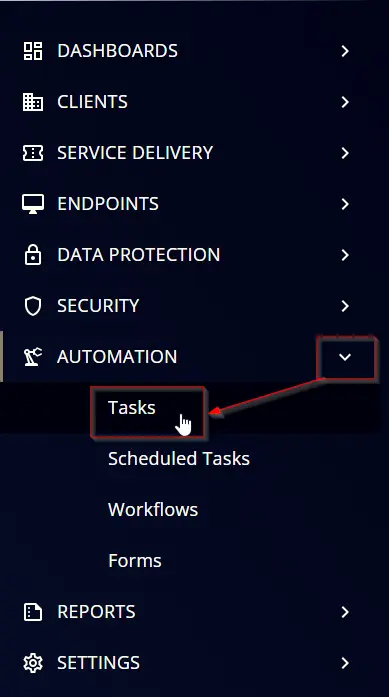
Navigate to Automation ➞ Tasks
Step 2
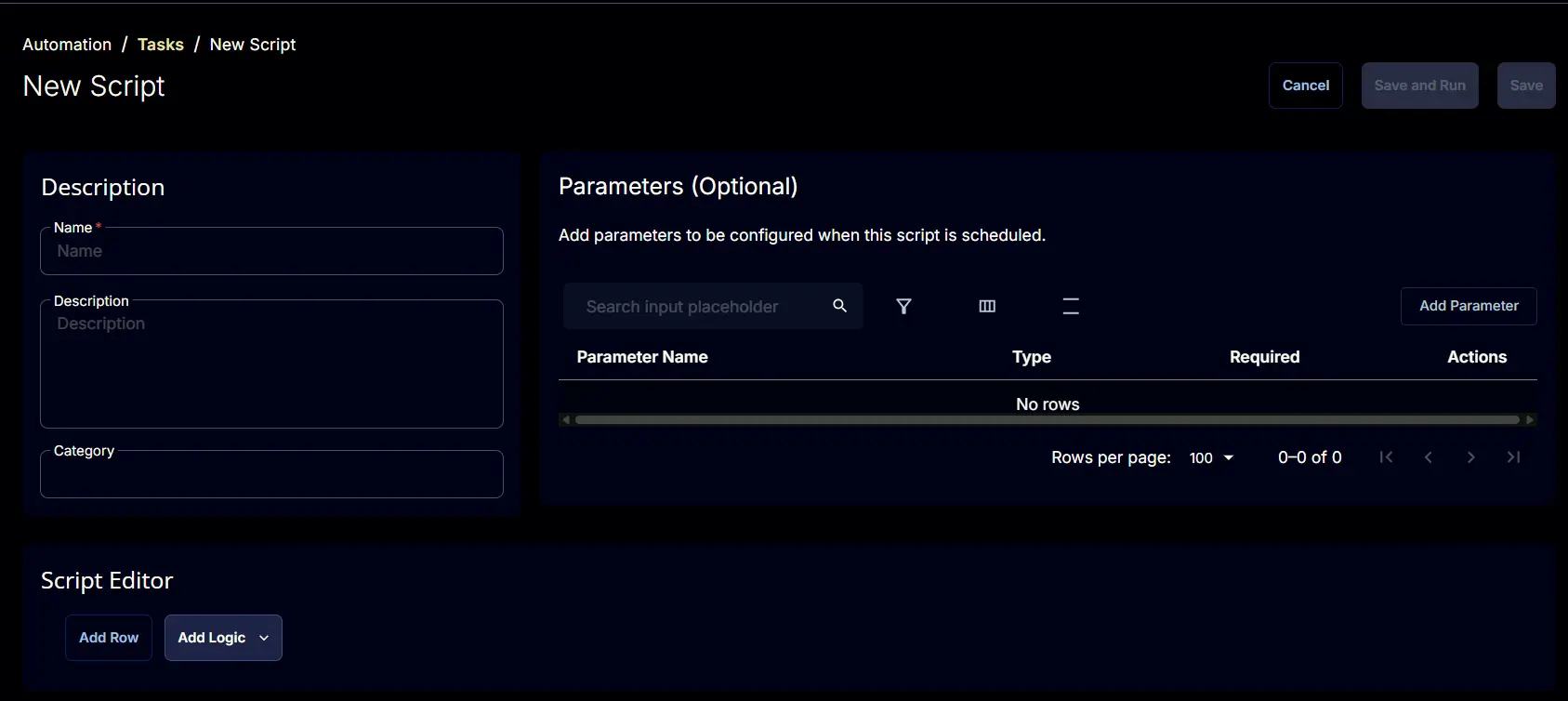
Create a new Script Editor style task by choosing the Script Editor option from the Add dropdown menu

The New Script page will appear on clicking the Script Editor button:
Step 3
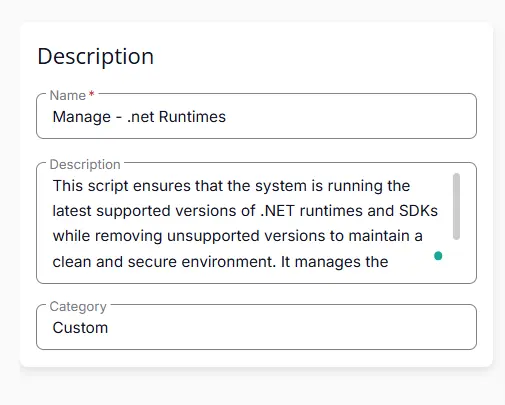
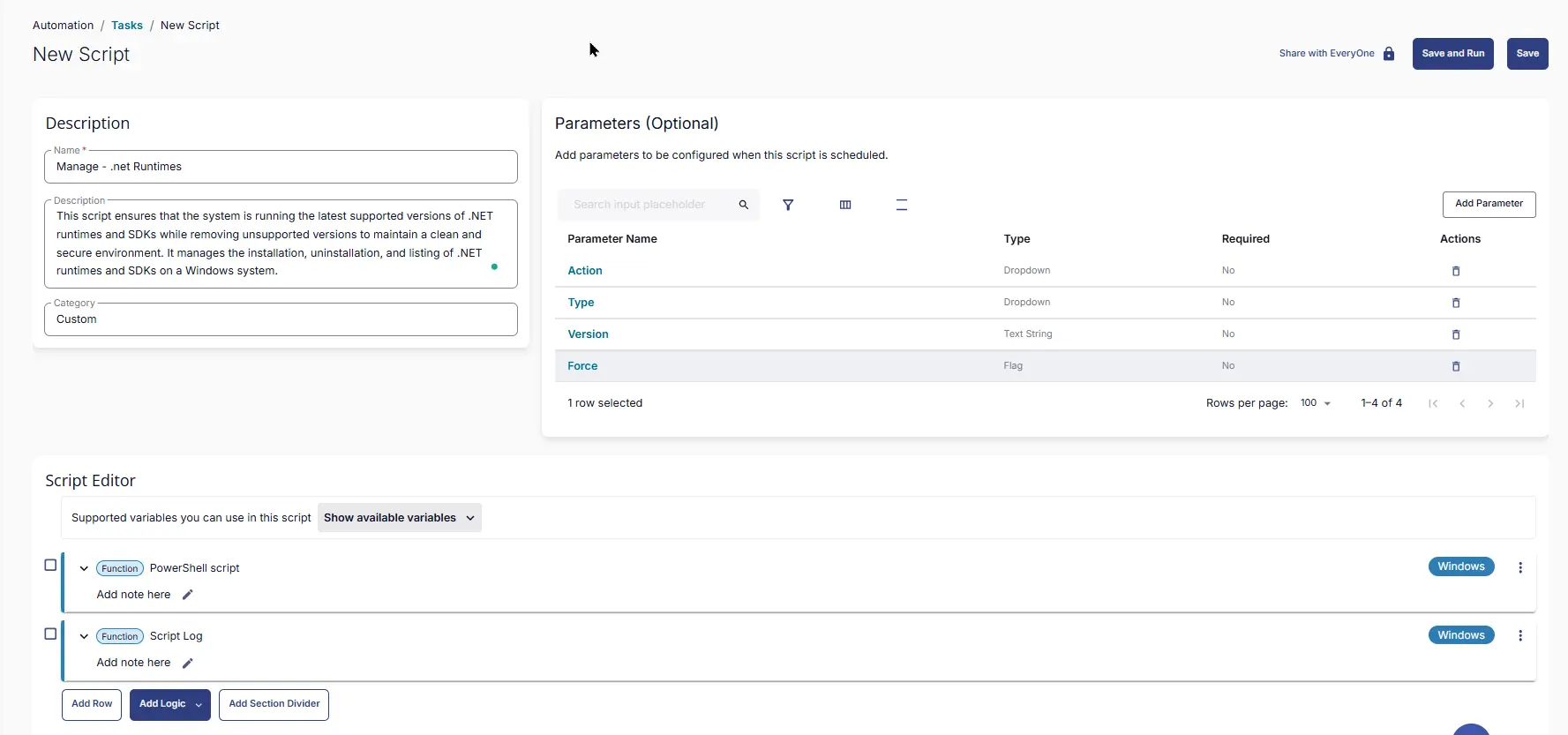
Fill in the following details in the Description section:
Name: Manage - .net Runtimes
Description: This script ensures that the system is running the latest supported versions of .NET runtimes and SDKs while removing unsupported versions to maintain a clean and secure environment. It manages the installation, uninstallation, and listing of .NET runtimes and SDKs on a Windows system.
Category: Custom
Parameters
Locate the Add Parameter button on the right-hand side of the screen and click on it to create a new parameter.

The Add New Script Parameter page will appear on clicking the Add Parameter button.
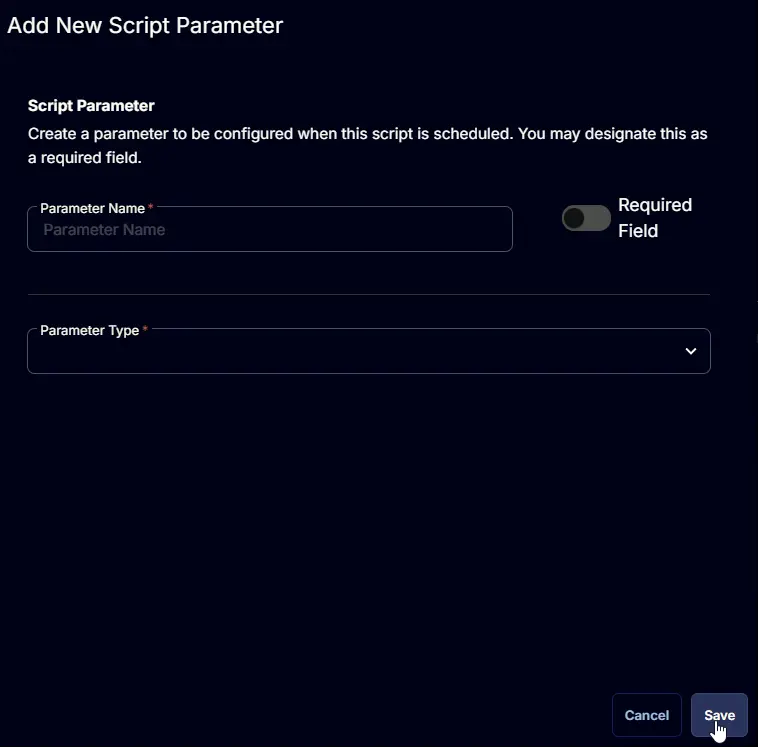
Action
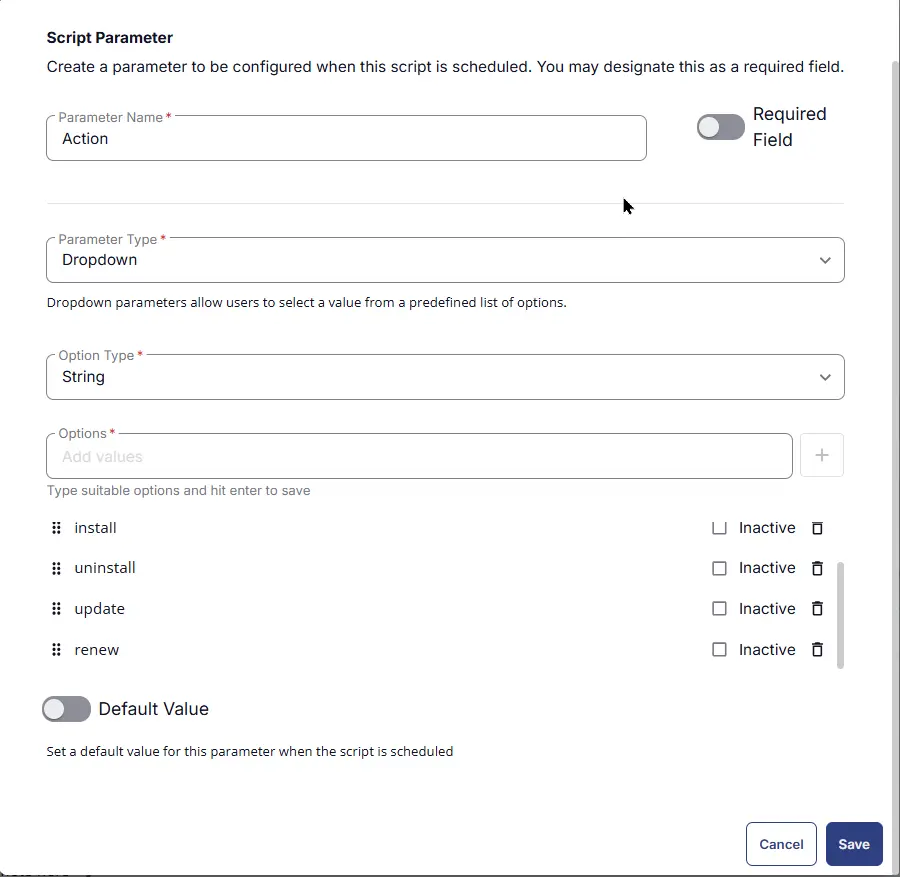
The Add New Script Parameter page will appear on clicking the Add Parameter button.
- Set
Actionin theParameter Namefield. - Select
DropDownfrom theParameter Typedropdown menu. - Select
Stringfrom theOption Typedropdown menu. - Add
list,install,uninstall,update,renewfrom theOption Typedropdown menu. - Click the
Savebutton.
Type
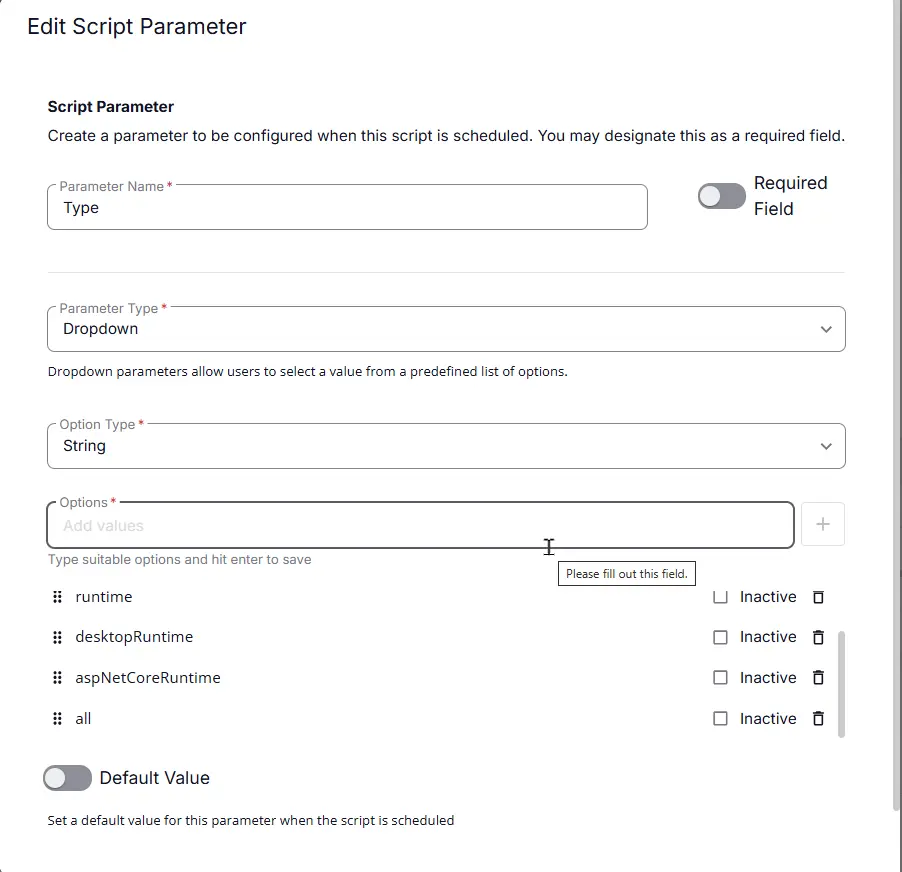
The Add New Script Parameter page will appear on clicking the Add Parameter button.
- Set
Typein theParameter Namefield. - Select
DropDownfrom theParameter Typedropdown menu. - Select
Stringfrom theOption Typedropdown menu. - Add
sdk,runtimes,desktopRuntime,aspNetCoreRuntime,allfrom theOption Typedropdown menu. - Click the
Savebutton.
Version
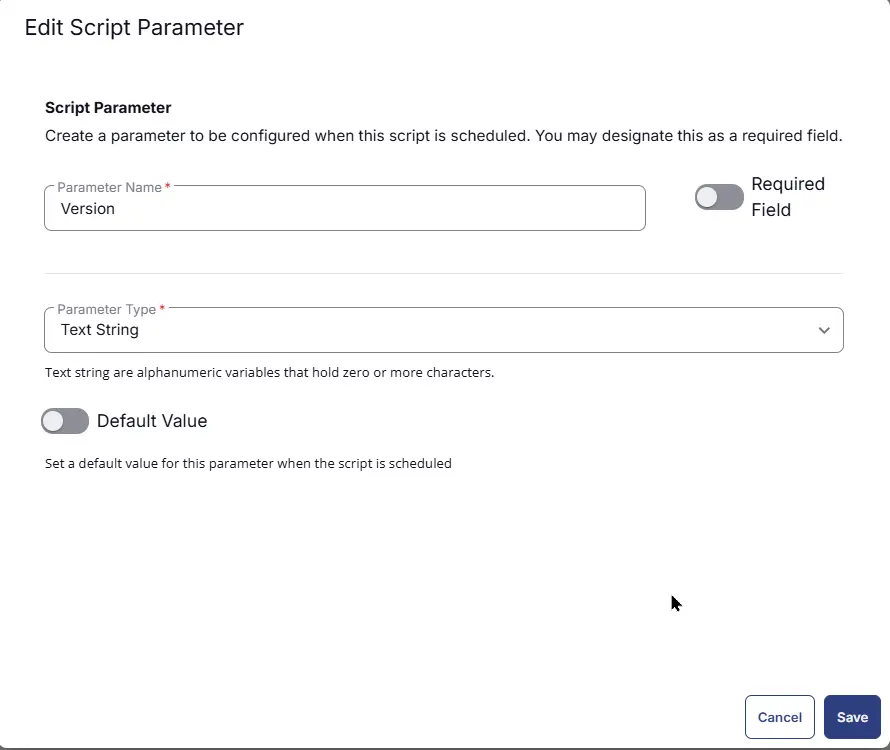
The Add New Script Parameter page will appear on clicking the Add Parameter button.
- Set
Versionin theParameter Namefield. - Select
Text Stringfrom theParameter Typedropdown menu. - Click the
Savebutton.
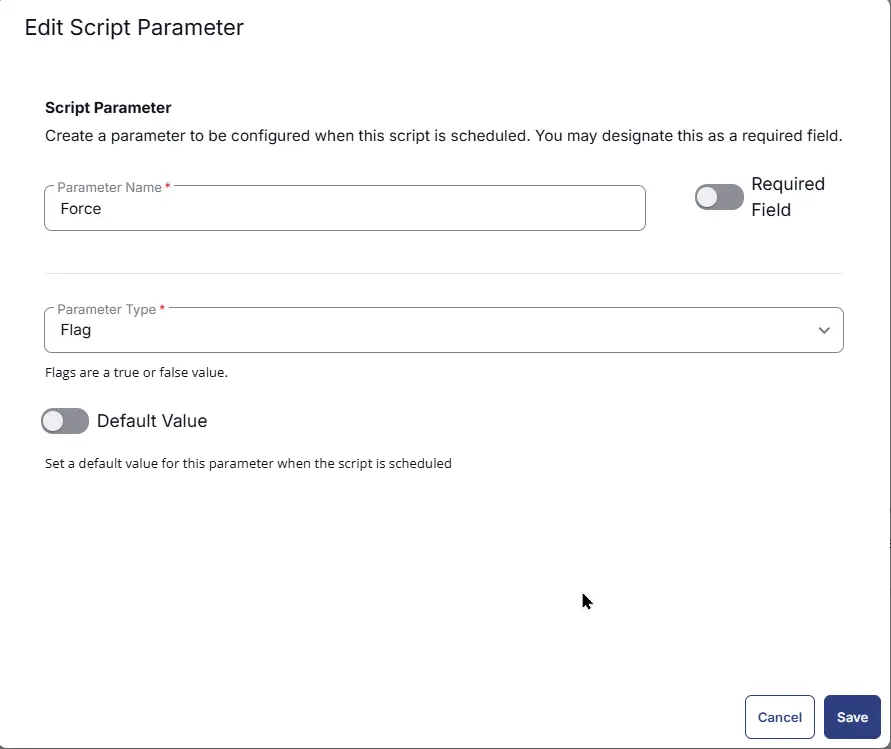
Force
The Add New Script Parameter page will appear on clicking the Add Parameter button.
- Set
Forcein theParameter Namefield. - Select
Flagfrom theParameter Typedropdown menu. - Click the
Savebutton.
Script Editor
Click the Add Row button in the Script Editor section to start creating the script

A blank function will appear:

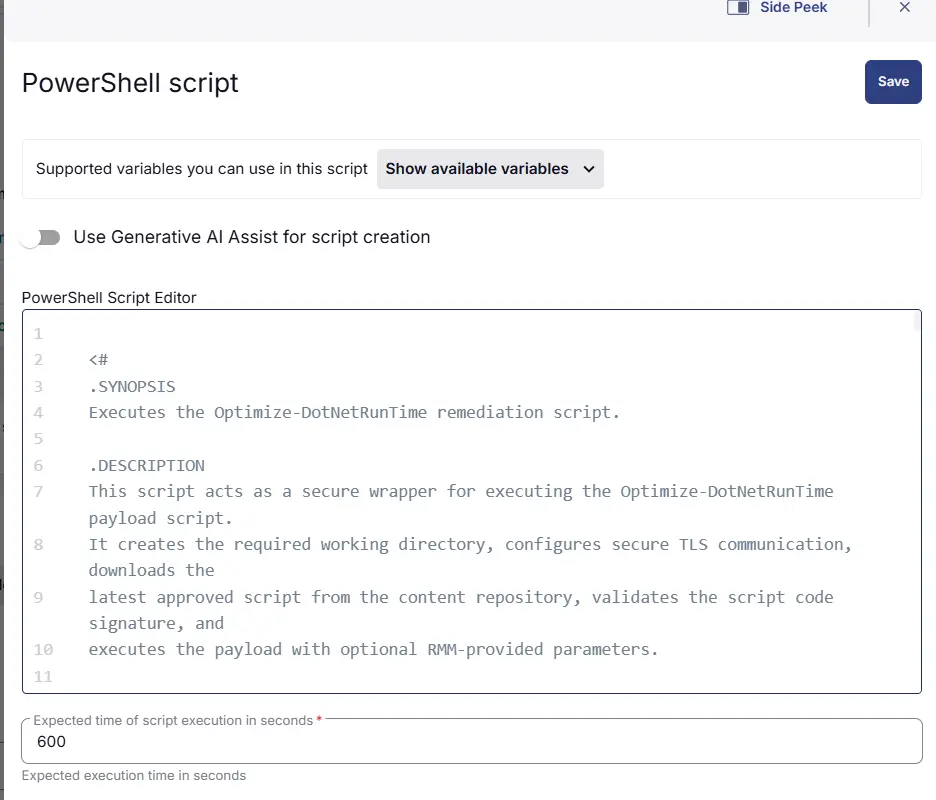
Row 1 Function: PowerShell script
- Notes:
<Leave it Blank> - Use Generative AI Assist for script creation:
False - Expected time of script execution in seconds:
600 - Continue on Failure:
False - Run As:
System - Operating System:
Windows - PowerShell Script Editor:
Row 7 Function: Script Log
- Notes:
<Leave it Blank> - Continue on Failure:
False - Operating System:
Windows - Script Log Message:
%Output%

Save Task
Click the Save button at the top-right corner of the screen to save the script.

Completed Task
Output
- Script Logs
Changelog
2026-08-11
- Initial version of the document