Update Windows Server 2022
Summary
Upgrades a server to Windows Server 2022 in place. Apps, settings, and data stay on the server.
The script runs Windows Setup silently from your Windows Server 2022 media, then restarts the server to finish the upgrade. The media can be on the server or a network share, or the script can download the ISO from a web address. Servers already on Windows Server 2022 or later are not changed.
It works by running the Update-WindowsServer2022 PowerShell script.
The server restarts 60 seconds after Windows Setup finishes its first phase. The upgrade then takes 30 to 90 minutes, with more restarts. The server and its Automate agent are offline during this time. Run this script inside a maintenance window.
Microsoft supports upgrades to Windows Server 2022 from Windows Server 2016 and Windows Server 2019 only. Evaluation editions must be converted to a licensed edition first. See Troubleshooting.
Sample Run
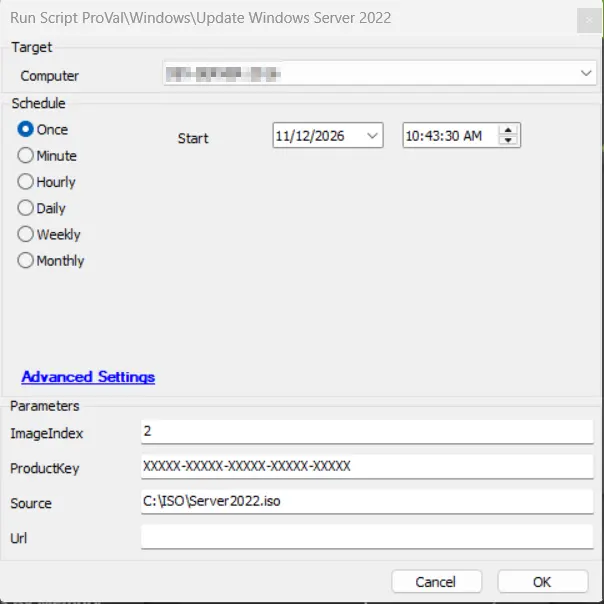
Example 1: Run the script with URL, ImageIndex, and ProductKey
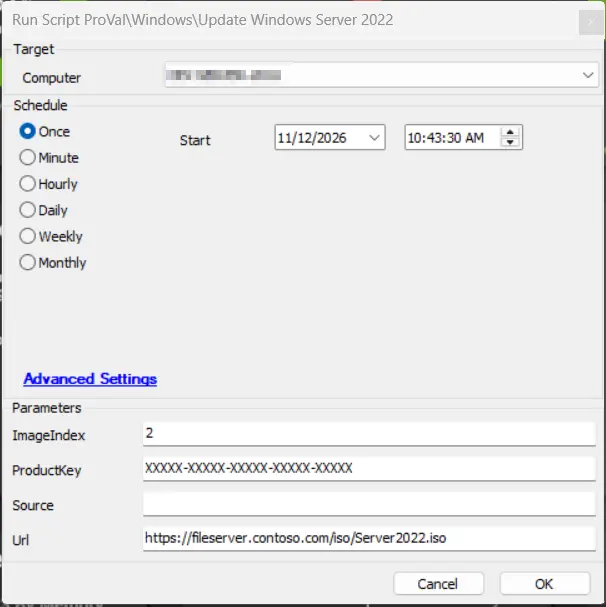
Example 2: Run the script with Source, ImageIndex, and ProductKey
Dependencies
Requirements
- Windows Server 2016 or Windows Server 2019, Standard or Datacenter.
- PowerShell 5 or later. Windows Server 2016 and 2019 include it.
- Internet access to
contentrepo.net, where the script downloads the latest signed copy of the PowerShell script. - Windows Server 2022 installation media in the same language as the server.
- When you use
Url: about 6 GB of free space on the system drive for the download, in addition to the space Windows Setup needs.
Global Variables
| Name | Value | Accepted Values | Description |
|---|---|---|---|
| Debug | False | False, True | When True, enables informational logging; when False (default), informational logs are suppressed to avoid adding entries to the h_scripts table. Set to True to assist with troubleshooting. |
| ScriptEngineEnableLogger | False | False, True | When True, enables final (success/failure) logging; when False (default), these logs are suppressed to avoid adding entries to the h_scripts table. Set to True to assist with troubleshooting. |
User Parameters
Set Source or Url. If you set both, the script uses Source and ignores Url.
| Name | Example | Required | Description |
|---|---|---|---|
| Source | C:\ISO\Server2022.iso | True (Semi) | The ISO file, or a folder or drive that holds the Windows Server 2022 media. Use D:\ for an ISO attached to a virtual machine as drive D:. Required unless you set Url. |
| Url | https://fileserver.contoso.com/iso/Server2022.iso | True (Semi) | HTTP or HTTPS address of a Windows Server 2022 ISO file on a file server. The script downloads the ISO and deletes it after setup. Ignored when Source is set. Required unless you set Source. |
| ImageIndex | 4 | False | The image to install from the media. Leave blank or set to 0 to pick the image that matches the server's edition and type. Set a number to change edition, such as Standard to Datacenter. |
| ProductKey | XXXXX-XXXXX-XXXXX-XXXXX-XXXXX | False | Product key for media that asks for one. Retail media usually does. The key is never written to the logs. |
A network share in Source must be readable by the server's computer account, because the script runs as SYSTEM. If it is not, copy the ISO to the server or use Url.
Results by Server
| Server | Result |
|---|---|
| Windows Server 2016 or 2019, all requirements met | Success. Setup finishes its first phase and the server restarts after 60 seconds to complete the upgrade. |
| Windows Server 2022 or newer | Success. No changes. |
| Evaluation edition | Failure. No changes. Convert to a licensed edition and run again. |
| Windows desktop operating system | Failure. No changes. This script upgrades Windows Server only. |
| Media is not Windows Server 2022, or cannot be found | Failure. No changes. |
| Windows Setup finds a problem | Failure. No restart. Setup logs are in C:\$WINDOWS.~BT\Sources\Panther. |
You'll know it worked when you run the script again after the upgrade and it reports that the server already runs Windows Server 2022.
Troubleshooting
| Problem | Cause | Solution |
|---|---|---|
Neither Source nor Url was provided | Both parameters were left blank. | Set Source or Url and run again. |
Url must be an HTTP or HTTPS URL | Url is not a complete web address. | Enter the full address, starting with http:// or https://. |
Failed to download the agnostic script | The server cannot reach contentrepo.net, and no earlier copy of the script is on the server. | Allow access to contentrepo.net, or check that security software is not blocking the download. |
Failed to execute the powershell script | Security software blocked the script. | Allow PowerShell scripts in C:\ProgramData\_Automation\Script\Update-WindowsServer2022. |
Invalid Signature | The script's code signature could not be verified. | Run the script again. If it still fails, contact ProVal support. |
For upgrade failures, such as media or Windows Setup errors, see Troubleshooting in the PowerShell script document.
Output
- Script log
- Script logs on the server:
C:\ProgramData\_Automation\Script\Update-WindowsServer2022\Update-WindowsServer2022-log.txtC:\ProgramData\_Automation\Script\Update-WindowsServer2022\Update-WindowsServer2022-error.txt
Changelog
2026-11-12
- Initial version of the document.