Visual C++ Health Remediation
Purpose
Many Windows applications need the Microsoft Visual C++ 2015-2022 runtime to start. When its files are damaged or missing, those applications fail to open. This solution finds affected Windows workstations and servers in NinjaOne and repairs them automatically.
How It Works
The solution runs in three steps:
- Check: Every 24 hours, a compound condition runs the Test VC Runtime automation to check the runtime. This check makes no changes.
- Repair: If the runtime is corrupted, the condition runs Test VC Runtime again with
Remediatechecked. It reinstalls the runtime and repairs Windows system files. - Report: Each device shows the result in the cPVAL VC Runtime Health Status custom field. The condition resets once the runtime is healthy.
Key Capabilities
- Daily Detection: Checks every opted-in device once a day.
- Automatic Repair: Reinstalls the latest runtime from Microsoft and repairs Windows system files with DISM and System File Checker (SFC), the built-in Windows repair tools.
- Safe by Default: The check makes no changes. Repairs run only on devices where corruption is found.
- No Restarts: Never restarts a device. If a restart is needed, the activity output says so.
- Flexible Scope: Turn it on for all Windows devices, workstations only, or servers only. Exclude any organization, location, or device.
- Clear Reporting: Each device shows
HealthyorCorruptedin a custom field.
Associated Content
Custom Fields
Note on Enablement:
cPVAL VC Runtime Remediationhas no default value. You must set it to turn the solution on. See Step 4.
| Name | Default | Example | Level | Managed By | Function |
|---|---|---|---|---|---|
| cPVAL VC Runtime Remediation | (unset) | Windows | System, Org, Loc, Dev | Manual | Turns the solution on and selects which devices it covers. |
| cPVAL VC Runtime Health Status | (blank) | Healthy | Device | Script (Auto) | Shows the result of the latest check: Healthy or Corrupted. |
System-Level Fields
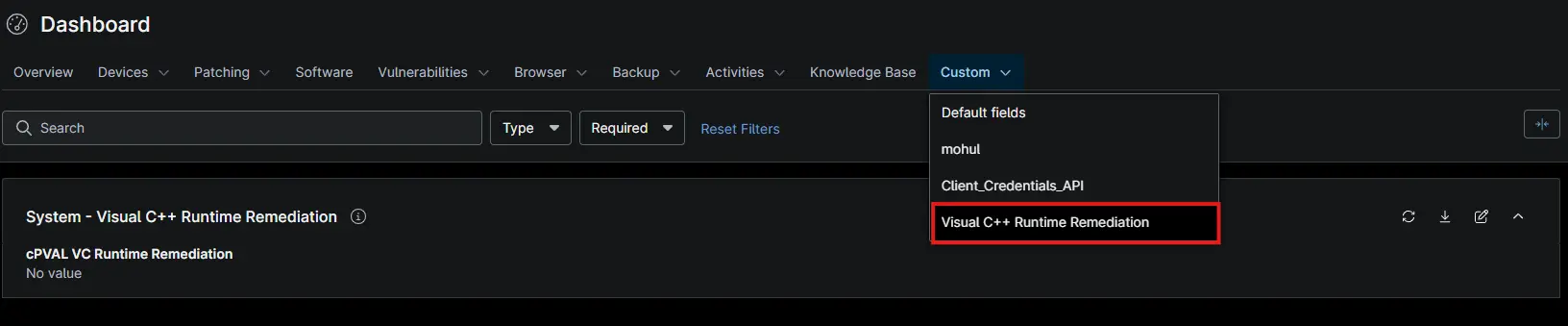
Device-Level Fields

Automations
| Name | Function |
|---|---|
| Test VC Runtime | Checks the runtime and, with Remediate checked, repairs it. Saves the result to cPVAL VC Runtime Health Status. |
Compound Conditions
| Name | Function |
|---|---|
| Test VC Runtime - Windows Workstations | Checks opted-in workstations every 24 hours and repairs any with a corrupted runtime. |
| Test VC Runtime - Windows Servers | Checks opted-in servers every 24 hours and repairs any with a corrupted runtime. |
Implementation
Step 1: Create Custom Fields
This solution uses 2 custom fields. You can create them in either of two ways.
Option A: Import Them From the ProVal NinjaRMM Field Sync Portal
The NinjaRMM Field Sync portal creates both fields for you, with the correct type, scope, permissions, and tab already set.
- Sign in to the NinjaRMM Field Sync portal.
- Set the Source Instance to
ProVal Dev. - Open Filters and set the Custom Tab filter to
Visual C++ Remediation. - Confirm the field count reads 2 fields.
- Set the Target Instance to the partner instance you are implementing in.
- Select both fields and click Deploy Selected.
⚠️ Validate the result before moving on. Confirm that both fields appear on the tabs shown in the System-Level Fields and Device-Level Fields screenshots.
Option B: Create the Fields Manually
Create each field as described in its document:
Step 2: Create the Automation
Create the following automation as described in the document:
Pro Tip: Keep the automation's architecture set to 64-bit. The script stops if it runs as 32-bit.
Step 3: Create Compound Conditions
Create the following compound conditions as described in the document:
- Compound Condition: Test VC Runtime - Windows Workstations
- Compound Condition: Test VC Runtime - Windows Servers
Step 4: Enable the Solution (Opt-In)
The solution is opt-in by design. Set cPVAL VC Runtime Remediation at the System, Organization, Location, or Device level:
| Value | Devices Covered |
|---|---|
Windows | All Windows workstations and servers. |
Windows Workstations | Windows workstations only. |
Windows Servers | Windows servers only. |
Disable | None. Use it to exclude an organization, location, or device. |
You'll know it worked when opted-in devices show Healthy or Corrupted in cPVAL VC Runtime Health Status. This happens within 24 hours.
FAQs
General Usage
Q. What does this solution do?
A: It finds Windows devices where the Microsoft Visual C++ runtime is damaged or missing files, and repairs them. Applications that need the runtime can then start normally.
Q. Is this solution turned on automatically?
A: No. It is opt-in. Set cPVAL VC Runtime Remediation to turn it on. See Step 4.
Q. Which devices are supported?
A: 64-bit Windows 10 and 11, and Windows Server 2016 and later. Devices need internet access.
Q. Does the daily check change anything on the device?
A: No. The check only confirms that the runtime's core files and Windows Registry entries are present. Changes happen only when a repair runs on a corrupted device.
Q. Can I exclude a single device?
A: Yes. Set cPVAL VC Runtime Remediation to Disable on that device. A device-level value overrides the organization and location values.
Repairs
Q. What does a repair do?
A: It reinstalls the latest Visual C++ runtime from Microsoft and repairs Windows system files with DISM and SFC. It then checks the runtime again and deletes the files it downloaded.
Q. Will a repair restart my devices?
A: No. If a restart is needed to finish the repair, the activity output says so. Restart the device at a convenient time.
Q. How long does a repair take?
A: Usually several minutes. It can take 30 minutes or more when Windows needs deeper repairs.
Q. Can I check or repair a single device on demand?
A: Yes. Run the Test VC Runtime automation on the device. Check Remediate to repair it, or leave it unchecked to only check it.
Q. Can I edit the script to change its behavior?
A: No. The script is digitally signed, and any change stops it from running.
Troubleshooting
| Problem | Cause | Solution |
|---|---|---|
| The repair activity shows as failed. | The script records the original corruption as an error, even when the repair works. | Check cPVAL VC Runtime Health Status. Healthy means the repair worked. |
A device still shows Corrupted after a repair. | A repair step failed, or the device needs a restart to finish. | Check the activity output for the failed step. Restart the device if asked, then run Test VC Runtime with Remediate checked. |
| Repairs fail on devices that get updates from WSUS (Windows Server Update Services). | DISM cannot download repair files through WSUS. | In Group Policy, enable Specify settings for optional component installation and component repair. Select the option to download repair content directly from Windows Update. |
cPVAL VC Runtime Health Status is blank. | The solution is not turned on for the device, or the check could not run. | Confirm cPVAL VC Runtime Remediation is set for the device. Check that the device has internet access. |
Changelog
2026-09-28
- Initial version of the document.