Disable AutoPlay AutoRun Policy
Summary
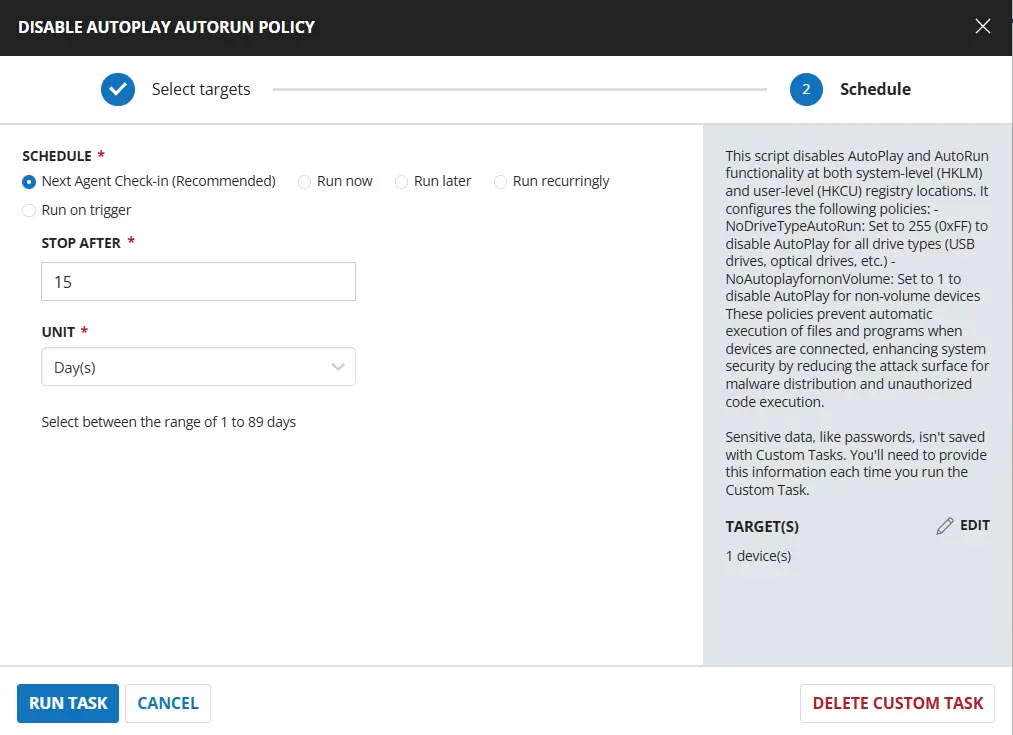
This script disables AutoPlay and AutoRun functionality at both system-level (HKLM) and user-level (HKCU) registry locations. It configures the following policies:
- NoDriveTypeAutoRun: Set to 255 (0xFF) to disable AutoPlay for all drive types (USB drives, optical drives, etc.)
- NoAutoplayfornonVolume: Set to 1 to disable AutoPlay for non-volume devices
These policies prevent automatic execution of files and programs when devices are connected, enhancing system security by reducing the attack surface for malware distribution and unauthorized code execution.
Sample Run
Dependencies
Task Creation
Script Details
Step 1
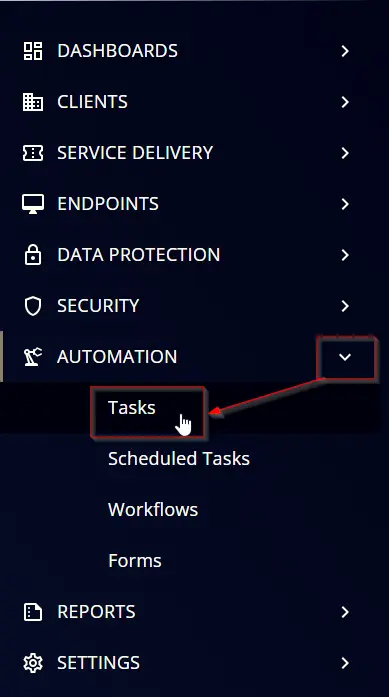
Navigate to Automation ➞ Tasks
Step 2
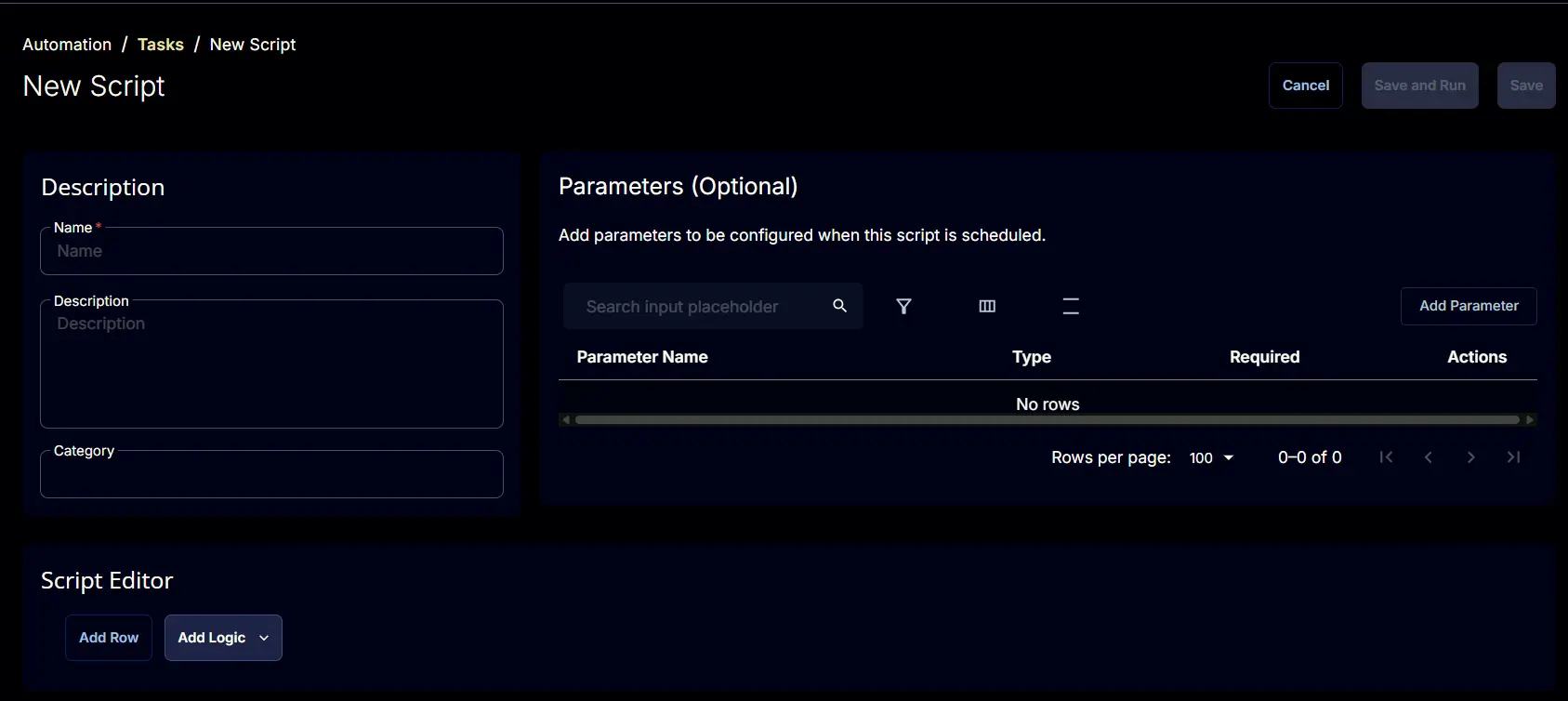
Create a new Script Editor style task by choosing the Script Editor option from the Add dropdown menu
The New Script page will appear on clicking the Script Editor button:
Step 3
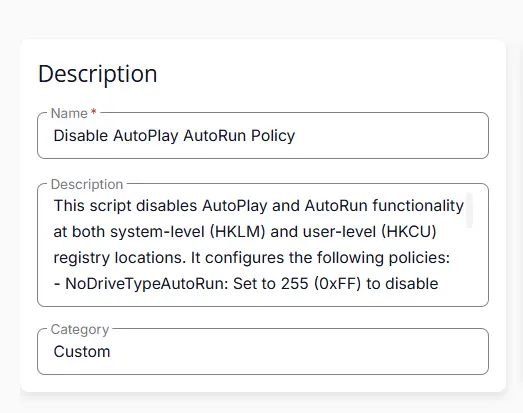
Fill in the following details in the Description section:
- Name:
Disable AutoPlay AutoRun Policy - Description:
This script disables AutoPlay and AutoRun functionality at both system-level (HKLM) and user-level (HKCU) registry locations. It configures the following policies:NoDriveTypeAutoRun: Set to 255 (0xFF) to disable AutoPlay for all drive types (USB drives, optical drives, etc.)NoAutoplayfornonVolume: Set to 1 to disable AutoPlay for non-volume devicesThese policies prevent automatic execution of files and programs when devices are connected, enhancing system security by reducing the attack surface for malware distribution and unauthorized code execution.
- Category:
custom
Script Editor
Click the Add Row button in the Script Editor section to start creating the script
A blank function will appear:
Row 1 Function: PowerShell Script
Search and select the PowerShell Script function.
The following function will pop up on the screen:
Paste in the following PowerShell script and set the Expected time of script execution in seconds to 600 seconds. Click the Save button.
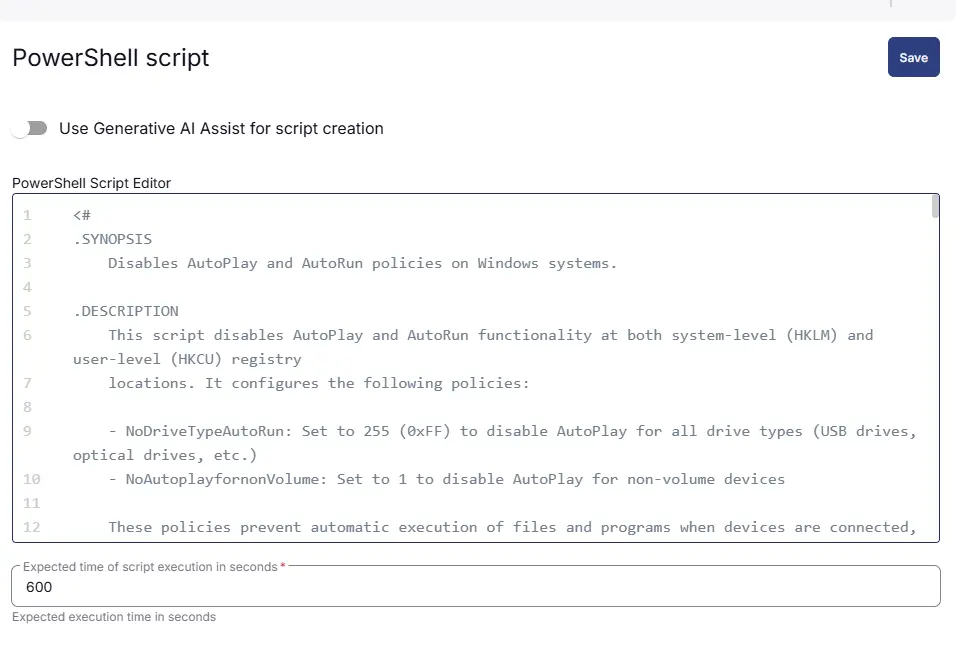
<#
.SYNOPSIS
Disables AutoPlay and AutoRun policies on Windows systems.
.DESCRIPTION
This script disables AutoPlay and AutoRun functionality at both system-level (HKLM) and user-level (HKCU) registry
locations. It configures the following policies:
- NoDriveTypeAutoRun: Set to 255 (0xFF) to disable AutoPlay for all drive types (USB drives, optical drives, etc.)
- NoAutoplayfornonVolume: Set to 1 to disable AutoPlay for non-volume devices
These policies prevent automatic execution of files and programs when devices are connected, enhancing system
security by reducing the attack surface for malware distribution and unauthorized code execution.
The script initializes required PowerShell modules (PackageManagement, PowerShellGet, and Strapper) before
applying the registry changes. It handles errors gracefully and tracks any failures during policy configuration.
.NOTES
- Requires administrative privileges to modify HKLM registry keys
- Changes are applied at both system and user levels for comprehensive policy enforcement
- The Strapper module is used for registry key property management
- Execution policy is set to Bypass at process scope during execution
.EXAMPLE
.\disable-autoplay-autorun-policy.ps1
Executes the script to disable AutoPlay policies system-wide.
#>
function Initialize-ScriptModules {
[CmdletBinding()]
param ()
Write-Output 'Initializing PowerShell module environment'
#Region Execution Policy (Process-scoped only)
try {
if ((Get-ExecutionPolicy -Scope Process) -ne 'Bypass') {
Set-ExecutionPolicy -Scope Process -ExecutionPolicy Bypass -Force
Write-Output 'ExecutionPolicy set to Bypass (Process scope).'
}
} catch {
throw "An error occurred: Unable to set ExecutionPolicy: $($_.Exception.Message)"
}
#EndRegion
#Region PackageManagement (required dependency)
try {
Import-Module PackageManagement -Force -ErrorAction Stop
Write-Output 'Imported module: PackageManagement'
} catch {
throw "An error occurred: PackageManagement could not be imported: $($_.Exception.Message)"
}
#EndRegion
#Region PowerShellGet (OPTIONAL, may be corrupted)
try {
Import-Module PowerShellGet -Force -ErrorAction Stop
Write-Output 'Imported module: PowerShellGet'
} catch {
Write-Output 'WARNING: PowerShellGet is corrupted or unavailable. Continuing without it.'
}
#EndRegion
#Region Strapper
try {
Import-Module Strapper -Force -ErrorAction Stop
Write-Output 'Strapper module imported successfully'
if (-not (Get-Command Set-UserRegistryKeyProperty -ErrorAction SilentlyContinue)) {
throw 'Strapper loaded, but required commands are missing.'
}
Set-StrapperEnvironment
Write-Output 'Strapper environment initialized.'
} catch {
throw "An error occurred: Failed to initialize Strapper: $($_.Exception.Message)"
}
#EndRegion
Write-Output 'Module initialization completed successfully'
}
# Initialize modules
Initialize-ScriptModules
# Track failures
$failures = @()
Write-Output 'Configuring AutoPlay policy registry settings (Computer + User)'
# Expected values
$Expected_NoDriveTypeAutoRun = 255
$Expected_NoAutoplayForNonVolume = 1
#Region Computer-level (HKLM)
$HKLMPath = 'HKLM:\Software\Microsoft\Windows\CurrentVersion\Policies\Explorer'
Write-Output 'Configuring AutoPlay policies (system-level / HKLM)...'
Write-Output ' - Turn off AutoPlay: NoDriveTypeAutoRun = 0xFF (255)'
Write-Output ' - Disallow AutoPlay for non-volume devices: NoAutoplayfornonVolume = 1'
try {
if (-not (Test-Path $HKLMPath)) {
New-Item -Path $HKLMPath -Force | Out-Null
Write-Output "Created registry key (system-level): $HKLMPath"
} else {
Write-Output "Registry key already present (system-level): $HKLMPath"
}
New-ItemProperty -Path $HKLMPath -Name 'NoDriveTypeAutoRun' -Value $Expected_NoDriveTypeAutoRun -PropertyType DWord -Force -ErrorAction Stop | Out-Null
Write-Output "Set (HKLM): $HKLMPath\NoDriveTypeAutoRun = 255"
New-ItemProperty -Path $HKLMPath -Name 'NoAutoplayfornonVolume' -Value $Expected_NoAutoplayForNonVolume -PropertyType DWord -Force -ErrorAction Stop | Out-Null
Write-Output "Set (HKLM): $HKLMPath\NoAutoplayfornonVolume = 1"
Write-Output 'Successfully configured AutoPlay system-level policies.'
} catch {
$failures += [PSCustomObject]@{
Scope = 'System (HKLM)'
RegistryPath = $HKLMPath
FailureMessage = $_.Exception.Message
}
Write-Output "An error occurred: Failed to apply system-level AutoPlay policies. Details: $($_.Exception.Message)"
}
#EndRegion
#Region User-level (HKCU)
$HKCUPathRel = 'Software\Microsoft\Windows\CurrentVersion\Policies\Explorer'
Write-Output 'Configuring AutoPlay policies (user-level / HKCU)...'
Write-Output ' - Turn off AutoPlay: NoDriveTypeAutoRun = 0xFF (255)'
Write-Output ' - Disallow AutoPlay for non-volume devices: NoAutoplayfornonVolume = 1'
try {
Set-UserRegistryKeyProperty `
-Path $HKCUPathRel `
-Name 'NoDriveTypeAutoRun' `
-Value $Expected_NoDriveTypeAutoRun `
-Force `
-ErrorAction Stop
Write-Output "Set (HKCU): HKCU:\$HKCUPathRel\NoDriveTypeAutoRun = 255"
Set-UserRegistryKeyProperty `
-Path $HKCUPathRel `
-Name 'NoAutoplayfornonVolume' `
-Value $Expected_NoAutoplayForNonVolume `
-Force `
-ErrorAction Stop
Write-Output "Set (HKCU): HKCU:\$HKCUPathRel\NoAutoplayfornonVolume = 1"
Write-Output 'Successfully configured AutoPlay user-level policies.'
} catch {
$failures += [PSCustomObject]@{
Scope = 'User (HKCU)'
RegistryPath = "HKCU:\$HKCUPathRel"
FailureMessage = $_.Exception.Message
}
Write-Output "An error occurred: Failed to apply user-level AutoPlay policies. Details: $($_.Exception.Message)"
}
#EndRegion
#Region gpupdate /force
Write-Output 'Running gpupdate /force'
try {
cmd.exe /c 'gpupdate /force' | ForEach-Object {
Write-Output $_
}
Write-Output 'gpupdate completed.'
} catch {
$failures += [PSCustomObject]@{
Scope = 'gpupdate'
RegistryPath = ''
FailureMessage = $_.Exception.Message
}
Write-Output "An error occurred: Failed to run gpupdate /force. Details: $($_.Exception.Message)"
}
#EndRegion
#Region Final Validation / Script Result
if ($failures.Count -gt 0) {
$FailureSummary = ($failures | ForEach-Object {
"$($_.Scope) - $($_.FailureMessage)"
}) -join '; '
throw "Failed to configure AutoPlay policies. $FailureSummary"
}
Write-Output 'Successfully configured all AutoPlay registry settings.'
#EndRegion

Row 2 Function: Script Log
Add a new row by clicking the Add Row button.
A blank function will appear.
Search and select the Script Log function.
In the script log message, simply type %output% and click the Save button.
Row 3 Logic: If/Then
Click Add Logic and select If/Then
Row 3a Condition: Output Contains
In the IF part, enter Successfully configured all AutoPlay registry settings in the right box of the "Output Contains" part.
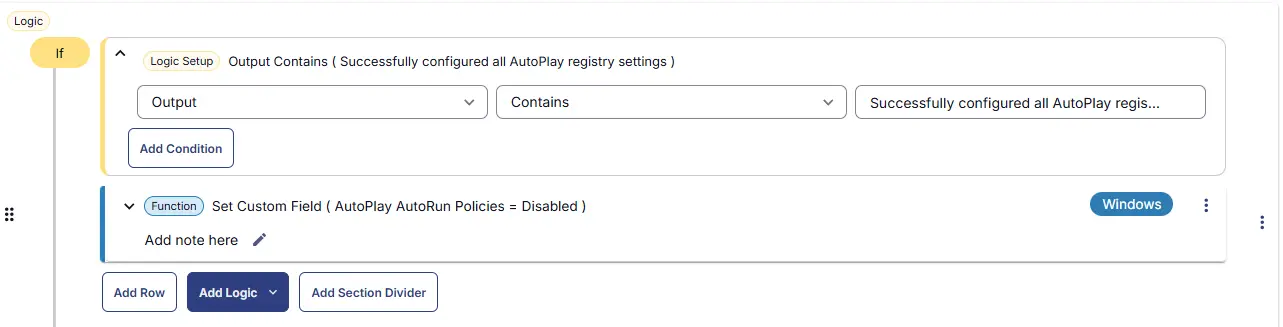
Row 3b Function: Set Custom Field
Add a new row by clicking on the Add Row button. Set Custom Field AutoPlay AutoRun Policies to Disabled.
Save Task
Click the Save button at the top-right corner of the screen to save the script.
Completed Task
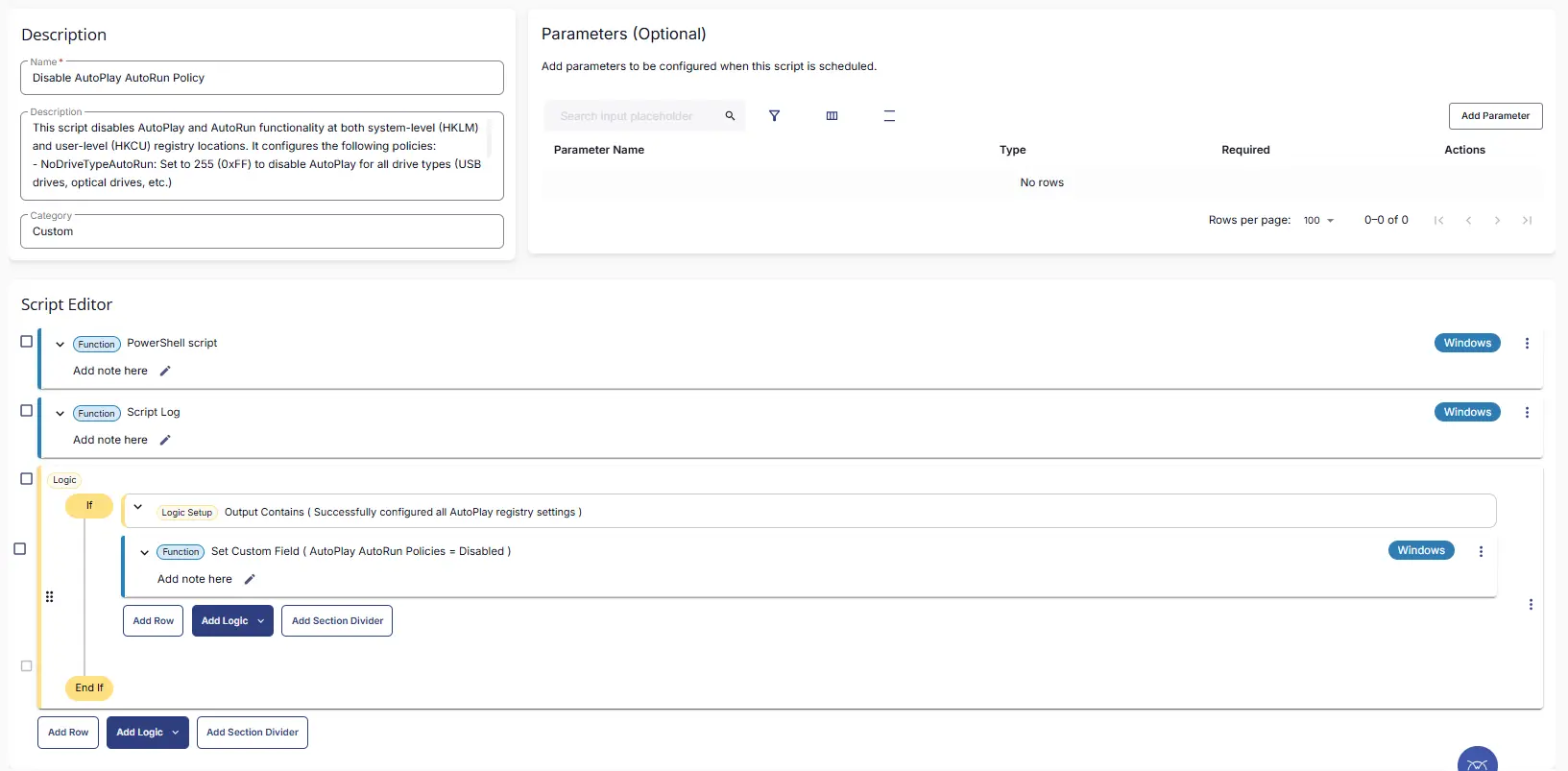
Deployment
This task has to be scheduled on the Disable AutoPlay AutoRun Policy group for auto deployment. The script can also be run manually if required.
- Go to
Automation>Tasks. - Search for
Disable AutoPlay AutoRun Policy. - Then click on Schedule and provide the parameters detail as necessary for scheduling.
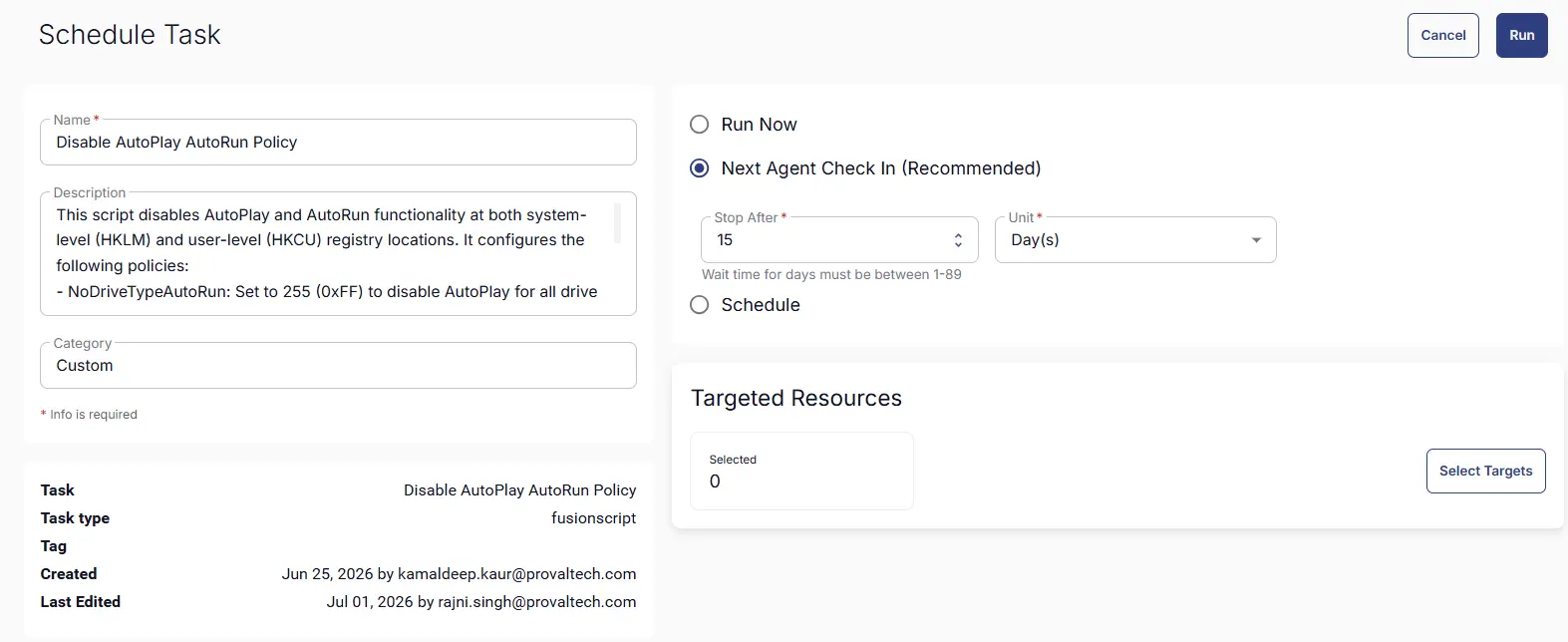
Output
- Custom Field
- Script output
Changelog
2026-07-01
- Initial version of the document