Windows 11 Installer
Summary
Designed to upgrade Windows systems to the latest version. It can be used to:
- Upgrade Windows 10 to Windows 11
- Install Windows 11 feature updates (e.g., 21H2 → 22H2 → 23H2 → 24H2)
Supports multiple source types including HTTP/HTTPS URLs, local files, and network shares (UNC paths).
Notes:
• The Version and Uri parameters should not be used simultaneously. If both are provided, Version will override Uri.
• If no parameters are supplied, the machine will be upgraded to 24H2 by default.
Sample Run
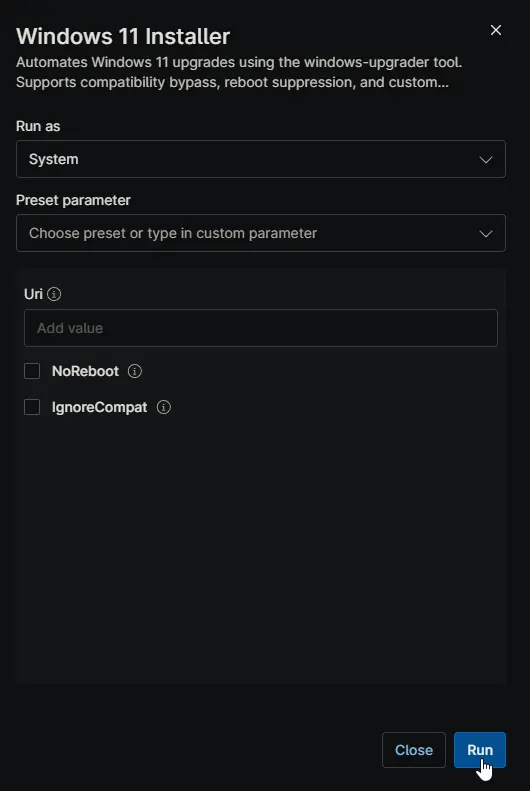
Scenario 1: Default Execution (No Variables Set)
Running the script without configuring any variables.
-
Variables: None
-
Behavior: The script defaults to installing Windows 11 24H2 from the internal repository. It performs standard hardware compatibility checks (TPM/Secure Boot) and automatically reboots the machine upon successful completion.
Scenario 2: Using a Custom Source (Network Share or URL)
Deploying a custom image or saving bandwidth by using a download url.
-
Variables:
-
Uri=https://FileServer/Share/Windows11_25H2.zip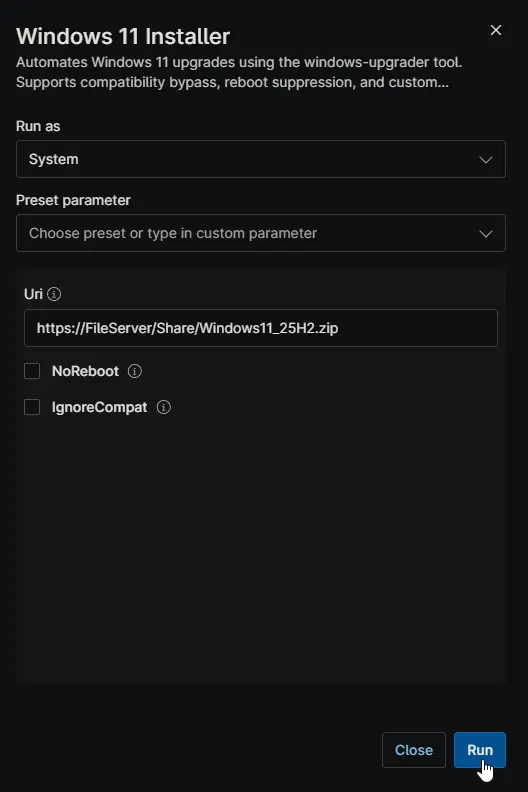
-
Behavior: Mounts the Zip from the specified download url and performs the upgrade.
Scenario 3: Using a Custom Source (Network Share or URL)
Deploying a custom image or saving bandwidth by using a local file server.
-
Variables:
-
Uri=\\FileServer\Share\Windows11_24H2.iso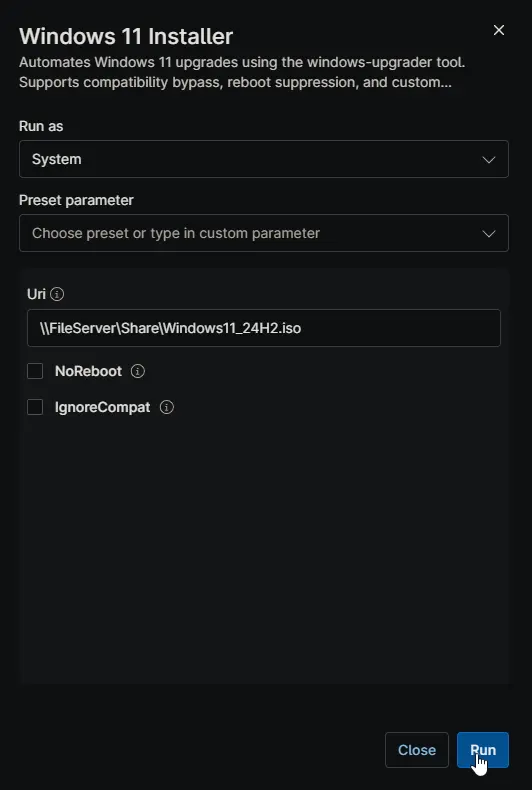
-
Behavior: Mounts the ISO from the specified network share and performs the upgrade.
Scenario 4: Unsupported Hardware with Reboot Suppression
Forcing an upgrade on a device that lacks TPM 2.0 or a supported CPU, while preventing an immediate restart.
-
Variables:
-
IgnoreCompat=true -
NoReboot=true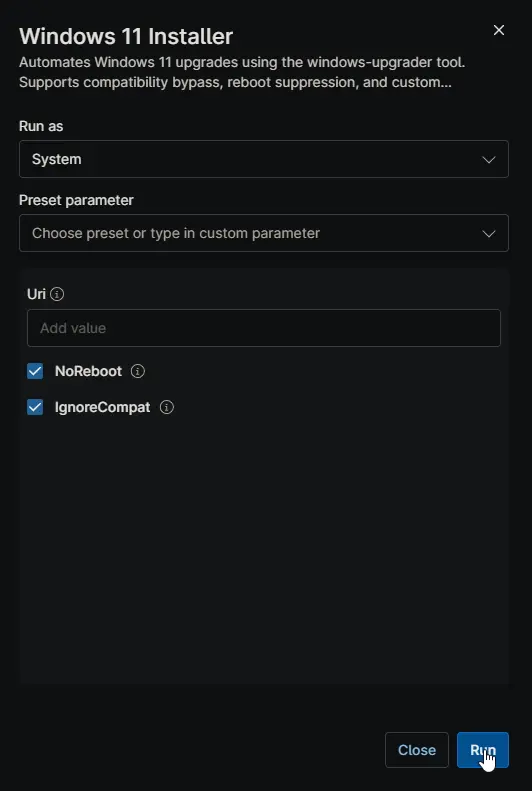
-
Behavior: Installs Windows 11 24H2. The script bypasses the official hardware requirements (TPM, CPU, RAM checks) and suppresses the automatic reboot. The device will remain in the upgraded state pending a manual restart.
Dependencies
Parameters
Here is the completed parameters table based on the script logic and NinjaRMM configuration.
| Name | Example | Accepted Values | Required | Default | Type | Description |
|---|---|---|---|---|---|---|
| Uri | \\Server\Share\Win11.iso | URL (HTTP/S), UNC Path, Local Path | False | Null | String | Custom source location for the Windows 11 payload (.iso or .zip). |
| NoReboot | true | true, false | False | false | Checkbox | If enabled, prevents the system from automatically rebooting after a successful upgrade. |
| IgnoreCompat | true | true, false | False | false | Checkbox | If enabled, bypasses official Windows 11 hardware compatibility checks (TPM, Secure Boot, CPU). |
Automation Setup/Import
Output
- Activity Details
FAQs
Q: Will the machine reboot automatically after the installation?
A: Yes, by default, the script will reboot the machine immediately once the upgrade process is complete. If you wish to suppress this behavior, you must enable the NoReboot option.
Warning: Since this is a major operating system upgrade, Windows Setup may occasionally override the suppression flag and force a reboot to complete critical phases. We strongly recommend running this script during after-hours or maintenance windows to avoid unexpected disruption to production environments.
Q: Can I use this script on hardware that does not meet Windows 11 requirements (e.g., TPM 2.0 or CPU)?
A: Technically, yes, but we do not recommend it. While the IgnoreCompat option allows the tool to bypass official checks (CPU, TPM, Secure Boot), running Windows 11 on unsupported hardware may lead to stability issues or missing future updates. We strongly recommend upgrading the physical hardware to a compatible device instead of forcing the upgrade.
Q: Why did the script fail immediately on a laptop?
A: The script includes a safety check that prevents execution if the device is running on battery power. This is to ensure the device does not power off in the middle of a critical OS upgrade. Please ensure the laptop is plugged into AC power and retry.
Q: Does this script support Windows 10 Enterprise LTSC or LTSB?
A: No. The tool is designed for standard Windows editions (Home, Pro, Enterprise). It will detect LTSC/LTSB editions and abort the process to prevent system instability.
Q: What does the "System Reserved Partition" error mean?
A: The Windows upgrade process requires at least 15MB of free space on the System Reserved Partition (SRP).
- On GPT disks: The script attempts to automatically clear font caches to free up space.
- On MBR disks: The script will fail and exit safely because automated cleanup is risky on MBR. You will need to free up space on that partition manually before retrying.
Changelog
2026-03-12
- Removed the
Versionparameter due to reliability issues with the 25H2 installation method. - The script now supports
24H2installations exclusively; if a customUriis provided, the script will attempt to install from that source.
2026-01-22
- Initial version of the document