CPU Threshold Violation Monitoring Configuration Writer
Summary
The CPU Threshold Violation Monitoring Configuration Writer is a preparation task that builds the local monitoring configuration consumed by the CPU Threshold Violation Monitoring monitor set(s). It does not perform any monitoring itself. Instead, it reads the threshold values you define in ConnectWise RMM custom fields — together with the ConnectWise ticketing webhook URL — and writes a simple JSON file that the deployed monitor set reads every time it runs. Two monitor‑set variants share this file: the original CPU Threshold Violation Monitoring set, which uses the monitor's built‑in ticketing, and the optional CPU Threshold Violation Monitoring [Workflow] set, which delegates ticketing to the ConnectWise workflow. The webhook URL written into the file is consumed only by the [Workflow] variant; the original set ignores it.
How it works
-
Custom Fields Evaluation
The script reads the CPU monitoring thresholds from custom fields at the Company, Site, and Endpoint levels. It follows a strict priority order: Endpoint → Site → Company. If a value is set at the Endpoint level, that value is used. If not, the Site level is checked, then the Company level. If no value is set at any level, a sensible default is applied. In the same pass it also reads the company-level Ticket_Mgmt_Webhook_Url field, which holds the webhook URL of the CWRMM ticketing workflow. Unlike the threshold fields, this URL is read at the Company level only — there is no Site/Endpoint override and no_Svr/_Wksserver/workstation split — because it represents a single, global webhook endpoint shared by every device. The value is stored purely so the [Workflow] monitor‑set variant can reach the workflow; the original monitor set never reads it. -
Server & Workstation Separation
The script automatically detects whether the endpoint is a Windows Server or Workstation and applies the correct set of Company/Site fields (_Svror_Wkssuffix) for the thresholds. (The webhook URL is unaffected by this detection — it is the same company-level value on both.) This allows you to set different thresholds for servers and workstations without duplicating scripts. -
Configuration File Generation
Once the final values are resolved, the script writes a JSON configuration file to the endpoint:C:\ProgramData\_Automation\Script\Test-CPUUsage\Test-CPUUsage.jsonThe file contains:
- HighThreshold – CPU percentage that, once exceeded, starts the timer.
- LowThreshold – CPU percentage that resets the timer if usage drops below it.
- UsageMins – the number of minutes the CPU must stay above the low threshold (after the initial spike above the high threshold) before an alert is triggered.
- TicketWebhookUrl – the ConnectWise ticketing webhook URL resolved from
Ticket_Mgmt_Webhook_Url, written verbatim so the CPU Threshold Violation Monitoring [Workflow] monitor set can POSTCreate/Close/Commentpayloads to the workflow. The original monitor set ignores this key. If the company field is empty or its RMM token fails to resolve, a hard-coded placeholder (https://webhook.myconnectwise.net/REPLACE_WITH_YOUR_DEFAULT_WEBHOOK_URL) is written instead.
In the samples below,
https://webhook.myconnectwise.net/...is documentation shorthand for the real instance URL you paste into the company field; the script writes whatever string is stored there verbatim, with no validation of the URL itself.
Sample Scenario 1: Using Default Values
No threshold custom fields are configured at any level. The script runs on a server and uses the built‑in defaults for servers: High = 95, Low = 90, Minutes = 30. The company-level Ticket_Mgmt_Webhook_Url field is assumed to be set, because it is a mandatory prerequisite for the [Workflow] monitor‑set variant (see the Custom Fields notes).
The resulting configuration file would be:
{
    "HighThreshold": 95,
    "LowThreshold": 90,
    "UsageMins": 30,
    "TicketWebhookUrl": "https://webhook.myconnectwise.net/..."
}
Sample Scenario 2: Using Custom Field Overrides
An administrator wants a tighter threshold for a critical finance server. At the Endpoint level, they set:
CTVM_HighThreshold=98CTVM_LowThreshold=90CTVM_UsageMins=15
The script runs and, because the Endpoint fields take priority over any Company or Site fields, the threshold values are overridden, but TicketWebhookUrl is unaffected — it always reflects the single company-level field, never the per-level overrides, and is consumed only by the [Workflow] monitor‑set variant. The configuration file becomes:
{
    "HighThreshold": 98,
    "LowThreshold": 90,
    "UsageMins": 15,
    "TicketWebhookUrl": "https://webhook.myconnectwise.net/..."
}
On all other servers where no Endpoint-level fields are set, the script falls back to the Company or default values.
Ticketing & Alerting Behavior
- The deployed monitor set reads the configuration file and periodically checks the CPU usage. Which set is deployed is a per‑partner choice — only one of the two should be active for a given device.
- An alert is triggered only when the CPU first exceeds the high threshold and then continues to stay above the low threshold for the number of minutes specified in
UsageMins. When the CPU drops below the low threshold, the condition clears. - Original CPU Threshold Violation Monitoring set: generates alerts and tickets using the monitor's built‑in ticketing. It reads only the thresholds from the config file and ignores
TicketWebhookUrl. It raises one ticket per incident and auto‑resolves it on recovery via the monitor set's automatic resolution rule, but the ticket subject/body are monitor‑generated (not customizable) and a comment is appended on every detection while the alert persists. For this variant the webhook URL is irrelevant and the company field may be left blank. - Optional CPU Threshold Violation Monitoring [Workflow] set: evaluates CPU usage the same way, but instead of the built‑in ticketing it reads
TicketWebhookUrlfrom the config file and POSTsCreate/Close/Commentpayloads to the CWRMM ticketing workflow. The monitor script fires aClosepayload when the condition clears, so the workflow auto‑closes the ticket on recovery — overcoming the manual‑close limitation of the built‑in path — while also producing clean tickets with no comment spam. This is the only variant for which the webhook URL is required. - The configuration writer itself never contacts the webhook; it only stores the URL for the [Workflow] monitor set to use.
- The configuration file is updated once per day (or manually) by this task, so any changes to custom fields — including the webhook URL — take effect on the next scheduled run.
Sample Run
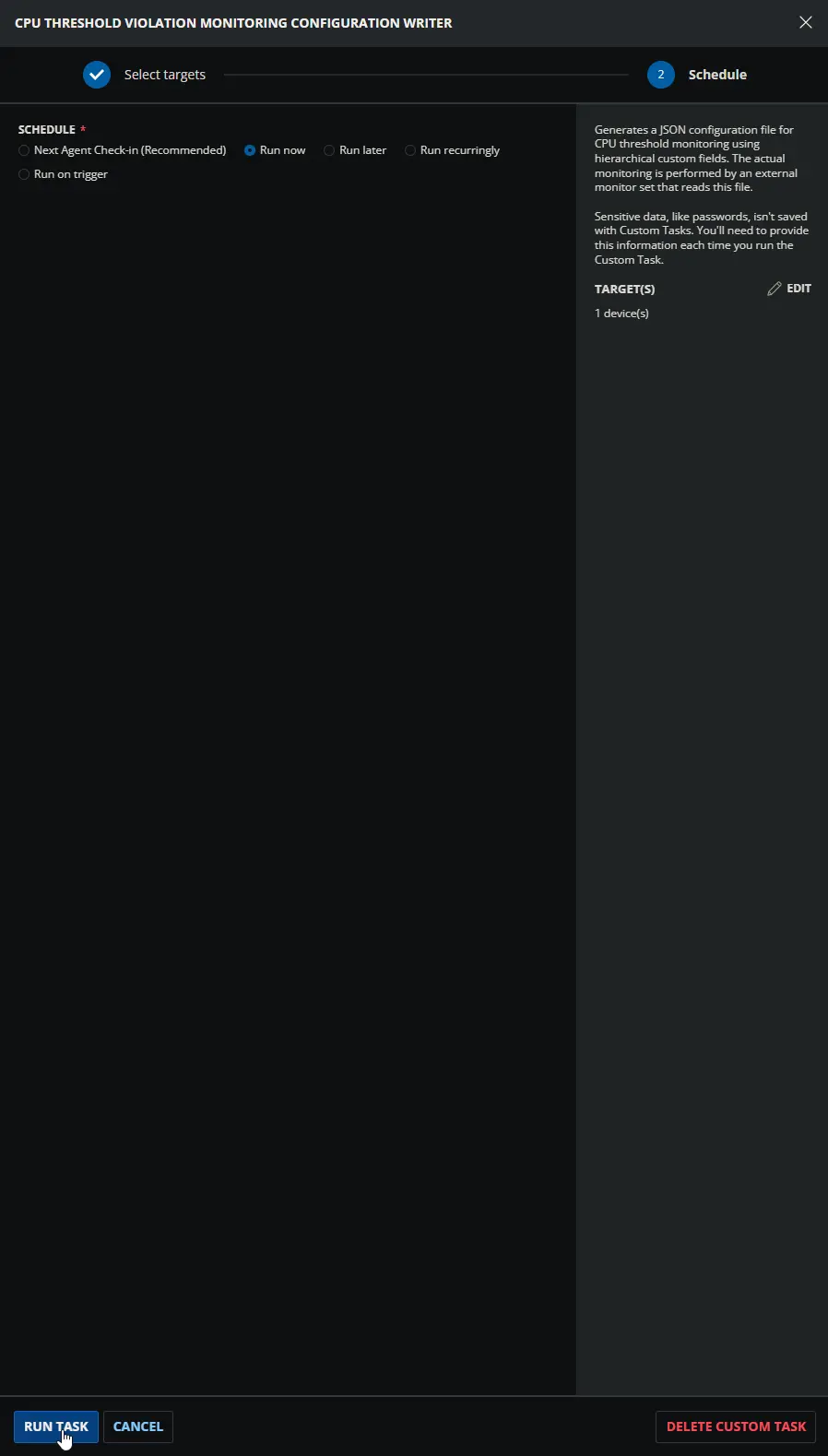
Dependencies
- Custom Field: Ticket_Mgmt_Webhook_Url
- Custom Field: CTVM_Enable
- Custom Field: CTVM_Enable_Svr
- Custom Field: CTVM_Enable_Svr_Site
- Custom Field: CTVM_Enable_Wks
- Custom Field: CTVM_Enable_Wks_Site
- Custom Field: CTVM_HighThreshold
- Custom Field: CTVM_HighThreshold_Svr
- Custom Field: CTVM_HighThreshold_Svr_Site
- Custom Field: CTVM_HighThreshold_Wks
- Custom Field: CTVM_HighThreshold_Wks_Site
- Custom Field: CTVM_LowThreshold
- Custom Field: CTVM_LowThreshold_Svr
- Custom Field: CTVM_LowThreshold_Svr_Site
- Custom Field: CTVM_LowThreshold_Wks
- Custom Field: CTVM_LowThreshold_Wks_Site
- Custom Field: CTVM_UsageMins
- Custom Field: CTVM_UsageMins_Svr
- Custom Field: CTVM_UsageMins_Svr_Site
- Custom Field: CTVM_UsageMins_Wks
- Custom Field: CTVM_UsageMins_Wks_Site
- Group: CPU Threshold Violation Monitoring
- Triggers: CWRMM Ticket Management for Monitors
- Workflow: CWRMM Ticket Management for Monitors
- Solution: CPU Threshold Violation Monitoring
Custom Fields
The following table lists all custom fields used by the to determine the CPU monitoring thresholds. The Enable fields are not listed here; they are used exclusively by the automation group to decide whether the script runs at all.
| Name | Example | Level | Type | Default Value | Description |
|---|---|---|---|---|---|
| CTVM_HighThreshold_Svr | 95, 98 | Company | Text Box | 95 | Defines Company baseline high CPU % for servers. This value starts the timer when exceeded. Overridden by Site or Endpoint. |
| CTVM_HighThreshold_Wks | 90, 98 | Company | Text Box | 90 | Defines Company baseline high CPU % for workstations. This value starts the timer when exceeded. Overridden by Site or Endpoint. |
| CTVM_HighThreshold_Svr_Site | 95, 99 | Site | Text Box | – | Site‑level override for servers. Overrides Company; overridden by Endpoint. |
| CTVM_HighThreshold_Wks_Site | 90, 92 | Site | Text Box | – | Site‑level override for workstations. Overrides Company; overridden by Endpoint. |
| CTVM_HighThreshold | 98, 88 | Endpoint | Text Box | – | Endpoint‑level high CPU %. Overrides all higher levels (applies to both OS types). |
| CTVM_LowThreshold_Svr | 90, 85 | Company | Text Box | 90 | Defines Company baseline low CPU % for servers. If usage drops below this, the timer resets. Overridden by Site or Endpoint. |
| CTVM_LowThreshold_Wks | 85, 80 | Company | Text Box | 85 | Defines Company baseline low CPU % for workstations. If usage drops below this, the timer resets. Overridden by Site or Endpoint. |
| CTVM_LowThreshold_Svr_Site | 80, 75 | Site | Text Box | – | Site‑level override for servers. Overrides Company; overridden by Endpoint. |
| CTVM_LowThreshold_Wks_Site | 80, 70 | Site | Text Box | – | Site‑level override for workstations. Overrides Company; overridden by Endpoint. |
| CTVM_LowThreshold | 85, 75 | Endpoint | Text Box | – | Endpoint‑level low CPU %. Overrides all higher levels (applies to both OS types). |
| CTVM_UsageMins_Svr | 30, 15 | Company | Text Box | 30 | Defines Company baseline for servers: minutes CPU must stay above low threshold after initially exceeding the high threshold before an alert fires. Overridden by Site or Endpoint. |
| CTVM_UsageMins_Wks | 30, 20 | Company | Text Box | 30 | Defines Company baseline for workstations: minutes CPU must stay above low threshold after initially exceeding the high threshold before an alert fires. Overridden by Site or Endpoint. |
| CTVM_UsageMins_Svr_Site | 15, 10 | Site | Text Box | – | Site‑level override for servers. Overrides Company; overridden by Endpoint. |
| CTVM_UsageMins_Wks_Site | 20, 10 | Site | Text Box | – | Site‑level override for workstations. Overrides Company; overridden by Endpoint. |
| CTVM_UsageMins | 5, 10 | Endpoint | Text Box | – | Endpoint‑level sustained minutes. Overrides all higher levels (applies to both OS types). |
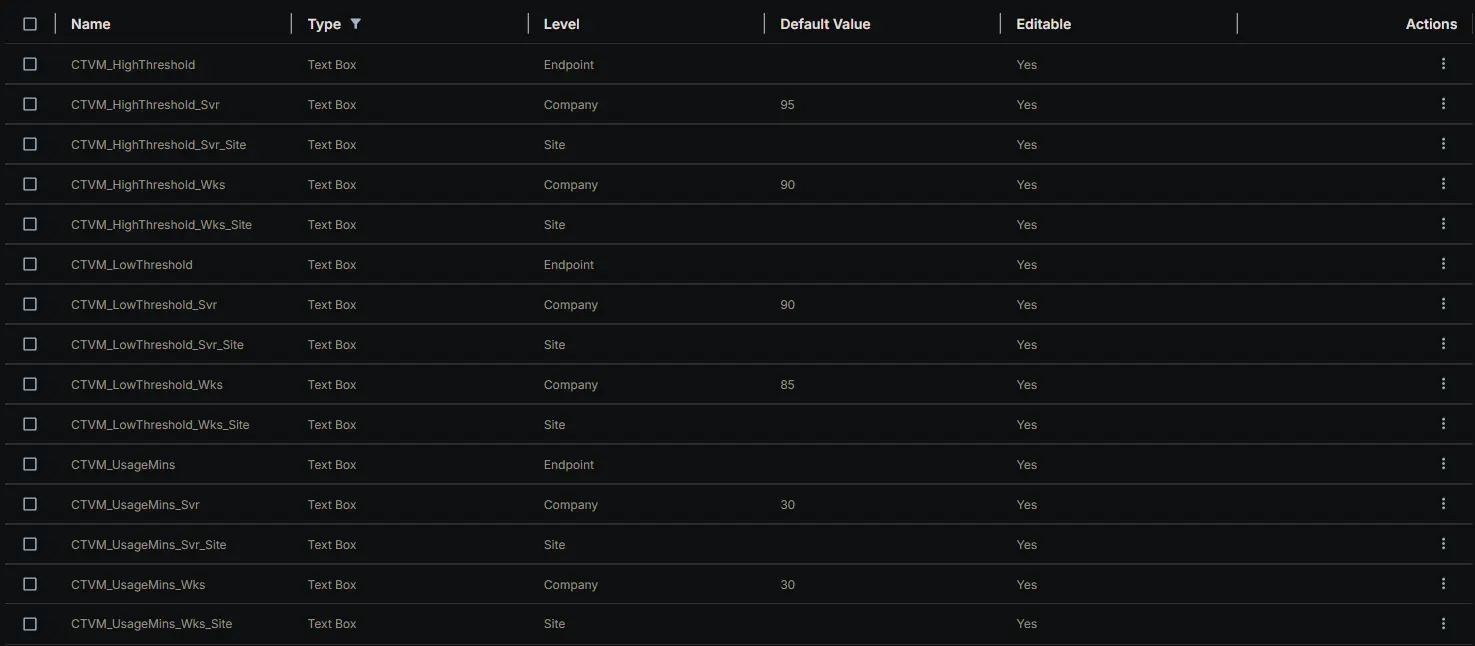
In addition to the threshold fields listed above, this task also reads the following company-level field and embeds its value into the configuration file as TicketWebhookUrl:
| Name | Example | Level | Type | Default Value | Description |
|---|---|---|---|---|---|
| Ticket_Mgmt_Webhook_Url | https://webhook.<rmm-domain>/<instance-id> | Company | Text Box | https://webhook.myconnectwise.net/... | Company-level webhook URL of the CWRMM ticketing workflow; written into the config JSON as TicketWebhookUrl. Read at the Company level only and consumed only by the CPU Threshold Violation Monitoring [Workflow] monitor set — see notes below. Name must match exactly. |
Only required for the [Workflow] monitor-set variant:
TicketWebhookUrl exists in the config file for the benefit of the optional CPU Threshold Violation Monitoring [Workflow] monitor set, which is the only component that reads it. If a partner deploys the original CPU Threshold Violation Monitoring set (built-in ticketing) instead, this field is unused end-to-end — the original monitor set ignores the key, so the company field may be left blank and the silent-failure consequence described below does not apply. The mandatory-prerequisite and silent-failure warnings that follow therefore apply only when the [Workflow] monitor set is in use.
Company-level only — no hierarchical override and no server/workstation split:
Unlike every CTVM_* threshold field above, Ticket_Mgmt_Webhook_Url exists only at the Company level and has no _Svr / _Wks variants. The script reads it once (Row 16) and the OS-detection block does not touch it, so servers and workstations — and every Site and Endpoint — share the exact same webhook URL. This is intentional: the URL points to a single, environment-wide webhook instance, not to a per-device or per-class value.
Mandatory prerequisite for the [Workflow] variant — silent-failure risk if left blank:
When the [Workflow] monitor set is deployed, the value written to TicketWebhookUrl must be the real workflow URL — whatever string is stored as the field's Default Value, copied verbatim from the workflow's trigger webhook instance. The https://webhook.myconnectwise.net/... shown in the table is only a placeholder / example and must be replaced with the real URL during workflow setup. If the field is empty, missing, or its RMM token fails to resolve, the script does not error out — Row 16 is configured with Continue on Failure = True — it silently writes the hard-coded fallback https://webhook.myconnectwise.net/REPLACE_WITH_YOUR_DEFAULT_WEBHOOK_URL into the JSON instead. The configuration task will still report success, but the [Workflow] monitor set will then have no valid endpoint to POST to, and ticket creation/closure will silently fail for every device. After saving the field, always confirm the URL stored in the company field is a character-for-character match of the URL shown in the workflow's trigger instance, then re-run this task (or wait for the next daily run) so the new URL is written into the config file.
No URL validation is performed:
This task only stores the string; it does not check that the URL is reachable or well-formed. Connectivity, authentication, and payload handling are the responsibility of the [Workflow] monitor set and the workflow on the receiving end.
Task Setup Path
- Tasks Path:
AUTOMATION➞Tasks - Task Type:
Script Editor
Task Creation
Description
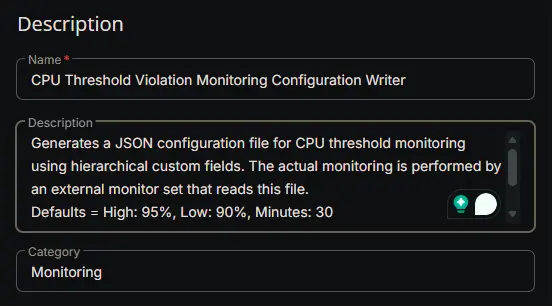
- Name:
CPU Threshold Violation Monitoring Configuration Writer - Description:
Generates a JSON configuration file for CPU threshold monitoring using hierarchical custom fields. The actual monitoring is performed by an external monitor set that reads this file.
Defaults = High: 95%, Low: 90%, Minutes: 30
Output File = %ProgramData%\_Automation\Script\Test-CPUUsage\Test-CPUUsage.json
- Category:
Monitoring
Script Editor
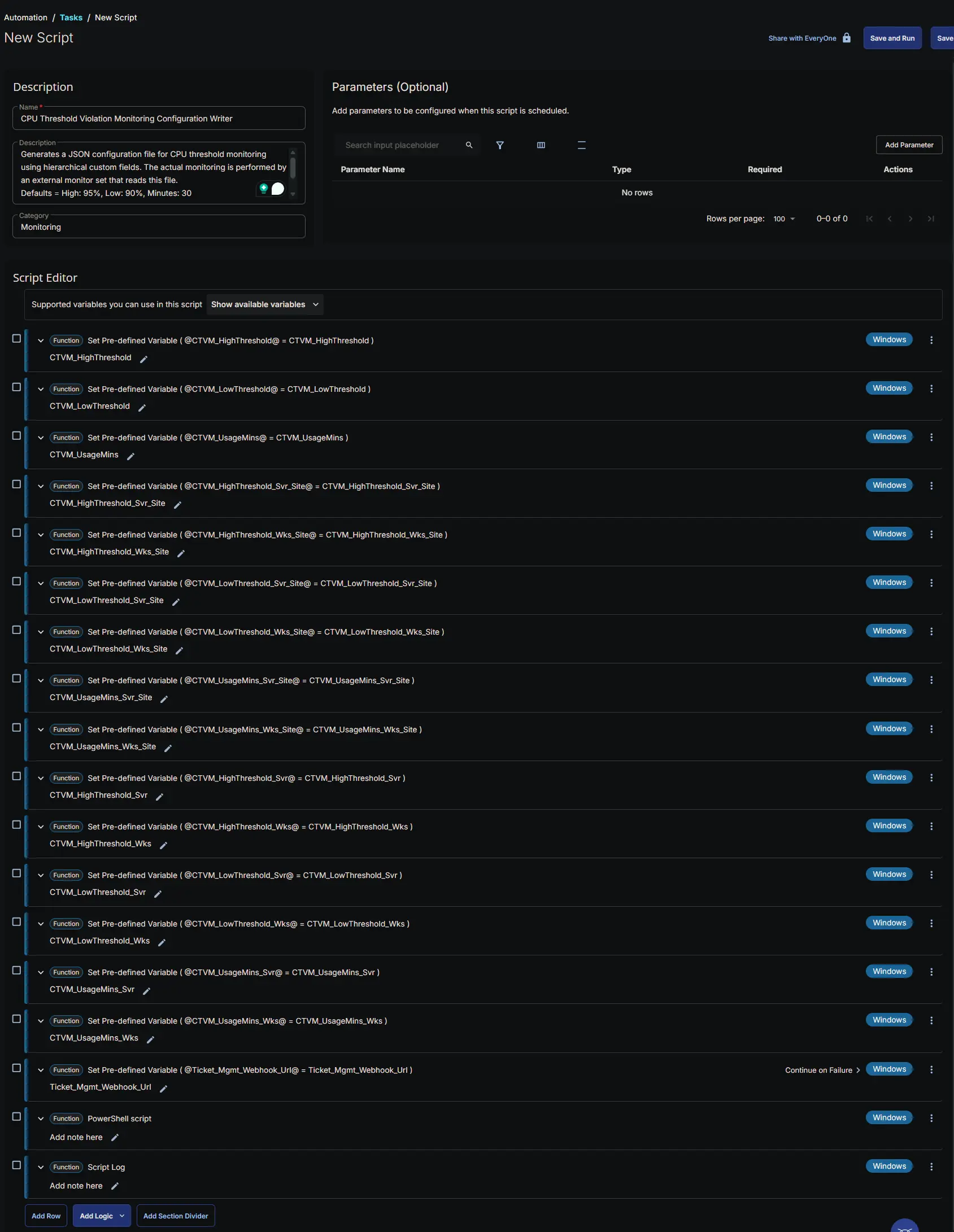
Row 1 Function: Set Pre-defined Variable ( @CTVM_HighThreshold@ = CTVM_HighThreshold )
- Notes:
CTVM_HighThreshold - Continue on Failure:
False - Operating System:
Windows - Variable Name:
CTVM_HighThreshold - Custom Field:
CTVM_HighThreshold (STRING - ENDPOINT)

Row 2 Function: Set Pre-defined Variable ( @CTVM_LowThreshold@ = CTVM_LowThreshold )
- Notes:
CTVM_LowThreshold - Continue on Failure:
False - Operating System:
Windows - Variable Name:
CTVM_LowThreshold - Custom Field:
CTVM_LowThreshold (STRING - ENDPOINT)

Row 3 Function: Set Pre-defined Variable ( @CTVM_UsageMins@ = CTVM_UsageMins )
- Notes:
CTVM_UsageMins - Continue on Failure:
False - Operating System:
Windows - Variable Name:
CTVM_UsageMins - Custom Field:
CTVM_UsageMins (STRING - ENDPOINT)

Row 4 Function: Set Pre-defined Variable ( @CTVM_HighThreshold_Svr_Site@ = CTVM_HighThreshold_Svr_Site )
- Notes:
CTVM_HighThreshold_Svr_Site - Continue on Failure:
False - Operating System:
Windows - Variable Name:
CTVM_HighThreshold_Svr_Site - Custom Field:
CTVM_HighThreshold_Svr_Site (STRING - SITE)

Row 5 Function: Set Pre-defined Variable ( @CTVM_HighThreshold_Wks_Site@ = CTVM_HighThreshold_Wks_Site )
- Notes:
CTVM_HighThreshold_Wks_Site - Continue on Failure:
False - Operating System:
Windows - Variable Name:
CTVM_HighThreshold_Wks_Site - Custom Field:
CTVM_HighThreshold_Wks_Site (STRING - SITE)

Row 6 Function: Set Pre-defined Variable ( @CTVM_LowThreshold_Svr_Site@ = CTVM_LowThreshold_Svr_Site )
- Notes:
CTVM_LowThreshold_Svr_Site - Continue on Failure:
False - Operating System:
Windows - Variable Name:
CTVM_LowThreshold_Svr_Site - Custom Field:
CTVM_LowThreshold_Svr_Site (STRING - SITE)

Row 7 Function: Set Pre-defined Variable ( @CTVM_LowThreshold_Wks_Site@ = CTVM_LowThreshold_Wks_Site )
- Notes:
CTVM_LowThreshold_Wks_Site - Continue on Failure:
False - Operating System:
Windows - Variable Name:
CTVM_LowThreshold_Wks_Site - Custom Field:
CTVM_LowThreshold_Wks_Site (STRING - SITE)

Row 8 Function: Set Pre-defined Variable ( @CTVM_UsageMins_Svr_Site@ = CTVM_UsageMins_Svr_Site )
- Notes:
CTVM_UsageMins_Svr_Site - Continue on Failure:
False - Operating System:
Windows - Variable Name:
CTVM_UsageMins_Svr_Site - Custom Field:
CTVM_UsageMins_Svr_Site (STRING - SITE)

Row 9 Function: Set Pre-defined Variable ( @CTVM_UsageMins_Wks_Site@ = CTVM_UsageMins_Wks_Site )
- Notes:
CTVM_UsageMins_Wks_Site - Continue on Failure:
False - Operating System:
Windows - Variable Name:
CTVM_UsageMins_Wks_Site - Custom Field:
CTVM_UsageMins_Wks_Site (STRING - SITE)

Row 10 Function: Set Pre-defined Variable ( @CTVM_HighThreshold_Svr@ = CTVM_HighThreshold_Svr )
- Notes:
CTVM_HighThreshold_Svr - Continue on Failure:
False - Operating System:
Windows - Variable Name:
CTVM_HighThreshold_Svr - Custom Field:
CTVM_HighThreshold_Svr (STRING - COMPANY)

Row 11 Function: Set Pre-defined Variable ( @CTVM_HighThreshold_Wks@ = CTVM_HighThreshold_Wks )
- Notes:
CTVM_HighThreshold_Wks - Continue on Failure:
False - Operating System:
Windows - Variable Name:
CTVM_HighThreshold_Wks - Custom Field:
CTVM_HighThreshold_Wks (STRING - COMPANY)

Row 12 Function: Set Pre-defined Variable ( @CTVM_LowThreshold_Svr@ = CTVM_LowThreshold_Svr )
- Notes:
CTVM_LowThreshold_Svr - Continue on Failure:
False - Operating System:
Windows - Variable Name:
CTVM_LowThreshold_Svr - Custom Field:
CTVM_LowThreshold_Svr (STRING - COMPANY)

Row 13 Function: Set Pre-defined Variable ( @CTVM_LowThreshold_Wks@ = CTVM_LowThreshold_Wks )
- Notes:
CTVM_LowThreshold_Wks - Continue on Failure:
False - Operating System:
Windows - Variable Name:
CTVM_LowThreshold_Wks - Custom Field:
CTVM_LowThreshold_Wks (STRING - COMPANY)

Row 14 Function: Set Pre-defined Variable ( @CTVM_UsageMins_Svr@ = CTVM_UsageMins_Svr )
- Notes:
CTVM_UsageMins_Svr - Continue on Failure:
False - Operating System:
Windows - Variable Name:
CTVM_UsageMins_Svr - Custom Field:
CTVM_UsageMins_Svr (STRING - COMPANY)

Row 15 Function: Set Pre-defined Variable ( @CTVM_UsageMins_Wks@ = CTVM_UsageMins_Wks )
- Notes:
CTVM_UsageMins_Wks - Continue on Failure:
False - Operating System:
Windows - Variable Name:
CTVM_UsageMins_Wks - Custom Field:
CTVM_UsageMins_Wks (STRING - COMPANY)

Row 16 Function: Set Pre-defined Variable ( @Ticket_Mgmt_Webhook_Url@ = Ticket_Mgmt_Webhook_Url )
- Notes:
Ticket_Mgmt_Webhook_Url - Continue on Failure:
True - Operating System:
Windows - Variable Name:
Ticket_Mgmt_Webhook_Url - Custom Field:
Ticket_Mgmt_Webhook_Url (STRING - COMPANY)

Row 17 Function: PowerShell script
- Notes:
<Leave it Blank> - Use Generative AI Assist for script creation:
False - Expected time of script execution in seconds:
300 - Continue on Failure:
False - Run As:
System - Operating System:
Windows - PowerShell Script Editor:
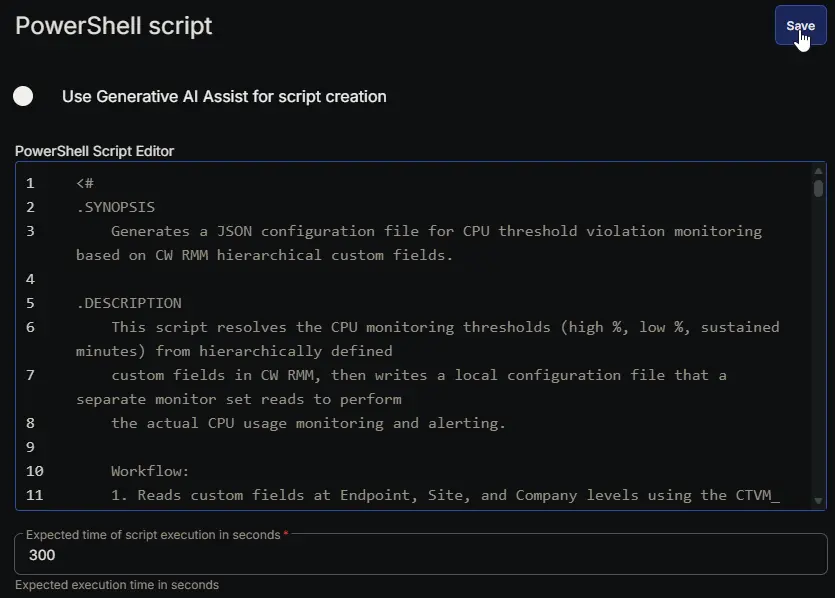
Row 18 Function: Script Log
- Notes:
<Leave it Blank> - Continue on Failure:
False - Operating System:
Windows - Script Log Message:
%Output%

Completed Script
Output
- Script Log
- JSON File at
C:\ProgramData\_Automation\Script\Test-CPUUsage\Test-CPUUsage.json
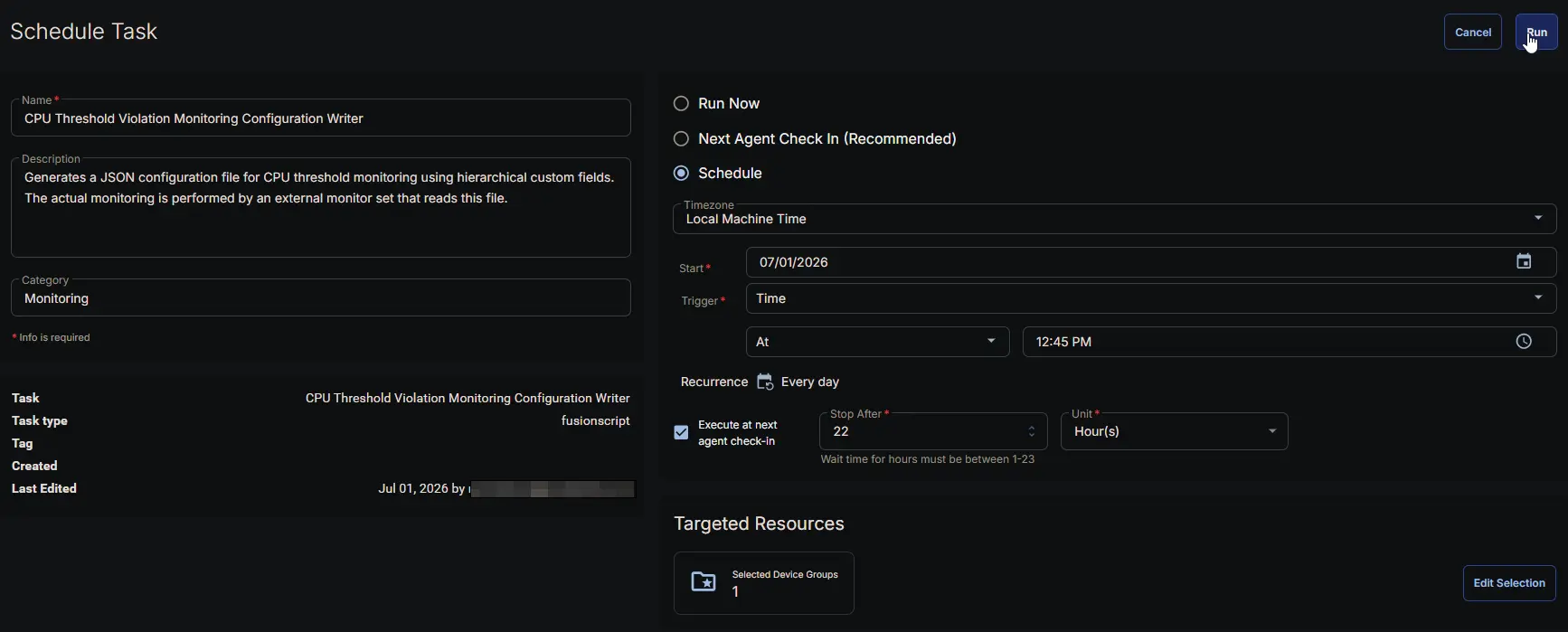
Schedule Task
Task Details
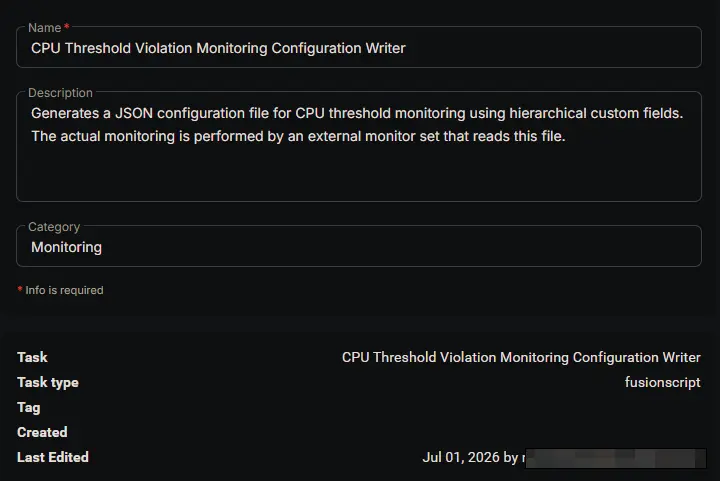
- Name:
CPU Threshold Violation Monitoring - Description:
Generates a JSON configuration file for CPU threshold monitoring using hierarchical custom fields. The actual monitoring is performed by an external monitor set that reads this file. - Category:
Monitoring
Schedule
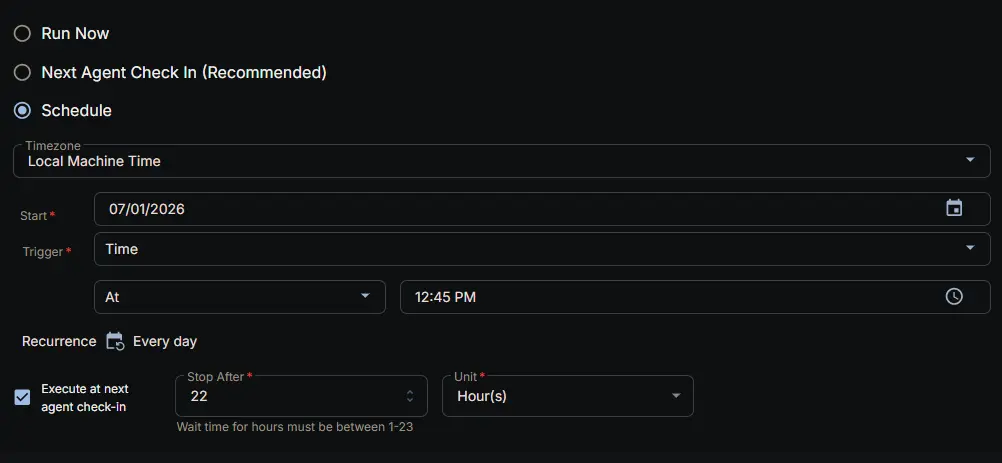
- Schedule Type:
Schedule - Timezone:
Local Machine Time - Start:
<Current Date> - Trigger:
TimeAt<Current Time> - Recurrence:
Every day - Execute at next agent check-in:
True - Stop After:
22 - Unit:
Hour(s)
Targeted Resource
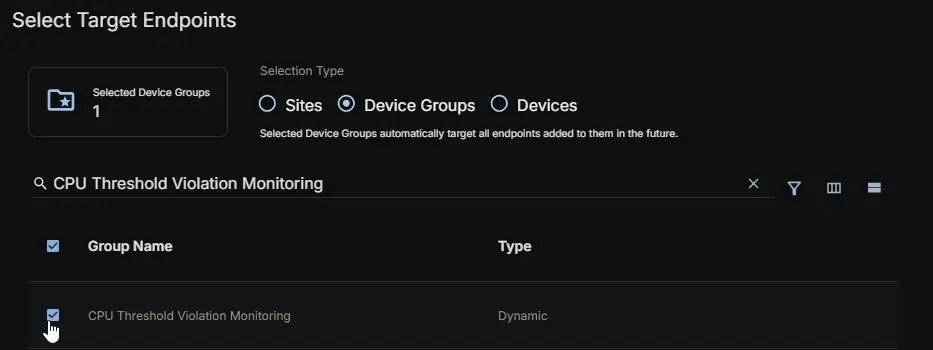
Device Group: CPU Threshold Violation Monitoring
Completed Scheduled Task
Changelog
2026-07-23
- Task Update: The task now reads the company-level
Ticket_Mgmt_Webhook_Urlcustom field and writes it into the configuration file asTicketWebhookUrl, enabling the optional[Workflow]monitor-set variant to trigger the ConnectWise ticketing workflow.
2026-07-03
- Initial version of the document