Manage Windows Update System Tray Icon
Summary
Shows or hides the Windows Update system tray icon on Windows 10 and Windows 11 endpoints.
On all supported Windows versions, the script sets the machine-level registry value TrayIconVisibility at HKLM:\SOFTWARE\Microsoft\WindowsUpdate\UX\Settings.
On Windows 11 version 24H2 (Build 26100) and newer, the system-level value no longer fully controls tray icon visibility. For these newer builds, the script additionally downloads the Strapper module and updates the user-level notification icon settings (IsPromoted) for each local user profile to ensure the icon is properly hidden or shown.
By default, if the ShowWindowsUpdateTrayIcon parameter is not set or disabled, the script will hide the Windows Update tray icon.
Sample Run

User Parameters
| Name | Example | Accepted Values | Required | Default | Type | Description |
|---|---|---|---|---|---|---|
| ShowWindowsUpdateTrayIcon | True | No | False | Flag | When enabled (True/1/Yes), the script shows the Windows Update tray icon. When disabled or left empty, the icon is hidden. |
Results by Device
| Device | Result |
|---|---|
| Windows 10 | Success. Machine-level registry updated. |
| Windows 11 (Older than 24H2) | Success. Machine-level registry updated. |
| Windows 11 24H2 or newer | Success. Machine-level and user-level registry updated for all local profiles. |
| Windows 8.1 or earlier | Failure. Unsupported OS. |
Task Setup Path
- Tasks Path:
AUTOMATION➞Tasks - Task Type:
Script Editor
Task Creation
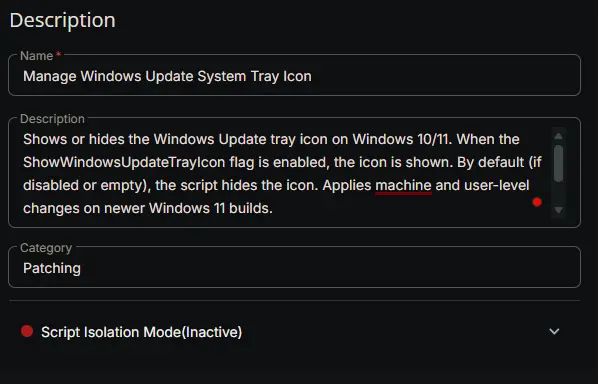
Description
-
Name:
Manage Windows Update System Tray Icon -
Description:
Shows or hides the Windows Update tray icon on Windows 10/11. When the ShowWindowsUpdateTrayIcon flag is enabled, the icon is shown. By default (if disabled or empty), the script hides the icon. Applies machine and user-level changes on newer Windows 11 builds.https://content.provaltech.com/docs/5b0fdce0-f4b2-4e08-9e7f-eb711738a7b2 -
Category:
Registry -
Script Isolation Mode:
Inactive
Parameters
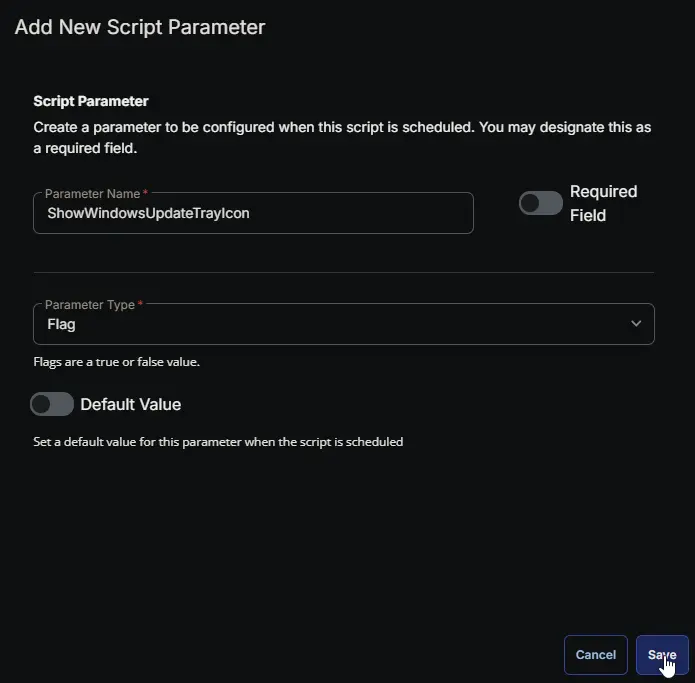
| Parameter Name | Required Field | Parameter Type | Default Value |
|---|---|---|---|
| ShowWindowsUpdateTrayIcon | Disabled | Flag | Disabled |
ShowWindowsUpdateTrayIcon:
Script Editor
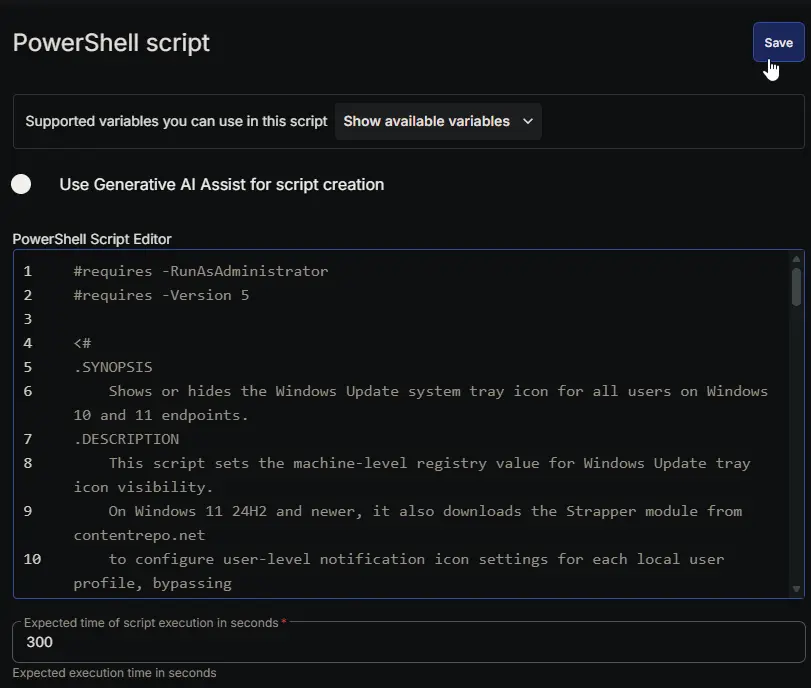
Row 1: PowerShell script
- Use Generative AI Assist for script creation:
False - Expected time of script execution in seconds:
300 - Continue on Failure:
False - Run As:
System - Operating System:
Windows - PowerShell Script Editor:
For detailed instructions on creating the task, see Workflow for Implementing Engineers.
Row 2: Script Log
- Script Log Message:
%Output% - Continue on Failure:
False - Operating System:
Windows

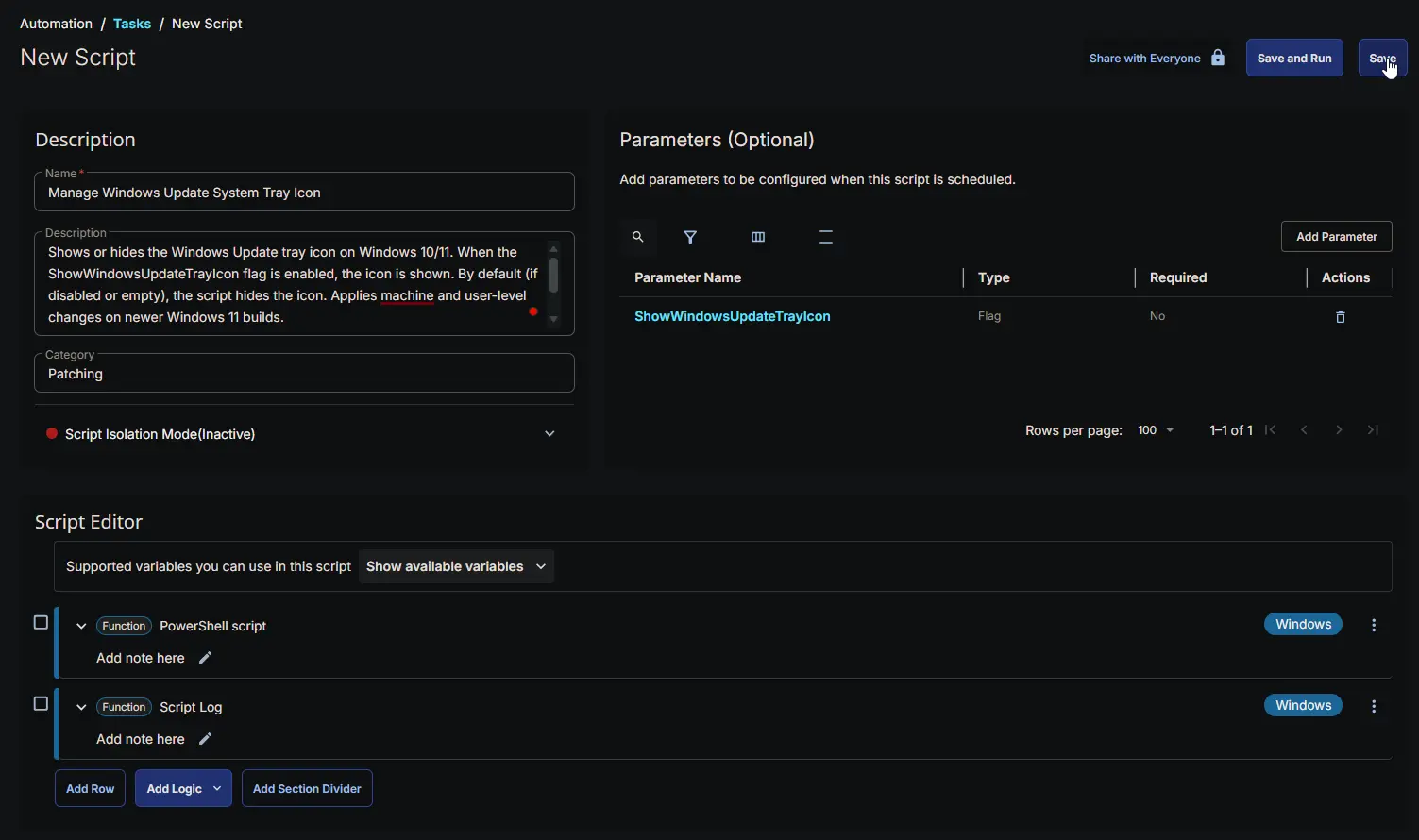
Completed Script
Output
- Script Log
Changelog
2026-10-22
- Initial version of the document.