Disable Defender vs Supported AV
Overview
This script will disable the defender if the supported AVs are found and running.
Sample Run
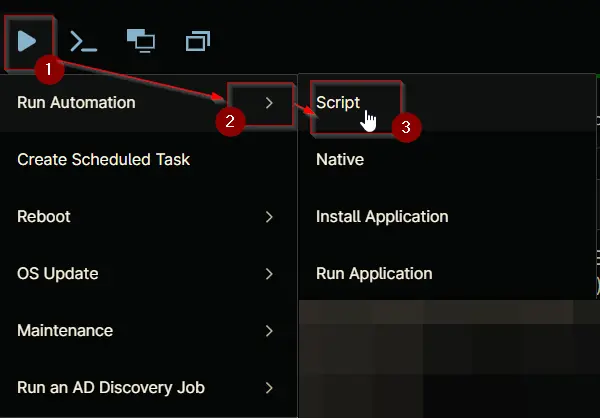
Play Button > Run Automation > Script
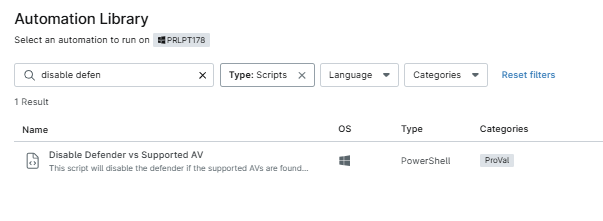
- Search for
disable defenderand selectDisable Defender vs Supported AVscript.
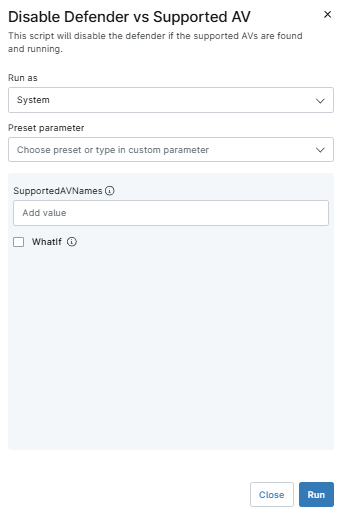
- If the
SupportedAVServicesvalue is defined from the Custom field - cPVAL Supported AV Services, and you want it to run the value from that, run the script without putting anything in the script variables.
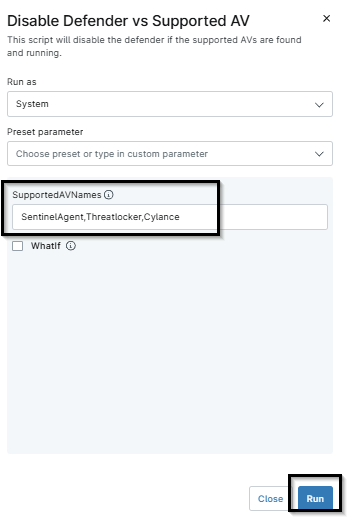
- If you want to run on demand, feel free to provide the script variable
SupportedAVNameswith the AV list to validate and stop Defender if the AV is found and running.
- If you want to just simulate the process of checking for AV and disabling Defender without making any changes, run with
WhatIfchecked
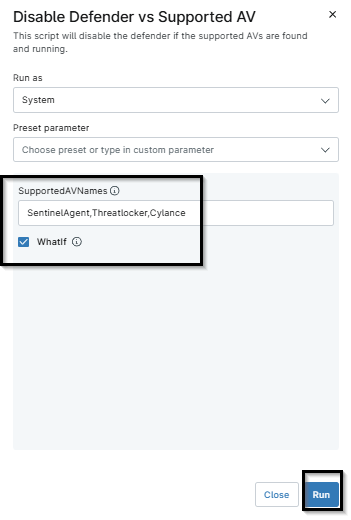
- After clicking on run by choosing any above method, the script will ask to confirm run again. Click
Run

Dependencies
Parameters
| Name | Example | Required | Default | Type | Description |
|---|---|---|---|---|---|
| SupportedAVNames | SentinelAgent,Cylance | False | String/Text | This accepts the AV names that need to be checked for running and active, and if found, then disables the defender. | |
| WhatIf | 1 or 0 | False | Checkbox | If this is checked, then the script will just simulate the process of checking for SentinelAgent and disabling Defender without making any changes. |
Automation Setup/Import
Output
- Activity Details
- Log file
Changelog
2026-06-17
- Initial version of the document