Invoke-OEMUpdateWithPrompt
Overview
Safely deploy OEM BIOS and firmware updates without interrupting user workflows. This script prompts end users to schedule or postpone updates, preventing unexpected restarts and data loss.
Designed for RMM platforms, it requires only a single deployment. The script automatically handles the prompt cycle, language localization (English/Dutch), and forced reboots via self-managing Windows Scheduled Tasks.
Need a device updated right away instead? -WithoutPrompt skips the prompts entirely and runs the update immediately. See Update Without Prompting.
Every prompt title and message can be replaced with your own wording, and the window can be switched between a dark and light theme. See Customize the Prompt Text.
While the update installs, an optional on-screen notification keeps the user informed — either repeated at an interval or kept on screen for the whole update. Prompts can also carry your own branding through the -Icon and -HeaderImage parameters, which accept a web URL, local path, or UNC share and are copied locally before use.
Requirements
| Requirement | Details |
|---|---|
| Operating System | Windows 10 or Windows 11 |
| PowerShell | Version 5.1 or later |
| Execution Context | Administrator / SYSTEM (via RMM) |
| Internet Access | Required to download the prompt interface and vendor update tools |
Note: All dependencies, including the prompt engine and logging modules, are automatically bootstrapped on the first run.
Dependencies
- OmniPrompt
- SilentLauncher
- Initialize-DellCommandUpdate
- Initialize-HPImageAssistant
- Install-LenovoUpdates
- Install-WindowsUpdates
Before You Deploy
Understand how the script behaves in production before adding it to your RMM policies:
- Single Deployment: Run this script once per device via your RMM. It creates background scheduled tasks to handle all subsequent prompts, postponements, and the final update.
- Forced Reboots: Firmware and BIOS updates require restarts. Once the user's scheduled time arrives (or postponements run out), the device will install the updates and forcefully reboot.
- Updating Right Away: Use
-WithoutPromptwhen a device needs updating now with no user interaction. It overrides every other prompt and scheduling setting, cancels any prompt cycle already in progress, and runs the update inside the RMM job itself — so set your RMM script timeout long enough to cover the whole update. - Silent Installs: The update itself runs invisibly and can take a while. Add
-ShowProgressPromptfor a periodic heads-up on the user's desktop, or-KeepProgressPromptVisibleto keep a notice on screen until the update finishes. Both are off by default. - BitLocker Protection: Always use
-HandleBitLockeron encrypted devices. This prevents the dreaded BitLocker recovery screen after a firmware update. - User Presence: By default, prompts only show when a user is actively logged in and unlocked. Use
-IfNotLoggedInto push updates to unattended machines, or-MaxMissedPromptsBeforeForceto force updates on devices that stay locked for too long. - Business Hours: Protect user productivity by pairing
-SkipWeekendswith-SuppressPopupTimeWindows '1800-0900'to hide prompts during nights and weekends. - Branding:
-Iconand-HeaderImageaccept a web URL, local path, or UNC share. The script copies and verifies them locally, so prompts keep rendering even when the logged-in user cannot reach the original file. - Prompt Hiccups: A prompt that fails to display — the task never reached the prompt app, or its output was unreadable — is retried automatically and never counts against the user's postponements. If every attempt fails, the script quietly tries again on the next interval.
- Restarting the Cycle: If a policy reapplies or you need to reset a stuck device, use the
-Forceparameter to wipe existing tasks and start the prompt cycle from zero. - Offline Devices: The script requires internet access to fetch update tools. If a device is offline, it quietly reschedules itself until a connection is restored.
- Laptops: On laptops, notebooks, and tablets the built-in prompts — including the optional in-progress notice — automatically ask the user to connect to power. A firmware update that loses power partway through can leave a device unable to boot. Desktops do not see this line.
Deployment Examples
Standard deployment (5 postponements, 4-hour intervals):
.\Invoke-OEMUpdateWithPrompt.ps1
Respect business hours and weekends:
.\Invoke-OEMUpdateWithPrompt.ps1 -MaxPostpone 3 -IntervalMinutes 120 -SkipWeekends -SuppressPopupTimeWindows '1800-0900'
Force updates on unattended/locked devices:
.\Invoke-OEMUpdateWithPrompt.ps1 -IfNotLoggedIn -MaxMissedPromptsBeforeForce 3 -UpdateDuringSuppress
Suspend BitLocker on encrypted devices:
.\Invoke-OEMUpdateWithPrompt.ps1 -HandleBitLocker
Use generic Windows updates instead of OEM tools:
.\Invoke-OEMUpdateWithPrompt.ps1 -UsePsWindowsUpdate
Reset a stuck prompt cycle:
.\Invoke-OEMUpdateWithPrompt.ps1 -Force
Update immediately without any prompts:
.\Invoke-OEMUpdateWithPrompt.ps1 -WithoutPrompt -HandleBitLocker
Keep the user informed while the update installs:
.\Invoke-OEMUpdateWithPrompt.ps1 -ShowProgressPrompt -ProgressPromptInterval 10 -ProgressPromptTimeout 300
Keep a notification on screen for the whole update:
.\Invoke-OEMUpdateWithPrompt.ps1 -KeepProgressPromptVisible
Use your own wording and a light prompt window:
.\Invoke-OEMUpdateWithPrompt.ps1 -Title 'Firmware maintenance' -RegularPromptMessage 'IT needs to update the firmware on ComputerName. You have PromptsLeft reminder(s) left.\n\nSave your work and click Update Now.' -Theme Light
Use your own branding:
.\Invoke-OEMUpdateWithPrompt.ps1 -Icon 'https://example.com/icon.png' -HeaderImage '\\fileserver\share\header.png'
Prompt Cycle Walkthrough
Standard Cycle (English)
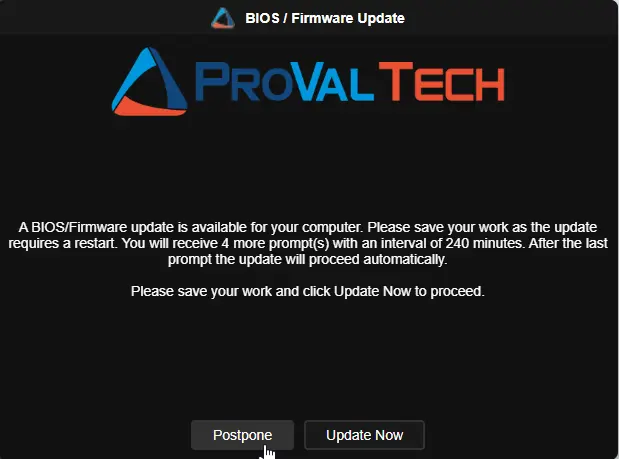
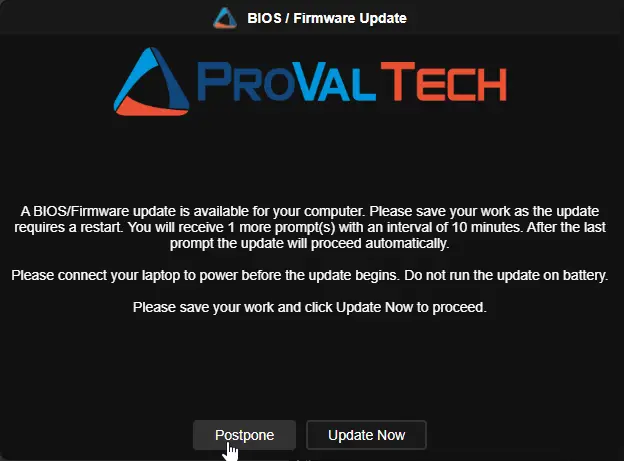
- Prompts 1 to 5: The user sees a warning and clicks Postpone. The script checks back in 4 hours.
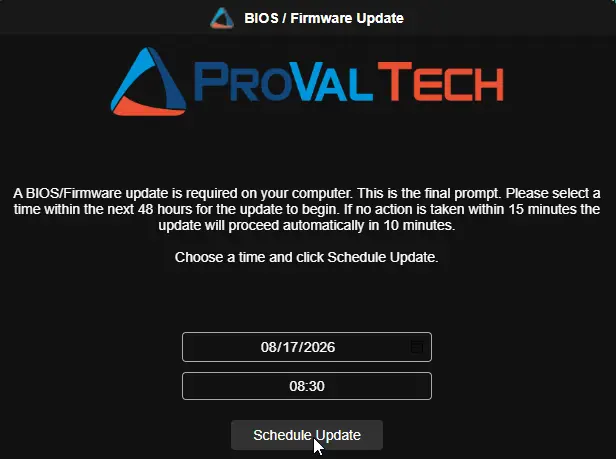
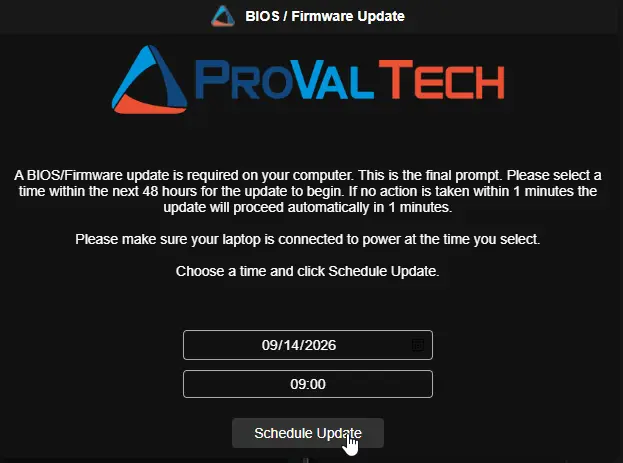
- Final Prompt: Postponements are exhausted. The user must pick a time within the next 48 hours using the date/time picker. If ignored, the update forces automatically after the timeout.
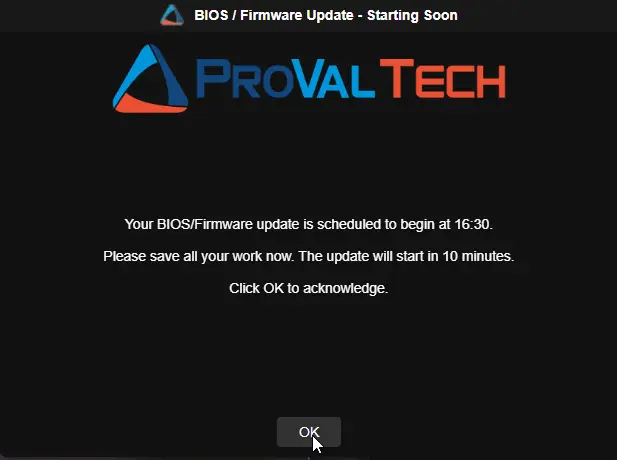
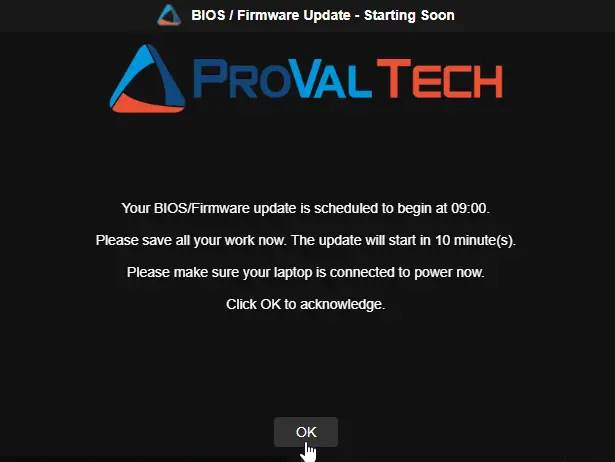
- Reminder: 10 minutes before the chosen time, a final "Starting Soon" warning appears.
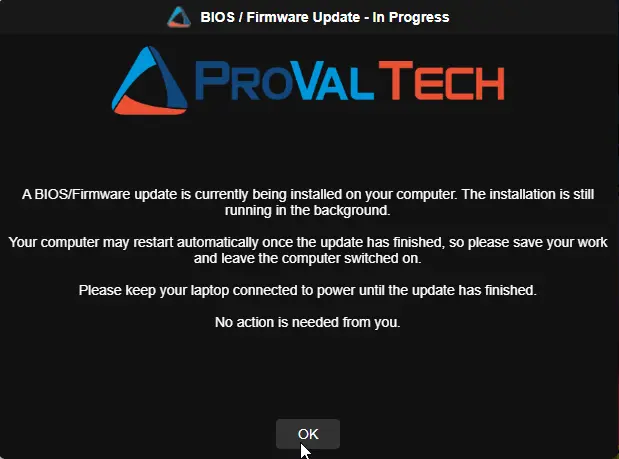
- Execution: The update installs and the device forcefully reboots. With the in-progress notification enabled, an on-screen notice keeps the user informed during the install.
While the Update Runs
Firmware installs can take a long time with nothing visible on screen. Two optional modes keep the user informed; both are off by default:
- Interval mode (
-ShowProgressPrompt): everyProgressPromptIntervalminutes a notice appears forProgressPromptTimeoutseconds, closes itself, and repeats until the update finishes. - Stay mode (
-KeepProgressPromptVisible): the notice appears as soon as the update starts and stays on screen until it finishes. Clicking its OK button only hides it until the next check brings it back — intentional, so nobody power-cycles a machine they think is stuck.
Stay mode wins when both are configured and implies -ShowProgressPrompt, so the two never need to be passed together. The notice only appears while a user is logged in and the machine is unlocked, and it is closed and cleaned up as soon as the update finishes (a reboot triggered by the update closes it too).
Automatic Localization
If the logged-in user's Windows display language is set to Dutch (nl-NL or nl-BE), all prompts and buttons automatically translate (e.g., Uitstellen, Nu bijwerken, Update plannen). No extra parameters are required.
Suppression & Unattended
If -SkipWeekends and -SuppressPopupTimeWindows '1800-0900' are used:
- Prompts are hidden on weekends and between 6 PM and 9 AM.
- If
-IfNotLoggedInis added, the script will silently install updates and reboot the machine if no user is logged in during allowed hours.
Update Without Prompting
With -WithoutPrompt, the prompt cycle is skipped entirely:
- Any prompt cycle already running on the device is cancelled: open prompts are closed, its scheduled tasks are removed, and the postponement history is reset.
-Forceis not needed. - The update starts immediately and runs inside the RMM job itself, not from a scheduled task.
- No prompt of any kind is shown — no regular, final, reminder, in-progress, or completion prompt.
- If the update needs a restart, the device reboots and the RMM job ends with it.
-WithoutPrompt overrides every prompt, suppression, and scheduling parameter, including -MaxPostpone, -SkipWeekends, -SuppressPopupTimeWindows, and -IfNotLoggedIn. Only the parameters that shape the update itself still apply: -UsePsWindowsUpdate, -HandleBitLocker, and -OEMScriptParametersOverride.
Note: Because the update runs inside the RMM job, make sure the RMM script timeout covers the whole vendor update. Setting -MaxPostpone 0 is not the same thing — it still shows the final scheduling prompt.
Customize the Prompt Text
Leave the text parameters empty and users see the built-in wording in their own language. Set one and your wording is used instead, exactly as written.
| Parameter | Replaces |
|---|---|
Title | Title on the regular and final prompts |
RegularPromptMessage | Body of the postponable prompts |
FinalPromptMessage | Body of the final scheduling prompt |
ReminderPromptTitle / ReminderPromptMessage | The 10-minute warning |
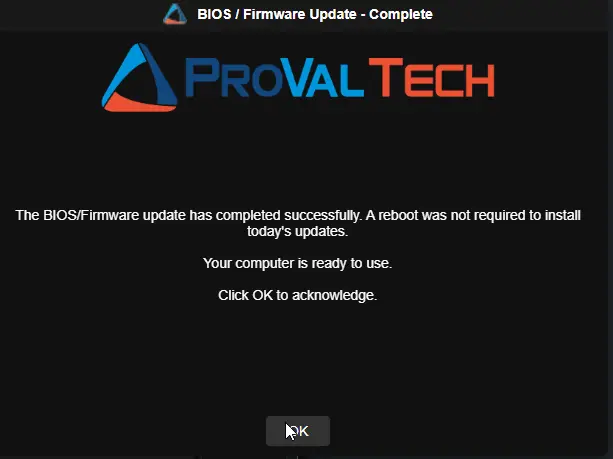
CompletionPromptTitle / CompletionPromptMessage | The confirmation shown when no reboot is needed |
ProgressPromptTitle / ProgressPromptMessage | The notice shown while the update installs |
Default messages
These are the messages users see when the text parameters are left empty. Wording follows the display language of the logged-in user.
Names such as PromptsLeft and ScheduledUpdateTime are replaced with live values before the prompt appears. \n produces a line break.
Titles
| Parameter | English | Dutch |
|---|---|---|
Title | BIOS / Firmware Update | BIOS / Firmware Update |
ReminderPromptTitle | BIOS / Firmware Update - Starting Soon | BIOS / Firmware Update - Start binnenkort |
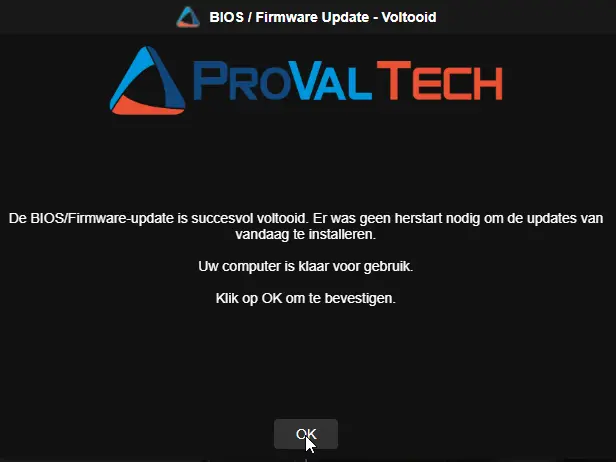
CompletionPromptTitle | BIOS / Firmware Update - Complete | BIOS / Firmware Update - Voltooid |
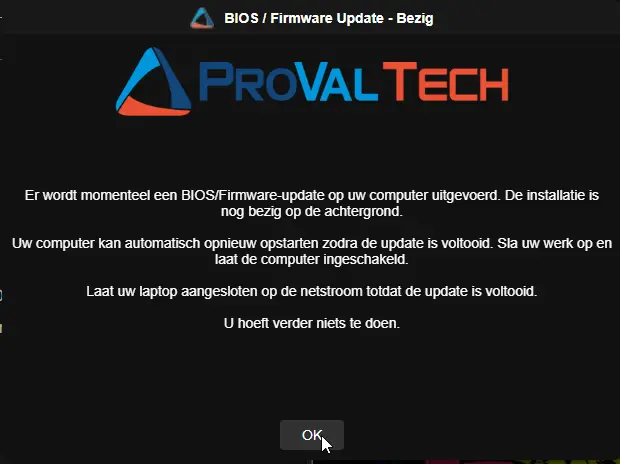
ProgressPromptTitle | BIOS / Firmware Update - In Progress | BIOS / Firmware Update - Bezig |
Messages
Regular prompt — RegularPromptMessage
English
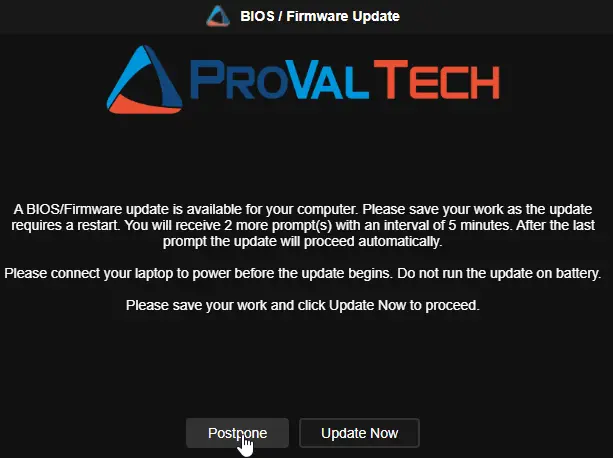
A BIOS/Firmware update is available for your computer. Please save your work as the update requires a restart. You will receive PromptsLeft more prompt(s) with an interval of PromptIntervalMinutes minutes. After the last prompt the update will proceed automatically.\n\nPlease save your work and click Update Now to proceed.
Dutch
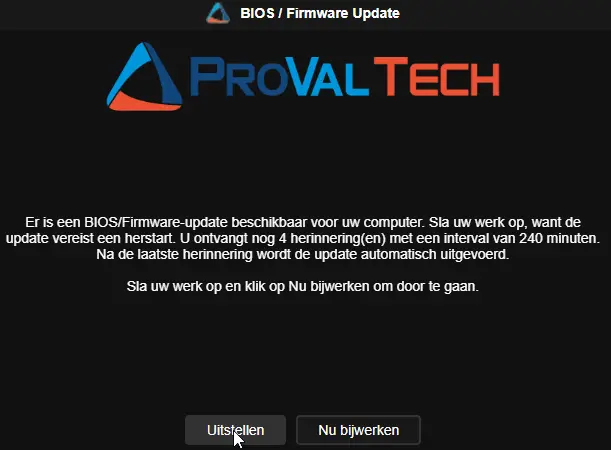
Er is een BIOS/Firmware-update beschikbaar voor uw computer. Sla uw werk op, want de update vereist een herstart. U ontvangt nog PromptsLeft herinnering(en) met een interval van PromptIntervalMinutes minuten. Na de laatste herinnering wordt de update automatisch uitgevoerd.\n\nSla uw werk op en klik op Nu bijwerken om door te gaan.
Final prompt — FinalPromptMessage
English
A BIOS/Firmware update is required on your computer. This is the final prompt. Please select a time within the next 48 hours for the update to begin. If no action is taken within FinalTimeoutMinutes minutes the update will proceed automatically in DelayAfterFinalMinutes minutes.\n\nChoose a time and click Schedule Update.
Dutch
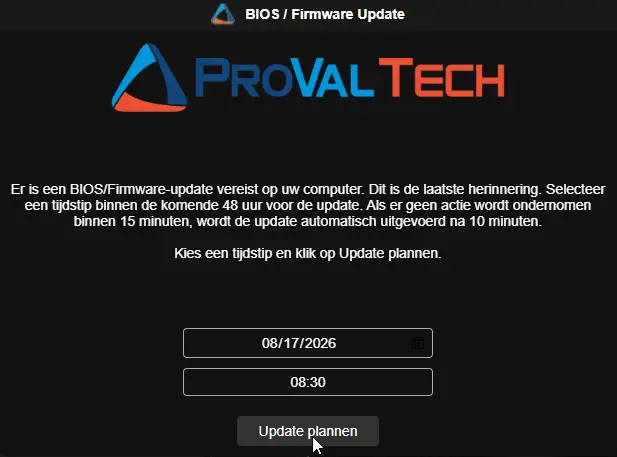
Er is een BIOS/Firmware-update vereist op uw computer. Dit is de laatste herinnering. Selecteer een tijdstip binnen de komende 48 uur voor de update. Als er geen actie wordt ondernomen binnen FinalTimeoutMinutes minuten, wordt de update automatisch uitgevoerd na DelayAfterFinalMinutes minuten.\n\nKies een tijdstip en klik op Update plannen.
Reminder prompt — ReminderPromptMessage
English
Your BIOS/Firmware update is scheduled to begin at ScheduledUpdateTime.\n\nPlease save all your work now. The update will start in MinutesUntilUpdate minute(s).\n\nClick OK to acknowledge.
Dutch
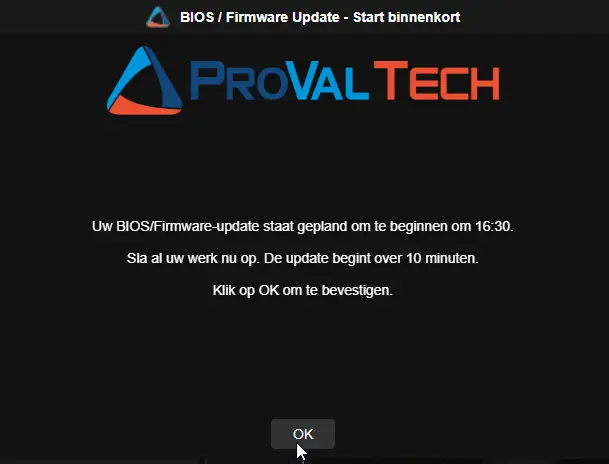
Uw BIOS/Firmware-update staat gepland om te beginnen om ScheduledUpdateTime.\n\nSla al uw werk nu op. De update begint over MinutesUntilUpdate minuten.\n\nKlik op OK om te bevestigen.
Completion prompt — CompletionPromptMessage
English
The BIOS/Firmware update has completed successfully. A reboot was not required to install today's updates.\n\nYour computer is ready to use.\n\nClick OK to acknowledge.
Dutch
De BIOS/Firmware-update is succesvol voltooid. Er was geen herstart nodig om de updates van vandaag te installeren.\n\nUw computer is klaar voor gebruik.\n\nKlik op OK om te bevestigen.
In-progress notice — ProgressPromptMessage
English
A BIOS/Firmware update is currently being installed on your computer. The installation is still running in the background.\n\nYour computer may restart automatically once the update has finished, so please save your work and leave the computer switched on.\n\nNo action is needed from you.
Dutch
Er wordt momenteel een BIOS/Firmware-update op uw computer uitgevoerd. De installatie is nog bezig op de achtergrond.\n\nUw computer kan automatisch opnieuw opstarten zodra de update is voltooid. Sla uw werk op en laat de computer ingeschakeld.\n\nU hoeft verder niets te doen.
Extra line on laptops
On laptops, notebooks, and tablets the following line is added before the closing sentence of these four prompts. Desktops do not see it.
| Prompt | English | Dutch |
|---|---|---|
| Regular prompt | Please connect your laptop to power before the update begins. Do not run the update on battery. | Sluit uw laptop aan op de netstroom voordat de update begint. Voer de update niet uit op accustroom. |
| Final prompt | Please make sure your laptop is connected to power at the time you select. | Zorg ervoor dat uw laptop op het gekozen tijdstip op de netstroom is aangesloten. |
| Reminder prompt | Please make sure your laptop is connected to power now. | Zorg ervoor dat uw laptop nu op de netstroom is aangesloten. |
| In-progress notice | Please keep your laptop connected to power until the update has finished. | Laat uw laptop aangesloten op de netstroom totdat de update is voltooid. |
Insert live values
Type any of these names into your message as a plain word. The script swaps in the real value before the prompt appears.
| Name | Shows |
|---|---|
PromptsToSend | Total prompts the user will receive |
PromptsSent | Prompts shown so far, including this one |
PromptsLeft | Prompts still to come after this one |
PromptIntervalMinutes / PromptIntervalHours | Time between prompts |
RegularTimeoutSeconds / RegularTimeoutMinutes | Regular prompt timeout |
FinalTimeoutSeconds / FinalTimeoutMinutes | Final prompt timeout |
DelayAfterFinalSeconds / DelayAfterFinalMinutes | Grace period after the final prompt |
ScheduledUpdateTime | Time the user picked (reminder prompt only) |
MinutesUntilUpdate | Minutes until the update starts (reminder prompt only) |
ProgressIntervalMinutes | Minutes between in-progress notices |
ProgressTimeoutSeconds / ProgressTimeoutMinutes | How long each in-progress notice stays on screen |
UpdateElapsedMinutes | Minutes the update has been running (in-progress notice only) |
ComputerName | Machine name |
UserName | Logged-in username |
Use \n for a line break. Minutes and hours are converted for you, so no manual maths is needed.
Example:
-RegularPromptMessage 'A firmware update is pending on ComputerName. You have PromptsLeft reminder(s) left, one every PromptIntervalHours hour(s).\n\nSave your work and click Update Now.'
On WKS-014, with two prompts remaining and a four-hour interval, the user sees:
A firmware update is pending on WKS-014. You have 2 reminder(s) left, one every 4 hour(s).
Example with the in-progress notice:
-ProgressPromptMessage 'IT is updating the firmware on ComputerName. This has been running for UpdateElapsedMinutes minute(s).\n\nPlease leave the machine switched on.'
Things to know
- These names are reserved words. If a message needs the literal word
ComputerName, reword it. - Button labels are not configurable. They always follow the user's language.
- The in-progress notice always carries an OK button. In stay mode, clicking it only hides the notice until the next check brings it back.
- Custom text is not translated and does not receive the automatic connect-to-power line for laptops. Include that wording yourself if your fleet has laptops.
Parameters
| Parameter | Alias | Default | Description |
|---|---|---|---|
MaxPostpone | MaxDefer | 5 | Maximum postponements before the final scheduling prompt appears. |
IntervalMinutes | Interval | 240 | Minutes between prompt attempts. |
RegularPromptTimeout | Timeout | 600 | Seconds before an ignored prompt auto-closes and counts as missed. |
FinalPromptTimeout | FinalTimeout | 900 | Seconds before the final scheduling prompt times out and forces the update. |
DelayAfterFinalPrompt | Delay | 600 | Grace period (in seconds) before forcing the update after a timeout. |
SuppressPopupTimeWindows | Suppress | 24-hour time window to hide prompts (e.g., 1800-0900). | |
SkipWeekends | NoWeekends | False | Hides prompts on Saturdays and Sundays. |
IfNotLoggedIn | Unattended | False | Bypasses prompts and runs the update immediately if no user is logged in. |
MaxMissedPromptsBeforeForce | MaxMissed | 0 | Forces the update after this many consecutive missed prompts on locked devices. |
UpdateDuringSuppress | ForceDuringSuppress | False | Allows forced/unattended updates to bypass suppression windows and weekends. |
Force | Recreate | False | Clears active tasks and restarts the prompt cycle from zero. |
WithoutPrompt | NoPrompt | False | Skips every prompt and runs the update immediately, cancelling any prompt cycle in progress. Overrides all prompt, suppression, and scheduling parameters. |
UsePsWindowsUpdate | WindowsUpdate | False | Uses generic Windows updates instead of OEM-specific vendor tools. |
Icon | IconUrl, IconPath | Web URL, local, or UNC path for the prompt window icon. Copied locally and verified before use. | |
HeaderImage | HeaderUrl, HeaderPath | Web URL, local, or UNC path for the prompt window header banner. Copied locally and verified before use. | |
HandleBitLocker | BitLocker | False | Suspends BitLocker for one reboot to prevent recovery key prompts. |
OEMScriptParametersOverride | Override | Passes custom arguments directly to the underlying vendor update script. | |
Title | StandardTitle | Title for the regular and final prompts. Empty uses the built-in title. | |
RegularPromptMessage | Standard | Body of the postponable prompts. Empty uses the built-in wording. | |
FinalPromptMessage | Final | Body of the final scheduling prompt. Empty uses the built-in wording. | |
ReminderPromptTitle | ReminderTitle | Title of the 10-minute warning. Empty uses the built-in title. | |
ReminderPromptMessage | ReminderMessage | Body of the 10-minute warning. Empty uses the built-in wording. | |
CompletionPromptTitle | CompletionTitle | Title of the completion confirmation. Empty uses the built-in title. | |
CompletionPromptMessage | CompletionMessage | Body of the completion confirmation. Empty uses the built-in wording. | |
PromptDisplayRetryCount | PromptRetry | 1 | Extra attempts to display a prompt when it fails to appear or returns unreadable output. 0 gives it a single attempt. |
PromptDisplayRetryDelay | PromptRetryDelay | 30 | Seconds to wait between prompt display attempts. |
ShowProgressPrompt | EnableProgressPrompt | False | Shows a notice on the user's desktop while the update installs. |
ProgressPromptInterval | ProgressInterval | 10 | Minutes between in-progress notices. 0 turns them off. Ignored in stay mode. |
ProgressPromptTimeout | ProgressTimeout | 300 | Seconds each in-progress notice stays on screen. Ignored in stay mode. |
KeepProgressPromptVisible | Stay | False | Keeps the in-progress notice on screen for the whole update and brings it back if dismissed. Overrides the interval settings. |
ProgressPromptTitle | ProgressTitle | Title of the in-progress notice. Empty uses the built-in title. | |
ProgressPromptMessage | ProgressMessage | Body of the in-progress notice. Empty uses the built-in wording. | |
Theme | Dark | Prompt window theme. Dark or Light. |
Logs and Artifacts
Log Locations
Logs are automatically generated in the script's working directory.
- Initial RMM Run:
C:\Windows\Temp\Invoke-OEMUpdateWithPrompt-log.txt(or your RMM's temp folder). A-WithoutPromptrun always logs here. - Scheduled Runs:
C:\ProgramData\_Automation\Script\Invoke-OEMUpdatePrompt\Invoke-OEMUpdateWithPrompt-log.txt - OEM Update Runner:
C:\ProgramData\_Automation\Script\Install-OEMUpdates\Install-OEMUpdates-log.txt, withInstall-OEMUpdates-stdout.txtandInstall-OEMUpdates-stderr.txtcapturing the vendor process output. - Vendor Update Logs: Stored in
C:\ProgramData\_Automation\Script\<VendorName>\(e.g.,Initialize-DellCommandUpdate-log.txt).
Scheduled Tasks Created
Scheduled_Task_Invoke-OEMUpdatePrompt(Displays the prompt to the active user)Scheduled_Task_Invoke-OEMUpdatePrompt_Reschedule(Manages the background cycle)Scheduled_Task_Invoke-OEMUpdatePrompt_Reminder(Displays the 10-minute warning)Scheduled_Task_Invoke-OEMUpdatePrompt_Progress(Displays the in-progress notice; created only while the update runs and removed as soon as it finishes)
A -WithoutPrompt run creates none of these tasks and removes any left over from an earlier prompt cycle.
Sample Prompts - English
Desktops:
Laptops:
Completion Acknowledgement Prompt (No Reboot Pending) - English
Update In Progress Notification - English
Sample Prompts - Dutch
Completion Acknowledgement Prompt (No Reboot Pending) - Dutch
Update In Progress Notification - Dutch
Changelog
2026-10-01
- Added
-WithoutPromptto run the OEM update immediately with no prompts at all. It overrides every prompt, suppression, and scheduling setting, cancels any prompt cycle already in progress on the device, and runs the update directly inside the RMM job instead of from a scheduled task.
2026-09-24
- Added an optional update in progress notification.
-ShowProgressPromptrepeats a notice on the user's desktop everyProgressPromptIntervalminutes while the update installs, and-KeepProgressPromptVisiblekeeps one on screen for the entire update, bringing it back if the user dismisses it. The notice supports a custom title and message, and stay mode wins when both are configured. -Iconand-HeaderImagesources are now staged locally before use. Web URLs, local paths, and UNC shares are copied into the prompt's working folder and verified as real images, so prompts no longer depend on the logged-in user being able to reach the original file. A failed refresh keeps the last good copy.- Improvement: Prompts that fail to display are now retried up to
PromptDisplayRetryCountextra times. A failed attempt never consumes a postponement, and a prompt the user simply ignored is still handled as missed rather than retried. - Improvement: When every display attempt fails, the script cleans up its tasks and reschedules itself for the next interval, preserving all prompt state so the cycle resumes where it left off instead of starting over.
- Improvement: Prompt tasks that never start are detected within about a minute and manually started up to three times, instead of silently waiting out the full prompt timeout.
2026-09-14
- Added parameters to replace every prompt title and message with your own wording, with live values such as
PromptsLeftandComputerNameavailable inside the text. - Added a
Themeparameter to switch the prompt window between dark and light. - Laptops, notebooks, and tablets now see a reminder to connect to power before the update runs. Desktops are unaffected.
- Bug Fix: The last postponable prompt said you will receive 0 more prompt(s) even though the final prompt was still to come. It now counts correctly.
- Bug Fix: Prompts occasionally failed to appear and were recorded as missed. The script now starts the prompt itself if Windows skips the scheduled start.
- Prompt working folders are now shared with the local Users group instead of Everyone, and any earlier Everyone permission is removed automatically.
- Logs now record the exact prompt command and distinguish a prompt that failed to launch from one that launched but returned nothing.
2026-08-17
- Replaced Prompter with OmniPrompt, a lightweight native binary that removes the .NET Desktop Runtime dependency.
- Switched silent task execution to SilentLauncher, avoiding deprecated scripting hosts and common security blocks.
- Improved language detection so prompts correctly display in Dutch or English based on the logged-in user.
- Added
MaxMissedPromptsBeforeForceto force the upgrade after repeated missed prompts on locked or inactive machines. - Added
UpdateDuringSuppressto allow unattended or forced upgrades outside normal prompting hours. - Added a pre-upgrade reminder prompt shortly before a scheduled upgrade begins.
- Added an install-in-progress check to prevent upgrades from conflicting with other active installations.
2026-05-13
- Initial version of the document