Manage-NeverSleepModePowerPlan
Overview
Stores the current Windows power plan, applies a “Never Sleep” power configuration on Set, and restores the original power plan on Revert.
Implementation
-
Download the component Manage-NeverSleepModePowerPlan from the attachments.
-
After downloading the attached file, click on the
Importbutton -
Select the component just downloaded and add it to the Datto RMM interface.

Sample Run
To execute the component over a specific machine, follow these steps:
-
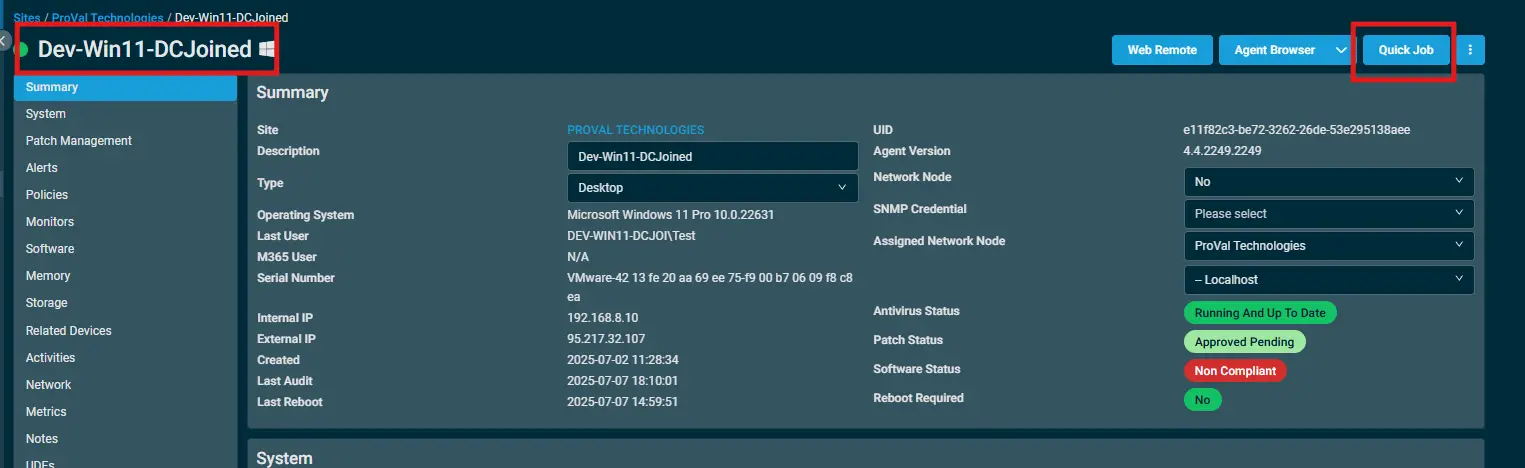
Select the machine you want to run the
componenton from the Datto RMM. -
Click on the
Quick Jobbutton.
-
Search the component
Manage-NeverSleepModePowerPlanand click onSelect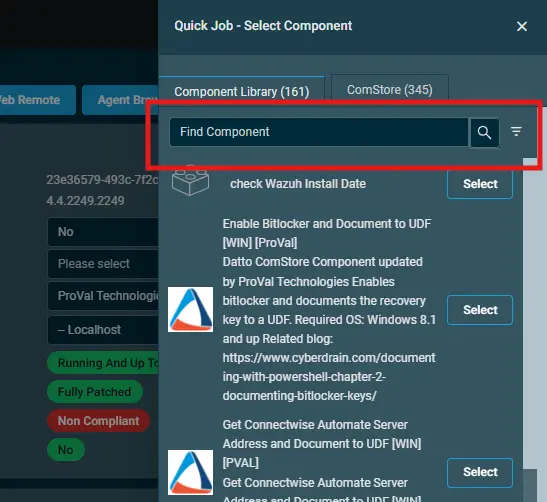
-
After selecting the component, below popup will be displayed.
i. Click on the Drop-Down toSetthe power mode to never sleep.
 ii. Now to revert it to previous power mode again, select the component again and select the
 Revertoption through drop down.

Datto Variables
| Variable Name | Type | Default | Description |
|---|---|---|---|
| Force | Boolean | False | When true: Overwrites the previously saved plan reference during Set. When false or unset: If a saved plan already exists, it is preserved and not overwritten during Set. |
| Action | Selection | Set | Set: Save the current plan (unless Force overwrites an existing save), clone it, apply “Never Sleep” settings, and activate it. Revert: Restore the previously saved plan and deactivate the “Never Sleep” plan. |
Output
- Logs when Power plan is set.

- Logs when Power plan is reverted.

Attachments
Manage-NeverSleepModePowerPlan
Changelog
2025-11-14
- Initial version of the document