Associate a device with an existing ticket
Summary
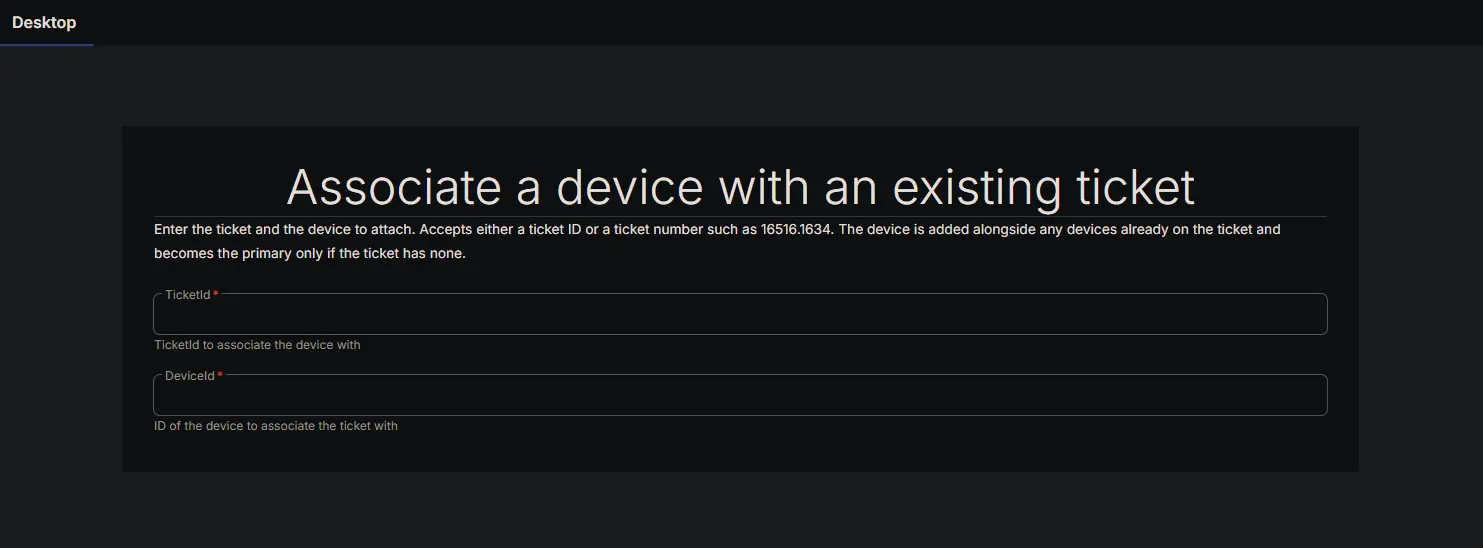
The Associate a device with an existing ticket form is the input surface for the Bots: Associate a device with an existing ticket custom bot. It collects only the two values needed to attach a device to a ticket that already exists.
It covers a capability a native CW RMM workflow lacks entirely: a workflow can create a ticket, add notes to it and change its status, but it cannot associate a device with it. This pairing is for tickets that are already open — one raised by hand, one created by a process outside this content set, or a ticket that needs a second device attached alongside the first.
Design intent:
- Two fields, nothing else. Everything else the platform needs is already recorded on the target ticket, so the form asks only what cannot be inferred.
TicketIdaccepts either identifier. The ticket GUID and the human readable ticket number such as16516.1634are both accepted. The bot shape-tests the value and looks it up the appropriate way, so whichever one is to hand will work.- Existing devices are never displaced. The bot merges rather than replaces, and preserves whichever device is already flagged as primary. The incoming device becomes primary only when the ticket has no devices at all.
- Safe to run twice. If the device is already attached, the bot reports that and changes nothing. A repeated run will not duplicate an association or fail.
When not to use it: if the ticket is being created as part of the same process, create it with the device already attached instead, using the Forms: Create ticket with associated device form. A device attached to a ticket after the fact does not carry through to the configuration on the ticket once it syncs to CW Manage, while a device supplied in the original create call does. This form remains correct for tickets that already exist, but it is not a substitute for creating the ticket with its device.
Details
| Form Title | Form Description | Tags |
|---|---|---|
| Associate a device with an existing ticket | Enter the ticket and the device to attach. Accepts either a ticket ID or a ticket number such as 16516.1634. The device is added alongside any devices already on the ticket and becomes the primary only if the ticket has none. | Ticketing |
Fields
| Field Label | Variable Name | Help Text | Example | Required | Read Only | List Options | Default Value |
|---|---|---|---|---|---|---|---|
| TicketId | TicketId_1788381088829 | TicketId to associate the device with | 6bfcd348-4a20-4fbc-a2ef-2e15add3dea3 | Yes | No | N/A | (blank) |
| DeviceId | DeviceId_1788381114402 | ID of the device to associate the ticket with | 41d6a66d-b5a9-4544-81af-88cdf5f37e94 | Yes | No | N/A | (blank) |
Field notes:
- Both fields are single line text boxes of type
string, and both are required. Neither value can be derived from the other. TicketIdaccepts either the ticket GUID or the ticket number. A value matching the GUID pattern is fetched directly; anything else is treated as a ticket number and searched for. A ticket number that matches more than one ticket is reported as an error rather than resolved arbitrarily.DeviceIdmust be the endpoint GUID. Unlike the company and site fields on the companion form, there is no name based fallback, because device names are not unique in the platform and attaching the wrong endpoint is not a recoverable mistake.
Forms Setup Path
- Tasks Path:
Automation➞Forms
Dependencies
The form has no function on its own. It must be attached to the bot above, which resolves the ticket and performs the association.
Form Preview
Implementation
The form arrives with its bot and needs no configuration once imported.
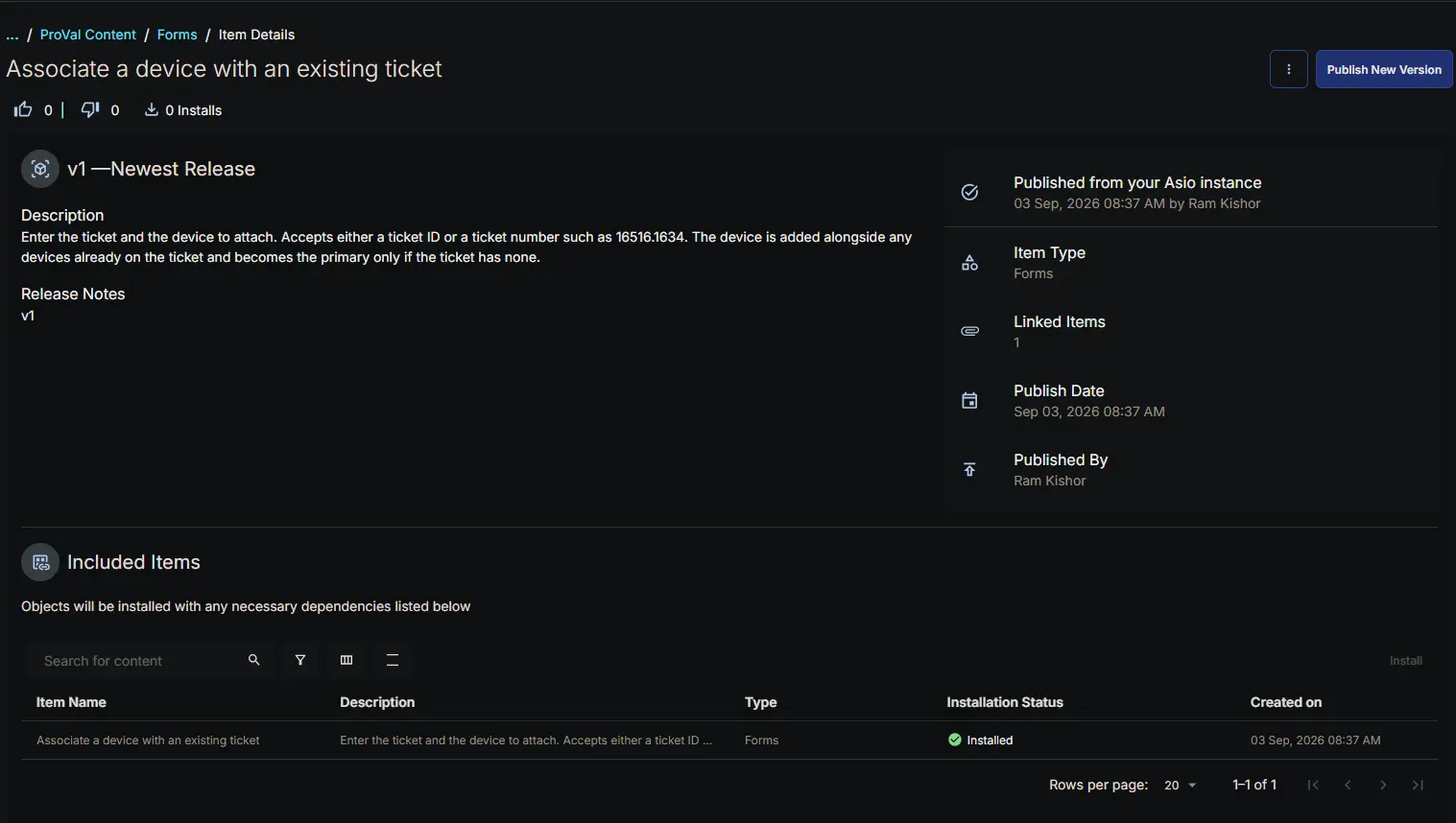
If the Bots: Associate a device with an existing ticket bot is not yet in the environment, install the bot from the ProVal - Content Community, selecting the Bots repository. This is the recommended route, because importing the bot brings this form in with it, already attached.
Install the form on its own from the Forms repository only when the bot is already present and the form is missing.
Changelog
2026-09-07
- Initial version of the document