Set M365 Shortcuts
Overview
Places shortcuts for the installed Microsoft 365 applications directly on the Public Desktop. Optionally, when a folder name is provided, gathers the shortcuts into a single folder on the Public Desktop instead.
Implementation
- Import the attached component
Sample Run
To execute the component over a specific machine, follow these steps:
-
Select the machine you want to run the Set M365 Shortcuts on from the Datto RMM.
-
Click on the
Quick Jobbutton.
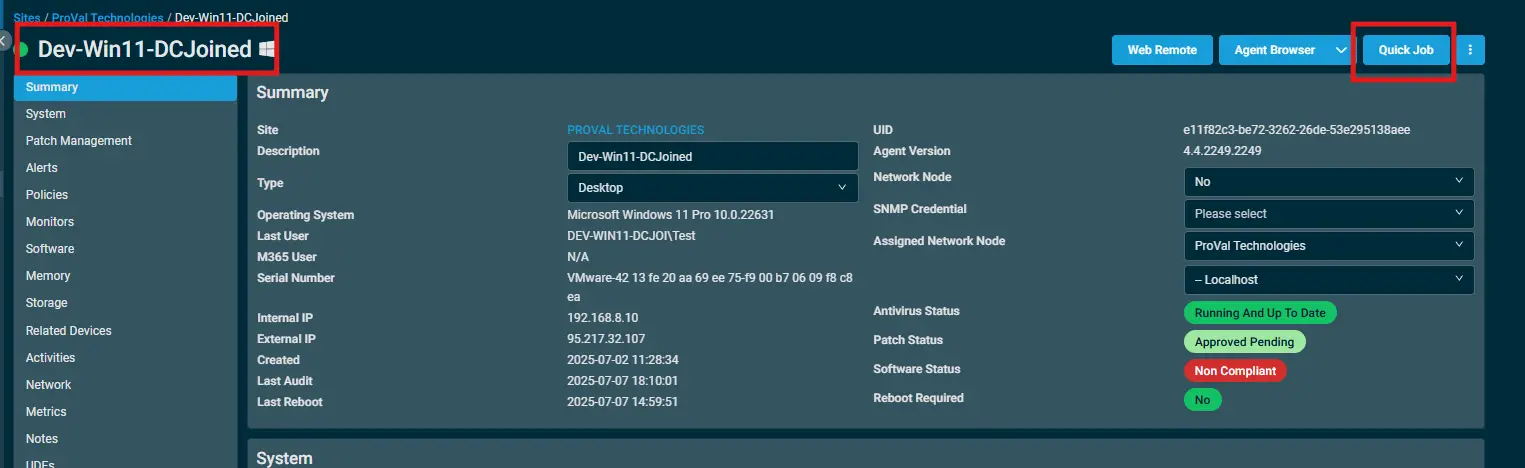
-
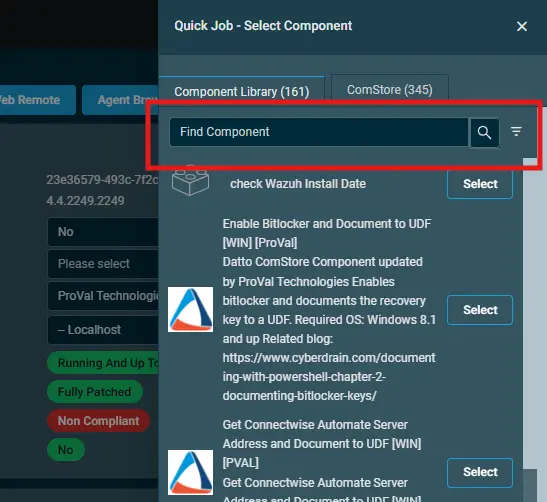
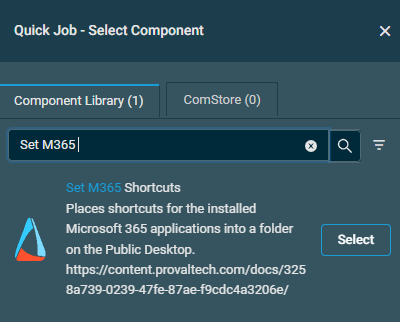
Search the component
Set M365 Shortcutsand click onSelect
Datto Variables
| Variable Name | Type | Default | Description |
|---|---|---|---|
| Application | String | Word, Excel, PowerPoint, Outlook, OneNote, Access, Publisher, Project, Visio | Limits the shortcuts to the named applications. When omitted, every supported application that is installed receives a shortcut. Valid values: 'Word', 'Excel', 'PowerPoint', 'Outlook', 'OneNote', 'Access', 'Publisher', 'Project', 'Visio'. |
| FolderName | String | (Empty) | The name of a folder to create on the Public Desktop to hold the shortcuts. When omitted, shortcuts are placed directly on the Public Desktop itself. |
| TimeoutMinutes | String | 45 | How long to wait for a Microsoft 365 install to appear and finish before giving up. Defaults to 45 minutes. Pass 0 to skip waiting entirely. |
Output
Activity Log
- stdOut
- stdError
Attachments
Changelog
2026-09-02
- Shortcuts are now placed directly on the Public Desktop by default. The
FolderNamevariable no longer has a default value and will only create a grouping folder when explicitly provided.
2026-08-20
- Initial version of the document