Get Specific/Multiple User Audit
Summary
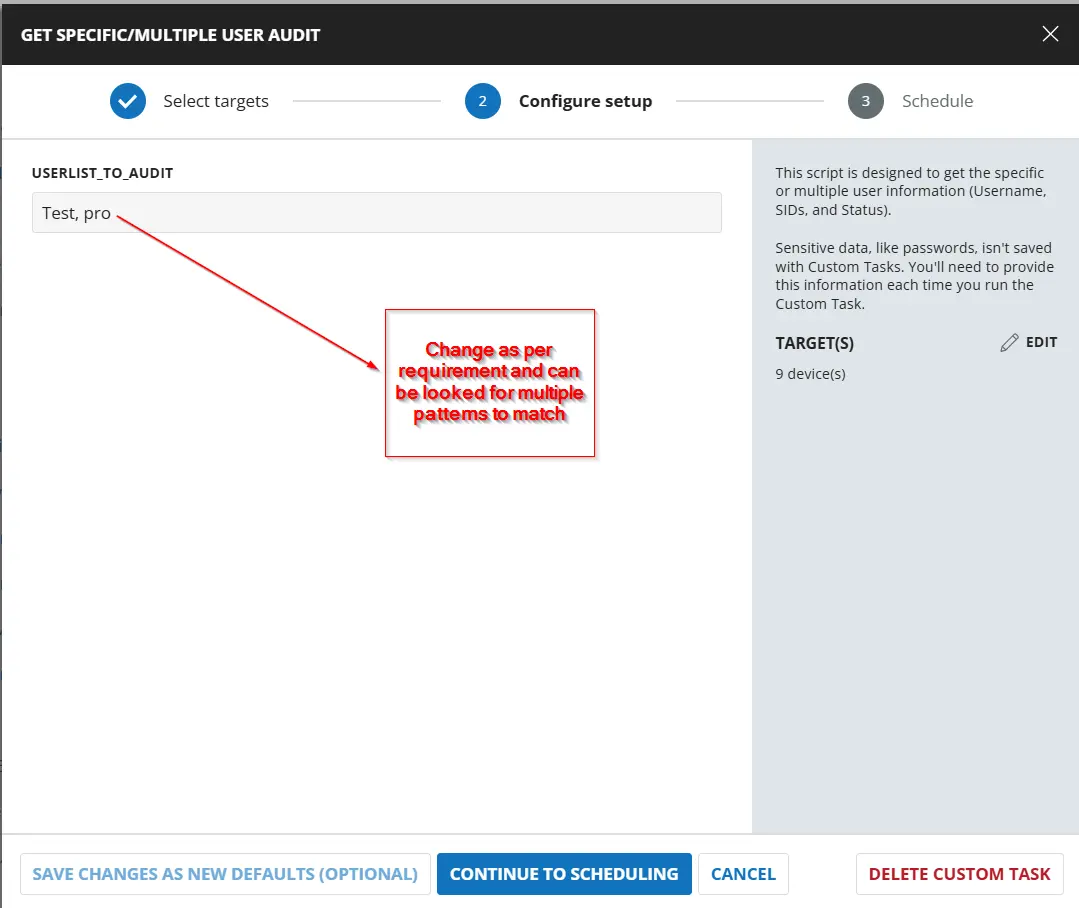
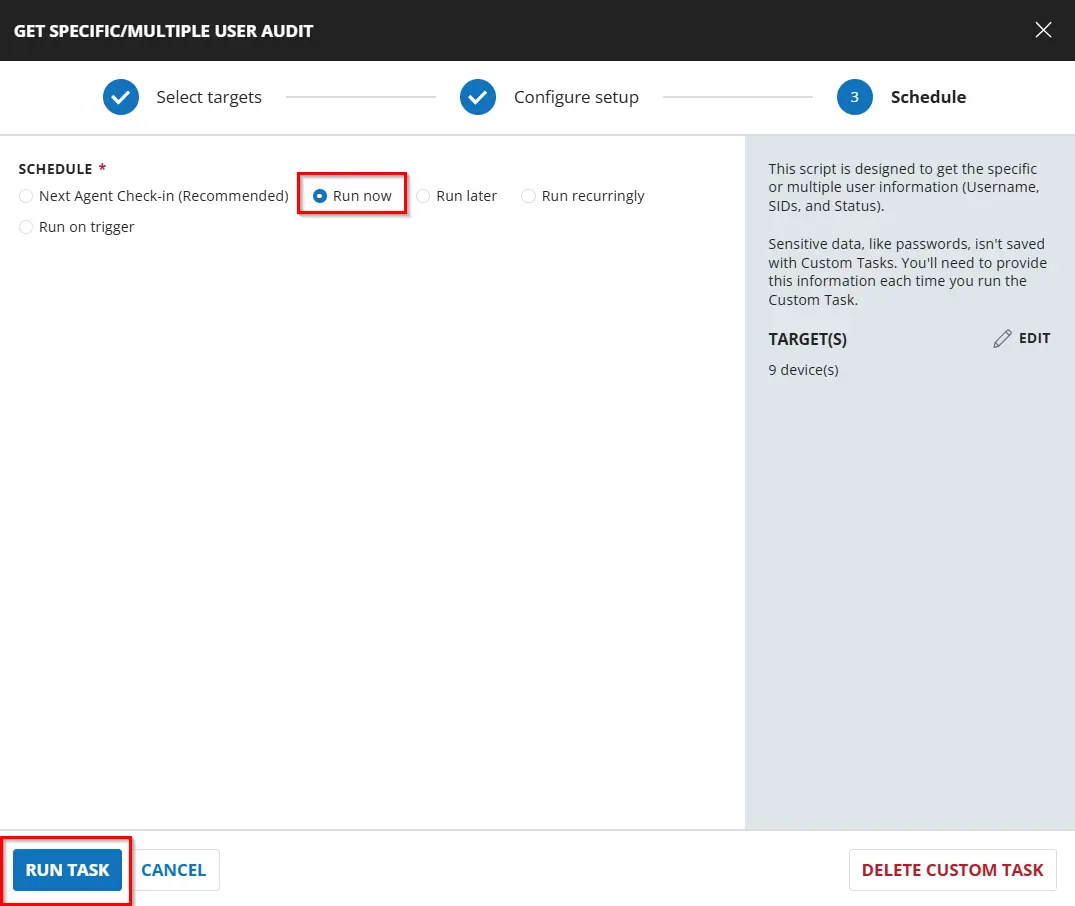
This script is designed to get the specific or multiple user(s) information (Username, SIDs, and Status). Note: If the agent is a Domain Controller, it will audit the domain accounts; otherwise, it will audit the local accounts.
Sample Run

Dependencies
User Parameters
| Name | Example | Accepted Values | Required | Default | Type | Description |
|---|---|---|---|---|---|---|
| UserList_To_Audit | Test,Pro | Test, Test,Pro,System | True | Text String | This parameter should be filled with a pattern to fetch the user list matching the pattern. Multiple user lists can be provided, separated by commas, as shown in the accepted values. |
Task Creation
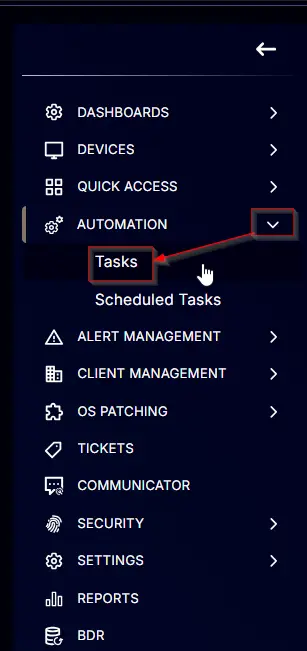
Create a new Script Editor style script in the system to implement this task.

Name: Get Specific/Multiple User Audit
Description: This script is designed to get the specific or multiple user information (Username, SIDs, and Status).
Category: Security

Task
Parameter
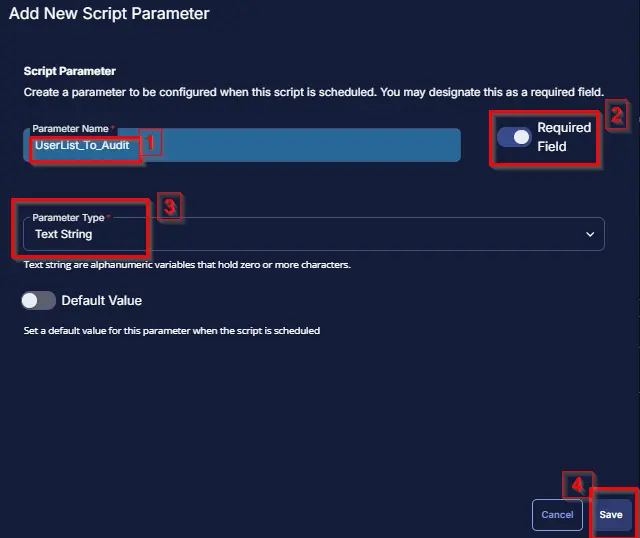
Add a new parameter by clicking the Add Parameter button present at the top-right corner of the screen.

This screen will appear.

- Set
UserList_To_Auditin theParameter Namefield. - Enable the
Required Fieldbutton. - Select
Text Stringfrom theParameter Typedropdown menu. - Click the
Savebutton.
Row 1 Function: PowerShell Script
Add a new Add Row button.

Search and select the PowerShell Script function.

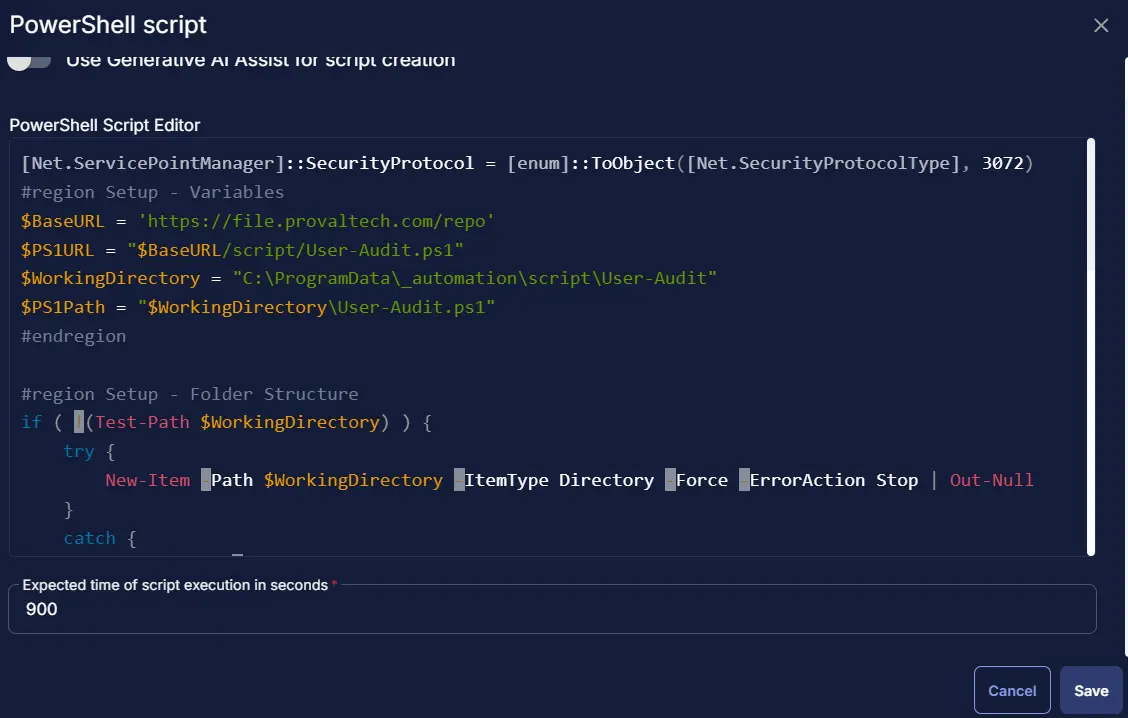
The following function will pop up on the screen:

Paste the following PowerShell script and set the Expected time of script execution in seconds to 900 seconds. Click the Save button.
Row 2 Logic: If/Then
Add a new If/Then/Else logic from the Add Logic dropdown menu.

ROW 2a Condition: Output Contains
Type An error occurred in the Value box.

Row 2b Function: Script Exit
Add a new row by clicking the Add Row button.

A blank function will appear.

Search and select the Script Exit function.


The following function will pop up on the screen:

In the script exit message, simply type:
and click the Save button.

Row 3 Function: Script Log
Add a new row by clicking the Add Row button.

A blank function will appear.

Search and select the Script Log function.


The following function will pop up on the screen:

In the script log message, type:
and click the Save button.

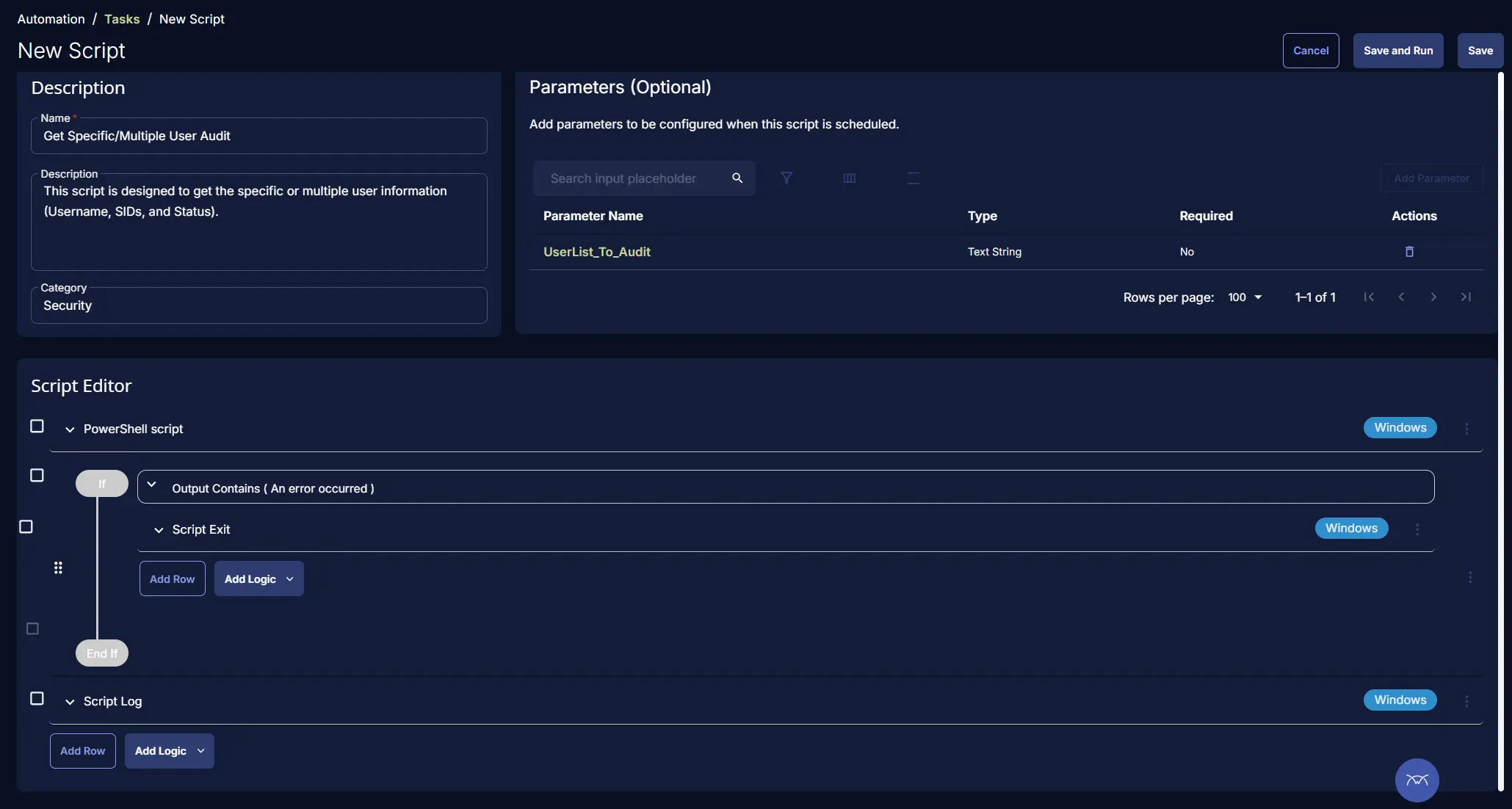
Completed Task
Output
- Script Log
Changelog
2025-04-10
- Initial version of the document