Remove Firefox Homepage
Summary
Removes homepage from the Firefox browser. CW RMM implementation of Remove-FirefoxHomepage.
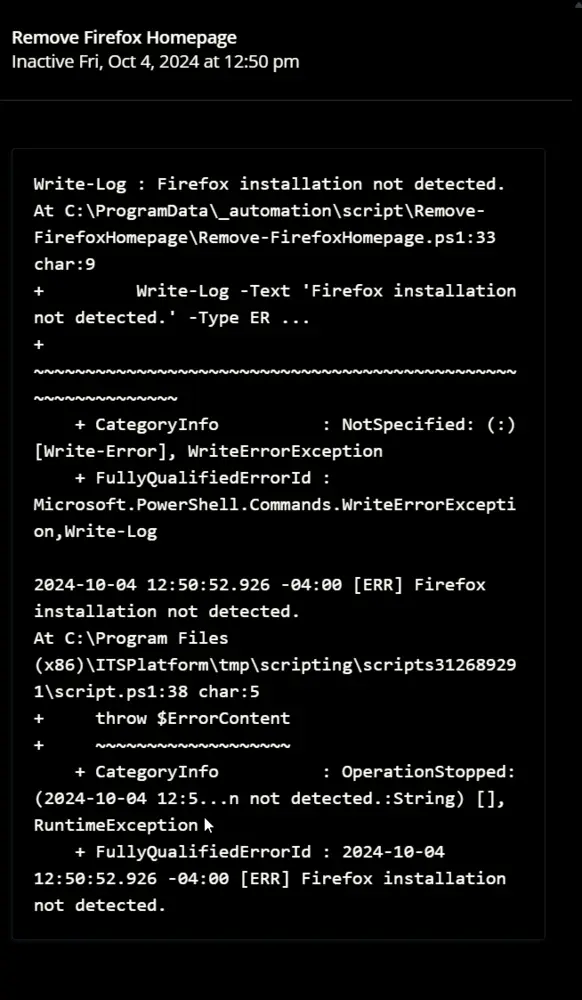
Sample Run
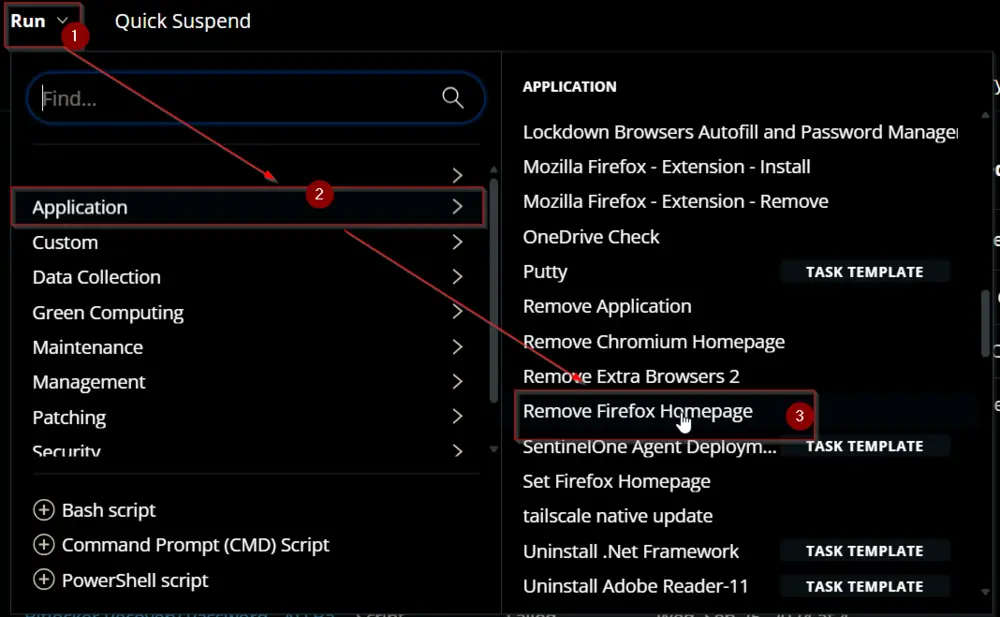
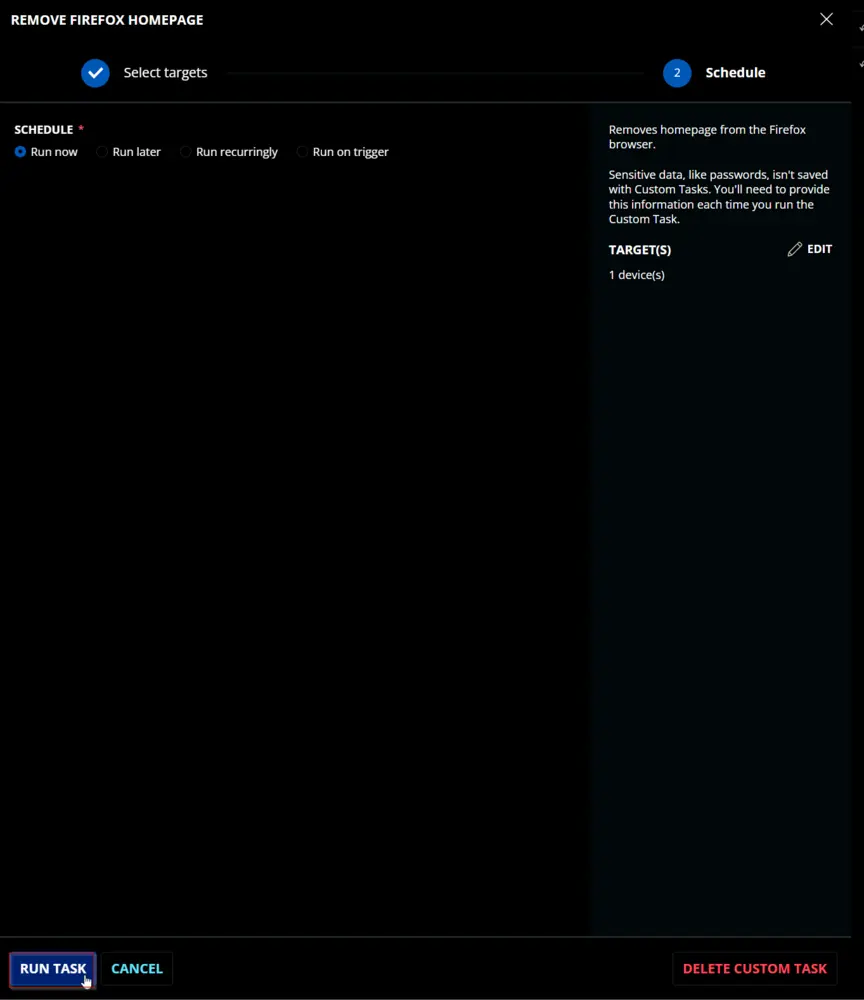
Dependencies
Task Creation
Create a new Script Editor style script in the system to implement this Task.
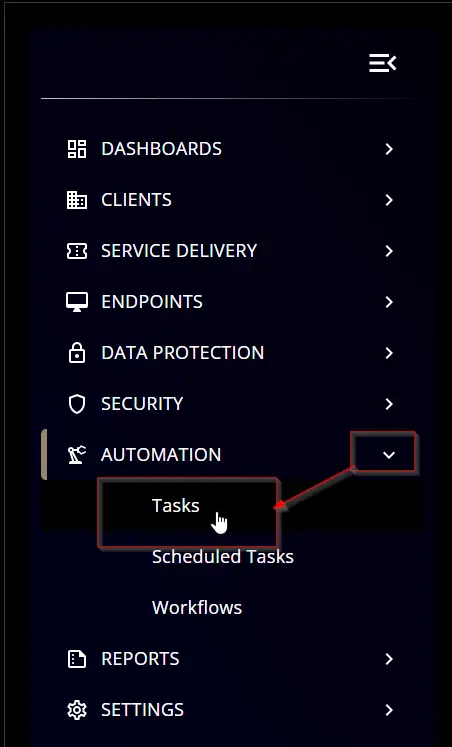
Name: Remove Firefox Homepage
Description: Removes homepage from the Firefox browser.
Category: Application
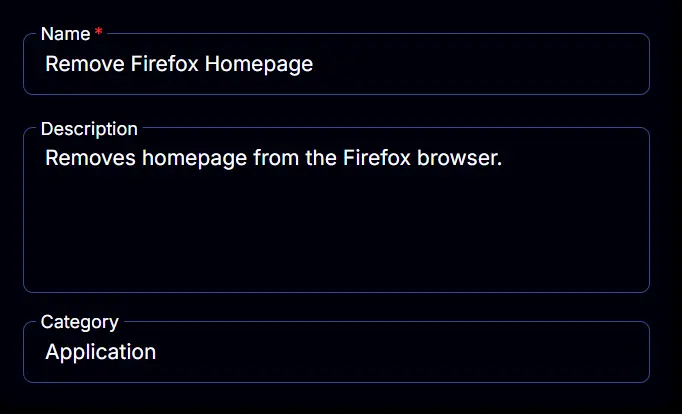
Task
Navigate to the Script Editor Section and start by adding a row. You can do this by clicking the Add Row button at the bottom of the script page.
A blank function will appear.
Row 1 Function: PowerShell Script
Search and select the PowerShell Script function.
The following function will pop up on the screen:
Paste in the following PowerShell script and set the Expected time of script execution in seconds to 300 seconds. Click the Save button.
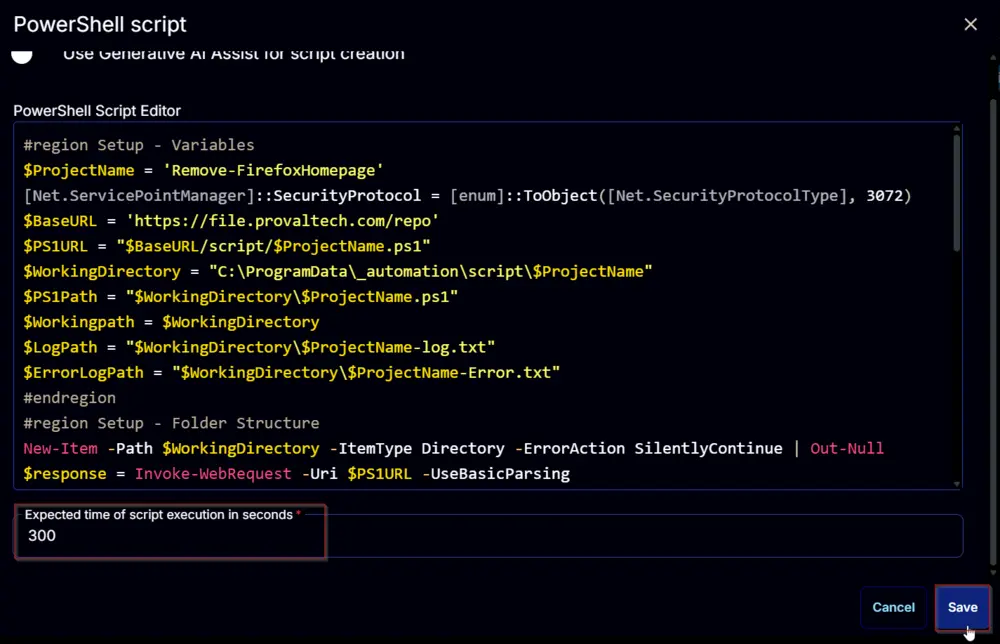
#region Setup - Variables
$ProjectName = 'Remove-FirefoxHomepage'
[Net.ServicePointManager]::SecurityProtocol = [enum]::ToObject([Net.SecurityProtocolType], 3072)
$BaseURL = 'https://file.provaltech.com/repo'
$PS1URL = "$BaseURL/script/$ProjectName.ps1"
$WorkingDirectory = "C:\ProgramData\_automation\script\$ProjectName"
$PS1Path = "$WorkingDirectory\$ProjectName.ps1"
$Workingpath = $WorkingDirectory
$LogPath = "$WorkingDirectory\$ProjectName-log.txt"
$ErrorLogPath = "$WorkingDirectory\$ProjectName-Error.txt"
#endregion
#region Setup - Folder Structure
New-Item -Path $WorkingDirectory -ItemType Directory -ErrorAction SilentlyContinue | Out-Null
try {
Invoke-WebRequest -Uri $PS1URL -OutFile $PS1path -UseBasicParsing -ErrorAction Stop
} catch {
if (!(Test-Path -Path $PS1Path )) {
throw ('Failed to download the script from ''{0}'', and no local copy of the script exists on the machine. Reason: {1}' -f $PS1URL, $($Error[0].Exception.Message))
}
}
#endregion
#region Execution
if ($Parameters) {
& $PS1Path @Parameters
} else {
& $PS1Path
}
#endregion
if ( !(Test-Path $LogPath) ) {
throw 'PowerShell Failure. A Security application seems to have restricted the execution of the PowerShell Script.'
}
if ( Test-Path $ErrorLogPath ) {
$ErrorContent = ( Get-Content -Path $ErrorLogPath )
throw $ErrorContent
}
Get-Content -Path $LogPath

Row 2 Function: Script Log
Add a new row by clicking the Add Row button.
A blank function will appear.
Search and select the Script Log function.
The following function will pop up on the screen:
In the script log message, simply type %Output% and click the Save button
Click the Save button at the top-right corner of the screen to save the script.
Completed Task
Output
- Script Log