Set Temporary Local Admin
Overview
Use this automation to give a user temporary local administrator access on a Windows device. The access is removed automatically either after a set number of minutes or at the user's next sign-in.
Username Override accepts three formats:
- Bare username (e.g.,
jsmith) for local user accounts - Domain-prefixed (e.g.,
CONTOSO\jsmith) for Active Directory users - Azure AD-prefixed (e.g.,
AzureAD\jsmith) for Azure AD joined machines
For Azure AD joined machines, enter the full AzureAD\username value.
Leave Username Override blank to target the currently signed-in user. If no user is signed in, the automation stops without making changes. If the selected user is already a local administrator, the automation also stops without making changes.
Choose Time Limit carefully:
- Use a number such as
60or120when the user needs admin access for a planned work window. - Use
NextLogononly when you want access removed at the next sign-in. - If the device is off when a timed removal is due, the removal runs when the device is back online.
Keep these points in mind before you run it:
- If the user is already signed in when access is granted, they may still see User Account Control prompts until they sign out and sign back in. In that session, they can approve those prompts with their own credentials if they are the user who was granted access.
- If you leave Username Override blank, the automation targets the currently signed-in user. Any User Account Control prompts that appear in that session are tied to that signed-in user's account.
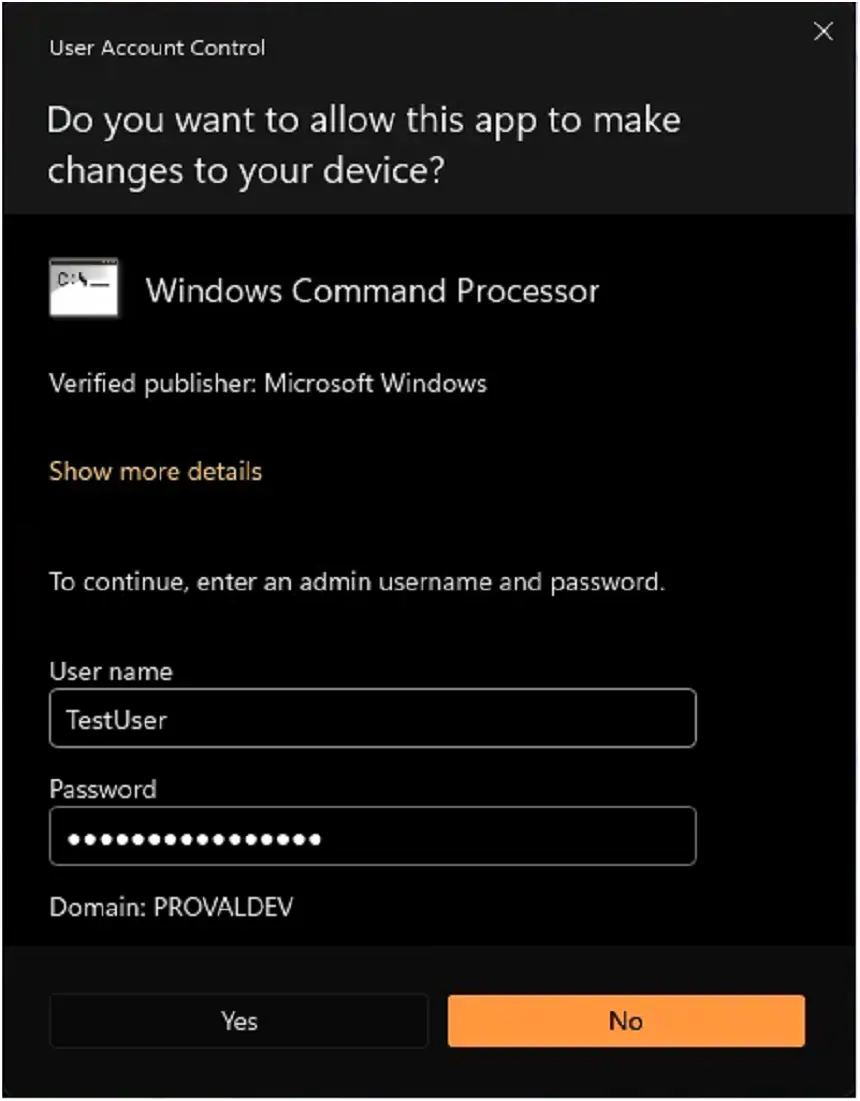
- A sign-out and sign-in refreshes the user's session so Windows fully recognizes the new local administrator membership.
- If Log Off is enabled, the user is signed out when admin access is removed.
- If Time Limit is
NextLogonand Log Off is enabled, the user may be signed out immediately after their next sign-in. - If Time Limit is
NextLogon, the access window ends at the next sign-in, so it is best used only when that timing is intentional. - If the device is restarted or turned off before a timed removal runs, the scheduled removal still runs later when the device is available again.
- Running the automation again for a user who is already a local administrator does not extend the existing access window.
- Use What If first when you want to confirm which user will be targeted and when access will be removed.
Tips
- Use What If before a live run when you want to confirm the target user and the removal timing.
- Use a minute value such as
30,60, or120for most support sessions. This gives the user a clear access window. - Use
NextLogononly when you specifically want access removed at the next sign-in. - Do not use
NextLogonif the user is currently signed out and still needs admin access after they sign in. Their next sign-in will trigger the removal. - If the user is already signed in, ask them to sign out and sign back in if you want Windows to fully apply the new admin access to that session.
- Turn on Log Off when you want admin access fully cleared at the end of the temporary access window.
- Leave Username Override blank only when you are sure the correct user is currently signed in.
- For Azure AD joined machines, use the
AzureAD\usernameformat to ensure proper identity resolution. - If the user is already a local administrator, this automation does not refresh or extend their access.
Sample Run
Example 1: Grant logged-in user admin for 120 minutes and log the user off when access is revoked
- Username Override:
<blank> - Time Limit:
120 - What If:
false - Log Off:
true
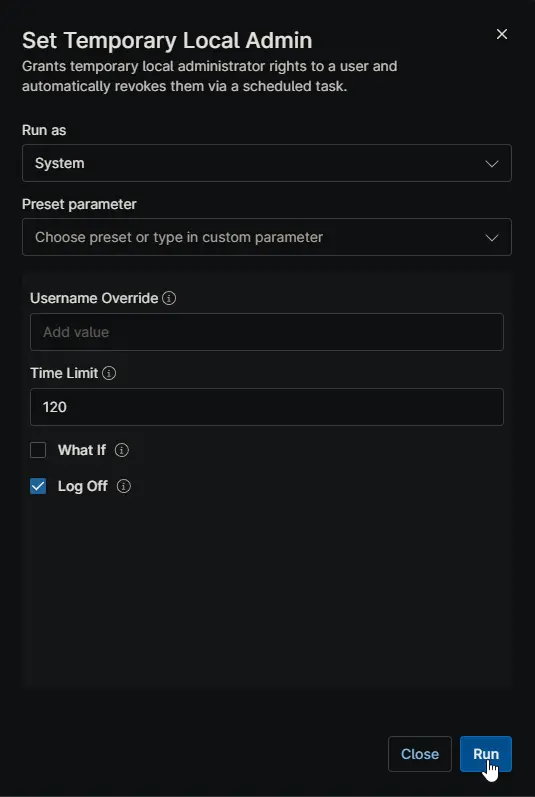
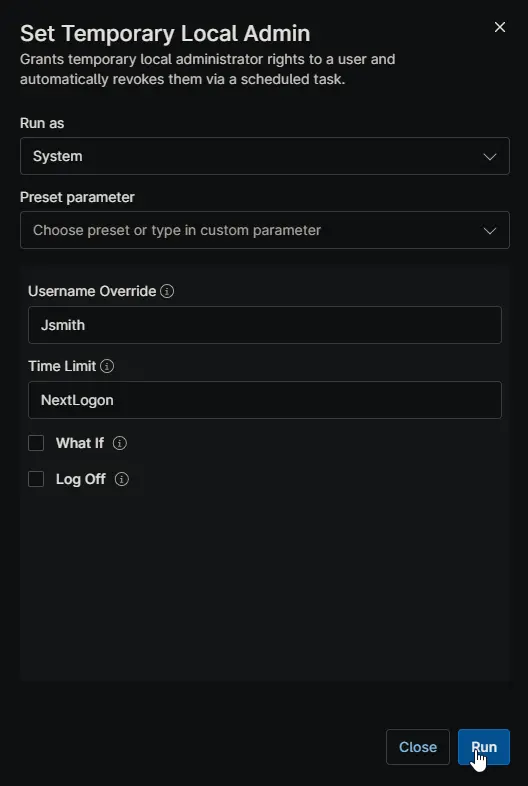
Example 2: Grant a specific user admin until next logon
- Username Override:
jsmith - Time Limit:
NextLogon - What If:
false - Log Off:
false
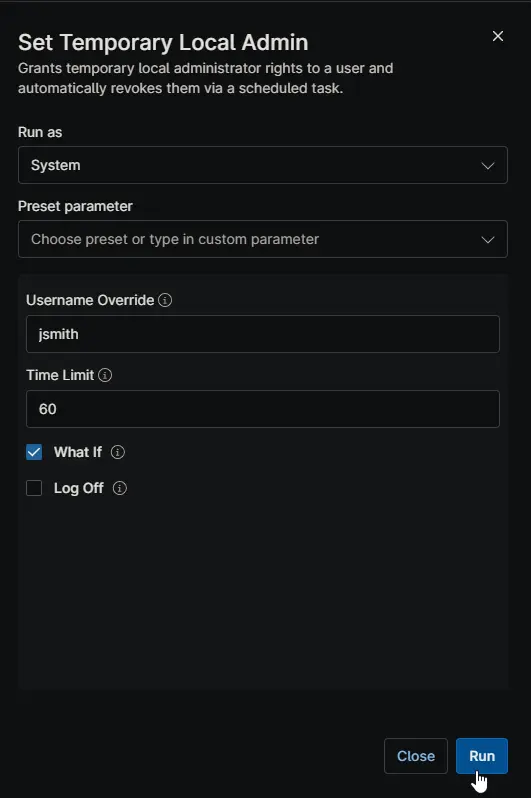
Example 3: Preview what would happen for user jsmith for 60 minutes
- Username Override:
jsmith - Time Limit:
60 - What If:
true - Log Off:
false
Example 4: Grant Azure AD user admin for 60 minutes and log the user off when access is revoked
- Username Override:
AzureAD\jsmith - Time Limit:
60 - What If:
false - Log Off:
true
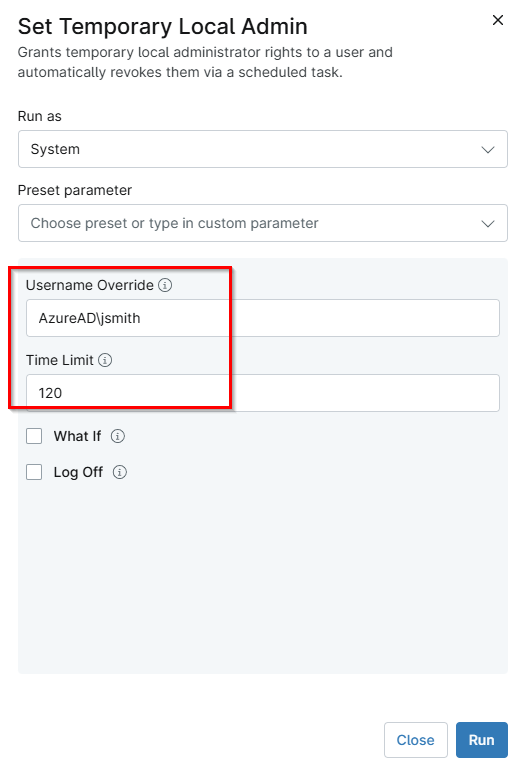
Example 5: Grant domain user admin for 90 minutes
- Username Override:
CONTOSO\jsmith - Time Limit:
90 - What If:
false - Log Off:
false
Parameters
| Name | Example | Accepted Values | Required | Default | Type | Description |
|---|---|---|---|---|---|---|
| Username Override | AzureAD\jsmith | Blank, bare username, DOMAIN\username, or AzureAD\username | No | Blank | String/Text | Selects the user to receive temporary admin rights. Leave blank to use the currently signed-in user. For Azure AD joined machines, use the AzureAD\username format. Domain prefixes are preserved for proper identity resolution. |
| Time Limit | 60 | NextLogon or any whole number 1 or higher | No | NextLogon | String/Text | Controls when admin rights are removed. Use a number for a timed access window, or NextLogon to remove access at the next sign-in. |
| What If | true | true or false | No | false | Checkbox | Preview mode. Shows which user would be targeted and when access would be removed, without changing group membership or creating a scheduled task. |
| Log Off | true | true or false | No | false | Checkbox | Signs the user out when admin rights are removed. Use this when you want elevated access fully cleared at the end of the temporary access window. |
Automation Setup/Import
Output
- Activity Details
FAQs
What happens if I leave Username Override blank?
The automation uses the user who is currently signed in. The script automatically detects and preserves the full identity (including any
AzureAD\or domain prefix) from the logged-in session. If no interactive user is signed in, the automation stops and makes no changes.
How should I format the username for Azure AD joined machines?
For Azure AD joined machines, use the full
AzureAD\usernameformat (e.g.,AzureAD\jsmith). This ensures the script can properly resolve the identity when adding or removing the user from the Administrators group. The script preserves this full prefixed identity throughout the automation process.
What username formats are accepted?
The automation accepts three formats:
- Bare username (e.g.,
jsmith) for local user accounts- Domain-prefixed (e.g.,
CONTOSO\jsmith) for Active Directory users- Azure AD-prefixed (e.g.,
AzureAD\jsmith) for Azure AD joined machinesWhen a domain prefix is present, the full prefixed identity is used for group operations while the bare username is used for display and task naming.
Will the user become a full admin immediately?
The user is added to the local Administrators group immediately. If they are already signed in, Windows may still show User Account Control prompts until they sign out and sign back in.
Which credentials can be used at User Account Control prompts?
If the signed-in user is the one who was granted temporary admin access, they can approve prompts with their own credentials. If the user signs out and signs back in, Windows applies the new group membership fully to that refreshed session.
When should I use NextLogon instead of a number of minutes?
Use
NextLogononly when you want access removed at the next sign-in. For a predictable support window, use a minute value such as30,60, or120.
What does What If do?
It shows which user would be targeted and when access would be removed. It does not add the user to the Administrators group and does not create the removal task.
What happens if the computer is off when the access window ends?
The removal task runs when the device is available again. A user should not keep temporary admin access just because the device was turned off at the scheduled time.
Does Log Off matter?
Yes. Removing a user from the Administrators group does not end already-open elevated sessions by itself. Log Off forces the user to sign out so temporary elevated access is fully cleared.
Changelog
2026-05-19
- Added support for domain-prefixed and Azure AD-prefixed username formats for proper identity resolution on Azure AD joined machines.
2026-04-23
- Initial version of the document.