Unified Update Manager
Summary
This script installs updates for Dell, HP, Lenovo, and Windows based on the parameters selected. It uses agnostic scripts Initialize-DellCommandUpdate, Initialize-HPImageAssistant, Install-LenovoUpdates and Install-WindowsUpdates for updates.
Note :
- If no parameter is set, the script will not install any updates
- The script is designed to handle a single update source at a time, either Dell, Lenovo, HP, or Windows Update.
- If Dell is selected for a dell machine, script will only execute dell updates and not windows updates. Same goes for HP and lenovo.
Sample Run
Example 1
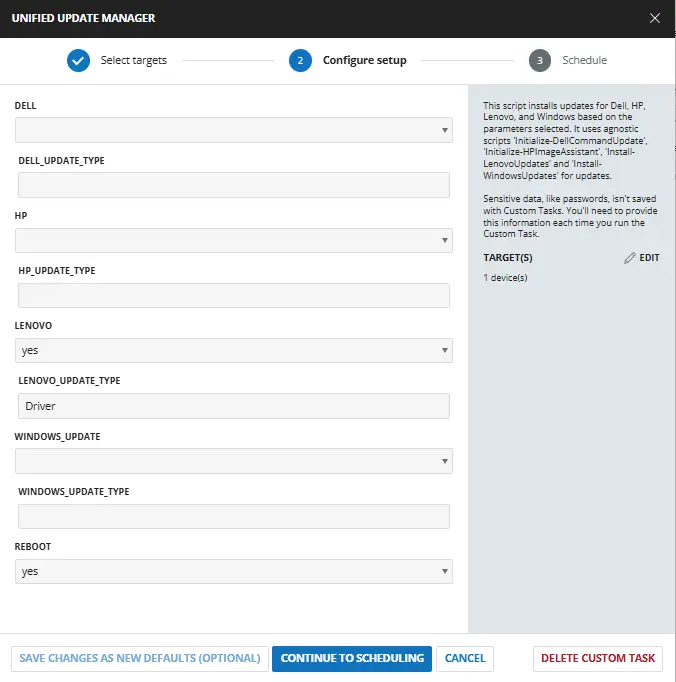
- Set the below parameters to install Driver updates on Lenovo machines and to not reboot the machine after updates.
LenovotoYesLenovo_Update_TypetoDriverReboottoYes
Example 2
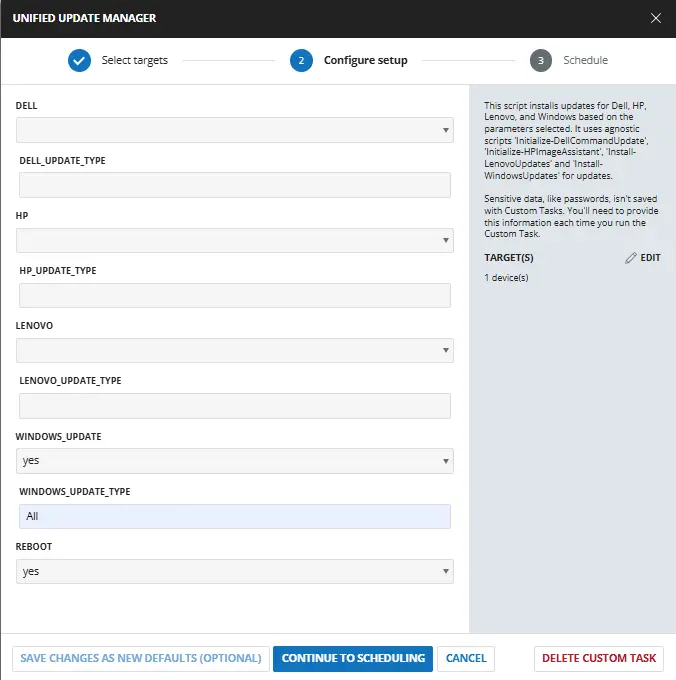
- Set below parameters to install all types of windows updates and immediately reboot the machine after windows updates.
Windows_UpdatetoYesWindows_Update_TypetoALLReboottoYes
Example 3
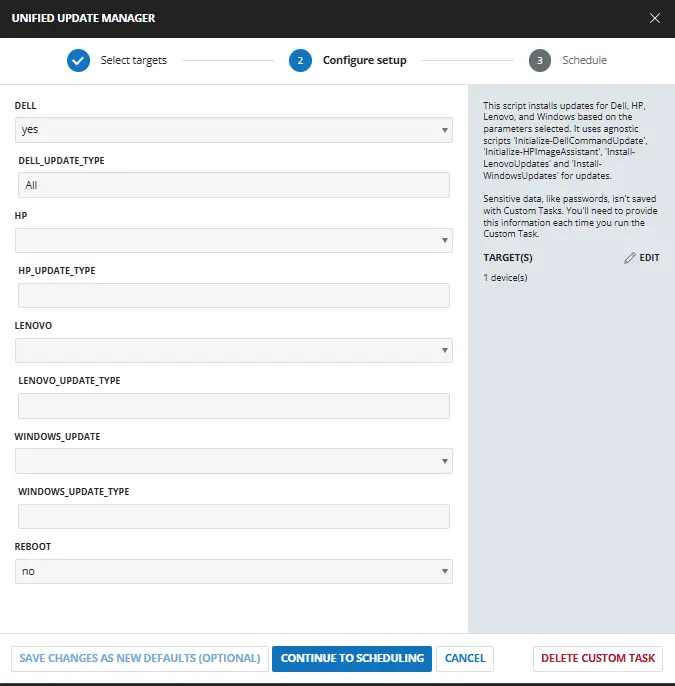
- Set the below parameters to install all types of Dell updates on Dell machines and to not reboot the machine after updates.
DelltoYesDell_Update_TypetoAllReboottoNo
Example 4
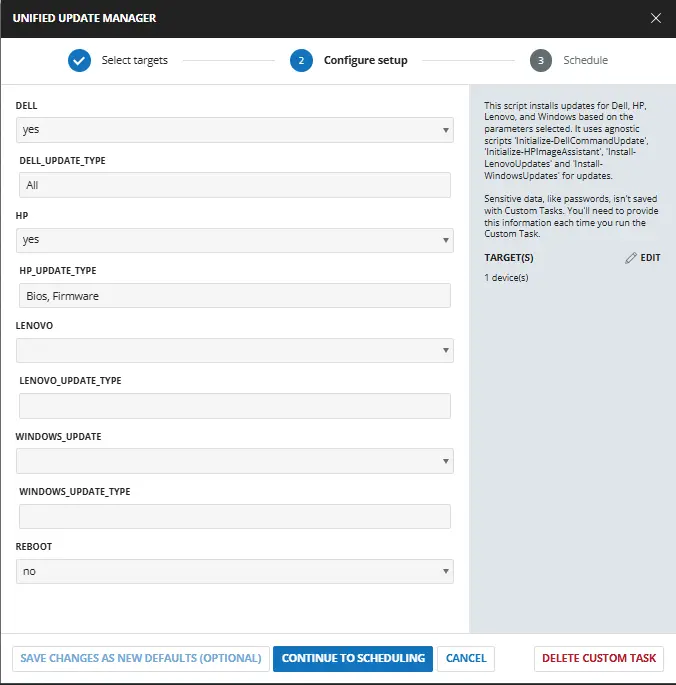
- Set the below parameters to install all types of Dell updates on Dell machines and to install just bios and firmware updates on HP machines without rebooting the machine after updates. This combination can be used to schedule the script on a group where HP and Dell machine are available.
DelltoYesDell_Update_TypetoAllHPtoYesHP_Update_TypetoBios,FirmwareReboottoNo
Dependencies
- Solution - Unified System Update Orchestrator
- Agnostic - Initialize-DellCommandUpdate
- Agnostic - Initialize-HPImageAssistant
- Agnostic - Install-LenovoUpdates
- Agnostic - Install-WindowsUpdates
User Parameters
| Name | Example | Accepted Values | Required | Default | Type | Description |
|---|---|---|---|---|---|---|
| Dell |
|
| False | Flag | Set it to Yes to enable updates on dell machines. | |
| Dell_Update_Type |
|
| False | Text | Define the type of update to install on the Dell machine. Setting it to Scan will scan the updates. All will install all the updates. Define multiple updates by separating them with a comma i.e bios,firmware,application. It runs the Agnostic - Initialize-DellCommandUpdate for installing the updates. If left blank, it will install driver updates on the machine. It will only work if Dell parameter is selected. | |
| HP |
|
| False | Flag | Set it to Yes to enable updates on HP machines. | |
| HP_Update_Type |
|
| False | Text | Define the type of update to install on the HP machine. Setting it to Scan will scan the updates. All will install all the updates. Define multiple updates by separating them with a comma i.e bios,firmware,application. It runs the Agnostic script - Initialize-HPImageAssistant for installing the updates. If left blank, it will install driver updates on the machine. It will only work if HP parameter is selected. | |
| Lenovo |
|
| False | Flag | Set it to Yes to enable updates on Lenovo machines. | |
| Lenovo_Update_Type |
|
| False | Text | Define the type of update to install on the Lenovo machine. Setting it to Scan will scan the updates. All will install all the updates. Define multiple updates by separating them with a comma i.e bios,firmware,application. It runs the Agnostic Script - Install-LenovoUpdates for installing the updates. If left blank, it will install driver updates on the machine. It will only work if Lenovo parameter is selected. | |
| Windows_Update |
|
| False | Flag | Set it to Yes to enable windows updates on machines. | |
| Windows_Update_Type |
|
| False | Text | Define the type of windows update to install. All will install all the updates. Define multiple updates by separating them with a comma i.e Critical Updates,drivers,tools. It runs the Agnostic Script - Install-WindowsUpdates for installing the updates. If left blank, it will install windows driver updates on the machine. | |
| Reboot |
|
| False | Flag | Set it to Yes to reboot the machine after installing the updates. It applies to all Dell, HP, Lenovo and windows updates. |
Task Creation
Script Details
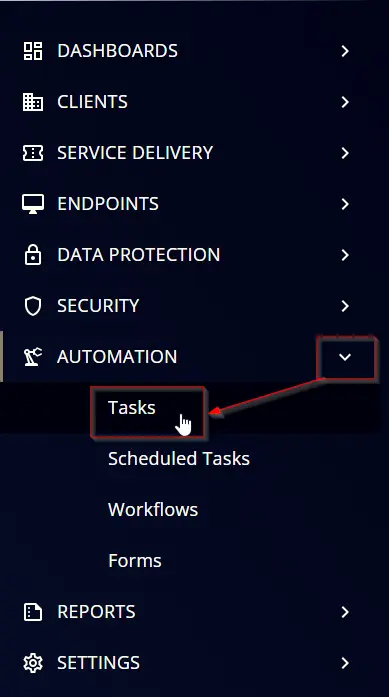
Step 1
Navigate to Automation ➞ Tasks
Step 2
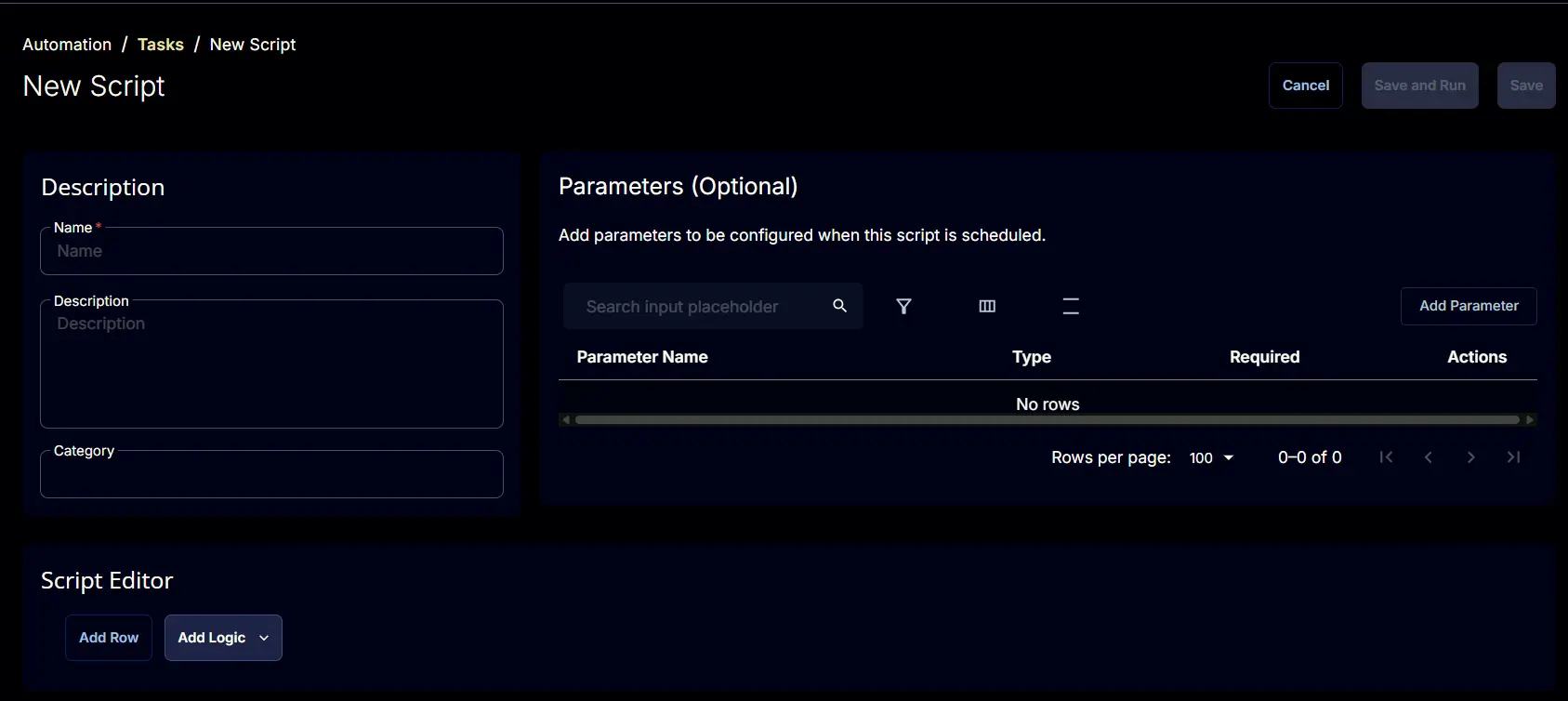
Create a new Script Editor style task by choosing the Script Editor option from the Add dropdown menu

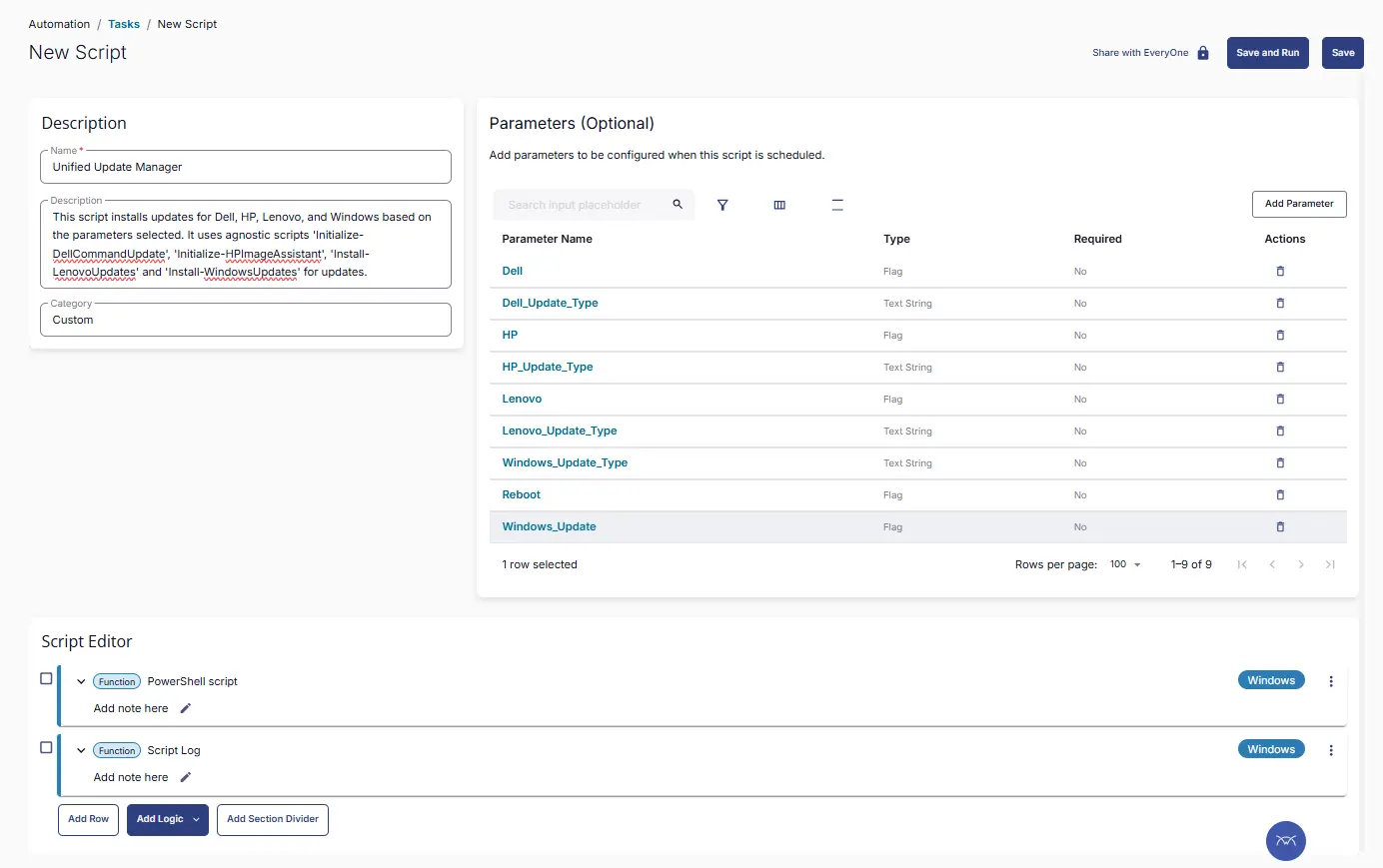
The New Script page will appear on clicking the Script Editor button:
Step 3
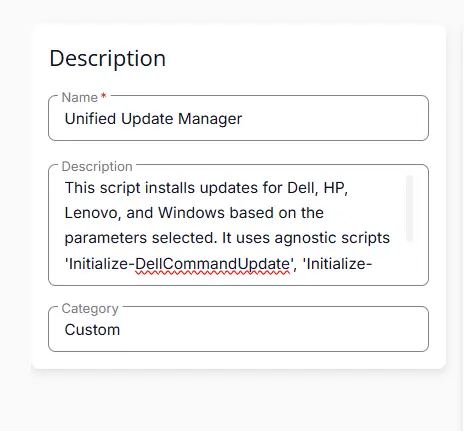
Fill in the following details in the Description section:
- Name:
Unified Update Manager - Description:
This script installs updates for Dell, HP, Lenovo, and Windows based on the parameters selected. It uses agnostic scripts 'Initialize-DellCommandUpdate', 'Initialize-HPImageAssistant', 'Install-LenovoUpdates' and 'Install-WindowsUpdates' for updates. - Category:
Custom
Parameters
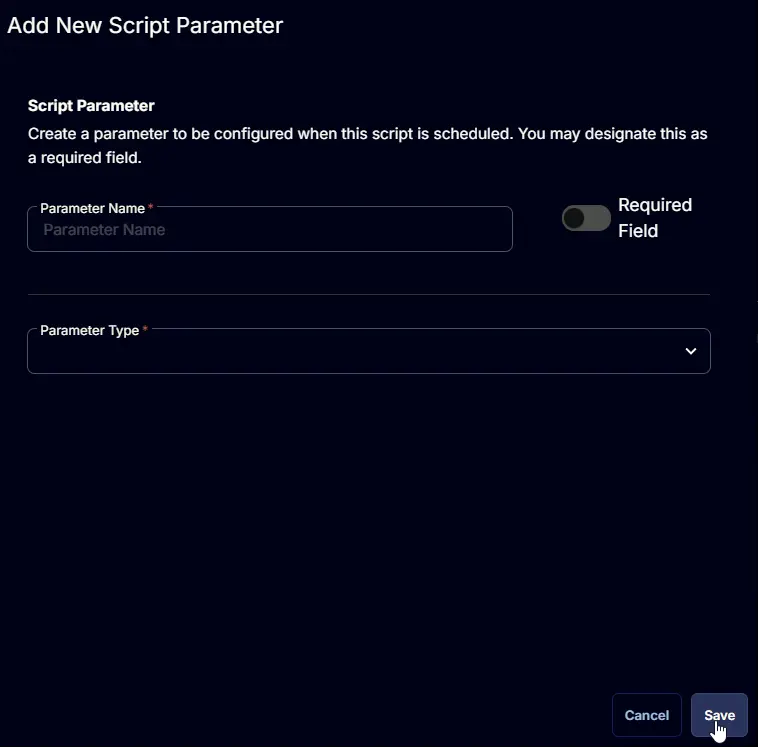
Locate the Add Parameter button on the right-hand side of the screen and click on it to create a new parameter.

The Add New Script Parameter page will appear on clicking the Add Parameter button.
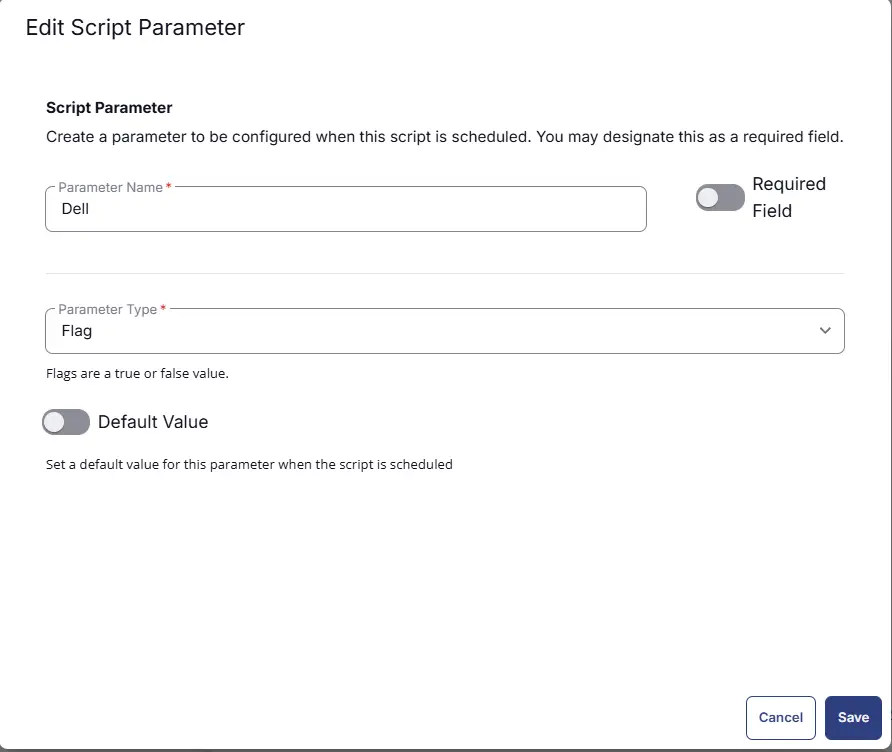
Dell
- Set
Dellin theParameter Namefield. - Select
Flagfrom theParameter Typedropdown menu. - Click the
Savebutton.
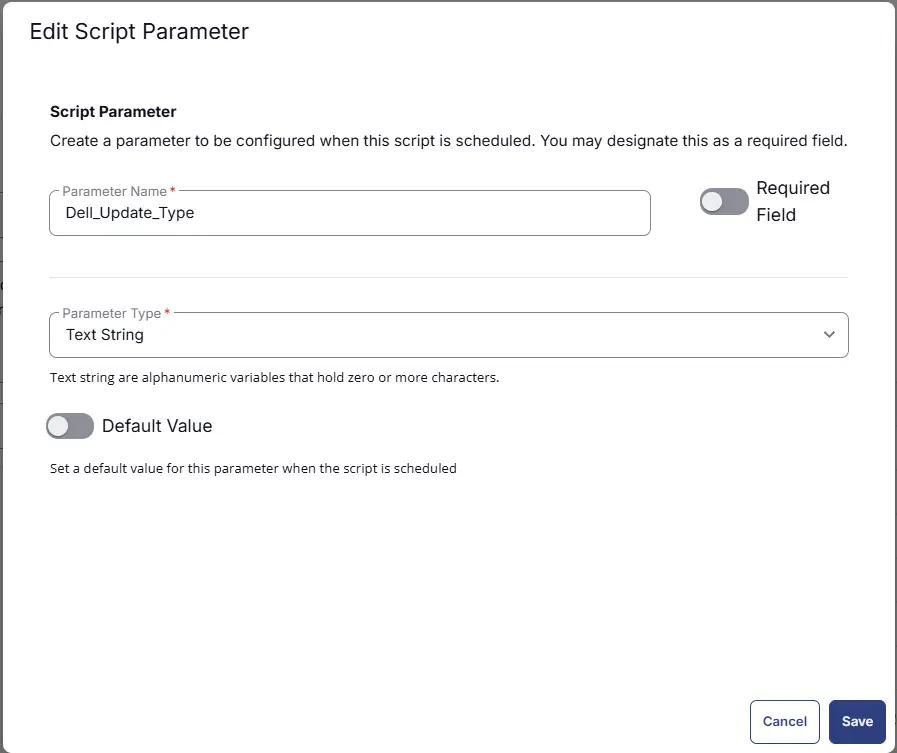
Dell_Update_Type
Add a new parameter by clicking the Add Parameter button present at the top-right corner of the screen.
- Set
Dell_Update_Typein theParameter Namefield. - Select
Text Stringfrom theParameter Typedropdown menu. - Click the
Savebutton.
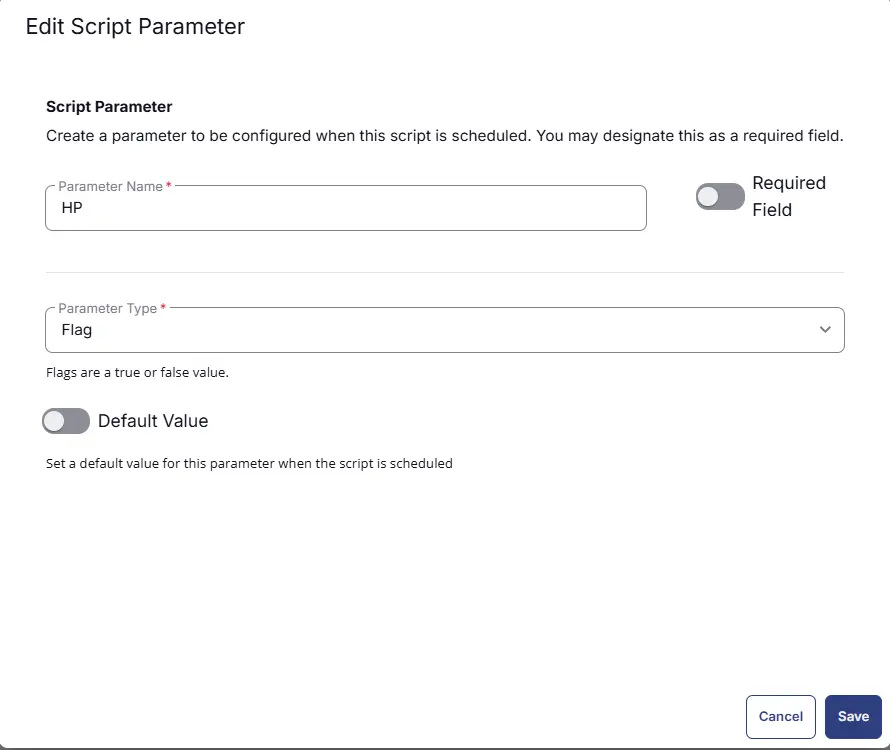
HP
Add a new parameter by clicking the Add Parameter button present at the top-right corner of the screen.
- Set
HPin theParameter Namefield. - Select
Flagfrom theParameter Typedropdown menu. - Click the
Savebutton.
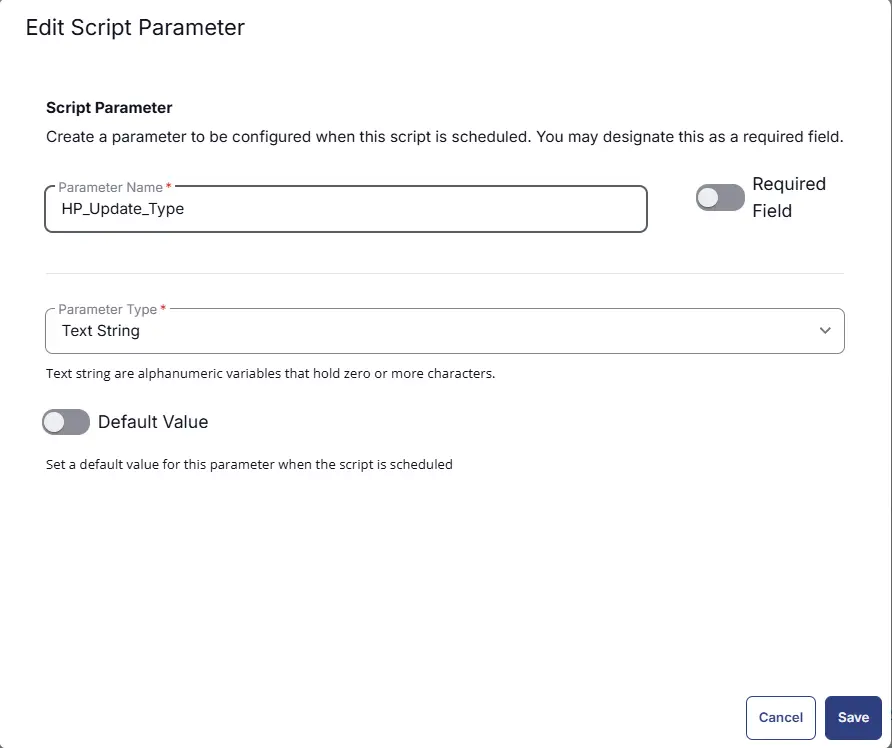
HP_Update_Type
Add a new parameter by clicking the Add Parameter button present at the top-right corner of the screen.
- Set
HP_Update_Typein theParameter Namefield. - Select
Text Stringfrom theParameter Typedropdown menu. - Click the
Savebutton.
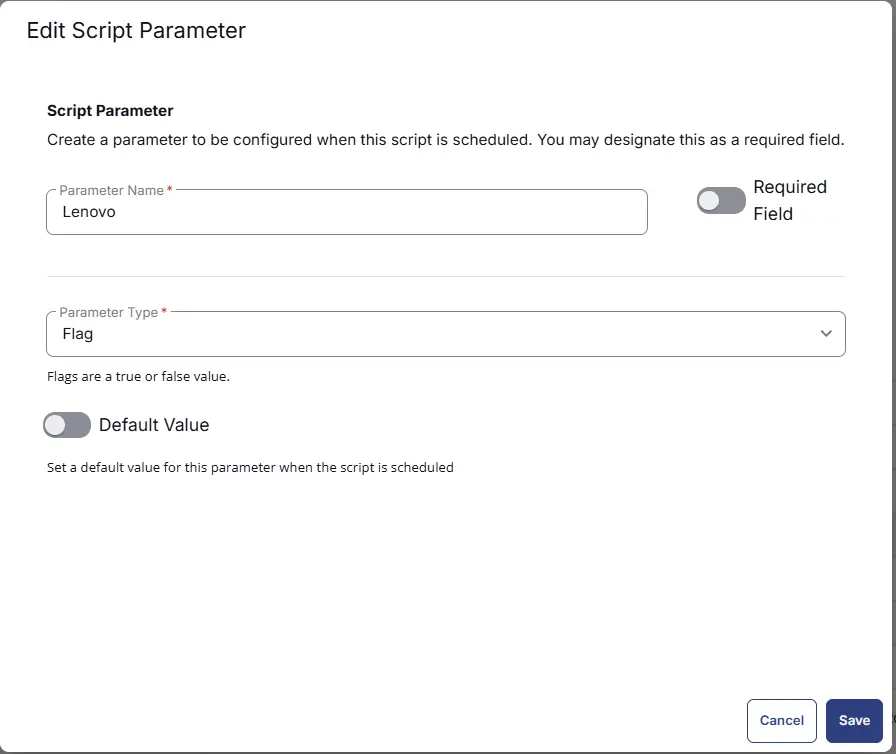
Lenovo
Add a new parameter by clicking the Add Parameter button present at the top-right corner of the screen.
- Set
Lenovoin theParameter Namefield. - Select
Flagfrom theParameter Typedropdown menu. - Click the
Savebutton.
Lenovo_Update_Type
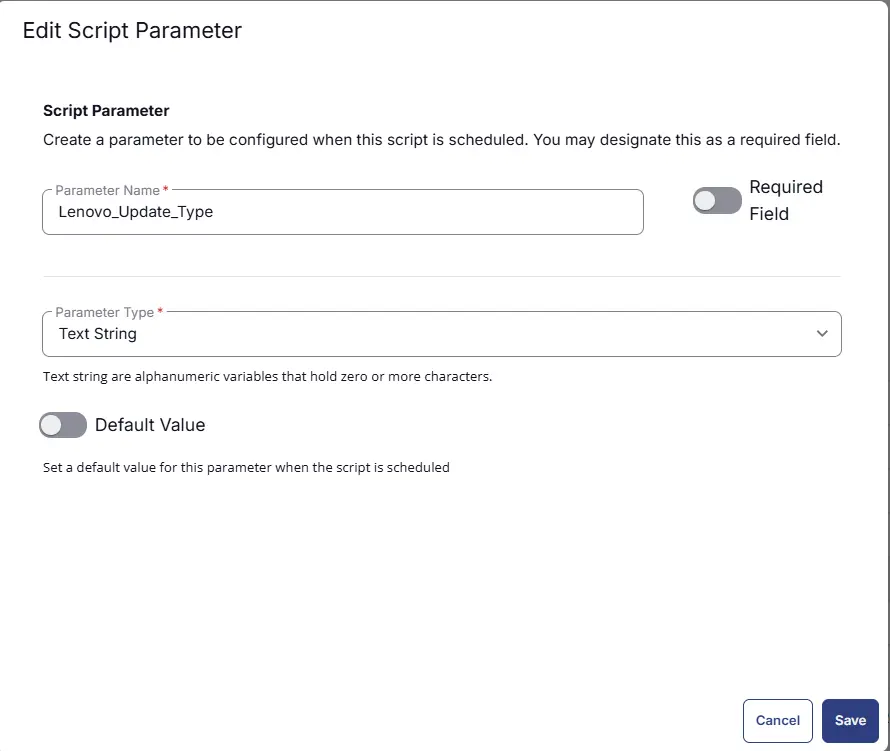
Add a new parameter by clicking the Add Parameter button present at the top-right corner of the screen.
- Set
Lenovo_Update_Typein theParameter Namefield. - Select
Text Stringfrom theParameter Typedropdown menu. - Click the
Savebutton.
Windows_Update
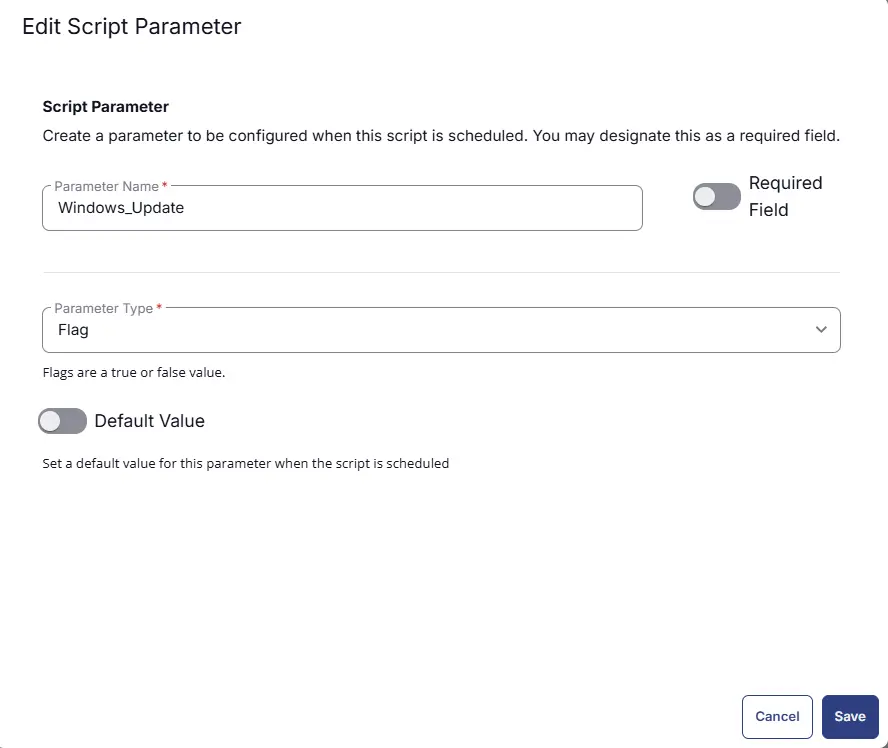
Add a new parameter by clicking the Add Parameter button present at the top-right corner of the screen.
- Set
Windows_Updatein theParameter Namefield. - Select
Flagfrom theParameter Typedropdown menu. - Click the
Savebutton.
Windows_Update_Type
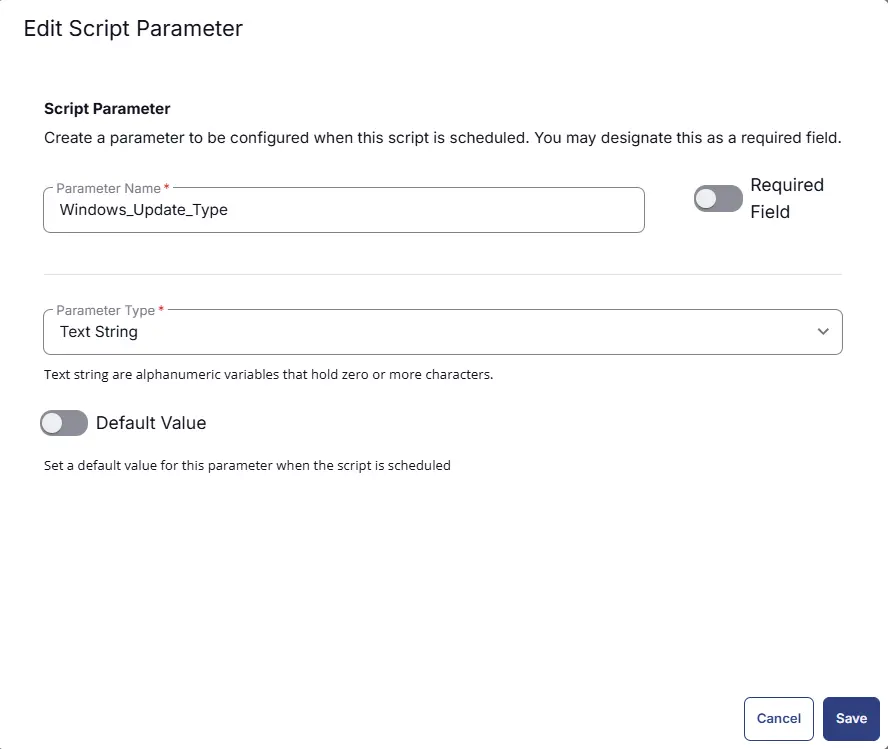
Add a new parameter by clicking the Add Parameter button present at the top-right corner of the screen.
- Set
Windows_Update_Typein theParameter Namefield. - Select
Text Stringfrom theParameter Typedropdown menu. - Click the
Savebutton.
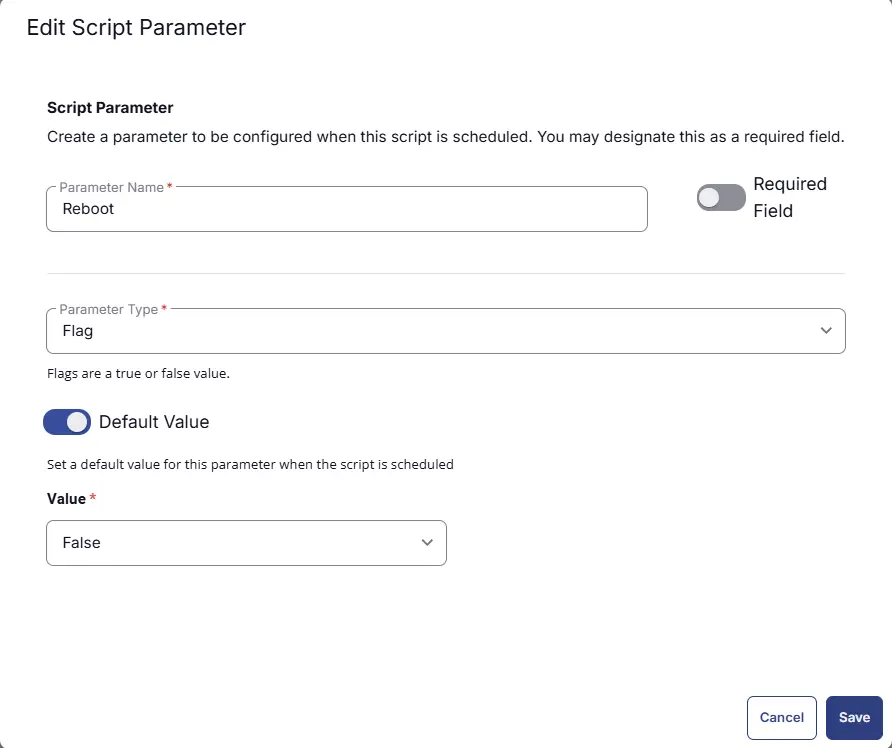
Reboot
Add a new parameter by clicking the Add Parameter button present at the top-right corner of the screen.
- Set
Rebootin theParameter Namefield. - Select
Flagfrom theParameter Typedropdown menu. - Set
FalseasDefaultValue - Click the
Savebutton.
Script Editor
Click the Add Row button in the Script Editor section to start creating the script

A blank function will appear:

Row 1 Function: PowerShell Script
Search and select the PowerShell Script function.

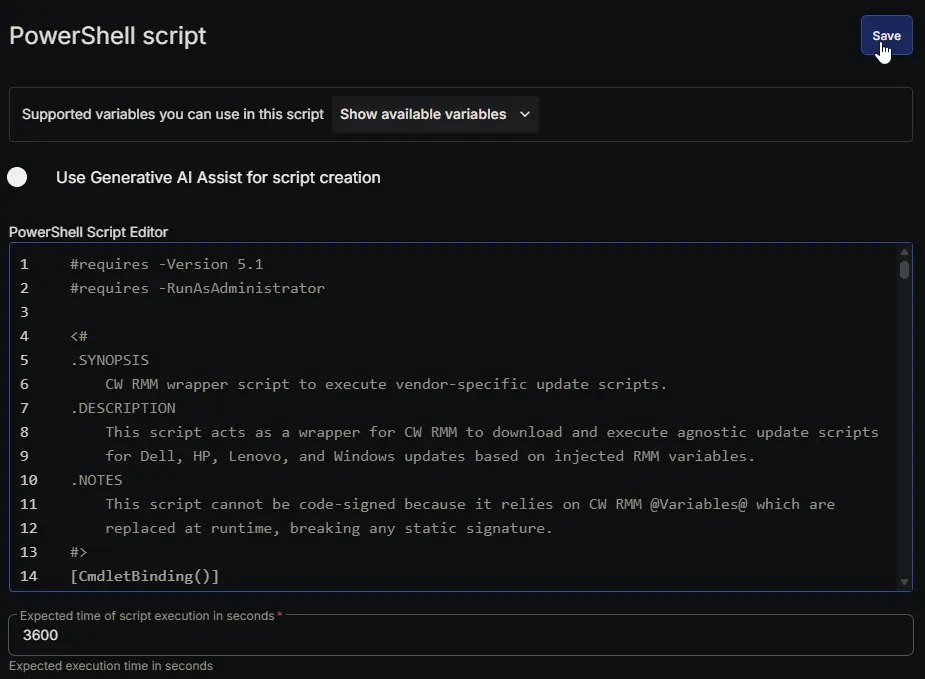
The following function will pop up on the screen:

Paste in the following PowerShell script and set the Expected time of script execution in seconds to 3600 seconds. Click the Save button.
Row 2 Function: Script Log
Add a new row by clicking the Add Row button.
A blank function will appear.
Search and select the Script Log function.

In the script log message, simply type %output% and click the Save button.

Save Task
Click the Save button at the top-right corner of the screen to save the script.

Completed Task
Output
- Script Output
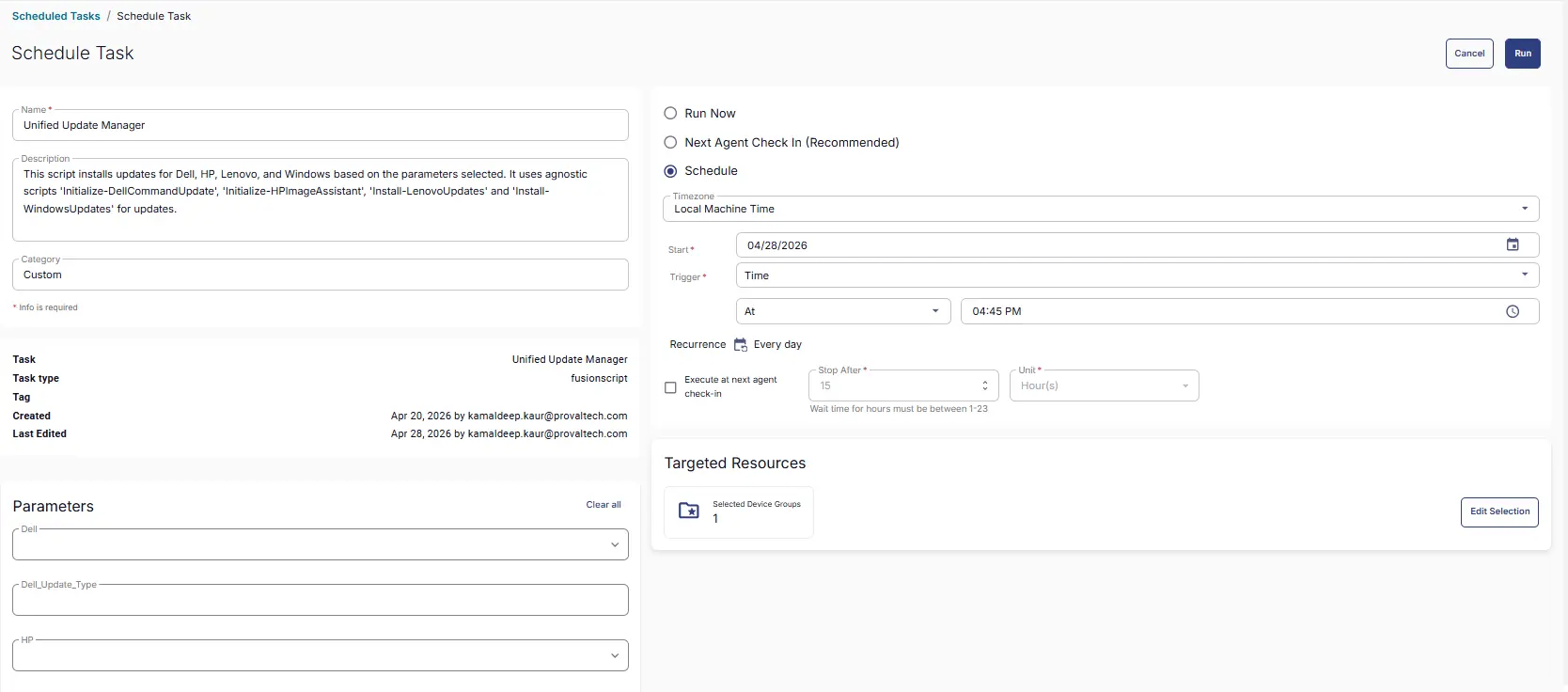
Schedule Task
Task Details
- Name:
Unified Update Manager - Description:
This script installs updates for Dell, HP, Lenovo, and Windows based on the parameters selected. It uses agnostic scripts 'Initialize-DellCommandUpdate', 'Initialize-HPImageAssistant', 'Install-LenovoUpdates' and 'Install-WindowsUpdates' for updates. - Category:
Custom
Parameters
- Select the parameters as per requirement. For more details on parameters refer User parameter section in this document
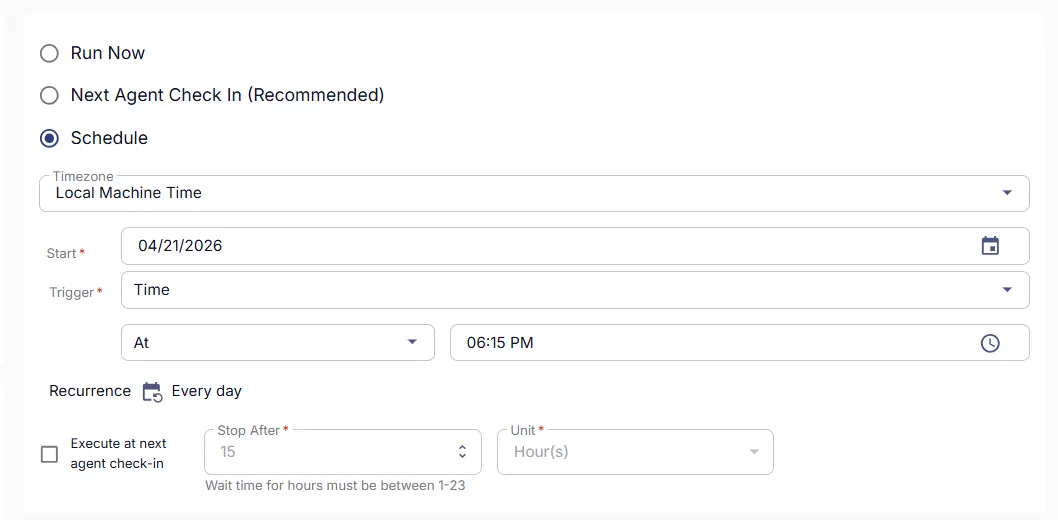
Schedule
- Schedule Type:
Schedule - Timezone:
Local Machine Time - Start:
<Current Date> - Trigger:
TimeAt<Current Time> - Recurrence:
Every Day - Execute at next agent check-in
Not selected
Targeted Resource
Device Group: Deploy All Updates
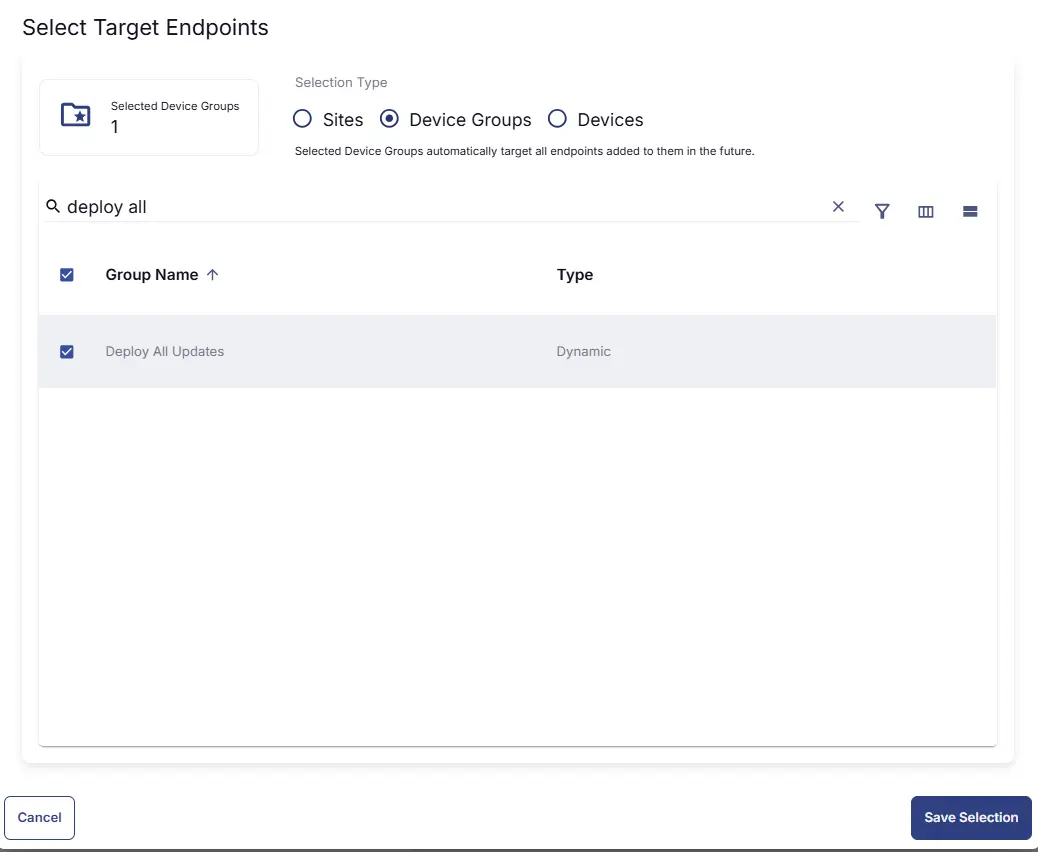
Completed Scheduled Task
Changelog
2026-08-07
- Bug fixes
2026-04-29
- Initial version of the document