ITG - Local Admin Password Management
Overview
This automated script rotates or creates a specified Local Administrator account password on the target Windows endpoint, enforces security compliance, and securely documents the credentials directly into IT Glue.
Implementation
-
Download the component
ITG - Local Admin Password Managementfrom the attachments. -
After downloading the attached file, click on the
Importbutton -
Select the component just downloaded and add it to the Datto RMM interface.

-
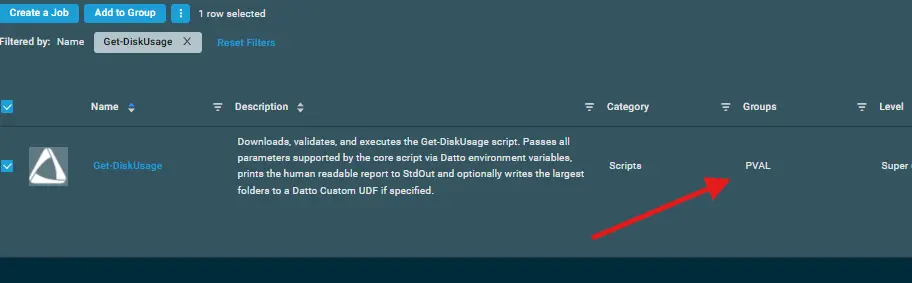
After Importing the component to the Datto RMM, make sure to add the component to the
ProvalGroup always.- Steps to Add the component under
ProvalGroup.
i. Click onDrop Down Icon.
ii. Click onAdd to Group.

iii. Select the group asProval
- Steps to Add the component under
Note - In order to get the script working, the machine must have installed Nuget onto the devices which can be done through Datto's Comstore - Enable NuGet PowerShell Provider [WIN]
Sample Run
To execute the component over a specific machine, follow these steps:
-
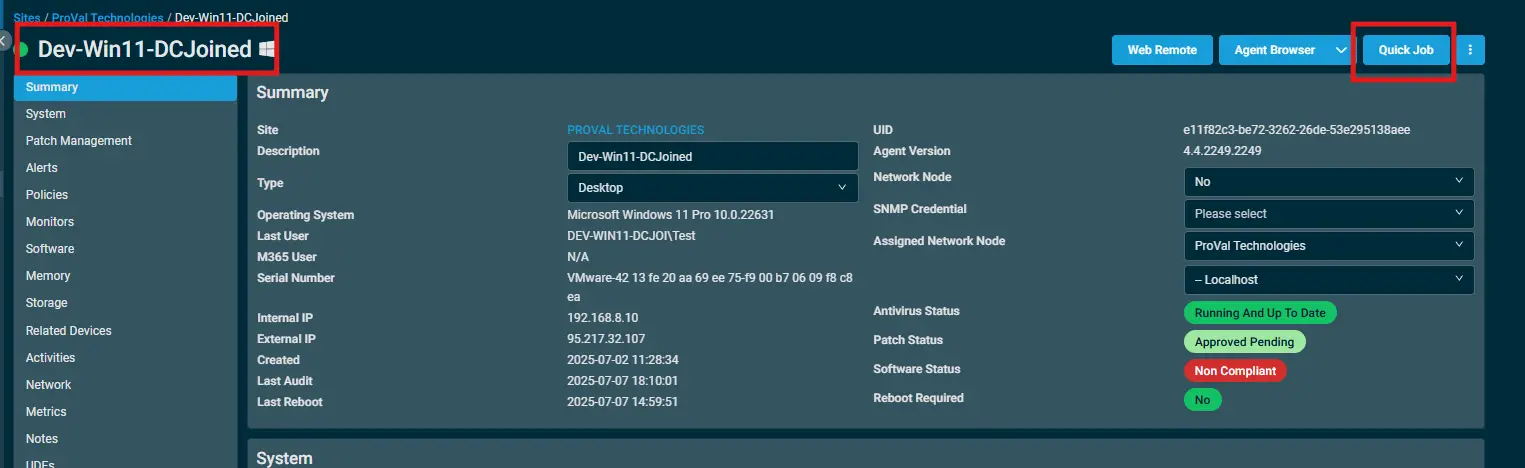
Select the machine you want to run the
componenton from the Datto RMM. -
Click on the
Quick Jobbutton.
-
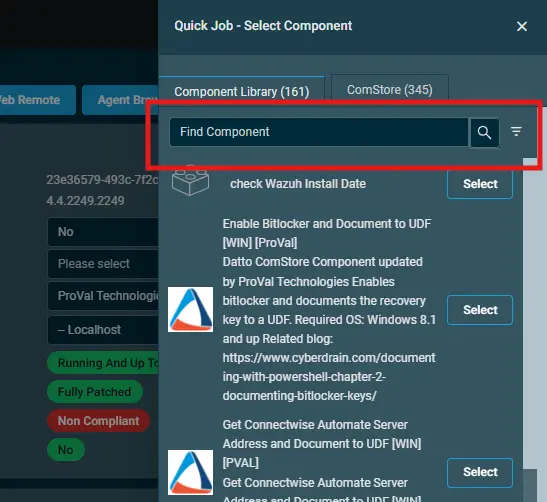
Search the component
ITG - Local Admin Password Managementand click onSelect
-
Sample Run:
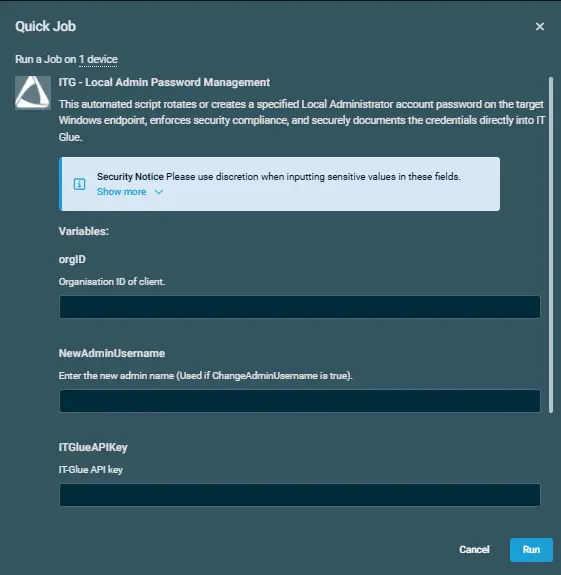

NOTE- Please add all the respective details from the CW portal.
Datto Variables
| Variable Name | Type | Default | Description |
|---|---|---|---|
| orgID | String | Organisation ID of client. | |
| NewAdminUsername | String | Enter the new admin name (Used if ChangeAdminUsername is true). | |
| ITGlueAPIKey | String | IT-Glue API key | |
| ITGlueURL | String | https://api.itglue.com | API URL IT-Glue |
| ChangeAdminUsername | Boolean | False | Change the current administrators username(Disable "Administrator" and creates new account) |
Output
- stdOut
- stdError
Attachments
ITG - Local Admin Password Management
Changelog
2026-07-23
- Initial version of the document