ESXi - Snapshot Create

Summary

This task can be used to create a snapshot of a machine hosted on an ESXi host server. It utilizes the PowerCLI Module to perform the required action.

Sample Run
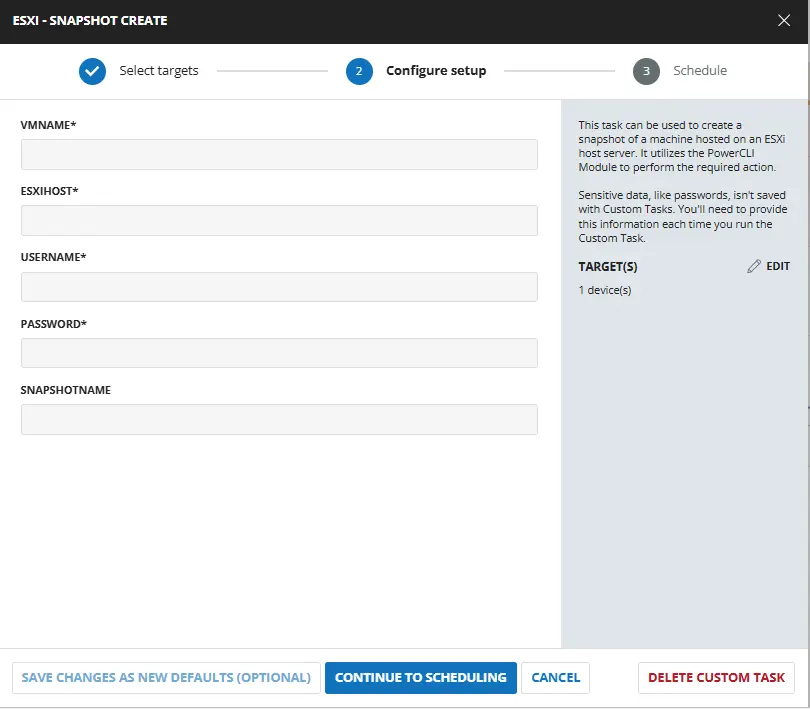
Image

User Parameters

NameExampleRequiredTypeDescription
VMNameDEV_Test-win10TrueText StringThe name of the virtual machine to create a snapshot of.
ESXiHost111.111.111.111TrueText StringIP Address of ESXi Host.
UsernameESXIAdminTrueText StringUsername to use to connect with the ESXi Host.
Password"QWfqw2%R@@$@FQW:RVV!'qwdwq"TrueText StringPassword to use to connect with the ESXi Host.
SnapshotNameCW-RMM-Temp-Snapshot_20230501_081958FalseText StringName of the Snapshot to create. By default, script will create snapshot with name "CW-RMM-Temp-Snapshot_yyyyMMdd_HHmmss"

Task Creation

Script Details

Step 1

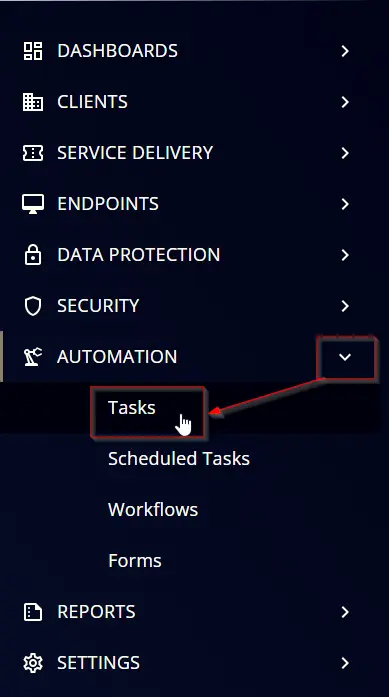
Navigate to AutomationTasks
step1

Step 2

Create a new Script Editor style task by choosing the Script Editor option from the Add dropdown menu
step2

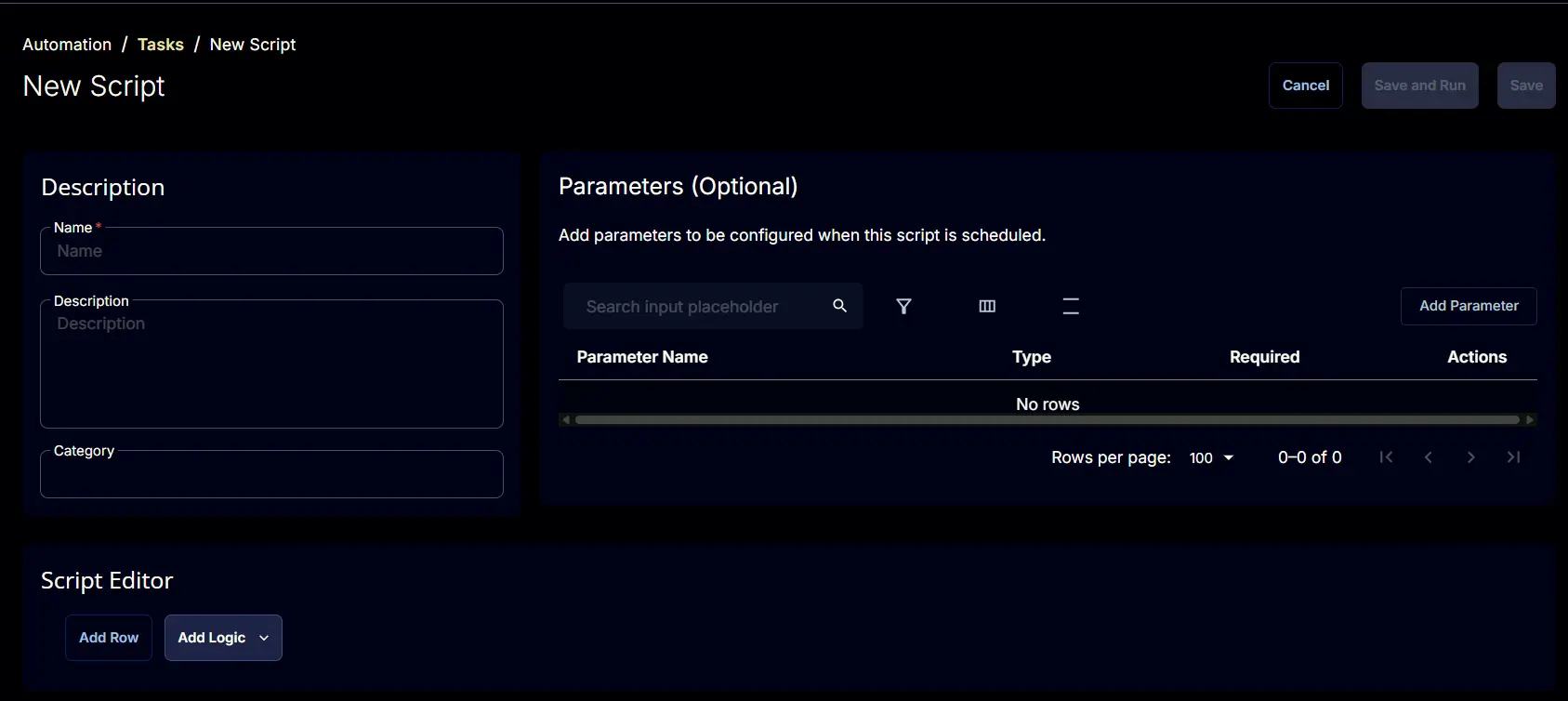
The New Script page will appear on clicking the Script Editor button:
step3

Step 3

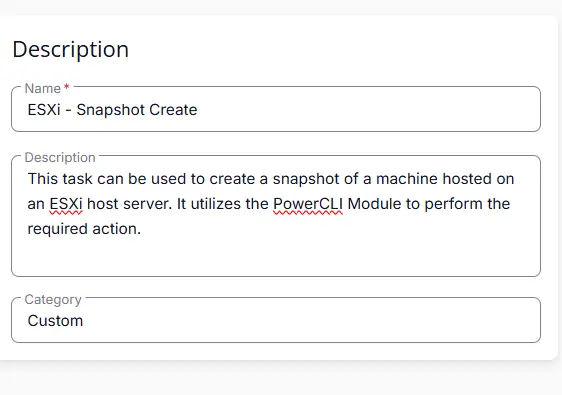
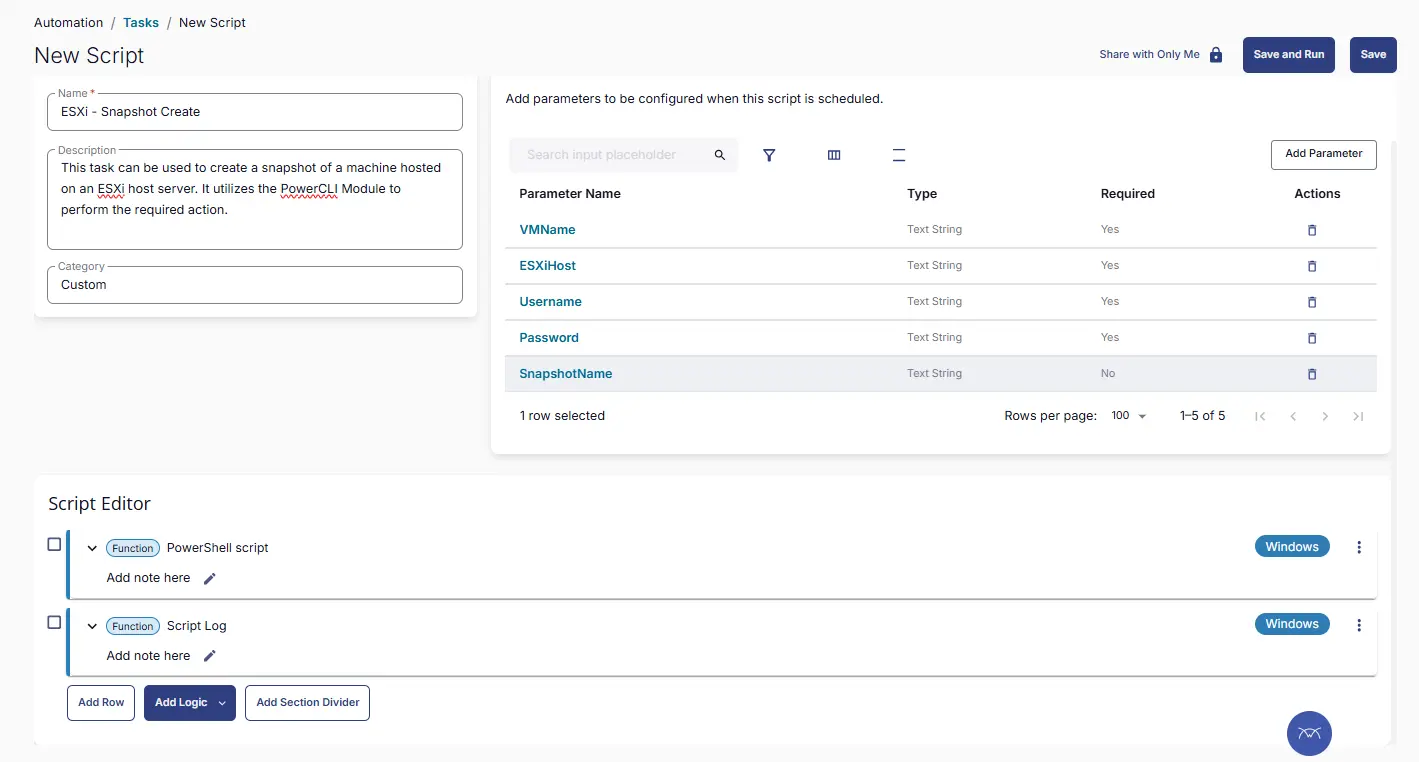
Fill in the following details in the Description section:

  • Name: ESXi - Snapshot Create
  • Description: This task can be used to create a snapshot of a machine hosted on an ESXi host server. It utilizes the PowerCLI Module to perform the required action.
  • Category: Custom

Image

Parameters

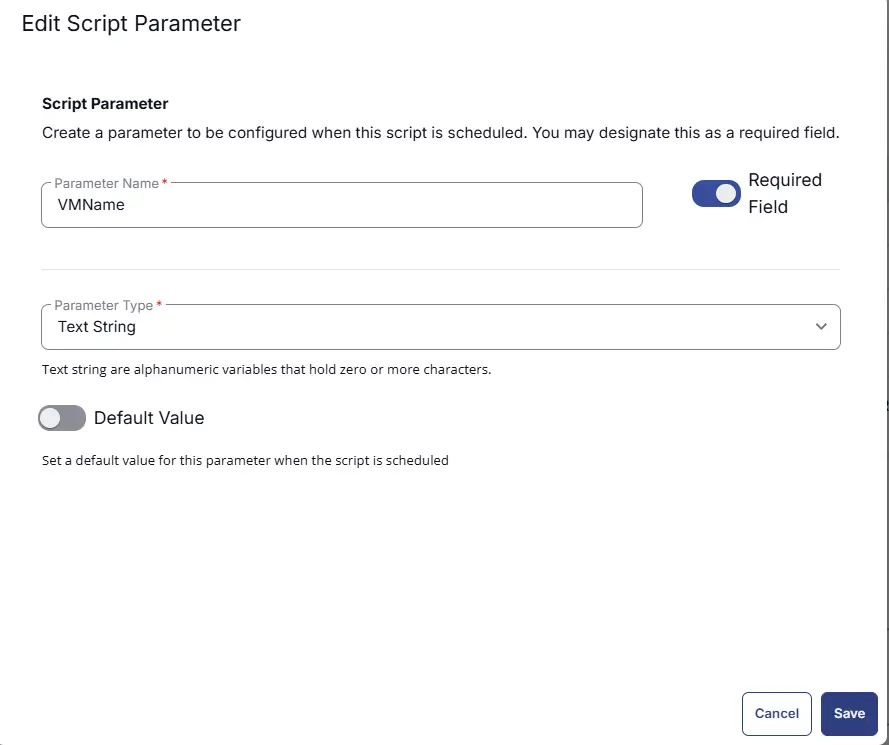
VMName

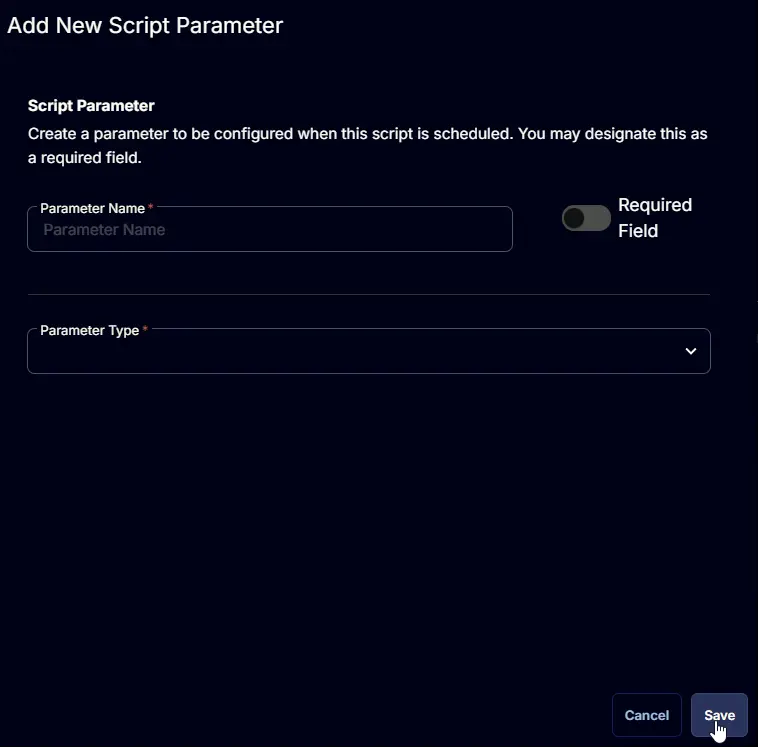
The Add New Script Parameter page will appear on clicking the Add Parameter button.
AddNewScriptParameter

  • Set VMName in the Parameter Name field.
  • Enable the Required Field button.
  • Select Text String from the Parameter Type dropdown menu.
  • Click the Save button.

Image

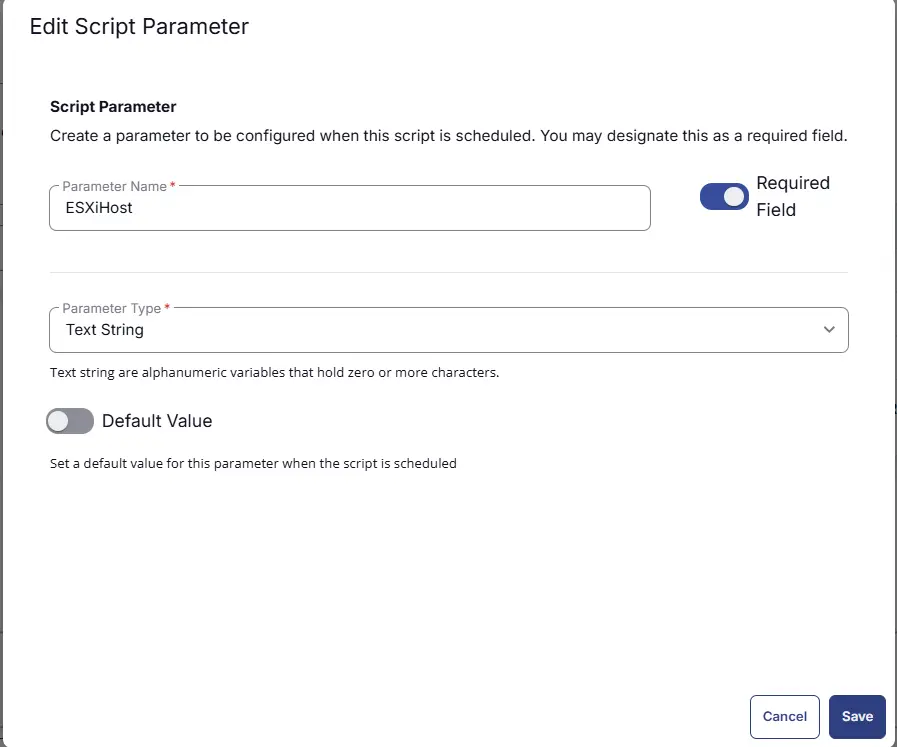
ESXiHost

The Add New Script Parameter page will appear on clicking the Add Parameter button.

  • Set ESXiHost in the Parameter Name field.
  • Enable the Required Field button.
  • Select Text String from the Parameter Type dropdown menu.
  • Click the Save button.

Image

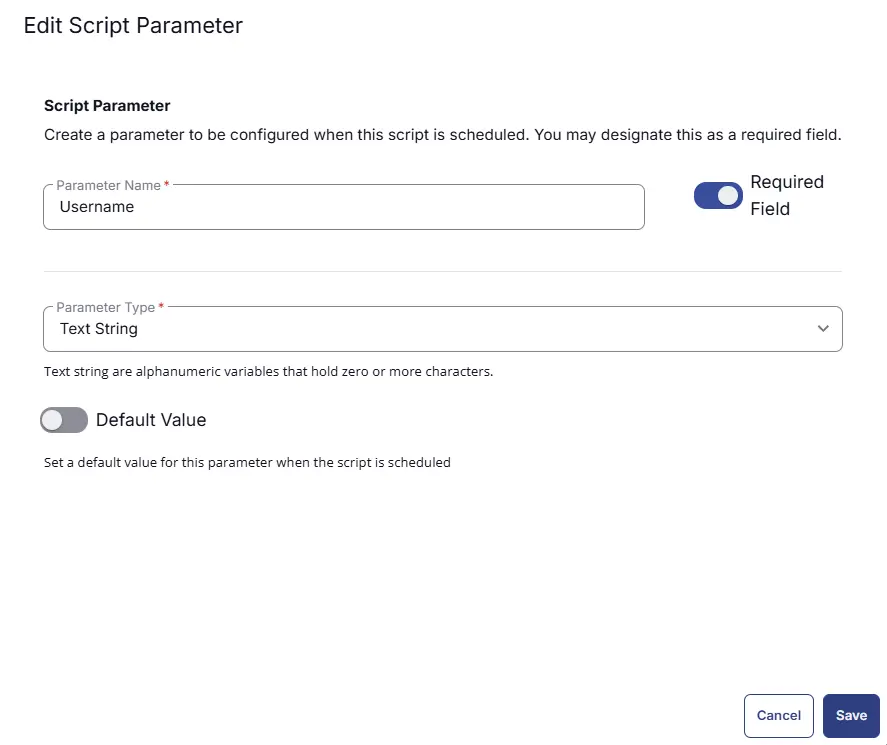
Username

The Add New Script Parameter page will appear on clicking the Add Parameter button.

  • Set Username in the Parameter Name field.
  • Enable the Required Field button.
  • Select Text String from the Parameter Type dropdown menu.
  • Click the Save button.

Image

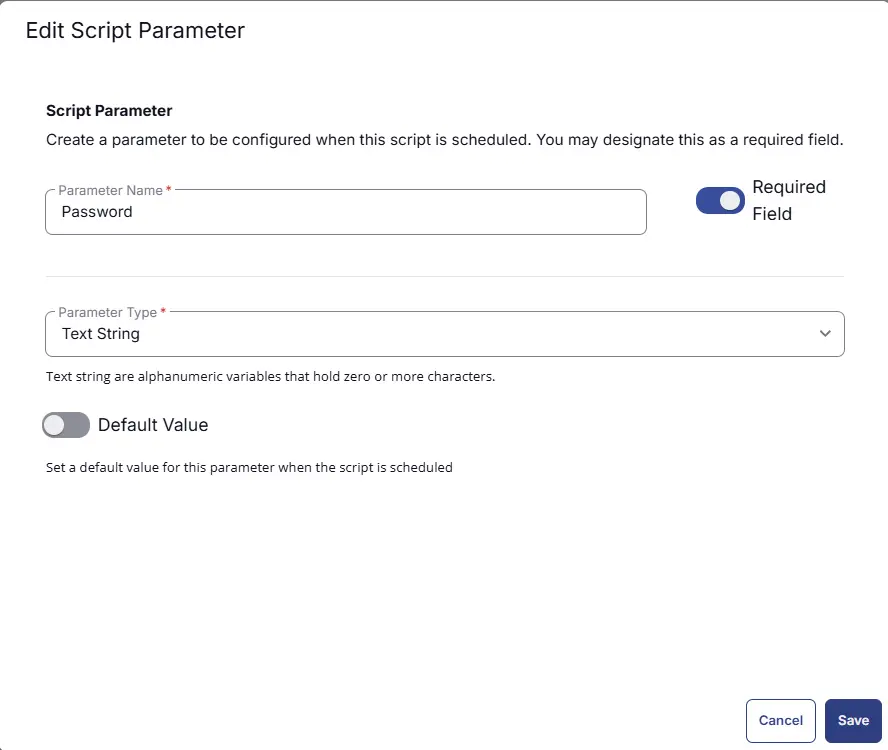
Password

The Add New Script Parameter page will appear on clicking the Add Parameter button.

  • Set Password in the Parameter Name field.
  • Enable the Required Field button.
  • Select Text String from the Parameter Type dropdown menu.
  • Click the Save button.

Image

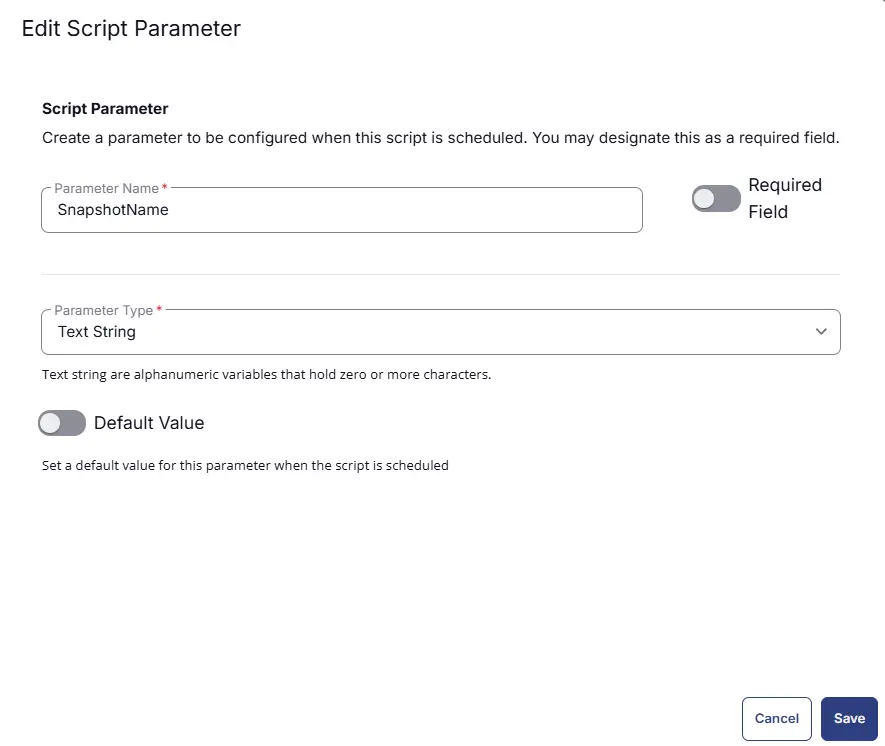
SnapshotName

The Add New Script Parameter page will appear on clicking the Add Parameter button.

  • Set SnapshotName in the Parameter Name field.
  • Disable the Required Field button.
  • Select Text String from the Parameter Type dropdown menu.
  • Click the Save button.

Image

Script Editor

Click the Add Row button in the Script Editor section to start creating the script
AddRow

A blank function will appear:
BlankFunction

Row 1 Function: PowerShell Script

Search and select the PowerShell Script function.

PowerShell Function Selected

The following function will pop up on the screen:
PowerShell Function Example

Paste in the following PowerShell script and set the Expected time of script execution in seconds to 600 seconds. Click the Save button.
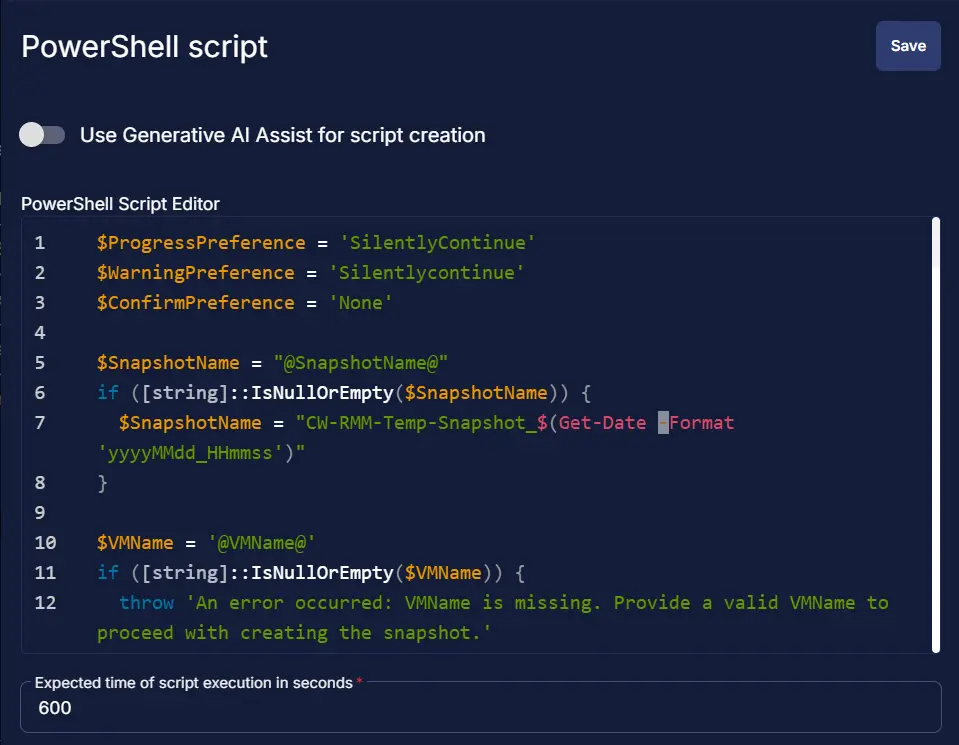
$ProgressPreference = 'SilentlyContinue'
$WarningPreference = 'Silentlycontinue'
$ConfirmPreference = 'None'

$SnapshotName = "@SnapshotName@"
if ([string]::IsNullOrEmpty($SnapshotName)) {
$SnapshotName = "CW-RMM-Temp-Snapshot_$(Get-Date -Format 'yyyyMMdd_HHmmss')"
}

$VMName = '@VMName@'
if ([string]::IsNullOrEmpty($VMName)) {
throw 'An error occurred: VMName is missing. Provide a valid VMName to proceed with creating the snapshot.'
}

$ESXiHost = '@ESXiHost@'
if ([string]::IsNullOrEmpty($ESXiHost)) {
throw 'An error occurred: ESXiHost URL is missing. Provide valid ESXiHost URL to proceed with creating the snapshot.'
}

$Username = '@Username@'
if ([string]::IsNullOrEmpty($Username)) {
throw 'An error occurred: Username is missing. Provide valid Username to connect with the ESXi Host.'
}

$Pwd = '@Password@'
if ([string]::IsNullOrEmpty($Pwd)) {
throw 'An error occurred: Password is missing. Provide valid Password to connect with the ESXi Host.'
}

[securestring]$Password= ConvertTo-SecureString $Pwd -AsPlainText -Force

if ((Get-ItemProperty -Path 'HKLM:SOFTWARE\Microsoft\NET Framework Setup\NDP\v4\Full').Release -lt 461808)
{Throw '.Net Version installed on the computer does not meet the minumum criteria of .Net Framework 4.7.2+ (Release: 461808)'}
else {'Required .Net Version detected'}

if ($PSVersionTable.PSVersion -lt [Version]'5.1')
{throw 'PowerShell Version installed on the computer does not meet the minumum criteria of PowerShell v5.1+'}
else {'Required PowerShell Version Detected'}


# Check if the VMware PowerCLI module is installed
if ( !(Get-Module -ListAvailable -Name VMware.PowerCLI)) {
If ( Test-Path "C:\Program Files\WindowsPowerShell\Modules\VMware.VimAutomation.Core") {
(Import-Module -Name VMware.VimAutomation.Core -ErrorAction SilentlyContinue) 2>$null 3>$null 4>$null 5>$null 6>$null
}
else {
[Net.ServicePointManager]::SecurityProtocol = [enum]::ToObject([Net.SecurityProtocolType], 3072)
Get-PackageProvider -Name NuGet -ForceBootstrap | Out-Null
Set-PSRepository -Name PSGallery -InstallationPolicy Trusted
if (Get-Module -Name VMware.PowerCLI -ListAvailable -ErrorAction SilentlyContinue) {
Update-Module -Name VMware.PowerCLI -Confirm:$false -Force
}
else {
Install-Module -Name VMware.PowerCLI -Repository PSGallery -AllowClobber -Force -Confirm:$False
}
Import-Module VMware.VimAutomation.Core -ErrorAction SilentlyContinue
}
}
else {
Import-Module VMware.VimAutomation.Core -ErrorAction SilentlyContinue
}
# Set PowerCLI Configuration
$PowerCLIConfiguration = Get-PowerCLIConfiguration | Where-Object { $_.Scope -eq 'session' } | Select-Object ParticipateInCEIP, InvalidCertificateAction
If ( $PowerCLIConfiguration.ParticipateInCEIP -notmatch 'False' ) {
Set-PowerCLIConfiguration -ParticipateInCEIP $False -Confirm:$False
}
If ( $PowerCLIConfiguration.InvalidCertificateAction -notmatch 'Ignore' ) {
Set-PowerCLIConfiguration -InvalidCertificateAction Ignore -Confirm:$False
}

# Connect to the ESXi host
try {
[pscredential]$Credential = New-Object System.Management.Automation.PSCredential ($Username, $Password)
Connect-VIServer -Server $ESXiHost -Credential $credential -Force 2>&1 3>$null 4>$null 5>$null 6>$null
}
catch {
throw "Script Failed: Error connecting to the ESXi host: $_"
exit 1
}

# Check if the VM exists
$VM = Get-VM -Name $VMName -ErrorAction SilentlyContinue
if ( !( $VM ) ) {
throw "Script Failed: Virtual machine '$VMName' not found. Please provide a valid virtual machine name."
Disconnect-VIServer -Server $ESXiHost -Confirm:$false
exit 1
}

# Create a snapshot of the virtual machine
try {
New-Snapshot -VM $VM -Name $SnapshotName -Description "Snapshot created by PowerShell script" -Confirm:$false
return "Snapshot created successfully for virtual machine '$VMName'"
}
catch {
throw "Script Failed: Error creating snapshot: $_"
exit 1
}
finally {
Disconnect-VIServer -Server $ESXiHost -Confirm:$false
}

Image

Row 2 Function: Script Log

Add a new row by clicking the Add Row button.
Add Row

A blank function will appear.
Blank Function

Search and select the Script Log function.
Script Log Search

In the script log message, simply type %output% and click the Save button.
Script Log Save

Save Task

Click the Save button at the top-right corner of the screen to save the script.
SaveButton

Completed Task

Image

Output

  • Script Logs

Changelog

2026-03-20

  • Initial version of the document