Invoke-RebootWithPrompt
Description
Prompts end users to reboot their Windows 10/11 device with postponement and scheduling logic.
The script runs under SYSTEM via your RMM platform and manages itself automatically after the first execution — no recurring jobs or repeating scheduled tasks need to be configured in your RMM. It creates its own one-time scheduled tasks to handle retries, postponements, and reminders until the machine is rebooted.
Button labels switch to Dutch automatically when the user’s display language is nl-NL or nl-BE. Set the title and message text in your implementation script parameters.
How It Works
Default Prompt Flow (4 prompts, 4 hours apart)
- Prompt 1–3 (Regular): The user sees a prompt with two buttons —
PostponeandReboot Now.- If the user clicks Postpone, the script reschedules itself to try again in 4 hours (default).
- If the user clicks Reboot Now, the machine reboots immediately.
- If the prompt times out (default 10 minutes), the script treats it as a postpone.
- Prompt 4 (Final/Scheduling): The user sees a date/time picker and must select a reboot time within the next 48 hours.
- If the user picks a time 15+ minutes in the future, the reboot is scheduled and a reminder appears 10 minutes before.
- If the user picks a time less than 15 minutes away, the reboot is forced shortly after.
- If the prompt times out (default 15 minutes), the machine reboots automatically.
Automatic Behaviors
| Scenario | What Happens |
|---|---|
| User reboots on their own | On the next scheduled run the script detects either fresh uptime OR that LastBootUpTime is newer than the last prompt timestamp, cleans up all tasks and state, and exits. No further prompts. |
| User reboots after reminder / during shutdown countdown | Windows automatically cancels the pending shutdown /r timer. All tasks and state were already cleaned up when the shutdown was scheduled, so nothing remains to trigger a second reboot. |
| Machine is locked | Prompt is skipped; script reschedules for the next interval. If MaxMissedPromptsBeforeForce is set, skipped prompts increment a counter until a forced reboot is triggered. |
| No user logged in | Prompt is skipped and rescheduled — unless IfNotLoggedIn is enabled, in which case the machine reboots directly. |
| No user logged in + install in progress | Even with IfNotLoggedIn enabled, the script defers the reboot if it detects an active installation (Windows Update, MSI, BITS, etc.) and reschedules. |
| Weekend / Suppress time window active | Prompt is skipped; script reschedules. If RebootDuringSuppress is enabled, unattended or forced reboots will bypass this restriction and proceed. |
| No internet | Script reschedules itself rather than failing. |
| Script already running (tasks exist) | Exits immediately without changes unless -Force is used. |
Requirements
- Windows 10 or Windows 11
- PowerShell 5.0+
- Administrative context (SYSTEM via RMM recommended)
- Internet access (for OmniPrompt, SilentLauncher, and Strapper module)
Dependencies
Parameters
| Parameter | Default | Type | Description |
|---|---|---|---|
MaxPostpone | 4 | Int | Total number of prompts in the cycle (regular + final). Regular prompts = MaxPostpone - 1. Default gives 3 regular + 1 final. |
IntervalMinutes | 240 | Int | Minutes between prompt attempts (regular and rescheduled). |
RegularPromptTimeout | 600 | Int | Seconds before a regular prompt auto-closes (treated as postpone). |
FinalPromptTimeout | 900 | Int | Seconds before the final prompt auto-closes (triggers forced reboot). |
DelayAfterFinalPrompt | 900 | Int | Seconds to wait before rebooting when an invalid/too-soon time is selected. |
SuppressPopupTimeWindows | (none) | String | Time window to suppress prompts, format HHmm-HHmm (e.g. 1800-0900). |
SkipWeekends | False | Switch | Skip prompting on Saturdays and Sundays. |
IfNotLoggedIn | False | Switch | Reboot immediately if no user is logged in (guarded by install-in-progress check). |
MaxMissedPromptsBeforeForce | 0 | Int | Number of consecutive skipped prompts (e.g. locked screen) before forcing a reboot without the GUI. 0 disables forcing. |
RebootDuringSuppress | False | Switch | Allows unattended or forced reboots to proceed during suppress windows or weekends. Interactive prompts are still suppressed. |
Force | False | Switch | Reset all stored state and scheduled tasks, restarting the prompt cycle. |
Icon | (none) | String | Path or URL to an icon file for the prompt window. |
HeaderImage | (none) | String | Path or URL to a header image for the prompt window. |
Title | Device Reboot Required | String | Title bar text for all prompt windows. |
RegularPromptMessage | (see below) | String | Body text for regular prompts. Supports substitution variables and \n. |
FinalPromptMessage | (see below) | String | Body text for the final scheduling prompt. Supports substitution variables and \n. |
ReminderPromptTitle | Device Reboot Required - Starting Soon | String | Title for the pre-reboot reminder. |
ReminderPromptMessage | (see below) | String | Body text for the reminder prompt. Supports substitution variables and \n. |
Theme | Dark | String | Prompt window theme. Valid values: Dark, Light. |
Substitution Variables
Use these in any message parameter. They are replaced with live values at display time.
| Variable | Description | Example Value |
|---|---|---|
%PromptsToSend% | Total prompts the user will receive | 5 |
%PromptsSent% | Number of prompts already shown | 2 |
%PromptsLeft% | Remaining prompts before the final one | 3 |
%PromptIntervalMinutes% | Interval between prompts in minutes | 240 |
%PromptIntervalHours% | Same interval in hours | 4 |
%RegularTimeoutSeconds% | Regular prompt timeout in seconds | 600 |
%RegularTimeoutMinutes% | Same timeout in minutes | 10 |
%FinalTimeoutSeconds% | Final prompt timeout in seconds | 900 |
%FinalTimeoutMinutes% | Same timeout in minutes | 15 |
%DelayAfterFinalSeconds% | Delay after final prompt in seconds | 900 |
%DelayAfterFinalMinutes% | Same delay in minutes | 15 |
%ScheduledRebootTime% | User-selected reboot time | 14:30 |
%MinutesUntilReboot% | Minutes until scheduled reboot | 10 |
%ComputerName% | Machine name | PC-OFFICE-01 |
%UserName% | Logged-in username | jsmith |
Variables that don't apply in a given context (e.g. %ScheduledRebootTime% during a regular prompt) are replaced with an empty string.
Use \n in any message to insert a line break.
Default Messages
Regular Prompt (English):
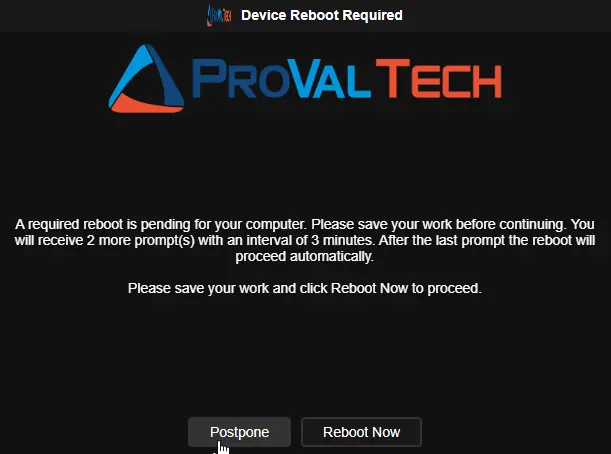
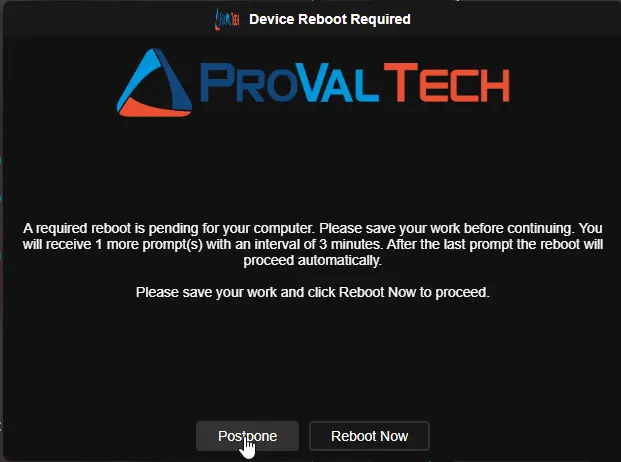
A required reboot is pending for your computer. Please save your work before continuing. You will receive %PromptsLeft% more prompt(s) with an interval of %PromptIntervalMinutes% minutes. After the last prompt the reboot will proceed automatically.
Please save your work and click Reboot Now to proceed.
Final Prompt (English):
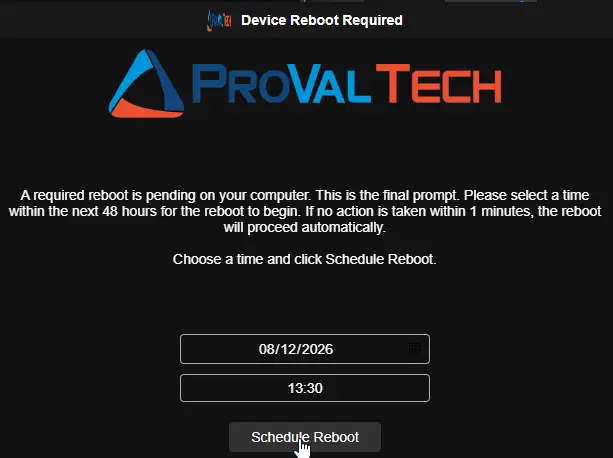
A required reboot is pending on your computer. This is the final prompt. Please select a time within the next 48 hours for the reboot to begin. If no action is taken within %FinalTimeoutMinutes% minutes, the reboot will proceed automatically.
Choose a time and click Schedule Reboot.
Reminder (English):
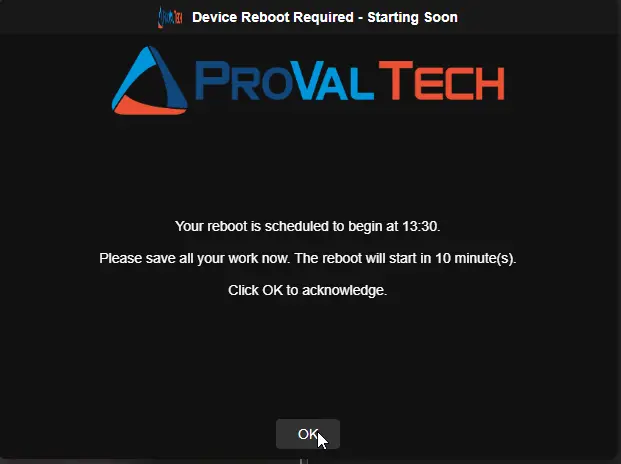
Your reboot is scheduled to begin at %ScheduledRebootTime%.
Please save all your work now. The reboot will start in %MinutesUntilReboot% minute(s).
Click OK to acknowledge.
Usage Examples
Example 1: Run with all defaults
.\Invoke-RebootWithPrompt.ps1
What happens:
- Prompt 1 appears. User clicks Postpone.
- 4 hours later, Prompt 2 appears. User clicks Postpone.
- 4 hours later, Prompt 3 appears. User clicks Postpone.
- 4 hours later, Prompt 4 (final) appears with a date/time picker.
- User selects 3:00 PM tomorrow → reboot is scheduled. Reminder appears at 2:50 PM. Machine reboots at 3:00 PM.
Example 2: Shorter cycle with hourly prompts
.\Invoke-RebootWithPrompt.ps1 -MaxPostpone 2 -IntervalMinutes 60
What happens:
- Prompt 1 at 9:00 AM. User postpones.
- Prompt 2 (final) at 10:00 AM with date/time picker.
- If ignored for 15 minutes, machine reboots at 10:15 AM.
Example 3: Suppress prompts overnight and on weekends
.\Invoke-RebootWithPrompt.ps1 -SuppressPopupTimeWindows '1800-0800' -SkipWeekends
What happens:
- Prompts only appear between 8:00 AM and 6:00 PM, Monday through Friday.
- If a prompt is due at 7:00 PM Friday, it is skipped and rescheduled to Monday morning.
Example 4: Auto-reboot unattended machines
.\Invoke-RebootWithPrompt.ps1 -IfNotLoggedIn -IntervalMinutes 120
What happens:
- If no user is logged in when the script runs, the machine reboots immediately.
- Exception: If Windows Update, an MSI installer, BITS transfer, or similar is running, the reboot is deferred by 2 hours and checked again.
- If a user IS logged in, the normal prompt flow is used.
Example 5: Custom messages with substitution variables
.\Invoke-RebootWithPrompt.ps1 -RegularPromptMessage 'Hi %UserName%, your PC %ComputerName% needs a reboot.\n\nYou have %PromptsLeft% reminders left before this becomes mandatory.\n\nNext reminder in %PromptIntervalHours% hours.'
What happens:
- The user sees a personalized message with their name, computer name, remaining prompts, and the next interval.
Example 6: Reset an existing prompt cycle
.\Invoke-RebootWithPrompt.ps1 -Force
What happens:
- All existing scheduled tasks and stored state are removed.
- The prompt cycle restarts from Prompt 1 as if the script had never run before.
Example 7: All parameters set
.\Invoke-RebootWithPrompt.ps1 `
    -MaxPostpone 3 `
    -IntervalMinutes 120 `
    -RegularPromptTimeout 300 `
    -FinalPromptTimeout 600 `
    -DelayAfterFinalPrompt 900 `
    -SuppressPopupTimeWindows '1800-0800' `
    -SkipWeekends `
    -IfNotLoggedIn `
    -MaxMissedPromptsBeforeForce 5 `
    -RebootDuringSuppress `
    -Icon 'C:\Company\Assets\logo.ico' `
    -HeaderImage 'https://intranet.company.com/assets/reboot-banner.png' `
    -Title 'IT Maintenance - Restart Required' `
    -RegularPromptMessage 'Hi %UserName%, your PC %ComputerName% needs a restart to finish installing updates.\n\nYou have %PromptsLeft% reminder(s) left before the restart becomes mandatory.\nPrompts are sent every %PromptIntervalHours% hours.\n\nPlease save your work and click Reboot Now, or click Postpone to be reminded later.' `
    -FinalPromptMessage 'This is your final reminder. Please choose a restart time within the next 48 hours.\n\nIf you do not respond within %FinalTimeoutMinutes% minutes, your PC will restart automatically.\n\nSelect a time and click Schedule Reboot.' `
    -ReminderPromptTitle 'Scheduled Restart - %MinutesUntilReboot% Minutes Away' `
    -ReminderPromptMessage 'Your restart is scheduled for %ScheduledRebootTime%.\n\nPlease save all open work now. The restart will begin in %MinutesUntilReboot% minute(s).\n\nClick OK to dismiss this reminder.'
What happens:
- Prompts appear only between 8:00 AM and 6:00 PM, Monday through Friday.
- If no user is logged in, the machine reboots automatically (unless an install is running).
- Up to 2 regular prompts are shown, 2 hours apart, each timing out after 5 minutes.
- The 3rd prompt is the final scheduling prompt (10-minute timeout).
- All prompts display the company icon and header image with personalized messages.
- If the final prompt is ignored, reboot is forced 15 minutes later.
- Unattended or forced reboots (e.g. from missed prompts) will bypass the suppress window and weekend restrictions.
Example 8: User reboots on their own mid-cycle
.\Invoke-RebootWithPrompt.ps1 -MaxPostpone 4 -IntervalMinutes 240
What happens:
- Prompt 1 at 10:00 AM. User postpones.
- User manually restarts at 1:00 PM.
- Scheduled task fires at 2:00 PM. Script detects uptime (1 hour) is less than the interval (4 hours), concludes the machine was rebooted, cleans up everything, and exits silently. No prompt shown.
Example 9: Full visual walkthrough (fast cycle for testing)
.\Invoke-RebootWithPrompt.ps1 `
    -MaxPostpone 3 `
    -IntervalMinutes 3 `
    -RegularPromptTimeout 30 `
    -FinalPromptTimeout 60 `
    -DelayAfterFinalPrompt 30 `
    -Icon 'https://www.provaltech.com/wp-content/uploads/2015/07/logo_r4.png' `
    -HeaderImage 'https://www.provaltech.com/wp-content/uploads/2015/07/logo_r4.png' `
    -Title 'Device Reboot Required' `
    -RegularPromptMessage 'A required reboot is pending for your computer. Please save your work before continuing. You will receive %PromptsLeft% more prompt(s) with an interval of %PromptIntervalMinutes% minutes. After the last prompt the reboot will proceed automatically.\n\nPlease save your work and click Reboot Now to proceed.' `
    -FinalPromptMessage 'A required reboot is pending on your computer. This is the final prompt. Please select a time within the next 48 hours for the reboot to begin. If no action is taken within %FinalTimeoutMinutes% minutes, the reboot will proceed automatically.\n\nChoose a time and click Schedule Reboot.' `
    -ReminderPromptTitle 'Device Reboot Required - Starting Soon' `
    -ReminderPromptMessage 'Your reboot is scheduled to begin at %ScheduledRebootTime%.\n\nPlease save all your work now. The reboot will start in %MinutesUntilReboot% minute(s).\n\nClick OK to acknowledge.'
What happens:
-
Prompt 1 (Regular): Appears immediately. User clicks Postpone. Script reschedules for 3 minutes later.
-
Prompt 2 (Regular): Appears 3 minutes later. User clicks Postpone. Script reschedules for 3 minutes later.
-
Prompt 3 (Final/Scheduling): Appears 3 minutes later with a date/time picker. User selects a time within the next 48 hours and clicks Schedule Reboot. If ignored for 60 seconds, machine reboots automatically.
-
Reminder Prompt: Appears 10 minutes before the scheduled reboot time (or immediately if the selected time is less than 10 minutes away). Informational only — clicking OK dismisses it.
-
Windows Shutdown Warning: After the reminder displays and 60 seconds pass, the script issues
shutdown /r /f /t 540. Windows shows its built-in shutdown notification to the user.
Note: The Windows shutdown warning says "shut down" — this is standard Windows behavior. Despite the wording, the machine will restart (not power off) because the script uses
shutdown /r(restart flag). This is a cosmetic quirk of the Windows notification and does not affect functionality.
Output Artifacts
| Artifact | Path |
|---|---|
| OmniPrompt application | C:\ProgramData\_Automation\App\OmniPrompt\OmniPrompt.exe |
| SilentLauncher | C:\ProgramData\_Automation\App\OmniPrompt\SilentLauncher.exe |
| Persisted script | C:\ProgramData\_Automation\Script\Invoke-RebootPrompt\Invoke-RebootWithPrompt.ps1 |
| Scheduled task (main) | Scheduled_Task_Invoke-RebootPrompt |
| Scheduled task (reschedule) | Scheduled_Task_Invoke-RebootPrompt_Reschedule |
| Scheduled task (reminder) | Scheduled_Task_Invoke-RebootPrompt_Reminder |
Changelog
2026-08-13
- Replaced the .NET-based prompter with OmniPrompt, a native binary that requires no desktop runtime.
- Replaced legacy VBScript/PowerShell wrappers with SilentLauncher to eliminate console window flashing and bypass modern EDR/Antivirus blocks.
- Added
MaxMissedPromptsBeforeForceto automatically force a reboot if a machine repeatedly misses prompts (e.g., stays locked). - Added
RebootDuringSuppressto allow unattended or forced reboots to bypass weekend and after-hours suppress windows.
2026-06-15
- Added
LastPromptSentTimetimestamp field to all stored data writes (postpone, timer elapsed, schedule reboot, initial store, and pre-reminder) - Enhanced
#region post-reboot detectionto compareLastBootUpTimeagainst storedLastPromptSentTime(if system was rebooted after the last prompt/action → cleanup and exit, regardless of uptime vs interval) - Added reboot-already-occurred guard at the top of
#region scheduled reboot check(comparesLastBootUpTime>LastPromptSentTimebefore showing the reminder or initiating the reboot → cancels and cleans up if machine was already rebooted) - Replaced
Start-Sleep+Invoke-DeviceRebootin both reminder paths (scheduled reboot check and immediate reminder) withshutdown /r /f /t <seconds>followed by immediate cleanup and exit (eliminates the script holding state during a 10-minute sleep; Windows automatically cancels the pending shutdown if the machine is rebooted manually before the countdown expires, making double-reboot impossible without any additional detection logic) - Scheduled reboot reminder path now waits 60 seconds for the Prompter task to display the reminder prompt, then issues
shutdown /r /f /t 540(9-minute countdown, ~10 minutes total from reminder display), then immediately cleans up all tasks/state and exits
2026-06-12
- Added post-reboot detection: script now checks system uptime on rescheduled runs and cleans up automatically if the machine was already rebooted
- Added install-in-progress guard: when no user is logged in and auto-reboot is enabled, the script checks for active installations (Windows Update, MSI, BITS, winget, etc.) and defers the reboot if one is found
- Added
Test-InstallInProgressfunction to detect TiWorker, wusa, SetupHost, setup, MoUsoCoreWorker, Windows10Upgrader, winget, BITS transfers, and MSI mutex - Added
%Variable%substitution system for all message parameters - Added
Resolve-MessageVariablefunction for token replacement - Added unit conversion variables (
%PromptIntervalHours%,%RegularTimeoutMinutes%,%FinalTimeoutMinutes%,%DelayAfterFinalMinutes%) - Added
\nsupport for line breaks in all message strings - Updated default messages to use substitution variables instead of hardcoded values
2026-06-10
- Initial version of the document