Weak Passwords - AD Test
Summary
This task utilizes the agnostic script Test-WeakCredentials to test the hashed credentials in Active Directory against a known compromised or weak password list.
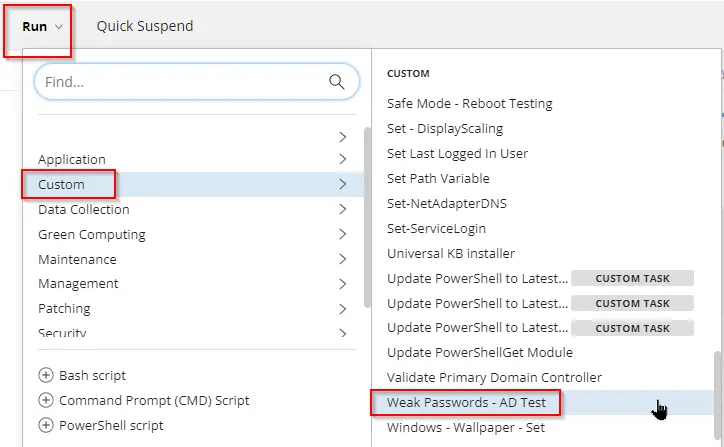
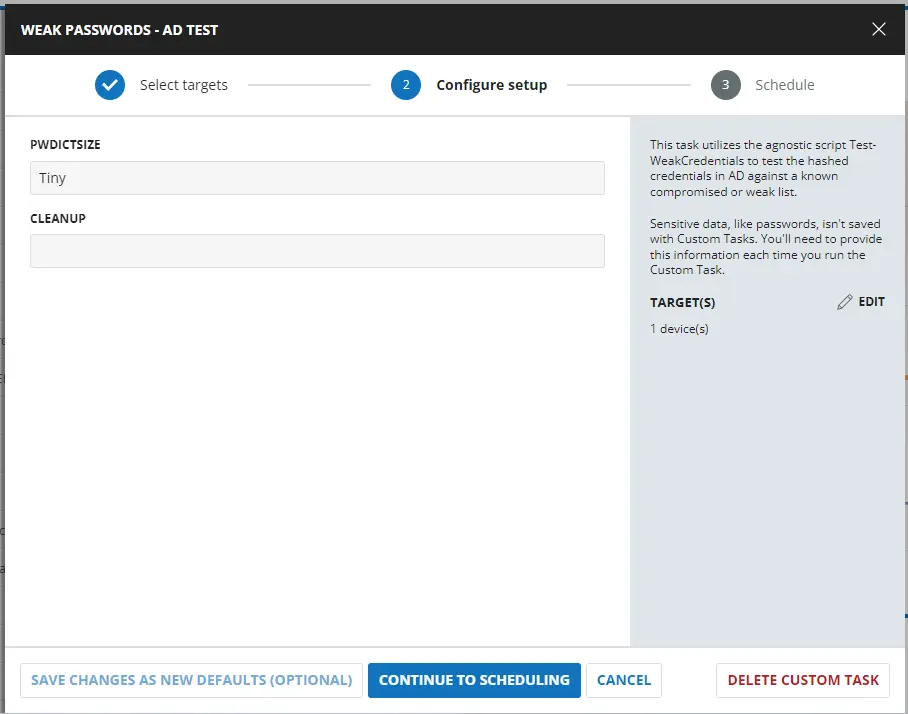
Sample Run
Dependencies
User Parameters
| Name | Example | Accepted Values | Required | Default | Type | Description |
|---|---|---|---|---|---|---|
PWDictSize | Small | 'Tiny', 'Small', 'Medium', 'Large' | False | Medium | String | This parameter specifies the password dictionary you wish to query. It is a validated set of 'Tiny', 'Small', 'Medium', 'Large'. |
Force | All | 'All', 'Text', 'Zipped' | False | String | This parameter accepts any combination of its validated set. It is a validated set of 'All', 'Text', 'Zipped'. |
Task Creation
Create a new Script Editor style script in the system to implement this task.

Name: Weak Passwords - AD Test
Description: This task utilizes the agnostic script Test-WeakCredentials to test the hashed credentials in AD against a known compromised or weak password list.
Category: Custom

Parameters
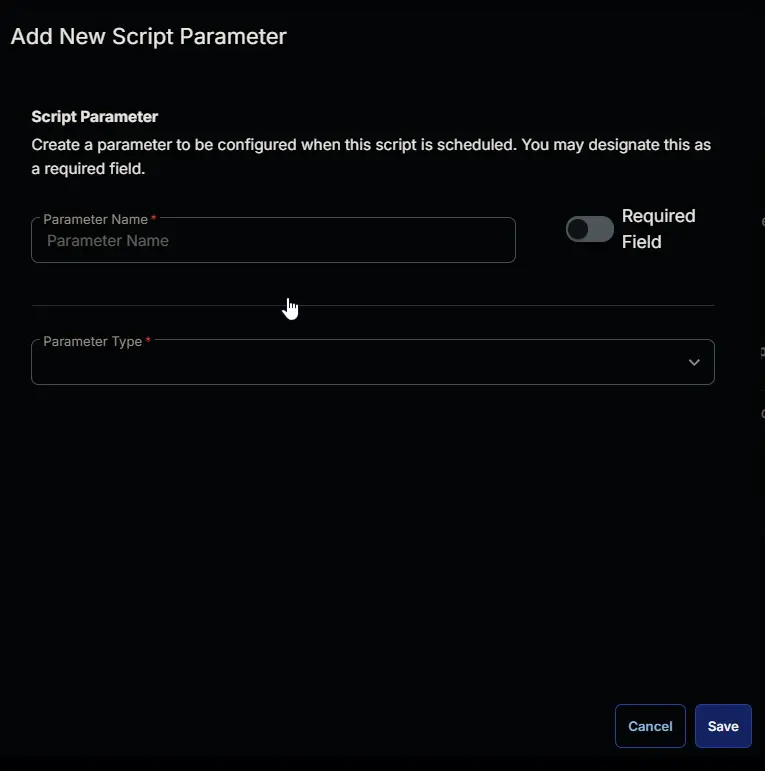
Add a new parameter by clicking the Add Parameter button present at the top-right corner of the screen.

This screen will appear.
- Set
PWDictSizein theParameter Namefield. - Select
Stringfrom theParameter Typedropdown menu. - Toggle Default Value
- Set Default Value as
Medium - Click the
Savebutton 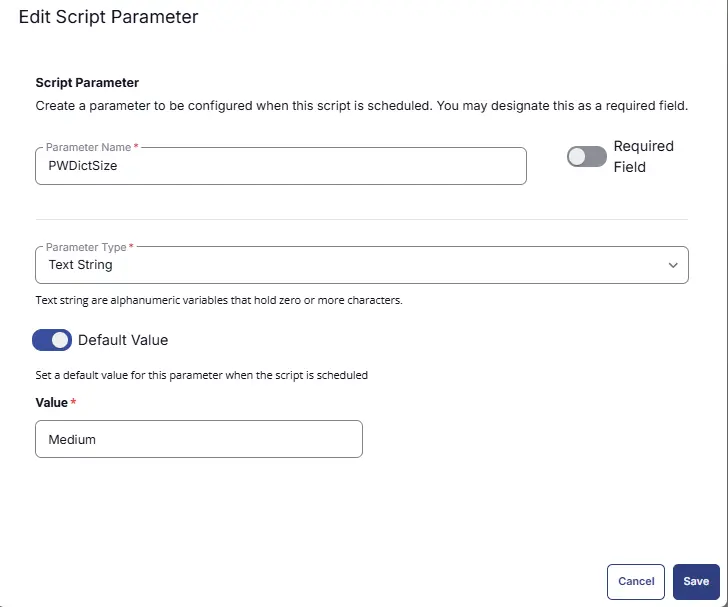
- It will ask for confirmation to proceed. Click the
Confirmbutton to create the parameter.
Add another parameter by clicking the Add Parameter button present at the top-right corner of the screen.

- Set
Cleanupin theParameter Namefield. - Select
Stringfrom theParameter Typedropdown menu. - Click the
Savebutton - Click the
Confirmbutton to create the parameter.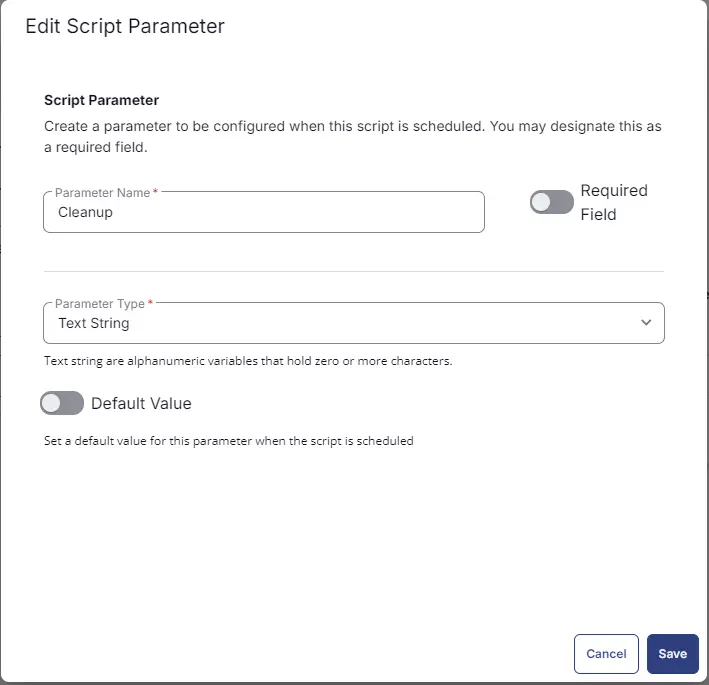
Parameters will look like the following:

Task
Navigate to the Script Editor section and start by adding a row. You can do this by clicking the Add Row button at the bottom of the script page.

A blank function will appear.

Row 1 Function: PowerShell Script
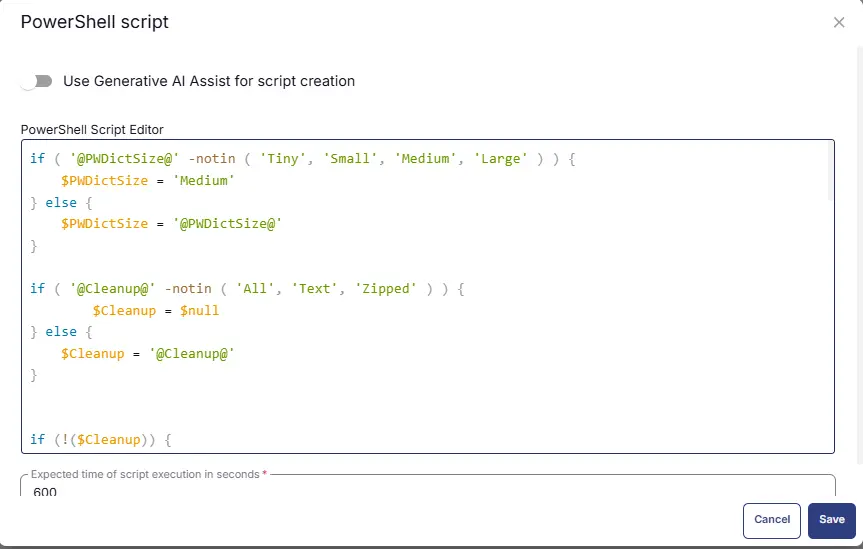
Search and select the PowerShell Script function.

The following function will pop up on the screen:

Paste in the following PowerShell script and set the expected time of script execution to 600 seconds. Click the Save button.
Row 2: Function: Script Log

In the script log message, simply type %output% so that the script will send the results of the PowerShell script above to the output on the Automation tab for the target device.

Row 3: Function: PowerShell Script
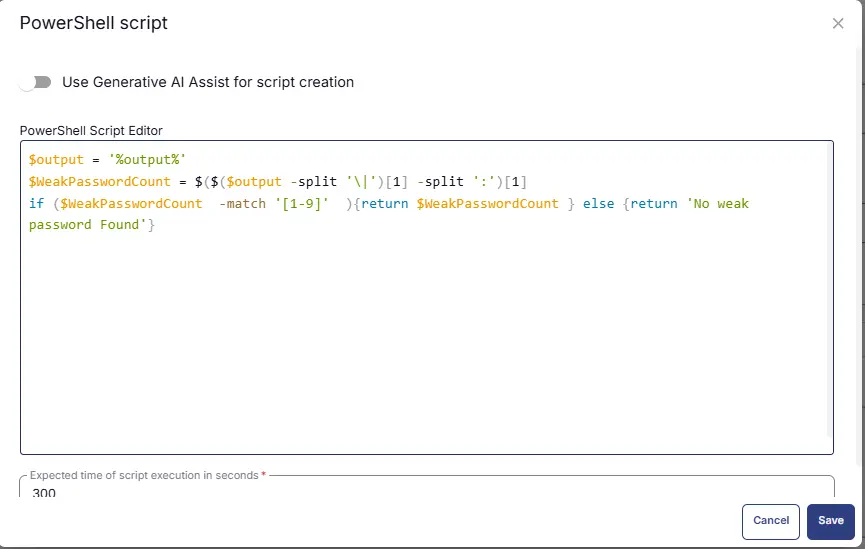
Search and select the PowerShell Script function.
The following function will pop up on the screen:
Paste in the following PowerShell script and set the expected time of script execution to 600 seconds. Click the Save button.
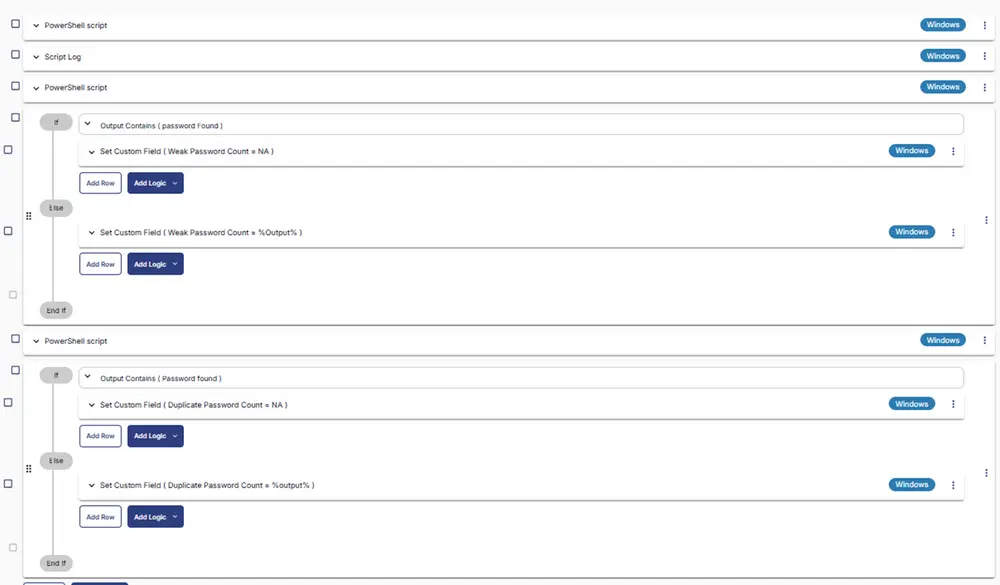
Row 4 Logic: If /Then/Else

There will be two sections: If part and Else part.

Row 4a Condition: Output Contains
In the IF part, enter password found in the right box of the "Output Contains" part.

Row 4b Function: Set Custom Field
Add a new row by clicking on the Add row button. Set Custom Field 'Weak Password Count' to 'NA'.

Row 4c Function: Set Custom Field
Add a new row by clicking on the Add row button in the ELSE part. Set Custom Field Weak Password Count to %output%.

Row 5: Function: PowerShell Script
Search and select the PowerShell Script function.
The following function will pop up on the screen:
Paste in the following PowerShell script and set the expected time of script execution to 600 seconds. Click the Save button.
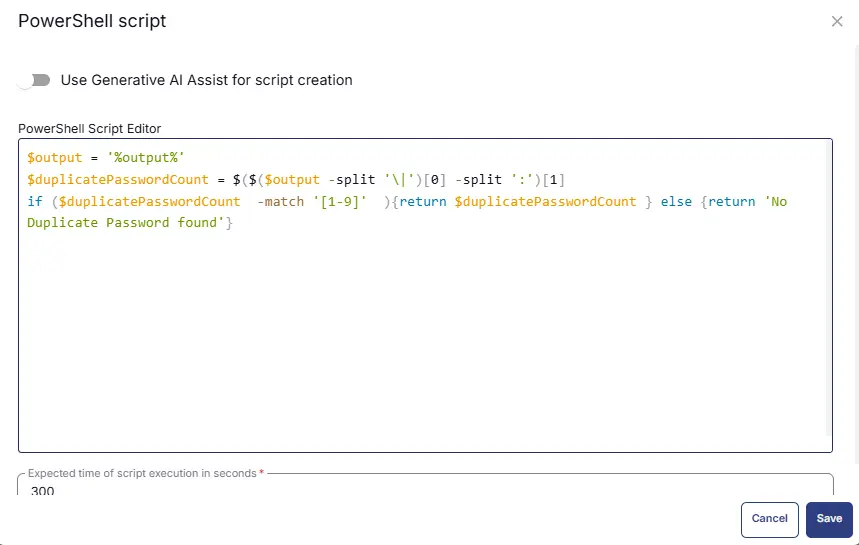
Row 6 Logic: If /Then/Else
There will be two sections: If part and Else part.
Row 6a Condition: Output Contains
In the IF part, enter password found in the right box of the "Output Contains" part.
Row 6b Function: Set Custom Field
Add a new row by clicking on the Add row button. Set Custom Field Duplicate Password Count to NA.

Row 6c Function: Set Custom Field
Add a new row by clicking on the Add row button in the ELSE part. Set Custom Field Duplicate Password Count to %output%.

Completed Task
Implementation
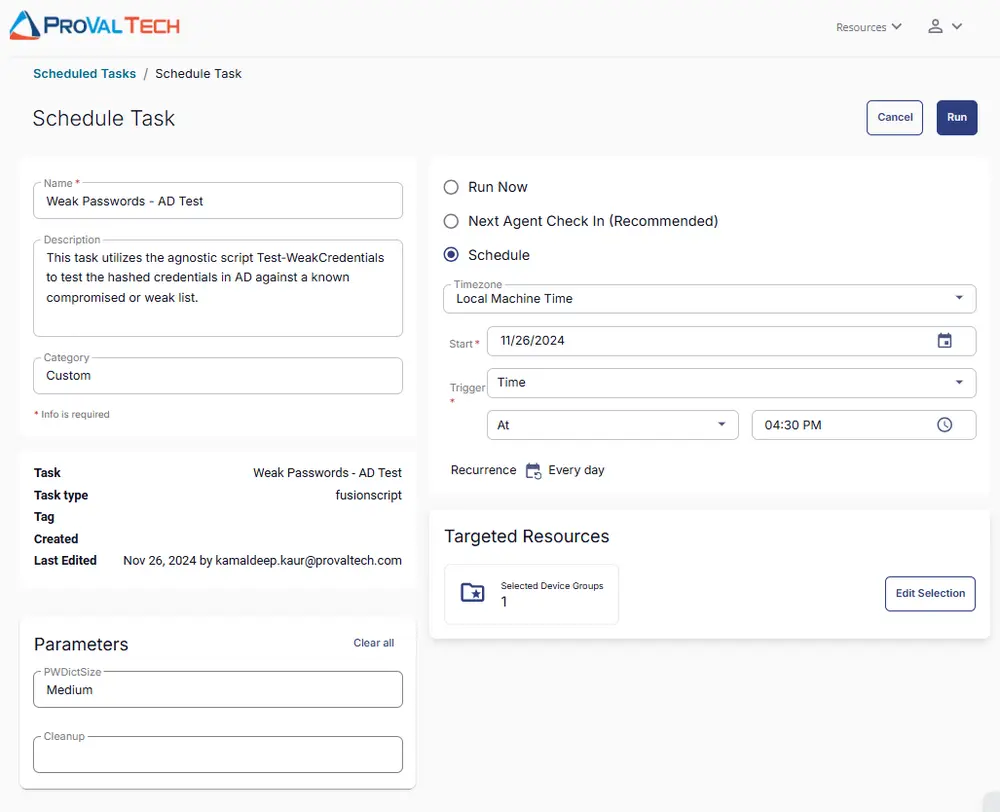
This task has to be scheduled on the CW RMM - Machine Group - Domain Controllers group for auto deployment. The script can also be run manually if required.
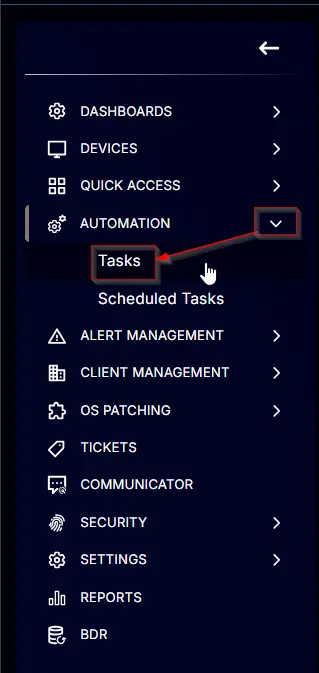
Go to Automations > Tasks.
Search for Weak Passwords - AD Test.
Then click on Schedule and provide the parameters details as necessary for the script completion.
Output
- Script Log
Changelog
2025-04-10
- Initial version of the document