Manage - DotNetRunTime
Overview
This NinjaOne automation helps keep .NET components on Windows devices clean, current, and secure. It supports listing installed .NET components, installing the latest supported versions, updating patch releases, uninstalling unsupported or specifically targeted versions, and performing a complete cleanup and refresh. It can also keep versions that Microsoft no longer supports, such as .NET 8 and .NET 9, installed and patched for the applications that still need them.
The automation uses Microsoft's release data to determine the appropriate versions to install, update, or remove. Versions entered in AdditionalApprovedVersion are treated as supported too. It reads configuration from NinjaOne custom fields and downloads and executes the agnostic Optimize-DotNetRunTime.ps1 script from ProVal's content repository.
Depending on the selected action, the automation may download installers, silently install updates, and remove existing .NET components. Execution details are written to log files under %ProgramData%\_Automation\Script\Optimize-DotNetRunTime.
⚠️ WARNING: .NET 8 and .NET 9 reached end of support on November 10, 2026. See Microsoft's announcement. Since then,
uninstallandrenewremove them andupdateno longer patches them. To keep them for applications that still need them, enter8, 9inAdditionalApprovedVersionon every run, including scheduled runs.
NOTE:
- Installing or uninstalling
sdkcan also install or remove relatedaspNetCoreRuntime,desktopRuntime, andruntimecomponents. - Installing or uninstalling
desktopRuntimecan also install or remove the relatedruntime. - For actions other than
list, ifTypeis not provided, the script usesdesktopRuntimeby default. - Install and update use the machine's native architecture installer (for example, x64 installer on x64 machines).
- If x86 components already exist on a machine, the script can detect and remove outdated x86 components during
uninstall,update, andrenew. - Use
Versioncarefully:- For
list,install,uninstall, andupdate, you can target specific major versions (including unsupported versions). - For
renewwithVersion, every specified version must be supported or listed inAdditionalApprovedVersion. If any are not, the action will stop.
- For
- Use
AdditionalApprovedVersionto treat out-of-support major versions as supported for the current run:- Approved versions are kept by
uninstallandrenew, and patched byupdateandrenew. - Approvals are not saved. Enter the same list on every run that should keep those versions.
AdditionalApprovedVersiondoes not install anything. To add a version that is missing from a device, enter it inVersionwithinstallorrenew, as in Example 13.Versiontakes priority over an approval.uninstallwith8inVersionremoves .NET 8 even when it is approved, andrenewwithVersionremoves every version that is not listed inVersion.- Approved versions no longer receive fixes from Microsoft. Approve a version only while an application still needs it.
- Approved versions are kept by
VersionandAdditionalApprovedVersionaccept numbers and commas only. Any other text stops the automation before it changes anything.- Set
Forceto1to apply force removal behavior. Any other value (or blank) means force is not applied. - For
uninstall,update, andrenew, older-version cleanup primarily targets components detected bydotnet.exe. WithForce = 1, cleanup can also remove .NET entries found through uninstall registry data and package metadata, including components thatdotnet.exedoes not list. renewis the most aggressive option. It can remove versions you are not targeting. Review your required application dependencies before using it, and runlistwith yourAdditionalApprovedVersionlist first, as in Example 18, to see what would be removed.
Dependencies
Sample Run
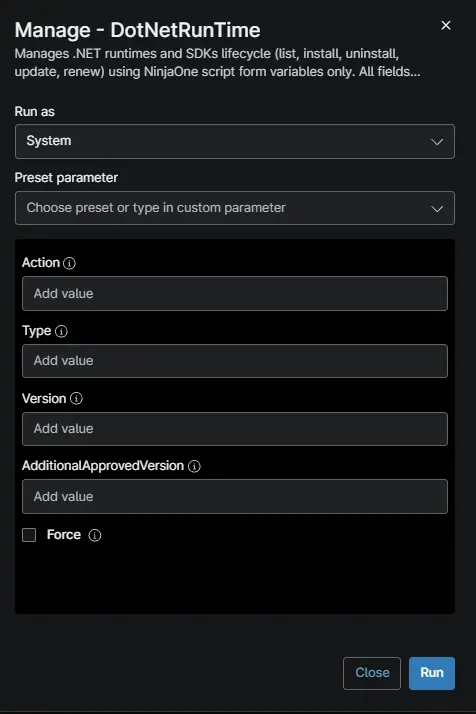
Example 1: List all installed .NET components
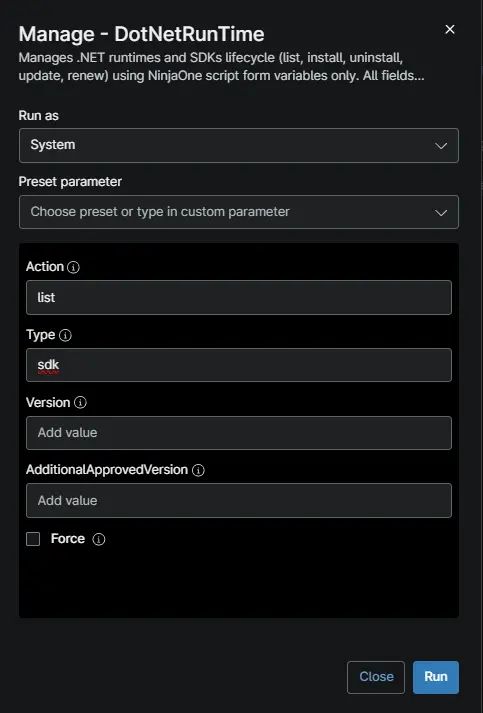
Example 2: List only .NET SDKs
- Action:
list - Type:
sdk
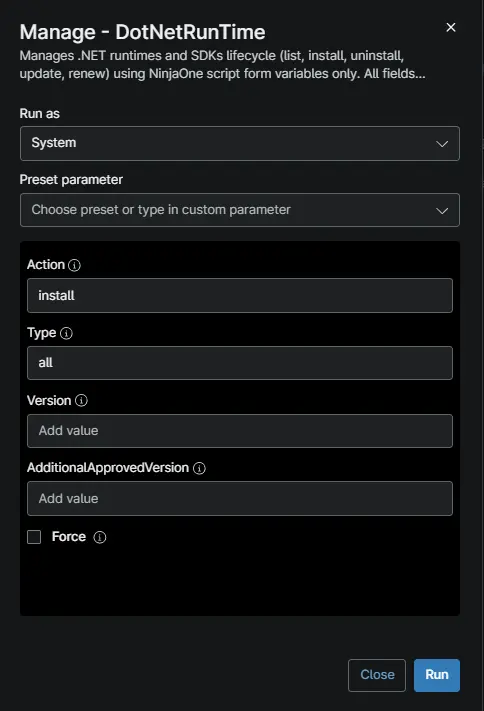
Example 3: Install the latest versions of all .NET components
- Action:
install - Type:
all
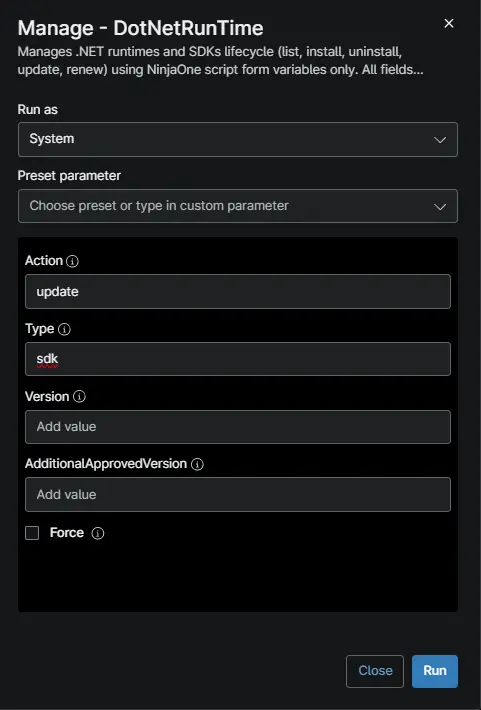
Example 4: Update SDKs to the latest patch version
- Action:
update - Type:
sdk
Example 5: Remove unsupported ASP.NET Core versions
- Action:
uninstall - Type:
aspNetCoreRuntime
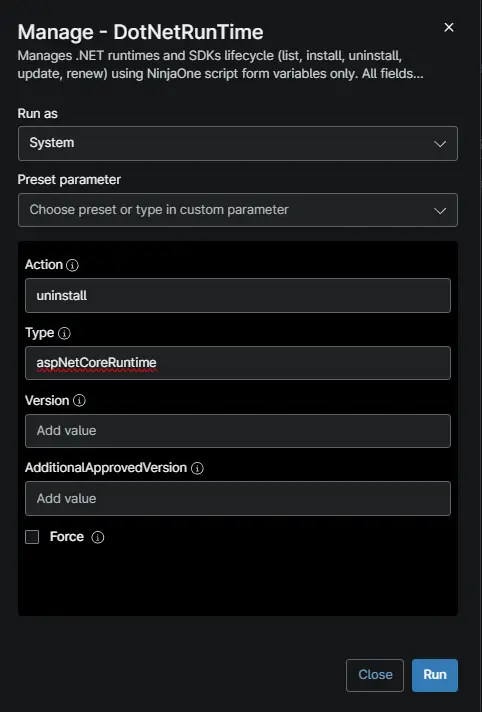
Example 6: Removes all unsupported versions of .NET runtimes and SDKs and installs the latest available version
- Action:
renew - Type:
all
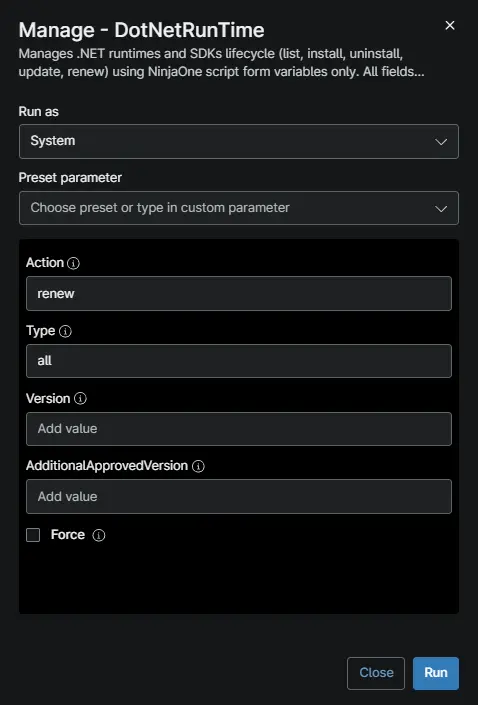
Example 7: Install the latest .NET Desktop Runtime (default type)
- Action:
install
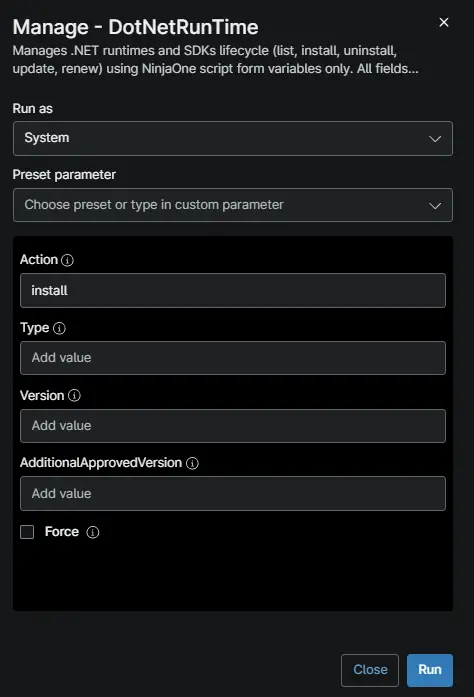
Example 8: Install .NET 10 Desktop Runtime
- Action:
install - Type:
desktopRuntime - Version:
10
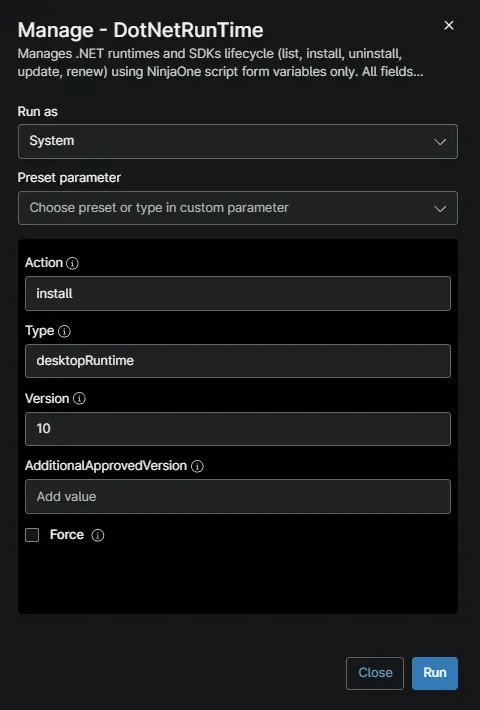
Example 9: Install multiple specific versions
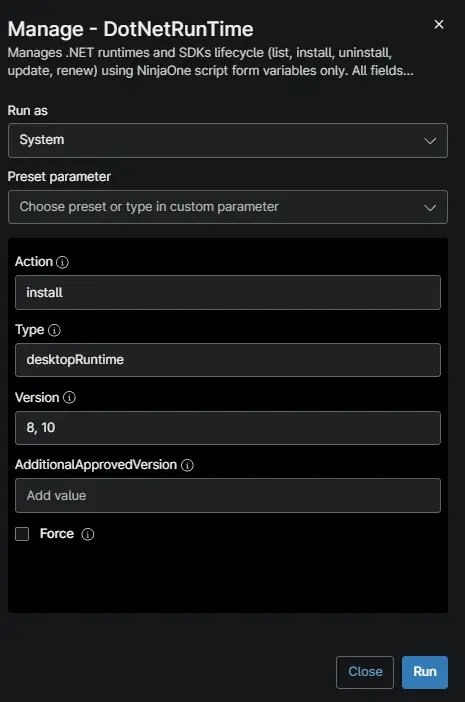
- Action:
install - Type:
desktopRuntime - Version:
8, 10
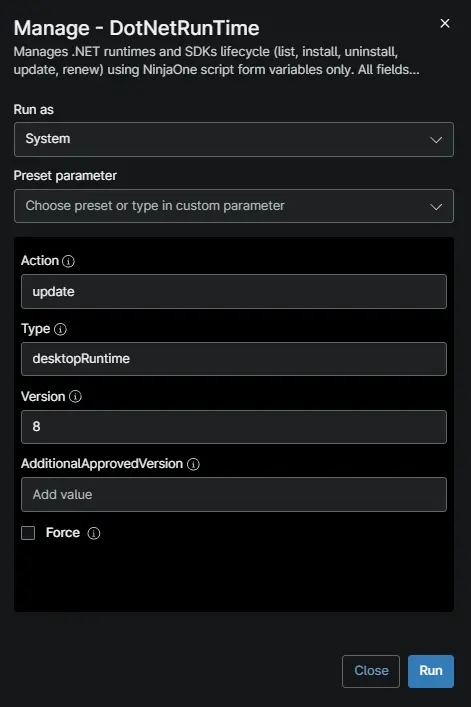
Example 10: Update only .NET 8 to the latest patch
Patches only the .NET 8 Desktop Runtime, whether or not .NET 8 is still supported.
- Action:
update - Type:
desktopRuntime - Version:
8
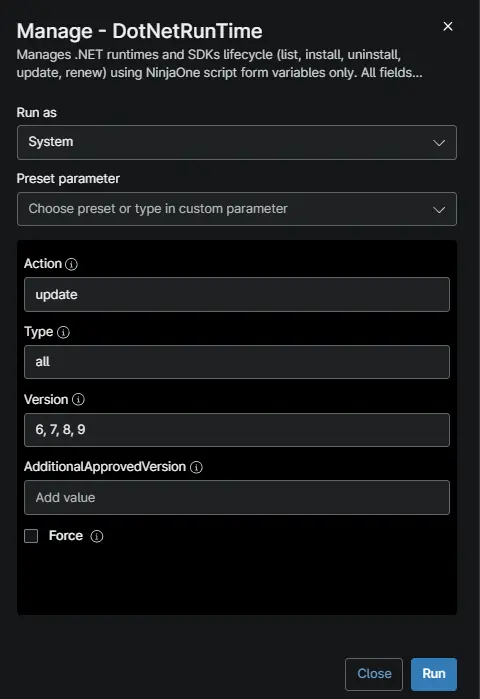
Example 11: Update multiple versions to their latest patches
- Action:
update - Type:
all - Version:
6, 7, 8, 9
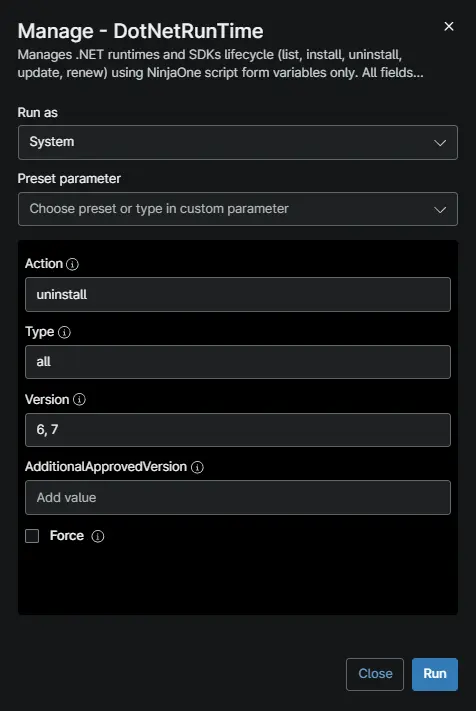
Example 12: Remove specific .NET versions
- Action:
uninstall - Type:
all - Version:
6, 7
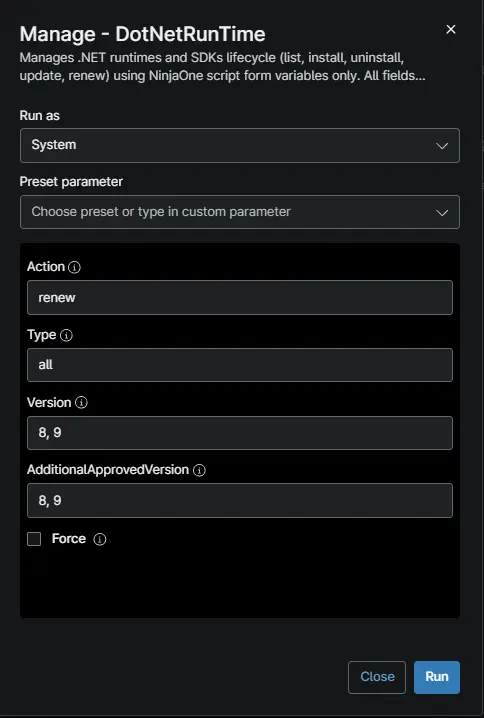
Example 13: Keep only .NET 8 and .NET 9 and remove all others
Installs and patches .NET 8 and .NET 9, then removes every other version. .NET 8 and .NET 9 are out of support, so they are approved in the same run.
- Action:
renew - Type:
all - Version:
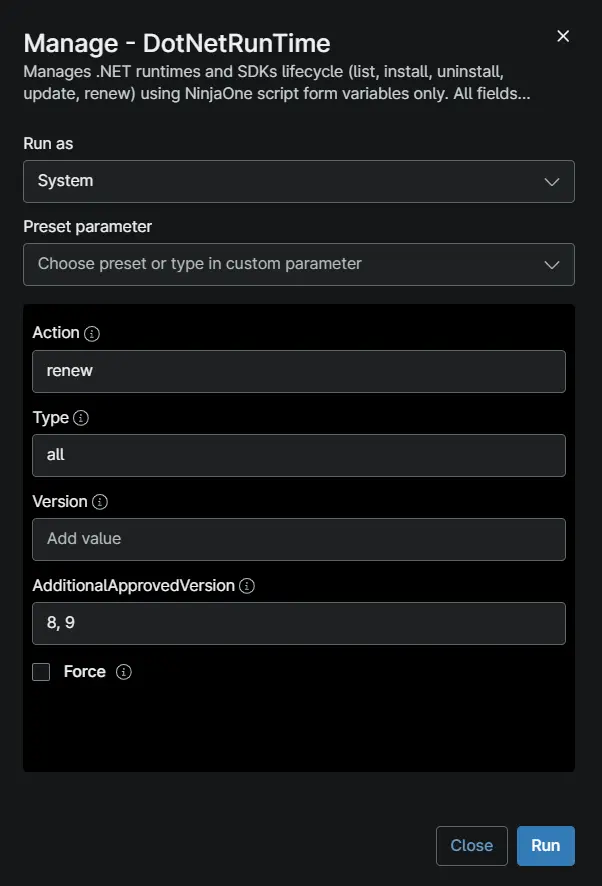
8, 9 - AdditionalApprovedVersion:
8, 9
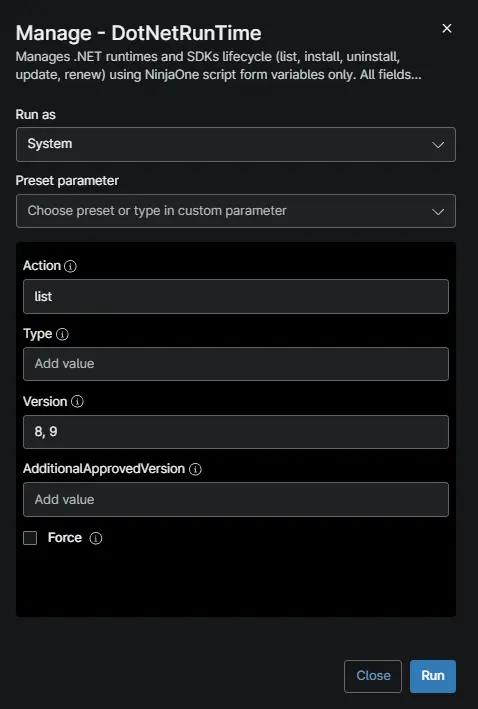
Example 14: List only .NET 8 and .NET 9 components
- Action:
list - Type:
<Blank> - Version:
8, 9
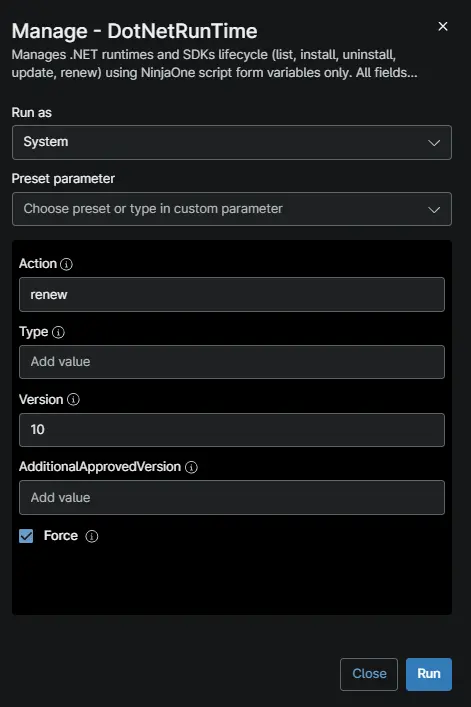
Example 15: Keep only .NET 10 and remove all others
- Action:
renew - Type:
<Blank> - Version:
10
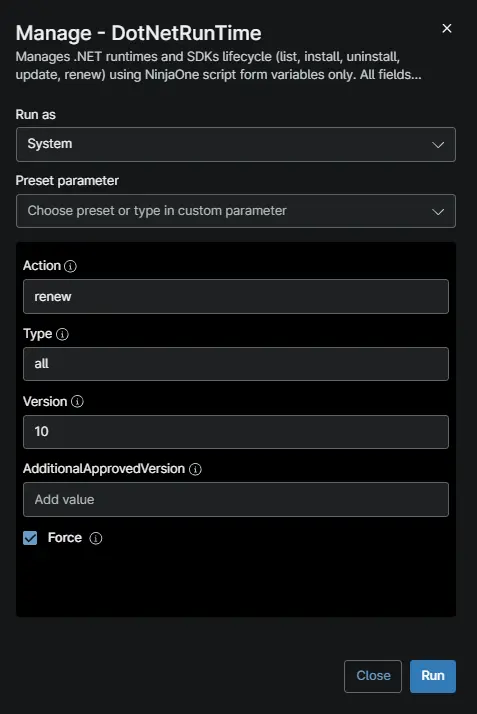
Example 16: Force renew to .NET 10 only
- Action:
renew - Type:
all - Version:
10 - Force:
1
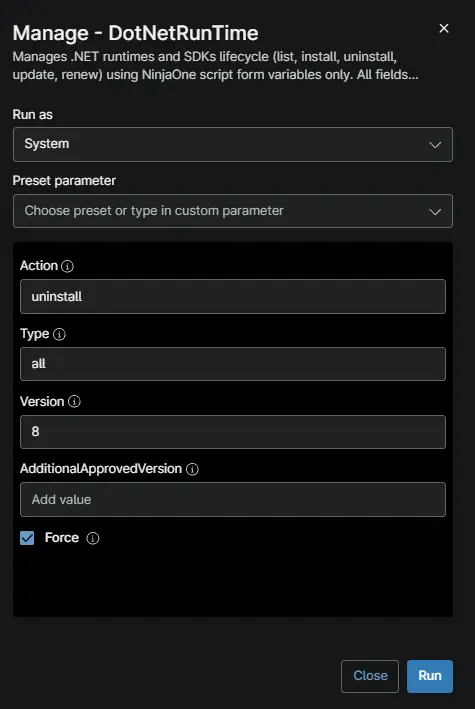
Example 17: Force uninstall .NET 8
- Action:
uninstall - Type:
all - Version:
8 - Force:
1
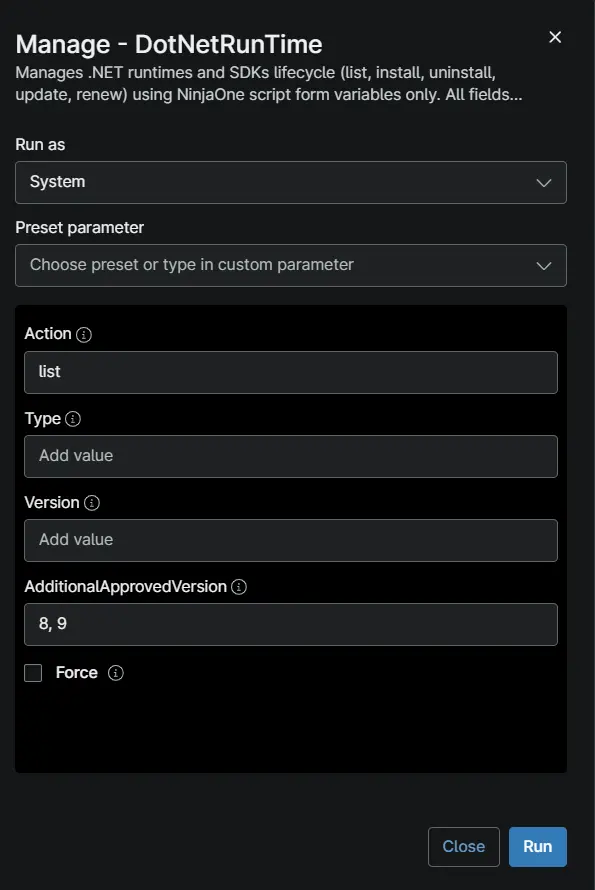
Example 18: Preview what an approval keeps
Shows the list with .NET 8 and .NET 9 marked as supported. Components that still show Supported as 0 are the ones uninstall and renew would remove. Nothing is changed.
- Action:
list - AdditionalApprovedVersion:
8, 9
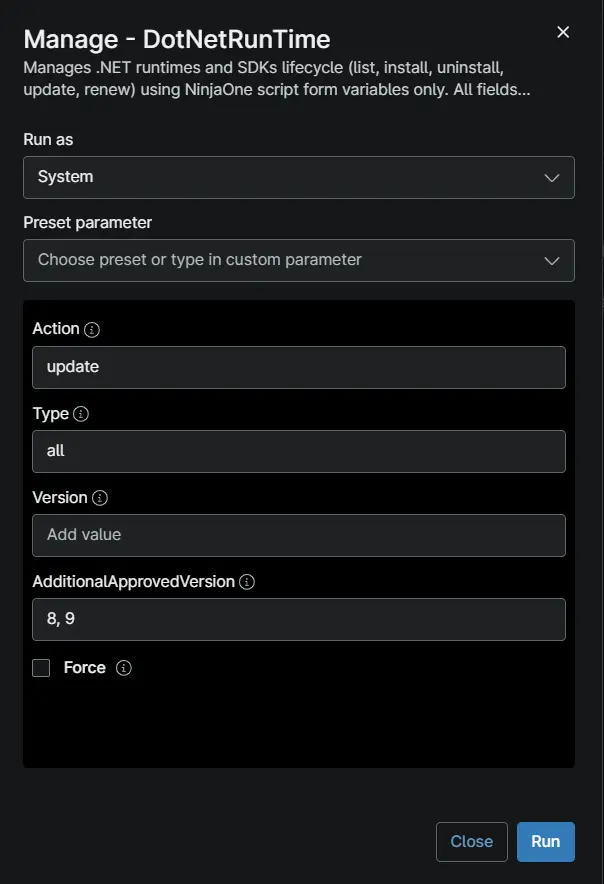
Example 19: Update and keep .NET 8 and .NET 9 patched
Patches every installed supported version, and installed .NET 8 and .NET 9 components as well, then removes their older patches.
- Action:
update - Type:
all - AdditionalApprovedVersion:
8, 9
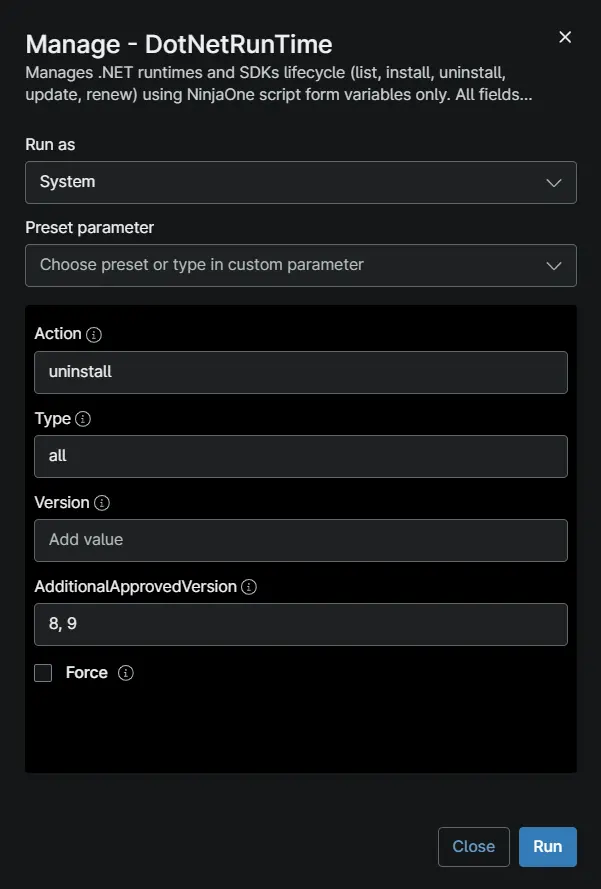
Example 20: Remove unsupported versions but keep .NET 8 and .NET 9
Removes every out-of-support component except .NET 8 and .NET 9.
- Action:
uninstall - Type:
all - AdditionalApprovedVersion:
8, 9
Example 21: Renew and keep .NET 8 and .NET 9
Does the same as Example 6, but keeps .NET 8 and .NET 9 and patches them to their latest release.
- Action:
renew - Type:
all - AdditionalApprovedVersion:
8, 9
Requirements
- Supported operating system and device role
- Run As:
System - PowerShell 5.1
User Parameters
| Name | Example | Accepted Values | Required | Default | Type | Description |
|---|---|---|---|---|---|---|
Action | Install |
| False | False | String/Text | Optional. Specify the action to perform. Valid values: list, install, uninstall, update, renew. Defaults to 'list' when empty. |
Type | all, sdk, runtime |
| False | False | String/Text | Optional. Comma-separated .NET component types to manage. Valid values: sdk, runtime, desktopRuntime, aspNetCoreRuntime, all. |
Version | 8, 9 |
| False | False | String/Text | Optional. Comma-separated .NET major version numbers (e.g., 8 or 8, 9, 10) to scope the action to. Out-of-support versions are accepted, except by renew, which needs every listed version to be supported or approved. |
AdditionalApprovedVersion | 8, 9 |
| False | String/Text | Optional. Comma-separated out-of-support .NET major version numbers (5 or later) to treat as supported for this run. They are kept by uninstall and renew, and patched by update and renew. When empty, only the versions Microsoft supports are treated as supported. | |
Force | Checked, Unchecked |
| False | False | CheckBox | Optional. Check this box to force removal of components bypassing MSI dependency providers. CAUTION: May cause dependent applications to malfunction.. |
Tips for Version and AdditionalApprovedVersion Behavior
| Action | Without Version | With Version (e.g., Version 8, 9) | With AdditionalApprovedVersion (e.g., 8, 9) |
|---|---|---|---|
list | Shows all installed .NET components | Shows only versions 8 and 9 | Shows the approved versions as supported |
install | Installs the latest supported version | Installs the latest release for each specified version (EOL included with warning) | No change |
update | Updates only supported installed versions | Updates the specified version(s), including EOL | Also updates the approved versions that are installed |
uninstall | Removes only unsupported/EOL versions | Removes the specified version(s), including supported | Keeps the approved versions |
renew | Installs latest supported + removes all unsupported | Keeps only specified version(s), removes everything else. Aborts if any version is EOL and not approved. | Keeps and patches the approved versions |
Force Parameter - Caution
⚠️ WARNING: The
Forceparameter overrides Windows Installer dependency protection. Use only when you fully understand the implications.
Without Force (or Force = false), the script respects MSI dependency providers registered by other applications. If software such as Visual Studio, SQL Server, or third-party tools installed a .NET component and registered a dependency on it, the Windows Installer will silently refuse to remove it (returning exit code 0) to protect the dependent application. This is by design.
When Force = True, the script appends IGNOREDEPENDENCIES=ALL to all MSI uninstall commands, which:
- Bypasses the dependency provider safety check.
- Forces removal of the .NET component regardless of what other software depends on it.
- May cause dependent applications to malfunction, fail to start, or require repair/reinstallation.
When to use Force = 1:
- You are certain no critical software depends on the targeted .NET version.
- You are performing a controlled upgrade where a newer version will immediately replace the removed one (e.g.,
Action: renew,Version: 10,Force: 1installs .NET 10 before removing older versions). - You need to clean up orphaned registry entries from partially removed installations.
When NOT to use Force = 1:
- On systems with Visual Studio, SQL Server, or other enterprise software that bundles .NET runtimes.
- On shared or production servers where breaking a dependency could disrupt services.
- When you are unsure which applications depend on the .NET components being removed.
Automation Setup/Import
Output
- Activity Details
- %ProgramData%_Automation\Script\Optimize-DotNetRunTime\Optimize-DotNetRunTime-log.txt
- %ProgramData%_Automation\Script\Optimize-DotNetRunTime\Optimize-DotNetRunTime-error.txt
Changelog
2026-11-10
- Initial version of the document