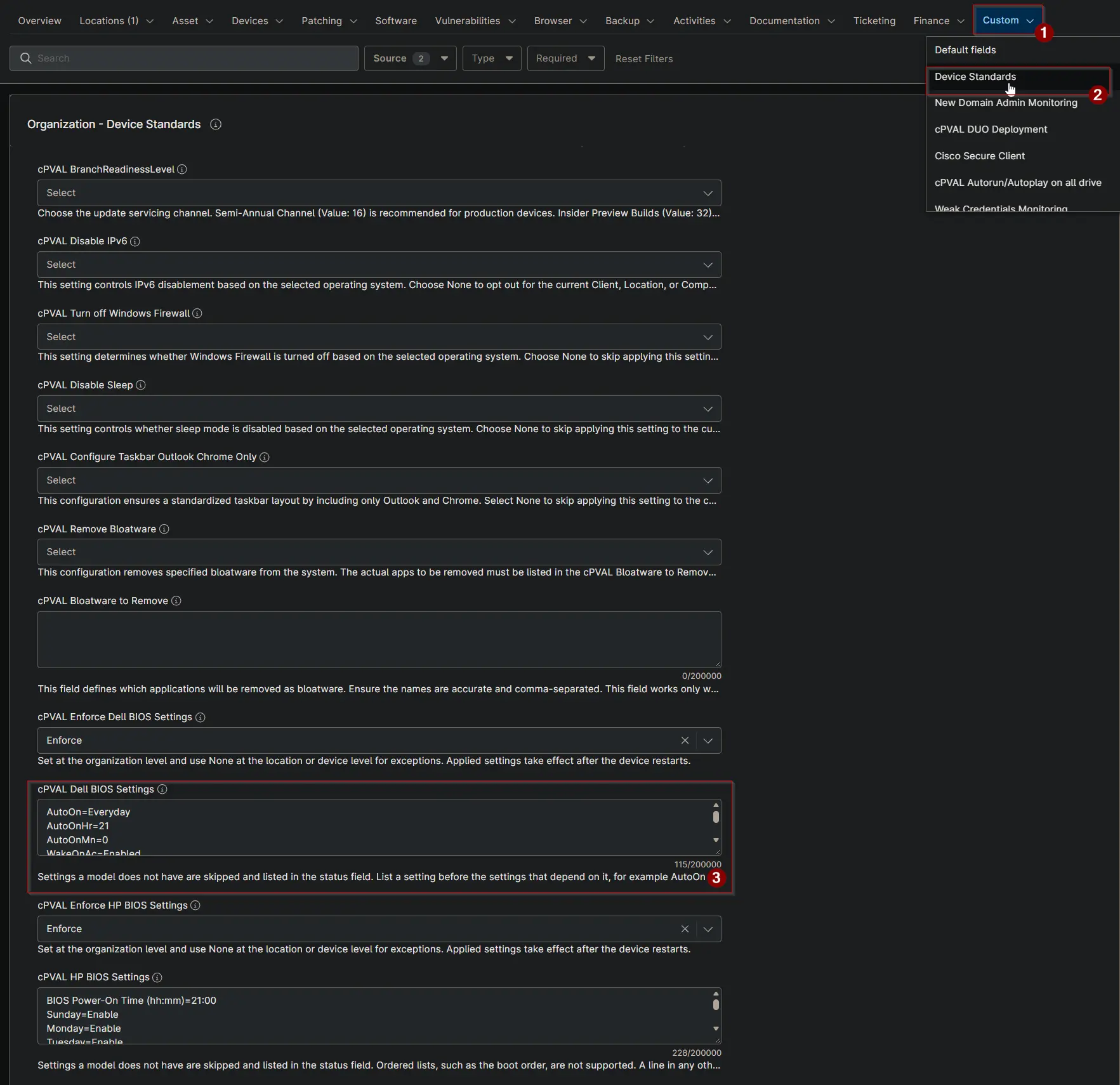
cPVAL Dell BIOS Settings
Summary
This custom field stores the Dell BIOS settings that devices should have. The Check Dell BIOS Settings and Apply Dell BIOS Settings automations compare the device with these settings.
Details
| Label | Field Name | Example | Definition Scope | Type | Required | Default Value | Dropdown Options | Editable | Custom Field Tab |
|---|---|---|---|---|---|---|---|---|---|
| cPVAL Dell BIOS Settings | cpvalDellBiosSettings | AutoOnHr=21 | Organization, Location, Device | Multi-line | False | Yes | Device Standards |
Format
Enter one setting per line in the form Option=Value.
- Use the Dell Command | Configure option name without the leading dashes, for example
AutoOn, not--AutoOn. - Do not use spaces, and list each option only once.
- List a setting before the settings that depend on it, for example
AutoOnbeforeAutoOnHrandAutoOnMn. - Times use the device's local time and a 24-hour clock, so
AutoOnHr=21is 9 PM.
If any line does not follow this format, the solution stops and cPVAL Dell BIOS Settings Status shows Failed with the line number.
Example: power on every day at 9 PM and allow Wake on LAN, Wake on AC and Wake on Dock.
AutoOn=Everyday
AutoOnHr=21
AutoOnMn=0
WakeOnAc=Enabled
WakeOnDock=Enabled
WakeOnLan=LanOnly
DeepSleepCtrl=Disabled
DeepSleepCtrl=Disabled lets models with Deep Sleep Control wake from a powered-off state. Settings that a model does not have, such as WakeOnDock on many desktops, are skipped and listed in the status field.
Finding option names and values: see the Dell Command | Configure BIOS options reference. To see a setting's current value on a device, run the Dell Command | Configure automation with the option name, for example --WakeOnLan.
Dependencies
- Solution: Enforce Dell BIOS Settings
- Solution: Device Standards
- Script: Check Dell BIOS Settings
- Script: Apply Dell BIOS Settings
Custom Field Creation
Sample Screenshot
Changelog
2026-10-16
- Initial version of the document