Install/Update Tungsten Printix Client
Overview
Installs the latest Tungsten Printix Client on Windows machines and registers it to the client's Printix tenant. The script reads the tenant ID and domain from the cPVAL Tungsten PrintixClientID and cPVAL Tungsten PrintixClientDomain custom fields, downloads the tenant's installer from Printix, and checks that the installer is signed by Tungsten Automation. It then compares the download with the copy already on the device:
- Not installed: installs the client.
- Installed, at or above the downloaded version, and registered to the tenant: makes no changes.
- Older, registered to another tenant or to no tenant, or its version can't be compared: uninstalls the client silently and installs the downloaded version.
After the install, the script checks that the client is registered to the tenant and is at the downloaded version.
Requirements
- Windows workstations and servers, 64-bit
- Run As:
System - PowerShell 5.1, 64-bit. In 32-bit PowerShell the script may not find an installed client and would reinstall it on every run.
- Internet access to
api.printix.net - Both custom fields in Custom Fields set for the device
Sample Run
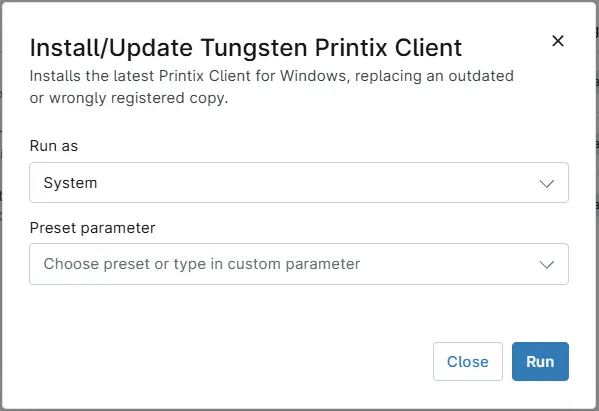
- On the device, select
Play Button>Run Automation>Script. - Search for
Install/Update Tungsten Printix Clientand select it. - Leave Run As set to
Systemand selectRun.
Custom Fields
| Custom Field | Scope | Type | Description |
|---|---|---|---|
| cPVAL Tungsten PrintixClientID | Organization, Location, Device | Text | The Printix tenant ID, a GUID. The script uses it to download the tenant's installer and to check that the client is registered to the tenant. |
| cPVAL Tungsten PrintixClientDomain | Organization, Location, Device | Text | The Printix tenant name, the part of the sign-in address before .printix.net. For https://acme.printix.net, enter acme. acme.printix.net and the full address also work. |
Dependencies
- Custom Field: cPVAL Tungsten PrintixClientID
- Custom Field: cPVAL Tungsten PrintixClientDomain
- Custom Field: cPVAL Tungsten Printix Client Deployment
- Compound Condition: Deploy Tungsten Printix Client - Workstations
- Compound Condition: Deploy Tungsten Printix Client - Servers
- Solution: Deploy Tungsten Printix Client - NinjaOne
Automation Setup/Import
Output
- Activity Details
- Log files in
C:\ProgramData\_automation\script\Printix:Install-PrintixClient.log: each step the script took, the account it ran as, and the Printix uninstall entry it found.Printix_Install.log: the installer's own log. When the install fails, its last 25 lines are also shown in Activity Details.
Changelog
2026-11-16
- Initial version of the document