Set PowerShell Execution Policy
Summary
This script enforces PowerShell execution policy across the entire machine by directly updating the registry for both 32-bit and 64-bit environments.
Sample Run
User Parameters
| Name | Example | Accepted Values | Required | Default | Type | Description |
|---|---|---|---|---|---|---|
| Policy | RemoteSigned | Unrestricted, RemoteSigned, AllSigned, Restricted, Default, Bypass, Undefined | False | RemoteSigned | Text | Specify PowerShell execution policy to apply on the system. By default, the script applies RemoteSigned to the system. Below are descriptions of each accepted value. - Unrestricted : All scripts run, warning for downloaded ones- RemoteSigned : Local scripts run, downloaded scripts must be signed - AllSigned : All scripts must be digitally signed- Restricted : No scripts allowed (default on many systems)- Default : Resets to system default- Bypass : No restrictions, no warnings- Undefined : Removes the policy (falls back to another scope) |
Task Creation
Script Details
Step 1
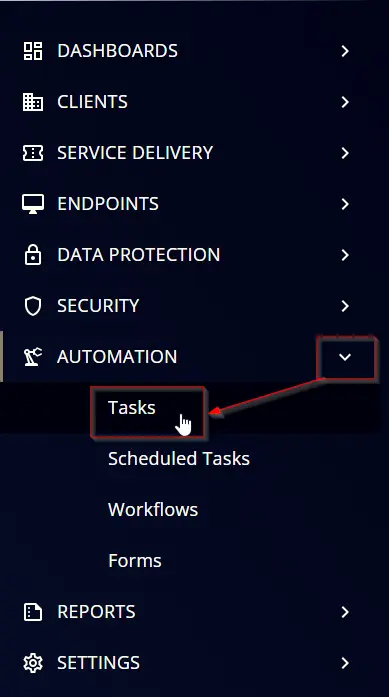
Navigate to Automation ➞ Tasks
Step 2
Create a new Script Editor style task by choosing the Script Editor option from the Add dropdown menu

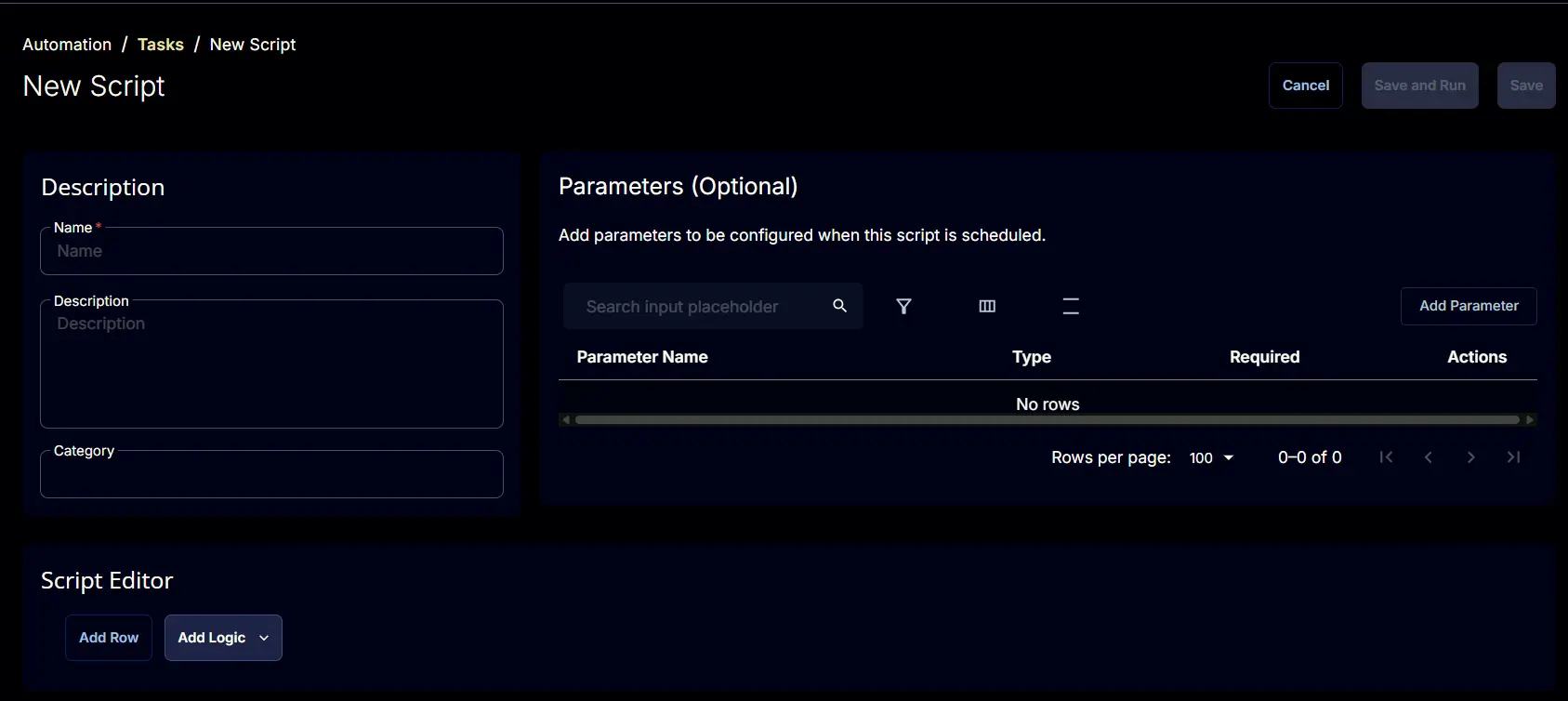
The New Script page will appear on clicking the Script Editor button:
Step 3
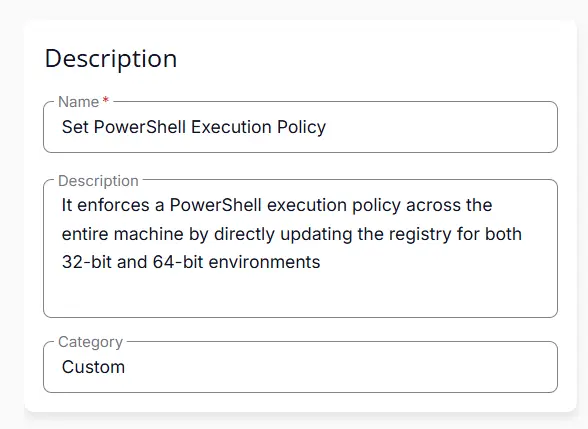
Fill in the following details in the Description section:
Name: Set PowerShell Execution Policy
Description: It enforces a PowerShell execution policy across the entire machine by directly updating the registry for both 32-bit and 64-bit environments
Category: Custom
Parameters
Locate the Add Parameter button on the right-hand side of the screen and click on it to create a new parameter.

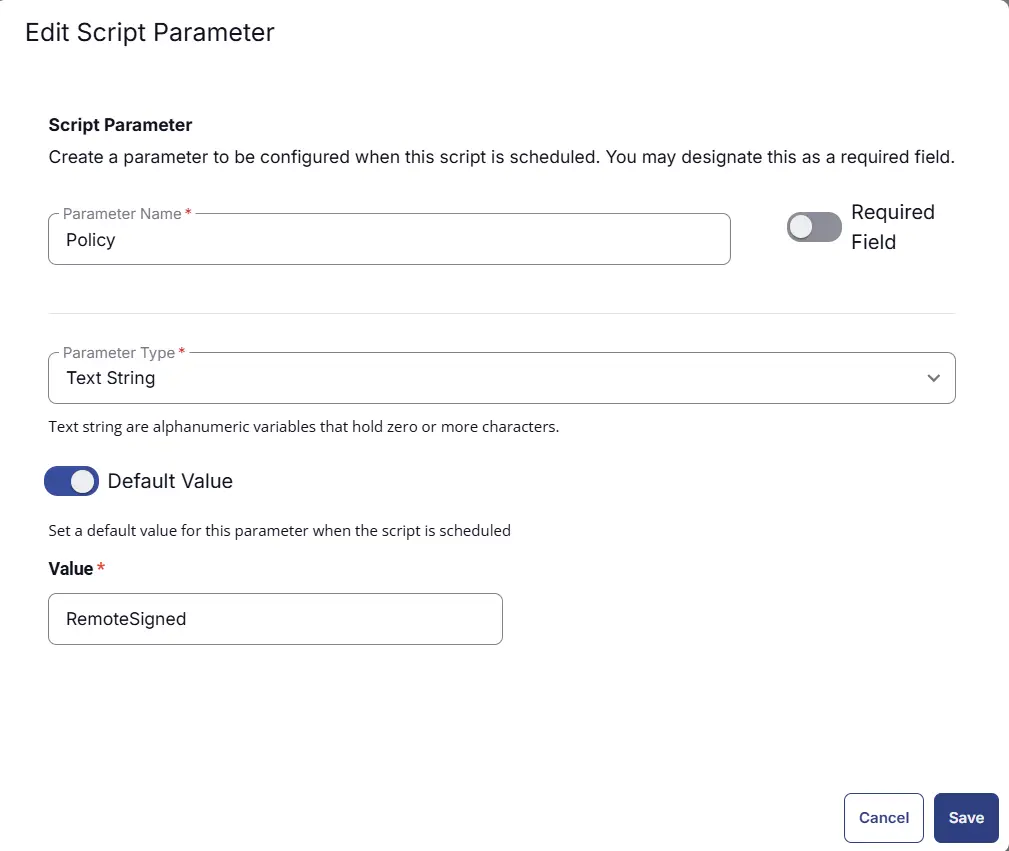
The Add New Script Parameter page will appear on clicking the Add Parameter button.
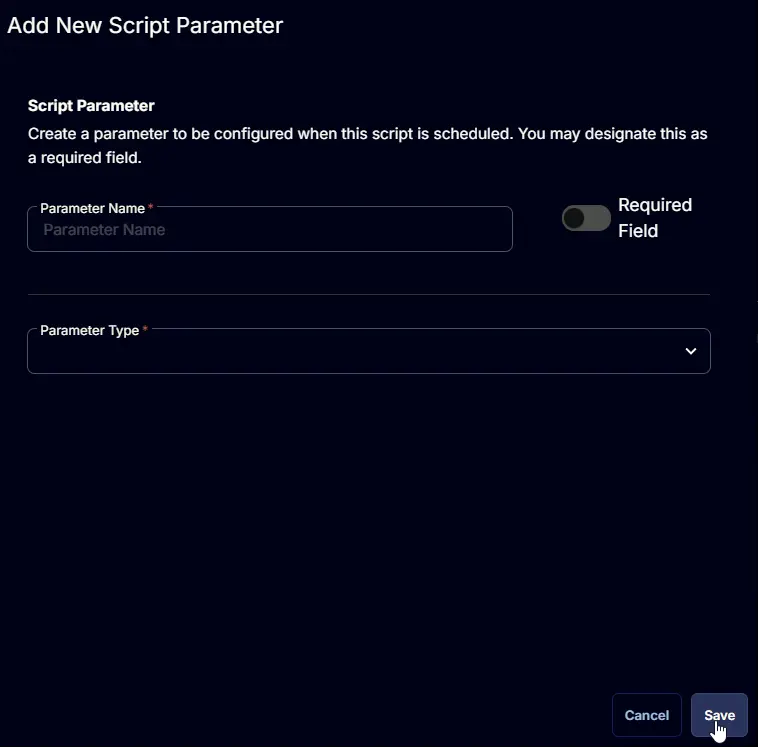
- Set
Policyin theParameter Namefield. - Select
Text Stringfrom theParameter Typedropdown menu. - Set
RemoteSignedas Default Value - Click the
Savebutton.
Script Editor
Click the Add Row button in the Script Editor section to start creating the script

A blank function will appear:

Row 1 Function: PowerShell Script
Search and select the PowerShell Script function.

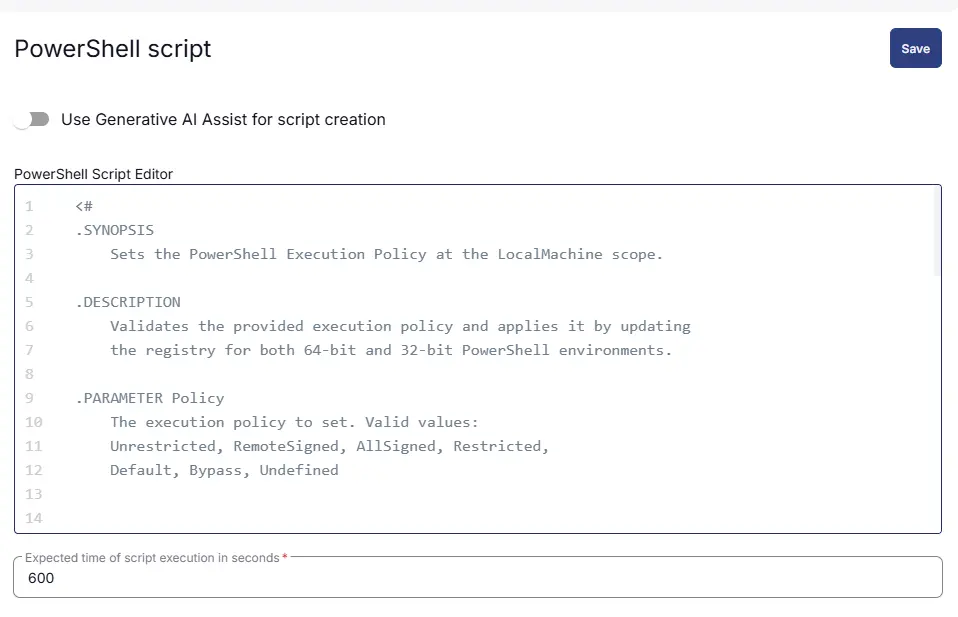
The following function will pop up on the screen:

Paste in the following PowerShell script and set the Expected time of script execution in seconds to 600 seconds. Click the Save button.
Row 2 Function: Script Log
Add a new row by clicking the Add Row button.
A blank function will appear.
Search and select the Script Log function.

In the script log message, simply type %output% and click the Save button.

Save Task
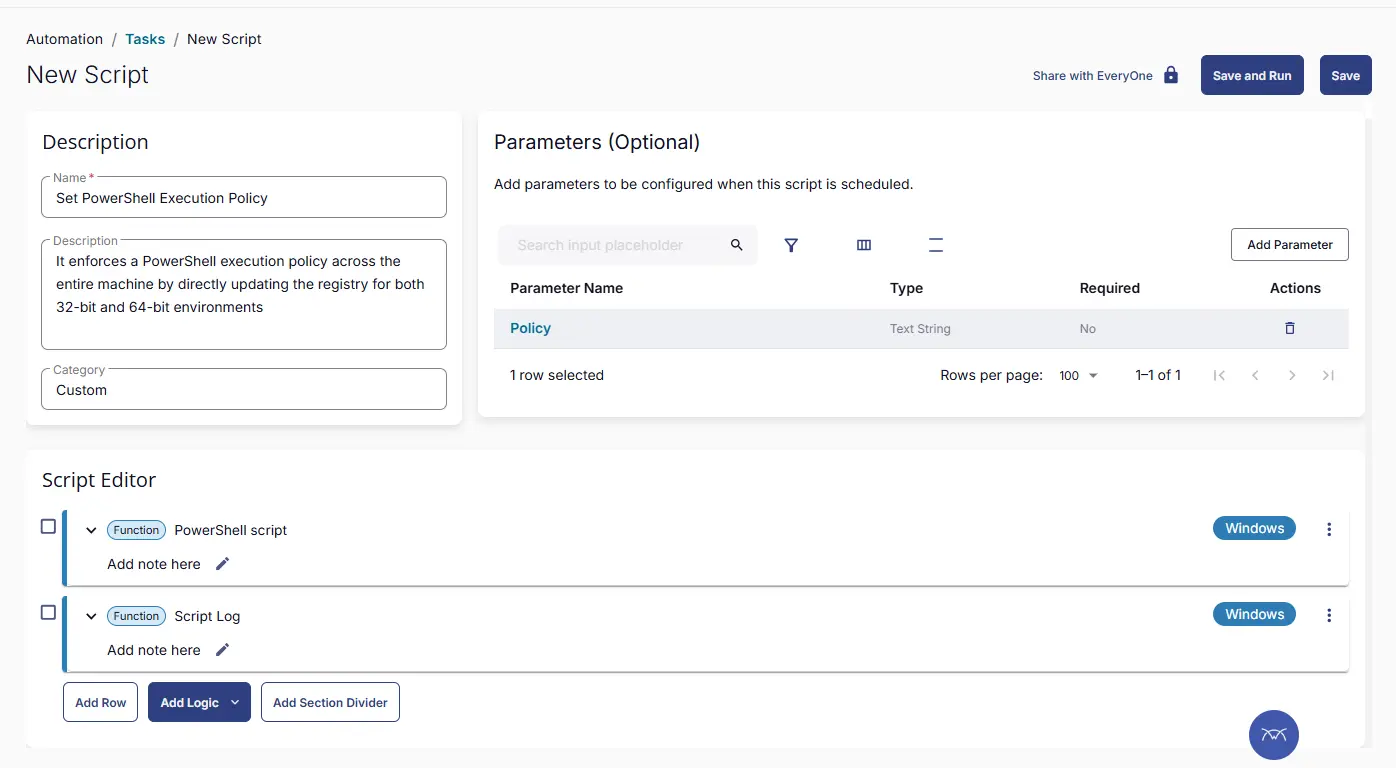
Click the Save button at the top-right corner of the screen to save the script.

Completed Task
Output
- Script Logs
Changelog
2026-03-24
- Initial version of the document